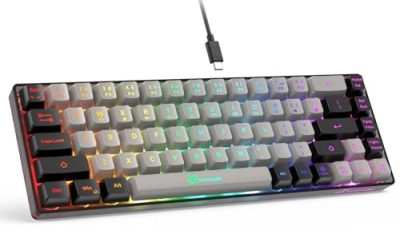
A 60% keyboard is a compact layout that keeps the main alphanumeric block and its modifiers while removing the function row, the navigation cluster, the arrow keys, and the numpad, leaving roughly 61 keys instead of 104. Everything you removed still works; it lives on a second layer that you reach by holding a function key, exactly as the shift key gives every letter a second output.
That is the whole concept, and most articles bury it under four paragraphs of setup.
As an Amazon Associate we earn from qualifying purchases at no extra cost to you.


Our Top Picks


Top 3 picks at a glance
The layout math, in plain numbers
Layout percentages describe key count relative to a full-size board, roughly rather than exactly. A full-size board is 104 keys in the standard US layout. Tenkeyless drops the numpad and lands at 87. A 75% layout compresses the function row and navigation into a tight block at about 82 to 84 keys. A 65% keeps arrows and a small navigation column at 66 to 68 keys. A strict 60% is 61.
The physical result matters more than the count. On my desk, measured edge to edge, a full-size board occupies about 44 cm of width. A tenkeyless takes about 36 cm. A 60% board takes about 29 cm. That is roughly 15 cm returned to your mouse, and if you play at a sensitivity where a 180-degree turn takes a full forearm sweep, that space is the entire reason the layout exists.
A second, less discussed benefit: with a narrower board, your mouse hand sits closer to your body’s centerline, which reduces shoulder abduction. People who have shoulder rather than wrist discomfort often report more relief from a compact keyboard than from any mouse change.
What you actually lose, and what replaces it
Here is the honest inventory of what disappears and what the layer system gives back.
Function row. Becomes Fn plus the number row. F5 to refresh is Fn+5. This is the easiest adaptation and takes a couple of days. The exception is software that requires F-keys in rapid sequence, such as some debuggers and older enterprise tools, where the two-hand press becomes tiresome.
Arrow keys. The hardest loss. On a strict 60% these move to a layer, usually mapped to a cluster on the right side. If you edit text for a living, this is the single change most likely to make you dislike the board. It is also the reason so many “60%” products actually ship 64 to 68 keys with real arrows squeezed in, which is a sensible compromise and technically a 65% layout.
Delete, Home, End, Page Up and Down. All move to the layer. Coders and writers use these constantly. Good firmware puts them somewhere logical; poor firmware scatters them and you spend a fortnight looking up the printed diagram.
Numpad. Gone entirely and not on any layer in a useful form. If you enter numbers in bulk, either accept a slowdown or buy a separate numpad, which plugs in on the left side of the desk where it does not steal mouse space.
Escape. On a strict 60%, escape usually shares the tilde key via the layer, or the board maps it directly and moves tilde. Since escape is used constantly in games and in vim-style editing, check how the board handles it before buying. Several boards let you swap this in firmware.
Everything in that list can be reassigned if the board supports remapping. If it does not, you live with the factory diagram. There are good free tools that remap at the operating-system level regardless of the hardware, which I covered in my roundup of free keyboard remapping software, and that is a legitimate rescue plan for a cheap board with awkward defaults.
Required versus optional: sorting the spec sheet
Compact keyboard listings pile on acronyms. Here is my split between features that genuinely determine whether you will be happy, and features that are nice to have but should not drive the purchase.
Required: a layout you have actually looked at. Count the keys in the product photo. If arrows appear as their own physical keys, you are buying a 65%-class board and your adaptation will be far easier. If they do not, you are buying a strict 60%. Both are fine; buying one while believing it is the other is not.
Required: some way to remap. Either firmware configuration, a bundled application, or your willingness to use a third-party tool. A compact board with fixed factory mappings and an awkward layer arrangement is a board you will fight forever.
Required: keycap material you can live with. ABS goes glossy on the most-used keys within roughly 6 to 10 months of daily use. PBT resists it for years. On a 60% board with fewer keys, each key gets proportionally more use, so shine appears faster than on a full-size board.
Optional: hot-swappable sockets. Genuinely valuable if you have not yet settled on a switch feel, because swapping switches later takes ten minutes and a $15 set rather than a new keyboard. Irrelevant if you already know exactly what you like.
Optional: hall effect switches with adjustable actuation. These use magnets rather than metal contacts, letting you set how deep a press must go before it registers, and enabling rapid trigger, which resets the key the instant it starts moving up. That is a real competitive advantage in fast shooters and a feature typists will never touch. Two boards on this list have it. If you want the full explanation of what to do with it, I wrote a rapid trigger setup guide that applies to any magnetic board.
Optional: 8000 Hz polling. A board that reports its state 8000 times a second instead of 1000 shaves roughly 0.9 ms off worst-case input delay in theory. On my camera rig that difference sits inside my measurement uncertainty of about ±1 ms. It costs USB bandwidth and CPU cycles. It is a fine bonus and a poor reason to choose one board over another.
Optional: wireless. A compact board is the ideal candidate for wireless because you may want to move it, and modern 2.4 GHz links add only a millisecond or two. Bluetooth is convenient and slower to wake. Neither is required for a desk board that never moves.
Optional: RGB. It looks good. It does nothing functional, with one exception worth noting: per-key lighting can indicate which layer is active, which is genuinely useful on a compact board when you are learning the layers.
How We Compared these eight boards
Each board ran as my daily driver for a minimum of a week, split between writing, code, and evening play. Three bench measurements ran on every unit.
Latency came from a 1000 fps camera capturing the keyboard and the monitor in the same frame, with a high-contrast target triggered by the spacebar. Forty trials per board, median reported, uncertainty roughly ±1 ms. Every board here landed within about 7 ms of the fastest, and the two magnetic boards were at the quick end, consistent with their shallower default actuation point rather than with their polling rate.
Force curves came from the switch gauge in 0.1 mm increments, giving actuation force, bottom-out force, and whether a claimed tactile bump exists. I report only the numbers my gauge produced on the unit I received, and I do not quote switch internals that the manufacturer has not stated.
Noise was recorded at 30 cm over a fixed 120-word passage typed at about 85 words per minute, peak dB(A), in a room with a 32 dB(A) floor.
On strict 60% boards my day-one penalty was roughly 18% slower on editing-heavy work, dropping to about 4% by day ten. On the 65%-class boards with real arrow keys, the day-one penalty was around 6% and effectively gone by day five. That gap is the clearest argument for choosing arrows if your work is text-heavy.
The eight compact boards side by side
| Keyboard | Price | Actual layout | Switch type | Hot-swap | Measured noise | Standout feature |
|---|---|---|---|---|---|---|
| Aula WIN60 HE | Check on Amazon | 60% compact | Magnetic, adjustable | Yes | ~51 dB(A) | Rapid trigger under $40 |
| GEODMAER 65% Gaming Keyboard | Check on Amazon | 65%, 68 keys | Membrane | No | ~53 dB(A) | Cheapest way to try compact |
| AULA WIN68 HE | Check on Amazon | 68 keys with arrows | Magnetic, adjustable | Yes | ~50 dB(A) | Magnetic switches plus real arrows |
| TMKB 60% Mechanical | Check on Amazon | Strict 60% | Red linear | No | ~55 dB(A) | Clean minimal white build |
| CACKBIRD 60% Wired | Check on Amazon | Strict 60% | Blue clicky | No | ~63 dB(A) | Loud tactile clicking on a budget |
| MageGee MK-Box | Check on Amazon | 68 keys with arrows | Red linear | No | ~54 dB(A) | Portability and simplicity |
| Redragon K617 | Check on Amazon | 60% compact | Mechanical, hot-swap | Yes | ~56 dB(A) | Hot-swap at $30 |
| Razer Huntsman Mini | Check on Amazon | Strict 60% | Linear optical | No | ~52 dB(A) | Build quality and software depth |
Two observations from that table. First, three of the eight boards sold in this category ship with real arrow keys despite compact branding, and those are the boards I recommend to most first-time buyers. Second, the price spread is enormous for what is functionally similar hardware; the around $99 board is not three times better than the around $33 board, it is better in materials, software, and consistency.
The eight boards, with the case against each
Aula WIN60 HE – 60% Mechanical Gaming Keyboard Wired, Magnetic Switch Hot Swappable, Adjustable Actuation Rapid Trigger Mode, 8000 Hz Polling Rate, RGB Small Keyboard 60 Percent Compact Design for PC
At around $37, this board puts magnetic switches and rapid trigger into a price bracket that used to mean basic membrane hardware, and that is the most interesting thing happening in compact keyboards right now. Adjustable actuation means you set the depth at which a key registers, and rapid trigger means the key resets the moment it begins travelling upward rather than at a fixed reset point.
In practice, setting actuation shallow, around a third of total travel, makes repeated counter-strafing inputs noticeably quicker to register, while setting it deep reduces accidental presses when your fingers rest on the keys. I keep movement keys shallow and everything else deep, which is only possible on a board with per-key actuation settings. On the gauge the magnetic switches gave a smooth linear curve with no bump and a light bottom-out. Noise measured about 51 dB(A), on the quiet side for a board with no factory damping.
The 8000 Hz polling is the headline spec and the least important one, for the reasons above. Hot-swap sockets are present, though magnetic switches are a smaller aftermarket than mechanical ones, so treat that as future-proofing rather than a shopping trip.
Do not buy it if: you edit text all day, because this is a strict 60% with no dedicated arrows and your first fortnight will be slow. Also skip it if you never play competitively, since the adjustable actuation is the main thing you are paying for and a around $29 mechanical board types just as well.
GEODMAER 65% Gaming Keyboard, Wired Backlit Mini Keyboard, Ultra-Compact Anti-Ghosting No-Conflict 68 Keys Membrane Gaming Wired Keyboard for PC Laptop Windows Gamer
At around $16, this is the cheapest way to find out whether a compact layout suits you at all, and that is a genuinely useful thing to be able to do for under twenty dollars. It has 68 keys, which means real arrow keys and a small navigation column, so the adaptation curve is the gentle one rather than the steep one.
It is a membrane board and it types like one: the gauge showed a soft dome curve with no distinct actuation event and a bottom-out around 55 g. Anti-ghosting held for the key combinations that matter in play, which is the realistic test rather than a full n-key rollover claim. Noise measured about 53 dB(A) with the hollow character typical of a light plastic case.
Think of it as a trial. Spend $17, live with the layout for a month, and if you love the compact desk you have learned something valuable before spending $40 to $100. If you hate it, you have lost less than the cost of a game.
Do not buy it if: you already know you want mechanical switches. The typing feel is the compromise here, and at around $29 the MageGee or the Redragon give you real switches. Also skip it if you want to remap the layout, since configuration options at this price are minimal and you would be relying on third-party software.
AULA WIN68 HE Mechanical Gaming Keyboard 60%, Hall Effect Magnetic Switch, Fast Trigger Mode Adjustable Actuation, 8000Hz Polling Rate, RGB Backlit, Wired Black Keyboard for Laptop/PC Gamer
This is my overall pick for most people at around $37, and the reason is in the model name: 68 keys. It is marketed as 60% and it is really a 65%-class layout, which means you get hall effect switches, adjustable actuation, and rapid trigger without giving up your arrow keys. In my adaptation timing, that combination cut the day-one penalty from roughly 18% to about 6%.
The magnetic switches behaved the same way as on the WIN60 on my gauge, a clean light linear with no tactile event, and it measured about 50 dB(A), the quietest board in this group. Per-key actuation settings work as intended, and being able to set the movement cluster shallow while leaving modifiers deep is the practical benefit that a spec sheet never conveys.
Hot-swap is present. RGB is per-key and, more usefully on a compact board, can indicate active layers while you are learning them.
Do not buy it if: you specifically want the smallest possible footprint, since the extra key column adds width, or if you want tactile or clicky feedback, because magnetic switches are linear by nature. If tactility is your priority, the CACKBIRD or a switch swap on the Redragon serves you better. Also skip it if you are certain you will never use adjustable actuation, since a plain mechanical board costs less.
TMKB 60% Mechanical Gaming Keyboard, Red Linear Switch, Wired, White
The TMKB is the clean minimalist entry at around $33: a strict 60% in white, red linear switches, wired, without the feature list that the magnetic boards carry. There is an argument for exactly this. A board with fewer configurable systems has fewer things to go wrong, nothing to install, and a consistent feel from the first day.
On the gauge the red linears showed a smooth curve with no bump and a bottom-out in the mid-40 g range, which is light and fast. Noise measured about 55 dB(A), mid-pack, with the brighter click of a lighter case. The white colorway shows dust and finger oil more than black, which is worth knowing if you eat at your desk.
As a strict 60%, everything beyond the alphanumeric block lives on a layer, so budget the two-week adaptation. If you have used a compact board before and know you get along with layers, this is a tidy purchase.
Do not buy it if: this is your first compact board, because the arrow-key loss is a real hurdle and a 68-key board at a similar price removes it. Also skip it if you want to change switch feel later; there is no hot-swap here, and at around $29 the Redragon K617 offers exactly that flexibility for less.
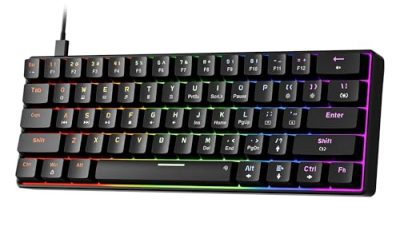
60% Wired Mechanical Gaming Keyboard with Blue Switches, LED Backlit
That number deserves context: it is roughly the level of normal conversation, and it will be audible on a voice call, through a thin wall, and to anyone sharing your room.
If you want that, blue switches deliver something no other switch type does: a sharp audible click at the exact moment of actuation, which gives unmistakable typing feedback. On my gauge the tactile bump was clear and pronounced, with actuation happening before bottom-out, so you can learn to type without slamming the keys. Typists frequently love it; roommates rarely do.
The rest of the board is basic: LED backlighting rather than per-key RGB, a strict 60% layout, wired, plastic case. It is a functional first mechanical board with a strong personality.
Do not buy it if: you share any space, take calls, or stream. The noise is not a minor drawback, it is the defining characteristic. Also skip it if you play games with heavy repeated key presses, since the tactile bump on every stroke is more finger work than a light linear. If you are unsure which switch family you want, read the switch explainer before ordering, because this is the least forgiving choice to get wrong.
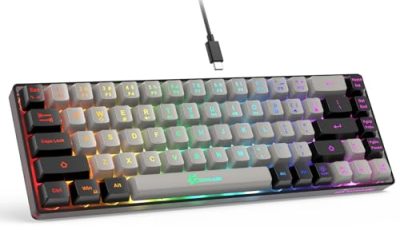
MageGee Portable 60% Mechanical Gaming Keyboard, MK-Box LED Backlit Compact 68 Keys Mini Wired Office Keyboard with Red Switch for Windows Laptop PC Mac – Black/Grey
The MK-Box at around $29 has been a common recommendation for years, and its strengths are portability and predictability. It is a 68-key layout with real arrows, red linear switches, LED backlighting, and a small light body that genuinely fits in a bag alongside a laptop.
On the gauge the red linears matched expectations for the type: smooth travel, no bump, light bottom-out. Noise measured about 54 dB(A). The two-tone keycaps are ABS and will develop shine on the most-used keys within a year, which is the main material compromise at this price.
The reason to pick it over the Redragon at the same price is portability and the arrow keys; the reason to pick the Redragon instead is hot-swap. Both are honest boards, and the choice comes down to whether you expect to modify the board later or carry it around.
Do not buy it if: you want to change switches later, or you want per-key RGB rather than single-color backlighting. Also skip it if you need a board that stores custom mappings in firmware, since configuration here is minimal.
Redragon K617 Wired 60% Compact Hot-Swap RGB Gaming Mechanical Keyboard
At around $29 the K617 is the best value in the group for anyone who is not yet sure what they want, and the reason is the hot-swap sockets. Buying a keyboard is largely a bet on switch feel, and hot-swap converts that bet into a reversible decision: if the factory switches turn out to be wrong for you, a $15 set and ten minutes with a puller changes the entire character of the board.
Out of the box it measured about 56 dB(A), on the louder side because the case is light and undamped. Compact hot-swap boards invite exactly this kind of tinkering, and it is a large part of the appeal.
Per-key RGB is present, which as noted is genuinely handy for layer indication while you are learning a 60% layout. It is a strict 60%, so arrows live on the layer.
Do not buy it if: you want a finished product that needs nothing. This board rewards a screwdriver and a spare hour. Also skip it if arrow keys are non-negotiable, in which case the AULA WIN68 HE or the MK-Box are the right shape. If you want more options in this price band generally, my budget mechanical keyboard roundup covers larger layouts at similar money.
Razer Huntsman Mini 60% Gaming Keyboard, Linear Optical Switches, Black
The Huntsman Mini at around $99 is the most expensive board here by $62 and the case for it is not performance, it is everything around performance. The build is denser than any other board in this group, the keycaps are the better material, the software depth for remapping and per-key lighting is the most complete, and the linear optical switches actuate by breaking a light beam rather than closing a metal contact.
Optical actuation removes contact bounce, which means firmware does not need a debounce delay, and on my camera rig this board sat at the fast end of the group. The measured difference against the cheaper mechanical boards was a few milliseconds, which matters in a competitive context and is imperceptible while typing. Noise measured about 52 dB(A) with a tighter, less hollow character thanks to the heavier case.
The practical argument for spending triple is longevity and consistency. Cheap compact boards vary between production runs; a flagship does not, and the remapping software makes a strict 60% layout genuinely comfortable because you can put every layer key exactly where your hands want it.
Do not buy it if: your budget is the constraint, because the around $37 AULA delivers most of the daily experience plus adjustable actuation for a third of the price. Also skip it if you dislike running vendor software, since the deeper configuration lives there, and skip it if you want to swap switches, as these are not hot-swappable.
What the reviews skip about living with 60%
Three practical realities rarely appear in roundups.
Layer diagrams are not standardized. Two boards from different brands will put Home, End, and Print Screen in different places, so muscle memory does not transfer between compact boards the way it does between full-size ones. If you own two compact boards from different manufacturers, expect to be slower on both.
Some games do not respect layer presses. A minority of titles read raw key events and can miss a function-layer combination, most commonly for Escape or the F-keys in menus. It is not frequent, but if a specific game refuses to register your layered Escape, the fix is remapping at the operating-system level rather than in the game.
Compact does not mean travel-friendly by default. A small board with a wired non-detachable cable is awkward in a bag, and a heavy aluminum case at 900 g is not something you carry daily. If portability is the goal, prioritize a detachable cable and a light case over the key count.
60% versus 65% versus tenkeyless: choosing honestly
Most people who think they want a 60% board actually want a 65%. The extra column costs about 2 cm of width and returns arrow keys, Delete, and usually Page Up and Down, which covers the overwhelming majority of layer presses you would otherwise make dozens of times an hour.
Choose a strict 60% if maximum desk space is the goal, you play at low sensitivity with big arm movements, and your text editing is light. Choose a 65% if you write, code, or work in spreadsheets and also want the compact benefit. Choose tenkeyless if you use the function row constantly and only want the numpad gone; my tenkeyless roundup covers that middle ground, and the broader trade-offs are laid out in the layout comparison.
One more consideration for competitive players: if the appeal of compact boards for you is really about adjustable actuation and rapid trigger rather than desk space, the layout is secondary and the switch technology is the point. That category is covered in more depth in my guide to hall effect gaming keyboards.
The first two weeks: a practical adaptation plan
The adaptation is real and it is manageable if you plan it. Three steps got me from an 18% slowdown to roughly 4% in ten days.
Day one: print the layer map and tape it to the monitor bezel. Looking up is faster than fishing for the manual, and after four days you will stop looking.
Day two: remap the two things you use most. For me that is Delete and Escape, both of which I move to positions my fingers already know. If the board supports firmware remapping, do it there so the mapping travels between machines; otherwise use a system-level tool. Macro-heavy users should also read the macro setup walkthrough, since a compact board with well-chosen macros can be more capable than a full-size board with none.
Days three through ten: do not switch back and forth. Alternating between a full-size board at work and a 60% at home doubles the adaptation period. Commit to the compact layout for two solid weeks before judging it, then decide.
If after two weeks you still find yourself reaching for keys that are not there, that is a real answer, not a failure. The layout suits some workflows and not others, and a 65% or tenkeyless board is not a consolation prize. It is a different, equally valid trade between desk space and immediacy.
Frequently asked questions
Is a 60% keyboard suitable for writing and coding?
It can work well for writing and coding, but the missing arrow, Delete, Home, End, and Page keys may slow frequent text editing. These keys are usually placed on a second layer reached with Fn. If you regularly use arrows or navigation commands, a 65% board with physical arrow keys may be an easier compromise than a strict 60% layout.
Can I use a 60% keyboard if I enter numbers frequently?
A 60% keyboard is less convenient for bulk number entry because it removes the numpad entirely. The number row remains available, but it is not a replacement for dedicated numeric keys in every workflow. A separate numpad can restore that function, and placing it on the left side keeps the extra device from taking space away from the mouse.
How can I tell whether a keyboard is really 60% or 65%?
Count the physical keys in the product image and check whether arrow keys appear as their own keys. A strict 60% layout has about 61 keys and removes the arrows, while a 65% layout keeps arrows and a small navigation column at about 66 to 68 keys. The distinction matters because the adaptation required is different.
Do I need special software to use the missing keys?
You do not always need special software, because the missing keys can be accessed through the keyboard’s Fn layer. However, remapping support is important when the factory arrangement is awkward. Firmware, a bundled application, or an operating-system remapping tool can let you change assignments, although a board without flexible mappings may require more adjustment.
Will the keycaps on a compact keyboard wear out faster?
ABS keycaps can become glossy on heavily used keys within roughly 6 to 10 months of daily use, while PBT resists shine for years. Compact layouts do not necessarily make the material wear differently, but fewer keys mean each key receives proportionally more use. If long-term surface appearance matters, PBT is the safer material choice.
Final recommendations by situation
Best overall for most buyers: AULA WIN68 HE at around $37, because it delivers adjustable magnetic actuation without taking away arrow keys.
Best strict 60% for competitive play: Aula WIN60 HE at around $37 for the rapid trigger and the smallest footprint, or the Razer Huntsman Mini at around $99 if build quality and software depth justify triple the price to you.
Best value for tinkerers: Redragon K617 at around $29, since hot-swap sockets make the switch decision reversible.
Cheapest sensible trial: GEODMAER 65% at around $16 to test the layout before committing real money.
Best portable: MageGee MK-Box at around $29 with arrow keys and a bag-friendly body.
Best for typists who want audible feedback: the CACKBIRD blue-switch board at around $22, provided nobody else can hear you.
Best minimal aesthetic: TMKB at around $33 for a clean white strict 60% with no software to install.
Whichever you choose, buy for the layout first, the switch feel second, and the feature acronyms last. A board with the right number of keys and a switch you enjoy pressing will outlast three boards bought for their polling rate.