To change keycaps, unplug the keyboard, photograph the layout, pull each cap straight up with a keycap puller, then press the replacement cap straight down onto the switch stem until it seats. The whole job needs one tool and a bit of patience, and the only real traps are a mismatched stem, the wrong key sizes in the new set, and rough handling of the long stabilized keys.
This guide goes in the order that keeps mistakes cheap: tools first, a fit check before you pull anything, then removal, installation and a final check.
Tools you need
| Item | Why you need it | Notes |
|---|---|---|
| Keycap puller (ring or wire) | Lifts caps evenly without prying | Ring pullers grip the whole cap, wire pullers hook two opposite corners |
| Small tray or bowl | Keeps caps from rolling away | Separate a tray for old caps and one for new ones |
| Phone camera | Records the original layout | Take photos before and after removing each row |
| Soft brush or microfiber cloth | Clears dust under the caps | Dry only, no sprays |
| Plastic spudger or tweezers (optional) | Reseats a stabilizer insert | Avoid metal tools near the plate |
| Replacement set | The keys you are installing | Check stem type and key sizes first |
Many keyboards ship with a small puller in the box, and that is usually enough. Skip the bare fingernail method. It works loosely on some boards, but it tilts the cap while it lifts, and that sideways force is what damages stems.
Check compatibility before you start
A new set can look right and still not fit. Spend five minutes on these checks before pulling the first cap.
| Check | What to look for | If it does not match |
|---|---|---|
| Stem type | Cross-shaped stem for the most common mechanical switches | Do not force it. Look for a set made for your switch family |
| Layout | ANSI (wide, flat enter key) or ISO (tall, L-shaped enter key) | Pick a set that lists your layout |
| Key sizes | Left shift, right shift, backspace, enter, spacebar | Choose a set with extra keys or add a compatibility kit |
| Bottom row | Number and width of modifier keys and spacebar | Compare against a photo of your own bottom row |
| Profile and height | Sculpted or flat, tall or short | A mixed profile set can feel uneven |
| Backlight pass-through | Translucent or shine-through legends on RGB boards | Opaque caps will block the light |
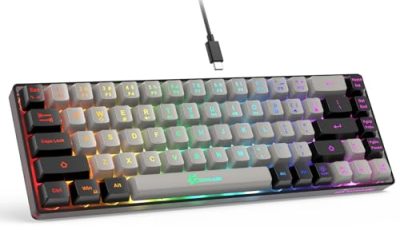
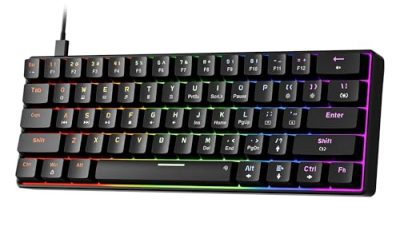
Compact boards are the usual source of surprises. A 60 or 65 percent layout may have a shorter right shift, a different bottom row or arrow keys that a standard set does not cover. Count your keys by size and compare to the contents list on the seller’s page. If the pack is short a size, a small add-on kit solves it.
The cap material also matters for feel and wear. Our guide to ABS versus PBT keycaps explains why many typists lean toward one or the other.
Step 1: Prepare the keyboard
Unplug the cable, or turn off a wireless keyboard and, if it has one, remove the dongle. Set the board flat on a clean desk with good light. Take a photo of the whole layout, then take close-ups of the bottom row and any unusual key. If your keyboard has a legend that differs from the standard one, such as a function layer printed on the sides of the caps, the photos will save you from guessing later.
Step 2: Remove regular keys
Place the puller over a cap so that it grips the sides, or hook the wire ends under opposite corners. Pull straight up with steady force until the cap releases. Do not twist, and do not pull at an angle, since a sideways force is how stems crack. Drop each cap in the tray as you go and work a row at a time so you can follow the layout when you reinstall.
Some caps resist more than others. If one does not release, check that the puller is fully under the edge and pull again from a different pair of corners. A tight fit is normal for a new board. A cap that will not move after several clean attempts is a sign to stop and look for a hidden clip or a locking feature in the maker’s manual.
Step 3: Handle the stabilized keys
Long keys such as the spacebar, both shifts, enter and backspace use a stabilizer, which is a bar or wire running under the cap to keep it level. Each end of the cap has a clip that engages an insert on the board. They hold harder than a normal key.
- Use a puller at both ends of the key, one side at a time, and lift each end a little before pulling it fully off.
- Watch for a wire popping out of its insert and, if it does, press it back in with a plastic tool rather than a metal one.
- Keep the removed caps for those keys separate, as the stabilizer stems are often different sizes.
If your replacement set has a different stabilizer stem, check it against the old cap before pressing it on. A badly fitting stabilizer clip can leave the key rattling or sticking.
Step 4: Clean while the caps are off
With the caps off, you have a rare chance to clean. Use a soft brush or a gentle puff of air to clear dust and crumbs from around the switches. Wipe the old caps with a lightly damp cloth if you plan to keep them. Let them dry completely before storing them. Skip liquid on the board itself.
Step 5: Install the new caps
Match each new cap to its position using your photos. Line the stem up with the cross on the switch, then press straight down until you feel it seat. Do the alphanumeric keys first, then the long keys. For stabilized keys, line up both ends before pressing down so the cap clips on evenly. Press the center after the ends, not before.
If a cap does not drop on easily, lift it and check the orientation. The cross on the switch stem is symmetrical but the cap itself usually has a specific front and back. Never hammer a cap on with your palm.
Step 6: Check your work
Run through this list once everything is in place.
- Every key moves down and springs back without sticking.
- Long keys press evenly at both ends with no rattle.
- The row heights look even from the side.
- All keys type correctly in a text editor, and the legends line up with their functions.
- No cap is loose when you rock it very gently from side to side.
Worked example (estimate): a full-size board has roughly 104 keys, of which about 10 are stabilized or oddly sized. Plan a first pass of about 20 to 45 minutes: a few minutes to photograph, up to 15 to remove and sort, and the rest to reinstall and check. If a smaller board has about 65 keys, expect a shorter session. These are planning figures, not measured times, and your pace will vary.
A new set also changes how the keyboard sounds and how tall it is. If you are tempted to swap in just one decorative cap for the Esc key, read whether artisan keycaps are worth it before you buy.
When to stop and replace or contact support
- A stem has cracked or snapped: a cap will no longer sit properly. Some boards have swappable switches, otherwise contact the maker.
- A stabilizer insert is loose or broken: stop and check the manual or ask the maker for a replacement part.
- A key sticks after you reseat the cap: remove it and check for debris, a bent stem or the wrong key size in that position.
- You need force to seat a cap: stop. The stem type probably does not match the switch.
- The board is under warranty and you are unsure whether swapping caps is covered: read the terms before you start. Standard cap swaps are normally allowed, but opening the case is another matter.
Related guides
- What Is The Best Budget Most Responsive Gaming Mouse Wired
- Low Latency Gaming Headphones Usb-C 2.4 Ghz Wireless
- Low Latency Gaming Headphones Usb-C Dongle 2.4 Ghz
Frequently asked questions
Do I need a keycap puller to change keycaps?
It is strongly recommended. A puller grips the cap evenly and lifts it straight up, which protects the switch stem and the stabilizer. Fingernails and screwdrivers tend to rock the cap sideways, which can crack a stem, scratch the plate or bend a stabilizer wire. A cheap ring-style puller is enough for most boards, and a wire puller works if you press its hooks under opposite corners.
Will any replacement keycap set fit my keyboard?
No. Check three things: the stem type under each cap must match your switches, the set must include the key sizes your layout needs (especially shifts, enter and spacebar), and the profile and height should suit your typing. Most mechanical boards use cross-shaped stems, but low-profile, laptop-style and some proprietary switches use different mounts. The seller’s compatibility notes are the best guide.
Why are the spacebar and shift keys harder to remove?
Long keys use a stabilizer, a metal wire or plastic bar that keeps the cap level when pressed at the ends. The cap has extra stems that clip over the stabilizer inserts, so they hold on harder than a regular key. Pull straight up with even force, preferably from both ends, and rock very slightly only if it will not release.
Can I change keycaps on a hot-swap keyboard while it is plugged in?
Unplug it first. Removing keycaps does not touch the electronics, but switches are exposed while the caps are off and a stray metal object or a spilled drop of liquid could reach the board. Disconnecting USB or switching off a wireless board is a simple precaution, and it also prevents accidental keypresses while you work.
How long should it take to change a full keycap set?
Plan for 20 to 45 minutes on a full-size board for a first swap, a little less on a compact one, since you will stop to check each size and stabilized key. That is a planning estimate based on a steady pace, not a measured time. Go slowly with the spacebar and enter key, because those clips are the easiest place to make a mistake.