PowerToys’ Keyboard Manager and AutoHotkey are the two best free options for remapping keys in Windows without buying a keyboard with proprietary software. PowerToys handles simple, direct swaps through a point-and-click interface with no scripting required. AutoHotkey handles everything PowerToys does plus conditional logic, per-application behavior, and multi-step macros, at the cost of needing to write or adapt a script rather than just clicking through a menu.
If your keyboard came with its own manufacturer software (Logitech G HUB, Razer Synapse, Corsair iCUE, SteelSeries GG), that’s also free and often the most direct route for a gaming keyboard specifically — these two tools are for anyone using a plain keyboard, or wanting remaps to work identically across every keyboard they own.
As an Amazon Associate we earn from qualifying purchases at no extra cost to you.
![MixPad Free Multitrack Recording Studio and Music Mixing Software [Download]](https://m.media-amazon.com/images/I/71ltIxIuz1L._SL160_.jpg)
![MixPad Multitrack Recording Software for Sound Mixing and Music Production Free [Mac Download]](https://m.media-amazon.com/images/I/51kaO82jYOL._SL160_.jpg)


![WavePad Audio Editing Software - Professional Audio and Music Editor for Anyone [Download]](https://m.media-amazon.com/images/I/B1fcLEGCs6S._SL160_.png)



Our Top Picks
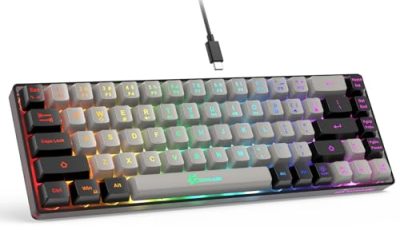
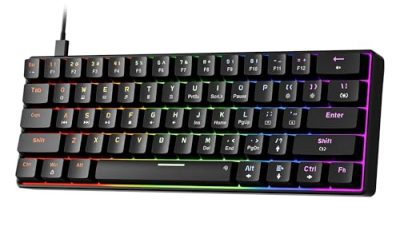
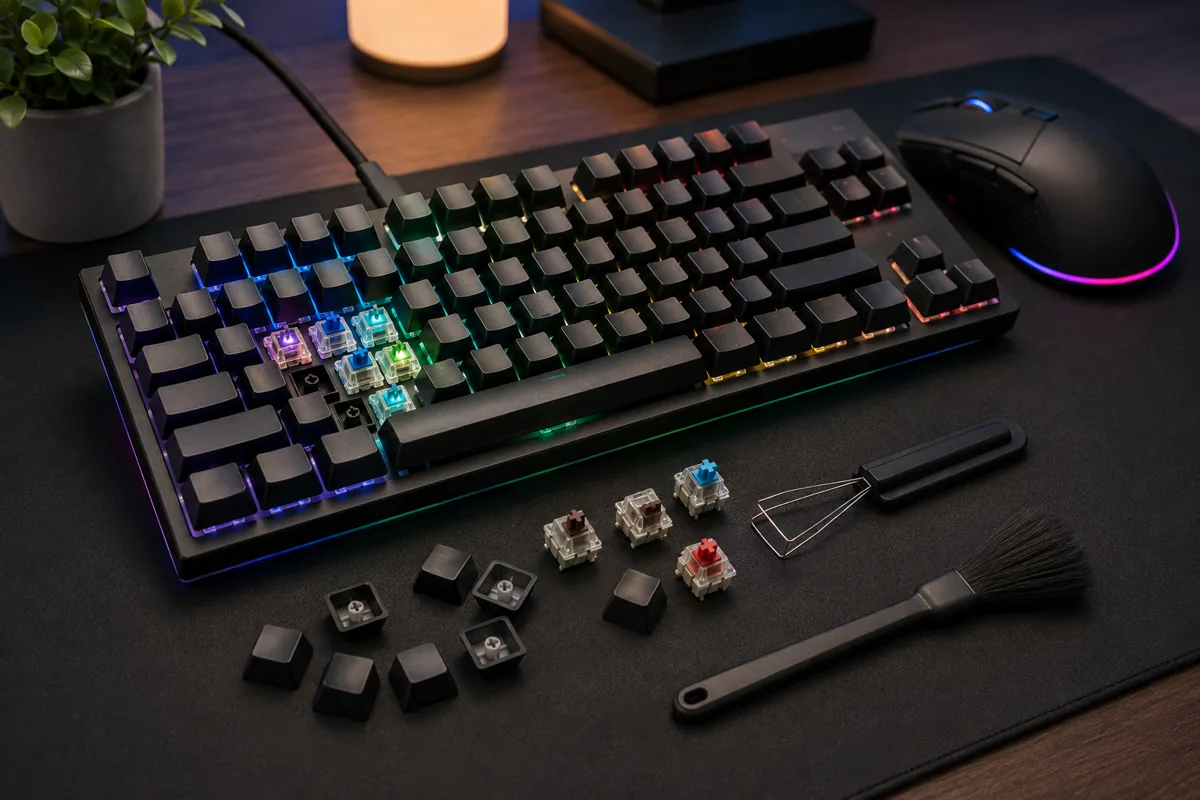
 TMKB T68E 60% Wired Gaming Mechanical Keyboard68-Key12.7 x 4.46 x 1.65 Inches1.32 PoundsCheck on Amazon


Top 3 picks at a glance
Quick answer
Use PowerToys’ Keyboard Manager for simple swaps — remapping Caps Lock to Escape, swapping two keys, remapping a shortcut to another shortcut. Use AutoHotkey when you need conditional behavior, multi-key macros, or remaps that change based on which application is focused. Both are free, actively maintained, and work with any standard Windows-recognized keyboard.
| Tool | Best for | Scripting required | Per-app conditional remaps |
|---|---|---|---|
| PowerToys Keyboard Manager | Simple key/shortcut swaps | No | Limited |
| AutoHotkey | Macros, conditional logic, complex remaps | Yes | Yes |
| Manufacturer software (G HUB, Synapse, iCUE, GG) | Gaming keyboards with onboard memory | No | Yes, built in |
PowerToys Keyboard Manager for simple remaps
PowerToys is a free, open-source suite of utilities maintained by Microsoft, and Keyboard Manager is one of its included modules. It presents a straightforward list interface: pick a key or shortcut, pick what you want it to send instead, and add it to the remap list. There’s no scripting, no macro recording, and no learning curve beyond finding the module in the settings.
It supports both single-key remaps (swap Caps Lock for Escape, a genuinely popular remap among programmers and some gamers) and shortcut-to-shortcut remaps (make one key combination trigger a different one). It runs as a lightweight background process and starts with Windows if you enable that option, so remaps persist across reboots without extra setup.
The limitation is scope — it’s built for direct swaps, not sequences or conditional behavior. If what you need is “press this one key, get this other one key or shortcut instead,” PowerToys covers it cleanly. Anything more elaborate pushes you toward AutoHotkey.
PowerToys is also actively developed with a public release history, which matters for a tool you’re trusting with system-level input handling — regular updates mean compatibility fixes for new Windows versions arrive reasonably promptly, and the project’s open development process means bugs get reported and tracked publicly rather than disappearing into an unmaintained abandoned utility, which is a real risk with some smaller, one-person remapping tools you might otherwise find.
AutoHotkey for macros and conditional remaps
AutoHotkey is a free scripting language purpose-built for exactly this kind of automation. Scripts are plain text files you write or adapt from examples, then run as a background process — the language itself is relatively approachable for simple remaps even without a programming background, since basic key-to-key or key-to-text remaps are often just one line of code.
Where AutoHotkey pulls ahead of PowerToys is conditional logic: remaps that only apply in a specific application, multi-step macros with timed delays, or behavior that changes based on whether another key is held. None of that is available in PowerToys’ simpler interface, but all of it is standard AutoHotkey functionality once you’re comfortable with the basic script structure.
The tradeoff is the learning curve and the maintenance overhead — a script file you have to keep track of, potentially update after Windows or game updates change behavior, and troubleshoot yourself if something stops working, compared to PowerToys’ GUI where there’s no file to lose or syntax to get wrong.
Because AutoHotkey has been widely used for well over a decade, there’s an unusually large public library of shared, documented example scripts covering common remapping and macro scenarios. Rather than writing a script entirely from first principles, most people’s realistic starting point is finding an example close to what they want (a per-application remap template, a simple text-expansion macro) and adjusting the specific keys and target application names, which meaningfully lowers the practical barrier to entry compared to learning the full scripting language from scratch.
Setting up a simple remap in PowerToys
Install PowerToys, open its settings, and find the Keyboard Manager module in the left-hand list — enable it if it isn’t already. Click “Remap a key” to open the remap list, then use the add button to create a new entry, selecting your source key and your target key from the dropdown or by pressing the physical keys directly.
Save the remap list and it applies immediately system-wide. Test it in a plain text editor first to confirm the swap behaves as expected before relying on it in a game or other application.
PowerToys also supports remapping a key to an entire shortcut combination (for example, a single spare key sending Ctrl+C) and, in the shortcut remap section specifically, supports scoping certain remaps to individual applications rather than applying system-wide — check this option if you only want a specific swap active in one program, since it avoids needing to jump to AutoHotkey purely for that one use case.
Setting up a basic script in AutoHotkey
Install AutoHotkey, then create a new text file with a .ahk extension, which the installer associates with the AutoHotkey engine automatically. Open it in any text editor, write your remap or macro using AutoHotkey’s syntax (widely documented with examples for common cases like key remaps, text expansion, and conditional per-app behavior), save the file, then double-click it to run the script.
For the script to persist across reboots, add a shortcut to it in your Windows Startup folder, or use Windows Task Scheduler to launch it at login — AutoHotkey scripts don’t run automatically on startup by default the way PowerToys does.
A practical habit for anyone maintaining more than one or two remaps in AutoHotkey: keep every remap and macro in a single well-commented script file rather than scattering them across several separate files, and add a plain-language comment above each rule explaining what it does and why. Scripts that grow organically over months without comments become genuinely difficult to debug later, especially once you’ve forgotten the original reasoning behind a specific conditional remap.
Anti-cheat and competitive game considerations
Simple, direct key remapping at the Windows level (what PowerToys does) is generally treated as normal input by most anti-cheat systems, since it’s functionally similar to changing a key binding inside the game itself. Scripting-based tools like AutoHotkey occupy more of a gray area, particularly for macros involving rapid repeated input or complex conditional sequences, since those patterns overlap with what anti-cheat is specifically designed to detect.
If you’re setting up remaps or macros for a competitive multiplayer game, check that specific game’s current policy on third-party input tools before relying on either option in ranked or tournament settings — policies differ significantly between titles and can change with updates.
A reasonable practical guideline: a single, simple, non-repeating remap (one key sends one different key, with no looping or timed sequence) is the lowest-risk category and rarely draws scrutiny from anti-cheat, since it’s behaviorally indistinguishable from an in-game keybind change. Anything that fires multiple inputs from one press, especially with looping or very tight timing, is a meaningfully different risk category and worth specifically verifying against that game’s rules rather than assuming it falls under the same low-risk umbrella as a basic remap.
Remapping across multiple keyboards
If you regularly move between multiple physical keyboards — a desktop board at home and a laptop’s built-in keyboard, for instance — both PowerToys and AutoHotkey apply their remaps at the operating system level rather than to a specific physical device, which means a configured remap generally applies identically regardless of which keyboard is currently connected. This is a genuine advantage over manufacturer-specific onboard remapping, which only follows you if you’re using that specific branded keyboard.
The tradeoff is that a system-level remap follows the PC, not you — if you use a different PC (a work laptop, a friend’s desktop), neither PowerToys nor AutoHotkey’s configuration travels with you unless you’ve specifically installed and configured the same setup on that other machine as well.
Manufacturer software as a free alternative
If your keyboard is a gaming model from Logitech, Razer, Corsair, or SteelSeries, their respective free software (G HUB, Synapse, iCUE, GG) already includes remapping and macro functionality built specifically for that hardware, often with onboard memory support so remaps persist without the software running. For a dedicated gaming keyboard, this is frequently the more integrated option compared to a separate system-level tool.
The tradeoff is that manufacturer software only works with that brand’s own devices, while PowerToys and AutoHotkey work identically across any keyboard, which matters if you switch hardware often or want one consistent remap setup regardless of which specific board is plugged in.
When free remapping tools don’t work
Some games with strict raw-input handling read directly from the keyboard hardware in a way that bypasses standard Windows-level remaps entirely, meaning PowerToys and even some AutoHotkey configurations won’t affect input inside that specific game even though they work everywhere else on the system.
Corporate or locked-down PCs that block software installation, including free open-source tools, leave you without either option — in that scenario, checking whether the OS itself exposes any built-in accessibility remapping (more limited than either tool, but sometimes available without installing anything) is the only fallback.
Keyboards with hardware-level DIP switches or built-in remapping firmware (common on some mechanical keyboards marketed for this feature) can sometimes conflict with software-level remaps layered on top, producing unpredictable double-remaps. Check whether your keyboard has its own hardware remapping active before adding a software layer on top of it.
Multiplayer games that use kernel-level anti-cheat drivers (a more invasive category than standard application-level anti-cheat) sometimes block a broader range of background input-processing software as a category, occasionally including tools with no malicious intent at all, simply because the driver can’t distinguish a legitimate remapping tool from a cheat engine at the level it operates. If a normally reliable remap suddenly stops working only after a specific game launches, checking that game’s specific anti-cheat documentation for known software conflicts is a more targeted next step than assuming your remap tool itself is broken.
Keeping remaps documented
A remap that felt obvious when you first set it up can be genuinely confusing to troubleshoot months later if you’ve forgotten exactly what was changed and why, particularly with AutoHotkey scripts that can grow to cover several unrelated remaps over time. Keeping a short plain-text list of every active remap alongside its purpose, separate from the script or PowerToys configuration itself, makes future troubleshooting considerably faster than trying to reverse-engineer your own past intentions from the configuration alone.
Troubleshooting
Symptom: PowerToys remap works in some apps but not others. Cause: certain applications, particularly games with raw-input handling or elevated administrator processes, can ignore Windows-level remaps applied by a non-elevated background process. Fix: try running PowerToys as administrator to match the target application’s privilege level.
Symptom: AutoHotkey script doesn’t run automatically after a reboot. Cause: the script isn’t set to launch at startup. Fix: add a shortcut to the script in the Windows Startup folder, or configure it through Task Scheduler.
Symptom: A remap or macro triggers a warning or ban risk flag in a competitive game. Cause: the specific game’s anti-cheat has flagged the input pattern as suspicious. Fix: check the game’s current policy on remapping and macro tools, and disable the relevant script or remap for that specific title if it’s not permitted.
Symptom: Two remapping tools conflict, causing unpredictable key behavior. Cause: PowerToys, AutoHotkey, and manufacturer software can all try to remap the same key simultaneously if more than one is active. Fix: pick one tool per key or per device, and disable overlapping remaps in the others.
Symptom: A remap that worked fine for months suddenly stops working after installing a new competitive multiplayer game. Cause: some kernel-level anti-cheat drivers block broad categories of background input software, not just specifically malicious tools. Fix: check that specific game’s anti-cheat documentation for known conflicts, and test whether the remap works normally again with that game closed.
Starting small before building a complex setup
For anyone new to either tool, starting with a single simple remap and confirming it works reliably across the specific applications you care about, before layering on more complex conditional behavior, produces a more stable and easier to troubleshoot end result than attempting to build an elaborate multi-key, multi-application configuration all at once from a blank starting point.
Frequently asked questions
Is PowerToys or AutoHotkey better for remapping keys?
PowerToys is easier for simple, direct key-to-key or shortcut-to-shortcut swaps with no scripting. AutoHotkey is more powerful and better suited to conditional remaps, per-application behavior, or anything beyond a straightforward one-to-one swap.
Can free remapping software cause problems with anti-cheat systems in games?
Some anti-cheat systems flag input-injection tools, particularly scripting-based ones like AutoHotkey, in certain competitive modes. Simple system-level remapping tools like PowerToys are generally less likely to trigger detection, but policies vary by game, so check before relying on either in ranked play.
Do I need my keyboard manufacturer’s software installed to use PowerToys or AutoHotkey?
No. Both work with any standard keyboard recognized by Windows, since they operate at the operating system input level rather than communicating with proprietary keyboard firmware.
Will remapping in PowerToys or AutoHotkey work in every game?
Most games respect standard Windows-level remapping, but some games with their own raw-input handling, or strict anti-cheat, may ignore or block it. Test in a specific game before relying on a remap for something important.
Can I remap a key differently depending on which application is focused?
AutoHotkey supports this natively through per-application conditional scripting. PowerToys’ Keyboard Manager has more limited per-app shortcut remapping support depending on the version, but doesn’t offer the same depth of conditional logic as a full script.
For background on switch-level factors that affect remap feel, see mechanical keyboard switches explained and how to clean a mechanical keyboard. If you’re deciding whether to stick with system-level tools or move to a gaming keyboard with its own onboard remapping, best mechanical keyboard for gaming and best TKL gaming keyboard cover models with strong onboard support.