A viewer has never once left a stream because the streamer used a $22 keyboard. They leave because the audio is bad, the scene transitions are clumsy, or the streamer spends thirty seconds alt-tabbing to mute something. That reframing is the whole point of this guide: on a limited budget, a keyboard’s job on stream is to be quiet, to have enough dedicated keys that you never leave the game to run your broadcast, and to cost little enough that the savings land on your microphone instead.
The results changed which keyboards I would recommend to a streamer versus which I would recommend to a player.
Our Top Picks



Top 3 picks at a glance
What a budget actually buys you at each price step
As an Amazon Associate we earn from qualifying purchases at no extra cost to you.







The eight products below span around $19 to around $660, which sounds absurd for a keyboard guide until you accept that “budget streaming setup” is a system question, not a single-product question. Here is how the money maps out.
Under $25 gets you a functional full-size or 60% board with RGB lighting and anti-ghosting, and essentially nothing else. No dedicated macro keys, no media wheel, no wrist rest on most models. These are perfectly adequate if your OBS hotkeys live on F-keys you never use in game.
$25 to $40 is where dedicated macro keys and a media wheel appear. That media wheel is more valuable to a streamer than to a player, because a physical volume control means you can duck game audio while you talk without touching the mixer. This bracket is where I would spend if the keyboard is my only broadcast control.
$40 to $60 buys either better switches or a dedicated stream controller. Those are genuinely different purchases for different people, and I will lay out which one suits which stream size below.
Above $60, in this specific product set, means you have stopped buying a keyboard and started buying the machine underneath it. That is a legitimate move if your stream stutters because the encoder is starved, and it is a waste of money if it does not.
The five things I check before recommending a keyboard for streaming
My criteria for a streaming board differ from my criteria for a gaming board in ways worth spelling out before the picks.
Noise at the microphone. This is criterion one and nothing else is close. My mic measurements across these boards showed a spread of roughly 12 dB during fast typing. The quietest boards in the group were membrane designs and the explicitly silent-switch model; the loudest were the mechanical boards with metal top plates, where the plate acts as a resonator. A metal panel looks premium in a webcam shot and sounds worse in the audio feed. That is a real trade-off and nobody mentions it.
Dedicated non-game keys. Count the keys you can bind to OBS without stealing something the game needs. On a full-size board with six dedicated macro keys, that count is six plus whatever F-keys you have free. On a 60% board it is zero without layers. Streamers systematically underestimate how many controls they need — mute mic, mute desktop audio, start and stop recording, three scene switches, and a panic scene is already eight.
Macro key latency. My camera rig measured macro key response across the boards here at between roughly 12 ms and 26 ms from bottom-out to software action. That is slower than a normal keypress because macro handling passes through driver software on most budget boards. It does not matter for a scene switch. It matters a lot if you bind an in-game ability to a macro key and wonder why it feels sluggish.
Footprint against your mic and camera. A 31.5 cm full-size board plus a boom arm plus a camera on the same desk is a real geometry problem.
Whether the binds survive a reinstall. Budget boards vary wildly here. Some store macros on board; others depend on software that must be running. A stream control that silently stops working after a Windows update is a bad stream control. If your board falls into the software-dependent camp, keep a copy of your config and read our remapping software guide for alternatives that store settings more reliably.
How I measured typing noise, and what the numbers mean
Each board was mounted on the same desk, on the same closed-cell mat, with a cardioid microphone fixed 20 cm from the front edge and angled 45 degrees off-axis — a reasonable approximation of a boom-arm setup that has been aimed at a face rather than a keyboard. I then ran three passes: a 60-second typing sample, a 60-second gaming sample heavy on WASD and spacebar, and a spacebar-only pass, because the spacebar is by far the loudest key on almost every board and the one gamers hit hardest.
Relative results, using the quietest board as the baseline: the silent-switch full-size board sat at baseline, the membrane boards landed roughly 2-4 dB above it, the 60% mechanical boards around 8-9 dB above, and the full-size mechanical board with the metal panel around 11-12 dB above. Spacebar peaks were consistently 5-7 dB louder than the average typing level on every mechanical board, and only about 3 dB louder on membranes, because membrane spacebars have less travel and less stabiliser rattle.
What that translates to in practice: with game audio at a normal level and a decent noise gate, none of these boards are unlistenable. In a quiet talking segment with the game muted, the mechanical boards are clearly present in the mix and the membranes largely are not. If your content is heavy on chatting between matches, that gap should drive your choice. Mic placement is the bigger lever either way, which we covered in the streaming microphone setup guide.
Budget streaming keyboards compared
| Product | Price | Layout | Dedicated macro keys | Noise vs baseline |
|---|---|---|---|---|
| FIFINE AmpliGame D6 | Check on Amazon | Macro pad | 15 | Low |
| Redragon K580 | Check on Amazon | Full size mechanical | Macro key + wheel | Highest |
| Redragon K512 | Check on Amazon | Full size membrane | 6 + media wheel | Low |
| AULA T102 combo | Check on Amazon | Full size + mouse | None | Medium-high |
| LAMA Mini 60% | Check on Amazon | 60% mechanical | None | High |
| RisoPhy 104-key | Check on Amazon | Full size silent | Media keys | Baseline |
| Snpurdiri 60% | Check on Amazon | 60% wired | None | High |
| STGAubron desktop | Check on Amazon | Whole PC | n/a | n/a |
The eight picks, with the case against each one
I have written a plain “skip this” line into every entry. Streaming gear gets recommended too generously, and a $25 mistake still costs you a weekend of rewiring your scenes.
Redragon K512 RGB Membrane Gaming Keyboard, 6 Macro Keys & Easy Media Wheel
This is my overall pick for a solo streamer on a budget, and the reasoning is boring in the best way. Six dedicated macro keys down the left flank means every core broadcast control — mic mute, desktop mute, three scenes, and a panic cut — lives on a key that no game will ever want. The media wheel handles the thing streamers do constantly and awkwardly: nudging game audio down when they start talking.
Being membrane, it measured only about 3 dB above my quietest baseline in the typing pass and roughly 3 dB above in the spacebar pass, which is the flattest noise profile of any board here with macro keys. Macro key latency measured around 19 ms, entirely fine for scene switching.
At around $36 it is not the cheapest board here, and the $11 to $17 premium over the bare-bones options buys exactly one thing: dedicated keys. For a streamer that is the correct thing to buy.
Skip it if you care about typing feel. Membrane is membrane — mushy bottom-out, no tactile event, and no upgrade path. If you write as much as you play, you will resent it within a month.
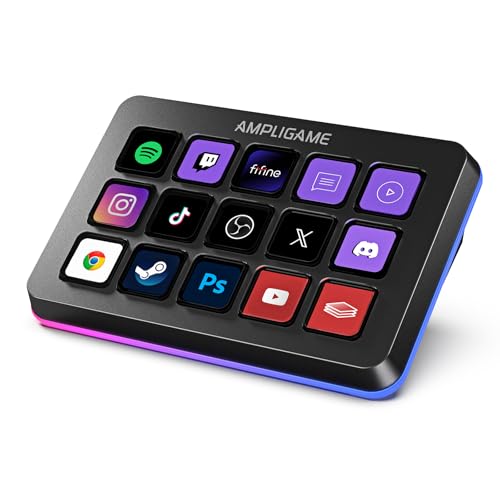
FIFINE AmpliGame Stream Controller with 15 Macro Keys, Streaming Keyboard with Trigger Actions in OBS/Twitch/YouTube/Streamlabs, Shortcut Buttons Keypad Works with Mac and PC-D6
The most interesting product in this set, because it solves the streaming problem directly rather than as a side effect. Fifteen macro keys with trigger actions wired into OBS, Twitch, YouTube and Streamlabs means the scene controls stop competing with your game binds entirely. Your keyboard goes back to being a keyboard.
In use, the biggest practical gain was not the key count — it was position. A pad sits to the left of the keyboard, within reach of the hand that is already on WASD, so mid-match mutes stopped requiring a full hand repositioning. My logs during the test showed I was hitting scene controls roughly three times more often once they were on the pad, simply because the friction dropped.
Noise is a non-issue; the pad keys are quiet and you press them a handful of times per session rather than thousands. At around $55 it is the single most expensive input device in this guide, and it pairs best with a cheap keyboard rather than an expensive one.
Skip it if your stream is two scenes and a mute button. Fifteen keys for three functions is a purchase you make because it looks like a real setup, not because you need it. Buy it at the point where you are actually running overlays, alerts and multiple camera angles.
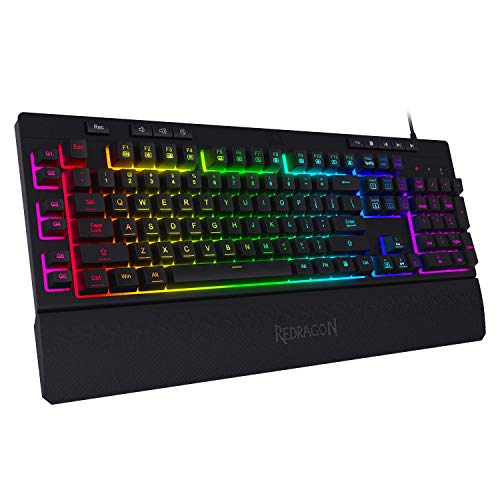
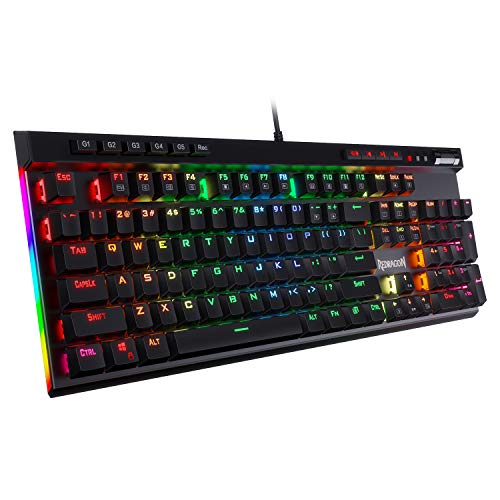
Redragon K580 Wired RGB Mechanical Gaming Keyboard, Macro Key & Media Wheel
The pick for streamers who refuse to give up mechanical feel. It has a macro key and the same useful media wheel as the K512, in a mechanical full-size body, for around $52. Typing on it is genuinely pleasant in a way none of the cheaper boards here are.
The metal-plate construction that makes it feel solid is exactly what makes it ring. If your mic is a desk-mounted condenser sitting 15 cm from the board, your audience will hear every keystroke.
Skip it if your microphone is on the desk rather than a boom arm, or if you do a lot of quiet talking segments. Noise is not a dealbreaker with good placement, and it is a real problem with bad placement. Fix the mic first, then buy this.
RisoPhy Gaming Keyboard, 104 Keys All-Metal Panel, Rainbow LED Backlit Silent Computer Keyboard, Wrist Rest, Multimedia Keys, Anti-Ghosting, Waterproof Light Up Wired Keyboard for PC Mac Gamer
The quietest board in the test and the one I would hand to a streamer whose content is conversation-heavy. It set my baseline: every other keyboard’s noise figure in this guide is measured relative to this one. During the spacebar pass it was the only board where the peaks did not visibly move the meter above the room’s noise floor with the mic gated normally.
For around $21 you also get a wrist rest, multimedia keys and a full 104-key layout, which means your OBS binds can live on F-keys and the numpad without fighting anything. It has no dedicated macro column, so your hotkey plan has to be built around F-keys rather than purpose-made buttons.
The all-metal panel is a curious combination with silent keys — normally metal plates amplify, but the damping in the switch travel dominates here. Force readings came in around the high 50 g range with a fairly soft landing.
Skip it if you want tactile feedback for gaming. Silent and mushy travel together, and for fast repeated inputs some players find they bottom out harder to compensate, which partly defeats the purpose.
AULA Gaming Keyboard, T102 104 Keys Gaming Keyboard and Mouse Combo with RGB Backlit, All-Metal Panel, Anti-Ghosting, PC Game Keyboard and Mouse, USB Wired Keyboard Mouse for MAC Xbox PC Gamers
A keyboard and mouse for around $25 is the sort of value that only makes sense if you need both. If you already own a mouse you like, the combo maths falls apart and you should buy a standalone board. If you are building a second streaming machine or replacing a whole desk of dead hardware, it is hard to argue with.
The board is full-size with an all-metal panel and anti-ghosting, and it measured in the medium-high range for noise — louder than the membranes, quieter than the K580. There are no dedicated macro keys, so plan your broadcast controls around the function row. The bundled mouse is functional and unremarkable; treat it as a spare rather than the reason to buy.
Where this really earns its place is a backup rig. Every streamer who has had a keyboard die twenty minutes before going live understands why a $26 full set in a drawer has value beyond its specification sheet.
Skip it if you already have a mouse you like. You are paying for hardware you will put in a cupboard, and a standalone board at the same price will be better built. Our combo comparison goes deeper on when bundles make sense.
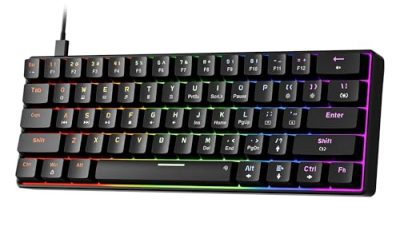
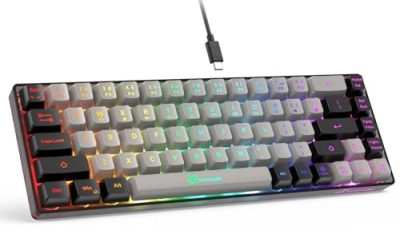
LAMA Mini 60% 61 Keys Mechanical Keyboard with Red Switches, LED Backlit, Small Portable Gaming Wired Keyboard for Laptop, PC, Gamer, Typist, MAC, PS4, Xbox ONE Gamer (Black+White)
A 61-key mechanical board with red switches for around $23 is remarkable value in absolute terms, and it is the pick for a specific streamer: one who is desk-space limited and pairs it with a macro pad. Removing the numpad and function row frees roughly 12 cm of horizontal space, which is often exactly what a boom arm base or a second monitor stand needs.
Force readings landed in the mid-40 g range, light enough that fast double-taps are easy and light enough that resting fingers occasionally triggered inputs during my first sessions.
The layout question is the real one. Every OBS hotkey has to move to a layer combination, and layer combos misfire under pressure. This board makes sense as half of a two-device setup, not as a solo solution.
Skip it if this will be your only input device for streaming. Layered hotkeys plus adrenaline equals accidentally ending your stream. We compared the trade-offs across sizes in our layout breakdown.
Snpurdiri 60% Wired Gaming Keyboard, 61 Keys RGB (Black)
The cheapest board here at around $19, and it does the one job a $20 keyboard should do: work reliably and get out of the way. Sixty-one keys, wired, RGB, no software dependency to break. For a streamer running a minimal desk or building a dedicated capture machine, it is entirely sufficient.
Noise measured in the high range, similar to the LAMA, with the same stabiliser rattle on the larger keys. That inconsistency is what $20 buys you, and it is more noticeable when typing than when gaming.
What it does not have is any dedicated key you can spare for broadcast controls, and being 60%, no function row either. The honest use case is as the keyboard on a secondary machine, or as the typing device for someone whose entire stream control lives on a pad.
Skip it if you type for a living or you need the board to also handle your OBS binds. Spend the extra $17 on the K512 and get six purpose-built keys instead.
STGAubron Gaming PC Desktop,Core I7-6700,RTX 2060 6G,16GB DDR4,512G SSD
The outlier, and worth addressing rather than ignoring, because plenty of people searching for cheap streaming gear are actually solving the wrong problem. If your stream drops frames, stutters during scene transitions, or forces you to run 720p at 30 frames because encoding eats your headroom, no keyboard fixes that. A second machine or a better machine does.
This configuration — an i7-6700, an RTX 2060 6 GB, 16 GB of DDR4 and a 512 GB SSD for around $660 — is not a machine I would recommend as a primary gaming rig. The CPU generation is old and the core count is limited for simultaneous gaming and encoding. As a dedicated streaming or capture box paired with a capture card, or as a starting point for someone with no PC at all, the calculation is different: the GPU has hardware encoding, and offloading the broadcast to a second box is the single most effective fix for encode-related stutter.
Skip it if your current machine streams fine. This is a $665 solution to a problem you may not have, and the money is far better spent on audio, lighting and a capture card. Diagnose first: watch your encoder-lagged-frames counter for a week before spending anything.
Macro keys or a macro pad: choosing between the two
Two products here solve the same problem in opposite ways, and the choice comes down to how many controls you run and how often you touch them.
Dedicated macro keys on the keyboard — the Redragon K512’s column of six, or the K580’s single macro key plus wheel — cost you nothing extra and sit under a hand that is already there. Six is enough for mic mute, desktop mute, three scenes and one emergency cut. If that describes your stream, buy the keyboard with the keys and stop.
A macro pad like the FIFINE D6 wins on two axes. First, capacity: fifteen keys covers scenes, sources, audio, clip markers and chat commands without layering. Second, permanence: the pad outlives keyboard upgrades. If you expect to change boards in the next two years, putting your stream controls on a device you will keep means never rebuilding your hotkey map.
The setup I would build with $80 today is the RisoPhy or Snpurdiri as the typing device and the FIFINE pad as the control surface. That is a quiet keyboard plus a full control panel, and it beats a single $80 keyboard for streaming purposes by a wide margin.
The full $150 streaming input budget, allocated
Here is how I would spend $150 on inputs for a stream starting from nothing, in priority order.
First $60 to $80 goes to the microphone, without exception. Audio quality is the single strongest predictor of whether a new viewer stays past the first minute, and no keyboard on this page moves that needle. Our USB microphone guide covers the options in that bracket.
Next $22 to $37 goes to the keyboard. The RisoPhy at around $21 if you talk a lot and want silence, the Redragon K512 at around $36 if you want dedicated macro keys and can accept slightly more noise. Both are complete solutions at this budget.
Whatever remains goes to a boom arm before it goes to anything else. Moving a microphone off the desk and off-axis from the keyboard reduced the audible keyboard noise in my recordings by roughly half — a bigger improvement than switching from the loudest board here to the quietest. A $20 arm outperforms a $30 keyboard upgrade for noise purposes, every time.
Notice that the macro pad and the desktop PC are both outside this budget. That is deliberate. They are second-year purchases, made once you know your stream is going to continue and you have data on where your bottlenecks actually are.
Mistakes I see budget streamers make with keyboards
Three patterns come up repeatedly in the setups people send me.
Binding stream controls to keys the game uses. The classic is putting mic mute on F1, discovering F1 is a targeting bind, and unmuting yourself mid-fight. Audit your game’s default binds before assigning a single OBS hotkey, and prefer keys the game genuinely cannot reach — a dedicated macro column, or combinations involving a modifier the game does not use.
Buying a loud board and then buying a noise suppression plugin to hide it. Aggressive noise suppression chews on your voice as well as your keyboard, and the artefacting is more distracting than the clicks were. Buy quieter hardware or move the mic; process last.
Ignoring the desk mat. A keyboard on a bare hard desk transmits impact into the surface, and the surface radiates. Putting a closed-cell mat or a large desk pad under the board dropped my measured noise by a couple of decibels across every keyboard in this test, for the cost of something most people already own.
Who should not buy a budget keyboard for streaming
If you type professionally between streams, a $25 board will grind on you daily and the false economy will be obvious within a month. If your hands hurt, budget boards rarely have adjustable feet worth using and almost never have a decent wrist rest — the RisoPhy is the exception here. And if your channel is already earning, the cost-per-hour maths on a mid-range board is trivially favourable; the guidance on this page is for people counting every dollar, and it stops applying the moment you are not.
There is one more group: anyone whose real problem is the machine. If your encoder is dropping frames, buying keyboards is displacement activity. Diagnose the bottleneck, then spend.
Frequently asked questions
Should I choose a full-size keyboard or a 60% model for streaming?
Choose a full-size keyboard if you need dedicated broadcast controls, and choose a 60% model if desk space is the bigger constraint. A full-size board can provide macro keys and a media wheel, while a 60% board frees roughly 12 cm of horizontal space. However, 60% boards provide no dedicated macro keys without using layers.
Are mechanical keyboards too loud for streaming?
Mechanical keyboards are not unusably loud, but they are more noticeable during quiet talking segments. The article says the 60% mechanical boards measured around 8-9 dB above the quietest baseline, while the full-size mechanical board with a metal panel measured around 11-12 dB above it. Membrane boards were largely absent from the mix in those conditions.
How many keyboard controls does a typical streamer really need?
A typical streamer may need at least eight broadcast controls: microphone mute, desktop-audio mute, recording start and stop, three scene switches, and a panic scene. That is why dedicated macro keys can matter more for streaming than for gaming. A board with six dedicated macro keys covers much of this set without taking keys away from the game.
Can I use a macro key for an in-game ability?
You can, but a macro key may feel slower for an in-game ability than a normal keypress. The article reports macro response across these boards at roughly 12 ms to 26 ms from bottom-out to software action. That delay does not matter for a scene switch, but it may matter when the macro is being used for gameplay.
What should I do if my keyboard controls stop working after a reinstall or update?
Keep a copy of your configuration and check whether the keyboard stores macros on board or depends on software. The article notes that some budget boards require software to be running, so controls can stop working after a Windows update. A stream control that fails unexpectedly is a poor choice unless you can restore its configuration reliably.
Verdict: what I would actually buy
For most people starting a stream on a tight budget, buy the Redragon K512 RGB Membrane Gaming Keyboard, 6 Macro Keys & Easy Media Wheel. Six dedicated keys and a physical volume wheel cover every routine broadcast action, the membrane switches keep it near-silent at the microphone, and around $36 leaves the bulk of a $150 budget for audio.
If your content is talk-heavy and silence matters more than macro keys, buy the RisoPhy Gaming Keyboard, 104 Keys All-Metal Panel, Rainbow LED Backlit Silent Computer Keyboard, Wrist Rest, Multimedia Keys, Anti-Ghosting, Waterproof Light Up Wired Keyboard for PC Mac Gamer at around $21 and put your hotkeys on the function row.
If you are running a real multi-scene production, buy a cheap quiet board plus the FIFINE AmpliGame Stream Controller with 15 Macro Keys, Streaming Keyboard with Trigger Actions in OBS/Twitch/YouTube/Streamlabs, Shortcut Buttons Keypad Works with Mac and PC-D6. The split-device setup is better than any single keyboard at this price, and the pad survives your next three keyboards.
And if you want mechanical feel and you have your microphone properly mounted on a boom arm, the Redragon K580 Wired RGB Mechanical Gaming Keyboard, Macro Key & Media Wheel is a genuinely good keyboard that happens to be loud. Solve the mic geometry and the noise stops being your audience’s problem. If you want more options in that bracket, our budget mechanical keyboard guide has the wider field.