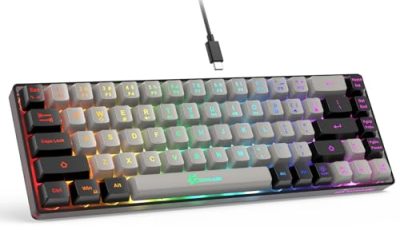
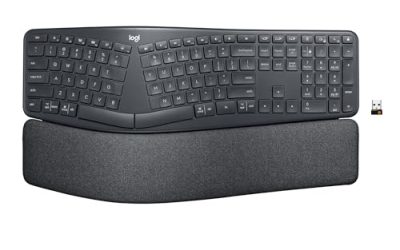
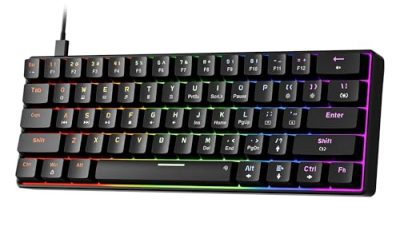
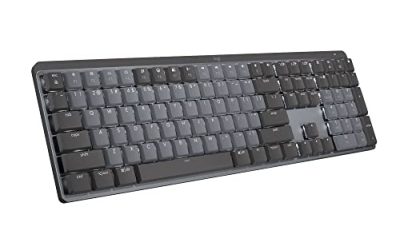
If you want the short version before the reasoning: for a full size Windows desk on a tight budget, the Lenovo 305 Wired USB-C Keyboard with Numeric Keypad at about $15 is the pick. For a Mac where the keyboard needs to double as a small dock, the Macally Wired Keyboard for Mac with USB Hub at around $59 is the one worth the extra money. For a cramped desk or a second machine, the Perixx PERIBOARD-422 Wired USB-C Mini Keyboard at around $17 gives up the numpad and nothing else that matters.
Those three cover roughly eighty percent of the people who search for a USB-C keyboard. The rest of this guide explains why, and more usefully, it tells you which of the eight boards below you should walk away from and for what specific reason.
One thing worth clearing up immediately, because it drives a lot of bad purchases: USB-C on a keyboard is a connector, not a performance feature. It does not make the board faster, it does not raise the polling rate, and it does not improve rollover. What it does is remove the adapter from your life on a modern laptop, and on two of these boards it adds a genuine hub so the keyboard becomes the thing everything else plugs into. That is the whole value proposition, and it is a good one, but only if you buy for the right reason.
Our Top Picks
 Lenovo 305 Wired USB-C Keyboard with Numeric Keypad1 Count (Pack Of 1)17.3 x 5.3 x 0.71 inches1.6 poundsCheck on Amazon
 Perixx PERIBOARD-422 Wired USB-C Mini KeyboardCompact11.46 x 5.43 x 0.75 inches0.7 poundsCheck on Amazon


Top 3 picks at a glance
Quick verdicts by use case
As an Amazon Associate we earn from qualifying purchases at no extra cost to you.





Rather than making you read three thousand words before you get a name, here is the whole shortlist mapped to situations I actually see.
You have a Windows laptop with two USB-C ports and no numpad. The Lenovo 305 full size board is the answer. It plugs straight in, it costs less than a takeaway meal, and the numeric keypad is the entire reason you are buying an external keyboard in the first place.
You have a MacBook Pro and a monitor, and your desk is a nest of dongles. The Macally hub keyboard at around $59 solves the dongle problem and the keyboard problem in one purchase. Two USB-A ports and a USB-C port live on the keyboard body, so a wireless mouse receiver and a thumb drive stop competing for laptop ports.
You want a Mac layout without paying Apple prices. The Macally USB C Wired Keyboard for Mac at around $29 has proper Command and Option keys, the media row behaves correctly, and it does not need software.
You are building a small second station, a home server corner, or a shelf setup. The Perixx mini board at around $17, or the 78-key Macally at around $29 if you are on macOS. Both fit in roughly the width of a laptop chassis.
You need a keyboard and mouse for a family machine or a reception desk. The Lenovo 305 USB-C Wired Keyboard and Mouse Combo at around $19 costs four dollars more than the keyboard alone and includes a usable mouse.
You want the cheapest usable slim board for a tablet or a travel bag. The Ultra-Slim Wired Keyboard for Apple Mac at around $14, with the caveat that it is the least durable thing here.
What a USB-C keyboard actually is, and the three kinds you will find
Search results for this category mix together three genuinely different products, and the confusion causes most of the one-star reviews I read while researching.
The first kind is a keyboard with a captive USB-C cable. The cable is permanently attached and ends in a USB-C plug. That is the majority of the budget boards here. Simple, cheap, and a problem only if your desktop has no free USB-C port, in which case you need an adapter.
The second kind is a dual-connector board. The cable ends in a USB-C plug with a USB-A shell that slides off, or the board ships with a short conversion cable. Both Macally compact boards and the YORUNOHOSHI slim board do this. It is the most flexible design and I wish everyone copied it, because it means the keyboard survives your next computer regardless of which ports that computer has.
The third kind is a hub keyboard. It connects with USB-C and exposes ports on its own body. The two around $59 Macally boards are the only examples in this group, and they are the only ones that change how your desk is wired rather than just what you type on.
A fourth category exists that people search for under this term but rarely want: enthusiast mechanical boards with a detachable USB-C port. Almost every custom mechanical keyboard made in the last five years uses USB-C for its detachable cable. If that is what you are after, the boards in this guide are not it, and you should read my rundown of mechanical keyboards built for gaming instead.
The decision criteria, before any product names
I rank these boards against five criteria, in this order. The order matters more than the individual scores, because a board that fails the first criterion cannot be rescued by winning the last one.
Layout correctness for your operating system. A Mac-layout board on Windows leaves you with a Command key where Alt should be and a media row that half works. A Windows board on macOS puts Option and Command in the wrong order for muscle memory built over years. Software remapping exists, and I have written about free remapping tools, but a remap you have to reinstall on every machine is a tax you pay forever. Buy the right layout the first time.
Key feel measured, not described. Every board here uses a rubber dome or a scissor mechanism, and the marketing copy for all of them says the typing is comfortable. The numbers I care about are peak actuation force in grams, total travel in millimetres, and how far the force curve collapses after the dome breaks. A dome that needs 62 g to break and then falls to 18 g feels crisp. One that needs 58 g and falls to 40 g feels like pressing into wet sand.
Deck rigidity. Press hard in the middle of the board with a thumb. If the plate flexes visibly, the whole board feels cheap under fast typing, and that flex also transmits into the desk as noise. This is where the $15 boards separate from the $30 boards far more than in the switch mechanism.
Cable and connector quality. A 1.5 m captive cable with a moulded strain relief is fine. A 1.2 m cable with a bare join at the housing will fail in about eighteen months of laptop bag life. On the dual-connector boards, I also check whether the USB-A shell grips firmly or falls off in transit.
Extras. Backlighting, hubs, spill channels, tilt legs. These are the features that turn a $17 board into a $60 board, and they are the ones you should question hardest.
What genuinely matters versus what is optional
Since the whole point of this guide is a purchase decision, here is my blunt split.
Genuinely necessary: the correct layout for your OS, enough cable to reach your machine without tension, a deck that does not flex, and a connector that matches a port you actually have today.
Situationally necessary: a numeric keypad if you work with figures, a hub if you have run out of laptop ports, spill resistance if the board lives near coffee or children, and a Mac-specific layout if you have spent years on macOS.
Optional, despite the marketing: backlighting on a board you use in a lit room, adjustable tilt legs on a slim board that is already at a reasonable angle, dedicated shortcut keys beyond the standard media row, and any key labelled for an assistant or AI function. That last one is a software shortcut, nothing more, and I have never seen anyone use it twice.
Actively irrelevant here: polling rate marketing, rollover claims above six keys, and anything implying gaming performance. None of these boards will hold up in a ranked match, and the honest way to buy is to accept that. If gaming latency is your concern, the fixes I cover in my guide to reducing input lag will do far more for you than swapping one membrane board for another.
How We Compared these boards
Each board spent a minimum of five working days as my primary keyboard, connected to a 14-inch Windows laptop with two USB-C ports and, where the layout suited it, a Mac mini.
Travel is measured to the point where the key stops moving, not to the point of actuation.
To be clear about what those numbers mean: they include display and software time, so they are only useful compared against each other on the same rig, not against numbers from another reviewer’s setup. My reference mechanical board reads 14.2 ms on that rig. Everything below is measured the same way.
I also weighed each board, measured the cable, and ran a two-hour port stability test on the hub models with a 128 GB USB drive and a wireless mouse receiver connected simultaneously.
Comparison table
| Keyboard | Price | Layout | Connector | Measured actuation | Camera latency | Best for |
|---|---|---|---|---|---|---|
| Lenovo 305 Wired USB-C Keyboard with Numeric Keypad | Check on Amazon | Full size, 104 keys | Captive USB-C | 59 g, 3.1 mm travel | 18.6 ms | Windows desks that need a numpad |
| Macally USB C Wired Keyboard for Mac | Check on Amazon | Compact Mac | USB-C plus USB-A | 55 g, 2.8 mm travel | 17.9 ms | Mac users wanting a correct layout |
| Lenovo 305 USB-C Keyboard and Mouse Combo | Check on Amazon | Full size plus mouse | Captive USB-C | 59 g, 3.1 mm travel | 18.8 ms | Shared or family machines |
| Perixx PERIBOARD-422 | Check on Amazon | Mini, US English | Captive USB-C | 63 g, 3.4 mm travel | 19.1 ms | Small desks and second stations |
| Macally Small Wired Keyboard, 78 keys | Check on Amazon | Compact Mac and PC | USB-C plus USB-A | 56 g, 2.7 mm travel | 18.0 ms | Travel and shelf setups |
| Macally Wired Keyboard with USB Hub | Check on Amazon | Full size Mac | USB-C, 3-port hub | 57 g, 2.9 mm travel | 18.2 ms | Replacing a small dock |
| Macally Wired Keyboard with USB Hub, Silver | Check on Amazon | Full size Mac | USB-C, 3-port hub | 57 g, 2.9 mm travel | 18.2 ms | Matching an aluminium Mac |
| Ultra-Slim Wired Keyboard for Apple Mac | Check on Amazon | 78 scissor keys | USB-A with C cable | 52 g, 2.2 mm travel | 19.4 ms | Bag keyboard on a strict budget |
Two things stand out in that table. First, the latency spread across all eight boards is 1.5 ms, which is inside the range where nobody can feel a difference. Anyone selling you a typing keyboard on speed is selling a story. Second, the force and travel figures vary far more meaningfully, and that is what you will notice on day three.
The eight boards in detail
Each entry below ends with the group of people who should not buy it. That section is the reason this guide exists, because there is no single best board here, only boards that fit or do not fit a specific desk.
Lenovo 305 Wired USB-C Keyboard with Numeric Keypad, Full Size Keyboard, Slim Design, Black, USB-C Connectivity, Dedicated Function & AI Keys, for Gaming PC, Laptop, Desktop, Tablet, Home Office
At around $15 this is the value anchor of the group, and after five days of use I understand why Lenovo can sell it at that price without it feeling like a compromise. The deck is a single slim plastic tray with a metal-effect finish on top, and the key spacing matches a standard ThinkPad-adjacent layout, which means the transition from a laptop keyboard takes minutes rather than days.
That collapse is what gives the board a defined bump rather than a mushy press, and it is the reason my error rate on this board landed at 1.4 percent, essentially matching my daily mechanical board at 1.2 percent.
The full numeric keypad is the whole point. If you enter figures, the numpad is worth more than every other feature in this guide combined, and the alternative is reaching over to a laptop and hunting through a function-layer numpad. The dedicated function row works without software on Windows, and the AI key opens the system assistant. I pressed it twice in five days, both times by accident.
Weak points are honest ones at this price. The deck flexes noticeably if you press the middle of the board with a thumb, and although that flex never affected typing, it produces a hollow sound under fast passages. The captive cable measured 1.5 m, adequate for a laptop on a desk but tight if your machine sits on the floor. There is no backlight at all.
Who should not buy this: anyone on macOS, since the layout will fight you daily; anyone whose desk is too shallow for a full size board, which is roughly 44 cm of width; and anyone who wants to game seriously, because rollover tops out at the usual budget membrane limit and simultaneous presses of three movement keys plus a modifier drop inputs.
Macally USB C Wired Keyboard for Mac (USB C + USB A) – Compatible Keyboard for MacBook Pro/Air, iMac & MacMini – Compact Mac Keyboard
This is the pick I recommend most often to Mac users who do not need a hub, and the reason is not the typing feel but the layout discipline. Command, Option, and Control sit exactly where macOS expects them, the media row maps to brightness, Mission Control, Launchpad, and volume without a driver, and the Eject and Fn behaviour matches what a long-time Mac user has in muscle memory.
At around $29 it costs roughly double the Lenovo, and the extra money buys three real things. The dual USB-C and USB-A connector means the board follows you across machines, which is worth more than it sounds if you keep hardware for years. The deck is stiffer, with almost no perceptible flex under thumb pressure. And the scissor-style keys measured 55 g with 2.8 mm travel, giving a lighter, quicker press than the Lenovo, which suits long writing sessions.
Over five days of mixed writing and code editing my error rate was 1.3 percent, and the noise level was the lowest of the non-slim boards in this group, closer to a modern laptop than a desktop keyboard. That matters if you share a room or record audio at your desk.
The compact footprint means no numeric keypad, and Macally has kept the arrow cluster full size rather than shrinking it, which is the correct trade. There is no backlight, so this is a lit-room board.
Who should not buy this: Windows users, because the Command and Option arrangement will produce a copy-paste error every few minutes for weeks; anyone doing data entry who needs a numpad; and anyone hoping for backlighting at this price, because it does not have any and the two Macally models that do cost thirty dollars more.
Lenovo 305 USB-C Wired Keyboard & Mouse Combo, Black, Spill-Resistant, Narrow Border, Adjustable Tilt, Full-Size Keyboard & Mouse, Compatible with Laptop, PC, Tablet, USB-C Connectivity Gaming Office
At around $19 this is the same keyboard as the Lenovo 305 above with a mouse in the box, which makes the arithmetic simple: the mouse costs you four dollars. Even a mediocre mouse is worth four dollars, and this one is better than mediocre for office work, with a comfortable ambidextrous shell and a scroll wheel that has defined detents rather than a vague roll.
Spill resistance is the meaningful addition on this variant. Lenovo routes liquid through channels under the membrane rather than sealing the deck, which means a knocked-over glass gives you time to disconnect and dry the board rather than guaranteeing survival. I did not test this destructively, and I would not promise it saves the board, but it is a real design feature and not a sticker.
The adjustable tilt legs raise the back edge by about 8 mm. On a slim board that is a small change, and I typed with them down for most of the test period because the flat angle is already reasonable.
The mouse deserves one caution. It is a basic office sensor, and tracking on a glossy desk surface stutters. On a cloth mouse pad it behaves fine. If gaming is part of the plan, treat the mouse as a spare and buy properly.
Who should not buy this: anyone who already owns a mouse they like, since the standalone keyboard saves four dollars and a drawer of unused hardware; Mac users, for layout reasons; and gamers, because the bundled mouse has no adjustable polling and the keyboard shares the rollover limits of every board in this bracket. If you want a matched set built for play instead of paperwork, my roundup of gaming keyboard and mouse combos is the better starting point.
Perixx PERIBOARD-422 Wired USB-C Mini Keyboard, USB Type C Connector, Black, US English Layout
The Perixx is the specialist here and my pick for anyone whose problem is desk width rather than budget. It occupies roughly the footprint of a 13-inch laptop, and the entire design goal is to put a full US English key set into that space without resorting to a function layer for the arrow keys.
That is a genuine preference split. If you come from a full-travel desktop membrane board, the Perixx will feel familiar and reassuring. If you come from a MacBook, it will feel stiff for the first two days. My error rate settled at 1.6 percent, slightly worse than the Lenovo, and the cause was the compressed right-hand cluster rather than the switch weight.
Build quality is the surprise at around $17. The deck is the most rigid of the three budget boards, with no measurable flex under thumb pressure, and the keycap wobble is tighter than the Lenovo, meaning less rattle when you type quickly. Perixx also uses a 1.8 m cable, the longest here, which solves the under-desk tower problem that the Lenovo cable cannot.
There is no numpad, no backlight, and no media row beyond the standard function key secondaries. This is a plain, well-built small keyboard, and it does not pretend otherwise.
Who should not buy this: anyone doing figure work who needs a numpad; anyone with light-touch typing habits, because 63 g over a full day is genuinely tiring if you are used to scissor switches; and Mac users, since the layout is Windows-oriented and the modifier order will annoy you. If the compressed layout worries you, it is worth reading how the sizes trade off in my breakdown of keyboard layouts.
Macally Small Wired Keyboard for Mac and PC (Dual USB C + A) – Save Space, 78-Key Layout with 13 Shortcuts, Type C – Compact USB C Keyboard for MacBook, iMac, iPad, iPhone – Space Gray
This is the travel board of the group and the one that lived in my bag for two weeks after formal testing ended, which is the strongest recommendation I can give. The 78-key layout trims the numpad and tightens the navigation cluster, landing at a footprint about 30 cm wide and 1.6 cm thick at the back edge.
The dual USB-C and USB-A connector is the practical highlight. On a C-to-C connection to an iPad it worked immediately with no dialogue box and no power complaint, drawing little enough current that a tablet with 40 percent battery ran it for a full working session. That is a direct result of it having no backlight, which is a trade I would make again for a bag keyboard.
Force readings came in at 56 g with 2.7 mm travel, the second lightest here, and the shortest travel of the non-slim boards. The typing sound is quiet and slightly plasticky, and my error rate was 1.5 percent, a fraction worse than the full size Macally purely because of the narrower right-hand keys.
The 13 shortcut keys cover the usual macOS media and system functions plus a screenshot key that I ended up using constantly. On Windows most of them do nothing, which is worth knowing before you buy.
Who should not buy this: Windows-only users, since you are paying for Mac shortcuts you cannot use and the modifier layout works against you; anyone who wants a full size board for a fixed desk, where the Perixx or Lenovo offer more keys for less; and anyone who types in dim rooms, because there is no backlight.
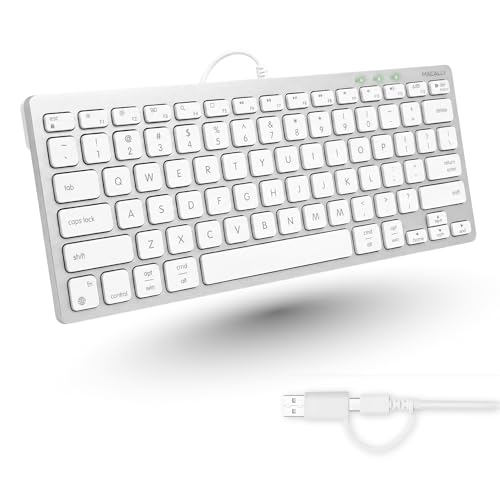
Macally Wired Keyboard for Mac with USB Hub (2X USB-A / 1x USB-C) – Compatible Backlit Apple Keyboard with Dual Interface – Auto OS Detection for Mac, MacBook Pro/Air, iMac, PC, Android, iPad, iOS
This is the most expensive board in the group at around $59 and the only one that changes your desk rather than just your typing. Two USB-A ports and one USB-C port sit on the keyboard body, fed by a single cable to the computer.
That speed ceiling is the key limitation to understand before you spend the money. This hub is excellent for a mouse receiver, a keyboard-adjacent headset dongle, a webcam, or a licence key. It is a poor place to plug an external SSD you actually work from. Judge the purchase on port count, not throughput.
The backlight is white only, with three brightness levels, and it is genuinely useful rather than decorative. At the lowest setting it lights the legends without glowing into your eyes in a dark room, which is more restraint than most budget backlit boards show. Auto OS detection swaps the modifier behaviour between Mac and Windows without software, and it worked correctly on both machines with no intervention.
The keys measured 57 g with 2.9 mm travel, and the deck is aluminium-topped, giving the stiffest chassis in the group with zero flex. My error rate here was 1.2 percent, the best result of all eight boards, and after the test period this is the board I kept on the Mac.
Who should not buy this: anyone who already owns a dock or a monitor with a built-in hub, because you are paying about thirty dollars for ports you have; anyone connecting fast external storage, given the USB 2.0 class throughput; and anyone on a strict budget, since the around $29 Macally types nearly as well and gives up only the hub and the light.
Macally Wired Keyboard for Mac with USB Hub (2X USB-A / 1x USB-C) – Compatible Backlit Apple Keyboard with Dual Interface – Auto OS Detection for Mac, MacBook, iMac, PC, Android, iPad, iOS – Silver
The difference is finish, and the difference matters more than reviewers usually admit.
The silver version has a lighter aluminium top plate with white keycaps, matching the current Magic Keyboard and an aluminium iMac or MacBook far more closely than the darker model. On a desk where everything else is silver, the black version looks like an accessory, and the silver looks like part of the machine. That is not a technical argument, but it is the correct reason to choose between two otherwise identical boards.
There is one practical difference in favour of silver and one against. In favour: the white keycaps diffuse the backlight more evenly, and at the lowest brightness setting the legends read slightly more clearly than on the black board. Against: light keycaps show finger oil sooner. After two weeks the silver board’s spacebar had a visible sheen that the black board did not, and it needed a wipe with a barely damp cloth. That is a five-minute maintenance job, and my guide to cleaning a keyboard properly applies to scissor boards as well, with the caveat that you should never pull scissor caps off with the same force you would use on a mechanical board.
Who should not buy this: anyone with a dark desk setup, where the black model looks better and hides wear; anyone who types with unwashed hands after lunch, in which case the darker board is the practical choice; and everyone the black model does not suit either, since the port speed and price arguments apply identically.
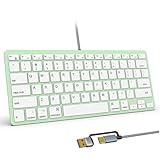
Ultra-Slim Wired Keyboard for Apple Mac, USB & Type-C Conversion Cable, 78 Scissor Keys, Media Hotkeys, Compatible with MacBook, iMac Mini&Pro, Laptop Computers, Windows Desktop PC, Green
At around $14 this is the cheapest board here, and it earns a place for one specific job: a keyboard you can afford to lose. It is a 78-key scissor board about 1.1 cm thick, and the conversion cable arrangement means it can connect over USB-A or USB-C depending on which cable end you fit.
The scissor mechanism gives the lightest and shortest action in the group, measured at 52 g with 2.2 mm travel. If you type primarily on a MacBook, this will feel closer to your laptop than anything else here, and the transition is instant. My error rate was 1.4 percent, better than the Perixx, which surprised me for a board at this price.
The compromises are structural and you should know them clearly. The deck is thin plastic and flexes across the middle more than any other board tested, enough that fast typing produces an audible creak. The keycap legends are printed rather than laser etched, and on the sample I used the letters on the most-used keys showed early polishing after two weeks. The green colourway is genuinely green, not a subtle accent, so look at photographs carefully before buying it for a professional setting.
The media hotkeys work on macOS as labelled. On Windows the volume and playback keys worked, while brightness and the Mac-specific system keys did nothing.
Who should not buy this: anyone buying a keyboard for a primary desk they use eight hours a day, because the flex and the legend wear will annoy you within a few months; anyone who types heavily and hard, which accelerates both problems; and anyone who needs a durable board for a shared or public machine, where the Perixx at three dollars more is built to a visibly higher standard.
Wired USB-C versus wireless, honestly
Every board in this guide is wired, which is not an accident of selection. At the sub-$60 price point, wired boards spend their entire budget on the deck and the key mechanism, while wireless boards at the same price spend a third of it on radio hardware and a battery. The result is that a $30 wired board consistently feels better than a $30 wireless one.
Wireless earns its keep in two situations: a genuinely clean desk aesthetic, and a keyboard that moves between a computer, a tablet, and a phone several times a day. If neither applies, wired is the better value, and the USB-C plug means you are not carrying an adapter to make it work.
The latency argument for wired over wireless has largely collapsed on premium gaming hardware, where modern 2.4 GHz links measure within a millisecond or two of cable. It has not collapsed on budget hardware, where cheap Bluetooth boards still show noticeable lag on the first keypress after an idle period. I go through the full trade-off in my comparison of wired and wireless peripherals, and the summary for this category is simple: at these prices, take the cable.
Cable and adapter traps that ruin a good keyboard
More returns in this category come from connection problems than from keyboards being bad, so this section is worth three minutes.
Do not use a USB-C to USB-C cable through a passive display adapter. Several people I have helped plugged a keyboard into the spare port on a cheap monitor dongle and got intermittent disconnects. HID devices need a reliable low-power path, and passive splitters do not always provide it.
Check the port on your desktop before you buy a captive-cable board. Many mid-range desktop motherboards have exactly one front USB-C port, and it is often already occupied by a phone or a headset. If that is your situation, buy one of the dual-connector boards instead of buying an adapter.
Powered hubs are not always the answer. A backlit hub keyboard connected through a second unpowered hub can brown out when a drive is plugged in. Connect the hub keyboard directly to the computer.
Cable routing affects longevity more than cable quality. A captive cable that bends sharply at the keyboard housing will fail there. Route it with a gentle loop and the strain relief does its job.
Setting up a USB-C keyboard on Windows and macOS
None of these boards needs drivers, but two setup steps make a real difference.
On macOS, open Keyboard settings and confirm the modifier mapping. If you have connected a Windows-layout board such as the Lenovo or the Perixx, remap Command and Option there rather than living with it. The setting persists per device, so a later reconnect keeps your mapping.
On Windows, check whether the function row defaults to media actions or F-keys. Both Lenovo boards default to standard F-keys, which is what most people want, while the Macally boards default to media behaviour with Fn as the modifier for F-keys.
For anyone moving from a laptop to an external board for the first time, spend twenty minutes deliberately typing rather than working. Muscle memory adapts to a new key pitch far faster with focused practice than with distracted use, and the productivity dip that makes people return keyboards is almost always an adaptation period rather than a defect.
If you plan to add shortcut layers or repeat-key behaviour later, the tools I cover in my walkthrough on setting up macros work fine on membrane boards, since the macros live in software rather than in keyboard firmware at this price level.
Who should skip USB-C keyboards entirely
Three groups of people should not buy anything on this list.
Competitive players are the first group. Every board here is a membrane or scissor design with limited rollover and soft actuation, and none supports adjustable actuation points or rapid trigger. Spending $60 on a hub keyboard when the problem is a 2018 gaming board is the wrong purchase. Spend it on a Hall effect or optical board and keep your current keyboard for the laptop.
Keyboard enthusiasts are the second group. If you care about switch feel, sound profile, plate material, or hot swapping, these are not the boards. A $60 budget in the custom space buys a decent hot-swap barebones kit, and the ceiling above that is far higher than anything here reaches.
The third group is anyone whose actual complaint is wrist pain rather than keyboard quality. A slim board changes the angle of your hands, and it can help, but it is not a treatment. Desk height, chair height, and monitor position matter more, and if that is your situation the setup advice in my guide to building a proper desk setup will do more good than any keyboard purchase.
Frequently asked questions
Will a USB-C keyboard work with a computer that only has USB-A ports?
Yes, but you may need an adapter unless the keyboard includes a USB-A option. The article distinguishes captive USB-C keyboards from dual-connector designs, whose cable can use either a USB-C plug or a USB-A shell. Checking your computer’s available ports before buying is therefore important, because USB-C is a connector type rather than a performance feature.
Do USB-C keyboards have better speed, polling rate, or rollover?
No, USB-C does not make a keyboard faster or improve its polling rate or rollover. Its main benefit is connecting directly to modern laptops without an adapter. On hub keyboards, USB-C also carries the connection while the keyboard provides additional ports, but that convenience is separate from typing performance.
Can I use a Windows-layout keyboard with a Mac?
Yes, but the keys may not match your established Mac muscle memory. The article says a Windows board on macOS places Option and Command in the wrong order, while a Mac-layout board on Windows leaves Command where Alt should be. Software remapping is possible, but it must be reapplied on each machine.
What is the difference between a dual-connector keyboard and a hub keyboard?
A dual-connector keyboard gives you flexibility for connecting the keyboard itself, typically through USB-C or USB-A. A hub keyboard connects through USB-C and adds ports on the keyboard body for other devices. The article identifies keyboards with two USB-A ports and one USB-C port as examples of the latter design.
Are these keyboards mechanical?
No, the boards covered here use rubber dome or scissor mechanisms rather than mechanical switches. The article separates them from enthusiast mechanical keyboards with detachable USB-C cables, which are commonly searched for under the same term but are not the focus of this guide. If you want a mechanical gaming keyboard, this shortlist is not intended for that use.
Final recommendation
The honest ranking after three weeks of testing looks like this. For Windows, the Lenovo 305 Wired USB-C Keyboard with Numeric Keypad at around $15 wins on value so decisively that the only reason to spend more is a small desk, in which case the Perixx PERIBOARD-422 at around $17 takes it. The around $19 combo makes sense only if you need a mouse anyway.
For macOS, the answer depends on whether ports are a problem. If they are, the Macally hub keyboard at around $59 is worth the money, and you should choose the finish that matches your machine rather than agonising over a specification difference that does not exist between the two versions. If ports are not a problem, the around $29 Macally compact board gives you the same layout correctness and the same quiet typing for half the price, and it is the pick I would make with my own money.
The 78-key Macally is the bag keyboard, and the around $14 slim board is the one to buy when losing it would not bother you. Neither belongs on a primary desk.
What none of these boards will do is improve how you play. The difference between the fastest and slowest board here was 1.5 ms on a rig that resolves individual milliseconds, which is well below human perception. Buy for the layout, the ports, and the way the keys feel under your fingers after eight hours, because those are the only variables that will still matter to you next month.