Input lag is the cumulative delay between a physical action, such as clicking a mouse button or pressing a key, and seeing the corresponding result appear on screen, and reducing it means addressing every link in that chain: peripheral polling rate, connection type, in-game settings, and display response time. Most gaming setups can cut total input lag by 20-50ms through free settings changes alone, before spending money on new hardware.
As an Amazon Associate we earn from qualifying purchases at no extra cost to you.


Our Top Picks
 TP-Link AX3000 WiFi 6 Router10.3 x 5.3 x 1.6 inches10.28 x 5.3 x 1.62 inches1.2 PoundsCheck on Amazon
Top 3 picks at a glance
What input lag actually is and where it comes from
Input lag accumulates across several distinct stages: the time for a peripheral to register and report your action (device polling), the time for that signal to reach the game engine and be processed (game and OS-level processing), the time for the GPU to render the resulting frame, and the time for the display to actually show that frame (display response and refresh timing).
Each stage adds a measurable amount of delay, typically single-digit to low-double-digit milliseconds per stage, and while no individual stage feels significant on its own, the cumulative total across all stages is what players actually perceive as responsiveness, or its absence, in fast-paced competitive games.
Input lag is distinct from network latency (ping) in online multiplayer games; ping measures the round-trip time for data to travel to a game server and back, while input lag measures the local delay between your physical input and what you see on your own screen, and both stack together in online games but input lag alone still matters fully in offline, single-player titles.
The perceptibility threshold for input lag varies by player and game genre, but competitive players in fast-paced shooters commonly report noticing differences as small as 10-15ms, while casual players in slower-paced genres often don’t perceive differences under roughly 30-40ms, which is worth keeping in mind when deciding how much time and money to invest chasing lower numbers.
Reducing input lag is a chain of small optimizations rather than one single fix; addressing polling rate alone without also addressing display settings, or vice versa, typically leaves meaningful latency on the table since each stage contributes independently to the total.
Mouse polling rate and how it affects responsiveness
Polling rate determines how often a mouse reports its position to the computer, measured in Hz; a mouse polling at 125Hz (the older USB default) reports position every 8ms, while 500Hz reports every 2ms, 1000Hz reports every 1ms, and newer high-end mice offering 4000Hz or 8000Hz report even more frequently.
The practical effect of higher polling rate is reduced maximum reporting delay; at 125Hz, a mouse movement could theoretically wait up to 8ms before being reported, while at 1000Hz that maximum wait shrinks to 1ms, a difference that becomes more perceptible the faster and more precise the required aim or movement is.
Diminishing returns set in noticeably above 1000Hz for most players; the jump from 125Hz to 1000Hz cuts maximum reporting delay by 7ms, a meaningful and often perceptible amount, while the jump from 1000Hz to 8000Hz only cuts a further 0.875ms, a difference most players won’t consciously notice even in controlled testing.
Higher polling rates do increase CPU usage slightly, since the system has to process more position reports per second; this is rarely a bottleneck on any current gaming CPU, but very high polling rates (4000Hz+) combined with an already CPU-bound game can in rare cases introduce a small performance cost that outweighs the latency benefit.
Most modern gaming mice let you set polling rate through the manufacturer’s software; check your specific gaming mouse or gaming mouse for FPS model’s companion app, and set polling to at least 1000Hz if supported, which covers the large majority of the practical benefit without the marginal CPU overhead of the highest available settings.
Keyboard response and debounce delay
Keyboard input lag has two main components: switch actuation (how far and how fast a key needs to travel before registering as a press) and debounce delay (a small software or firmware delay added to prevent a single physical press from registering as multiple rapid presses due to mechanical contact bounce).
Mechanical switches vary in actuation distance and force; switches with shorter actuation distances (some optical and low-profile mechanical switches actuate at 1.0-1.5mm of travel versus 2.0mm on standard mechanical switches) register key presses fractionally faster purely due to the shorter physical travel required.
Debounce delay, typically 5-20ms on standard mechanical keyboards, exists to filter out the electrical “bounce” that occurs briefly when metal contacts touch, but some competitive-focused and optical switch keyboards reduce this delay significantly (sometimes under 1ms) since optical switches use a light beam interruption instead of physical metal contact, avoiding the bounce problem debounce delay was designed to solve.
Keyboard polling rate works the same way as mouse polling rate, and many gaming keyboards now support 1000Hz USB polling as standard, with some competitive models offering higher rates; check your keyboard’s specifications and companion software to confirm polling rate is set to its maximum supported value.
For most players, the practical keyboard input lag difference between a quality mechanical keyboard and a budget membrane keyboard is small in absolute terms, often under 10ms total, but for competitive titles where reaction time margins are thin, choosing a mechanical keyboard for gaming with low debounce delay and full 1000Hz polling removes one more link from the total input lag chain.
Wired versus wireless: the real latency difference today
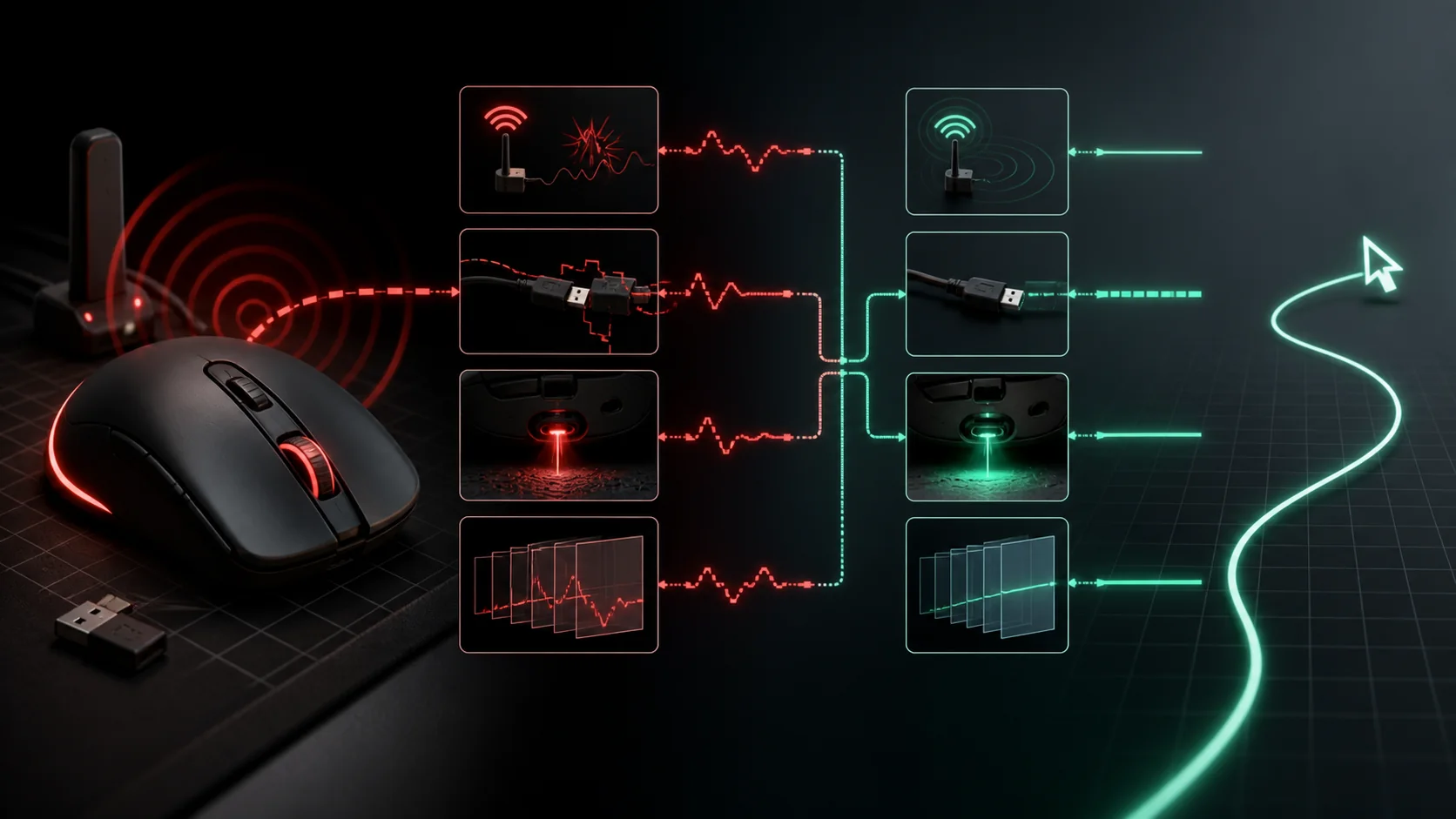
Dedicated 2.4GHz wireless connections, using a proprietary USB receiver rather than Bluetooth, now perform within 1-2ms of an equivalent wired connection on quality gaming mice and keyboards, a gap that’s effectively imperceptible to virtually all players regardless of skill level.
This wasn’t always true; early wireless gaming peripherals from a decade or more ago added noticeably more latency, which is the origin of the still-common assumption that wireless is inherently laggy, but current-generation 2.4GHz wireless technology has closed that gap almost entirely for quality, gaming-focused peripherals.
Bluetooth, by contrast, still adds meaningfully more latency, commonly 20-40ms depending on the specific Bluetooth version and device, because Bluetooth’s connection protocol prioritizes power efficiency and multi-device compatibility over the low, consistent latency a dedicated 2.4GHz gaming receiver is specifically engineered for.
Battery-powered wireless mice and keyboards can also introduce very slightly higher latency as battery charge depletes on some models, though quality gaming peripherals are generally engineered to maintain consistent polling and response performance across most of their battery discharge curve rather than degrading noticeably until very near empty.
For competitive gaming specifically, a quality 2.4GHz wireless wireless gaming mouse is now a legitimate choice alongside wired, while Bluetooth peripherals, regardless of build quality, should be avoided for competitive play given their structurally higher latency compared to either wired or 2.4GHz wireless.
In-game settings that add or remove latency
V-Sync (vertical sync), which synchronizes frame delivery to the monitor’s refresh cycle to prevent screen tearing, does this by buffering frames, which adds input lag, often one to several frames’ worth, translating to roughly 16-48ms depending on your frame rate and how many frames are buffered.
Frame rate caps set below your GPU’s actual capability, sometimes recommended for thermal or consistency reasons, can also add latency if implemented through certain in-game methods; a frame rate cap set via Nvidia Reflex or similar low-latency technology behaves very differently, and generally better, than a naive engine-level frame cap.
Nvidia Reflex and AMD Anti-Lag are driver or game-level technologies specifically designed to reduce the render queue depth (how many frames are queued up waiting to be displayed), directly cutting system latency, commonly by 10-30ms in supported games, and should be enabled whenever your GPU and the specific game support them.
Triple buffering, another frame-queuing technique meant to smooth frame delivery, similarly adds latency compared to no buffering or double buffering, trading a small amount of smoothness for measurably higher input lag, generally not worth the tradeoff for competitive, fast-paced games.
Windowed or borderless windowed mode can add slight additional latency compared to true exclusive fullscreen mode on some systems and game engines, since borderless mode routes rendering through the OS compositor rather than giving the game direct display control, though the gap has narrowed considerably on recent Windows versions and GPU drivers.
| Setting | Typical added latency | Recommendation |
|---|---|---|
| Standard V-Sync | +16-48ms | Disable for competitive play |
| Triple buffering | +8-24ms | Disable if latency-sensitive |
| Nvidia Reflex / AMD Anti-Lag | -10 to -30ms | Enable when supported |
| Borderless windowed vs exclusive fullscreen | +0-10ms | Use fullscreen if available |
Display refresh rate and response time
Refresh rate determines how often a monitor can display a new frame, measured in Hz; a 60Hz monitor updates every 16.7ms, a 144Hz monitor every 6.9ms, and a 240Hz monitor every 4.2ms, meaning higher refresh rates reduce the maximum time a completed frame has to wait before actually appearing on screen.
Pixel response time, separate from refresh rate, measures how quickly individual pixels can change color, typically listed in manufacturer specs as gray-to-gray (GtG) response time; slower panels (some budget IPS panels around 4-5ms GtG) can introduce visible motion blur or ghosting independent of the refresh rate itself.
G-Sync and FreeSync (variable refresh rate technologies) synchronize the display’s refresh rate to the GPU’s actual frame output rate, eliminating screen tearing without the frame-buffering latency penalty that standard V-Sync introduces, making them the preferred tear-prevention method for latency-sensitive gaming.
Higher refresh rate alone doesn’t guarantee low input lag if the monitor’s internal processing adds its own delay; look for monitors with documented low “input lag” specs (distinct from response time) in independent reviews, since some panels add several extra milliseconds of internal processing delay regardless of refresh rate.
For competitive gaming, the combination of a high refresh rate (144Hz or higher), low GtG response time (1ms or close to it), and G-Sync/FreeSync support together typically shave a combined 15-25ms off total input lag compared to a standard 60Hz monitor without variable refresh rate support.
USB hubs, ports, and connection quality
Plugging gaming peripherals into a USB hub, especially a lower-quality or heavily loaded passive hub, can introduce additional polling delay compared to plugging directly into a motherboard’s rear USB ports, since the hub itself adds a layer of signal processing and potential bandwidth contention with other connected devices.
USB 2.0 versus USB 3.0/3.1 ports rarely make a measurable difference for mouse and keyboard latency specifically, since these peripherals use far less bandwidth than the port versions were designed to support, but plugging into whichever port type the manufacturer specifically recommends avoids any edge-case compatibility issues.
Front-panel USB ports on some cases route through a longer internal cable path and sometimes an internal hub before reaching the motherboard, which can in rare cases introduce a small amount of additional latency or signal degradation compared to rear I/O panel ports connected more directly to the motherboard’s USB controller.
For competitive setups specifically, plugging your mouse and keyboard directly into rear motherboard USB ports, avoiding hubs, USB extension cables where possible, and front-panel pass-throughs, eliminates one more small but avoidable source of potential added latency from the total chain.
Wireless receiver placement also matters for 2.4GHz peripherals; placing the USB receiver too far from the mouse or keyboard, or with significant metal or electronic interference between them, can occasionally cause dropped polls or brief latency spikes, so a short USB extension cable positioning the receiver closer to the peripheral is a common and effective fix.
Building a low-latency setup on a budget
Start with free software changes before spending money: disable V-Sync, enable Nvidia Reflex or AMD Anti-Lag if your game and GPU support it, set peripherals to their maximum supported polling rate in manufacturer software, and switch fullscreen mode from borderless to exclusive fullscreen if the game offers that option.
If your current mouse polls at the older 125Hz default and doesn’t offer a higher setting, check whether a firmware or software update is available before assuming a new mouse purchase is necessary; some older peripherals were simply configured conservatively out of the box and support higher polling once manually adjusted.
Prioritize a refresh rate upgrade over further peripheral spending if you’re still on a 60Hz monitor; moving to even a budget 144Hz monitor typically delivers a larger, more consistently perceptible latency and smoothness improvement than upgrading an already-decent mouse or keyboard further.
Once free software optimizations are in place, prioritize hardware spending in this rough order for latency impact per dollar: a higher refresh rate monitor first, then a quality wired or 2.4GHz wireless mouse with 1000Hz polling, then a low-debounce mechanical or optical keyboard, since each subsequent upgrade typically delivers smaller incremental latency gains than the one before it.
Mistakes people make trying to reduce input lag
Buying an extremely high polling rate mouse (4000Hz or 8000Hz) while leaving V-Sync enabled in games addresses a small part of the latency chain while ignoring a much larger source, since V-Sync’s 16-48ms latency penalty dwarfs the sub-millisecond difference between 1000Hz and 8000Hz polling.
Assuming all wireless peripherals add significant latency, based on outdated experience with older Bluetooth or budget wireless mice, leads some players to avoid genuinely low-latency 2.4GHz wireless options that would otherwise suit their setup, particularly for desk mobility or reducing cable clutter.
Enabling every available “smoothing” or “motion blur reduction” display feature without understanding what each one does can inadvertently add latency; some backlight strobing or blur reduction technologies trade a small amount of added lag for reduced motion blur, a tradeoff not every competitive player wants to make.
Ignoring pixel response time in favor of refresh rate alone when shopping for a monitor is a common oversight; a 240Hz panel with poor GtG response time can show more visible ghosting than a well-tuned 144Hz panel with excellent response time, even though the refresh rate spec looks more impressive on paper.
Chasing the last few milliseconds of latency through expensive peripheral upgrades while ignoring free software settings (V-Sync, Reflex/Anti-Lag, fullscreen mode) is inefficient; address every free setting first, since those changes often deliver more total latency reduction than any single hardware purchase.
Troubleshooting: input still feels delayed after optimizing
If input still feels laggy after adjusting polling rate and disabling V-Sync, check your actual frame rate against your monitor’s refresh rate; a frame rate significantly below your monitor’s refresh rate (running 45fps on a 144Hz monitor, for instance) means the GPU, not your peripherals or settings, is now the limiting factor.
If a wireless mouse feels inconsistent rather than uniformly laggy (occasional stutters or skips rather than a steady delay), check for wireless interference from other 2.4GHz devices nearby (Wi-Fi routers, other wireless peripherals) and try repositioning the USB receiver closer to the mouse using a short extension cable.
If a specific game feels laggier than others despite identical hardware and settings, check that game’s specific graphics settings for hidden latency-adding options, since some game engines bury frame buffering or V-Sync-like settings under non-obvious menu names that aren’t labeled clearly as latency-related.
If keyboard input feels delayed specifically (letters or actions registering late) while mouse input feels fine, check for keyboard-specific software features like key repeat delay settings, macro processing overhead, or an outdated keyboard driver, any of which can introduce keyboard-specific latency separate from general system settings.
If overall system responsiveness feels sluggish beyond just gaming, check background CPU and GPU usage from other running applications, since a heavily loaded system (background updates, overlay software, browser tabs with video playing) can add processing delay to the entire input chain regardless of how well individual peripheral and display settings are optimized.
Wireless response times vary a lot between models, and that gap matters most in fast-paced titles where every frame of delay is noticeable — our controller buying guide ranks options by measured latency alongside build quality.
Frequently asked questions
What is input lag exactly, and is it the same as ping?
Input lag is the total delay between a physical action (pressing a key or moving a mouse) and seeing its result on screen, measured in milliseconds. Ping (network latency) is only one part of that chain for online games; input lag also includes device polling rate, display response time, and rendering time, all of which matter even in offline, single-player games.
Does a higher mouse polling rate actually reduce input lag?
Yes, measurably. A mouse polling at 125Hz reports position every 8ms, while one polling at 1000Hz reports every 1ms, cutting the maximum possible reporting delay by roughly 7ms. Some newer mice offer 4000Hz or 8000Hz polling, which reduces this further but with diminishing returns most players won’t perceive past 1000Hz.
Should I use wired or wireless peripherals to minimize input lag?
Modern wireless gaming mice and keyboards using dedicated 2.4GHz receivers perform within 1-2ms of wired equivalents and are no longer a meaningful input lag concern for competitive play. Bluetooth peripherals, however, typically add 20-40ms of latency and should be avoided for competitive gaming in favor of wired or 2.4GHz wireless.
Does enabling V-Sync increase input lag?
Yes, standard V-Sync can add one to several frames of input lag, often 16-48ms depending on frame rate, because it buffers frames to prevent screen tearing. For competitive gaming, disabling V-Sync and instead using a high refresh rate monitor with G-Sync or FreeSync (which sync without the same buffering delay) avoids most of this added latency.
How much input lag does a 60Hz monitor add compared to a 144Hz or 240Hz monitor?
A 60Hz monitor can only display a new frame every 16.7ms, while a 144Hz monitor updates every 6.9ms and a 240Hz monitor every 4.2ms, meaning a 60Hz display can add up to roughly 12ms more display-related latency than a 240Hz panel, on top of the higher pixel response times often found on cheaper 60Hz panels.