Most display problems on a USB-C dock come down to a handful of settings: bandwidth allocation, refresh rate, scaling, and HDR. Get those right and a dock that once felt flaky will drive two or three monitors without dropouts, flicker, or the dreaded black screen when you wake the machine. Get them wrong and no amount of cable swapping will fix it. This guide walks through the settings that actually matter, tuned for how docks and GPUs behave in 2026, with exact values you can enter today.
What to prioritize, in order: bandwidth first, because a dock connected at USB 3.2 Gen 2 speeds rather than full Thunderbolt or USB4 PCIe tunneling will choke on dual 4K displays no matter what else you set. Refresh rate second, since dropping from 144 Hz to 60 Hz is the single most noticeable quality loss people suffer without realizing why. Scaling third, because mixed-DPI setups cause blurry text on one monitor more often than any driver issue. HDR last — enable it only if your panel and workflow both benefit, because an HDR signal over a bandwidth-starved dock is a common cause of flicker.
As an Amazon Associate we earn from qualifying purchases at no extra cost to you.


Our Top Picks


Top 3 picks at a glance
Quick Recommended Settings
| Setting | Recommended value | Why |
|---|---|---|
| Connection standard | Thunderbolt 3/4 or USB4 host port, full-featured USB-C cable under 1 m | Guarantees full DisplayPort tunneling bandwidth; USB 3.2 data-only ports will not carry video at all on most docks |
| Refresh rate | Highest the monitor’s native resolution allows over the negotiated link — typically 60 Hz at 4K or 144 Hz at 1440p | Refresh beyond what the link supports silently falls back or drops to 30 Hz |
| Display scaling | 100–125% on 27″ 4K, 150% on 13–14″ laptop panels; match between monitors where possible | Mismatched scaling causes blurry text and oversized cursors when dragging windows |
| HDR | Off unless the monitor is DisplayHDR 400 or better and you watch/create HDR content | HDR halves available bandwidth at a given refresh rate and often washes out SDR content on mediocre panels |
| Chroma subsampling | 4:4:4 where bandwidth allows; accept 4:2:0 only at 4K 60 Hz on HBR2 links | 4:2:0 blurs small text; this is the top cause of “fuzzy fonts” through docks |
| Windows HDR/SDR brightness balance | SDR slider at 30–40 when HDR is on | Default 0 makes SDR apps unreadably dim in HDR mode |
| GPU “GPU scaling” / display scaling | Display scaling (monitor-side) for desktop use | Avoids double-scaling artifacts when the dock’s DP output rescales |
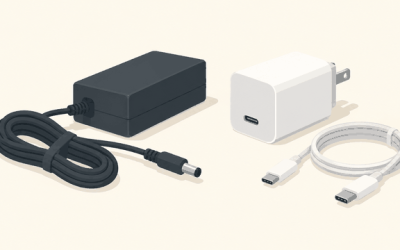
| USB power delivery | Match or exceed laptop requirement (65 W minimum, 100 W for most performance laptops) | Underpowered docks cause battery drain while “charging” and throttling on some laptops |
Setting-by-Setting
Bandwidth: connection standard and cable
Set: host port must be Thunderbolt or USB4 with video support, marked with a lightning bolt or “DP” logo on many laptops. Use the dock’s included cable or a certified full-featured USB-C cable no longer than 0.8–1 m. Trade-off: longer cables (1.5–2 m) often negotiate HBR2 instead of HBR3, capping you at 4K 30 Hz on a single display. Check what you negotiated on Windows: Settings > System > Display > Advanced display — the “Display information” panel shows current refresh rate and bit depth. On macOS, hold Option and click the display status icon, or check System Settings > Displays for refresh options. If the list tops out at 30 Hz, your link is bandwidth-starved: swap the cable before blaming the dock.
Refresh rate
Set to the maximum stable value. Windows: Settings > System > Display > Advanced display > Select a refresh rate — pick 60, 120, or 144 Hz as available. macOS: System Settings > Displays > Refresh rate (ProMotion-adjacent external monitors show this dropdown). Trade-off: doubling refresh rate roughly doubles required bandwidth, so 4K 144 Hz through a dock usually requires DisplayStream Compression (DSC) support on both dock and monitor; without it you will be limited to 4K 60 Hz or forced to a lower resolution. A slightly lower refresh at your native resolution is almost always better than a higher refresh at a scaled-down resolution.
Chroma subsampling and bit depth
Set 4:4:4 for desktop work. On NVIDIA: NVIDIA Control Panel > Change resolution > Output color format: RGB, Output color depth: 8 bpc or 10 bpc, Output dynamic range: Full. On AMD: AMD Software: Adrenalin > Display > Pixel Format: RGB 4:4:4 Standard. Trade-off: at 4K 60 Hz on a full HBR3 link you can have 4:4:4 at 8 bpc, but adding HDR (10 bpc) may force 4:2:2 or 4:2:0 unless DSC is active. If text looks slightly smeared after enabling HDR, this is why — drop bit depth to 8 bpc or enable DSC on the monitor’s OSD menu.
Scaling
Windows: Settings > System > Display > Scale — 125% on a 27″ 4K, 150% on 28–32″ 4K if you prefer larger text. macOS handles per-display scaling automatically, but on System Settings > Displays choose “Default for display” rather than “More Space” on docked 4K panels to avoid GPU-composited scaled resolutions that cost performance. Trade-off: non-integer scaling on Windows (125%, 150%) can blur legacy apps; right-click a blurry app’s shortcut, choose Properties > Compatibility > Change high DPI settings > Override high DPI scaling behavior: Application to fix per-app. Matching scale percentages across both monitors prevents cursor and window-size jumps when moving between them.
HDR
Windows: Settings > System > Display > Use HDR, then expand to set SDR content brightness to 30–40. macOS: System Settings > Displays > High Dynamic Range. Trade-off: HDR costs bandwidth and, on panels without local dimming or true 600-nit peak, makes SDR content look worse, not better. Enable only for HDR media work or genuinely capable panels, and verify the monitor’s OSD input is set to accept HDR (some monitors need “HDR” or “Auto” picture mode selected manually).
Multi-monitor topology
If your dock drives two 4K 60 Hz monitors without DSC, it is likely exceeding HBR3 bandwidth. Set the secondary display to 2560×1440 at 60 Hz, or keep both at 4K but accept 30 Hz on the second. On macOS Sonoma and later, check System Settings > Displays for which monitor the dock flags as bandwidth-limited. Trade-off: your main display keeps full quality while the secondary — usually used for reference material — takes the reduction.
By Hardware Tier
Low tier: USB 3.2 Gen 2 docks, integrated graphics, 1080p/1440p panels
Expect a single 4K 30 Hz or dual 1080p 60 Hz ceiling. Set resolution to 1920×1080 at 60 Hz or 2560×1440 at 60 Hz, chroma 4:4:4 (easily within budget at these resolutions), HDR off, scaling 100–125%. Do not attempt 4K; the negotiated link cannot sustain it, and forced 4K at low chroma will look worse than native 1440p. Verify cable length under 1 m — at this tier a marginal cable frequently causes total signal dropout rather than graceful degradation.
Mid tier: Thunderbolt 3/4 or USB4 docks, midrange discrete GPU, one 4K 60 Hz + one 1440p
Set the primary 4K panel to 60 Hz, RGB 4:4:4, 8 bpc, HDR off for productivity or on with SDR brightness at 35 for media. Secondary 1440p can run 100–144 Hz if its link is independent (check the dock spec: some docks share one DP tunnel across both outputs, halving per-display bandwidth). Scaling at 125%/100% respectively. In NVIDIA Control Panel > Configure Surround, PhysX or AMD’s equivalent, leave spanned modes off; independent displays behave better through docks.
High tier: Thunderbolt 5 or USB4 v2 docks, high-end GPU, dual 4K 120 Hz+ or 5K
Thunderbolt 5’s 80 Gbps pipeline removes most bandwidth pressure, but settings still matter. Enable DSC on both monitors’ OSD menus (usually Setup/OSD > DSC: On), set 4K at 120–144 Hz, 10 bpc, HDR on with Windows HDR Calibration app run once (Microsoft Store) to build your profile. Trade-off: DSC is visually lossless in practice but a few monitors exhibit cursor glitches with it enabled — if you see flicker only in HDR at high refresh, toggle DSC off and accept 120 Hz at 8 bpc.
Common Mistakes
Fuzzy text through the dock. Cause: chroma subsampling forced to 4:2:0 by bandwidth pressure. Check: in Windows Advanced display, look at “Bit depth” and color format; on macOS, compare text sharpness connected directly versus docked. Fix: shorten the cable, disable HDR, drop to 8 bpc, or enable DSC so 4:4:4 fits. Undo: restore original color settings in the GPU control panel’s restore-defaults button.
Monitor drops to 30 Hz after docking. Cause: the dock negotiated HBR2 due to a long or non-certified cable, or a hub-based (non-Thunderbolt) dock sharing DisplayPort bandwidth. Check: Settings > System > Display > Advanced display > refresh rate dropdown — if 60 Hz is absent, the link, not the setting, is the problem. Fix: use the dock’s stock cable, connect to the laptop’s TB/USB4 port (not a side USB-A-adjacent USB-C data port), and update the dock’s firmware via the vendor utility (e.g., the dock manufacturer’s firmware updater app). Undo: none needed — this is corrective.
Flicker on wake or during video playback. Cause: HDR handshake failures or DSC negotiation errors. Check: does flicker stop when you toggle HDR off? Fix: update GPU driver and dock firmware, then in the monitor OSD set Input > DP version: DP 1.4 explicitly rather than Auto. Undo: set DP version back to Auto if the issue persists after updates — some older docks misreport 1.4 support.
Laptop battery drains while docked. Cause: the dock delivers less PD wattage than the laptop draws under load. Check: the dock’s label for output wattage (45 W, 65 W, 100 W) versus your laptop’s rated adapter. Fix: plug the laptop’s own charger into a dock passthrough port, or use a dock tier higher in wattage. Undo: revert to the original charger arrangement.
Windows opens windows at random sizes across monitors. Cause: mismatched scaling percentages. Check: compare Scale values in Display settings per monitor. Fix: set both to the same percentage, or use per-app DPI overrides described above. Undo: restore prior per-monitor values if appearance suffers.
FAQ
Why does my monitor only show 30 Hz through the dock but 60 Hz when connected directly?
The dock’s DisplayPort tunnel is negotiating reduced bandwidth, almost always from a cable or port limitation. Confirm you are using a sub-1-meter certified cable in a Thunderbolt/USB4 host port, update dock firmware, and check the monitor’s DP version setting. If it still caps out, the dock’s internal wiring is a dual-display hub splitting one DP link — reduce the second monitor’s load.
Can I run two 4K 144 Hz monitors from one dock?
Only with a Thunderbolt 5 (or USB4 v2) dock feeding DSC-capable monitors, or a Thunderbolt 4 dock that explicitly advertises dual 4K 144 Hz. On standard Thunderbolt 4 (40 Gbps), dual 4K 60 Hz is the realistic ceiling without aggressive DSC. Check the dock’s spec sheet for the exact dual-display resolution/refresh matrix rather than the headline port speeds.
Should HDR be on for everyday office work?
Usually no. HDR consumes bandwidth that may force chroma subsampling, and SDR content on most office panels looks washed out in HDR mode. Enable it for HDR video or content creation on a DisplayHDR 600+ panel, set the SDR brightness slider to 30–40, and run the Windows HDR Calibration tool once.
Do USB-C dock firmware updates actually change display behavior?
Yes — firmware governs the DisplayPort link training and PD negotiation, which is exactly where refresh-rate caps, wake flicker, and dropout bugs live. Check your dock vendor’s support page or utility app quarterly; many 2026-era docks update via their own companion app, and the changelogs routinely list “improved display compatibility” fixes for specific monitor models.