Most controller charging docks ship with almost nothing to configure, which is exactly why so many gamers assume there is nothing to tune. In reality, the best controller charging dock settings come down to a handful of decisions you control: the dock’s charge mode, how your console or PC reports battery status, USB power delivery behavior, standby settings on the dock and the host device, and placement. Getting these right means controllers are topped off when you sit down to play, batteries age slower, and you avoid the classic “it was on the dock all night but it’s dead” problem. Prioritize charge-current behavior and host-side power management first — those cause the majority of complaints — then dial in firmware, battery reporting, and physical placement.
This guide covers the concrete settings for docks from PowerA, Razer, 8BitDo, DualSense charging stations, Xbox-branded docks, and generic USB-C docks, plus the host-side settings on Windows, Xbox Series X|S, PS5, and Switch that interact with them.
As an Amazon Associate we earn from qualifying purchases at no extra cost to you.




Our Top Picks
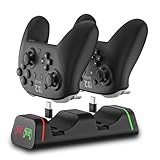
 Upgraded Controller Charger Station with 2x6200mWh Rechargeable BatteryCompact0.6 poundsCheck on Amazon


Top 3 picks at a glance
Quick Recommended Settings
| Setting | Recommended value | Why |
|---|---|---|
| Dock charge mode | Standard / automatic (not forced fast charge) | Lower charge current extends lithium-ion cell life; fast charge adds heat |
| Host sleep behavior (Xbox) | Settings > General > Power options > “Sleep” with “When Xbox is off, turn off storage” enabled | Lets USB ports stay powered for docked controllers without draining standby power |
| Windows USB selective suspend | Disabled for the dock’s port | Prevents Windows from cutting power to the dock mid-charge |
| PS5 controller charging | Rest Mode enabled, Settings > System > Power Saving > “Supply Power to USB Ports” set to “Always” or 3 hours | Ensures the DualSense dock receives power while the console rests |
| Dock firmware | Updated via manufacturer app (Razer Synapse, 8BitDo Ultimate Software) or vendor updater | Fixes charging-state detection bugs and battery meter inaccuracies |
| Controller auto-sleep | Enabled (Xbox: default 15 min; DualSense: automatic in rest) | Controller must be off to charge efficiently on most docks |
| Remove controller grip covers/skins | Removed while docked | Silicone skins and thick cases prevent proper pogo-pin or cradle contact |
| Room temperature | Between 10°C and 35°C (50–95°F) | Heat accelerates battery degradation; avoid charging in direct sunlight or on top of a console’s exhaust |
Setting-by-Setting
Charge Mode: Standard vs. Fast Charge
Exact value: Use the dock’s default “Standard” or “Auto” mode. If the dock offers a fast-charge toggle (some Razer and 8BitDo models expose this in software), leave it off except when you need a quick top-up before a session.
Trade-off: Fast charge cuts a full charge time significantly — useful before guests arrive — but sustained higher current plus the heat it generates is the single biggest contributor to premature battery wear. Standard mode charges overnight sessions just as effectively since controllers sit docked for hours anyway. On docks with no software toggle, charging current is fixed and you don’t need to touch anything.
Controller Auto-Sleep Before Docking
Exact value: Xbox controllers: Settings > Devices & connections > Accessories > select controller > “Sleep after” — keep at the default 15 minutes, or set to 10. On PS5, the DualSense powers down automatically when the console enters rest mode. On PC, hold the Xbox/Nexus button until the light turns off, or let the 15-minute timer run.
Trade-off: A controller that stays awake draws power from its own battery and, on some docks, keeps the charge LED in a state that masks whether charging actually started. The cost of a shorter sleep timer is that the controller disconnects faster during idle movie-menu moments — 15 minutes is the sweet spot.
Windows USB Power Management
Exact value: Disable “USB selective suspend” for the port feeding the dock. Path: Control Panel > Power Options > Change plan settings > Change advanced power settings > USB settings > USB selective suspend setting > Disabled. Then open Device Manager > Universal Serial Bus controllers > right-click each “USB Root Hub” and the dock’s entry > Properties > Power Management > uncheck “Allow the computer to turn off this device to save power.”
Trade-off: Idle power draw increases by a negligible amount (a watt or less). Without this, Windows may suspend the dock after the PC sleeps, and the controller drains to empty instead of charging.
PS5 Supply Power to USB Ports
Exact value: Settings > System > Power Saving > Features Available in Rest Mode > Supply Power to USB Ports — set to “Always” if your dock sits on the console’s front USB port, or “3 Hours” if you dock controllers before bed and want them charged, then the port to cut power. Note that rear USB ports on the PS5 may behave differently; test your specific dock on both.
Trade-off: “Always” adds a few watts of standby consumption. “3 Hours” saves power but leaves controllers at partial charge if they were heavily depleted.
Xbox Power Options
Exact value: Settings > General > Power options > Sleep (instead of Energy-saving). Sleep mode keeps USB power available for docked controllers. Also check “When Xbox is off, turn off storage” to cut wasted standby draw from external drives while preserving port power.
Trade-off: Sleep mode uses more standby electricity than Energy-saving mode. If your dock has its own wall adapter (many third-party Xbox docks do), you can safely use Energy-saving console mode since the dock charges independently.
Firmware Updates for the Dock and Controller
Exact value: Update to the latest available. Controllers: Xbox Accessories app on Xbox or PC; PS5 updates via Settings > Accessories > Software; 8BitDo controllers via 8BitDo Ultimate Software; Razer controllers via Razer Synapse. Docks with firmware (rare but exists, mainly Razer and 8BitDo) update through the same vendor app while the controller is docked.
Trade-off: Firmware updates fix charging-detection bugs — a real issue where docks misread battery percentage or stop charging at 90%. The only risk is a rare bad update; always keep the controller docked and the app open until the update completes.
Battery Meter Calibration
Exact value: If the controller’s battery indicator shows wildly wrong values after months of dock use, perform one full manual cycle: use the controller until it shuts itself off, then charge to 100% on the dock without interruption. Do this once — not repeatedly.
Trade-off: Calibration restores accurate reporting but each deep discharge stresses the cell slightly. Once a year at most; never as routine maintenance.
Dock Placement and Contact Cleaning
Exact value: Keep the dock on a hard, flat surface with open airflow, at least 15 cm (6 in) from console exhaust vents, out of direct sunlight. Clean pogo pins and contact pads with a dry cotton swab or isopropyl alcohol (90%+) on the pads — never on the pins while powered — every few months. Confirm the charge LED: most docks show amber/orange while charging and green/white when complete; check your model’s manual for its specific scheme.
Trade-off: No performance cost whatsoever. The only “cost” is two minutes of maintenance a few times per year.
By Hardware Tier
Low Tier (Generic/passthrough docks, third-party cradles under ~$30)
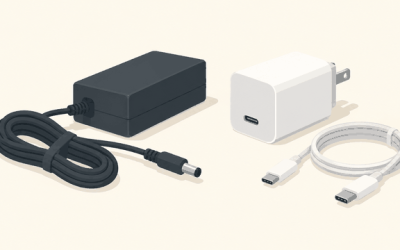
These docks usually have no firmware and no software, so configuration lives entirely on the host. Do these three things: disable Windows USB selective suspend (as described above), set your console’s rest-mode USB power to “Always,” and remove any controller grip covers. Also verify the dock’s input rating — check the label on its power brick or USB plug; if it draws from a USB-A port, some older TV USB ports supply only 0.5A, which may charge too slowly or not at all. Plug it into a powered port on the console or a phone charger of at least 5V/1A instead.
Mid Tier (PowerA, official first-party docks, HORI)
Mid-tier docks typically have proper charge-state LEDs and sometimes firmware. Set console rest-mode USB power per the section above, update controller firmware through the Xbox Accessories app or PS5 system software, and enable controller auto-sleep at 15 minutes. If your dock includes a magnetic or cradle-alignment guide, use it — partial pogo-pin contact is the most common cause of “charges overnight but at 60%.” Calibrate the battery meter once if the percentage has drifted.
High Tier (Razer Quick Charging Stands, 8BitDo docks, docks with software/firmware)
On top of everything in the mid tier: install the vendor app (Razer Synapse or 8BitDo Ultimate Software) and check for dock and controller firmware first — several known charging-detection quirks are fixed there. If fast charging is toggleable, leave it off by default and enable it only for intentional quick top-ups. These docks often support pass-through firmware updates with the controller seated, so leave the controller docked and the PC awake (disable sleep temporarily under Settings > System > Power & sleep) during any update. Battery reporting in these apps is usually more accurate than the controller’s LED, so use the app as your source of truth.
Common Mistakes
1. The dock’s LED shows green but the controller is nearly dead.
What causes it: Poor pogo-pin contact — often from a silicone controller skin — or a dock firmware bug misreporting charge state.
How to check: Dock the controller, note the LED, then check the battery percentage in the Xbox Accessories app or PS5 quick menu 20 minutes later. If it barely moved and the LED says full, contact is bad.
What to do: Remove the controller skin, reseat the controller firmly until the LED switches to the charging color, clean the contact pads, and update firmware.
How to undo: None needed — this is additive. Re-fitting a skin is the only reversible change.
2. Controller doesn’t charge while the console is off.
What causes it: Console power mode cutting USB power in standby.
How to check: Dock a controller, power the console off fully, wait 30 minutes, and check battery level. Xbox: confirm Settings > General > Power options shows “Sleep,” not “Energy-saving.” PS5: check Supply Power to USB Ports under rest-mode features.
What to do: Switch to Sleep mode (Xbox) or set USB power to “Always” (PS5). Alternatively, use a dock with its own wall adapter, which sidesteps console power behavior entirely.
How to undo: Revert the power option to its previous value; there are no side effects.
3. Windows PC sleeps and stops charging the dock.
What causes it: USB selective suspend or root-hub power management.
How to check: Device Manager > the dock’s entry > Properties > Power Management — if “Allow the computer to turn off this device” is checked, that’s the culprit.
What to do: Uncheck it for the dock and all USB Root Hubs, and disable USB selective suspend in the power plan.
How to undo: Re-check the boxes and set selective suspend to Enabled if you want power savings back.
4. Docked controller charges slowly or gets hot.
What causes it: Dock plugged into a low-output USB port (0.5A TV or monitor port), or the dock sitting on top of a console’s exhaust.
How to check: Feel the controller after an hour docked — warm (up to about body temperature) is normal; hot to the touch is not. Check the dock’s input spec on its label.
What to do: Move the dock to a 5V/1A or better source (a phone charger or the console’s front port), relocate it away from vents and sunlight.
How to undo: Move it back if you prefer the old location — but you shouldn’t.
5. Battery percentage jumps around or the controller dies above 0%.
What causes it: Battery gauge drift from years of partial docked charging.
How to check: If the indicator drops from 75% to 20% within an hour of light use, the gauge is miscalibrated.
What to do: One full discharge to shutoff, then one uninterrupted charge to 100% on the dock.
How to undo: Not applicable; if accuracy doesn’t improve, the battery itself may be degraded and the controller may need service or battery replacement.
FAQ
Is it bad to leave my controller on the dock overnight?
No. Modern controllers and docks use lithium-ion batteries with charge circuits that stop delivering current at full charge and then “trickle” only as needed to hold the battery near full. The main long-term consideration is heat: keeping a lithium-ion battery at 100% and warm degrades it faster than keeping it around 40–80%. If you dock after every session for convenience, that’s fine — just keep the dock out of heat. If a controller will sit unused for weeks, take it off the dock at roughly half charge.
Why does my dock’s LED never turn green?
Three likely causes: the controller isn’t fully seated (reseat it and watch for the LED to change), a controller grip cover is blocking contact (remove it), or the LED’s “charged” color on your model isn’t what you expect — some docks turn white or blue, not green. Check the dock’s manual or the vendor app’s battery readout, which is more reliable than the LED. If the app shows 100% and the LED still shows charging, update firmware; persistent misreporting after a firmware update points to a faulty dock.
Do charging docks damage controller batteries compared to USB-C cables?
No, not inherently. Charge rate and heat determine battery wear, not the delivery method. A quality dock that charges at standard current is roughly equivalent to charging over USB-C. Cheap docks with sloppy charge circuits, or docks that keep the controller powered on while charging, can add wear — which is why the auto-sleep setting matters. If your dock charges noticeably faster than a wall charger would, that’s fast charging, and routine use of it will age the battery faster.
My dock works on PC but not when connected to my console (or vice versa). Why?
It almost always comes down to power output and data signaling. Consoles expose different power behavior per port and in standby, and some passive docks rely on data-line handshake behaviors that differ between Windows and console firmware. First, try a different USB port on the console (front vs. rear on PS5, or a different side on Series X|S). Second, check the console’s rest-mode USB power setting. Third, if the dock is passive (no wall adapter), try a powered USB hub or a dock variant with its own power supply — that resolves nearly all cross-platform dock problems.