A dual-monitor desk can make work, gaming, and everyday multitasking far more comfortable—but only if the dock, laptop, cables, and displays are compatible. A rushed setup can leave you with one black screen, duplicated images when you wanted extended desktops, blurry text from the wrong resolution setting, or a laptop that slowly loses battery while connected. The good news: setting up two monitors through a USB-C dock is usually straightforward once you confirm the connection standards and follow the right order.
Our Top Picks


What You Need
| Item | Why | Optional? |
|---|---|---|
| Laptop with USB-C video output | The USB-C port must support DisplayPort Alt Mode, Thunderbolt, or USB4 video output. A charging-only USB-C port will not drive monitors. | No |
| Dual-monitor USB-C dock | Provides two display outputs plus ports for charging, USB accessories, and networking. | No |
| Two monitors | Displays your extended or mirrored desktop. Common sizes range from 24 to 32 inches. | No |
| Two video cables | Connect the dock to each monitor. Use HDMI, DisplayPort, or USB-C cables that match the available ports. | No |
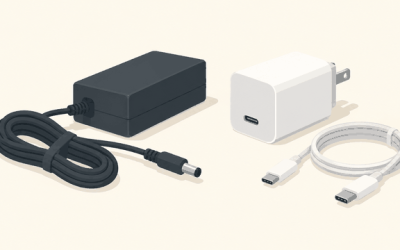
| Dock power adapter | Supplies power to the dock and, on supported models, charges the laptop. Many setups need a 65W to 100W USB-C charger. | Usually |
| USB-C to USB-C cable | Connects the dock to the laptop. Use the cable supplied with the dock when possible. | No |
| Keyboard, mouse, Ethernet cable, or speakers | Lets the dock act as a single desk connection point. | Yes |
| Monitor arms or stands | Helps position screens at a comfortable height and saves desktop space. | Yes |
For a compact desk setup, an 8-in-1 dock such as the Anker Laptop Docking Station Dual Monitor with 4K HDMI is commonly priced around $50 to $60. A budget-oriented 10-in-1 model such as the UANTIN USB-C Docking Station Dual Monitor for Laptop may cost roughly $20 to $30. Check the exact video specifications before buying: two HDMI-shaped ports do not automatically guarantee that your laptop can run two independent external displays.
As an Amazon Associate we earn from qualifying purchases at no extra cost to you.


Step-by-Step
1. Confirm that your laptop supports two external displays (5 to 10 minutes)
Start with the laptop, not the dock. Look up your laptop model’s technical specifications and identify what its USB-C port supports. For a standard USB-C dock, you typically need DisplayPort Alt Mode. Thunderbolt 3, Thunderbolt 4, and many USB4 ports can also carry video, although capabilities vary by device.
Windows laptops that support DisplayPort Multi-Stream Transport (MST) can often extend the desktop across two monitors through one compatible USB-C connection. Mac support varies more widely. Some Mac laptops can drive only one external display natively through a standard USB-C dock, while others support two or more. A dock using DisplayLink technology can add displays in some cases, but it requires software and may not be ideal for high-frame-rate gaming or color-critical work.
2. Check the monitor and dock connections (5 minutes)
Examine the ports on both monitors and on the dock. HDMI is common and simple for most home offices. DisplayPort is also a strong choice, especially for monitors with higher refresh rates. If one monitor has HDMI and the other has DisplayPort, use a separate cable for each output rather than relying on adapters unless the dock documentation specifically supports them.
For typical productivity monitors, a dock that supports two 1920 x 1080 displays at 60Hz is sufficient. If you use 2560 x 1440 or 3840 x 2160 monitors, verify the dock’s dual-display resolution limits. Some docks can run one 4K display at 60Hz but reduce the second display to 4K at 30Hz, 1440p, or 1080p.
3. Position the monitors and manage power cords (10 to 20 minutes)
Place the monitors on a stable desk that is deep enough to keep screens about 20 to 30 inches from your eyes. For two 24-inch monitors, allow roughly 42 to 46 inches of horizontal desk width including stands and a little space between screens. Two 27-inch monitors generally need about 50 to 56 inches.
Set the top edge of each screen at, or slightly below, eye level. Angle the monitors inward slightly so you are not constantly turning your neck. Before plugging everything in, route monitor power cables and video cables toward the back of the desk. Leave a small amount of slack so the dock can be moved without tugging on the laptop.
4. Connect power to the monitors and dock (5 minutes)
Plug both monitors into a surge protector or grounded power strip, then turn them on. Next, connect the dock’s power adapter if it has one. This step matters because some USB-C docks can pass video without external power but may not provide enough power for laptop charging, USB drives, webcams, and Ethernet at the same time.
If your laptop normally uses a 65W charger, choose a dock and power adapter that can deliver at least that amount to the laptop after the dock’s own power needs are accounted for. A 100W USB-C charger is a common choice for laptops that accept up to 85W or 90W through the dock.
5. Connect each monitor to the dock (5 minutes)
Connect the first monitor to the dock’s first HDMI or DisplayPort output. Connect the second monitor to the next available display output. Make sure each cable is fully seated; HDMI plugs should sit firmly, while DisplayPort connectors may click into place.
On each monitor, use its input button or on-screen menu to select the correct source, such as HDMI 1, HDMI 2, or DisplayPort. If a monitor says “No Signal,” do not assume the dock has failed. First confirm that the selected input matches the port you used.
6. Connect the dock to the laptop (2 minutes)
Use the dock’s host USB-C cable to connect the dock to the laptop’s video-capable USB-C, Thunderbolt, or USB4 port. Avoid connecting through a USB-C extension cable, which can limit power or video performance. If your laptop has multiple USB-C ports, consult its manual; only one may support charging and external displays.
Wait 15 to 30 seconds. The laptop should detect the monitors automatically. You may see the desktop appear first on one screen, then on the second.
7. Set the displays to extend, not duplicate (5 minutes)
On a Windows computer, open Settings, select System, then Display. You should see numbered display boxes. Choose a monitor, scroll to Multiple displays, and select Extend these displays. Drag the numbered boxes so their arrangement matches the physical placement on your desk.
On a Mac, open System Settings, choose Displays, and select the display arrangement options. Set the external monitors to extend the desktop rather than mirror the built-in screen. Arrange the display icons to match left-to-right placement.
Set each monitor to its recommended native resolution. For example, a 27-inch 1440p monitor should normally be set to 2560 x 1440, while a 4K monitor should be set to 3840 x 2160. Native resolution produces the sharpest text and interface elements.
8. Test charging, accessories, and sleep behavior (5 to 10 minutes)
Plug in a keyboard, mouse, Ethernet cable, or external drive if you use them. Confirm that the laptop shows it is charging, if the dock is designed to provide power delivery. Then open a browser window and drag it between both displays to verify that the arrangement feels natural.
Finally, let the computer sleep and wake it once. If the monitor order changes after waking, revisit display settings and confirm the cables are connected securely. Updating the laptop’s operating system, graphics driver, dock firmware, or DisplayLink software may resolve recurring detection problems.
Mistakes to Avoid
- Assuming every USB-C port carries video. USB-C describes the connector shape, not its capabilities. Some ports only charge or transfer data.
- Buying a dock based only on the number of HDMI ports. Check the supported resolution and refresh rate for two displays at the same time.
- Using low-quality or overly long cables. For a reliable desk setup, use certified cables and keep passive HDMI or DisplayPort cables reasonably short, often 3 to 6 feet.
- Plugging the dock into an underpowered charger. A 20W phone charger will not adequately power a dock, laptop, two displays, and accessories.
- Leaving the monitors set to the wrong input. A blank display may simply be set to HDMI 2 when the cable is in HDMI 1.
- Forgetting operating-system limitations. Some laptops, especially certain Mac configurations, cannot natively extend to two external monitors through a basic dock.
- Stacking the dock under papers or fabric. Docks can get warm during charging and video output; keep vents and surfaces clear.
How Often
You only need to perform the full setup once, unless you replace the laptop, dock, monitor, or cables. Check the connections whenever you move your desk, notice flickering, or begin using a higher-resolution monitor. Every few months, inspect cables for bent connectors, frayed jackets, or looseness at the dock. It is also worth checking for operating-system, graphics, and dock firmware updates once or twice a year in 2026, particularly if displays intermittently disconnect after sleep.
When to Call a Pro or Replace
Call a computer technician or IT professional if your laptop documentation is unclear, the dock is not recognized after testing with known-good cables and monitors, or you need a more advanced setup with three or more displays. Professional help can also be useful for wall-mounted monitors, concealed in-wall cable routing, or a sit-stand desk with moving cable-management requirements.
Replace the dock if it repeatedly disconnects, becomes excessively hot, stops charging the laptop, or fails on multiple compatible computers. Replace a video cable if the display flickers, shows sparkles or lines, loses signal when the cable moves, or works only at a lower resolution. If your current dock cannot support the resolution, refresh rate, or number of displays you need, upgrading is more practical than relying on multiple adapters.
FAQ
Can any USB-C dock run dual monitors?
No. The dock must support dual displays, and the laptop’s USB-C port must support the necessary video output. The operating system and graphics hardware must also support two external screens. Always check the dock’s compatibility notes and your laptop’s display specifications.
Why does my second monitor show the same image as the first?
Your displays are likely set to mirror or duplicate mode. Open your computer’s display settings and choose the option to extend the desktop. If an extend option is unavailable, the laptop, dock, or connection may not support two independent displays.
Can I use one HDMI monitor and one DisplayPort monitor?
Yes, provided the dock has those outputs and supports dual displays in that configuration. Use direct HDMI-to-HDMI and DisplayPort-to-DisplayPort connections where possible. Avoid mixing adapters unless they are specifically rated for the resolution and refresh rate you want.
Why is my laptop battery still draining through the dock?
The dock’s power delivery may be lower than the laptop’s power demand, especially during gaming, video editing, or heavy multitasking. Confirm the dock’s maximum laptop charging output and use an appropriately rated USB-C power adapter, often 65W to 100W depending on your computer.