Updating the firmware on a USB-C dock fixes a surprising range of problems: monitors that flicker at 4K, ethernet that drops when a laptop sleeps, USB-A ports that refuse to charge a phone, and Thunderbolt connection errors that come and go for no obvious reason. Dock makers ship firmware updates constantly, and most people never install them. In this guide, you’ll identify your exact dock model, download and run the correct firmware updater, verify the new version is installed, and roll back safely if something goes wrong. The whole process takes 15–30 minutes and requires nothing more than a computer and a cable.
Before diving in, know that the method varies by manufacturer. Dell, HP, Lenovo, Anker, CalDigit, and Plugable all handle updates differently — some use a Windows utility, some use a web-based flasher, and a few hide the files behind a support-ticket system. The steps below cover the universal workflow, with manufacturer-specific paths where they matter.
Before You Start
| What you need | Why | Optional? |
|---|---|---|
| A Windows 10/11 or macOS 13+ computer with a free USB-C or Thunderbolt port | Most dock firmware updaters only run on a host computer, not through a hub chain | No |
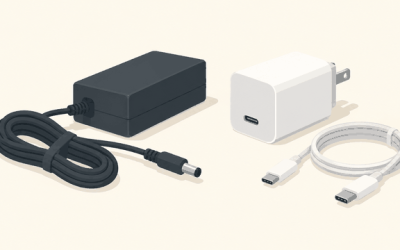
| The dock’s original USB-C cable (or a certified 100W Thunderbolt/USB4 cable) | Cheap cables cause flash failures midway, which can brick the dock | No |
| Your dock’s exact model number and serial number | Printed on the underside label (e.g., “WD19TBS”, “TP40R”, “Anker 778”); firmware is model-specific | No |
| AC power for both the dock and laptop | A power loss during flashing corrupts firmware | No |
| All peripherals disconnected | Monitors, drives, and network links can confuse the flasher or timeout mid-update | No |
| A backup of anything on drives connected through the dock | Rare, but a failed flash can reset the dock and disrupt connected storage | Yes |
| A phone camera photo of the dock’s label | Makes it easy to re-check model and serial numbers later | Yes |
Step-by-Step
Step 1: Identify your exact dock model and current firmware (5 minutes)
Flip the dock over and copy down the model number, P/N, and serial number from the label. On Windows, open Device Manager, expand Universal Serial Bus controllers and Thunderbolt/USB4 controllers, then right-click the dock entry and choose Properties > Details > Hardware IDs to confirm what the host sees. Dell users can open the Dell Command | Update app or check Support > Product Support on Dell’s site with the Service Tag; HP users should run HP Support Assistant and check Devices; Lenovo docks report their version in Lenovo Vantage > Device > System Update. Write down the current firmware version — you’ll need it to verify the update later.
Step 2: Disconnect everything and connect the dock directly (3 minutes)
Unplug all monitors, drives, ethernet, and USB devices from the dock. Plug the dock’s cable directly into the computer’s USB-C/Thunderbolt port — not through an adapter, extension, or second dock. Connect the laptop to AC power and confirm the dock’s power LED is solid, not blinking.
Step 3: Download the official firmware updater (5 minutes)
Go to the manufacturer’s support site and search the exact model number. Look for a download labeled Firmware or Dock Firmware Update Utility with a release date newer than your current version. Read the release notes and confirm the fix applies to your symptom. Examples of what to look for:
- Dell: Support site > your dock > Drivers & Downloads > filter by Category: Firmware — download the .exe (e.g., “Dell-WD19-Firmware-Update-Utility”).
- Lenovo: Support > the dock page > Drivers & Software > Firmware/BIOS — most ThinkPad docks use a “Firmware Update Tool” .exe.
- HP: Support > Software and Drivers > select the dock > Firmware category.
- CalDigit, Plugable, Anker: Check the product’s support page for a ZIP containing a Windows flasher; CalDigit also offers a Dock Firmware Updater for macOS.
Save the file to your Downloads folder and, if the site provides one, verify the checksum before running anything.
Step 4: Run the updater and keep the machine awake (5–15 minutes)
Close all other applications, right-click the downloaded .exe and choose Run as administrator. The utility will detect the dock and show the current and target firmware versions — verify both before clicking Update or Flash. Do not touch the mouse, unplug anything, or let the laptop sleep during the flash. In Windows, temporarily set Settings > System > Power & battery > Screen and sleep to Never for both settings so nothing interrupts the process. Expect progress bars to pause at intervals — that’s normal. The dock may power-cycle and its LEDs may blink several times. When the tool reports success, wait a full 60 seconds before disconnecting anything.
Step 5: Power-cycle and reconnect (3 minutes)
Unplug the dock from AC power, wait 30 seconds, then reconnect it and the host cable. Reattach your devices one at a time, starting with the monitor. This full power cycle forces the dock’s internal controllers to reload the new firmware cleanly.
Step 6: Update Thunderbolt firmware if applicable (5 minutes, Thunderbolt docks only)
Thunderbolt docks have two firmware layers: the dock firmware and the Thunderbolt controller firmware. On Windows, open the Thunderbolt Control Center (or Thunderbolt Software on older builds), click the dock under Approved devices, and check for an Update banner. On macOS, Thunderbolt firmware updates arrive through System Settings > General > Software Update. Handle these separately from the dock flash — running both at once is a common cause of failures.
Verify It Worked
Re-run whatever tool showed you the original version in Step 1. In Device Manager > Universal Serial Bus controllers, right-click the dock’s root hub, choose Properties > Details > Hardware IDs, and compare against the release notes — some updaters list the new firmware version there. Dell Command | Update and Lenovo Vantage will simply report “up to date” on a successful flash. Functionally, test the exact symptom that prompted the update: connect the monitor at its full resolution and refresh rate, transfer a large file over the ethernet or a USB drive, and let the laptop sleep and wake once with the dock attached. If the updater tool reports the new version but the symptom persists, the firmware fixed something else — check the release notes again or open a support ticket with your serial number.
Mistakes to Avoid
Flashing over a daisy chain or hub. What causes it: convenience — the dock is already wired through another dock or adapter. How to check: trace the cable path physically; there should be exactly one cable between dock and computer. What to do: connect directly to the host port and rerun the updater. How to undo: no harm done — simply reconnect your original setup after the flash succeeds.
Using the wrong model’s firmware. What causes it: docks that look nearly identical across revisions (a WD19 versus WD19TBS, for example). How to check: compare the full model and P/N on the label against the updater’s supported-models list in its release notes. What to do: if you haven’t run it yet, delete the file and download the correct one. How to undo: if a wrong flash completed, the dock may not enumerate at all — hold the dock’s reset button (if fitted) for 10 seconds while applying power, then reflash with the correct file; if that fails, contact the manufacturer, which can usually recover it with a service tool.
Losing power mid-flash. What causes it: running on battery, or a switched power strip someone turns off. How to check: an updater that hangs at a fixed percentage for more than 10 minutes, or a dock whose LEDs never settle. What to do: do not unplug immediately — wait 15 minutes, then power-cycle the dock only and rerun the updater, which will usually detect the incomplete state and reflash. How to undo: a dock that stays dead after two attempts generally needs an RMA; the label’s serial number is your proof of purchase date.
Updating through a laptop’s USB-A port or an adapter. What causes it: a missing USB-C port or a broken cable. How to check: the updater reports “dock not found” or hangs at detection. What to do: switch to a native USB-C/Thunderbolt port and the dock’s original cable. How to undo: nothing to undo — detection issues leave firmware untouched.
FAQ
How do I know if my dock even needs a firmware update?
Check the manufacturer’s support page for your model and compare the latest firmware version against what Device Manager or the vendor’s utility reports. If the release notes mention fixes for display flickering, sleep/wake bugs, charging, or compatibility with your laptop generation, it’s worth updating even without symptoms. If your dock works perfectly and the update is a minor patch, it’s still safe — but not urgent.
Can I update dock firmware on a Mac?
Sometimes. CalDigit and a few others ship macOS updaters, and Thunderbolt controller firmware updates arrive through macOS Software Update automatically. However, most vendor flashers (Dell, Lenovo, HP) are Windows-only .exe utilities. Options: run the updater from any available Windows PC — the dock only needs to be connected to a compatible host, not necessarily your daily machine — or use a Windows virtual machine with the USB device passed through, though native hardware is far more reliable for flashing.
Why does my dock flicker or drop devices even after updating?
Firmware is only one layer. Work through the rest: try the dock’s original cable, plug into a different host port, swap to a shorter/higher-wattage cable for the monitor, and update your laptop’s graphics driver and BIOS/UEFI. If symptoms persist across two cable/port combinations, the dock hardware — not its firmware — is likely the problem, and warranty service is the next step.
Is it safe to update firmware over USB4 or Thunderbolt, and how often should I do it?
Yes — modern docks are designed to be flashed over their normal host connection, and failure rates are low when you follow the direct-connection and stable-power rules above. As for frequency: check for updates two or three times a year, and always after connecting a new laptop, monitor, or operating system release. If your setup is stable and no new release addresses your hardware combination, there’s no obligation to flash every update — but note that 2026-era docks often bundle fixes needed for the latest discrete GPUs and high-refresh displays, so staying current pays off.