Shopping for an RGB monitor light bar is easy to overcomplicate—and just as easy to get wrong. Many buyers focus on the number of color modes, then discover the bar does not fit their curved display, blocks a webcam, reflects in the screen, or provides colorful backlighting without enough useful desk illumination. Others buy a low-cost model that uses a weak clip, offers only a few fixed brightness levels, or requires a messy cable setup.
The best choice depends less on flashy RGB effects and more on fit, light direction, controls, and the balance between task lighting and ambient lighting. A good monitor light bar should illuminate the keyboard and desk without shining into your eyes or creating glare on the display. RGB lighting is a bonus feature for atmosphere, gaming, and a more finished-looking workstation—not a replacement for practical white light.
As an Amazon Associate we earn from qualifying purchases at no extra cost to you.


Our Top Picks
 Quntis Curved Monitor Light Bar 15 RGB BacklightIM 26 inch17.3 x 5.5 x 4 inches2.7 poundsCheck on Amazon
 Quntis RGB Monitor Light Bar with Remote20 inches20.08 x 0.78 x 0.78 Inches2.1 PoundsCheck on Amazon


Top 3 picks at a glance
Decide These 3 Things First
- Choose the lighting purpose. If you work, read, write, or use a keyboard for long stretches, prioritize an asymmetrical white task light with adjustable color temperature and brightness. If your goal is primarily gaming ambience, rear-facing RGB lighting and app or remote controls matter more.
- Measure the monitor and check its shape. Note your screen’s width, bezel depth, top-edge thickness, and whether it is flat or curved. A bar made for a 34-inch ultrawide may be too long or poorly balanced on a 24-inch monitor, while a basic flat-screen clip may not sit securely on a curved panel.
- Set a realistic budget. Expect to spend roughly $20 to $35 for a basic RGB bar, $40 to $70 for a better-built dual-light model, and $70 to $120 or more for premium controls, refined counterweights, and wider compatibility.
Size and Monitor Compatibility
Light-bar length should relate to your monitor width, but it does not need to span the entire screen. For a 24-inch monitor, which is typically about 21 inches wide, a 12- to 15-inch light bar is usually proportionate. A 27-inch monitor is roughly 24 inches wide and works well with bars around 15 to 17 inches long. For 32-inch displays and 34-inch ultrawides, look for a 15- to 20-inch model designed to support the screen’s greater width and often deeper curve.
Check the manufacturer’s stated monitor-size range, but do not treat it as the only measurement that matters. A bar marketed for “15 to 34 inches” may technically fit both sizes, yet its counterweight and light spread can be better suited to one end of that range. For example, a 15-inch bar marketed for 34-inch-and-larger screens is generally a stronger candidate for an ultrawide than for a compact office monitor.
Also measure top-edge thickness. Many clip-on monitor lamps accommodate monitor tops from about 0.2 to 1.4 inches thick. Slim modern panels may be under 0.5 inch deep at the edge, while some curved and older monitors are much thicker. If your monitor has a pronounced rear housing, a built-in webcam ridge, ventilation slots, or a curved top edge, choose a bar that specifically says it fits curved or ultrawide screens. Products such as curved-compatible Quntis-style bars typically use an adjustable weighted clamp rather than a simple fixed clip.
Finally, leave space for a webcam. A monitor light bar can occupy the same center position as a webcam, particularly on a 15- to 17-inch bar. If video calls are routine, look for a design with a webcam mount, a low-profile center section, or enough clearance to place your camera above the lamp.
Material and Finish
Most monitor light bars use aluminum, ABS plastic, or a combination of both. Aluminum housings are usually the better long-term choice: they feel more rigid, help manage heat, and tend to look less cheap on a polished desk setup. A typical aluminum bar weighs about 0.5 to 1.2 pounds before its counterweight is included. Plastic bars can be perfectly acceptable at the budget end, but thin plastic housings are more likely to flex, creak, or show scratches.
Pay attention to the clamp material, not just the lamp body. The contact points should have silicone, rubber, or soft foam pads so the bar does not mark the monitor. Bare hard plastic against a display bezel is a poor sign, especially on expensive ultrawides. A padded counterweight also helps the lamp remain steady when the monitor is tilted or adjusted.
Matte black is the most practical finish because it minimizes reflections. Glossy plastic, chrome accents, and highly reflective RGB diffuser surfaces can create distracting highlights in a dark room. If you use an all-white desk setup, white housings are available, but inspect product photos closely: some budget white bars use visibly mismatched white plastics between the lamp, clamp, and remote.
Construction and Mounting Design
The defining construction feature is the mounting system. The most useful style is a gravity-balanced clamp: the lamp rests over the top front of the monitor while a weighted section sits behind it. This avoids adhesive, does not require drilling, and usually leaves the display’s front surface untouched. A well-designed clamp should feel stable without needing excessive pressure.
Look for an adjustable pivot where the lamp meets the clamp. A tilt range of roughly 20 to 45 degrees is helpful because it lets you aim the white light at the desk rather than at the screen. The ideal beam falls across the keyboard, notebook, and immediate work area. It should not create a bright stripe on the upper portion of the monitor.
For RGB models, inspect whether the colored LEDs face backward. Rear-facing RGB creates a wall wash or halo behind the monitor; forward-facing RGB can be fun, but it is less useful and more likely to interfere with visual comfort. Dual-light designs separate these jobs: white LEDs point down toward the desk, while RGB LEDs point behind the screen. That arrangement is worth seeking out if you want both work lighting and gaming atmosphere.
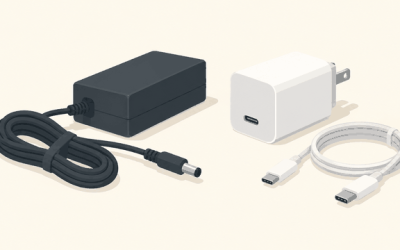
Power is typically supplied through USB-A or USB-C at 5 volts. Many bars draw about 3 to 8 watts, so they can run from a monitor USB port, desktop USB port, powered hub, or standard USB wall adapter. Avoid assuming every monitor port can provide adequate power. If the bar flickers, resets color modes, or dims unexpectedly, use a dedicated 5-volt USB adapter rated for at least 1 amp.
Comfort and Lighting Performance
For work, white-light performance matters more than RGB mode count. Seek stepless brightness adjustment rather than only three or four brightness presets. A useful range lets you run the lamp softly during early mornings and increase output when writing on paper or working with a darker desk surface.
Color-temperature adjustment is equally valuable. Models with a range around 2700K to 6500K offer the most flexibility. Warm settings near 2700K to 3500K feel more relaxed at night; neutral white around 4000K to 5000K is versatile for office work; cooler settings near 6000K to 6500K can feel crisp during daytime tasks. You do not need to use the coolest setting simply because it is available.
Look for wording such as “asymmetrical optical design,” “screen glare reduction,” or “downward task lighting,” but judge the actual design too. The LED strip should be recessed behind a diffuser or angled housing rather than directly exposed at eye level. No monitor lamp can eliminate every reflection in every room, especially with glossy displays, but a properly aimed bar should reduce the need for a bulky desk lamp beside the screen.
RGB controls vary widely. Basic bars may offer 8 to 24 preset effects, while more advanced options add music-reactive modes, speed control, brightness control, and memory settings. More modes are not necessarily better. A remote or rotary controller is usually more convenient than a small inline button, particularly when the bar is mounted high above your desk. In 2026, USB-powered RGB bars remain a simple way to add ambient lighting without dedicating another wall outlet.
Price Tiers and What You Get
Budget: $20 to $35. Expect a 12- to 16.6-inch bar, USB power, a simple clamp, fixed or limited white-light settings, and basic RGB presets. A 16.6-inch RGB monitor light bar priced around $25 fits this category. It can be a reasonable pick for a flat 24- or 27-inch monitor, but verify the clamp dimensions and whether it has independently adjustable white and RGB lighting.
Mid-range: $35 to $70. This is the sweet spot for most buyers. Look for a sturdier weighted clamp, stepless dimming, adjustable white color temperature, rear RGB lighting, a remote, and compatibility with both flat and curved monitors. Examples in this range include a 15.7-inch dual-light bar with 24 RGB modes around $31 at the lower edge, and curved or ultrawide-compatible Quntis models around $59 to around $61.
Premium: $70 to $120+. At this level, expect more refined construction, smoother controls, better fit for specialty displays, a more substantial counterweight, and sometimes app control or integrated webcam support. Premium pricing makes the most sense for a 34- to 49-inch ultrawide, a premium curved display, or a desk where the lamp will be used for several hours daily.
Warranty and Support
A one-year warranty is a sensible minimum for an RGB monitor light bar. Budget brands may offer 30-day returns and limited support, while established brands may provide 12 to 24 months of coverage. Read what the warranty actually covers: LED failure, controller failure, and power-cable problems are more relevant than cosmetic wear.
Keep the packaging until you confirm the clamp fits. Compatibility disputes are common because monitor thickness, curvature, and rear housings vary so much. A return window of at least 30 days gives you enough time to test fit, glare, brightness, and webcam clearance during normal use.
Delivery and Assembly
Most monitor light bars arrive nearly assembled and take 5 to 10 minutes to install. Typical box contents include the light bar, weighted clamp, USB cable measuring about 3 to 6 feet, remote or control dial, and a short instruction sheet. You generally should not need tools, adhesives, or a separate power brick.
Before ordering, confirm cable placement. If your monitor’s USB ports are on the opposite side from the lamp’s power input, a 3-foot cable may be too short for clean routing. A 6-foot USB cable is more forgiving for a desktop tower placed under the desk. If you use a monitor arm, check that the rear counterweight will not collide with the arm’s mounting plate.
Spec Checklist
| Spec | Budget | Mid | Premium |
|---|---|---|---|
| Typical price | $20–$35 | $35–$70 | $70–$120+ |
| Bar length | 12–16.6 in. | 15–17 in. | 15–20 in. |
| Best monitor range | 22–27 in. flat | 24–34 in. flat or curved | 27–49 in., including ultrawide |
| White-light controls | Fixed or 3–4 levels | Stepless brightness; adjustable temperature | Fine dimming, memory, refined controls |
| RGB features | Basic colors and presets | Rear RGB, remote, 8–24+ modes | Advanced effects, app or dial control |
| Power draw | About 3–5W | About 4–8W | About 5–10W |
| Warranty target | 30 days to 1 year | 1 year | 1–2 years |
Red Flags
- No stated monitor-thickness range or no mention of flat versus curved compatibility.
- RGB effects are emphasized, but there is no information about white-light brightness adjustment or color temperature.
- A clamp with hard, unpadded plastic contact points.
- Only front-facing LEDs, which can create direct glare instead of useful desk lighting.
- A very short USB cable, especially if your computer sits under the desk.
- Claims of universal fit for every monitor size without photos or specifications showing the clamp design.
- No clear return policy for a product whose fit depends on your monitor’s shape.
FAQ
Do RGB monitor light bars reduce eye strain?
They can improve comfort by lighting the desk and reducing the contrast between a bright screen and a dark room. However, RGB backlighting alone is not a medical eye-care feature. For practical use, choose adjustable white task lighting and position it so it does not reflect on the display.
What size light bar should I buy for a 34-inch ultrawide?
Start with a bar around 15 to 20 inches long that specifically lists curved or ultrawide compatibility. Check the monitor’s top-edge depth and curve, since the clamp matters more than length alone. A weighted, adjustable rear clamp is usually the safest design.
Can I use a monitor light bar with a webcam?
Yes, but verify clearance before buying. Some bars leave room for a webcam, while others occupy the top-center position. A webcam-compatible mount, a low-profile lamp, or an off-center camera placement may be necessary.
Should I leave the RGB lighting on while working?
That is a personal preference. Soft, static backlighting can make a workspace feel more comfortable, but fast-changing effects may be distracting during focused work. Use a low brightness setting and reserve animated modes for gaming or casual use.