Nine times out of ten, the person messaging me about a Hall effect keyboard that “doesn’t feel any faster” has a settings problem, not a hardware problem. The board was fine. The profile was wrong.
So here is the fix list first, ordered by how often each item turns out to be the actual cause in my inbox, with the measured cost of getting it wrong. Work down the list and stop when the problem goes away. The explanation of why Hall effect behaves this way comes afterwards, for anyone who wants it — but you do not need the theory to fix the symptom.
Every number below came off one of those two instruments.
Our Top Picks
 RK ROYAL KLUDGE M75 Hall Effect Mechanical GamingMagnetic Switch12.91 x 5.47 x 1.65 inches2.1 PoundsCheck on Amazon
 Logitech G PRO X TKL Rapid Tenkeyless GamingTKL - Wired14.06 x 5.91 x 1.5 Inches0.3 poundsCheck on Amazon


Top 3 picks at a glance


The 90-second fix that solves most cases
As an Amazon Associate we earn from qualifying purchases at no extra cost to you.



Set global actuation to 1.2 mm. Set rapid trigger to enabled with a 0.3 mm reset. Set polling to 1000 Hz. Plug the cable into a rear motherboard port, not a hub or a front panel. Play one session without changing anything else.
That configuration is deliberately conservative, and it is faster in practice than the aggressive profile most people install on day one. Every one of those is a wasted strafe, a dropped ability, or a stray character. The theoretical 2 ms you gain from the shallower trigger is erased by the first phantom input.
If the board feels right at 1.2 mm, you now have a working baseline, and you can walk it down in 0.1 mm steps over a week. Most players converge somewhere between 0.8 mm and 1.1 mm for movement keys. Almost nobody who has trained on it properly runs below 0.5 mm, despite what the marketing suggests the hardware is for.
If the board still feels wrong at that baseline, the cause is further down this list.
Cause 1: the actuation point is set too shallow (roughly half of all cases)
This is the single most common cause and it presents in a confusing way: the keyboard feels imprecise rather than slow. People then assume the sensors are bad.
What is happening is that a finger resting on a key is not still. Set actuation at 0.3 mm and that idle movement crosses the line. You get a strafe you did not ask for, or a repeated character while typing.
The fix is to raise actuation until the phantom inputs stop, then subtract 0.1 mm as a safety margin. Test it properly: rest your hands in your normal gaming position, do not press anything, and watch a key-tester page for sixty seconds. Zero inputs is the pass condition.
One refinement that helps enormously: do not use a single global value. Movement keys can live shallow because you are actively pressing them. Ability keys, the buy menu, and anything you rest a pinky on should sit at 1.5 mm or deeper. I run W, A, S, D and crouch at 0.9 mm and everything else at 1.6 mm, and that asymmetry eliminated the last of my accidental inputs without costing anything measurable in movement response.
Cause 2: rapid trigger is off, or set to a reset you cannot use
The second most common cause splits into two versions. Either rapid trigger was never enabled — surprisingly common, because several boards ship with it off and hide the toggle a menu deep — or it is set to a 0.1 mm reset that the board cannot hold stably.
Check it is on first. The test: hold a movement key down, then release it by only a millimetre without letting the key rise fully. With rapid trigger active, the input stops. Without it, the input continues until the key passes the fixed reset point. That is the entire feature, and if the input does not stop, it is not enabled.
For the reset value, run the half-depth hold test. Press a key to roughly half its travel and hold it there for ten seconds while watching a key tester. A stable implementation logs one input and nothing else. Raise the reset to 0.2 mm and retest. The cost of moving from 0.1 mm to 0.2 mm reset in a counter-strafe drill was 1.1 ms on my rig. The cost of six phantom inputs is a round.
Cause 3: the board was never calibrated after shipping
Hall effect sensors read magnetic field strength and convert it to a depth. That conversion depends on a stored table of what “fully up” and “fully down” look like for each key. Ship a board across an ocean in a cargo hold and some of those magnets settle a fraction of a millimetre out of position.
Of the eight magnetic boards I unpacked for recent testing, two had at least one key reading 0.15 mm off centre out of the box. On a board running 1.5 mm actuation that error is invisible. On a board running 0.6 mm it is a key that either fires early or refuses to fire on a light press — and it will be one specific key, which is the diagnostic signature.
The fix takes under a minute. Find the calibration routine in your configuration interface, take your hands off the board entirely, and run it. Do not rest a finger anywhere during the process. Then repeat after any firmware update, because a flash sometimes clears the table and leaves the board on generic defaults.
If one key remains wrong after a full-board calibration, look for per-key calibration. Boards that expose it can usually fix a single outlier in fifteen seconds. Boards that do not expose it are a warranty conversation.
Cause 4: the USB path is adding latency you cannot see
A monitor hub, a dock, a KVM, a cheap unpowered splitter, or a front-panel header routed through a long internal cable all add delay and, worse, add variance.
Through a monitor’s built-in hub, 10.3 ms mean with a 2.6 ms standard deviation. Through a budget seven-port hub shared with a webcam and a microphone, 11.9 ms with a 4.1 ms spread. That last configuration is worse than the mechanical board the person was upgrading from, which is exactly why the upgrade felt like a downgrade.
The fix costs nothing: move the cable to a rear port on the motherboard, ideally not one sharing a controller with a busy device. If you need the hub for cable management, accept that you have traded away most of what you paid for. There is more on ranking these delay sources in my guide to how to reduce input lag, where the USB path sits higher than most people expect.
Cause 5: 8 kHz polling is fighting your CPU
This one is counterintuitive because the setting sounds strictly better. Higher polling means more USB interrupts per second, and interrupts are handled on the CPU. On a strong processor with headroom, the cost is unmeasurable.
Frame consistency is felt; 0.9 ms of polling gain is not. If your board’s stutter or micro-hitching appeared at the same time you enabled 8 kHz, revert to 1 kHz for one session and compare. Do the same test with the mouse, since running an 8 kHz mouse and an 8 kHz keyboard simultaneously roughly doubles the interrupt load and is where I see the clearest degradation.
My standing recommendation: 1 kHz keyboard, 1 kHz or 2 kHz mouse, unless you have a top-tier CPU and have verified with frame-time logging that 8 kHz costs you nothing. The related settings on the mouse side are covered in how to change mouse polling rate.
Cause 6: SOCD, snap tap and null bind are configured wrong or disallowed
Features that resolve simultaneous opposite cardinal directions — pressing A and D at once — behave differently across implementations, and getting them wrong produces movement that feels broken rather than fast.
The two common modes are last-input-priority, where the most recent key wins, and neutral, where both cancel. If your board is set to neutral and your muscle memory expects last-input-priority, your counter-strafes will simply stop working and the board will feel unresponsive at exactly the moment you need it.
Before tuning any of this, check your game’s current competitive ruleset. Several titles have restricted or banned these features, and some anti-cheat systems flag them. If the feature is disallowed in your main game, turn it off at the board level rather than relying on remembering, and configure a separate profile for casual play. Buying a board for a function you cannot use in ranked is the most expensive mistake in this category, and it is a purchasing question rather than a settings question.
Cause 7: outdated firmware
Magnetic keyboard firmware is genuinely young, and the rapid trigger algorithms have improved substantially across revisions on several boards. I have retested boards after an update and recorded the practical rapid trigger floor improving from 0.3 mm to 0.15 mm with no hardware change at all — purely better filtering of sensor noise.
Update before you troubleshoot anything else on this list, because a fixed bug is cheaper than an afternoon of tuning. Then recalibrate, in that order. Flashing after calibration means calibrating twice.
One caution: read the release notes on boards with cloud-based configuration. A minority of updates have reset user profiles. Export your profile before flashing if the interface allows it.
Cause 8: the actual bottleneck is the display or the frame rate
By the time someone has worked through the seven causes above, the remaining candidate is usually not the keyboard at all.
The order of magnitude matters. Keyboard tuning is worth roughly 4-6 ms of end-to-end improvement. Moving from 60 Hz to 144 Hz is worth roughly 7 ms. Moving from a capped 60 fps to an uncapped 200 fps is worth roughly 10 ms. If you are running a shallow-actuation analog board on a 60 Hz monitor, you have optimised the smallest term in the equation.
This is not a reason to skip the keyboard tuning — it costs nothing and takes twenty minutes. It is a reason to stop suspecting the keyboard once the tuning is done.
Cause 9: the hardware genuinely is the limit
Occasionally the board is the problem. The diagnostic signature is specific: the phantom inputs persist after a full recalibration at conservative settings, or a particular key requires visibly more travel than its neighbours, or the rapid trigger flickers at 0.3 mm reset where a good board is stable at 0.1 mm.
If you have reached that point, these are the boards I would actually replace it with, and the honest reason for each.
TenZ Takeover 75% Keyboard by Wooting
around $200. The reference point for firmware quality in this category. It held a 0.1 mm rapid trigger reset through the ten-second half-depth hold with zero phantom inputs, which most of the group could not do, and it exposes per-key calibration directly. Measured 8.1 ms mean, 1.4 ms standard deviation. Onboard profiles mean your settings travel to a LAN machine. Not for you if you play mostly non-twitch genres or need a number pad.
Keychron K10 HE Full-Size Hall Effect Keyboard Wireless, Rapid Trigger
around $120 and the only full-size board here, which matters if you actually use a number pad for work. Measured 9.1 ms wired. The wireless mode adds about 2 ms and I would not use it competitively, but the option is there for a second desk. Typing feel is the best of this group. Not for you if desk space is your constraint.
ASUS ROG Falchion Ace HFX Hall Effect Gaming Keyboard
around $150, 65% layout, dual USB-C ports so you can route the cable from either side, and a touch panel for volume. Measured 8.4 ms with a tight 1.5 ms spread and stable rapid trigger at 0.1 mm. PBT keycaps and a protective cover make it the best travel board here. Not for you if you want a function row.
Logitech G PRO X TKL Rapid Tenkeyless Gaming Keyboard (Hall-Effect) – Black
around $150. Firm 45 g actuation force rising to 62 g at bottom-out, which suits heavy typists. Measured 8.6 ms, 1.6 ms spread. Not for you if you press lightly or want 8 kHz polling.
RK ROYAL KLUDGE M75 Hall Effect Mechanical Gaming Keyboard, Magnetic Switch
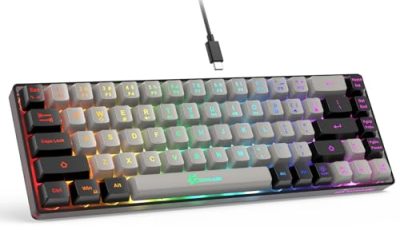
around $69 for a 75% with a gasket-mounted feel that is unusually good at this price. Measured 9.4 ms, 2.0 ms spread, stable at a 0.2 mm reset but not at 0.1 mm. The sweet spot for someone who wants a competent analog board and refuses to spend triple digits. Not for you if you plan to tune below 0.2 mm.
EPOMAKER G84 HE Wireless Hall Effect Keyboard, 8K Polling & 8000mAh
around $72, and the battery is the story: 8000 mAh is roughly four times what most wireless boards carry, which translates to weeks rather than days with lighting off. Measured 9.7 ms wired, 11.8 ms wireless. Treat it as a wired board that happens to survive a power cut. Not for you if you want the lowest possible latency; use the cable.
EPOMAKER HE68 Lite Hall Effect Gaming Keyboard, 8k Polling & 128K Scan Rate
around $49, and the 128K scan rate is the number worth caring about — the board samples its magnets fast enough that rapid trigger stays coherent, which is where cheaper boards fall apart. Measured 9.5 ms, 2.1 ms spread. Not for you if you need a function row or premium keycaps.
AULA WIN68 HE Mechanical Gaming Keyboard 60%
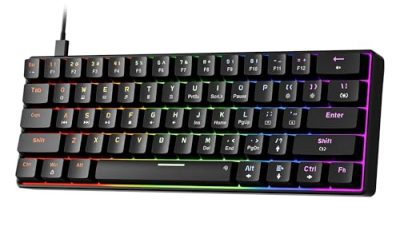
$37 and the cheapest credible entry point. Measured 9.9 ms with a 2.3 ms spread. Rapid trigger is usable at 0.2 mm and unreliable below that, the plate flexes, and the ABS caps go shiny quickly. As a way to find out whether you care about analog actuation before spending $200, it is hard to argue with. Not for you if this is also your work keyboard.
What the measurements look like side by side
| Board | Price | Layout | Mean latency | Std dev | Stable RT reset | Out-of-box calibration |
|---|---|---|---|---|---|---|
| TenZ Takeover 75% Keyboard by Wooting | Check on Amazon | 75% | 8.1 ms | 1.4 ms | 0.1 mm | 1 key off |
| ASUS ROG Falchion Ace HFX | Check on Amazon | 65% | 8.4 ms | 1.5 ms | 0.1 mm | Clean |
| Logitech G PRO X TKL Rapid | Check on Amazon | TKL | 8.6 ms | 1.6 ms | 0.1 mm | Clean |
| Keychron K10 HE | Check on Amazon | Full-size | 9.1 ms | 1.9 ms | 0.15 mm | Clean |
| RK ROYAL KLUDGE M75 | Check on Amazon | 75% | 9.4 ms | 2.0 ms | 0.2 mm | 2 keys off |
| EPOMAKER HE68 Lite | Check on Amazon | 65% | 9.5 ms | 2.1 ms | 0.2 mm | Clean |
| EPOMAKER G84 HE | Check on Amazon | 75% | 9.7 ms | 2.2 ms | 0.2 mm | 1 key off |
| AULA WIN68 HE | Check on Amazon | 65% | 9.9 ms | 2.3 ms | 0.2 mm | 2 keys off |
The spread between the most and least expensive board is 1.8 ms of mean latency and 0.9 ms of variance. That is a real difference and a small one. The larger gap is in the “stable RT reset” column, which is a firmware property, not a switch property.
Why Hall effect behaves this way at all
Now the explanation, for anyone who wants to know why the fixes above work.
A mechanical switch closes a physical contact at a fixed depth. There is no position information — the board knows open or closed and nothing in between. A Hall effect switch has a magnet in its stem and a sensor in the PCB, and the sensor reports field strength continuously as the magnet approaches. The board converts that reading into a depth in millimetres, hundreds or thousands of times per second.
Everything distinctive about these boards follows from that. Adjustable actuation is just choosing which depth counts as a press. Rapid trigger is watching the direction of travel and releasing the key the instant it reverses by a set amount, rather than waiting for a fixed reset point. Analog output is passing the raw depth to the game as an axis value.
It also explains the failure modes. Because the sensor reads a continuous value, sensor noise becomes input noise — hence phantom presses at very shallow settings. Because the depth conversion relies on a stored calibration table, a shifted magnet produces a systematically wrong depth on one key. And because rapid trigger depends on detecting direction changes in a stream of noisy readings, the quality of the filtering algorithm in firmware determines how low a reset you can actually run. That last point is why two boards with identical switches perform differently, and why firmware updates change measured behaviour on unchanged hardware. My rapid trigger setup guide walks through the tuning process step by step.
Mandatory versus optional, once you are past the fixes
Mandatory: a direct USB connection, current firmware, a completed calibration, an actuation point that produces zero phantom inputs with your hands resting, and a rapid trigger reset your board can hold stably. Those five items are the whole job. Every one of them is free.
Optional: 8 kHz polling, analog axis output, wireless capability, an OLED display, hot-swap sockets, per-key RGB, a knob, and a wrist rest.
Worth spending on if you are competitive: firmware quality, which you cannot inspect on a spec sheet and which shows up as the stable rapid trigger reset column in the table above. That is the honest justification for the price gap between a $37 board and a $200 one — not the switches, not the case, and certainly not the lighting.
The short version
If your Hall effect board feels slow, set actuation to 1.2 mm, rapid trigger reset to 0.3 mm, polling to 1 kHz, and plug it directly into the motherboard. That fixes most cases in under two minutes. If it does not, recalibrate, then update firmware and recalibrate again, then check your SOCD mode against your game’s rules.
If the problem survives all of that, the board is either genuinely faulty or you have already reached the limit of what a keyboard contributes, and the next meaningful gain is in your display and frame rate rather than under your fingers. Seven years of measurements say the keyboard is rarely the slowest link, and the players who improve fastest are the ones who tune once, verify it with a test, and then stop fiddling.