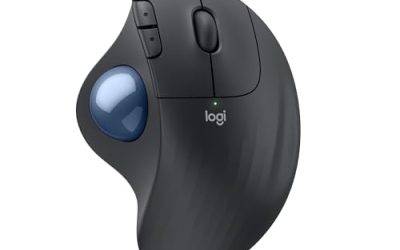
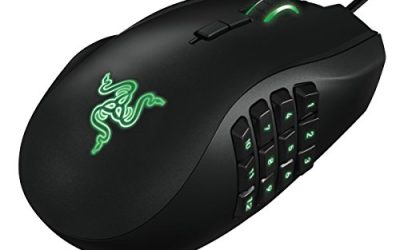
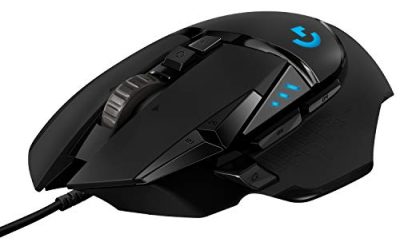
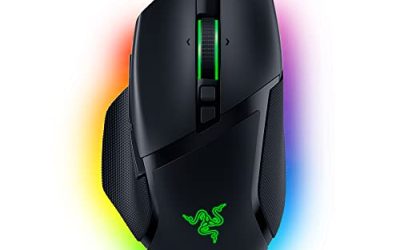
Polling rate is how often your mouse reports its position to your PC, measured in Hertz — 1000Hz means it reports 1000 times per second, or once every millisecond. You change it in your mouse’s manufacturer software (Logitech G HUB, Razer Synapse, Corsair iCUE, SteelSeries GG, or similar), usually in a performance or sensor settings tab, by selecting a value from a dropdown or list of presets.
Most gaming mice ship at 1000Hz by default, and that’s a reasonable setting for the overwhelming majority of players. Newer high-end mice support 4000Hz or 8000Hz, but the practical benefit above 1000Hz is small and comes with real tradeoffs in CPU usage and, on wireless mice, battery life.
As an Amazon Associate we earn from qualifying purchases at no extra cost to you.




Our Top Picks


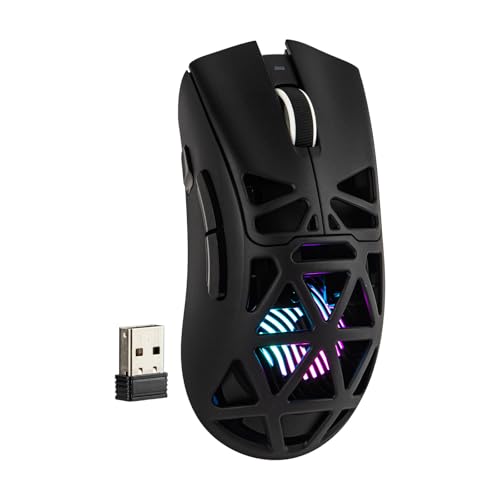

Top 3 picks at a glance
Quick answer
Open your mouse’s software, find the performance or sensor tab, and pick a polling rate from the available list — 1000Hz is the standard, reliable choice for most people. Go lower (125Hz-500Hz) to save battery on a wireless mouse or reduce CPU overhead on a weaker system; go higher (2000Hz-8000Hz) only if your mouse supports it and you’re chasing the smallest possible reduction in click-to-report latency.
| Polling rate | Report interval | Typical use case |
|---|---|---|
| 125Hz | 8ms | Older mice, minimal CPU/battery impact |
| 500Hz | 2ms | Balanced, good for older or budget systems |
| 1000Hz | 1ms | Standard for most gaming mice |
| 4000Hz-8000Hz | 0.25ms-0.125ms | High-end mice, marginal gains, higher CPU load |
What polling rate actually measures
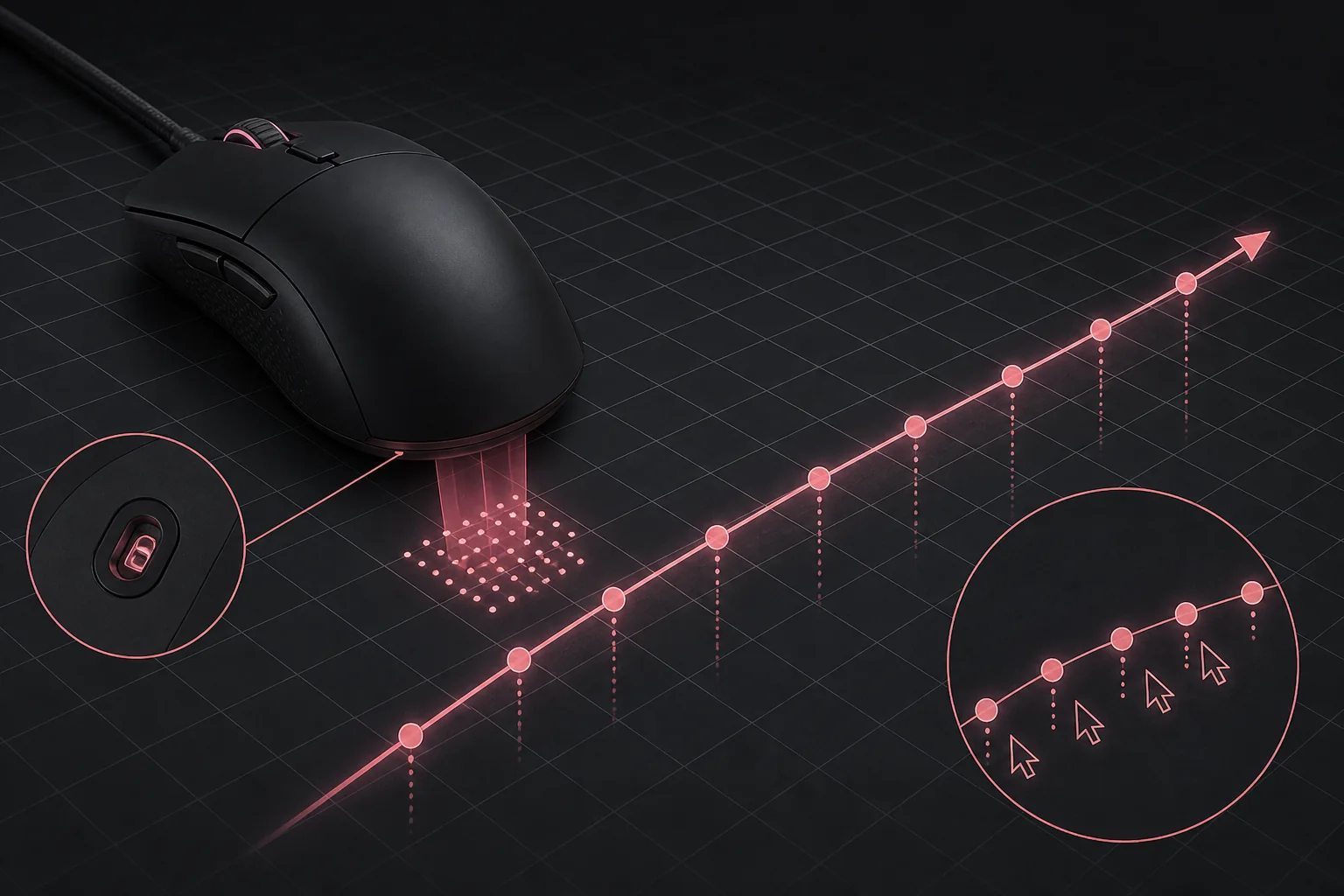
Every time your mouse’s sensor detects movement, it needs to relay that data to your PC over USB. Polling rate is the frequency of that relay, not the frequency of the sensor reading movement itself — the sensor itself typically samples much faster than any polling rate, and polling rate governs how often those samples get bundled up and sent to the operating system.
At 125Hz, there’s an 8-millisecond gap between reports; at 1000Hz, that gap shrinks to 1 millisecond. That gap is added latency between a physical mouse movement and your PC registering it, on top of whatever latency your monitor, GPU, and game engine add downstream. It’s one contributor to overall input lag, not the whole picture.
Higher polling rates beyond 1000Hz shrink that gap further, but the returns get smaller fast — going from 1000Hz to 2000Hz saves half a millisecond, which is well below what most players can perceive directly, even though some competitive players report the movement feeling smoother at very high sensitivity and fast flick speeds.
To put the numbers in perspective: the jump from 125Hz to 1000Hz cuts the report interval by 7 milliseconds, a difference large enough to be noticeable in fast-paced aiming. The jump from 1000Hz to 8000Hz only cuts the interval by a further 0.875 milliseconds, a much smaller absolute reduction spread across seven additional intermediate steps. The biggest, most perceptible gain in this whole range comes from simply not running at a low legacy default like 125Hz — everything past 1000Hz is chasing progressively smaller returns.
Changing polling rate in manufacturer software
Open your mouse’s companion software and select your device. Look for a tab labeled performance, sensor settings, or something similarly named — this is where DPI stages and polling rate typically live together, since they’re both sensor-level settings rather than lighting or macro settings.
You’ll usually see a dropdown, slider, or row of preset buttons listing the available polling rates for your specific mouse — not every mouse supports every rate, and the list you see is limited to what your hardware’s sensor and USB controller can actually sustain.
Select your target rate and the change usually applies immediately without needing to reconnect the mouse, though some software prompts a brief reconnect cycle to apply cleanly. If your mouse has onboard memory, save the profile to the device afterward if you want the new polling rate to persist without the software running.
A mistake worth avoiding: setting polling rate once and never revisiting it after buying new hardware. If you upgrade your CPU, motherboard, or USB hub, it’s worth re-checking whether a higher polling rate that previously caused stutter on your old system now runs cleanly, since the CPU overhead ceiling that made a high rate impractical before may no longer apply.
CPU overhead at high polling rates
Every polling event is a USB interrupt that the CPU has to process, and at very high rates — 4000Hz or especially 8000Hz — that adds up to several thousand interrupts per second from mouse movement alone. On a modern mid-range or high-end CPU this overhead is generally small enough not to matter, but on older or budget CPUs, or systems already pushed close to their limit by a demanding game, it can show up as a measurable frame-time cost.
This is why some mice that support 8000Hz ship with it disabled by default, requiring you to opt in explicitly and sometimes install a specific USB dongle or driver mode to sustain it reliably. If you’re not chasing every fraction of a millisecond in a competitive title, there’s little reason to enable rates above 1000Hz on a system that’s already working hard elsewhere.
If you notice stutter or frame-time inconsistency after switching to a very high polling rate, dropping back to 1000Hz is a reasonable and easy test to isolate whether the polling rate itself is the cause.
The effect is most visible in CPU-bound games — titles that already lean heavily on a single CPU core for game logic, physics, or many simultaneous entities on screen — where every spare cycle matters more than in a game that’s comfortably GPU-bound. If you play a CPU-intensive strategy or simulation title alongside a competitive shooter, it’s reasonable to run a lower polling rate for the CPU-heavy game and a higher one for the shooter, switching per-game profile rather than picking one universal setting for everything.
Polling rate on wireless mice
Wireless mice transmit position data over a radio connection rather than a wired USB cable, and higher polling rates mean more frequent radio transmissions, which draws more power from the battery. The battery-life difference between 125Hz and 1000Hz on a wireless mouse is usually modest, but going all the way up to 4000Hz or 8000Hz on mice that support it wirelessly can shorten battery life noticeably compared to running the same mouse wired at the same rate.
Many wireless gaming mice let you set different polling rates for wired and wireless modes independently, since the wired connection doesn’t carry the same battery cost. Check your software for separate wired/wireless polling settings rather than assuming one value applies to both connection modes.
If your wireless mouse feels less responsive than expected, confirm you’re actually connected in the higher-performance wireless mode your mouse supports (some have both a standard Bluetooth mode and a faster proprietary USB receiver mode), since polling rate ceilings differ between those connection types.
As a general pattern across wireless gaming mice, running at 1000Hz wirelessly versus 500Hz commonly shortens rated battery life by a noticeable fraction, though the exact percentage depends heavily on the specific battery capacity, sensor, and radio chip used — check your mouse’s official specification sheet for its own published battery life at different polling rates rather than assuming a fixed universal ratio applies to every model.
Matching polling rate to your monitor’s refresh rate
There’s a common argument that polling rate should match or exceed your monitor’s refresh rate in Hz, but the relationship isn’t a strict requirement — your mouse reporting more often than your monitor can display doesn’t create new visible frames, it just means fresher position data is available whenever the next frame is rendered. On a 60Hz monitor, 1000Hz polling still reduces the input-to-render latency window compared to 125Hz, even though the monitor itself is the bigger bottleneck at that refresh rate.
If you’re running a high refresh rate monitor (144Hz, 240Hz, or higher) for competitive play, pairing it with at least 1000Hz polling is a reasonable baseline so your input pipeline isn’t the limiting factor before the display even gets involved.
Put differently: at 60Hz, a new frame is only drawn roughly every 16.7 milliseconds, so a 1000Hz mouse reporting every 1 millisecond is already reporting far more often than the display can use — the extra reports simply ensure the most recent one is always fresh when a frame is about to render. At 240Hz, a new frame draws roughly every 4.2 milliseconds, which starts to approach the same order of magnitude as a 1000Hz mouse’s 1-millisecond report interval, making the polling rate a comparatively more meaningful part of the total pipeline at that refresh rate than it is at 60Hz.
Setting polling rate
- Open your mouse’s manufacturer software and select your device from the device list.
- Navigate to the performance or sensor settings tab.
- Locate the polling rate dropdown, slider, or preset selector.
- Choose your target rate from the options your specific mouse supports.
- Confirm the change, reconnecting the mouse if the software prompts you to.
- If your mouse has onboard memory, save the profile to the device so the setting persists without the software running.
- Test in a game or a mouse-testing tool to confirm the new rate feels as expected.
When this doesn’t work
USB hubs, especially unpowered or older USB 2.0 hubs, can cap the effective polling rate below what your mouse and software report as selected, since the hub itself may not relay interrupts fast enough. If a high polling rate isn’t behaving as expected, try plugging the mouse directly into a rear motherboard USB port instead of through a hub or a front-panel extension cable.
Some very old or budget mice have a hard sensor-level ceiling well below 1000Hz regardless of what the software menu shows, particularly on mice not originally marketed for gaming. Check your mouse’s specification sheet if the software’s available options look unusually limited.
Virtual machines and some remote-desktop software can also interfere with polling rate, since input has to pass through an additional translation layer that may not preserve high-frequency updates. This isn’t something you can fix from the mouse software side.
Some motherboards’ rear USB ports are wired through an internal hub chip rather than connecting directly to the chipset, which can quietly impose the same kind of bottleneck as an external USB hub even though the port looks like a standard direct connection. If polling rate seems capped regardless of which physical port you use, checking your motherboard’s exact USB controller layout in its manual is a more thorough next step than simply trying different ports at random.
Troubleshooting
Symptom: Polling rate setting doesn’t stick after restarting the PC. Cause: the setting was only applied to the current software session and never saved to a profile, or the software isn’t set to launch on startup. Fix: save the profile explicitly in the software, and check that the app (or its background service) is enabled to run at startup.
Symptom: Mouse feels jittery at a high polling rate. Cause: some sensors report inconsistent data at their maximum supported rate, especially on surfaces the sensor struggles to track well. Fix: try a lower rate like 1000Hz, and test on a different mousepad surface to rule out tracking issues.
Symptom: System stutters after enabling 4000Hz or 8000Hz. Cause: CPU overhead from the high interrupt rate is competing with game processing, particularly on older CPUs. Fix: drop back to 1000Hz and monitor whether the stutter resolves.
Symptom: Wireless mouse battery drains much faster after a polling rate change. Cause: a higher wireless polling rate increases radio transmission frequency and power draw. Fix: check whether your software has separate wired and wireless polling settings, and lower the wireless-mode rate specifically.
Symptom: Polling rate appears capped lower than what the software offers, even on a direct motherboard port. Cause: the specific USB port may be routed through an internal hub controller rather than a direct chipset connection. Fix: consult your motherboard manual for which rear ports connect directly to the chipset, and test those specifically.
Frequently asked questions
What polling rate should I actually use?
1000Hz is a safe, widely supported default for most gamers and hits diminishing returns quickly. Higher rates like 4000Hz or 8000Hz only help if your mouse, USB port, and CPU can all sustain them consistently, and the difference over 1000Hz is much smaller than the jump from 125Hz to 1000Hz.
Does a higher polling rate increase CPU usage?
Yes, measurably at very high rates. Going from 1000Hz to 4000Hz or 8000Hz means the CPU processes several times more USB interrupts per second just from mouse movement, which can matter on lower-end CPUs or systems already under load.
Can I change polling rate without installing the manufacturer’s software?
Some mice let you cycle through a few preset polling rates using an onboard button combination, but fine-grained control (including very high rates like 4000Hz or 8000Hz) generally requires the manufacturer’s software at least once to set.
Why does my mouse feel less smooth after lowering the polling rate?
Lower polling rates mean the mouse reports its position to the PC less often, which increases the time between position updates and can make movement feel less fluid, especially at high sensitivity or fast flick speeds.
Does polling rate affect wireless mouse battery life?
Yes. Higher polling rates mean more frequent radio transmissions between the mouse and receiver, which draws more power. Dropping from 1000Hz to 500Hz or lower on a wireless mouse can noticeably extend battery life between charges.
For more on how this setting interacts with your sensor, see mouse DPI and polling rate explained and how to reduce input lag. If you’re troubleshooting inconsistent tracking, how to fix mouse stuttering covers related sensor and surface issues, and best wireless gaming mouse is a good reference if polling-rate ceiling is a factor in your next purchase.