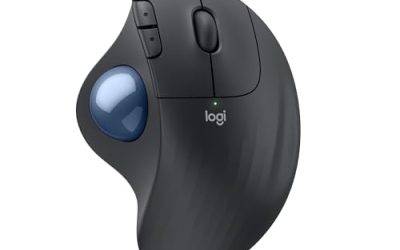
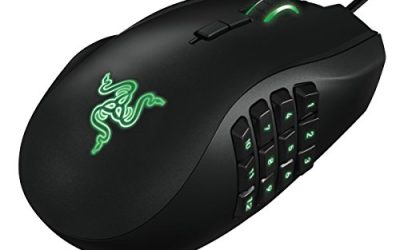
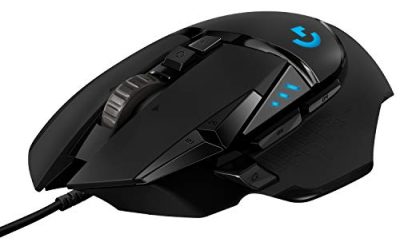
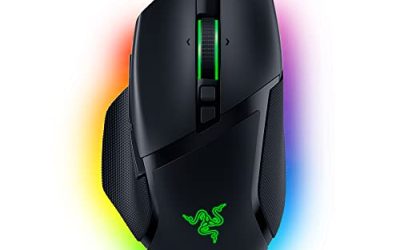
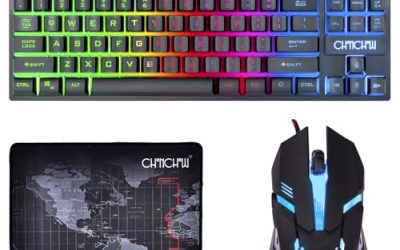
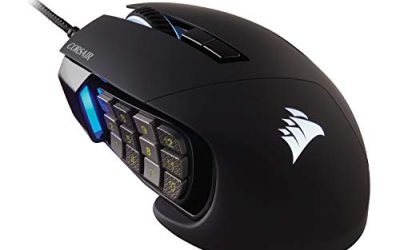
Mouse acceleration in Windows comes primarily from one setting: Enhance Pointer Precision, found in the Mouse Properties Pointer Options tab. Unchecking that box gives you a 1:1 relationship between physical mouse movement and cursor movement at any speed, which is what most gamers who complain about “acceleration” are actually trying to fix.
If disabling that setting doesn’t fully resolve the inconsistency, the remaining acceleration is likely coming from a separate source: the specific game’s own input settings, or an optional smoothing/acceleration feature inside your mouse’s manufacturer software.
As an Amazon Associate we earn from qualifying purchases at no extra cost to you.



Our Top Picks
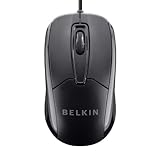
 Amazon Basics 3-Button USB Wired Mouse with Responsive1-Pack4.3 x 2.4 x 1.35 Inches0.2 poundsCheck on Amazon


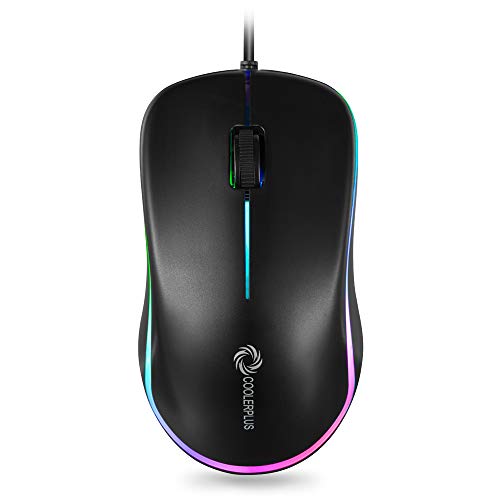

Top 3 picks at a glance
Quick answer
Open Control Panel, go to Mouse settings, select the Pointer Options tab, and uncheck “Enhance pointer precision.” This removes Windows-level acceleration system-wide. If a specific game still feels inconsistent afterward, check that game’s own mouse settings for a separate acceleration toggle, since not every title relies solely on the Windows setting.
| Source | Where to check | Affects |
|---|---|---|
| Windows pointer precision | Control Panel > Mouse > Pointer Options | Desktop and any game reading raw Windows cursor movement |
| Game-specific acceleration | In-game mouse/input settings menu | Only that specific game |
| Mouse software smoothing | Manufacturer app, performance/sensor tab | System-wide, before Windows even processes input |
What Enhanced Pointer Precision actually does
With Enhanced Pointer Precision enabled, Windows applies a variable multiplier to your mouse movement based on how fast you move it — slow movements get less amplification, fast movements get more, intended to make it easier to move precisely across short distances while still covering the full screen quickly with a fast flick. This is genuinely useful for general desktop use, where you’re clicking small UI elements at varying distances all day.
The problem for gaming, especially in first-person aiming, is that this variable multiplier makes the same physical hand movement produce different results depending on how fast you happened to move in that instant — which breaks the muscle memory and consistency that precise aim depends on. A flick that covers 90 degrees at one speed might cover 70 or 110 degrees at a slightly different speed with acceleration active.
Disabling it restores a flat, 1:1 relationship: a given physical distance always produces the same cursor or in-game camera movement, regardless of how fast you moved. That consistency is why competitive players and most gaming guides recommend turning it off.
This behavior is sometimes called the “ballistic” curve internally, since Windows has used a documented, publicly known formula for this acceleration curve for a long time, applying larger multipliers as measured mouse speed increases past several defined thresholds. Understanding that it’s a formula, not a random or per-application behavior, is useful context — it means the inconsistency isn’t a bug or a hardware fault, it’s Windows doing exactly what the setting is designed to do, which just happens to conflict with what competitive aiming needs.
Disabling it in Control Panel
Open the Control Panel and navigate to the Mouse settings — searching “mouse” in the Windows search bar and selecting “Mouse settings” or the classic Control Panel Mouse icon both get you there, though the exact entry point can vary slightly between Windows versions. From the Mouse Properties window, select the Pointer Options tab.
Under the Motion section, you’ll see a checkbox labeled “Enhance pointer precision.” Uncheck it, then click Apply and OK to confirm the change. This takes effect immediately without needing a restart, and applies to the whole system, not just games — you’ll notice the difference in general desktop use too.
If you use a specific in-game sensitivity value that felt right with acceleration enabled, expect it to feel different (usually less “jumpy” at fast movements) once you disable it — you may need to re-tune your sensitivity slightly after making this change.
It’s worth also checking the “Pointer speed” slider on the same Pointer Options tab while you’re there — it’s a separate setting from Enhanced Pointer Precision and controls a flat sensitivity multiplier rather than acceleration. Leaving it at the default middle position (commonly the 6th notch out of 11 on the slider) is the standard recommendation once acceleration is disabled, since that middle position is understood to apply the cleanest 1:1 movement ratio without any additional software-level scaling baked in.
Checking for game-specific acceleration
Many games, particularly first-person shooters, include their own mouse acceleration setting entirely separate from the Windows-level one, since they often read raw input directly from the mouse rather than going through Windows’ processed cursor movement. Disabling Windows’ pointer precision has no effect on this kind of in-game acceleration.
Look in the game’s settings menu, usually under a “mouse,” “controls,” or “input” section, for an acceleration slider or toggle. Competitive-focused games frequently default this to off already, while some other genres default it on for a smoother feel during casual play.
If a game doesn’t expose an acceleration setting directly in its menu, check its support documentation or community forums — some games handle acceleration through a configuration file rather than an in-game menu option, particularly older titles.
It’s worth distinguishing between two related but different settings some games expose: acceleration (a speed-dependent multiplier, the same underlying concept as Windows’ setting) and mouse smoothing (a separate feature that averages recent movement samples together to reduce jitter, at the cost of adding a small amount of lag). Both can make aim feel “off” in similar ways, but they’re different mechanisms and some games have independent toggles for each — disabling one without checking the other can leave you only half-way to a clean, consistent input response.
Mouse software smoothing and acceleration features
Separate from both Windows and the game itself, some manufacturer mouse software includes an optional smoothing or acceleration feature applied at the sensor level, before the movement data even reaches Windows. This is less common than it used to be, since most modern gaming mice ship with these features off by default, but it’s worth checking your mouse’s performance or sensor settings tab if the first two fixes don’t fully resolve the issue.
These features are sometimes labeled differently than “acceleration” directly — terms like “smoothing,” “angle snapping” (a related but distinct feature that corrects small tremors in straight lines), or “precision boost” can indicate similar movement-processing behavior. If you see anything modifying raw sensor output beyond DPI and polling rate, it’s worth disabling and retesting.
Angle snapping deserves a specific mention since it’s frequently confused with acceleration despite being a different mechanism. Where acceleration changes distance based on speed, angle snapping corrects the angle of a movement toward the nearest straight line, intended to help draw perfectly horizontal or vertical lines despite small hand tremor. Some players find this helpful for precision work and unhelpful for gaming, where deliberately slight curved flicks are sometimes intentional — check for it as a separate toggle from acceleration if your mouse software exposes it.
Acceleration settings on multiple user profiles
Enhanced Pointer Precision and pointer speed are per-Windows-user-account settings, not system-wide in the sense of applying identically to every account on a shared PC. If you’ve disabled acceleration under your own account but a family member or a guest account on the same machine still experiences it, that’s expected — each account maintains its own copy of these mouse settings, and a fix applied under one account has no effect on any other account on that same PC.
This is worth knowing if you’re troubleshooting on behalf of someone else remotely, or setting up a shared gaming PC used by multiple people, since forgetting this account-specific behavior is a common source of “I already fixed this” confusion when the same complaint resurfaces under a different login.
Testing that acceleration is actually gone
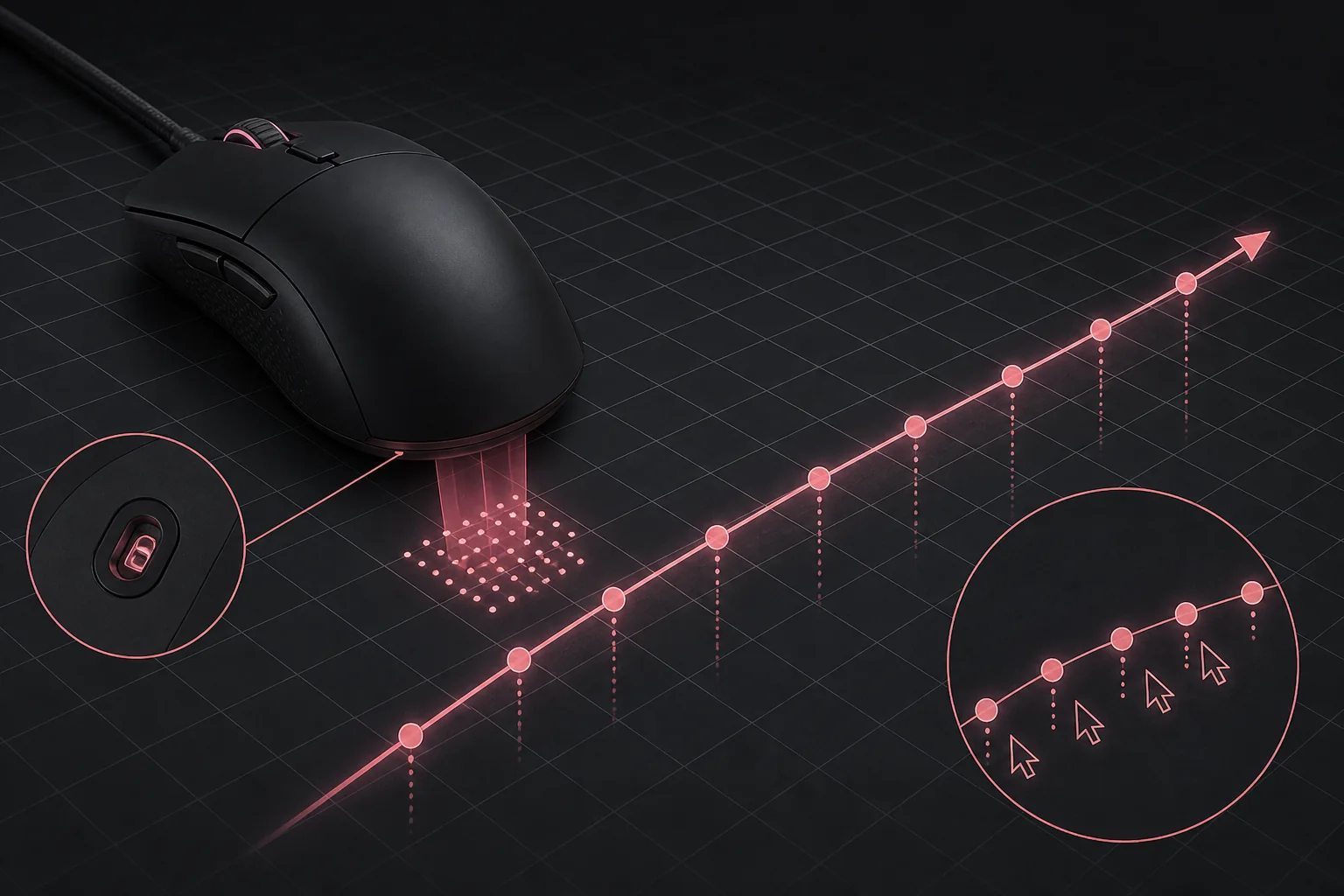
A simple way to confirm the fix worked is to move your mouse the same physical distance twice — once slowly, once quickly — across a flat surface, and check whether the cursor travels the same distance on screen both times. With acceleration off, it should be consistent; with it on, the fast movement will visibly travel further.
Several dedicated mouse-testing websites and small utilities can graph your cursor’s movement against input speed more precisely than eyeballing it, which is useful if you want to confirm a completely flat response curve rather than relying on a rough visual check.
A practical in-game test that doesn’t require any special tool: pick a fixed, memorable landmark in a game (a specific point on a loading screen, a static object in a menu background) and perform the same physical mouse swipe at a clearly slow pace and a clearly fast pace, noting where the crosshair or cursor ends up each time. If the endpoint is consistent between the slow and fast pass, acceleration is genuinely gone; if the fast pass consistently overshoots the slow pass’s endpoint, some acceleration source is still active somewhere in the chain.
Fixing mouse acceleration
- Open Control Panel and go to Mouse settings.
- Select the Pointer Options tab in the Mouse Properties window.
- Uncheck “Enhance pointer precision” under the Motion section.
- Click Apply, then OK.
- Open your specific game’s settings and check its mouse or input menu for a separate acceleration toggle.
- Check your mouse’s manufacturer software for any smoothing or acceleration feature in the performance/sensor tab.
- Test consistency by comparing slow and fast identical movements, adjusting your in-game sensitivity afterward if needed.
When this doesn’t fully fix it
If your mouse still feels inconsistent after checking all three sources, the issue may not be acceleration at all — a low polling rate, an unstable wireless connection, or a mousepad surface your sensor struggles to track cleanly can all produce a similar-feeling inconsistency without being true acceleration in the traditional sense.
Some laptop trackpads apply their own separate acceleration curves managed by the trackpad driver rather than the standard Windows mouse settings, and disabling Enhanced Pointer Precision may not affect trackpad behavior at all — check the trackpad driver’s own control panel if that’s your primary input device.
Games running through compatibility layers, older titles via emulation, or remote-desktop sessions can introduce their own input processing that isn’t controlled by any of the standard settings covered here.
Very high sensitivity settings combined with a low-DPI mouse can also produce a feeling that resembles acceleration but is actually just coarse sensor resolution — at a very high in-software sensitivity multiplier applied to a low native DPI, small hand movements can produce noticeably jumpy, uneven cursor steps that have nothing to do with acceleration at all. If this describes your setup, raising the mouse’s native DPI and lowering the in-game or Windows sensitivity multiplier to compensate can resolve a jumpiness issue that acceleration troubleshooting alone won’t fix.
Checking again after a mouse or driver swap
Switching to a new mouse, or installing a fresh manufacturer driver package for an existing one, is worth treating as a reason to re-run the slow-versus-fast movement test described above, since a new device or driver package can occasionally ship with its own default smoothing setting enabled even if your Windows-level setting was already correctly configured. A brief recheck after any input-device change confirms your whole pipeline, not just the Windows layer, is still behaving the way you originally set it up.
Troubleshooting
Symptom: Acceleration is gone on the desktop but still present in one specific game. Cause: that game has its own acceleration setting independent of Windows. Fix: check the game’s mouse/input settings menu for a separate toggle.
Symptom: Movement feels flat and consistent in testing, but sensitivity now feels “too fast” or “too slow” compared to before. Cause: this is expected — removing acceleration changes how your previous sensitivity value translates to movement. Fix: re-tune your in-game or Windows pointer speed setting from scratch rather than assuming your old number still applies.
Symptom: Enhanced Pointer Precision checkbox re-enables itself after a Windows update. Cause: some Windows updates can reset mouse settings to default. Fix: recheck the setting after major Windows updates and disable it again if needed.
Symptom: Acceleration persists even with all known settings disabled. Cause: check your mouse’s manufacturer software for a hidden smoothing feature, and confirm you’re not running any third-party mouse-enhancement utility in the background that could be adding its own processing.
Symptom: Movement feels jumpy or steppy rather than smoothly accelerated. Cause: this is more likely a low native DPI combined with a high sensitivity multiplier than true acceleration. Fix: raise your mouse’s native DPI setting and lower the in-game or Windows sensitivity multiplier proportionally to compensate.
A quick habit worth keeping
Once you know exactly where the Enhanced Pointer Precision setting lives, checking it after a fresh Windows install, a new mouse, or a suspicious update takes well under a minute, making it worth treating as a routine part of setting up any gaming PC rather than something you only think about after already noticing inconsistent aim during a session.
Frequently asked questions
What is “Enhance pointer precision” and should I turn it off for gaming?
It’s a Windows setting that applies acceleration to your cursor movement, meaning the same physical mouse movement produces different on-screen distances depending on speed. Most gamers who want consistent, predictable aim turn it off, since it removes that speed-dependent variability.
Does turning off pointer precision in Windows fully remove acceleration from games?
It removes Windows-level acceleration, but some games apply their own separate acceleration curve in their input settings, independent of the Windows setting. Check the game’s own mouse or input options for a similar acceleration toggle.
Why does my mouse still feel inconsistent after disabling pointer precision?
The remaining inconsistency could come from a low polling rate, an unstable USB connection, surface tracking issues, or acceleration built into the game itself rather than Windows. Test each variable separately to isolate the cause.
Is mouse acceleration bad for all types of games?
Not universally. Some players in certain genres, particularly ones without precise long-range aiming, don’t notice or mind acceleration. It matters most in games requiring consistent, repeatable aim across different movement speeds, like competitive shooters.
Can manufacturer mouse software add its own acceleration separate from Windows?
Some mouse software includes its own optional acceleration or smoothing feature, separate from the Windows-level setting, usually found in the same performance or sensor tab as DPI and polling rate. Check there if disabling the Windows setting doesn’t fully resolve the issue.
For more on the settings that interact with this one, see mouse DPI and polling rate explained and how to reduce input lag. If tracking issues persist after fixing acceleration, how to fix mouse stuttering covers surface and sensor troubleshooting, and best gaming mouse pad can help if surface quality turns out to be the real culprit.