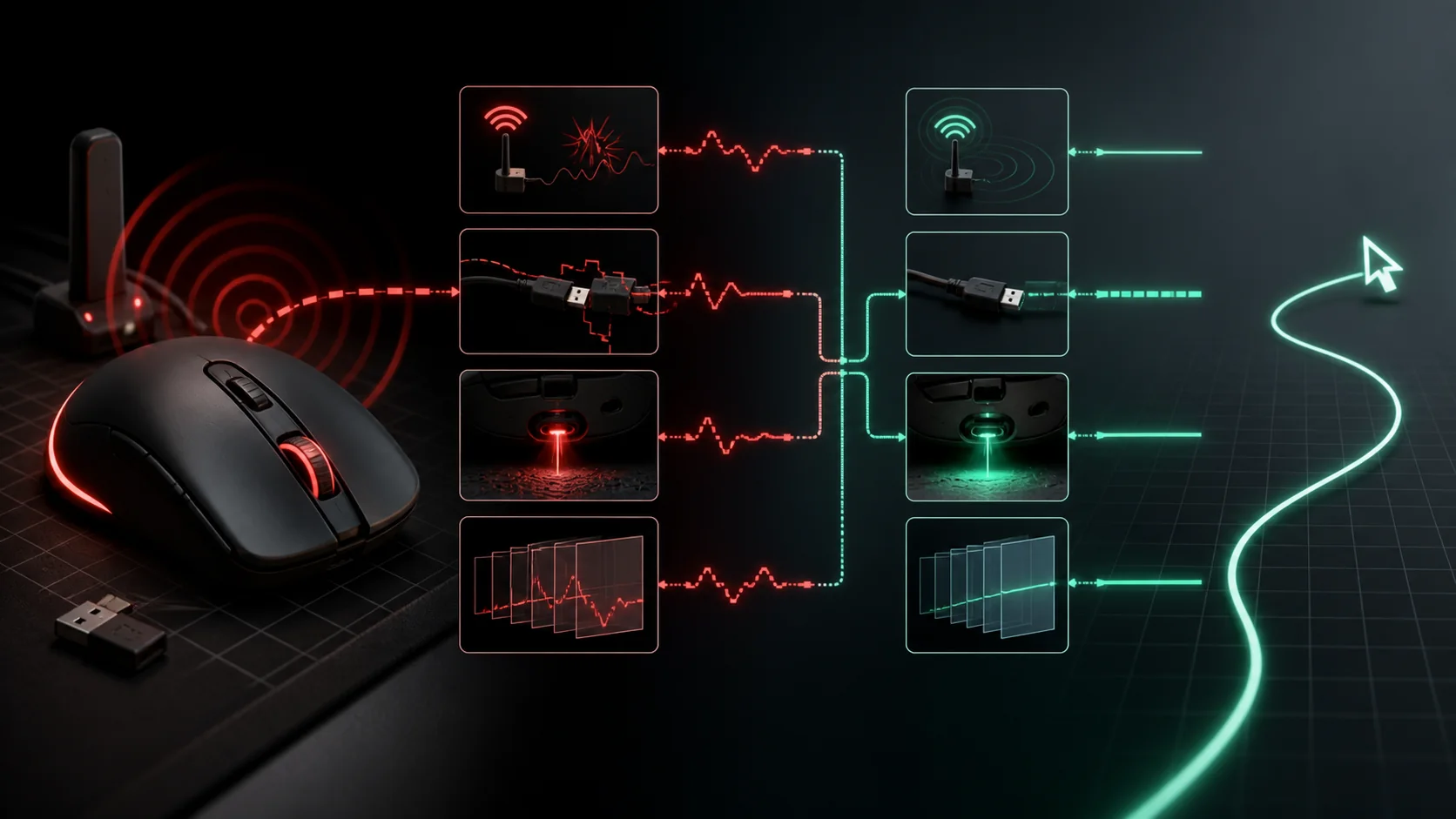
Mouse stuttering, felt as skips, micro-freezes, or inconsistent cursor movement, most often traces back to one of four causes: a USB connection or polling conflict, an unsuitable tracking surface, outdated drivers or firmware, or wireless interference on a wireless mouse. Fixing it means isolating which of these four categories applies through a short, methodical process rather than guessing at random settings changes.
Our Top Picks
 Vaydeer Undetectable Mouse Jiggler M4 Driver-Free Mouse Mover5.12*3.15*0.98 inches0.3 poundsCheck on Amazon


Top 3 picks at a glance
Understanding what mouse stuttering actually looks like
True stuttering shows up as the cursor or in-game aim skipping in small, sudden jumps rather than moving smoothly, often most noticeable during slow, deliberate mouse movements (fine aim adjustments) where any inconsistency is easier to perceive than during fast, sweeping movements.
As an Amazon Associate we earn from qualifying purchases at no extra cost to you.






This is distinct from general input lag (a consistent delay between movement and on-screen response) and from low sensitivity or acceleration issues (which affect how far the cursor travels per physical inch, not whether that travel is smooth); confusing these three separate problems leads to troubleshooting the wrong thing.
Stuttering that happens consistently across every application, including simply moving the cursor around the Windows desktop with no games running, points strongly toward a hardware or driver-level cause, since a game-specific software problem wouldn’t affect basic desktop cursor movement.
Stuttering that only happens in specific games, or only under specific in-game conditions (during frame rate drops, for instance), points more toward a software or performance-related cause tied to that specific game or its interaction with your system, rather than a fundamental mouse hardware issue.
Recording a short screen capture of the stuttering (many streaming or recording tools work for this) and reviewing it in slow motion can help distinguish genuine input stuttering from a display refresh or frame rate issue that only looks like mouse stuttering but is actually a separate rendering problem.
Checking your USB connection first
Start troubleshooting by connecting the mouse directly to a rear motherboard USB port rather than a front-panel port, USB hub, or keyboard pass-through port, since each additional connection point in the chain is a potential source of polling interruption or power delivery inconsistency.
USB hubs, particularly passive (unpowered) hubs or hubs already handling multiple other devices, can create polling conflicts when a high-polling-rate mouse competes for bandwidth and processing priority with other connected peripherals, occasionally dropping position reports that manifest as brief stutters.
Try a different USB port on the motherboard itself, ideally testing both a USB 2.0 and USB 3.0/3.1 port if your board offers both, since in rare cases a specific port’s controller can have a driver or hardware quirk that a different port on the same board doesn’t share.
Check the USB cable itself for a wired mouse, especially on longer or lower-quality cables, since a damaged, poorly shielded, or excessively long cable can introduce signal degradation that manifests as intermittent stuttering, particularly in electrically noisy environments with many other devices nearby.
For wireless mice, remove any other 2.4GHz devices’ USB receivers from adjacent ports temporarily as a test, since receiver-to-receiver interference when multiple wireless peripherals share very close physical port spacing is an underappreciated but real cause of intermittent wireless stuttering.
USB power management and Windows settings
Windows includes a USB selective suspend feature, part of its power management settings, that can briefly power down idle USB ports to save energy, and on some systems this setting incorrectly triggers even during active mouse use, causing brief, repeatable stutters or freezes.
To check this, open Windows Device Manager, find your mouse (or its USB Root Hub) under Universal Serial Bus controllers, open its Properties, go to the Power Management tab, and uncheck “Allow the computer to turn off this device to save power” if that option is present and currently enabled.
Windows Power Options (accessible through Control Panel or Settings) also includes a USB selective suspend setting within your active power plan’s advanced settings, and setting this to Disabled specifically for gaming sessions can resolve stuttering caused by this power-saving feature interfering with consistent mouse polling.
Background Windows processes, particularly Windows Update running during active use, certain antivirus real-time scans, or indexing services, can occasionally cause brief system-wide micro-freezes that affect mouse responsiveness alongside general system performance, making a check of Task Manager for unexpected CPU or disk spikes worthwhile if stuttering coincides with general system sluggishness.
Overlay software, including Discord’s in-game overlay, GeForce Experience or similar GPU vendor overlays, and some streaming software overlays, has in specific documented cases caused input stuttering in certain game and driver version combinations; temporarily disabling overlays one at a time is a useful diagnostic step if stuttering is game-specific.
Surface and sensor tracking issues
Optical and laser mouse sensors rely on tracking a surface pattern to calculate movement, and surfaces that are highly reflective, glass, glossy plastic, or certain patterned mousepad designs with very fine or repetitive patterns, can cause a sensor to lose consistent tracking, which manifests as stuttering or erratic cursor jumps.
A dedicated mousepad, even an inexpensive cloth or hard-surface one specifically designed for optical or laser sensor tracking, resolves the vast majority of surface-related tracking issues, since these surfaces are engineered with tracking-friendly textures that avoid the reflectivity and pattern-repetition problems that cause sensor confusion.
Dust, debris, or residue buildup on the mouse’s sensor lens (the small optical window on the underside of the mouse) can distort or partially block the sensor’s view of the tracking surface, causing intermittent stuttering that a quick clean with a dry cotton swab or soft brush often resolves.
Mouse feet (the small glide pads on the mouse’s underside) that are worn unevenly or have accumulated grime can cause inconsistent friction across the mouse’s movement, which some users perceive as stuttering even though the underlying cause is mechanical drag rather than a sensor or software issue.
Sensor height above the tracking surface matters too; a mouse lifted very slightly (from a thick sticker, a manufacturing defect, or debris caught under a foot) can push the sensor’s effective tracking distance beyond its optimal range, an issue more common on certain mouse and surface combinations than others and worth testing on a known-good, clean mousepad.
Driver and firmware troubleshooting
Check the manufacturer’s official software or website for the latest driver and firmware version for your specific mouse model, since stuttering bugs tied to specific driver versions are a documented, recurring issue across most major peripheral brands and are often addressed in subsequent updates.
If stuttering began immediately after a recent driver or firmware update, rolling back to the previous version (most manufacturer software retains an option to do this, or the previous installer can often be found on the manufacturer’s support page) is a reasonable diagnostic step to confirm whether that specific update introduced the problem.
Conflicting mouse software running simultaneously, such as leftover configuration software from a previously owned mouse still running in the background, can occasionally interfere with a current mouse’s driver, so check your system tray and startup programs for any old, unused peripheral software that should be fully uninstalled.
Windows’ generic HID (Human Interface Device) mouse driver sometimes takes over instead of the manufacturer’s dedicated driver after a Windows Update, which can disable manufacturer-specific features and occasionally introduce polling inconsistencies; reinstalling the manufacturer’s official driver after any major Windows Update is a reasonable precaution.
For mice with onboard memory profiles (settings stored directly on the mouse rather than requiring the software to be running), resetting to factory defaults through the manufacturer’s software and reconfiguring from scratch can resolve stuttering caused by a corrupted saved profile, which is uncommon but does happen occasionally after an improper shutdown or software crash during a settings save.
| Symptom pattern | Likely cause | First fix to try |
|---|---|---|
| Stutters on desktop and in every game | USB connection, driver, or hardware | Direct rear USB port, update driver |
| Stutters only in one specific game | Game settings, overlay, frame rate | Disable overlays, check frame rate |
| Stutters worse near edges of mousepad | Surface/sensor tracking | Switch mousepad, clean sensor |
| Random brief freezes, not movement-linked | USB power management | Disable USB selective suspend |
Wireless-specific causes and fixes
Wireless mice using a dedicated 2.4GHz receiver can experience stuttering from interference with other nearby 2.4GHz devices, including Wi-Fi routers operating on the 2.4GHz band specifically, other wireless peripherals, and even some USB 3.0 devices and cables, which are a documented source of 2.4GHz interference due to their signal characteristics.
A short USB extension cable positioning the wireless receiver closer to the mouse, and away from the direct vicinity of USB 3.0 ports, hubs, or cables, often resolves interference-related stuttering by improving signal strength and reducing the receiver’s exposure to nearby electrical noise.
Battery level matters on wireless mice using replaceable or rechargeable batteries; while most quality wireless mice maintain consistent performance across most of their charge cycle, a battery nearing full depletion can in some models cause degraded polling consistency shortly before the mouse fully powers down.
Bluetooth mice are generally more prone to stuttering and connection inconsistency than dedicated 2.4GHz receiver mice, since Bluetooth’s connection protocol handles multiple simultaneous device pairings and power-saving states differently, making a dedicated 2.4GHz receiver the more reliable choice specifically for gaming use if your mouse offers both connection options.
Check this site’s wireless gaming mouse roundup for models with strong, well-reviewed 2.4GHz connection reliability if persistent wireless stuttering on a current mouse suggests it might be time for a hardware upgrade rather than continued troubleshooting.
In-game and application-specific fixes
Check the specific game’s mouse settings for “raw input” or “mouse acceleration” options; raw input mode, which bypasses Windows’ own pointer processing and acceleration curves, generally provides more consistent, stutter-free tracking than relying on Windows-processed mouse input within the game.
Frame rate drops can cause a game engine to poll mouse input less consistently during those drops, which feels like stuttering tied to gameplay moments rather than a constant hardware issue; monitoring frame rate alongside perceived mouse stutter helps confirm whether performance, not the mouse itself, is the actual root cause.
Vertical sync and frame rate cap settings, discussed in more depth in this site’s guide on how to reduce input lag, can also affect perceived mouse smoothness independent of raw stuttering, since inconsistent frame delivery can make even perfectly tracked mouse input feel jerky on screen.
Background application overlays, particularly Discord’s in-game overlay and various GPU vendor overlays, have documented cases of causing input stuttering in specific game and driver combinations; testing with all overlays disabled is a useful, quick diagnostic step before assuming the mouse hardware itself is at fault.
If stuttering is isolated to one specific game while all others feel fine, check that game’s official forums or patch notes for known mouse input bugs, since engine-specific input handling issues affecting a subset of players are a recurring, documented pattern across many game titles rather than something unique to your particular setup.
When it’s a hardware fault versus a fixable setting
If stuttering persists identically across multiple USB ports, multiple surfaces, updated drivers, and even on a completely different computer, the mouse itself is the most likely remaining cause, pointing toward a sensor defect, a failing internal cable (on wired mice with internal flex cables), or general hardware wear.
Testing a suspect mouse on a different computer entirely is one of the most reliable diagnostic steps, since it isolates whether the problem follows the mouse (hardware fault) or stays with the original computer (system-level cause), a distinction that determines whether troubleshooting should continue on the PC or shift toward a warranty claim.
Internal cable fatigue on wired mice, particularly at the strain relief point where the cable exits the mouse body, is a common wear-related cause of intermittent stuttering that worsens specifically when the cable is bent or moved at certain angles, a symptom pattern that’s a reasonably strong indicator of a physical cable fault rather than a software issue.
Sensor degradation over years of heavy use is uncommon but does occur on some mice, particularly older or lower-quality units; if a mouse has seen several years of daily use and stuttering has gradually worsened rather than appearing suddenly, gradual sensor wear is a plausible, if less common, explanation worth considering.
Most manufacturer warranties for gaming mice run one to two years, and persistent, isolated hardware-level stuttering confirmed through the cross-computer test described above is a legitimate basis for a warranty claim if the mouse is still within its coverage period, generally a faster resolution than continued troubleshooting of a genuine hardware defect.
Building a repeatable troubleshooting checklist
Work through causes from simplest to most involved: first try a different USB port directly on the motherboard, then a different, known-good mousepad surface, then update drivers and firmware, then check Windows USB power management settings, and finally test the mouse on a different computer if earlier steps don’t resolve it.
Change one variable at a time rather than adjusting several settings simultaneously, since fixing multiple things at once makes it impossible to identify which specific change actually resolved the stuttering, information that’s useful if the problem recurs later or if you need to describe the issue accurately for a warranty claim.
Keep a brief note of when stuttering occurs, specific games, specific in-game moments like frame rate drops, specific times of day if Wi-Fi interference from neighboring networks might be a factor, since patterns in timing or context often point directly toward the underlying cause faster than testing every possible fix blindly.
Document which fix ultimately resolved the issue, since mouse stuttering can sometimes recur after a Windows Update, driver update, or new peripheral addition resets a previously working configuration, and having a record of what worked before saves diagnostic time on any repeat occurrence.
Troubleshooting: stuttering that won’t go away
If every USB port, surface, and driver combination has been tried without success, check for electromagnetic interference sources near your desk, including phone chargers, certain LED lighting setups, and some monitor or GPU power delivery components, which can in rare cases introduce electrical noise affecting sensitive USB signals.
If stuttering only occurs during high CPU or GPU load (heavy gaming moments specifically), check whether your system is thermal throttling under sustained load using a monitoring tool, since a throttling CPU can create system-wide micro-stutters that affect mouse responsiveness as a symptom of the broader performance issue rather than a mouse-specific fault.
If a wireless mouse continues stuttering despite receiver repositioning, try temporarily switching to a wired connection if your mouse supports both, since this isolates whether the wireless link itself is the remaining variable versus a deeper driver or system-level issue that would persist regardless of connection type.
If stuttering appeared suddenly after a Windows Update with no other changes made, check Windows Update history for recently installed updates and consider a temporary rollback of the most recent update as a diagnostic test, since USB and HID driver regressions in Windows updates are an infrequent but documented occurrence.
If all standard troubleshooting steps have been exhausted and the mouse is out of warranty, testing a different, known-good mouse on your system is the final useful diagnostic step; if a replacement mouse shows no stuttering under identical conditions, the original mouse’s hardware is confirmed as the cause rather than any remaining system-level factor.
Related guides
- Open Back Vs Closed Back Gaming Headsets
- Mechanical Keyboard Switches Explained
- How To Set Up A Streaming Microphone
Frequently asked questions
Why does my mouse stutter or skip only in certain games?
Game-specific stuttering usually points to a software cause rather than a hardware fault: frame rate drops causing the game engine to miss polling reads, an overlay (Discord, GeForce Experience) intercepting input, or a game-specific mouse acceleration or smoothing setting creating an inconsistent feel that reads as stuttering rather than true skipped movement.
Can a USB hub cause mouse stuttering?
Yes. Passive or heavily loaded USB hubs can cause polling conflicts, especially when multiple high-polling-rate devices share the same hub, occasionally dropping position reports. Plugging the mouse directly into a rear motherboard USB port instead of a hub resolves this in most cases.
Does mouse DPI or polling rate cause stuttering?
Not typically on its own, but a mismatch between very high polling rate (4000Hz+) and a CPU under heavy load from a demanding game can occasionally cause missed polls that feel like stutter. Lowering polling rate to 1000Hz as a diagnostic test isolates whether this is the cause before trying other fixes.
Why does my mouse cursor freeze for a split second randomly?
Brief freezes are commonly caused by background Windows processes, USB power management settings that briefly suspend the port, or a wireless mouse’s receiver losing signal momentarily due to interference from other 2.4GHz devices, Wi-Fi routers, or physical obstructions between mouse and receiver.
Should I update or roll back my mouse drivers if it’s stuttering?
Try updating to the latest manufacturer driver and firmware first, since stuttering bugs are commonly fixed in software updates. If stuttering started immediately after a specific driver update, rolling back to the previous version is a reasonable next step to confirm whether that specific update introduced the problem.