Setting up a macro on a gaming keyboard means recording or building a sequence of keystrokes in your keyboard’s companion software, then assigning that sequence to a single key. The general workflow is the same across Logitech G HUB, Razer Synapse, Corsair iCUE, and SteelSeries GG: open the software, find the macro editor for your device, record or type your sequence, assign it to a key, and save the profile. The exact button labels differ between apps, but the underlying steps don’t.
Before you start, check whether the game you’re playing for allows macros at all — many competitive titles explicitly ban certain kinds (auto-fire, recoil compensation) in their terms of service, even if the anti-cheat doesn’t catch every instance immediately.
As an Amazon Associate we earn from qualifying purchases at no extra cost to you.







Our Top Picks
 Gaming LED Keyboard Mouse Headset and Mousepad Bundle10*7.8 inches17 x 5.04 x 1.25 InchesCheck on Amazon
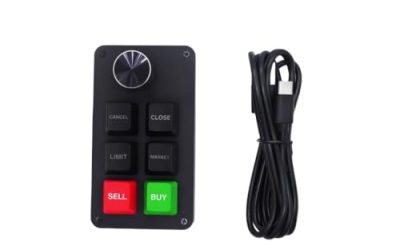
 VSD K1 Pro Programmable Macro Keyboard15.2 x 5.75 x 1.69 inches5.75 x 15.2 x 1.69 inchesCheck on Amazon
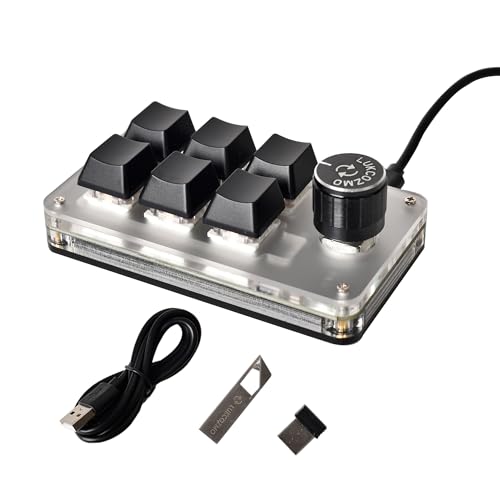 6-Key Macro Pad Programmable Wireless Mechanical Mini Keyboard4.02 x 2.24 x 1.46 Inches0.3 PoundsCheck on Amazon


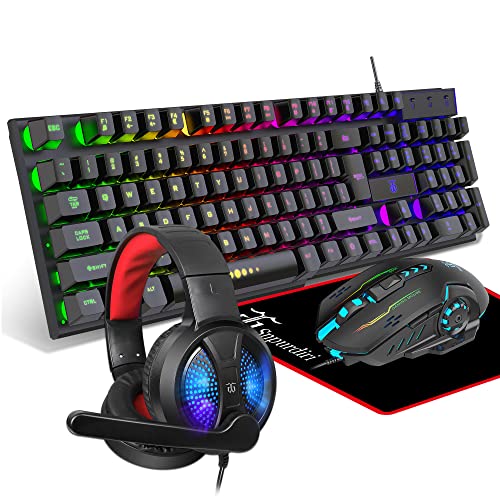
Top 3 picks at a glance
Quick answer
Open your keyboard’s software, go to the macro or key-assignment section for your device, create a new macro, record or manually enter your key sequence, assign it to an unused key or a modifier layer, and save the profile. If your keyboard has onboard memory, write the profile to the device so it survives a software close or PC switch.
| Software | Macro section (general location) | Onboard memory support |
|---|---|---|
| Logitech G HUB | Device page, assignments tab | On models with onboard flash |
| Razer Synapse | Macros module, per-device | On models with onboard flash |
| Corsair iCUE | Device page, actions/macro editor | On models with onboard profiles |
| SteelSeries GG | Engine app, device settings | Varies by model |
What counts as a macro
A macro is any recorded or scripted sequence of two or more actions triggered by a single input. That can be as simple as typing a common phrase in chat, or as involved as a multi-step sequence with timed delays between each keystroke to mimic a specific rhythm. Most keyboard software separates “macros” from simple “remaps,” where a remap just swaps one key’s function for another single key with no sequence involved.
The recording tools in G HUB, Synapse, iCUE, and GG all work similarly at a basic level: you hit record, press the keys you want in the sequence, then stop recording. The software captures both the keys and, depending on settings, the timing between them. You can usually go back afterward and edit the sequence manually — inserting delays, removing a mistimed keystroke, or adjusting how many times the sequence repeats.
Some software distinguishes between a macro that fires once per button press and one that loops continuously while the button is held. That looping behavior is the one most likely to run into anti-cheat trouble, since it produces a repetitive, machine-timed input pattern that’s easy for detection systems to flag statistically.
It helps to think of macros in three rough tiers of complexity. The simplest tier is a fixed, unconditional sequence — press A, B, then C in that order every time, with no branching. The middle tier adds timing control, where you deliberately insert pauses measured in milliseconds between steps to match something like a crafting menu’s animation speed. The most complex tier adds conditional logic (do X only if Y is true), which most consumer keyboard software doesn’t support natively and instead requires a dedicated scripting tool like AutoHotkey layered on top. Most people only ever need the first two tiers for legitimate convenience macros.
Recording your first macro
Start by opening your keyboard’s software and selecting your specific device from the device list — most of these apps support multiple peripherals and default to whichever was plugged in most recently. Navigate to the section labeled for macros, actions, or key assignments; this is usually a separate tab from the lighting controls.
Create a new macro entry, give it a name you’ll recognize later (not just “Macro1”), and use the record function to capture your key sequence in real time, or switch to manual entry mode if the software supports typing the sequence directly instead of recording it live. Manual entry is generally more precise for exact timing.
Once the sequence looks right, save it as a named macro in the software’s macro library. At this point it exists as a saved action but isn’t yet bound to any physical key — that’s the next step.
A practical habit worth adopting from the start: record the macro slower and more deliberately than your natural typing speed, then speed up the timing afterward in the editor if needed. Recording at full natural speed tends to capture inconsistent gaps between keystrokes, since your own hand speed varies moment to moment even for a sequence you know well, and those inconsistencies carry over into playback unless you clean them up manually.
Assigning the macro to a key
Go to the key-mapping or key-assignment layer of the software, which usually shows a visual layout of your keyboard. Click or select the key you want to trigger the macro, then choose “assign macro” (or the equivalent action) and pick the macro you just created from your library.
Pick a key that isn’t essential to normal typing or gameplay, or plan to use a function/modifier layer so the macro only fires when you’re holding a secondary key. Most gaming keyboards have a dedicated Fn key or a software-defined secondary layer specifically for this purpose, keeping your primary layer untouched for regular use.
Save the profile once the assignment is made, and test it immediately in a text editor or chat box before trusting it in a game, so you can confirm the exact output matches what you intended without any risk to a match.
If you’re assigning several macros across a secondary Fn layer, it’s worth sketching out the full layout on paper or in a notes app before touching the software, rather than assigning macros one at a time as you think of them. A haphazardly built Fn layer where macros end up on keys you can’t easily reach mid-game defeats the purpose — plan the physical layout first, then implement it.
Saving to onboard memory for portability
If your keyboard has onboard storage, look for an option to save or write the current profile to the device itself, separate from just saving it in the software’s profile list. This step is what makes the macro work on a different PC, or after closing the software, without needing to reconfigure anything.
Not every macro survives the trip to onboard memory intact — very complex macros with conditional branching or ones that call functions outside simple keystroke playback may only work while the full software is running. Simple linear sequences are the safest bet for onboard storage.
Test the onboard copy the same way you tested the software-side version: disconnect the keyboard, reconnect it (ideally to a different machine, or after fully closing the software), and confirm the macro still fires correctly from the assigned key.
Timing and delays inside a macro
Most macro editors let you insert explicit delays between keystrokes rather than relying purely on your recorded timing, which matters if you’re trying to replicate a specific in-game rhythm (a crafting sequence, a combo input) rather than just firing keys as fast as possible. Look for a delay or wait action in the macro editor’s action list.
Recorded timing from a live capture can be inconsistent between takes since it depends on your actual key-press speed at the moment of recording. If precision matters, switch to manual editing after recording and set fixed delay values between each step instead of trusting whatever the recorder captured.
Playback speed settings, when available, let you scale the entire macro faster or slower without re-entering every delay individually — useful for quickly testing whether a sequence still works at a different pace before committing to specific millisecond values.
As a general rule of thumb, delays in the range of roughly 20-50 milliseconds between simple keystrokes are usually enough for most games and applications to register each input distinctly without feeling sluggish, while delays under about 10 milliseconds start to risk dropped or merged inputs in some software that isn’t built to process keystrokes that quickly. These aren’t hard rules — the right value depends on the specific target application — but they’re a reasonable starting point rather than guessing blind.
Organizing macros across profiles
If you play multiple games with different macro needs, most software supports per-application profiles that switch automatically based on which game has focus. Set this up in the profile management section rather than manually swapping macros before every session, since manual swapping is the most common reason people forget a macro is active in the wrong game.
Keep macro names descriptive and grouped by game or purpose in the software’s library view — it gets unmanageable fast once you have a dozen or more saved, and default auto-generated names give you no way to tell them apart later without opening each one individually.
If your software supports exporting profiles as a file, back up your macro library periodically, especially before a major software update — profile corruption during an update is uncommon but not unheard of, and rebuilding a dozen carefully-timed macros from memory after losing them is a genuinely frustrating way to spend an evening.
Setting up a basic macro
- Open your keyboard’s software and select your device from the device list.
- Navigate to the macro or actions section for that device.
- Create a new macro and either record your key sequence live or enter it manually.
- Adjust timing and delays between steps if the default recorded timing isn’t what you want.
- Save the macro with a descriptive name in your macro library.
- Go to the key-assignment layer, select an unused key or secondary-layer key, and assign the saved macro to it.
- Save the profile, then test the macro in a text editor or chat box before using it in a game.
- If your keyboard has onboard memory, save the profile to the device so it works without the software running.
When this doesn’t work
Some competitive games actively detect and block macro-driven input, particularly rapid-fire and auto-recoil patterns, regardless of which software you used to create them — the detection happens at the input-timing level, not by identifying which app generated it. If a game explicitly bans macros of a certain type in its rules, using one risks a ban even if it technically functions.
Wireless keyboards in low-battery states can introduce enough input lag or dropped keystrokes to make precisely-timed macros unreliable, since a missed keystroke partway through a sequence breaks the whole macro’s intended output. Keep wireless keyboards charged if you depend on macro timing.
Keyboards without any onboard memory require the software to be running continuously for macros to work at all — if you’re used to a device that supports onboard storage and switch to one that doesn’t, don’t assume your macros will “just work” after closing the app.
Some applications outside of games — certain productivity software, some older game clients — read keyboard input at a lower level that doesn’t reliably register software-simulated macro keystrokes the same way a standard game does. If a macro that works fine in most games fails specifically in one application, that application’s own input handling is a more likely explanation than a problem with your macro configuration.
Troubleshooting
Symptom: Macro fires but keys appear out of order. Cause: the recorded timing was too fast for the target application to register each keystroke individually. Fix: manually increase the delay between steps in the macro editor and retest.
Symptom: Macro works in the software’s test box but not in-game. Cause: the game may be running with elevated administrator privileges while the keyboard software isn’t, which blocks simulated input from reaching it in Windows. Fix: run the keyboard software as administrator, matching the game’s privilege level.
Symptom: Macro stops working after a software or driver update. Cause: updates occasionally reset or corrupt saved macro profiles. Fix: check the macro library for the saved sequence — if it’s gone, restore from a profile backup if your software supports exporting profiles, or rebuild it.
Symptom: Macro assigned to onboard memory doesn’t fire on a second PC. Cause: the macro used conditional logic or software-only functions that don’t survive the transfer to onboard storage. Fix: simplify the macro to a linear keystroke sequence with fixed delays and re-save it to the device.
Symptom: Macro triggers correctly but produces different results in different games. Cause: some games remap the same physical key to different in-game functions, so an identical macro sequence has different effects depending on that game’s own keybinding scheme. Fix: check the target game’s keybindings before assuming the macro itself is misfiring.
Frequently asked questions
Are macros allowed in competitive games?
It depends entirely on the game’s rules and anti-cheat policy. Many competitive shooters ban rapid-fire or auto-recoil macros specifically, while allowing simple convenience macros like launching a build order in a strategy game. Always check the specific title’s terms of service before relying on one in ranked play.
Do macros work if I close my keyboard’s software after saving them?
On keyboards with onboard memory, yes — the macro is stored on the keyboard’s own chip and plays back without the software running. On keyboards without onboard memory, the software has to stay running in the background for macros to fire.
Can I set a macro to repeat while a key is held down?
Most keyboard software includes a “repeat while held” or looping toggle in the macro editor. Be careful with this setting in games with anti-cheat systems, since sustained automated input is one of the more commonly flagged patterns.
What’s the difference between a macro and a simple key remap?
A remap swaps one key’s output for another single key or shortcut. A macro plays back a sequence of multiple keystrokes, and sometimes timed delays between them, from a single button press.
Some software normalizes timing between keystrokes to a fixed interval by default instead of using your exact recorded delays. Check the macro editor for a playback-speed or timing-mode setting if the pacing looks off.
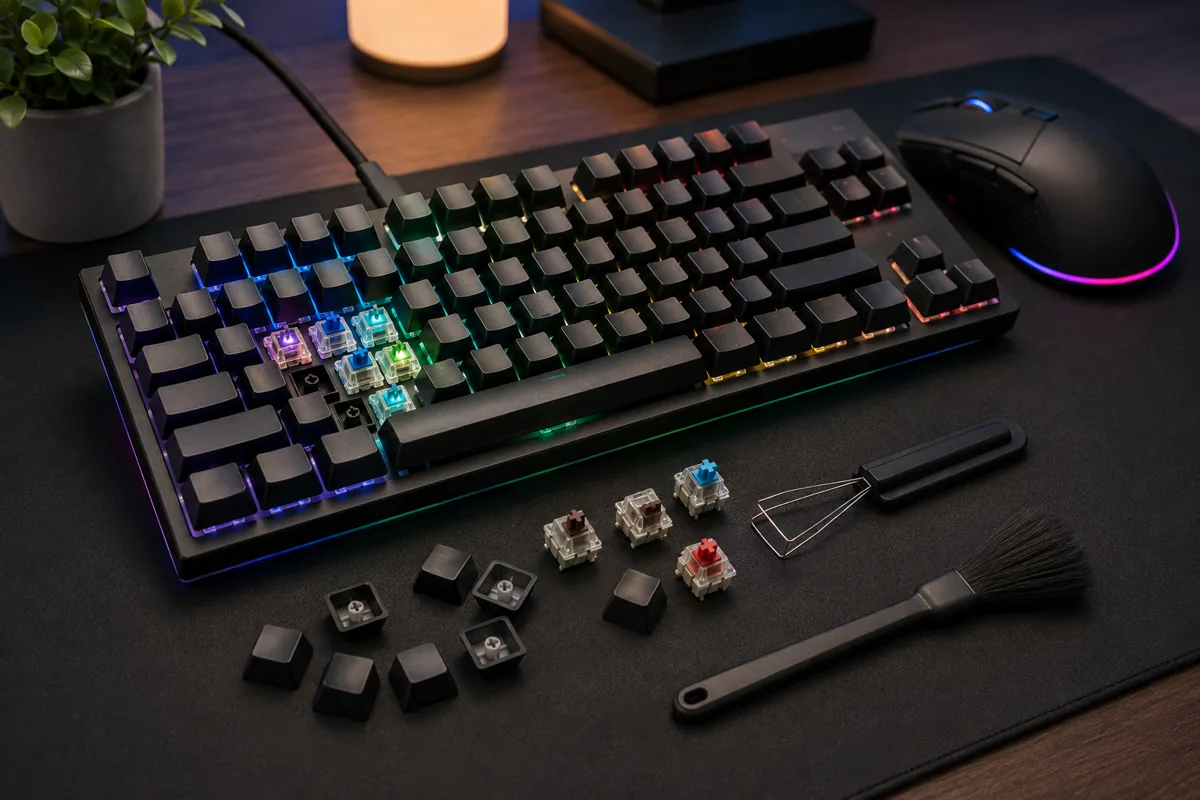
For background on how your specific switches affect keystroke consistency, see mechanical keyboard switches explained and keyboard layouts compared for gaming. If you’re chasing lower latency alongside macro setup, how to reduce input lag covers the other variables that affect responsiveness, and our best mechanical keyboard for gaming guide is a good next stop if you’re shopping for a board with solid onboard macro support.