If you are choosing between a wired KVM switch and a wireless KVM setup, the decision usually comes down to one thing: how much lag you can tolerate. A wired KVM switch uses direct HDMI and USB cables to move keyboard, mouse, and video signals instantly between computers, while a wireless KVM system transmits those same signals over the air to a receiver connected to your display. For everyday browsing and office work, both feel fine. For gaming, precise mouse work, or typing all day, the difference in latency becomes obvious. Understanding that trade-off before you buy will save you from returned gear and messy cable runs, especially as more homes in 2026 rely on a single desk for work and personal machines.
Our Top Picks
 KCEVE HDMI KVM Wireless Transmitter and Receiver 200M/660FTKVM 1 Computer 2 Monitor3 x 2 x 0.6 inches0.22 poundsCheck on Amazon
 TIMBOOTECH Wireless HDMI Transmitter and Receiver 820FT1TX&1RX0.86 x 2.92 x 6.1 inchesCheck on Amazon

Top 3 picks at a glance

Quick Verdict
For the lowest latency and most reliable signal, a wired KVM switch is the clear winner. Expect added latency under 2 milliseconds for keyboard and mouse input and essentially zero video delay at 4K@60Hz when using a direct HDMI 2.0 connection. It is the right choice for gamers, designers, programmers, and anyone who notices even slight mouse float or keystroke lag.
As an Amazon Associate we earn from qualifying purchases at no extra cost to you.



A wireless KVM transmitter and receiver system wins on flexibility and clean installation. It eliminates long HDMI runs across rooms, through walls, or between floors, with typical transmission ranges of 200 feet indoors up to 650 to 820 feet line-of-sight. You will trade that freedom for higher latency, usually in the 40 to 90 millisecond range for video plus input, and occasional interference in crowded Wi-Fi environments. Choose wireless if your priority is placing computers and monitors far apart without drilling holes or running 30-foot cables.
Side by Side
| Feature | Wired KVM Switch | Wireless KVM Switch |
|---|---|---|
| Comfort | Instant, natural mouse and keyboard feel; no perceptible delay for typing or gaming | Comfortable for video and casual control; slight delay noticeable in fast mouse movements |
| Durability | Solid-state box with no antennas; 5-8 year lifespan, limited by ports and cables | Transmitter/receiver pair with antennas and power adapters; lifespan 3-5 years, sensitive to heat and interference |
| Price Range | $16 to $35 for 2-port HDMI 4K@60Hz models with USB 3.0 hub | $109 to $160 for HD/4K wireless transmitter and receiver kits, plus power supplies |
| Maintenance | Very low; keep cables seated and dust-free, no pairing needed | Moderate; requires re-pairing after power loss, firmware updates, and clear line-of-sight |
| Space Needed | Small box approx. 5.5 x 2.8 x 0.7 inches, sits on desk; needs 3 to 6 feet of cable slack | Two boxes approx. 6 x 4 x 1 inches each plus power bricks; saves desk cable clutter but needs outlet space at both ends |
| Look | Compact black box with front button and optional wired remote; cables visible unless managed | Cleaner desk appearance, no long HDMI cable; two larger modules visible near PC and display |
| Resale | Low resale value ($10-$15 used) but high compatibility keeps it useful longer | Lower demand used; value drops faster as wireless standards change |
| Best For | Shared monitor on one desk, low-latency work, gaming, and color-accurate tasks | Long-distance sharing, projector setups, conference rooms, and multi-room homes |
Where Wired Kvm Switch Wins
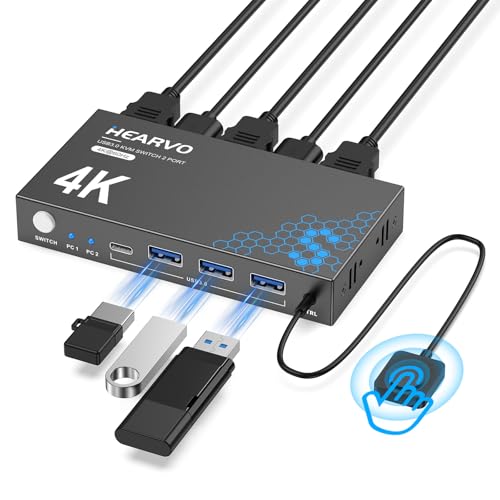
Wired is unbeatable for latency and stability. Because video and USB signals travel over copper, there is no compression, no wireless handshake, and no competition with your router. A typical budget option like the Hearvo USB 3.0 HDMI KVM Switch for 2 Computers 1 Monitor, 4K@60Hz, S7232H at around $29 delivers 4K at 60Hz with HDCP support and a USB 3.0 hub that keeps polling rates at a full 1000Hz for gaming mice. Even an entry-level unit like the HDMI KVM Switch 1 Monitors 2 Computers 4K@60Hz with Wired Extend Controller at about $16 will switch in under 2 seconds with a button press and keep input lag effectively invisible.
Wired also wins on image quality and reliability. You get a full 18Gbps HDMI 2.0 signal with no artifacting, no frame drops when someone microwaves lunch, and support for 4:4:4 chroma at 4K which matters for text clarity. Power draw is minimal at 2 to 5 watts via USB, weight is only 6 to 9 ounces, and there are no antennas to position. For homes where two PCs sit within 6 to 10 feet of one monitor, a wired KVM is cheaper, faster, and simpler to live with every day. If your workflow includes competitive gaming, photo editing, or fast scrolling through spreadsheets, the direct connection is worth the cable.
Where Wireless Kvm Switch Latency Wins
Wireless does not win on pure latency, but it wins where running a cable is impractical. If your tower lives in a closet or home office and your display is in the living room, a wireless kit solves a physical problem that a wired switch cannot. Systems like the KCEVE HDMI KVM Wireless Transmitter and Receiver 200M/660FT at about $110 or the TIMBOOTECH Wireless HDMI Transmitter and Receiver 820FT at about $160 are designed for exactly that scenario, sending HDMI plus keyboard and mouse control up to 200 meters outdoors and 100 to 165 feet through interior walls.
The latency trade-off is real but manageable for the right uses. Wireless KVMs compress video and add 40 to 90 milliseconds of end-to-end delay, with some long-range modes reaching 120 milliseconds. That is fine for presentations, streaming video, digital signage, or controlling a second PC that you check occasionally. You also gain installation flexibility. No need to fish a 50-foot active HDMI cable through the ceiling or add a powered extender. Multiple receivers can pair to one transmitter in some kits, which is useful if you want the same PC on two TVs without an HDMI splitter. For homes where convenience and distance matter more than twitch response, wireless latency is an acceptable cost.
Cost Over 5 Years
Wired is the lower total cost in almost every home. A 2-port wired KVM costs $16 to $35 upfront, plus $12 to $25 for two quality HDMI 2.0 cables at 6 feet and a USB cable if not included. Power consumption stays under 5 watts, so electricity adds less than $4 over five years. There are no batteries or adapters to replace, and failure rates are low. Expect a 5-year total of $30 to $65, even if you replace cables once.
Wireless costs more to buy and to run. A transmitter and receiver kit runs $109 to $160 upfront, and each unit needs its own 5V/2A power adapter drawing 6 to 10 watts per side, or 12 to 20 watts combined when active. Over five years that adds $25 to $45 in electricity at the national average of around $0 per kWh. You may also need to replace power supplies or upgrade the kit if you move to a higher refresh rate monitor, since many wireless kits top out at 1080p@60Hz or compressed 4K@30Hz for stable transmission. Realistic 5-year total is $135 to $210. If you need to extend beyond one room, wireless is still cheaper than hiring an electrician to run in-wall HDMI, but for a single desk, wired saves $100 or more.
Which One for Your Home
The best choice depends on distance, sensitivity to lag, and how long you plan to stay in your current layout.
Small Apartment
Choose wired. Desks are typically 48 to 60 inches wide and both computers are within arm’s reach. A compact wired KVM tucks behind the monitor, handles 4K@60Hz without compression, and keeps your limited Wi-Fi bandwidth free. The slight cable clutter is easy to manage with a single tray, and you avoid wireless interference from neighbors’ networks which is common in apartments.
Family with Kids/Pets
Choose wired for the main desk and consider wireless only for a secondary TV. Kids and pets snag loose long cables, but a short-run wired KVM keeps everything contained to one desk where you can use cable clips. Wireless units with exposed antennas and wall-wart power supplies are more likely to be knocked off a shelf. If you need to share a PC to the family room TV for movies, add a wireless kit there and keep the low-latency wired switch where homework and gaming happen.
Rental
Choose wireless if you cannot drill or run cables between rooms. Landlords rarely allow in-wall HDMI, and a wireless transmitter and receiver lets you keep a noisy tower in a bedroom closet while working quietly in the living room. You can take the kit with you when you move with no patching required. If both computers are on the same desk in your rental, a portable wired KVM is still the cheaper, no-modification option you can pack in a drawer.
Long-Term Home
Choose wired if you can plan the layout. Running a single 1-inch conduit or raceway during a remodel gives you a permanent, zero-latency path for HDMI and USB that will outlast any wireless standard. Weight and heat are negligible, and a wired box can later be repurposed for a new monitor. Reserve wireless for detached garages, backyard projectors, or outbuildings where trenching cable is overkill.
FAQ
How much latency does a wired KVM switch add?
Essentially none that you can feel. The switch itself adds less than 2 milliseconds for USB keyboard and mouse, and video passes through without compression, so total latency is the same as plugging directly into the monitor. Switching time between computers is separate and typically takes 1 to 3 seconds while the display re-handshakes.
Is wireless KVM latency noticeable for gaming or office work?
For office work, streaming, and presentations, most people adapt quickly to the 40 to 90 milliseconds of wireless delay. For fast gaming, competitive shooters, or precise design work, that delay feels like mouse smoothing and is distracting. Wired is strongly recommended if your primary use is gaming at 60Hz or higher, or if you use a high polling rate mouse.
Does 4K@60Hz work the same on wired and wireless?
Wired KVMs with HDMI 2.0 handle true 4K at 60Hz with full color at 18Gbps over a 3 to 10 foot passive cable. Wireless kits often compress 4K to 30Hz for stability at long range or reduce chroma to 4:2:0 to save bandwidth, especially through walls. Check the kit’s specs carefully if you need native 4K@60Hz for text sharpness or video editing.
Can I reduce wireless KVM lag or interference?
You can minimize but not eliminate it. Place transmitter and receiver high, with line-of-sight, at least 3 feet away from routers, microwaves, and Bluetooth hubs. Use the 5GHz band if the kit offers it, keep distance under 80 feet indoors for the lowest lag, and use powered USB hubs for keyboard and mouse dongles. Even optimized, wireless will still have higher latency than a direct wired connection.