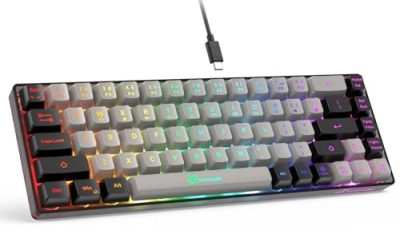
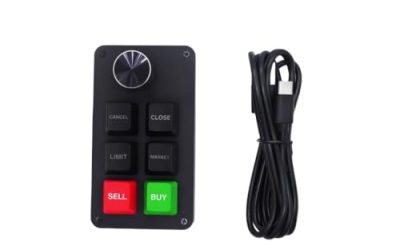
For a dual-PC home setup, the real choice is not simply “hardware versus software.” It is whether you need to move your whole desk between two computers or only move your keyboard and mouse between them.
A hardware KVM switch routes a monitor, keyboard, mouse, and sometimes USB accessories from one set of peripherals to two computers. Press a button, use a wired remote, or hit a hotkey, and the selected computer takes control of the shared screen and devices. Software KVM tools run over your home network, letting your mouse glide from one computer to another as if they were neighboring displays. Each PC generally keeps its own monitor connection.
As an Amazon Associate we earn from qualifying purchases at no extra cost to you.



That difference affects clutter, desk comfort, gaming performance, privacy, maintenance, and long-term cost. A compact single-monitor HDMI KVM can cost about $16, while a high-bandwidth three-monitor model can approach $100. Software KVM can be free, but it asks more of your network and your willingness to troubleshoot occasional connection issues. For most homes in 2026, the best option depends on how your two PCs are used—not on which solution sounds more advanced.
Our Top Picks


Top 3 picks at a glance
Quick Verdict
Choose a hardware KVM switch if you want one monitor and one set of peripherals for two PCs, especially when desk space is limited or you need dependable switching for work, gaming, school, or a locked-down work computer. It is the more direct, physical solution.
Choose software KVM for dual PC if both computers already have their own displays and you mainly want to eliminate a second keyboard and mouse. It is usually the cleanest and least expensive route for a desktop-plus-laptop arrangement, a home office with a side computer, or two systems that stay on the same network.
A useful rule: if you need to share one display, start with a hardware KVM. If you need to control two visible displays, start with software KVM.
Side by Side
| Factor | Hardware KVM Switch | Software KVM for Dual PC |
|---|---|---|
| Comfort | One monitor, keyboard, and mouse serve whichever PC is selected. | One keyboard and mouse can move between separately visible computers. |
| Durability | Typically a small solid-state box; cable wear is the main concern. | No extra switching hardware, but it depends on both PCs, the app, and the network staying healthy. |
| Price range | About $16–$100 for common two-PC models; premium multi-display units cost more. | Often free to roughly $30 for software, plus any network upgrades you need. |
| Maintenance | Low after setup; occasional cable, firmware, or EDID troubleshooting. | Software updates, permissions, firewall rules, and reconnecting after sleep may need attention. |
| Space needed | A switch is often about 4–8 inches wide and adds several display and USB cables. | Almost no added desk hardware, but each PC usually needs its own display. |
| Look | Can be tidy when mounted under a desk, but unmanaged cables can look busy. | Minimal visual clutter if both computers already have permanent monitor setups. |
| Resale | Generally easy to reuse or resell if it supports common HDMI or DisplayPort standards. | No meaningful resale value; licenses, if any, may not transfer. |
| Performance | Can preserve native display output when the switch supports your resolution and refresh rate. | Keyboard and mouse movement is responsive on a good wired network, but it does not directly switch video. |
| Best for | One-monitor desks, gaming PCs, secure work laptops, and shared home-office stations. | Two-screen workflows, coding, administration, writing, and households with two always-on PCs. |
Where Kvm Switch Wins
A KVM switch wins when the monitor itself needs to change computers. This is common in a small home office where one 27-inch display, one mechanical keyboard, and one mouse must serve a personal desktop and a work laptop. Instead of giving up desk area to a second display—or repeatedly unplugging cables—you press a button and continue working.
It is also the stronger choice when the second machine is managed by an employer. Many work devices restrict software installation, network discovery, remote-control tools, or clipboard sharing. A hardware KVM does not require an application on either computer. To the computer, the keyboard, mouse, and monitor behave like directly connected accessories.
Gamers and visual creatives should pay close attention to display specifications. A low-cost 4K-at-60Hz HDMI KVM is appropriate for everyday productivity, streaming, and casual gaming. For example, a single-monitor two-computer HDMI KVM with a wired extension controller at around $16 can make sense for a basic desk. But it is not automatically suitable for a 144Hz gaming monitor, an ultrawide panel, or a color-sensitive editing display.
Buy for the exact signal your monitor requires. A dual-monitor DisplayPort KVM rated for 4K at 144Hz, such as a around $62 two-computer model with USB 3.0 ports and a desktop controller, is built for a more demanding setup. A three-monitor 8K-at-60Hz HDMI and DisplayPort KVM, like an aluminum UGREEN option listed around $99, serves an even more specialized workstation. The point is not to overbuy; it is to avoid placing a lower-bandwidth switch in the middle of an expensive display setup.
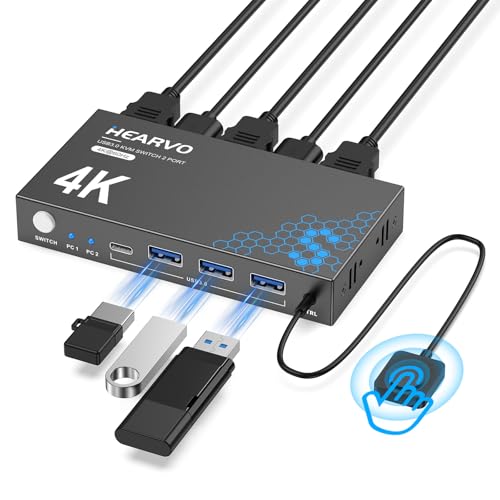
Hardware KVMs are also helpful with accessories that are awkward to duplicate: a wired webcam, USB microphone, printer, external drive, drawing tablet, or USB headset dongle. Verify the ports before buying. Keyboard and mouse ports may be intended mainly for human-interface devices, while USB 3.0 ports are better suited to fast storage and other accessories. A basic unit such as the Hearvo USB 3.0 HDMI two-computer, one-monitor switch at about $29 is a more natural fit when you need a few shared USB connections than a bare-bones keyboard-and-mouse-only switch.
The tradeoff is cabling. For two computers and one monitor, expect at least two display input cables, one display output cable, and two USB upstream cables, before adding power or shared devices. A typical KVM box may weigh only 0.5 to 1.5 pounds, but the cable bundle is what determines whether the desk feels calm or crowded. An under-desk tray, 6- to 12-inch cable ties, and labeled cable ends make a substantial difference.
Where Software Kvm for Dual Pc Wins
Software KVM wins when each computer already has a screen and you want a continuous, flexible workspace. Imagine a 24-inch monitor attached to a work laptop and a 27-inch monitor attached to a personal desktop. With software KVM, you can push the cursor to the edge of one screen and continue onto the other, often with shared clipboard support. There is no button press and no moment when one screen goes dark while the other takes over.
This approach is particularly comfortable for people who monitor email or chat on one machine while writing, designing, or researching on the other. It can feel more natural than repeatedly toggling a hardware KVM because both computers remain visible. The desk also stays visually simple: no extra video-switching box, no additional display cables running through a hub, and no need to match ports between the computers.
Software KVM is usually inexpensive. Some options are free, while paid tools may cost less than a modest switch. If both PCs are connected by Ethernet to the same router or switch, performance for keyboard and mouse control is typically more consistent than on congested Wi-Fi. A gigabit wired connection uses little power—often only a few watts at the router or switch—and requires no separate KVM power adapter.
Still, it is not a universal replacement for hardware. Software KVM normally does not send one computer’s video signal to the other computer’s display. It also may not work at the Windows sign-in screen, in BIOS or firmware menus, during an operating-system crash, or before the client software starts. Sleep, software updates, VPN settings, firewall changes, and changing IP addresses can interrupt the connection.
There are practical security considerations as well. Use reputable software, keep it updated, and restrict it to your trusted home network. If clipboard sharing is enabled, remember that copied text may move between work and personal systems. That may be unacceptable for confidential information or prohibited by workplace policy.
Cost Over 5 Years
For a basic one-monitor setup, a hardware KVM is often the more predictable five-year purchase. A $16 to $30 HDMI unit plus $15 to $40 in decent cables creates a realistic total of roughly $31 to $70. A higher-spec dual-monitor or high-refresh model may begin around $63 and land closer to $85 to $150 once appropriate DisplayPort or HDMI cables are included.
Electricity costs are usually minor. Many compact KVMs draw only a few watts or less, especially when powered over USB; models with external power may draw somewhat more depending on connected accessories. At an illustrative average of 2 watts running continuously, five years of use equals about 88 kilowatt-hours. Your local electric rate determines the actual cost, but it is modest compared with the upfront hardware purchase.
Software KVM can cost $0 to $30 over five years if your computers and network are already in place. Add $10 to $30 for Ethernet cables if you decide to wire both PCs. However, that number excludes the second monitor, monitor arm, or dock you may need to keep both systems visible. If you are buying a second $150 to $300 display solely to make software KVM practical, the hardware KVM route may be less expensive overall.
In short, software is cheaper when the dual-display environment already exists. Hardware is often cheaper when it allows one good monitor to do the work of two.
Which One for Your Home
Small apartment
Choose a hardware KVM if you have one desk and limited surface area. A single 24- to 32-inch monitor on an arm, paired with a compact KVM mounted beneath the desktop, keeps the room from feeling like a workplace. Select a wired remote controller so you can hide the switch box behind the desk but still change computers easily.
Family with kids or pets
Favor the simpler physical setup: usually a hardware KVM with cables secured in a covered tray. Fewer loose peripherals means fewer items for children to pull or pets to chew. Put the switch where its button is reachable but the cables are not. If both PCs need to stay visible for parental supervision or shared homework, software KVM can work well, provided the home network is reliable.
Rental
Software KVM is attractive in a rental because it adds almost nothing to the room and requires no mounting. It is especially good for a laptop-and-desktop pairing on two existing monitors. If you choose hardware, use adhesive cable clips or a freestanding under-desk basket rather than drilling into furniture or walls.
Long-term home
For a permanent office, build around the workflow you use most. A high-quality hardware KVM is worthwhile for a polished one-monitor desk, particularly if you expect to change computers over time. Software KVM is excellent for a dedicated multi-monitor office where both systems run daily. Some households benefit from a hybrid: a hardware KVM for the primary monitor and USB devices, plus software control for an always-visible secondary system.
FAQ
Can software KVM share one monitor between two PCs?
Not in the same direct way as a hardware KVM. Software KVM primarily shares keyboard and mouse control across computers that each have their own active display. Remote desktop software can show one computer inside another, but that is a different workflow and may introduce compression or latency.
Do I need a powered KVM switch?
Not always. Basic keyboard-and-mouse switching often works without external power. Choose a powered model when you are sharing several USB devices, using external drives, or encountering unstable peripheral connections. Check the manufacturer’s power requirements rather than assuming every USB-powered switch can support high-draw devices.
Will a KVM switch reduce gaming refresh rate?
It can if the KVM does not support your monitor’s native resolution, refresh rate, and connection type. For a 4K 144Hz DisplayPort display, choose a KVM explicitly rated for that mode. Also use cables rated for the needed bandwidth and connect directly where possible.
Is software KVM safe for a work computer?
It may be, but workplace rules come first. Some employers prohibit unapproved control software, clipboard sharing, or connections between managed and personal devices. A hardware KVM is often easier to approve because it does not install software, but you should still follow company policy.