Two screens, two computers, one desk—it sounds simple until you’re reaching under the monitor every morning to swap cables. If you split your week between a work laptop and a personal desktop, or you edit on a tower and present from a notebook, a KVM (keyboard, video, mouse) switch is the piece of gear that turns a tangle of HDMI cables and dangling USB dongles into a one-button workflow. The right switch lets both machines drive the same dual-monitor setup, share one keyboard and mouse, and even pass through printers and webcams—no unplugging, no log-in gymnastics, no second coffee mug “for the laptop desk.”
The problem is that the KVM market is crowded with boxes that look identical in listing photos but differ wildly in what they actually support: some pass 4K at 60Hz on both displays, some top out at 30Hz, some handle USB-C laptops with power delivery and some require a separate charger. We sorted through the confusion and ranked a dozen switches that genuinely work for dual-monitor, two-computer desks, from budget picks to premium dock-class units. Here’s what earned a spot.
As an Amazon Associate we earn from qualifying purchases at no extra cost to you.


Our Top Picks


Top 3 picks at a glance
Quick Picks
| Product | Best for | Price |
|---|---|---|
| TIGKTING HDMI KVM Switch 2 Monitors 2 Computers 4K@60Hz | Best budget dual-HDMI switch | Check on Amazon |
| USB C & Dual HDMI KVM Switch 2 Monitors Laptop & Desktop Docking Station | Best for mixed laptop + desktop desks | Check on Amazon |
| USB-C KVM Switch 3 Monitors 2 Laptops MST Dual USB-C Docking Triple Monitor | Best for triple-monitor power users | Check on Amazon |
| AV Access KVM Switch Dock 2 Monitors 2 Laptops, 4K KVM Switch Dual Monitor | Best premium pick for professional setups | Check on Amazon |
| 8K HDMI KVM Switch 2 Monitors 2 Computers, USB 3.0 Dual Monitor KVM Switch | Best for future-proofing and high refresh rates | Check on Amazon |
| 2 Port USB-C KVM Switch 2 Monitors 2 Laptops Dual Monitor KVM USB-C Docking | Best for two-laptop workstations | Check on Amazon |
How We Compared
We approached this roundup the way we approach any desk gear: by asking what actually breaks a workflow. For KVM switches, that means three things—does video hold up on both screens at once, does USB switching feel instant, and does the box support the computers you actually own? We prioritized units that push 4K at 60Hz or better on dual displays, since 30Hz makes mouse cursors feel like they’re swimming through syrup. We also weighted USB 3.0 support (10x faster than USB 2.0 for file transfers to external drives) and genuine docking-station features like power delivery for laptop charging, which eliminates a wall wart from your desk.
Price mattered, but so did longevity. A budget switch that caps resolution or drops keystrokes during switching costs more in frustration than a mid-range one that simply works for years. We also favored switches with physical desktop controllers or front-panel buttons over remote-only designs, because a wired button you can park next to your keyboard beats digging behind monitors. Every pick here supports two computers, dual displays, and shared USB peripherals—the core use case—while spanning budget, midrange, and dock-class price points so there’s an option whether your desk is temporary or permanent.
The Best Picks
1. TIGKTING HDMI KVM Switch 2 Monitors 2 Computers 4K@60Hz — Best Budget Pick
If you just need two desktops to share two 4K screens on a budget, this is the entry point. It pushes 4K at 60Hz over dual HDMI outputs and includes a wired desktop controller, so switching is a button-press away rather than a crawl under the desk. Four USB 3.0 ports handle keyboard, mouse, and a printer or webcam across both machines. It’s refreshingly honest hardware: no docking features, no USB-C, just the core job done at a budget price.
- Pro: True 4K@60Hz dual-output at the lowest price in this roundup
- Pro: Four USB 3.0 ports plus a wired desktop controller included
- Con: HDMI-only, so USB-C laptops need adapters
When to skip: If either computer is a laptop without an HDMI port, or you want charging passthrough, step up to a USB-C model.
2. USB C & Dual HDMI KVM Switch 2 Monitors Laptop & Desktop Docking Station — Best for Mixed Desks
This is the sweet spot for the classic hybrid setup: a USB-C work laptop and an HDMI-equipped personal desktop sharing the same dual monitors. The laptop side connects over a single USB-C cable, while the desktop uses standard HDMI, and both drive two displays. Because it functions as a docking station, the laptop connection consolidates video and USB peripherals into one plug—swap machines with one action instead of three. As a mid-range unit it sits mid-pack on price but solves the most common real-world desk configuration.
- Pro: Single-cable USB-C connection for laptops plus HDMI for desktops
- Pro: Doubles as a docking station, consolidating peripherals
- Con: Laptop display output depends on your USB-C port supporting video (DisplayPort Alt Mode)
When to skip: If both machines are towers with HDMI, the cheaper TIGKTING does the same job for less.
3. USB-C KVM Switch 3 Monitors 2 Laptops MST Dual USB-C Docking Triple Monitor — Best for Triple Screens
Not everyone stops at two monitors, and this is the pick for anyone whose desk has grown a third panel. Using MST (Multi-Stream Transport), it drives up to three displays from dual USB-C inputs, making it ideal for two laptops sharing an extended workspace—think a coding rig plus a meetings machine. It behaves as a full docking station, so each laptop gets peripheral sharing over one cable. The tradeoff is price and complexity: MST requires displays and computers that cooperate with the standard, so check compatibility before buying.
- Pro: Supports up to three monitors via MST docking
- Pro: Full docking functionality for two laptops over single-cable connections
- Con: MST triple-display output requires compatible GPUs and displays—Windows-friendly, but Macs may mirror instead of extend
When to skip: If you’re on two MacBooks with three external displays, verify Apple’s display-limit behavior first, or choose a native multi-stream dock instead.
4. AV Access KVM Switch Dock 2 Monitors 2 Laptops, 4K KVM Switch Dual Monitor — Best Premium Pick
AV Access is a brand built for professional AV installations, and this dock-class KVM reflects it. It sits in the premium tier, but you’re paying for engineering aimed at people who bill by the hour: clean 4K dual-display switching, docking-station functionality for two laptops, and a switching experience designed for daily heavy use in offices and studios. If your KVM is the backbone of a work-from-home setup where a glitch means a missed client call, this is the unit you buy once and forget about.
- Pro: Professional-grade reliability aimed at office and studio use
- Pro: Full docking features for two laptops with dual 4K output
- Con: One of the priciest picks in the roundup
When to skip: For a part-time hobby desk or a guest setup, a budget or mid-range unit delivers the same core function without the premium build.
5. 8K HDMI KVM Switch 2 Monitors 2 Computers, USB 3.0 Dual Monitor KVM Switch — Best for Future-Proofing
Most people buying a dual-monitor KVM today run 4K panels, but displays keep climbing. This HDMI switch supports resolutions up to 8K, which means it’ll still be relevant when you upgrade monitors years from now—while staying in the budget tier. USB 3.0 ports handle fast peripherals, and the dual-output design shares two screens between two computers as expected. For anyone building a desk they don’t want to rewire in three years, the headroom here is the whole point.
- Pro: 8K-capable HDMI outputs provide serious long-term headroom
- Pro: USB 3.0 peripheral sharing at a budget-friendly price
- Con: 8K capability only matters if your computers and displays support it—HDMI cable quality becomes critical at those resolutions
When to skip: If your monitors are capped at 1080p and you’ll never upgrade, pay less for the TIGKTING and pocket the difference.
6. 2 Port USB-C KVM Switch 2 Monitors 2 Laptops Dual Monitor KVM USB-C Docking — Best for Two-Laptop Desks
Plenty of people run two laptops—one personal, one from the office—and this switch is purpose-built for exactly that. Both computers connect over USB-C, each driving dual displays while sharing keyboard, mouse, and other USB gear, with docking functionality baked in. It’s a mid-range unit, undercutting several docking stations that don’t switch at all, and it eliminates the dongle pile-up that two-laptop desks tend to accumulate. If your desk is two notebooks and two screens, this is the straightforward answer.
- Pro: Dual USB-C inputs designed specifically for two laptops
- Pro: Docking-style single-cable connection for each machine
- Con: No HDMI input, so desktop towers need USB-C video output or adapters
When to skip: If one of your computers is a desktop without USB-C video output, the mixed USB-C/HDMI model above is a better fit.
7. UGREEN HDMI KVM Switch 2 Monitors 2 Computers 4K@60Hz — Best Plug-and-Play Dual HDMI Switch

UGREEN’s dual-HDMI switch is the pick for anyone who wants the TIGKTING formula from a brand with a larger accessory ecosystem and clearer documentation. It shares two HDMI monitors, plus keyboard, mouse and other USB gear, between two computers, and it supports both extend mode (each monitor shows its own content) and mirror mode, with the computer’s display settings deciding which one you get. No drivers or software are needed, which makes it a good fit for locked-down work laptops where IT will not let you install anything.
The spec sheet is well rounded for a budget-to-mid-range HDMI unit. It handles 4K at 60Hz, 1440p at 120Hz and 1080p at 240Hz, with HDR passthrough, so a desktop gaming PC on a high-refresh 1080p or 1440p panel is not dragged down to office refresh rates. The four USB 3.0 ports (three USB-A and one USB-C) run at up to 5Gbps, and you can switch with the button on the unit or the included desktop controller. The box also includes four HDMI cables and two USB cables, which saves a second shopping trip.
Strengths: high-refresh support at 1080p and 1440p, a USB-C port among the shared peripherals, a full cable bundle and a desktop controller. Drawbacks: no EDID emulation, so windows can rearrange when you switch, and no keyboard hotkey switching. Like every two-in, two-out HDMI KVM, each computer must provide two HDMI outputs of its own, which rules out most laptops unless they have a dock or adapter that outputs two separate video signals.
Compared with the TIGKTING, the UGREEN trades a small step up in tier for the high-refresh modes and the more complete cable kit. If both machines are towers with spare HDMI outputs, either works; if one is a gaming PC on a 240Hz 1080p monitor, the UGREEN is the safer choice.
When to skip: if either computer is a laptop with a single USB-C video port, a USB-C docking KVM from this list will save you an adapter chain.
8. UGREEN 8K@60Hz DisplayPort KVM Switch 2 Monitors 2 Computers — Best DisplayPort Option

Our original six picks lean heavily on HDMI and USB-C, but many gaming PCs and workstation graphics cards have more DisplayPort outputs than HDMI ports, and many high-refresh monitors reach their top refresh rates only over DisplayPort. This UGREEN switch fills that gap: it shares two DisplayPort monitors between two computers and is rated up to 8K at 60Hz, inside an aluminum housing that feels more desk-worthy than the plastic shells on many budget switches.
The practical benefit of DisplayPort is bandwidth headroom at common gaming resolutions. A DP-based KVM lets a graphics card with three or four DisplayPort outputs drive both monitors without HDMI adapters, and it keeps the switch in the same signal type as the monitor’s best input. The listing pitches it at the dual-computer, dual-monitor desk where one machine is a gaming or creative PC and the other is a second desktop or a laptop with a DisplayPort-capable dock.
Strengths: native DisplayPort in and out, an 8K-rated spec with plenty of headroom for 4K and high-refresh 1440p, and an aluminum build. Drawbacks: each computer needs two DisplayPort outputs, which few laptops offer, and DisplayPort KVMs without EDID emulation can make Windows shuffle open windows when the switch changes hosts. Some reviewers in competing roundups flag this lack of EDID emulation on UGREEN’s DisplayPort model as its main weakness, so treat it as a desktop-to-desktop switch first.
Next to the 8K HDMI switch already in our list, the UGREEN DisplayPort model is the better pick when your monitors and graphics cards are DP-first. If your monitors’ best inputs are HDMI 2.1, the HDMI option is the more direct route.
When to skip: if either computer is a laptop without two video outputs, or if you need charging passthrough.
9. JCYMELE 4K@144Hz DisplayPort KVM Switch 2 Monitors 2 Computers — Best for High-Refresh Gaming Desks

Most KVM switches are built around 60Hz office use, which is a problem when one of your two computers is a gaming PC running a high-refresh 4K monitor. JCYMELE’s DisplayPort switch is listed for 4K at 144Hz and up to 8K at 60Hz, which makes it the switch in this guide most clearly aimed at a desk shared between a gaming rig and a work machine. Competing roundups single out JCYMELE’s high-refresh model as their gaming choice for the same reason.
It shares two monitors and four USB 3.0 devices between two computers, supports extended and mirror modes, and includes a desktop controller so you can switch without reaching for the unit. That desktop controller matters more than it sounds on a gaming desk, where the switch often lives behind monitors or under a monitor arm. The USB 3.0 ports also mean an external SSD or capture device does not slow to USB 2.0 speeds when routed through the switch.
Strengths: 4K at 144Hz support for high-refresh gaming panels, DisplayPort signal path, four USB 3.0 ports and a desktop controller in the box. Drawbacks: the 144Hz figure depends on DisplayPort 1.4-class cables and a graphics card that can drive that bandwidth; cheap cables are the most common cause of flicker at those settings. Like the other DP switches, it needs two DisplayPort outputs per computer.
Compared with the UGREEN DisplayPort switch, the JCYMELE is the one to choose if high refresh at 4K is the priority; the UGREEN is the more conservative pick with a sturdier housing. Against the 8K HDMI switch in our main list, the JCYMELE suits DisplayPort-first gaming monitors.
When to skip: if both computers are office machines running 60Hz monitors, the extra refresh headroom brings no benefit.
10. AOOCOO USB-C KVM Switch 2 Laptops 2 Monitors with 100W PD — Best for Power-Hungry Laptops
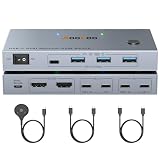
Charging wattage is the spec that most often catches two-laptop buyers out. Many USB-C KVM docks top out around 60 to 65W, which is fine for an ultrabook but leaves a performance laptop slowly draining under load. AOOCOO’s switch is listed with 100W power delivery, which puts it in the right class for 14- and 16-inch creator laptops and the more efficient gaming laptops that charge over USB-C.
It connects two USB-C laptops to two monitors at 4K 60Hz and shares four USB 3.0 devices between them. A wired remote control is included for switching, along with USB-C cables, so you are not left buying full-featured USB-C cables separately, a step that trips up many first-time buyers because charge-only cables will not carry video. Each laptop’s USB-C port must support DisplayPort Alt Mode for video, and extended dual-monitor output from one cable relies on MST, which Windows laptops handle well and Apple silicon MacBooks generally do not (they mirror instead of extending).
Strengths: 100W PD for bigger laptops, single-cable connection per laptop, wired remote and USB-C cables included. Drawbacks: no HDMI inputs, so a desktop tower without USB-C video cannot join, and macOS users should expect mirrored output on two monitors. The 100W figure is the maximum the switch can deliver; check how it is split if you want both laptops charging at once.
Against the DXchip two-laptop switch already in our list, the AOOCOO’s main draw is the stated 100W charging and the remote. If your laptops are ultrabooks that charge happily at 65W, the two are close; if you run a high-performance laptop, the higher PD rating is the reason to choose this one.
When to skip: if one machine is a desktop tower, choose a mixed USB-C plus HDMI model instead.
11. JCYMELE HDMI KVM Switch 1 Desktop 1 Laptop with 13-in-1 Docking Hub — Best Dock-Style Mixed Desk Alternative
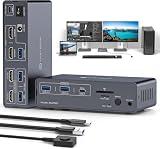
This is the second answer to the most common desk in this guide: one desktop over HDMI and one laptop over USB-C, both feeding the same two monitors. Where the DXchip mixed-desk switch keeps things simple, JCYMELE builds a 13-in-1 docking hub around the switch, with five USB-A and USB-C ports rated up to 10Gbps, an SD card reader and dual HDMI outputs. The listing calls out EDID emulation and both MST and SST support for the laptop side.
EDID emulation is the headline feature here. Without it, the computer that is not selected thinks its monitors have been unplugged, so Windows reshuffles open windows and macOS may move your dock or desktop icons each time you switch. With EDID emulation, the switch keeps telling both computers that the monitors are still connected, so your window layout survives the switch. Competing editorial guides list EDID support as a key separator between budget and better KVMs, and it is missing from several of our cheaper picks.
Strengths: EDID emulation, 10Gbps USB ports, SD card reader and a single USB-C cable for the laptop. Drawbacks: sits a tier above the simpler mixed-desk switch, and the laptop’s USB-C port still has to support DisplayPort Alt Mode. On Apple silicon MacBooks the SST mode means the two monitors mirror rather than extend from the laptop side.
Choose it over the DXchip mixed-desk switch when you value a stable window layout and want the switch to double as your main laptop dock with an SD reader and faster USB. Choose the DXchip if you want the lowest-cost route to the same basic connection.
When to skip: if both machines are desktops, an HDMI or DisplayPort two-by-two switch does the job without paying for docking features.
12. AV Access iDock X20 Dual USB-C KVM Docking Station — Best Premium Two-Laptop Dock
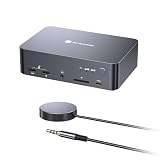
AV Access already holds our premium slot, and the iDock X20 is the newer model aimed squarely at two-laptop workstations. Both laptops connect over USB-C and share dual HDMI monitors, a keyboard and mouse, gigabit Ethernet, an SD card slot, a headset jack and USB devices. The listing rates it for dual 4K at 60Hz from compatible Windows laptops over a single cable using DP Alt Mode and MST, plus 1440p at 144Hz and 1080p at 240Hz for high-refresh panels.
Two features set it apart. First, it can charge both laptops at up to 65W at the same time, including the one that is not currently selected, so neither machine drains while you work on the other. Second, it includes EDID emulation, so your window layout stays put when you switch. The aluminum body, push button and wired remote round out a unit designed to sit on a desk for years rather than hide behind it.
Strengths: simultaneous charging for both laptops, EDID emulation, Ethernet and SD card reader built in, and high-refresh support at 1440p and 1080p. Drawbacks: premium tier, and 65W per laptop may not keep a high-performance laptop fully topped up under heavy load. AV Access notes that Apple silicon Macs support SST only, so a MacBook will mirror rather than extend across two monitors.
Compared with the AV Access KVM Switch Dock in our main list, the iDock X20 is the one to choose if you specifically want high-refresh modes, simultaneous charging and Ethernet listed in the spec sheet. Compared with the AOOCOO, it trades peak wattage for EDID emulation and a fuller set of ports.
When to skip: if one of your computers is a desktop tower, or if your laptop needs more than 65W to charge under load.
Buying Guide
Resolution and Refresh Rate: Why 60Hz Is the Floor
Video specs are where budget KVM switches quietly fail. A switch that advertises “4K” may only deliver 4K at 30Hz on dual outputs, and the difference is instantly noticeable—mouse movement looks stuttery and scrolling feels laggy. For any desk where you actually work, insist on 4K at 60Hz across both displays, which every pick in this roundup supports at minimum. If you game or watch high-frame-rate video on one of the machines, check the switch’s maximum refresh rate at your monitor’s native resolution, and remember that 8K-capable switches like our future-proofing pick only deliver their headline number with quality HDMI 2.1-certified cables.
USB-C Power Delivery and Docking Features
If a laptop is involved, power delivery changes everything. A KVM switch with PD passes charging watts through the same USB-C cable that carries video and data, meaning one cable connection handles display, peripherals, and battery charging simultaneously. Without it, you’re plugging and unplugging a laptop charger every time you switch—or leaving a second charger permanently on your desk. Check the PD wattage rating against your laptop’s requirements: ultrabooks typically need 45–65W, while performance laptops may demand 90–100W. Our docking-style picks consolidate this into the switch itself, which is why they cost more but remove more clutter.
Compatibility: Check Your Ports Before You Buy
The most common KVM returns happen because of a port mismatch. Before ordering, confirm three things. First, does each computer output video to the switch’s input type—HDMI, USB-C with DisplayPort Alt Mode, or both? Second, does your laptop’s USB-C port actually carry video? Many budget laptops have USB-C ports that charge only, and no adapter will make them push a display. Third, if you’re eyeing an MST-based triple-monitor switch, know that MST works reliably on Windows but is limited on macOS, where displays may mirror rather than extend. Two minutes of port-checking saves a week of return shipping.
The Hidden Requirement: Two Video Signals per Computer
The single most misunderstood point about dual-monitor KVM switches is that the switch does not create a second display signal. It only routes signals the computer already produces. A classic two-in, two-out HDMI or DisplayPort KVM therefore needs two video cables from each computer, one per monitor. Desktop graphics cards almost always have enough outputs, but most laptops have one HDMI port at best. That is why the USB-C docking picks in this guide exist: they take a single USB-C cable and use MST (Multi-Stream Transport) to split it into two independent displays. Before you buy, count the video outputs on each machine and write them down, then match them to the switch’s input list rather than relying on the product’s category label.
EDID Emulation: Why Your Windows Jump Around
Every monitor reports its identity and supported resolutions to the computer through EDID data. When a basic KVM switches away from a computer, that computer sees its monitors disappear, so Windows moves your open windows onto whatever screen remains and macOS may rearrange its desktop. When you switch back, you spend a minute dragging everything into place again. A switch with EDID emulation keeps feeding monitor information to the inactive computer, so its layout stays exactly as you left it. If you keep many windows open across both screens, treat EDID emulation as a must-have; the JCYMELE dock-style switch and the AV Access iDock X20 above list it, while several budget HDMI and DisplayPort units do not.
HDMI vs. DisplayPort vs. USB-C: Which Signal Path Fits Your Desk
- HDMI switches suit desktops and mini PCs with dual HDMI outputs, TVs used as monitors, and console-adjacent setups. Check whether the switch is rated for HDMI 2.0 (4K at 60Hz) or HDMI 2.1 (8K at 60Hz and 4K at 120Hz).
- DisplayPort switches suit gaming PCs and workstation graphics cards, which usually carry more DP outputs than HDMI ports, and high-refresh monitors whose top refresh rate is only available over DisplayPort.
- USB-C docking switches suit laptops. One cable carries video, USB data and, on most models, charging. The laptop’s port must support DisplayPort Alt Mode or Thunderbolt for video.
- Hybrid switches mix a USB-C input with HDMI inputs for the laptop-plus-desktop desk, which is the setup most people searching for a dual-monitor laptop KVM actually have.
Mac Users: Extended vs. Mirrored Displays
Standard Apple silicon MacBook Air and base MacBook Pro models cannot drive two independent external displays through one MST hub, and macOS does not use MST to create separate extended displays. On these Macs, a single-cable USB-C docking KVM will usually mirror the same image on both monitors. Higher-tier MacBook Pro models can drive more external displays, but generally through separate connections rather than MST. If you work on a Mac and need two extended screens, look for a switch that accepts two separate video inputs from the Mac, or plan to use an HDMI-based switch with two cables from the laptop where its ports allow.
Comparison of the Added Picks
| Switch | Inputs | Best for | Key extra | Tier |
|---|---|---|---|---|
| UGREEN HDMI KVM 2 Monitors 2 Computers | 2x HDMI per PC | Two desktops, high-refresh 1080p/1440p | 1080p 240Hz, cables included | Budget |
| UGREEN 8K DisplayPort KVM | 2x DP per PC | DP-first graphics cards | Aluminum build, 8K rating | Budget |
| JCYMELE 4K@144Hz DisplayPort KVM | 2x DP per PC | Gaming PC plus work PC | 4K at 144Hz | Budget |
| AOOCOO USB-C KVM with 100W PD | 2x USB-C | Two laptops, one power-hungry | 100W charging, remote | Mid-range |
| JCYMELE Desktop + Laptop 13-in-1 KVM | USB-C + HDMI | Mixed laptop and desktop desk | EDID emulation, SD reader | Mid-range |
| AV Access iDock X20 | 2x USB-C | Full-time two-laptop workstation | 65W to both laptops at once, Ethernet | Premium |
Setup Tips for a Clean Dual-Monitor KVM Desk
- Use the right cables. For 4K at 120Hz or higher, use certified HDMI 2.1 or DisplayPort 1.4-class cables. For USB-C docking switches, use full-featured USB-C cables that carry video, not charge-only cables.
- Connect the power adapter. Many switches need external power for their USB hub to work reliably, even when video appears to pass without it.
- Plug keyboards and mice into the right ports. Some switches have dedicated keyboard and mouse ports for hotkey support; others treat all USB ports the same. Gaming mice with high polling rates generally work best on the standard USB ports.
- Match display order on both computers. Arrange monitors in the same left-right order in each operating system’s display settings so your mouse moves in the expected direction after a switch.
- Park the controller where you can reach it. A wired desktop controller or remote next to your keyboard makes switching a habit instead of a chore.
- Update firmware if offered. Some brands release firmware updates that improve compatibility with new laptops and monitors.
Our Verdict
For most people searching for the best KVM switch for dual monitors and laptop duty, the TIGKTING HDMI KVM Switch is the one to buy when each computer has two HDMI outputs: it delivers true 4K@60Hz dual output, four USB 3.0 ports and a wired desktop controller at a budget price, without extras you won’t miss. If your desk pairs a USB-C laptop with an HDMI desktop, the USB C & Dual HDMI KVM Switch handles that common setup over a single cable per machine, with docking convenience at a mid-range price. If the desk is your livelihood, the premium AV Access dock is the professional-grade investment that won’t flicker during a client call. And for anyone planning a monitor upgrade down the road, the budget-tier 8K-capable switch is cheap insurance against obsolescence.
FAQ
Will a KVM switch reduce my monitor’s image quality?
A properly matched KVM switch passes video digitally and shouldn’t degrade image quality at supported resolutions. The caveats: stay within the switch’s rated bandwidth (4K@60Hz units handle 4K@60Hz, not 4K@120Hz), and use quality cables rated for your resolution. If you see flickering or dropouts at 8K on the future-proofed pick, the cables are usually the culprit, not the switch.
Can I charge my laptop through a KVM switch?
Only if the switch supports USB-C power delivery, and only over its USB-C input. Our docking-style picks—the mixed USB-C/HDMI model, the triple-monitor MST unit, the AV Access, and the two-laptop USB-C switch—include docking functionality that consolidates video, data, and charging. HDMI-only models like the TIGKTING pass video and USB data but no power, so keep your laptop charger handy.
Do KVM switches work with MacBooks and gaming PCs together?
Yes, with a port check. MacBooks output video over USB-C (Thunderbolt or DisplayPort Alt Mode ports), while most gaming PCs use HDMI or DisplayPort. A switch with both input types—like our best-for-mixed-desks pick—handles this natively. Pure HDMI switches require a USB-C to HDMI adapter for the MacBook. Also note macOS handles multi-monitor MST differently than Windows, so extended triple-display setups need verification before buying an MST-based unit.
How do I switch between computers—button, hotkey, or software?
All three methods exist, and the best switches offer more than one. Every pick here includes a physical control: either a button on the unit or a wired desktop controller, like the one bundled with the TIGKTING, that you park beside your keyboard. Desktop controllers are our preference since they work regardless of what’s on screen. Before buying, confirm the switching method suits your desk layout—reaching behind two monitors fifty times a day gets old fast.
Do I need two video cables from each computer?
For a standard two-monitor HDMI or DisplayPort KVM, yes. Each computer must send two separate video signals, one per monitor, so it needs two outputs and two cables. Laptops with a single video port should use a USB-C docking KVM that splits one cable into two displays through MST, or a laptop dock that provides two outputs before the switch.
Why do my windows move to one screen every time I switch?
Your switch most likely lacks EDID emulation. When the switch disconnects a computer from the monitors, the operating system thinks the screens were unplugged and rearranges your windows. A KVM with EDID emulation keeps both computers seeing their monitors at all times, so layouts stay where you left them.
Can I use a KVM switch with a high-refresh gaming monitor?
Yes, but check the switch’s rated refresh rate at your monitor’s resolution. Many switches advertise 4K but cap refresh at 60Hz, and some only reach higher refresh rates at 1440p or 1080p. For 4K at 144Hz, look for a DisplayPort switch rated for that mode, such as the JCYMELE pick, and use cables rated for the bandwidth. Features like variable refresh rate may also behave differently through a switch, so keep the gaming PC on a direct connection if VRR is essential to you.
Can I connect a docking station to a KVM switch?
Often, yes. A laptop can plug into its own dock, and the dock’s two video outputs and a USB connection then feed a standard HDMI or DisplayPort KVM like any desktop. This setup works well when you already own a dock, but it adds another device in the chain, so a docking KVM is usually tidier if you are buying from scratch.
Will a KVM switch work with Linux and older operating systems?
Most plug-and-play KVM switches need no drivers, because they present standard displays and USB devices to each computer, so they generally work across Windows, macOS and Linux. Features that depend on the operating system, such as MST extended displays and USB-C charging negotiation, are where compatibility varies. Check the listing’s compatibility notes for your exact laptop before buying.