Wireless gaming peripherals stopped being a competitive disadvantage several years ago, but the wired-versus-wireless decision still comes down to real tradeoffs in cost, battery management, and reliability that vary by device type. This guide compares mice, keyboards, and headsets across connection type using actual latency and battery numbers rather than marketing claims, so you can decide which fits your setup and budget rather than defaulting to whichever one is trending.
Our Top Picks
 Razer BlackShark V3 X HyperSpeed Wireless Xbox Gaming6.9 x 3.7 x 7.9 Inches1.7 poundsCheck on Amazon
 Corsair Sabre v2 PRO Wireless MG FPS Gaming1 Count (Pack of 1)4.84 x 2.52 x 0.1 Inches0.1 poundsCheck on Amazon
 The Ultimate Console Showdown:PlayStation 5 vs. Xbox Series6 x 0.14 x 9 Inches0.31 PoundsCheck on Amazon

Top 3 picks at a glance
Latency: the numbers that actually matter
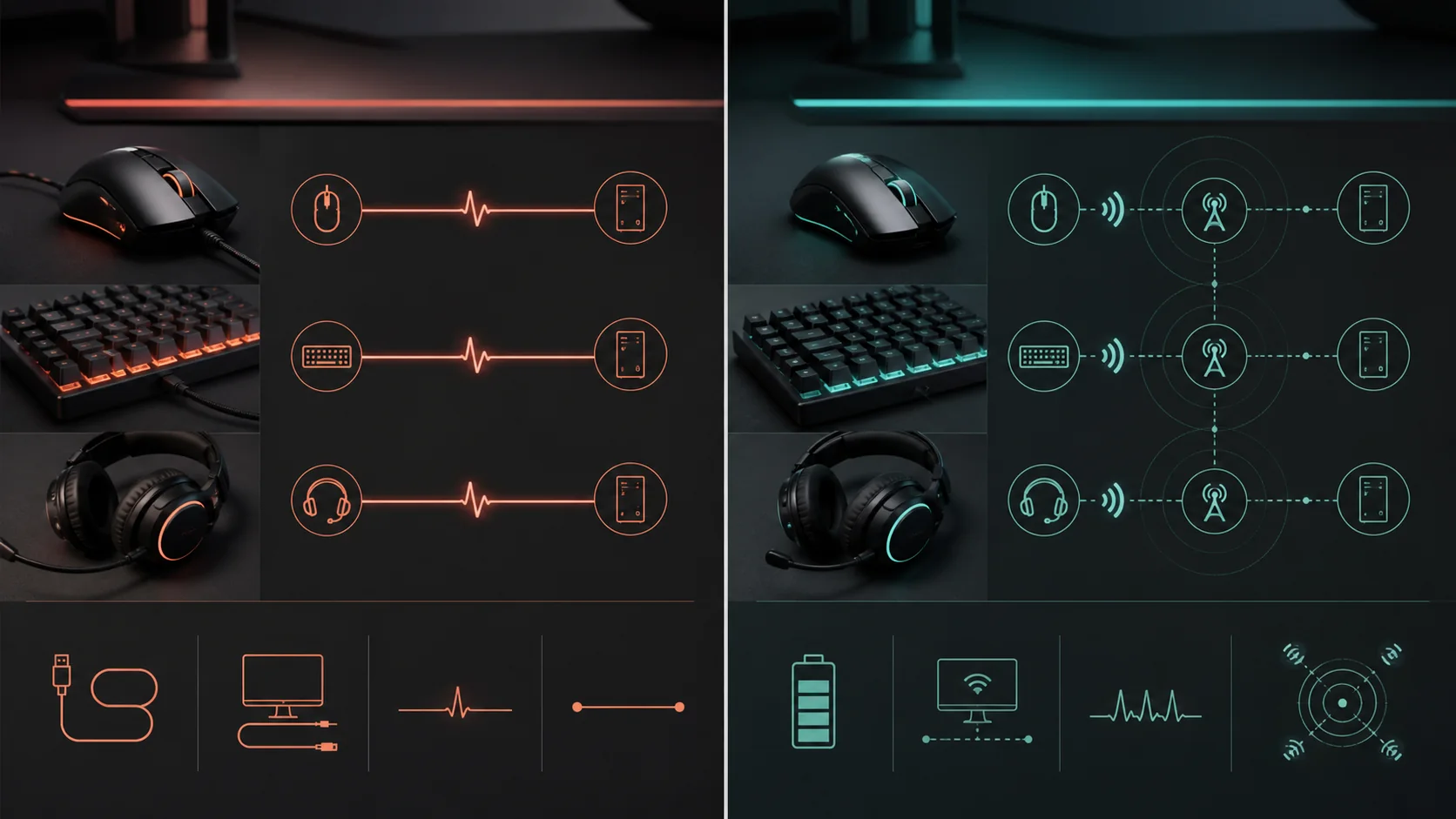
Wired peripherals connect through USB, which polls at rates the operating system and device negotiate directly, with essentially no transmission delay beyond the polling interval itself. A wired mouse at 1,000Hz polling reports its position every 1 millisecond with no additional radio-hop latency added to that figure.
As an Amazon Associate we earn from qualifying purchases at no extra cost to you.


Modern 2.4GHz wireless peripherals using proprietary protocols, such as Logitech Lightspeed or Razer HyperSpeed, add a small radio transmission step between the device and its USB dongle, but independent testing on current-generation hardware consistently measures this added latency at well under 1 millisecond, often described as functionally indistinguishable from wired in blind comparisons.
Bluetooth, by contrast, was designed for general-purpose low-power devices rather than gaming, and it typically introduces several milliseconds more latency than a dedicated 2.4GHz gaming dongle, along with a lower practical polling rate ceiling around 125Hz on many implementations compared to 1,000Hz-8,000Hz on 2.4GHz gaming dongles.
The practical takeaway is that the wired-versus-2.4GHz-wireless gap has effectively closed for gaming purposes, while the Bluetooth-versus-either-other-option gap remains real enough to matter for competitive play. If a peripheral offers both 2.4GHz and Bluetooth modes, treat 2.4GHz as the gaming mode and Bluetooth as the convenience mode for casual use or multi-device switching.
Human reaction time in competitive gaming typically ranges from 150-250 milliseconds, meaning even a full millisecond of added wireless latency represents less than 1% of total input-to-action time, which explains why blind testing among high-level players routinely fails to reliably distinguish wired from 2.4GHz wireless input.
Polling rate and connection technology compared
Polling rate, measured in Hz, describes how often a device reports its state to the PC. Standard USB wired peripherals commonly run at 1,000Hz by default, and some newer wired mice push to 4,000Hz or 8,000Hz with the right USB controller and drivers, cutting the theoretical polling interval down to 0.125ms.
High-end 2.4GHz wireless mice have closed this gap too, with dongles like Razer’s HyperPolling and Logitech’s Lightspeed supporting up to 4,000Hz or 8,000Hz on select models, matching or approaching wired polling ceilings, though this requires both the mouse and dongle to support the higher rate together.
Bluetooth peripherals almost universally cap out lower, commonly around 125Hz, because the protocol itself was not built around the aggressive polling rates gaming peripherals now use. This is the single clearest technical reason to avoid Bluetooth mode specifically during competitive sessions even on a mouse that also offers a 2.4GHz option.
Higher polling rates increase CPU usage slightly, since the system processes more input reports per second, which is generally negligible on any PC built in the last several years but worth knowing if you are running an older or budget system alongside a very high polling rate peripheral.
For mice specifically, polling rate interacts with sensor and DPI settings in ways covered in more depth in our guide to mouse DPI and polling rate explained, which walks through how these numbers combine to affect actual cursor movement smoothness.
Battery life: what to actually expect
Wireless mouse battery life varies widely based on RGB lighting, polling rate, and sensor power draw, with typical flagship lightweight mice like the Logitech G Pro X Superlight 2 rated around 95 hours with lighting off, dropping to roughly 30-40 hours with RGB lighting active and a high polling rate engaged.
Wireless mechanical keyboards generally last longer per charge than mice because keys draw power only when pressed rather than continuously scanning at a high polling rate, with typical ratings between 40-100 hours with backlighting on and up to 200-plus hours with backlighting disabled entirely on some models.
Wireless headsets sit at the lower end of the battery spectrum among gaming peripherals, commonly rated 15-30 hours per charge, since they continuously process and transmit audio, which draws meaningfully more power than a mouse or keyboard’s intermittent radio bursts.
The table below summarizes typical battery ranges across device types to set realistic expectations when comparing product listings, which often quote best-case numbers with lighting disabled.
| Device type | Lighting off | Lighting on | Typical charge time |
|---|---|---|---|
| Wireless gaming mouse | 60-95 hours | 25-45 hours | 2-3 hours full charge |
| Wireless mechanical keyboard | 100-200+ hours | 30-60 hours | 3-4 hours full charge |
| Wireless gaming headset | N/A (audio only) | 15-30 hours | 2-3 hours full charge |
Most modern wireless peripherals support quick-charge features that add several hours of use from just 10-15 minutes plugged in, which reduces the practical impact of running low mid-session as long as a USB-C cable is nearby at your desk.
Interference, reliability, and range
2.4GHz wireless peripherals share spectrum space with Wi-Fi routers, Bluetooth devices, and other nearby 2.4GHz gaming peripherals, which can occasionally cause dropped inputs or increased latency in crowded environments like apartment buildings with many overlapping networks. Manufacturers mitigate this with frequency-hopping technology that automatically shifts channels to avoid congestion, but it is not a perfect solution in the worst-case dense environments.
Bluetooth range and reliability depend heavily on line of sight and distance from the host device, typically rated around 30 feet but degrading with walls or other obstructions between the peripheral and the PC or console, and it is more prone to brief connection drops than a dedicated 2.4GHz dongle sitting a few inches from the peripheral.
Wired peripherals are immune to this entire category of interference, since the signal travels through a physical cable with no radio contention at all, which is why wired remains the default recommendation for tournament and LAN environments where dozens of wireless devices might be active in the same room simultaneously.
USB dongle placement affects wireless reliability more than most users realize. Plugging a mouse dongle into a rear motherboard port several feet away, especially behind a metal case, introduces more potential interference than using a front-panel port or a short USB extension cable to bring the dongle within a foot or two of the mouse.
If you experience intermittent wireless issues, moving the dongle away from other USB 3.0 devices specifically is worth trying, since USB 3.0 controllers are a documented source of 2.4GHz interference that can affect nearby wireless mouse and keyboard dongles.
Weight, cable drag, and physical feel
Wireless mice avoid cable drag entirely, which matters most for fast, low-friction flick movements common in competitive shooters, where even modern braided cables introduce a small amount of resistance that a fully wireless setup eliminates. This is one of the more noticeable practical differences even when latency itself is equal.
The tradeoff is weight: a battery and wireless radio add mass compared to an equivalent wired design, though this gap has narrowed significantly as battery technology improved, with flagship wireless mice now often weighing within a few grams of their wired counterparts, sometimes even less due to shell optimization.
Wired mice have improved their own cable experience over the past several years, with soft paracord-style or actively managed cables replacing the stiffer rubber cables common a decade ago, reducing but not eliminating the drag difference against a fully wireless setup.
Wireless keyboards add less noticeable weight difference relative to wired models, since a keyboard’s battery is a smaller proportion of total device mass than in a mouse, and keyboards do not move during use in a way that makes weight or cable drag relevant to performance the way it is for a mouse.
For headsets, wireless removes the cable pull on your head and ears entirely during movement, which many users find more comfortable during long sessions even setting aside any latency consideration, since a snagged headset cable is a common physical annoyance during fast-paced gameplay.
Cost comparison at equivalent performance tiers
At the entry level, a wired mouse with a competent PixArt sensor runs roughly $20-35, while a wireless equivalent with the same sensor tier typically starts around $45-60, reflecting the added cost of battery, charging circuitry, and radio components layered onto similar core hardware.
At the flagship level, the gap narrows in percentage terms but remains real in dollars: a top wired mouse might run $60-80, while its direct wireless counterpart from the same product line often runs $140-160, a premium that buys battery life, a dongle, and typically a slightly more refined shell in addition to the wireless capability itself.
Keyboards show a similar but somewhat smaller gap, since keyboards do not need as sophisticated a wireless chipset as a high-polling mouse sensor does, with wireless mechanical keyboards commonly running $30-50 more than a comparably specced wired model.
Headsets show the smallest relative gap of the three categories in many product lines, since a wireless headset transmitter and battery add proportionally less to an already higher base price than they do to a budget mouse or keyboard.
Buyers on a tight budget generally get more raw performance per dollar from wired peripherals, since none of that cost premium goes toward battery or wireless hardware, leaving more of the budget for sensor quality, switch quality, or driver quality instead.
Matching connection type to your actual use case
Competitive players who value a completely clutter-free desk and do not mind occasional charging management get the most benefit from wireless, since modern 2.4GHz latency is not a real disadvantage and the lack of cable drag is a genuine, if small, improvement for fast mouse movement specifically.
Budget-conscious buyers and anyone setting up a secondary or backup gaming station benefit most from wired, since it delivers equivalent core performance at a meaningfully lower price with zero battery anxiety, which matters if the peripheral will not be checked or charged regularly.
Laptop and travel gaming setups often favor wireless specifically for the convenience of not managing an extra cable, particularly Bluetooth mode when a spare USB port is not available, accepting the small latency and polling rate tradeoff in exchange for portability.
LAN event and tournament settings generally favor wired specifically due to the interference risk from dozens of simultaneous wireless peripherals in one room, which is why most competitive tournament rules either mandate wired peripherals or strongly encourage them for consistency.
If your setup already includes multiple 2.4GHz devices, such as a wireless mouse, keyboard, and headset dongle all in the same few inches of USB ports, consider a multi-device hub or unifying receiver where the brand offers one, since combining several dongles into a single receiver reduces both port usage and potential interference between separate dongles.
Charging habits and docking accessories
Most wireless gaming peripherals charge via USB-C cable directly, and building a habit of plugging in during breaks or overnight avoids the inconvenience of a mid-session low-battery warning far more reliably than waiting until the battery is nearly empty to think about it.
Charging docks, sold separately or bundled with some flagship mice and keyboards, add a stand that both charges the device and often doubles as extra desk-anchored weight for a mouse, which some players specifically dislike since it slightly increases mouse weight while docked, though this only matters while actually charging during use.
Some wireless mice support pass-through charging, meaning you can continue using the mouse fully wired while it charges via the same cable, effectively giving you both connection types in one device during low-battery moments without missing gameplay.
Headset charging is typically less frequent an event than mouse or keyboard charging given the larger battery capacity relative to power draw in most designs, but headsets also tend to have the shortest battery life of the three categories, so a consistent charging routine matters more for headsets than for mice or keyboards.
What to do if wireless input feels laggy or drops
First, check battery level, since many wireless peripherals throttle polling rate or briefly interrupt connection stability as the battery approaches critical levels around 5-10%, which can feel like lag or dropped inputs before the device fully powers down.
Next, check dongle placement, moving it to a front-panel USB port or a short extension cable positioned closer to the peripheral and farther from other USB 3.0 devices, which is a well-documented source of 2.4GHz interference on many motherboards and cases.
If multiple wireless peripherals from the same brand are in use, check whether the manufacturer offers a unifying receiver that combines them onto a single dongle, since running several separate dongles in adjacent USB ports occasionally increases mutual interference compared to a combined receiver.
Finally, update the peripheral’s firmware through the manufacturer’s software, since firmware updates periodically improve frequency-hopping behavior and connection stability in crowded wireless environments, and an outdated firmware version is a common overlooked cause of persistent dropouts.
Related guides
- Open Back Vs Closed Back Gaming Headsets
- Mechanical Keyboard Switches Explained
- How To Set Up A Streaming Microphone
Frequently asked questions
Is wireless actually as fast as wired for competitive gaming now?
Yes, for 2.4GHz dongle-based wireless mice and keyboards from major brands, independent latency testing typically shows a difference of well under 1 millisecond compared to wired, which is far smaller than human reaction time variance, so competitive players can use quality wireless gear without a measurable disadvantage.
How much more does a wireless gaming mouse cost than a wired one?
A wireless mouse with a comparable sensor to a wired model typically costs $20-40 more, since it needs a battery, charging circuitry, and often a proprietary 2.4GHz dongle, though pricing gaps have narrowed as wireless components have become cheaper to manufacture at scale over the past several years.
Does Bluetooth work as well as a 2.4GHz dongle for gaming?
Bluetooth generally adds more latency and caps polling rate lower than a dedicated 2.4GHz gaming dongle, making it acceptable for casual use or productivity but a step down for competitive gaming, so most gaming peripherals that offer both connection modes recommend the 2.4GHz dongle for actual play sessions.
How long do wireless gaming mice and keyboards last on a single charge?
Wireless gaming mice typically last 40-95 hours per charge depending on RGB lighting and polling rate, while wireless mechanical keyboards last longer at roughly 40-200 hours since keys draw less continuous power than a high-polling-rate mouse sensor and radio combined.
Should I buy wired or wireless for a first gaming peripheral upgrade?
If budget is the main constraint, wired delivers the same core performance for less money and removes battery management entirely, while wireless is worth the premium if desk clutter, cable drag, or setup flexibility matter more to you than saving that $20-40 difference.