Shopping for a 4K 144Hz KVM switch sounds simple until your new switch caps your gaming monitor at 4K 60Hz, flickers when you switch inputs, or drops your keyboard and mouse for ten seconds every time you press the button. The core mistake is assuming any switch labeled “4K” will actually handle 4K at 144Hz. Many cheaper switches use older HDMI 2.0 or DisplayPort 1.2 internals that max out at 18 Gbps, which is enough for 4K 60Hz but only half the bandwidth needed for 4K 144Hz. Buyers also overpay for ports they will never use or underbuy and end up daisy-chaining switches, which adds lag and handshake failures. If you push high refresh 4K from a gaming PC and a work laptop to the same monitor or dual monitors, every specification from cable version to power delivery matters more than it did with 1080p switches.
Getting it right in 2026 means checking bandwidth, port versions, and USB behavior before you look at price. This guide breaks down what actually matters so you do not pay for headroom you do not need or get stuck with a switch that throttles your setup.
As an Amazon Associate we earn from qualifying purchases at no extra cost to you.



Our Top Picks


Top 3 picks at a glance
Decide These 3 Things First
Before you compare models, lock in these three decisions. They eliminate 80 percent of unsuitable options.
1. How many monitors and computers? A 1-monitor, 2-computer switch is the most common and affordable layout for a work and gaming PC sharing one display. If you run dual monitors, you need a dual-monitor KVM, which typically has 4 video inputs (2 per computer) and 2 video outputs. For 3 monitors across 2 computers, you are in a niche category with fewer options and higher prices, usually $95 to $150. For 4 computers to 1 monitor, expect a larger desktop box with IR remote or hotkey switching.
2. DisplayPort, HDMI, or both? For reliable 4K 144Hz, DisplayPort 1.4 is the safer bet. It supports Display Stream Compression (DSC) and provides 32.4 Gbps of bandwidth without chroma subsampling compromises. HDMI 2.1 can also do 4K 144Hz at 48 Gbps, but many KVMs that advertise HDMI 2.1 still use HDMI 2.0 chips internally. If your GPU and monitor both have DisplayPort 1.4, choose a DisplayPort KVM. If you mix a MacBook (often HDMI or USB-C) and a gaming PC, look for a hybrid HDMI + DisplayPort model with explicit HDMI 2.1 and DP 1.4 labeling.
3. Do you need true 4K 144Hz on all ports at once? Some switches support 4K 144Hz on only one input or only when using a single monitor. Others drop to 4K 120Hz or 4K 60Hz when two or three monitors are active simultaneously. If you game at 4K 144Hz and also need high refresh for work, verify that the spec says 4K@144Hz or 8K@60Hz per port, not total shared bandwidth.
Bandwidth and Why True 4K 144Hz Is Not Automatic
This is the most important technical check. Uncompressed 4K 144Hz 8-bit color needs about 31.35 Gbps. With HDR 10-bit, it needs more, so switches rely on DSC to fit within DisplayPort 1.4’s 32.4 Gbps limit. That is fine, but only if the switch actually implements DP 1.4 with DSC and HDCP 2.2 or 2.3 passthrough.
What to look for: Clear listing of DP 1.4 or HDMI 2.1, 32.4 Gbps or 48 Gbps bandwidth, and support for 8K@60Hz as a proxy for sufficient headroom. An 8K@60Hz rating requires 32+ Gbps, so a switch that does 8K@60Hz will almost always handle 4K@144Hz. If a listing only says “4K@60Hz” or “4K HDR” without mentioning DP 1.4, HDMI 2.1, DSC, or bandwidth, assume it will not hold 4K 144Hz. Also check color support: 4:4:4 chroma at 4K 144Hz requires full bandwidth. Some budget switches drop to 4:2:0, which makes text look fuzzy.
Cables matter as much as the box. You need VESA-certified DisplayPort 1.4 cables (HBR3) under 6 feet / 1.8 meters for best stability, or Ultra High Speed HDMI cables rated for 48 Gbps if using HDMI 2.1. Longer cables at 10 feet / 3 meters often cause flicker at 4K 144Hz, even with a good switch.
Size, Port Layout, and Desk Footprint
KVMs for 4K 144Hz are larger than old 1080p boxes because they need better shielding and active signal circuitry. Expect these footprints:
Compact 2-computer, 1-monitor units measure about 6.5 x 3.5 x 0.9 inches and weigh 12 to 16 ounces. They fit behind a monitor stand and usually have 2 video inputs, 1 video output, 2 to 4 USB-A ports, and a wired remote button.
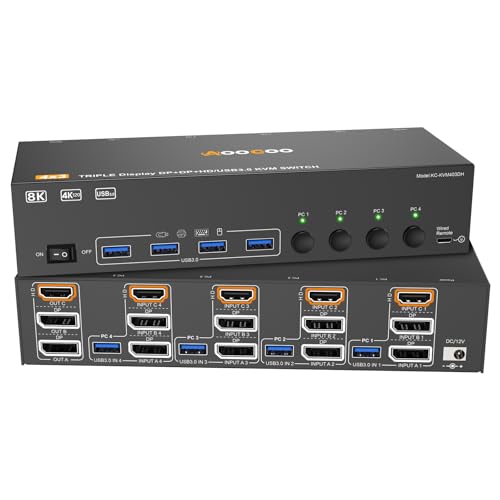
Dual-monitor 2-computer switches are typically 8.5 x 4.5 x 1.2 inches and weigh 20 to 28 ounces. They have 4 video inputs, 2 video outputs, and 4 USB 3.0 ports. Triple-monitor 2-computer models jump to 10 to 11 inches wide and 30 to 36 ounces.
Plan for cable clearance. Add 2 to 3 inches behind the switch for stiff DisplayPort connectors and another 1.5 inches on the side if it uses a desktop controller or remote. If desk space is tight, look for a model with front-facing USB ports and rear-facing video so daily USB swaps do not tug on video cables.
Build Material, Construction, and Switching Controls
Housing affects heat and signal stability at high bandwidth. Aluminum housings dissipate heat better than plastic and reduce electromagnetic interference, which helps prevent sparkles or dropouts at 4K 144Hz. An aluminum case typically runs 10 to 15 degrees Fahrenheit cooler to the touch under load than an ABS plastic case of the same size.
Construction details to check: Metal casing with grounded power, recessed video ports with screws for DisplayPort locking, and raised rubber feet for airflow. Screw-locking DisplayPort ports prevent accidental disconnects that cause EDID renegotiation failures. Avoid switches where ports are flush-mounted into thin plastic with no anchoring; they loosen after 20 to 30 cable insertions.
Switching methods vary. Physical button on the box is most reliable but requires reaching. A wired desktop controller with a 3 to 5 foot cable is faster for under-desk mounting. IR remote works from 15 to 20 feet but can be laggy and requires line of sight. Hotkey switching via keyboard (usually double-tap Scroll Lock or Ctrl) is convenient for programmers but may not work with wireless keyboards that sleep. The best implementations offer at least two methods: button plus hotkey or button plus remote.
Performance and Comfort: EDID, Latency, and USB Behavior
Raw bandwidth is only half the experience. Day-to-day comfort comes from how the KVM handles handshakes and peripherals.
EDID emulation: Without an EDID emulator, your inactive computer thinks the monitor disconnected when you switch away. When you switch back, windows get resized and dragged to one display, and games minimize. An EDID emulator keeps a virtual display profile active so both computers think they are always connected. Look for explicit “EDID emulator” or “EDID persistence” in the spec. This alone saves 5 to 8 seconds of rearrangement on every switch for dual-monitor users.
Switching speed: Budget switches take 4 to 7 seconds to relock video at 4K 144Hz. Mid-tier units with dedicated EDID memory do it in 2 to 3 seconds. Premium units with auto-scan and fast switching ASICs can switch in 1.5 to 2 seconds. If you switch 20 times per day, that difference is 3 to 4 minutes of waiting.
USB performance: For keyboard and mouse alone, USB 2.0 HID ports are fine and have slightly lower switching latency. If you share a webcam, microphone, external SSD, or USB headset, you need USB 3.0 at 5 Gbps. Check whether USB ports are shared or assigned. Most 4K 144Hz switches provide 4 USB-A ports, two designated HID for keyboard/mouse for hotkey support and two USB 3.0 for data. Switching an external drive while copying files will disconnect it, so avoid switching during large transfers.
Power: Active 4K 144Hz switches need external power. Expect a 5V 2A to 12V 1A adapter drawing 5 to 12 watts. Bus-powered switches without an adapter often fail to hold 4K 144Hz HDR or flicker when all USB ports are loaded.
Price Tiers: What $60 vs $120 Actually Buys You
Prices cluster into three bands for 4K 144Hz capable switches. Use these as reference ranges when you see individual products listed around $62, around $99, around $110, or around $120; most good options fall inside these tiers.
Budget $55 to $80: Usually 2 computers to 1 or 2 monitors, DisplayPort 1.4, 4 USB ports (mixture of USB 2.0 and USB 3.0), plastic or thin aluminum case, button or wired controller switching. Often includes EDID emulation but may lack HDR passthrough on all ports or may limit one port to 4K 120Hz when both monitors are active. Cables sometimes included but often are short 3-foot non-certified leads.
Mid Tier $85 to $125: The sweet spot for most buyers. Covers 2 to 3 monitors, 2 to 4 computers, confirmed DP 1.4 and HDMI 2.1 support, 8K@60Hz rating, EDID emulator, HDCP 2.2, HDR10 and Dolby Vision passthrough, aluminum housing, and 4 USB 3.0 ports with dedicated HID. Usually ships with a power adapter, wired remote, and 4 certified 1.5m DP or HDMI + USB 3.0 cables. Switching time around 2 to 3 seconds.
Premium $130 to $180+: Adds daisy-chain capability, auto-scan intervals from 5 to 30 seconds, IR remote plus hotkey plus front button, stronger EDID management with per-port memory, and better handling of ultrawide 5120×1440 at 120Hz+ alongside 4K. Often rated for 8K@60Hz 4:4:4 and includes 48 Gbps HDMI cables. Best for 3-monitor workflows or 4-computer control rooms where reliability matters more than price.
Warranty, Support, and Delivery Considerations
High-bandwidth switches generate more returns than basic peripherals because mismatched cables cause failures that look like defective hardware. Check warranty before buying.
Look for at least a 1-year manufacturer warranty with free replacement and responsive support within 24 to 48 hours. Many reputable brands offer 2 years. Read the return window: 30 days is standard, but some sellers extend to 60 days for KVMs. Keep all included cables until you have tested 4K 144Hz for a full day; switching with your own old cables is the number one reason for “defective” reports.
Delivery is straightforward since most units weigh under 3 pounds and ship in a 10 x 6 x 3 inch box. Assembly is plug-and-play, no tools required, but plan 15 to 25 minutes for cable management: power off both computers and monitors, connect video cables first, then USB upstream cables from each computer to the KVM, then peripherals, then power adapter last. Power on the KVM, then monitors, then computers to ensure correct EDID handshake. Label upstream cables with tape so you do not swap inputs later.
Spec Checklist
| Spec | Budget | Mid | Premium |
|---|---|---|---|
| Video Standard | DP 1.4 on main ports, may mix DP 1.2 on secondary | DP 1.4 with DSC + HDMI 2.1 on all video ports | DP 1.4 DSC + HDMI 2.1 with 48 Gbps on every port, 8K@60Hz 4:4:4 |
| Max Resolution Per Port | 4K@144Hz on one display, 4K@60-120Hz on second | 4K@144Hz on all active displays | 4K@144Hz / 8K@60Hz on all displays simultaneously |
| Bandwidth | 18 to 32.4 Gbps advertised, often 32.4 Gbps | 32.4 Gbps DP 1.4, 40 to 48 Gbps HDMI 2.1 | 32.4 Gbps DP + 48 Gbps HDMI with DSC |
| Monitors x Computers | 1-2 monitors x 2 computers | 2-3 monitors x 2-4 computers | 3 monitors x 4 computers, daisy-chain ready |
| USB Ports | 2 to 4 ports, USB 2.0 HID + USB 3.0 mixed | 4 x USB 3.0 5 Gbps, 2 HID + 2 data | 4+ x USB 3.0 5 Gbps + USB-C upstream option |
| Switching Method | Button only | Button + wired desktop controller + hotkey | Button + controller + IR remote + hotkey + auto-scan |
| EDID Emulator | Basic or missing, windows may rearrangement | EDID emulator on all ports, 2-3 sec switch | Per-port EDID memory, 1.5-2 sec switch |
| Housing & Weight | Plastic or thin aluminum, 12-20 oz | Aluminum, 20-30 oz, screw-lock DP | Thick aluminum with heatsinks, 30-40 oz |
| HDR / HDCP | HDR10 may be limited, HDCP 2.2 on one port | HDR10, HDCP 2.2/2.3 on all ports | HDR10+ / Dolby Vision, HDCP 2.3 full passthrough |
| Power | 5V 2A adapter included or bus-powered | 12V 1A or 5V 3A adapter included | 12V 1A+ adapter with surge protection |
| Cables Included | 1-2 basic cables | 4 x 1.5m DP 1.4 or HDMI 2.1 + USB 3.0 cables | Full set of certified 48 Gbps / HBR3 cables |
| Price Range | $55 – $80 | $85 – $125 | $130 – $180+ |
| Switch Time | 4 – 7 seconds | 2 – 3 seconds | 1.5 – 2 seconds |
Red Flags
Avoid these warning signs, even if the price looks tempting.
Vague bandwidth claims: Listings that say “supports 4K 144Hz” but never mention DP 1.4, HDMI 2.1, DSC, HBR3, or a Gbps number are usually 4K 60Hz hardware with overclocked marketing. Ask for the chipset or move on.
No EDID emulation listed: If you use dual or triple monitors and the spec does not mention EDID emulator, EDID persistence, or no window rearrangement, expect desktop icons and windows to scramble on every switch.
Bus-powered only: A 4K 144Hz switch without an external power adapter cannot reliably maintain signal integrity across multiple high-refresh links while also powering 4 USB devices.
HDMI 2.0 masquerading as 2.1: If the switch claims HDMI 2.1 but lists max bandwidth as 18 Gbps or only supports 4K 120Hz with 4:2:0, it is HDMI 2.0. True HDMI 2.1 should list 40 or 48 Gbps and 4K 144Hz 4:4:4.
No HDCP passthrough: Without HDCP 2.2 or 2.3, streaming apps, protected content, and some games will show a black screen. This is often omitted on the cheapest switches.
Single USB upstream: A proper KVM needs one USB-B or USB-C upstream per computer (2 computers = 2 upstream cables). If it has only one USB input for two computers, keyboard and mouse will not switch cleanly.
FAQ
Can a 4K 144Hz KVM switch also do 8K at 60Hz?
Usually yes, if it is built on DP 1.4 with DSC or HDMI 2.1. Both 4K 144Hz and 8K 60Hz need about 32 Gbps with compression, so a switch rated for 8K@60Hz 4:4:4 has enough headroom for 4K@144Hz. Check that the 8K rating applies per port, not just via a special single-port mode. If you do not own an 8K display, treat the 8K label as proof of bandwidth rather than a feature you will use daily.
Will a KVM switch add input lag for gaming at 4K 144Hz?
A good active KVM adds less than 1 to 2 milliseconds of video latency, which is imperceptible for most players. The bigger gaming impact comes from switching behavior: some switches force the GPU to renegotiate refresh rate, which can temporarily drop you from 144Hz to 60Hz for a few seconds. An EDID emulator and certified DP 1.4 cables minimize this. For competitive gaming, use the KVM’s HID ports for keyboard and mouse rather than passing them through a USB hub, and enable the monitor’s adaptive sync after the KVM is connected to confirm it still reports 144Hz with G-Sync or FreeSync active.
Do I need DisplayPort 1.4 cables or will my old DisplayPort cables work?
Use new VESA-certified DP 1.4 HBR3 cables rated for 32.4 Gbps, ideally 3 to 6 feet / 0.9 to 1.8 meters. Older DP 1.2 cables are rated for 21.6 Gbps and will limit you to 4K 120Hz at best, often with flicker or black screens at 144Hz with HDR. The same applies to HDMI: you need Ultra High Speed 48 Gbps cables for HDMI 2.1. If the KVM includes cables, use those for initial testing before swapping in longer aftermarket leads.
What is the difference between a KVM switch with MST and one without?
A KVM without MST requires one video cable per monitor per computer. A dual-monitor KVM without MST needs 4 video cables total. Some switches use Multi-Stream Transport to send two 4K signals over one DP 1.4 cable, but many monitors and GPUs handle MST poorly at 4K 144Hz, often limiting the second display to 60Hz. For reliable 4K 144Hz on two or three monitors, choose a KVM with dedicated inputs and outputs for each monitor rather than relying on MST, unless your monitor explicitly supports MST at full refresh and the KVM lists MST support with the same resolution.