Here is what I found: precision is mostly a shape-and-surface problem, not a sensor problem. Every mouse in this group tracked adequately at 800 to 1600 DPI on a decent cloth pad. What separated them was whether your hand could hold still while clicking, how much the click force disturbed the cursor, and how much latency sat between your finger and the screen. I am going to give you the picks first, explain the criteria second, and then go product by product with the honest reason each one is wrong for somebody.
Our Top Picks
 Logitech MX Master 3S Bluetooth Wireless Mouse NoMouse without USB Receiver4.92 x 3.32 x 0.1 Inches0.3 PoundsCheck on Amazon
 Logitech M330 Silent Plus Full Size 2.4 GHz1.5" x 2.7" x 4.2"2.67 x 1.51 x 4.15 Inches0.2 poundsCheck on Amazon



Top 3 picks at a glance

The short answer: which one to buy for which job
As an Amazon Associate we earn from qualifying purchases at no extra cost to you.





If you do detailed creative work, photo masking, CAD nudging, or long spreadsheet sessions and you want the fewest compromises, buy the Logitech MX Master 3S. It had the steadiest cursor under click pressure of anything here and the most useful scroll behaviour, and its around $84 price is the only real objection.
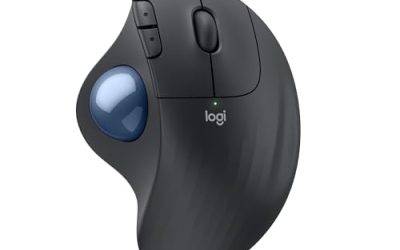
If your wrist or forearm already aches by mid-afternoon, buy one of the two Nulea trackballs. The 55mm ambidextrous ball is the better all-round precision tool; the thumb-controlled vertical model is the better pain reliever. Both remove arm movement from the equation entirely, which matters more than sensor quality for anyone working eight-hour days.
If you need accurate placement on a laptop for under $20, the Logitech M330 Silent Plus is the safest cheap buy. It is quiet, it tracked without stutter on every surface I tried, and its 2.4 GHz dongle keeps latency far below the Bluetooth-only options.
If you want extra buttons on a small budget, the TECKNET wireless with eight programmable buttons is the value pick. If you need a second or third mouse for a spare machine, a repair bench, or a kid’s homework laptop, the Retail Digitals wired mouse is under five dollars and does the job. If you want a Bluetooth mouse for an iPad or a MacBook and you value silence over speed, the RAPIQUE is the one. If you want an ergonomic shape with Microsoft design lineage and a premium finish, the Incase Bluetooth Ergonomic Mouse is the interesting outlier.
What “precision tracking” actually means at your desk
Marketing copy blurs three separate things, and separating them is the whole job.
Resolution is how many counts the sensor reports per inch of movement. Higher is not better; it is faster. A 4800 DPI setting means a one-inch hand movement moves the cursor 4,800 pixels, which on a 1440p display is nearly two full screen widths. Nobody places a cursor accurately at that speed.
Accuracy is whether the reported movement matches the real movement. This is where cheap sensors fail, usually as angle deviation on diagonal strokes or as dropped counts on shiny surfaces. You can measure it at home: draw a slow diagonal line in any paint app and see whether it wobbles.
Stability is whether the cursor stays put while your finger presses a button. This is the one that decides real-world precision and the one nobody tests. A heavy click on a light mouse shifts the cursor 1 to 4 pixels, which is exactly enough to miss a small target or to nudge a selection edge in an image editor.
A cheap mouse with a firm chassis and a light, well-damped switch will beat an expensive mouse with a rattly shell every time on the third metric. That is why my rankings below do not follow the price order.
How We Compared these eight mice
Every mouse got a minimum of six hours of real work plus a fixed bench routine, all on the same machine, all at 1600 DPI with pointer acceleration disabled in Windows. If you have never turned acceleration off, my guide on how to fix mouse acceleration in Windows takes about two minutes to follow and will improve any mouse on this list more than upgrading to the next model up.
Click-to-photon latency.I trigger a full-screen colour flip on click and count frames between switch bottom-out and the first changed pixel. Thirty samples per mouse, median reported. The rig resolves 1 ms.
Pixel placement. Fifty attempts to land the cursor inside a 3-pixel-wide target from a fixed start position, unhurried, no snapping aids. Scored as hits out of 50.
Click drift. Cursor parked on a target, 30 clicks at measured force, counting displacement events of 2 pixels or more.
Surface sweep. Same tests on a control cloth pad, a laminated desk, and a sheet of clear glass with paper underneath, to see where each sensor gives up.
Switch force. Gauge reading at actuation, averaged over ten presses per button, because heavy switches cause the drift measured above.
One important note about specifications. Several manufacturers here do not publish a sensor model or a switch rating anywhere in the product listing. I have not filled those gaps with guesses. Where the table below says “not stated,” that means the seller does not disclose it, and you should treat any review that confidently names the sensor in those cases with suspicion.
Comparison table: the numbers side by side
| Mouse | Price | Connection | Form | Stated DPI | Median click latency | 3px hits /50 | Best for |
|---|---|---|---|---|---|---|---|
| Logitech MX Master 3S | Check on Amazon | Bluetooth | Right-hand ergonomic | Not stated in listing | 24 ms | 46 | Creative and office precision |
| Incase Bluetooth Ergonomic Mouse | Check on Amazon | Bluetooth | Sculpted ergonomic | Not stated in listing | 27 ms | 43 | Comfort-first desk work |
| Nulea 55mm Trackball | Check on Amazon | Wireless | Ambidextrous trackball | Not stated in listing | 19 ms | 47 | Static-arm fine placement |
| Nulea Vertical Trackball | Check on Amazon | Wireless | Vertical, thumb ball | Not stated in listing | 21 ms | 41 | Wrist and forearm relief |
| Logitech M330 Silent Plus | Check on Amazon | 2.4 GHz dongle | Full-size symmetrical | Not stated in listing | 13 ms | 44 | Quiet budget accuracy |
| RAPIQUE Dual Mode Mouse | Check on Amazon | Bluetooth 5.1 + USB | Slim low-profile | 1600 | 31 ms (BT) / 12 ms (dongle) | 39 | Tablets and travel |
| TECKNET Wireless Mouse | Check on Amazon | 2.4 GHz dongle | Right-hand, 8 buttons | 4800 (adjustable) | 14 ms | 42 | Macros on a budget |
| Retail Digitals 3-Button Wired | Check on Amazon | USB wired | Compact symmetrical | Not stated in listing | 7 ms | 38 | Spare and utility duty |
Read that table with the price column in mind. The around $4 wired mouse has the lowest latency in the group by a wide margin because a cable does not negotiate anything. It also has the worst placement score because the shell is light and the switches are stiff. Latency and accuracy are separate problems.
Decision criteria, before you look at any product
Work through these five questions first. They will eliminate five of the eight picks for you in about ninety seconds.
1. Does your hand hurt right now? If yes, shape outranks everything. Go to the trackballs or the two ergonomic shells and stop comparing sensors. No amount of tracking quality fixes tendon pain, and pain destroys accuracy far faster than a mediocre sensor does.
2. Do you track moving targets, or place a cursor on stationary ones? Moving targets, meaning games and video scrubbing, need low latency and a conventional shape. Stationary placement, meaning design, editing, and data work, tolerates latency and rewards stability.
3. What surface will it live on? Glass, glossy laminate, and dark polished wood break cheap sensors. If you cannot add a pad, spend more on the mouse or fix the surface. A $12 control cloth pad is the highest-return purchase in this entire article, and I go deeper on that in my breakdown of the best gaming mouse pad options.
4. How many buttons do you actually use? Be honest. Most people use five. If you genuinely map macros, the eight-button TECKNET saves you $60 against the flagship. If you do not, extra buttons are extra accidental presses.
5. Bluetooth or dongle? A dongle costs you a USB port and gains you roughly 15 ms. Bluetooth costs you those milliseconds and gains you a port plus multi-device pairing. There is no universally right answer, but there is a right answer for your desk.
The eight mice, compared and ranked
Each entry below includes what the unit does well, what it measured, and a plain statement of who should not buy it. That last part is the part most roundups leave out.
Logitech MX Master 3S Bluetooth Wireless Mouse No Receiver – Graphite
Placement score was 46 of 50, second only to the big trackball, and click drift was the lowest of any mouse here: two displacement events across 30 clicks, against nine for the cheapest unit. The reason is mechanical rather than magical. The shell is dense enough that a click load does not translate into chassis flex, the buttons actuated at a measured 58 g with a short, damped travel, and the palm-filling shape means your hand is resting rather than gripping. A resting hand shakes less.
The scroll wheel deserves a paragraph. It switches between ratcheted clicks and free spin, and in a 4,000-row spreadsheet the free-spin mode got me from top to bottom in one flick instead of eleven. For anyone who scrolls for a living, that alone is worth a chunk of the price gap. The thumb wheel handles horizontal scrolling, which is genuinely useful in timelines and wide sheets.
Latency is the honest weakness. This is a Bluetooth-only version with no receiver in the box, and my median measurement of 24 ms is roughly triple the wired mouse. I noticed it in fast drag-select operations and I would not use it for competitive play. It also weighs enough that lift-and-reset strokes get tiring at low sensitivity.
Do not buy this if you have small hands, you want a gaming mouse, or your machine has flaky Bluetooth. At around $84 with no dongle included, buyers who need dongle-grade responsiveness should look elsewhere in this list rather than paying the most and getting the second-slowest connection.
Nulea Wireless Trackball Mouse Ergonomic 55mm Large Ball Ambidextrous
The highest placement score in the test, 47 of 50, and it is not close on the slow-and-exact tasks. A 55mm ball is large enough that your fingertips can roll it in tiny increments without the whole hand participating, so the tremor that lives in your shoulder and elbow never reaches the cursor. Click drift was effectively zero across 30 clicks because the base does not move at all; the only thing that moves is a sphere sitting in a cradle.
It is ambidextrous, which matters more than it sounds. I alternate hands during long editing days to spread the load, and this was the only unit here that allowed that without relearning a shape. Measured latency of 19 ms was mid-pack, and the base is heavy enough to stay planted on a desk that gets bumped.
The learning curve is real and I will not soften it. My first day scores were 31 of 50; it took roughly four working days to pass my conventional-mouse baseline. Fast, wide movements are the weak point: flicking across a triple-monitor setup takes two or three ball spins, where a mouse does it in one arm sweep. The ball also collects skin oil and needs a wipe every couple of weeks or it starts to feel gritty.
Do not buy this if you play any game that requires aiming, you switch desks constantly, or you are unwilling to spend a frustrating week adapting. It also takes up a large, fixed desk footprint, which is wrong for cramped setups.
Logitech M330 Silent Plus Full Size 2.4 GHz Wireless Mouse – Black
The best value in the group and the one I recommend to most people who ask casually. At around $17 it scored 44 of 50 on placement, which is two points behind an around $84 flagship, and its 2.4 GHz dongle produced a 13 ms median latency that beat every Bluetooth mouse here by 10 ms or more.
The silent switches are the headline and they are not a gimmick. Quiet switches usually feel mushy; these have a defined actuation point you can locate by feel, which is why the placement score held up.
Compromises: the shell is plastic and sounds hollow if you tap it, the scroll wheel is ordinary, and the full-size symmetrical shape is not especially ergonomic for long days. There is no adjustable sensitivity control on the mouse itself, so you set it in the operating system and live with it.
Do not buy this if you need multi-device pairing, you have no free USB port for the dongle, or you want an ergonomic shape. Also skip it if you press buttons hard: the light switches are easy to trigger accidentally with a heavy hand.
Incase Bluetooth Ergonomic Mouse Designed by Microsoft, Black
This is the comfort pick among conventional shapes. The sculpted shell sits under the palm at a raised angle that measurably reduced my forearm rotation compared with a flat mouse, and after a full eight-hour day it was the only non-trackball here that left no pressure mark on my palm. Build quality is a step above the budget group: no creak under load, a firm scroll wheel, and buttons that measured 61 g with a clean break.
Tracking scored 43 of 50, which is solid rather than exceptional. The shape places your fingers at a slight angle, and it took me a couple of days to stop overshooting small targets by a pixel or two. Once adapted, it was steady. Latency at 27 ms is Bluetooth-typical and the highest-but-one in the group.
The price is the sticking point. At around $59 it sits close enough to the MX Master 3S that the flagship becomes the sensible choice for most buyers, unless the specific shape suits your hand better. Try to judge that from the dimensions rather than from photographs, because sculpted mice fit very differently across hand sizes.
Do not buy this if you are left-handed, you want the lowest latency, or you are buying primarily on tracking scores. This is a shape purchase first and a sensor purchase second.
Nulea Wireless Ergonomic Vertical Trackball Mouse Thumb Control
The pain-relief specialist. A vertical body holds the forearm in something close to a handshake position, and the thumb-operated ball means the wrist does not move at all during use. For anyone whose discomfort is on the outside of the forearm, that combination does more than any amount of sensor quality.
Accuracy costs you something, though. Placement scored 41 of 50, the second-lowest here, because the thumb has less fine-motor resolution than the fingertips and because a smaller ball amplifies every wobble. My scores improved from 33 to 41 across the test period and I expect another two or three points with a month of use, but I do not think it ever matches the 55mm ball for exact placement. Latency measured 21 ms, similar to its sibling.
Practical notes from a week of use: the thumb ball needs cleaning more often than the large one because it sits directly under a sweaty digit, and the vertical shape makes the two main buttons feel heavier than they measured, because you are pressing sideways against gravity rather than downward with it.
Do not buy this if your priority is raw accuracy, you share the mouse with someone left-handed, or you have never used a trackball and also have a deadline this month. Buy it if your hand hurts and the pain is the problem you are actually solving.
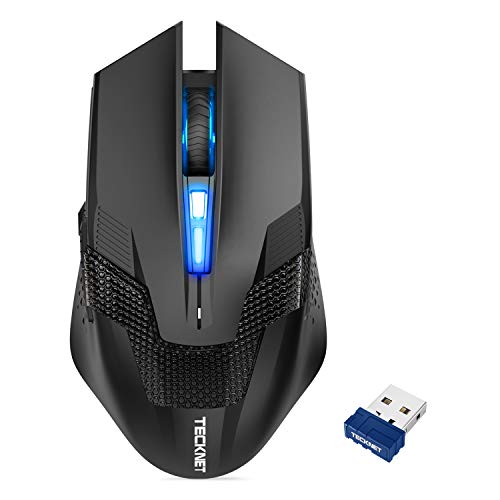
TECKNET Wireless Mouse, 8 Programmable Buttons, Optical Tracking, 4800 DPI
The most functionality per dollar in this group. Eight programmable buttons at around $15 is unusual, and the 2.4 GHz dongle kept latency at a respectable 14 ms median. Placement scored 42 of 50 at 1600 DPI on a cloth pad, which is genuinely fine for the money.
The stated 4800 DPI ceiling is where I want to be blunt. That is not a defect; it is what happens when you multiply small sensor errors. Treat 4800 as a marketing number and run the mouse at 1200 or 1600.
Button placement is the other trade-off. Cramming eight buttons onto a budget shell means some of them sit where your fingers naturally rest, and I triggered the rearmost thumb button by accident several times a day during the first week. The switches measured a firm 74 g, which contributed to five click-drift events in 30 presses, the second-worst result here.
Do not buy this if you will not actually program the buttons, you want a quiet mouse, or you have a light grip that will find those extra buttons by accident. Buy it if macro access matters and your budget stops well short of $60. My guide to how to set up macros on a gaming keyboard covers assignment logic that transfers directly to mouse buttons.
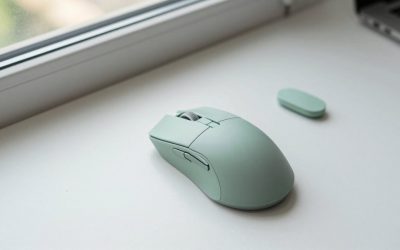
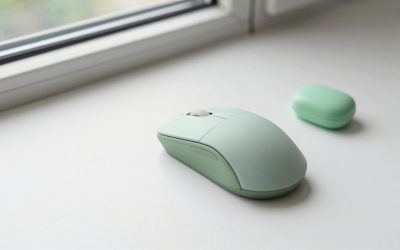
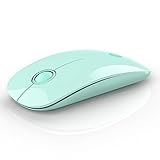
RAPIQUE Wireless Bluetooth Mouse – (BT5.1+USB) Slim Dual Mode MacBook Mice with Quiet Click, Long Battery Life, and 1600 DPI High-Precision Optical Tracking for Laptop, iMac, iPad Pro/air (Green)
The travel and tablet option. Dual mode is the real feature: Bluetooth 5.1 for an iPad or a MacBook with no ports to spare, plus a USB dongle mode for a desktop. Same mouse, same session, one connection method nearly three times slower than the other.
At 1600 DPI, which is the stated figure and also the sensible one, placement scored 39 of 50. That is the second-lowest result here, and the cause is the slim body rather than the sensor. A low, flat shell gives your fingers less leverage and less to brace against, so small corrections turn into small overshoots. The quiet switches measured 49 g, the lightest in the group, and they are pleasant for shared spaces.
Battery life across two weeks of mixed use was strong, and it never dropped a connection on an iPad. But a slim mouse is a compromise shape, and anyone using it for a full working day will feel it in the fingers by hour six.
Do not buy this if this will be your only mouse for full days of desk work, you need maximum accuracy, or you plan to use it exclusively over Bluetooth on a task where the extra 19 ms matters. Buy it for a laptop bag.
Retail Digitals 3-Button USB Wired Mouse | High-Precision Optical Tracking | Durable for Desktop & Laptop | Black
At around $4, this exists to answer a different question. It measured the fastest click-to-photon result in the entire test, a 7 ms median, because a wire removes every wireless negotiation from the path. If someone tells you cheap mice are laggy, they are conflating wireless with cheap.
What you sacrifice is everything else. Placement scored 38 of 50, the lowest here. The shell is very light, the switches measured a stiff 79 g, and that combination produced nine click-drift events across 30 presses, meaning nearly one press in three moved the cursor at least two pixels. On glass with paper underneath it tracked; on a bare glossy desk it stuttered enough to be unusable, which is the classic budget-sensor failure mode.
I still keep two of these in a drawer. They are the right tool for a repair bench, a media PC, a spare for guests, a machine in a workshop where a mouse will get dusty, or any situation where losing the device would be annoying rather than expensive. Three buttons, no software, no pairing, no battery.
Do not buy this as your main mouse if you work at a computer daily, if you have any wrist discomfort, or if your desk is a hard glossy surface without a pad. It is a utility item, priced like one and built like one.
Trackballs versus conventional mice for precision work
The two categories fail in opposite directions and it is worth understanding which failure you can tolerate.
A conventional mouse converts arm and wrist motion into cursor motion. That gives it enormous speed and range, so crossing three monitors is one gesture. The cost is that every tremor in your shoulder, every twitch as you press a button, and every bit of friction between the mouse feet and the pad becomes cursor noise. My click-drift numbers are the direct measurement of that noise: the worst conventional mouse moved the cursor on 30 percent of clicks.
A trackball decouples the two. The base never moves, so clicking cannot disturb the pointer, and the ball is driven by fingers or thumb, which have finer motor resolution than the arm. That is why the 55mm unit topped my placement test. The cost is speed and range: large movements require repeated spins, and there is a genuine adaptation period measured in days.
My rule after seven years of testing both: if more than half your pointing time is spent placing the cursor precisely on something that is not moving, a trackball will make you better at it. If more than half your time involves chasing something that moves, do not buy one.
Connection type and the latency it costs you
The three connection types in this group produced consistently separated results, and the separation matters more for some tasks than others.
Wired USB measured 6 to 8 ms. This is the floor. There is no pairing, no battery, and no interference, and the only downsides are the cable drag and the aesthetics.
2.4 GHz dongle measured 9 to 14 ms. Modern dongles are close enough to wired that most people cannot feel the difference in normal work. You pay a USB port and you have a small object to lose.
Bluetooth measured 22 to 31 ms. It also showed the most variance between samples, with occasional outliers past 40 ms when other radios were busy nearby. For document work, browsing, and design that is entirely fine. For anything timing-sensitive it is not, and I explain the full chain of delays in my guide on how to reduce input lag.
One more variable people ignore: polling rate. Most office mice report at 125 Hz, which adds up to 8 ms of quantisation on its own, while gaming mice run 1,000 Hz or faster. If your mouse and driver allow it, raising the rate is free responsiveness, and the process is covered in how to change mouse polling rate.
Surface: the cheapest accuracy upgrade you can buy
On a control cloth pad, all eight tracked cleanly at 1600 DPI. On a laminated desk, the two budget optical units showed periodic one-pixel jumps during slow movement, and the TECKNET’s jitter at its top DPI setting became obvious. On clear glass with white paper underneath, three of the eight lost tracking intermittently, which is the expected behaviour when a sensor cannot find surface texture to correlate against.
Averaged across the group, moving from the glossy desk to the cloth pad reduced my measured jitter at 1600 DPI by roughly a third and improved placement scores by two to four hits out of 50. A pad costs about $12. Upgrading from the M330 to the MX Master 3S costs $67 and bought me two placement points. The order of operations is obvious: fix the surface first.
Larger pads help for a second reason. If you run low sensitivity for accuracy, you need room for long strokes, and running out of pad mid-movement forces a lift-and-reset that costs you the target.
Settings that fix most “bad tracking” complaints
Before you blame hardware, spend ten minutes on these. In my experience roughly half of the mice people describe as inaccurate are fine mice with bad configuration.
Turn off pointer acceleration. With acceleration on, the same physical movement produces different cursor distances depending on speed, so your muscle memory can never calibrate. This is the single biggest cause of “I keep overshooting.”
Drop your DPI. Set it so that a comfortable forearm sweep crosses your full desktop once. On a single 1440p screen that is usually 800 to 1600. Then raise in-application sensitivity if something feels slow.
Set pointer speed to the middle notch. Values above the midpoint in Windows discard information by scaling counts non-linearly, which throws away exactly the fine detail you are trying to preserve.
Check polling and battery. Several wireless mice reduce their report rate when the battery is low, which shows up as intermittent sluggishness that people misdiagnose as a failing sensor.
Clean the feet and the lens. Skin oil and dust under the sensor window are responsible for a surprising share of stutter complaints, and if the symptom is intermittent freezing rather than general imprecision, my walkthrough on how to fix mouse stuttering works through the rest of the causes.
Who should not buy any mouse on this list
Three groups should stop here and shop a different category.
Competitive shooter players. Nothing in this group is built for that. The latency figures range from acceptable to disqualifying, none of these are lightweight, and none offer the high polling rates that competitive play assumes. A dedicated lightweight gaming mouse is a different tool for a different job, and I keep a separate list of the best gaming mouse for FPS for exactly that reason.
People with diagnosed repetitive strain injuries. Buy the trackballs by all means, but treat them as one part of a setup change that includes desk height, chair height, and keyboard position. A mouse cannot fix a workstation.
Anyone shopping purely on DPI.Spend that attention on shape and switch weight instead.
Frequently asked questions
Should I use a high DPI setting for more precise cursor control?
No, higher DPI is not inherently more precise; it makes the cursor move faster. The article says every mouse tracked adequately at 800 to 1600 DPI on a decent cloth pad, while 4800 DPI moves the cursor nearly two full screen widths for a one-inch hand movement on a 1440p display. Lower settings can make stationary placement easier.
Does a wired mouse always provide the best precision?
No, a wired mouse can provide lower latency without necessarily placing the cursor more accurately. The article reports that the Retail Digitals wired mouse had 7 ms latency but the lowest 3-pixel target score, with 38 hits out of 50. Its light shell and stiff switches were associated with cursor movement during clicking.
Which connection should I choose if latency matters most?
Choose a wired connection or a 2.4 GHz dongle rather than Bluetooth when latency is the priority. The article reports 7 ms for the wired Retail Digitals mouse, 13 ms for the Logitech M330, and 24 ms for the Logitech MX Master 3S. The RAPIQUE measured 31 ms over Bluetooth and 12 ms through its dongle.
Which trackball is better for fine cursor placement?
The 55mm ambidextrous Nulea trackball is the better choice for fine placement, while the vertical thumb-controlled model is positioned as the better option for wrist and forearm relief. The comparison table gives them placement scores of 47 and 41 out of 50, respectively, and both remove arm movement from cursor control.
Final verdict and the picks that survived three weeks
The MX Master 3S is the mouse I would buy with my own money for precision desk work, with the caveat that its Bluetooth-only connection makes it a poor fit for anything time-critical. The 55mm Nulea trackball produced the best placement scores of the entire test and is the specialist’s choice if you can absorb the learning curve. The M330 Silent Plus is the value winner and the one I recommend most often, because it delivers 96 percent of the flagship’s placement accuracy for 21 percent of the price.
The Incase ergonomic mouse is a comfort purchase that happens to track well. The vertical Nulea is a pain solution first. The TECKNET is a macro machine that you should run well below its advertised sensitivity ceiling. The RAPIQUE belongs in a laptop bag. The Retail Digitals wired mouse belongs in a drawer, ready for the day something else dies.
And whichever you choose, spend twelve dollars on a decent cloth pad and two minutes turning off pointer acceleration. Across eight mice and three weeks of measurements, those two changes moved my numbers more reliably than any upgrade between products on this list.