For most desks, the best ultrawide gaming monitor is a 34-inch 3440×1440 screen, because it adds a wide field of view without demanding a much stronger graphics card than a normal 1440p display. If you want the premium version of that format, the LG 34GS95QE lists OLED, 240Hz and 0.03ms response in its title. Beyond 34 inches, the Samsung 49-inch and 57-inch models turn the monitor into a whole desk setup, and the two budget-minded 34-inch screens trade away panel quality to cut cost. All six are judged here on what their listing titles state, with desk width and GPU load worked out as labelled estimates, because an ultrawide that does not fit your desk or your graphics card is the wrong monitor however good it looks.
Our Top Picks
 LG 34GS95QE 34-inch Ultragear OLED Curved Gaming Monitor34 inches10.97 x 30.87 x 23.06 inches20.5 PoundsCheck on Amazon
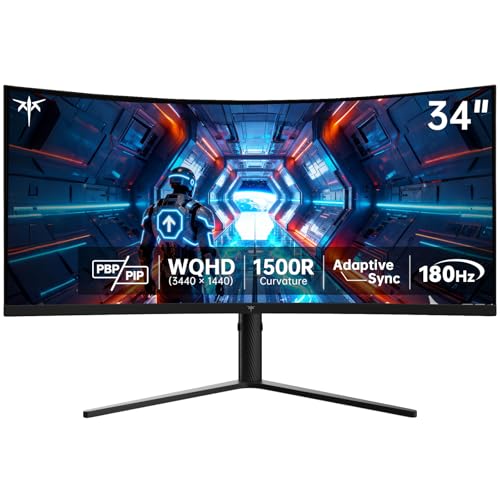 KTC 34 Inch Ultrawide Curved Gaming Monitor34 Inch6.22 x 27.9 x 20.4 inches16.75 poundsCheck on Amazon
 Kado 34" 100Hz Ultrawide 21:9 3440x1440 103% sRGB34" WQHD 100Hz7.3 x 32.26 x 18.97 InchesCheck on Amazon

Top 3 picks at a glance
Where each screen lands
As an Amazon Associate we earn from qualifying purchases at no extra cost to you.


| Model | Key point from title | Price tier | Best for |
|---|---|---|---|
| LG 34GS95QE | 34-inch OLED, curved 800R, 240Hz, HDMI 2.1 | Premium | OLED on a normal-width desk |
| KTC H34S5 | 3440×1440, 180Hz, 1500R, PIP/PBP, full stand adjustment | Budget | Value 1440p ultrawide |
| Gawfolk 34-inch | 3440×1440, 240Hz, 1500R, PIP/PBP, tilt | Budget | High refresh at low cost |
| Kado 34-inch 2-Pack | 3440×1440, 100Hz, 103% sRGB, speakers, listed as a 2-pack | Budget (per pack) | Dual-screen work and play |
| Samsung Odyssey G93SC 49-inch | QD-OLED, DQHD, 240Hz, 0.03ms | Premium | Immersive racing and sims |
| Samsung Odyssey Neo G9 57-inch | Dual 4K, 240Hz, DP 2.1, Mini-LED, DisplayHDR 1000 | Premium | Flagship desk centrepiece |
The six ultrawides in detail
LG 34GS95QE 34-inch Ultragear OLED
The title lists a 34-inch curved OLED at 800R, 240Hz, 0.03ms, FreeSync Premium Pro and G-Sync support, HDMI 2.1, DisplayPort and a tilt, height and swivel stand. It says WQHD 1440p rather than 3440×1440, so confirm the exact resolution on the listing. A 34-inch screen of this class would need about 31 inches of desk width (an estimate), which suits a standard desk. At the same time the 800R curve is tighter than the 1500R curves on the cheaper models, so it wraps more around you; sit about an arm and a half from the glass to keep both edges in comfortable view. The title also lists both adaptive-sync brands, which helps if you change graphics cards later.
Pros
- OLED with 240Hz in a desk-friendly width
- Both major adaptive-sync labels and HDMI 2.1
Cons
- Resolution is described loosely in the title
- OLED needs sensible habits to limit burn-in
Who it’s for: players who want the best motion clarity without outgrowing a normal desk.
KTC H34S5 34-inch Ultrawide
KTC lists 3440×1440 at 180Hz on a 1500R 21:9 curve with 1ms MPRT, adaptive sync, a 4000:1 contrast figure, PIP/PBP, HDMI and DisplayPort. The stand is the standout: tilt, swivel, pivot and height. The 4000:1 contrast number is typical of VA-type panels, though the title does not name the panel, and MPRT is a different measure from the grey-to-grey response most people expect. A 180Hz ceiling is a sensible match for mid-range graphics cards, which can often hold 150 to 180 frames in competitive titles but rarely 240 at this resolution. Pivot is listed, but rotating a 34-inch ultrawide upright is rarely practical, so treat height and swivel as the useful parts.
Pros
- Full stand adjustment is rare at this level
- PIP/PBP supports a second source
Cons
- 1ms is an MPRT figure, not grey-to-grey
- Panel type is not stated in the title
Who it’s for: the budget buyer who wants height adjustment and a real 1440p ultrawide.
Gawfolk 34-inch Ultrawide Curved 240Hz
Gawfolk’s title lists UWQHD 3440×1440, 240Hz, a 1500R curve, PIP/PBP and HDMI plus DisplayPort, with a tilt-only stand. A 240Hz refresh at this resolution is generous for the tier, but a card must push over 200 frames in your games to use it. Grey-to-grey response is not given, only 1ms MPRT, and the brand is lesser known, so check the return window and the warranty terms before you buy. Because the title lists no height adjustment, a stack of books or a separate monitor arm may be needed to bring the top edge to eye level, which is worth adding to your total cost.
Pros
- 240Hz at 3440×1440 is uncommon for the tier
- PIP/PBP included
Cons
- Tilt-only stand limits ergonomics
- Little is said about panel type or colour coverage
Who it’s for: shoppers who prioritise refresh rate and will add a monitor arm.
Kado 34-inch 100Hz Ultrawide (2-Pack)
This listing is the odd one out. The title says 2-Pack, 100Hz, 3440×1440, 103% sRGB, FreeSync Premium, built-in speakers and a VESA mount, and describes a dual or stacked setup. Confirm whether you receive one screen or two before comparing it with anything else. At 100Hz it is the slowest here, and it suits office work plus relaxed play more than fast shooters. Built-in speakers are a convenience for a spare room, though they rarely replace a headset. The 103% sRGB figure is a seller claim, so read it as a hint about colour range rather than a promise of accuracy.
Pros
- Two screens in one listing could suit a stacked setup
- Light GPU load at 100Hz
Cons
- 100Hz is the lowest refresh rate in this group
- The pack wording is ambiguous, so check what is included
Who it’s for: someone building a dual-screen workstation that also games a little.
Samsung Odyssey G93SC 49-inch QD-OLED
This is a 49-inch curved QD-OLED listed at DQHD, which refers to a 32:9 shape of roughly 5120×1440, with 240Hz, 0.03ms, G-Sync Compatible and FreeSync Premium Pro. That is about 7.4 million pixels, twice a regular 1440p screen, so it asks more of the GPU than a 34-inch model. Width is the main constraint: roughly 47 inches by estimate, which fills a 55-inch desk. The title lists an adjustable stand but not its range, so confirm tilt and height on the listing. If you play competitive shooters, remember that very wide fields of view can push targets to the edge of your vision, so some players run these screens in a narrower window.
Pros
- Two 1440p screens’ worth of space without a bezel
- QD-OLED at 240Hz
Cons
- Needs a deep, wide desk
- Not every game supports 32:9 properly
Who it’s for: sim, racing and flight players with desk space to spare.
Samsung Odyssey Neo G9 57-inch (G95NC)
The flagship here is a 57-inch Mini-LED with dual 4K, 1000R curvature, 240Hz, 1ms, DisplayPort 2.1 and DisplayHDR 1000. Dual 4K means two 3840×2160 screens side by side, around 16.6 million pixels, or about 4.5 times a standard 1440p display. That is a serious GPU ask, and the screen is roughly 55 inches wide by estimate. DisplayPort 2.1 appears in the title, so check that your graphics card has a matching output, since older cards may not support the full resolution and refresh rate together. Many players will also use it as a work surface, with a browser, chat and a game visible at once.
Pros
- Enormous canvas with sharp text
- Mini-LED with DisplayHDR 1000
Cons
- Heavy GPU demand and needs a DisplayPort 2.1-capable setup
- Too wide for many desks
Who it’s for: enthusiasts replacing a multi-monitor stack who have the hardware to drive it.
How we picked these
We compared six ultrawide listings using titles, published specifications, manufacturer documentation and buyer reviews. Nobody on the team used or measured these units. We checked aspect ratio, resolution, refresh rate, curvature, ports, stand adjustment and PIP/PBP, flagged loose wording such as the LG resolution and the Kado pack, and sorted price tiers relative to each other only. Where a figure goes beyond the title, such as desk width or pixel count, it is a labelled estimate with the assumptions stated. We also treat seller claims on response time, colour coverage and contrast as claims rather than facts, and we make no statement about how long any of these panels will last.
Choosing an ultrawide: what to weigh
Desk-fit maths before you buy
Width is the number most buyers forget. These estimates use the diagonal and aspect ratio, and the real cabinet adds a stand and bezel. The suggested desk sizes assume you also want room for a keyboard and mouse in front of the screen and some distance between your eyes and the glass; shrink them only if you mount the monitor on an arm.
| Screen | Approx. width | Suggested minimum desk | Approx. pixels |
|---|---|---|---|
| 34-inch 3440×1440 | about 31 inches | 40 inches wide, 24 deep | 4.95 million |
| 49-inch 32:9 | about 47 inches | 55 inches wide, 28 deep | 7.4 million |
| 57-inch dual 4K | about 55 inches | 60 inches wide, 30 deep | 16.6 million |
For setup tips on height and viewing distance, see our workspace ergonomics setup guide.
21:9 or 32:9
A 21:9 screen is about 2.3 times wider than tall and is widely supported. A 32:9 screen is closer to two monitors fused together and gives the most field of view, but some games and apps stretch or letterbox it. Older titles and some cutscenes may show black bars on the sides, which is normal. For a 32:9 purchase, look up the support status of your three most-played games first, because a few competitive titles limit the field of view to keep things fair.
Resolution and GPU load
3440×1440 is about 1.34 times 2560×1440, so your 1440p frame rates will fall by up to a quarter in demanding titles. If you want to pair width with speed, read our comparison of 240Hz gaming monitors to see what high refresh asks of a graphics card. A useful rule of thumb is to pick a refresh rate your card can hit about 80 percent of the time in your main games, and to treat anything above that as headroom rather than a requirement.
VA, IPS or OLED
VA panels tend to give strong contrast but can smear in dark scenes, IPS offers wide viewing angles with lower contrast, and OLED gives the deepest blacks with the burn-in caveat. Only the LG and Samsung OLED titles name their panel family. The Samsung 57-inch lists Mini-LED, which uses many small backlight zones to improve contrast on an LCD panel, but zone behaviour differs by model, and some haloing around bright objects on dark backgrounds is common to the technology. The three budget titles do not name their panel type at all, so treat contrast claims as unverified.
Refresh rate, curvature and PIP/PBP
A tighter curve such as 800R or 1000R wraps more on a big screen; 1500R is gentler. PIP/PBP is useful when a laptop shares the screen. Check whether the picture-by-picture mode keeps the full vertical resolution, since some monitors scale each half. A higher refresh number is not a quality guarantee on its own: it only helps if the games run at matching frame rates and the response time is fast enough to avoid smearing.
Mistakes buyers make
- Ignoring desk depth. A deep curve and a stand foot can need more depth than you expect, so measure from the wall to your seat before ordering.
- Chasing refresh you cannot reach. A 240Hz label is wasted if your card delivers 110 frames.
- Treating 1ms MPRT as grey-to-grey. They are different measures.
- Forgetting game support. Check that your main titles handle 21:9 or 32:9.
- Misreading pack listings. Read quantity wording carefully, especially on the Kado.
- Forgetting the mount. A wide, heavy screen on a thin desk can wobble, and a monitor arm may need a rating that matches the screen’s weight.
- Assuming bigger always means better. A 34-inch panel at the right distance often feels better than a 49-inch panel crammed onto a shallow desk.
Verdict
The LG 34GS95QE is the best fit for most players: OLED, 240Hz and a width that suits a normal desk. The KTC H34S5 is the sensible low-cost option with a flexible stand. The Samsung 49-inch G93SC suits those with a wide desk, and the 57-inch Neo G9 is only for those with a powerful GPU and the space to match. If the Kado listing does turn out to include two screens, it deserves a second look as a work-first dual setup, but verify the pack contents first and treat it as a different kind of purchase from the gaming-focused models.
Common questions
Is a 34-inch 21:9 screen or a 49-inch 32:9 screen better for gaming?
The 34-inch 21:9 is the easier fit. It is about 31 inches wide by our estimate, needs a moderate GPU, and works with most games. A 49-inch 32:9 is roughly 47 inches wide and pushes about 7.4 million pixels, so it wants a stronger card and a deep desk. Many games support 32:9, but not all, so check support for your favourites.
Will my graphics card handle 3440×1440?
A 3440×1440 screen draws about 4.95 million pixels, around 1.34 times a standard 2560×1440 monitor. A card that comfortably drives 1440p will usually manage it with slightly lower frame rates or a few settings trimmed. Higher refresh rates such as 240Hz will need much more headroom than 100Hz, so match the panel to the frames your card can actually deliver.
Is OLED worth it for an ultrawide?
OLED gives deep blacks and very quick pixel response, which suits dark games and fast motion, and two titles here list OLED. The trade-offs are price and the need to manage static elements to limit burn-in. If you leave spreadsheets or a taskbar on screen for hours, a VA or IPS panel may be the lower-risk option.
Does a curved ultrawide matter?
Curvature helps keep the edges of a wide image at a similar distance from your eyes. A tighter number such as 800R or 1000R curves more than 1500R. On a 34-inch screen the difference is subtle, while on a 49-inch or 57-inch panel it matters more. Sit close enough that the curve suits you without distorting straight lines in work.
What do PIP and PBP do?
Picture-in-picture shows a small second input over the main image, while picture-by-picture splits the screen into two side-by-side inputs. They help if you run a gaming PC and a work laptop together, or watch a stream beside a game. The KTC and Gawfolk titles list them; confirm input pairs and limits on the listing before relying on them.
Related guides
- What Is The Best Budget Most Responsive Gaming Mouse Wired
- Low Latency Gaming Headphones Usb-C 2.4 Ghz Wireless
- Low Latency Gaming Headphones Usb-C Dongle 2.4 Ghz