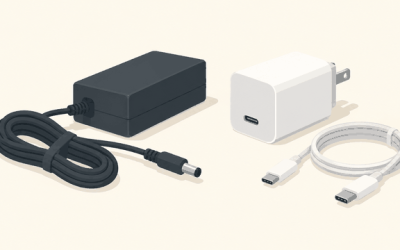
Every laptop owner eventually hits the same wall: a beautiful, wafer-thin machine with exactly two ports and a desk full of gear that needs them. If you’ve set up a home office in 2026, you know the routine — unplug the HDMI cable, swap in the SD card, juggle the charger, and repeat every time you want to take the laptop off the desk. A single-cable setup fixes that. You dock once, and your monitor, keyboard, external drives, and power all come alive; undock and you’re mobile again in two seconds. The catch is that the market is flooded with hubs and docks, and the specs — wattage, port counts, 4K at 30Hz versus 60Hz — are genuinely confusing.
The good news: you don’t need to spend much to get a clean single-cable desk. We sorted the strongest options, mostly budget and mid-range hubs plus one premium dock, into this ranked roundup, matching each hub to a specific kind of setup — from a single 4K monitor for a MacBook Air to a triple-monitor workstation built around a Dell or Lenovo. Below you’ll find our quick-picks table, the reasoning behind each selection, detailed mini-reviews, and a buying guide that explains the specs that actually matter.
As an Amazon Associate we earn from qualifying purchases at no extra cost to you.





Our Top Picks



Top 3 picks at a glance
Quick Picks
| Product | Best for | Price |
|---|---|---|
| Anker USB-C Hub, 5-in-1 USB Hub for Laptops, 4K HDMI Multiport Adapter | Best overall for most laptops | Check on Amazon |
| Acer Laptop Docking Station 3 Monitors, 11-in-1 USB C Docking Station | Best for triple-monitor workstations | Check on Amazon |
| USB C Laptop Docking Station Dual Monitor, 15-in-1 USB-C Hub Multiport Adapter | Best for max port variety | Check on Amazon |
| USB C Hub 4K HDMI Multiport Adapter with 3 USB 3.0 Ports for MacBook | Best budget pick for MacBooks | Check on Amazon |
| USB C Hub Docking Station, 9-in-1 Multi-Port USB Adapter, 4K@60Hz HDMI | Best for fast USB data and card readers | Check on Amazon |
| USB C Hub for Laptop, Portable USB C Splitter Multiport Adapter | Best ultra-portable travel hub | Check on Amazon |
| USB C Hub Multiport Adapter with 4 USB 3.0 Ports Compatible with MacBook | Best for USB accessory overload | Check on Amazon |
How We Compared
We focused on hubs and docks that enable a true single-cable workflow: power delivery to charge the laptop, at least one video output for a monitor, and enough USB-A ports for a keyboard, mouse, and flash drive. Most picks here sit in the budget tier, where the differences between options come down to port selection and a few key specs rather than brand prestige. We prioritized devices that list their exact specifications — wattage ceilings, port speeds, resolution and refresh rates — so you can match a hub to your laptop’s actual needs. We ranked them by overall versatility, ease of integration into a permanent desk setup, and value: how many real-world problems each dollar solves. We did not conduct new laboratory stress tests for this roundup; where numbers appear, they come directly from manufacturer specifications.
The Best Picks
1. Anker USB-C Hub, 5-in-1 USB Hub for Laptops, 4K HDMI Multiport Adapter
This is the hub to recommend to most people building a single-cable desk on a budget. Anker’s 5-in-1 covers the essential trio — 4K HDMI output, a charging pass-through port, and USB-A expansion — in a compact aluminum body that tucks neatly under a monitor stand. It’s the sweet spot of port count, brand reliability, and price for the largest number of laptop owners.
- Pros: Trusted Anker build quality at a budget price that’s easy to justify; covers the core single-cable needs of video, power, and USB expansion without paying for ports you won’t use.
- Pros: Compact and unobtrusive enough to become a permanent desk fixture rather than a dongle you’re constantly reconnecting.
- Con: With only five ports, heavy multi-monitor users will quickly outgrow it.
Skip it if you’re driving two or three monitors or need SD card readers — step up to a larger dock below.
2. Acer Laptop Docking Station 3 Monitors, 11-in-1 USB C Docking Station
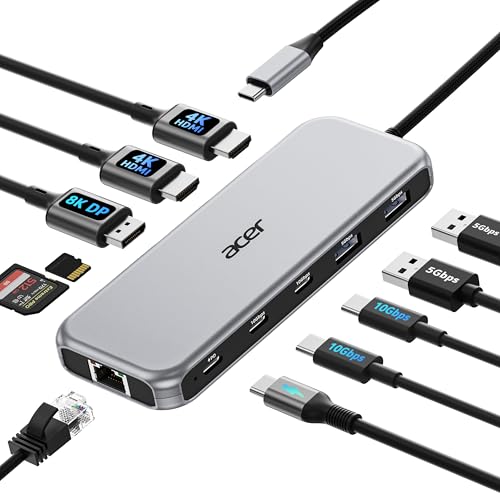
If your ideal desk has three screens, this is the pick. Acer’s 11-in-1 dock is built specifically for multi-monitor workstations — think stock traders, developers, video editors, or anyone running a vertical display alongside two landscape monitors. It’s one of the most ambitious docks in this roundup, but it replaces an entire tangle of separate adapters.
- Pros: Dedicated triple-monitor support turns a single USB-C cable into a full video wall — a genuine desk transformation.
- Pros: Eleven ports mean you can wire everything once and never touch a cable again.
- Con: It costs more than the simpler hubs here, and triple-display output depends on your laptop: Windows machines with MST support can extend across the screens, while Macs usually mirror.
Skip it if you only ever use one external monitor; you’d be paying for capability you don’t need.
3. USB C Laptop Docking Station Dual Monitor, 15-in-1 USB-C Hub Multiport Adapter
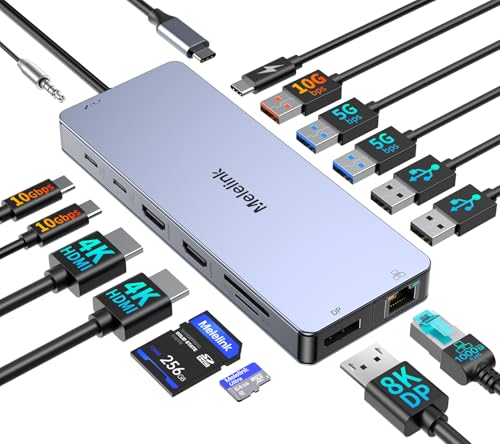
This is the everything-and-the-kitchen-sink option. Fifteen ports in one device means nearly every cable on your desk has a home: dual monitor outputs, a full bank of USB-A ports, card readers, and power delivery. It’s aimed at people whose desks accumulate peripherals — external drives, printers, drawing tablets, card workflows — and who want one cable to rule them all.
- Pros: Fifteen ports eliminate the need for any secondary adapter, for far less than buying these functions separately.
- Pros: Dual-monitor output supports a proper two-screen productivity setup.
- Con: A 15-port hub is inherently bulkier, so it’s less suited to travel or minimalist desks.
Skip it if you carry your hub in a laptop sleeve — this is a desk dweller.
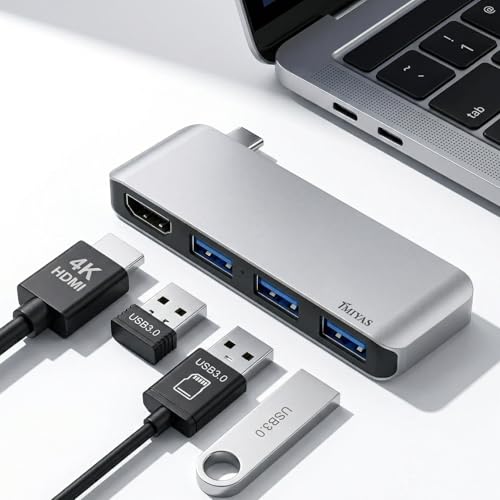
4. USB C Hub 4K HDMI Multiport Adapter with 3 USB 3.0 Ports for MacBook
The best entry point into single-cable living, especially for MacBook owners. You get 4K HDMI plus three USB 3.0 ports at a budget price — enough to attach a monitor, keyboard, and mouse in one plug. It doesn’t try to do everything, and that’s the appeal: the essentials, done cheaply.
- Pros: Outstanding value — 4K video and three 5Gbps-class USB ports at a budget price.
- Pros: Simple, focused feature set that pairs perfectly with a MacBook’s USB-C-only design.
- Con: No power delivery pass-through, so charging your laptop is a separate cable.
Skip it if true one-cable docking (including charging) is your goal — pick a hub with PD instead.
5. USB C Hub Docking Station, 9-in-1 Multi-Port USB Adapter, 4K@60Hz HDMI, 100W Max PD, 3 USB3.0 (5Gbps) + 2 USB2.0 Data Ports, SD/TF Card Reader
This is the spec-sheet champion of the affordable tier. You get a 4K@60Hz HDMI output, up to 100W power delivery pass-through, three USB 3.0 ports at 5Gbps plus two USB 2.0 data ports, and an SD/TF card reader, all at a budget price. For photographers, or anyone whose laptop charges over USB-C, this is arguably the best budget one-cable dock.
- Pros: 100W max PD pass-through means one cable charges the laptop while running everything else — the truest single-cable setup at this price.
- Pros: 4K@60Hz (not 30Hz) delivers smooth motion, and the SD/TF reader earns its place on any content creator’s desk.
- Con: The two USB 2.0 ports top out at 480Mbps — fine for mice, useless for fast drives.
Skip it if you need dual monitors; HDMI is the only video output.
6. USB C Hub for Laptop, Portable USB C Splitter Multiport Adapter
The featherweight pick. This compact splitter adds a USB-C charging pass-through port and USB 3.0 ports in a body light enough to live in your laptop sleeve permanently. It’s for people whose “setup” moves between the kitchen table, a coffee shop, and a hotel desk — the cable-management problem follows you, and this solves it on the go.
- Pros: As a budget pick, it’s one of the cheapest ways to expand a port-starved MacBook Pro/Air, Surface Pro, or any USB-C laptop.
- Pros: Charging pass-through keeps a single cable running to your laptop even away from home.
- Con: No video output — it can’t drive a monitor, so it can’t anchor a desktop setup.
Skip it as your main desk hub; treat it as the travel companion instead.
7. USB C Hub Multiport Adapter with 4 USB 3.0 Ports Compatible with MacBook
The specialist. Four USB 3.0 ports and nothing else, at a budget price. It’s for the surprisingly common scenario where your actual problem is USB-A overload: a keyboard, mouse, webcam, audio interface, and a drawer of flash drives, all competing for one adapter. Video and charging live elsewhere; this hub just does expansion, and does it affordably.
- Pros: Four 5Gbps-class USB-A ports at a budget price, one of the best ports-for-the-money options in the roundup.
- Pros: Dead-simple operation; plug in and every accessory works, no configuration needed.
- Con: No HDMI, no power delivery, no card reader — it solves exactly one problem.
Skip it if you’re starting from scratch on a single-cable setup; pair it with a video-capable hub instead.
More Hubs and Docks Worth Considering
The seven picks above cover the essentials well, but several of them are unbranded or list few details. Editorial roundups from larger tech sites lean on a handful of well-documented hubs that add features this list was missing: 10Gbps ports, wired Ethernet, clearly stated charging numbers, and a true premium dock for people who outgrow budget hubs. These six fill those gaps.
UGREEN Revodok Pro 106 6-in-1 USB-C Hub

The Revodok Pro 106 is the compact hub to pick if speed matters more than port count. Most budget hubs run their USB ports at 5Gbps; this one runs all four data ports at 10Gbps, which makes a real difference when you move large video files or back up to an external SSD.
UGREEN’s specs: one HDMI output at up to 4K@60Hz, two USB-C 3.2 Gen 2 data ports and two USB-A 3.2 Gen 2 ports at 10Gbps, and a 100W Power Delivery input that passes up to 85W to the laptop, with the rest reserved to run the hub. The body is aluminum.
Who it is for: MacBook and ultrabook owners with one monitor who use fast external drives or USB-C accessories.
Strengths: four 10Gbps data ports, including two USB-C, which is rare at this size; 4K@60Hz; well-documented charging behavior.
Drawbacks: no Ethernet or card reader; the USB-C data ports do not carry video or charging; 4K@60Hz requires a laptop port that outputs DisplayPort 1.4, or it falls back to 30Hz. It sits in the budget tier.
How it compares: it is a faster, better-documented alternative to our #1 Anker 5-in-1 for single-monitor desks.
UGREEN Revodok Pro 9-in-1 USB-C Hub with Gigabit Ethernet

If your desk has a wired network connection, a hub with Ethernet is one of the easiest upgrades for video calls and large downloads. This Revodok Pro 9-in-1 combines Ethernet, charging, a card reader, and fast USB in one hub, making it a strong one-cable base for a single-monitor desk.
From UGREEN’s listing: 4K@60Hz HDMI, a gigabit Ethernet port, 100W Power Delivery input with up to 85W going to the laptop, an SD/TF card reader, and a mix of 10Gbps USB 3.2 and 5Gbps USB 3.0 data ports in USB-A and USB-C. It also has a screen lock button that switches off the external HDMI display for privacy when you step away.
Who it is for: home office workers on wired internet, photographers who need a card reader, and anyone who wants a full single-cable desk with one monitor.
Strengths: Ethernet plus card reader plus 4K@60Hz in one hub; clear charging specs; handy display privacy button.
Drawbacks: one external monitor only; the USB-C charging port is for power only, not data or video. It sits in the budget to mid-range tier.
How it compares: it covers everything our 9-in-1 pick does, adding Ethernet and faster ports, from a brand with full specifications published.
Anker 555 USB-C Hub (8-in-1)

The Anker 555 is one of the most widely recommended hubs in editorial guides, and it is a natural step up from our #1 Anker 5-in-1. It keeps Anker’s build quality and adds Ethernet, two card slots, and 10Gbps data ports.
Anker’s specs: a 100W PD input passing up to 85W to the laptop; HDMI 2.0 at up to 4K@60Hz with HDR support; two USB-A and one USB-C data port at 10Gbps; a 1Gbps Ethernet port; and SD and microSD card slots. Anker notes that 4K@60Hz requires a laptop port supporting DisplayPort 1.4; on DP 1.2 ports, the HDMI output runs at 4K@30Hz.
Who it is for: anyone who wants one dependable hub covering monitor, network, storage, and charging.
Strengths: all data ports at 10Gbps; Ethernet and dual card slots; HDR-capable HDMI; strong brand support.
Drawbacks: one monitor only; the attached cable is short and fairly stiff, so the hub sits right next to the laptop; Anker says it can get warm under full load. It sits in the mid-range tier.
How it compares: it overlaps with the UGREEN 9-in-1. Choose Anker for 10Gbps on every data port and dual card slots; choose UGREEN for the display privacy button.
Anker 553 USB-C Docking Station (8-in-1, Dual HDMI)

The Anker 553 is the affordable way to run two monitors from one cable on a Windows laptop. It adds a second HDMI port to the usual hub layout while keeping Ethernet and charging.
Anker’s specs: two HDMI 2.0 ports, two USB-A data ports at 5Gbps, a 1Gbps Ethernet port, SD and microSD slots, and a USB-C PD input that passes up to 85W to the laptop with a 100W charger. On laptops supporting DisplayPort 1.4, one monitor runs at 4K@60Hz, and two monitors run at 2K@60Hz on Windows; on DisplayPort 1.2 laptops, dual displays drop to 1080p@60Hz.
Who it is for: Windows laptop owners who want two external monitors on a budget without installing drivers.
Strengths: dual HDMI plus Ethernet and charging in one hub; no DisplayLink software required on Windows.
Drawbacks: Macs do not support the multi-stream transport these hubs use, so on a MacBook the two monitors show the same image; data ports are 5Gbps; dual 4K runs at only 30Hz. It sits in the budget to mid-range tier.
How it compares: a more compact, well-documented alternative to our 15-in-1 dual-monitor hub for Windows users. MacBook owners who need two extended screens should look at DisplayLink docks or a Thunderbolt dock instead.
TP-Link UH9120C 9-in-1 USB-C Hub
TP-Link’s 9-in-1 is a well-specified all-rounder from a networking brand, with one more USB-A port than most hubs in its class.
TP-Link’s specs: HDMI at up to 4K@60Hz for one monitor; three USB-A ports and one USB-C data port at 5Gbps; gigabit Ethernet; SD and microSD slots at UHS-I speeds that can read both cards at once; and 100W PD 3.0 charging input, with up to 85W going to the laptop according to the listing. The aluminum case has a built-in storage slot for the connector, and TP-Link lists support for Windows, macOS, ChromeOS, Linux, iPadOS, and Android.
Who it is for: people with several USB-A peripherals, such as keyboard, mouse, webcam, and a flash drive, who also want Ethernet.
Strengths: three USB-A ports plus USB-C data; Ethernet and dual card slots; broad OS support including Linux.
Drawbacks: 5Gbps data rather than 10Gbps; one monitor only. It sits in the budget tier.
How it compares: pick it over the Anker 555 if you need more USB-A ports and do not need 10Gbps speeds.
CalDigit TS4 Thunderbolt 4 Dock

Every other pick in this guide is a budget or mid-range hub. The CalDigit TS4 is the premium answer for people who want a complete single-cable workstation with no compromises, and it is a common top pick for high-end docks.
CalDigit’s specs: 18 ports, including three Thunderbolt 4 ports (one to the laptop with up to 98W charging, two downstream), three 10Gbps USB-C ports, five 10Gbps USB-A ports, DisplayPort 1.4, UHS-II SD and microSD readers, 2.5Gb Ethernet, and front and rear audio jacks. It supports one 8K display or two 6K@60Hz displays depending on the computer, has its own power supply, and works with Thunderbolt 4, Thunderbolt 3, USB4, and USB-C laptops on Mac, Windows, and ChromeOS without DisplayLink drivers.
Who it is for: creators and professionals with MacBook Pro or Thunderbolt Windows laptops running two high-resolution monitors, fast storage, and wired networking.
Strengths: the most ports, the fastest network, and the best multi-display support here; dual extended displays on Apple silicon Pro and Max Macs; no driver software.
Drawbacks: premium tier, several times the cost of the other picks; needs a wall outlet and desk space for a power brick; 98W is below the maximum a 16-inch MacBook Pro can draw over MagSafe, so heavy workloads may charge more slowly; base M1 Macs are limited to one external display.
How it compares: it replaces the whole idea of a hub. Choose it only if you need two high-resolution extended displays on a Mac, 2.5Gb Ethernet, or many fast ports.
Buying Guide
Match the hub to your monitor count
One monitor opens up almost every option in this roundup, but check the refresh rate: hubs listing plain “4K HDMI” often run at 30Hz, which feels sluggish for scrolling, while explicit 4K@60Hz support (like our 9-in-1 pick) looks identical to a direct connection. Two or three monitors require a dedicated dock — the 11-in-1 Acer or the 15-in-1 hub — and be aware that many laptops split bandwidth or need driver-based (DisplayLink-class) support for triple displays. Check your laptop’s USB-C port supports DisplayPort Alt Mode before buying any video hub.
Understand power delivery wattage
Power delivery pass-through is what makes a setup truly single-cable: the hub charges your laptop while handling data and video. Match the hub’s PD ceiling to your laptop’s charger. A 100W max PD hub (our 9-in-1 pick) typically passes about 85W to the laptop, enough for most 13- to 15-inch laptops at full speed; smaller hubs may pass through less, which means slower charging under load. Budget at least 65W of pass-through for any full-size laptop, and remember hubs without PD — like our three-port HDMI hub and four-port USB hub — leave you with a separate charging cable.
Know your USB speeds
Not all USB-A ports are equal. USB 3.0-class ports move data at 5Gbps — enough for external SSDs, fast flash drives, and painless file transfers. USB 2.0 ports manage just 480Mbps, which is fine for a keyboard, mouse, or printer but agonizing for large transfers. For a permanent desk setup, count how many fast ports you genuinely need; two 5Gbps ports usually cover an SSD and a spare, while keyboards and mice can happily live on slower ports. Card readers (SD/TF) matter mainly if you shoot photos or video — if you do, prioritize a hub that includes one.
Comparison Table: The Additional Picks
| Product | Monitors | Max to laptop | Fastest data | Ethernet | Card reader | Price tier |
|---|---|---|---|---|---|---|
| UGREEN Revodok Pro 106 | 1 x 4K@60Hz HDMI | 85W | 10Gbps (4 ports) | No | No | Budget |
| UGREEN Revodok Pro 9-in-1 | 1 x 4K@60Hz HDMI | 85W | 10Gbps | 1Gbps | SD/TF | Budget to mid-range |
| Anker 555 8-in-1 | 1 x 4K@60Hz HDMI | 85W | 10Gbps (3 ports) | 1Gbps | SD + microSD | Mid-range |
| Anker 553 8-in-1 | 2 x HDMI (Windows extended) | 85W | 5Gbps | 1Gbps | SD + microSD | Budget to mid-range |
| TP-Link UH9120C | 1 x 4K@60Hz HDMI | 85W | 5Gbps | 1Gbps | SD + microSD | Budget |
| CalDigit TS4 | Up to 2 x 6K@60Hz | 98W | 40Gbps Thunderbolt 4 | 2.5Gbps | UHS-II SD + microSD | Premium |
More Specs That Decide Whether a Hub Works
Check Your Laptop’s USB-C Port First
USB-C describes the connector shape, not what the port can do. For a single-cable setup, the laptop’s port needs three things: data, DisplayPort Alt Mode for video, and Power Delivery for charging. Thunderbolt and USB4 ports do all three. Some budget laptops have a USB-C port that only handles data or only charges, and no hub can add video to a port that does not support it. Look for a DisplayPort or Thunderbolt logo next to the port, or check the laptop’s spec sheet.
Charging Numbers: Input vs. Pass-Through
A hub rated “100W PD” usually means 100W in from your charger, not 100W out to the laptop. Most hubs keep around 15W for themselves, so the laptop gets about 85W, and only if you connect a 100W charger and a cable rated for 100W. That is plenty for most 13- to 15-inch laptops. Power-hungry 16-inch workstations and gaming laptops may charge slowly or drain under heavy load, so keep their original charger for demanding work.
Why “4K@60Hz” Sometimes Becomes 30Hz
Hubs that send HDMI from a single USB-C port share bandwidth between video and data. Many need your laptop to output DisplayPort 1.4 to reach 4K@60Hz; on DisplayPort 1.2 ports, they fall back to 4K@30Hz. Some hubs also drop USB-A ports to USB 2.0 speeds when driving 4K@60Hz. If smooth 60Hz matters, look for hubs that state the requirement clearly, as Anker and UGREEN do.
Two Monitors on a Mac
Most dual-HDMI hubs use multi-stream transport (MST), which macOS does not support, so a MacBook mirrors the same image on both screens. Base Apple silicon MacBook Air and MacBook Pro models also have limits on how many external displays they support natively. Mac users who need two extended monitors should check their model’s display support and look at Thunderbolt docks or DisplayLink-based docks, which use driver software to add displays.
Ethernet and Network Stability
Wi-Fi is fine for most work, but a wired gigabit connection gives steadier video calls and faster large downloads, especially in busy apartment buildings. If your router or a wall jack is near the desk, an Ethernet-equipped hub is one of the cheapest stability upgrades available. Faster 2.5Gb Ethernet only matters if your network and internet plan support it.
Heat and Placement
Hubs passing high charging power while driving 4K video get warm; that is normal. Keep the hub on a hard surface with some airflow, not buried under papers or inside a closed drawer, and avoid stacking it on top of a laptop’s vents.
How to Build a Clean Single-Cable Desk
- Confirm your laptop’s port supports video and charging, and note its charger wattage.
- Pick the hub by monitor count first, then by charging, Ethernet, card reader, and port count.
- Use the right charger and cable. Connect the laptop’s own USB-C charger, or a 100W PD charger, to the hub’s PD input with a cable rated for that power.
- Mount the hub out of sight. Stick it under the desk edge, behind the monitor, or on the monitor arm, leaving the single cable to the laptop easy to reach.
- Plug in permanent peripherals: monitor, keyboard and mouse receiver, webcam, Ethernet, and external drive. Put fast drives on 10Gbps ports and input devices on slower ones.
- Set display arrangement in your operating system once, so it remembers your layout every time you reconnect.
- Test the full routine. Unplug and reconnect the laptop a few times to make sure the monitor wakes up, the drive mounts, and charging starts each time.
Which Hub Fits Which Laptop and Desk
- MacBook Air with one monitor: a single-HDMI hub with 4K@60Hz and PD pass-through, such as the UGREEN Revodok Pro 106 or the Anker 5-in-1. Base Air models support a limited number of external displays, so a dual-HDMI hub adds little.
- MacBook Pro with two high-resolution monitors: a Thunderbolt dock such as the CalDigit TS4, which drives two extended displays on Pro and Max chips without driver software.
- Windows ultrabook with two monitors: a dual-HDMI hub such as the Anker 553 for 1080p or 2K screens, or the Acer triple-display dock for more screens. Check your laptop’s DisplayPort version for the resolutions you want.
- Wired home office: an Ethernet hub such as the Anker 555, UGREEN Revodok Pro 9-in-1, or TP-Link UH9120C for steadier calls and faster large downloads.
- Photographers and video creators: a hub with SD and microSD slots and 10Gbps ports, such as the Anker 555, for card offloads and fast SSD backups. For UHS-II cards, the CalDigit TS4’s faster readers are worth it.
- Lots of USB-A gear: the TP-Link UH9120C with three USB-A ports, or add the four-port USB 3.0 hub from our main list beside a video-capable hub.
- Gaming laptop: keep the original barrel or high-wattage charger plugged into the laptop and use the hub for peripherals and a second screen. Most hubs cannot pass enough power for a gaming laptop under load, and the laptop’s main GPU-connected video port may be HDMI rather than USB-C.
- Travel bag: a small hub with a short attached cable and PD pass-through, such as the Revodok Pro 106, plus the portable splitter from our list for extra USB ports.
Our Verdict
For most people building a single-cable laptop setup in 2026, the Anker 5-in-1 is the right call: reliable, compact, budget-friendly, and it covers video, power, and USB expansion without waste. If your laptop charges over USB-C and you want the most complete budget one-cable experience, the 9-in-1 dock with 100W PD input, 4K@60Hz, and an SD/TF reader is the better technical pick. Multi-monitor users should step up to the Acer 11-in-1 triple-monitor dock or the 15-in-1 dual-monitor hub, while the portable splitter and four-port hub make excellent budget supplements for travel and USB-A overload. Whatever you choose, all of them beat crawling under your desk twice a day.
FAQ
Can a USB-C hub really power my laptop and run a monitor at the same time?
Yes, if it includes power delivery pass-through. A hub with a PD ceiling of 100W, like our 9-in-1 pick, typically passes about 85W to the laptop, enough to charge most ultrabooks at or near full speed while simultaneously driving a 4K@60Hz display and USB accessories — all through one cable to the laptop. Hubs without PD support handle data and video only, so you’ll still need your charger.
Will any USB-C hub work with my MacBook, Dell, HP, or Lenovo?
USB-C hubs are broadly cross-compatible — a hub works with any laptop that has a USB-C port with data support. The main caveat is video: driving a monitor requires the laptop’s USB-C port to support DisplayPort Alt Mode, which nearly all modern MacBook, Dell, HP, and Lenovo laptops do. Triple-monitor docks may require additional driver support depending on the laptop.
What’s the difference between a hub and a docking station?
The line is blurry, but generally a hub (like the Anker 5-in-1) is a compact adapter adding a handful of ports, while a docking station (like the Acer 11-in-1 or the 15-in-1) offers many more ports, multiple monitor outputs, and is designed to sit permanently on a desk. For a fixed single-cable setup, a dock is usually the better foundation; for travel, a hub wins.
Do I need an expensive hub for 4K video?
No. Several picks in this roundup output 4K over HDMI at a budget price. The spec to check isn’t price — it’s refresh rate. 4K at 30Hz is acceptable for static documents but noticeably choppy for scrolling and video; 4K@60Hz, offered by the 9-in-1 dock, gives you the smooth experience you’d expect from a direct HDMI connection. Pay attention to that number rather than the price tag.
Why is my laptop charging slowly through the hub?
Most hubs keep part of the charger’s power for themselves, so a 100W hub typically passes about 85W to the laptop, and less if your charger is weaker. Use a charger of at least the hub’s rated input with a matching cable. Large 16-inch laptops under heavy load may still draw more than a hub can pass through.
Can I run two monitors from one USB-C port on a MacBook?
Not with most dual-HDMI hubs; macOS mirrors the image because it does not support multi-stream transport. For two extended displays, check whether your Mac model supports two external screens natively and use a Thunderbolt dock, or use a DisplayLink-based dock with its driver installed.
Is Thunderbolt worth the extra cost over a USB-C hub?
Only for heavy users. Thunderbolt docks offer far more bandwidth, more displays, faster storage, and usually stronger charging. For one monitor, a keyboard, a mouse, and a drive, a good USB-C hub does the job at a fraction of the price.
Do USB-C hubs work with iPads, phones, or handheld gaming PCs?
Many do. iPads with USB-C, recent Android phones, and handhelds like the Steam Deck can use hubs for displays, storage, and charging, but features depend on the device. Check the hub’s compatibility list, especially for video output and charging.
Why does my monitor flicker or disconnect through the hub?
The most common causes are a weak or incorrect cable, unplugging the charger while the hub is in use, or asking for more bandwidth than the port supports, such as 4K@60Hz on a DisplayPort 1.2 laptop. Try a certified HDMI cable, lower the refresh rate, and keep the charger connected.