If you’ve ever plugged a single HDMI cable into your MacBook Air and wished you could just add the second monitor without buying a full-sized desktop dock, you already know the problem: how many external displays a MacBook Air can drive depends on its chip. M1 and M2 Airs support one external display, the M3 Air supports two only with the lid closed, and M4 and M5 Airs support two with the lid open. A cheap dual-HDMI hub does not change those limits: without DisplayLink, it mirrors on Mac, showing the same image on both monitors instead of extending the desktop. For two extended screens on an M1, M2, or lid-open M3 Air you need a DisplayLink adapter or dock; on an M4 or M5 Air, a Thunderbolt or USB4 dock with two video outputs does it natively. This guide covers both groups: five budget and mid-range dual-HDMI hubs that are useful port expanders but mirror on Mac when two monitors are connected, and five DisplayLink, Thunderbolt, and USB4 docks that genuinely extend two screens.
The catch is that not all of these hubs behave the same way on a MacBook. None of the five dual-HDMI hubs in the main list has a DisplayLink chip, so on a Mac they mirror the same image to both monitors, or leave one dark on M1 and M2 Airs, rather than extending the desktop. They still make sense as one-cable port hubs with charging passthrough, Ethernet, and card readers for a single external monitor, or for presentations where mirroring is fine. If two extended screens are the goal, skip to the DisplayLink and Thunderbolt picks further down.
As an Amazon Associate we earn from qualifying purchases at no extra cost to you.


Our Top Picks
 MOKiN MacBook Pro Docking Station Dual Monitor MacBook4.84 x 1.85 x 0.65 Inches0.2 poundsCheck on Amazon
 Docking Station Dual Monitor 4K HDMI 13-in-1 USB13-in-1 Docking Station (USB C)13 x 0.5 x 5 inches0.3 poundsCheck on Amazon
 Docking Station for MacBook Pro Air8 in 2 (for MacBook)7.91 x 2.52 x 0.75 Inches0.2 poundsCheck on Amazon


Top 3 picks at a glance
Quick Picks
| Product | Best for | Price |
|---|---|---|
| MOKiN MacBook Pro Docking Station Dual Monitor HDMI Adapter | Best all-round port hub (mirrors on Mac) | Check on Amazon |
| Anker Laptop Docking Station Dual Monitor, 8-in-1 USB C Hub | Best for brand reliability (mirrors on Mac) | Check on Amazon |
| Docking Station Dual Monitor 4K HDMI 13-in-1 USB C Hub | Best for lots of peripherals (mirrors on Mac) | Check on Amazon |
| LIONWEI USB C Docking Station Dual Monitor | Best budget pick (mirrors on Mac) | Check on Amazon |
| Selore USB C Docking Station Dual HDMI Monitor Adapter | Best for Windows multi-display (mirrors on Mac) | Check on Amazon |
How We Compared
Our criteria for this roundup were straightforward. First, for the main list we looked at popular dual-HDMI hubs sold for MacBooks and checked each listing for DisplayLink; none of the five has it, so all of them mirror on Mac when two monitors are connected, which is why we added a second group of docks that truly extend two screens. Second, we prioritized hubs that support 4K resolution rather than capping out at 1080p, since most people pairing a dock with a MacBook Air are driving at least one 27-inch or larger panel. Third, we weighted real-world reliability: power delivery that keeps the laptop charged while running two screens, enough USB-A bandwidth for a keyboard, mouse, and flash drive, and card readers that don’t drop transfers mid-file.
We also considered value across price tiers. Rather than just ranking the most expensive docks, we included a budget option (the LIONWEI) alongside a brand-name option (the Anker) for buyers who care about long-term warranty support. Port selection mattered too — a hub that only does video isn’t much of a dock — so we favored options that bundle Ethernet, SD/microSD readers, or higher-count USB-A ports where the price justified it.
The Best Picks
Best All-Round Port Hub: MOKiN MacBook Pro Docking Station Dual Monitor MacBook Pro/Air HDMI Adapter
The MOKiN is the most complete port hub in the main list: two HDMI outputs, Gigabit Ethernet, three USB-A ports, SD and microSD readers, and 100W power delivery passthrough, all plug and play with no driver. It has no DisplayLink chip, so it mirrors on Mac when two monitors are connected, and M1 and M2 Airs drive only one external display through it. A single monitor runs at up to 4K 60Hz, while the listing rates two monitors at 4K 30Hz. It plugs into both USB-C ports on the side of the MacBook and gives one back as a Thunderbolt 3 passthrough port.
- Two HDMI ports, but no DisplayLink, so it mirrors on Mac with two monitors
- Mid-range hub with Ethernet, card readers, and 100W passthrough in one aluminum body
- Some users find the connected-cable design less tidy than a standalone dock with a separate host lead
Skip this one if you need two extended monitors — choose the ACASIS, UGREEN, or Plugable DisplayLink options on an M1, M2, or M3 Air, or a Thunderbolt or USB4 dock on an M4 or M5 Air.
Best for Reliability: Anker Laptop Docking Station Dual Monitor, 8-in-1 USB C Hub with 4K HDMI
Anker has built its reputation on dependable charging accessories, and this 8-in-1 hub brings that reputation to a dual-HDMI design. It has no DisplayLink, and Anker’s own listing notes that on macOS both external monitors show the identical image, so it mirrors on Mac; on a Windows laptop it can extend to two screens at 4K 30Hz each. On a MacBook Air, treat it as a dependable one-cable hub for a single 4K 60Hz monitor plus Ethernet, card readers, and up to 85W passthrough charging, backed by an 18-month warranty.
- Backed by Anker’s established quality control and customer support, which matters when your whole desk depends on one accessory
- Well-rounded 8-in-1 port selection; one monitor at 4K 60Hz, and mirrors on Mac with two
- Costs more than comparable no-name hubs, and charging passthrough tops out at 85W
Skip this if you need two extended screens on a Mac or want maximum port variety — the 13-in-1 dock below gives you more connections.
Best for Full Desk Setups: Docking Station Dual Monitor 4K HDMI 13-in-1 USB C Hub for Laptop MacBook
This 13-in-1 hub is for the person whose desk looks like a mini control center: a monitor, an external drive, Ethernet, and a stack of USB peripherals. If you’re consolidating four or five single-purpose adapters into one device, this dock replaces them. Be clear on the display side, though: it has two HDMI ports and a DisplayPort but no DisplayLink, and its listing states that macOS can extend only one monitor, so additional screens mirror on Mac. Triple extended displays are a Windows feature here.
- Extensive 13-in-1 port array covering dual 4K HDMI, DisplayPort, 10Gbps USB-C and USB-A, Ethernet, and audio in one unit
- Strong value — cheaper than buying separate adapters for even half these functions
- The sheer number of ports means a bulkier body that takes up more desk or bag space than minimal hubs
Skip this if you travel frequently and need something pocketable — the Anker or LIONWEI will be far easier to toss in a bag.
Best Budget Pick: Docking Station for MacBook Pro Air, LIONWEI USB C Docking Station Dual Monitor, Dual HDMI Adapter Hub for Mac MacBook Pro with 2 HDMI, 3 USB 3.0, SD TF Card Reader and 100W PD USB C Charging Port
The LIONWEI is the most affordable hub in this guide, with two HDMI ports, three USB 3.0 ports, SD/microSD card readers, and a USB-C charging port. It has no DisplayLink, so it mirrors on Mac, and LIONWEI’s listing states that on M1 and M2 MacBooks one of the two monitors stays black. The listing also rates dual output at 4K 30Hz and says its 100W charging figure applies to Intel-based MacBooks. For students or spare-desk setups that need one external monitor plus a few ports, it is a low-risk buy.
- Budget-tier price with dual HDMI, 3 USB 3.0 ports, SD/TF readers, and USB-C charging passthrough included
- Mirrors on Mac with two monitors, and one stays dark on M1 and M2 Airs
- Build quality and long-term durability are understandably a step below the pricier Anker option
Skip this if you need Ethernet (step up to the MOKiN or the 13-in-1 dock) or two extended screens (choose a DisplayLink adapter such as the ACASIS).
Best for Windows Multi-Display: Selore USB C Docking Station Dual HDMI Monitor Adapter USB C Hub 3 Monitors
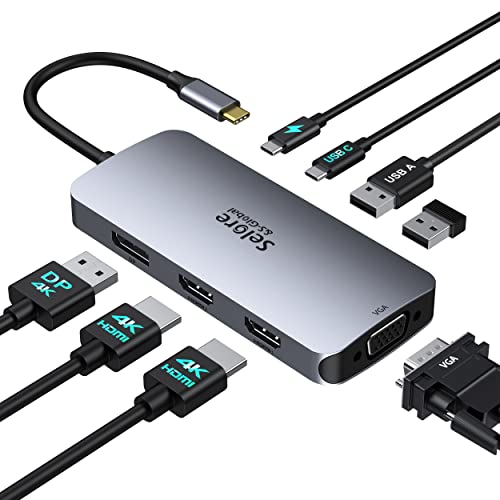
The Selore packs two HDMI ports, a DisplayPort, and a VGA port into one budget-friendly hub, and on a Windows laptop it can run several extended displays at once. On a Mac it is a different story: it has no DisplayLink, and Selore’s own listing says MacBooks can use it only in mirroring mode, with every screen showing the same content. The listing also rates one HDMI port at 4K 60Hz and the other at 4K 30Hz, and notes that connecting a VGA display to a Mac can limit all screens to 1080p. It suits buyers who share the hub with a Windows laptop, or who want a mirrored projector or TV output from a MacBook.
- Up to four outputs (two HDMI, DisplayPort, VGA) for Windows laptops, but mirrors on Mac
- Budget-friendly with 100W PD charging passthrough, though its USB ports are USB 2.0
- On macOS every connected screen shows the same image, so it cannot add extended desktops to a MacBook Air
Skip this if you want extended monitors on a Mac — choose a DisplayLink dock for an M1, M2, or M3 Air, or a Thunderbolt or USB4 dock for an M4 or M5 Air.
Docks That Extend Two Monitors on Every MacBook Air
The five hubs above are compact, budget-friendly options. Before buying any of them, check which chip your MacBook Air uses (Apple menu, then About This Mac). Many inexpensive dual-HDMI hubs split one video signal using a method called MST, which macOS does not support for extended desktops, so on a Mac both monitors can end up showing the same image. The five docks below take one of two approaches that do produce two separate, extended screens: DisplayLink, which works on every Apple silicon MacBook Air including base M1, M2, and M3 models, and Thunderbolt or USB4 docks that drive two displays natively on M4 and M5 MacBook Airs without extra software.
Best DisplayLink Adapter for Compact Setups: ACASIS USB C to Dual HDMI DisplayLink Adapter

The ACASIS adapter is the smallest and least expensive way in this guide to get two genuinely extended monitors on a base M1, M2, or M3 MacBook Air. Inside its aluminum body is a DisplayLink chip, which receives display data over USB and drives two HDMI outputs at up to 4K 60Hz each, independent of the Mac’s built-in video output limits. The listing for this model (DS0602) also includes three USB-A ports for a keyboard, mouse, or receiver, plus a 100W USB-C power delivery input so your charger can pass power through to the laptop. It connects over USB-C, and also works from USB-A on older computers.
Two caveats come with DisplayLink, and both apply here. You need to install the DisplayLink Manager app on macOS and grant it Screen Recording permission, because that is how the software captures the image it sends to the monitors. And DisplayLink is designed for productivity rather than gaming or protected video: ACASIS notes it does not support HDCP content, so some streaming services may refuse to play on the external screens. ACASIS also states that the USB-A ports run at USB 2.0 speeds, so they suit peripherals, not large file transfers.
Who it’s for: M1, M2, and M3 MacBook Air owners who want two extended monitors for spreadsheets, documents, coding, and browsers, with minimal desk footprint.
Strengths: true dual extended displays on base M-series Airs, dual 4K 60Hz, 100W charging passthrough, three USB-A ports, and a compact aluminum shell. It sits in the mid-range tier, above the budget hubs but well below full DisplayLink docks.
Drawbacks: requires a driver and Screen Recording permission, slow USB-A ports, no Ethernet or card reader, and not suited to gaming or copy-protected video.
How it compares: it does what the original lineup’s budget dual-HDMI hubs are often bought for, extended rather than mirrored screens on base M-series Airs, but with fewer extra ports than the 13-in-1 hub.
Best DisplayLink Dock for HDMI or DisplayPort Monitors: UGREEN USB C DisplayLink Docking Station, Dual 4K@60Hz

UGREEN’s DisplayLink dock (sold as the Revodok Pro 209, 9-in-1) is a step up from the ACASIS for people who need a proper desk hub. It offers two HDMI 2.0 and two DisplayPort 1.2 outputs, so you can connect monitors with either input, and drives two extended 4K 60Hz displays at once (one HDMI or DisplayPort per display channel, not four monitors). The data ports are faster than most hubs in this guide: a 10Gbps USB-C port and two 10Gbps USB-A ports, plus Gigabit Ethernet.
Power delivery is marketed as 100W through the dock’s USB-C charging input, with UGREEN’s own spec table listing about 85W reaching the laptop after the dock takes its share. That is still more than any MacBook Air’s charger supplies, so the Air charges at full speed. As with all DisplayLink devices, the DisplayLink Manager software must be installed for the monitors and the Ethernet port to work, and HDCP-protected video is not supported on the extended screens. UGREEN notes the dock can get warm under full load.
Who it’s for: base M-series MacBook Air owners with a permanent desk who want flexibility between HDMI and DisplayPort monitors, fast USB, and wired networking from one cable.
Strengths: dual extended 4K 60Hz on any Apple silicon Mac, a choice of HDMI or DisplayPort, 10Gbps USB-A and USB-C, Gigabit Ethernet, and charging that fully covers a MacBook Air. It is in the mid-range-to-premium tier.
Drawbacks: driver required, no card reader or audio jack, it runs warm, and fast-moving content can look less smooth than a native display connection.
How it compares: versus the Anker 8-in-1 in the main list, it costs more but guarantees two extended screens on base M-series Airs and adds DisplayPort and faster USB. Versus the Plugable UD-6950PDH below, it is more compact and self-contained but has fewer ports.
Best Full-Size DisplayLink Desk Dock: Plugable USB C Docking Station, Dual Monitor 4K 60Hz (UD-6950PDH)

The Plugable UD-6950PDH is the full desktop dock in this group, aimed at people who leave the MacBook Air on the desk most of the day. It uses DisplayLink to drive two extended monitors at up to 4K 60Hz over any combination of its two HDMI and two DisplayPort outputs (HDMI plus HDMI, DisplayPort plus DisplayPort, or one of each). It brings its own power supply and sends up to 100W to the laptop through the host cable, so your Apple charger can stay in your bag.
The port list covers everything a home office needs: five USB 3.0 ports at 5Gbps, Gigabit Ethernet, SD and microSD card readers, 3.5mm audio in and out, a power button, and a lock slot. Plugable lists support for macOS 11 and later, Windows, and ChromeOS, over USB-C, USB4, or Thunderbolt. The DisplayLink Manager app is required on the Mac, and like every DisplayLink dock it is suited to productivity rather than gaming or protected streaming video on the extended screens.
Who it’s for: M1, M2, and M3 MacBook Air owners building a permanent two-monitor workstation who want card readers, audio, and Ethernet in one box.
Strengths: dual extended 4K 60Hz with flexible HDMI and DisplayPort combinations, 100W host charging from its own power supply, card readers, audio, Ethernet, and plenty of USB ports. It is in the premium tier.
Drawbacks: it is larger and pricier than any hub in the original lineup, the USB ports are 5Gbps rather than 10Gbps, there is no dedicated USB-C charging port for phones, and the DisplayLink driver is required.
How it compares: it is the dependable desk-dock alternative to the 13-in-1 hub in the main list, with the key difference that it is built to extend two screens on base M-series Airs.
Best for M4 and M5 MacBook Air: Plugable Thunderbolt 4 Dock for M4/M5 MacBook Air & Pro, 100W Charging

If your MacBook Air has an M4 or M5 chip, you may not need DisplayLink at all. Starting with the M4 Air, Apple supports two external displays with the lid open, and a Thunderbolt dock can deliver both through one cable with no drivers. Plugable designed this dock (TBT-UDM) specifically for that use: two HDMI 2.0 outputs drive two 4K 60Hz displays on M4 and M5 Macs, or a single display up to 6K, using macOS’s native graphics rather than compression.
That native path is the big advantage. Video, scrolling, and copy-protected streaming behave exactly as they would with a monitor plugged straight into the laptop, and there is no app to install or permissions to grant. The rest of the dock is generous: a downstream Thunderbolt 4 port, four USB-A ports (two at 10Gbps and two at 5Gbps), a 10Gbps USB-C port, UHS-II SD and microSD readers, Gigabit Ethernet, a combo audio jack, and up to 100W of charging to the laptop. The housing is space gray aluminum.
Who it’s for: M4 and M5 MacBook Air owners who want two extended monitors with full native performance and no drivers.
Strengths: driverless dual 4K 60Hz on M4 and M5 Airs, native display quality including protected video, a full port selection with a downstream Thunderbolt port, UHS-II card readers, and 100W charging. It sits in the premium tier.
Drawbacks: on base M1 and M2 Airs it drives only one external display, and on an M3 Air the second display works only with the lid closed. It costs much more than USB-C hubs, and video outputs are HDMI only.
How it compares: for M4 and M5 owners it is a cleaner solution than any DisplayLink product here, and a more reliable route to two extended screens than the budget dual-HDMI hubs in the main list.
Best Driverless DisplayPort Dock: StarTech Driverless USB4 Dock, Dual 4K 144Hz for Mac and Windows, 100W

StarTech’s 208N-USB4-DOCK, announced in 2026, is built for the same M4 and M5 MacBook Air owners as the Plugable Thunderbolt dock, with two differences: it uses DisplayPort outputs, and it pushes higher refresh rates. Over a single USB4 or Thunderbolt 4/5 connection, it drives two 4K displays at up to 144Hz or a single 8K display at 60Hz through two DisplayPort 1.4 outputs, without drivers or extra software on supported Macs. StarTech says it checked compatibility with more than 100 monitors.
For a MacBook Air user, the higher refresh rate matters with high-refresh monitors: scrolling and window movement look noticeably smoother at 120Hz or 144Hz than at 60Hz. The dock also includes 2.5 Gigabit Ethernet, a mix of USB-A and USB-C ports including 10Gbps USB 3.2 Gen 2, up to 100W of charging, and a locking host cable that is harder to knock loose. It can be mounted on a VESA bracket or under a desk, and carries a three-year warranty.
Who it’s for: M4 and M5 MacBook Air owners with DisplayPort monitors, especially high-refresh-rate models, who want a driverless setup.
Strengths: driverless dual 4K at up to 144Hz, 8K single-display support, 2.5GbE, 100W charging, a locking cable, and mounting options. It is in the premium tier.
Drawbacks: no HDMI outputs, so HDMI-only monitors need DisplayPort-to-HDMI adapters or cables; base M1 and M2 Airs still get only one display; no card reader is listed.
How it compares: choose it over the Plugable Thunderbolt dock if your monitors use DisplayPort or run above 60Hz; choose the Plugable if you want HDMI outputs and SD card readers.
Buying Guide
Display Support: Resolution, Refresh Rate, and macOS Limits
The single most important spec is whether the hub outputs two 4K signals at once — and at what refresh rate. Some budget dual-HDMI hubs run the second display at 4K 30Hz, which looks fine on a static spreadsheet but feels choppy when scrolling or watching video. If your monitors are 1080p, nearly any hub here will work; if they’re 4K panels, prioritize hubs explicitly rated for dual 4K output. Also understand that MacBook Airs restrict external display counts at the chip level, and a dual-HDMI hub without DisplayLink cannot get around that: on a Mac it mirrors. Only DisplayLink hubs use display-streaming technology to add screens beyond the native limit. Check that any hub you buy specifically advertises MacBook compatibility rather than generic “USB C laptop” support, and expect to spend a few minutes in macOS Display settings arranging your monitors on first setup.
Power Delivery: Keeping Your Air Charged Under Load
Running two external displays draws meaningful power, so your hub needs to pass charging through to the laptop while it works. Look for power delivery ratings of 85W to 100W passthrough — any passthrough rating of 60W or more is enough to charge a MacBook Air at full speed while the hub drives a monitor. Cheaper hubs without PD will slowly drain your laptop during a workday, forcing you to swap the charging cable in and out. Also confirm the hub supports “plug and charge” behavior: you should be able to connect one cable and get displays, peripherals, and charging simultaneously, rather than juggling your MagSafe or USB C charger alongside the hub.
Port Selection: Match the Hub to Your Desk, Not the Spec Sheet
It’s tempting to buy the hub with the most ports, but unused connections just add cost and bulk. Count what you actually plug in: most people need two or three USB-A ports for a keyboard, mouse, and occasional flash drive; photographers and videographers want SD and microSD readers; anyone on a desktop without strong Wi-Fi benefits from Gigabit Ethernet. If your answer is “one monitor and a mouse,” the LIONWEI or MOKiN covers you. If it’s “one monitor, an external SSD, Ethernet, and a headset,” the 13-in-1 dock or the Anker 8-in-1 makes more sense. For two extended monitors, pick from the DisplayLink, Thunderbolt, and USB4 docks below. Also consider physical size — a 13-in-1 hub with a fixed cable is desk furniture, while a compact 8-in-1 can travel with you.
External Display Support by MacBook Air Chip
The right hub depends almost entirely on which chip is inside your MacBook Air. Apple’s native limits are:
| MacBook Air chip | Native external displays | What you need for two extended monitors |
|---|---|---|
| M1 | One | A DisplayLink adapter or dock |
| M2 | One | A DisplayLink adapter or dock |
| M3 | One with the lid open, two with the lid closed | A Thunderbolt or USB4 dock in clamshell mode, or DisplayLink to keep the built-in screen on |
| M4 | Two with the lid open | A Thunderbolt or USB4 dock with two video outputs, no driver needed |
| M5 | Two with the lid open | A Thunderbolt or USB4 dock with two video outputs, no driver needed |
A DisplayLink device can also add monitors beyond these limits on any model, for example a third external screen on an M4 or M5 Air.
MST, DisplayLink, and Thunderbolt: Why Some Dual-HDMI Hubs Mirror on a Mac
- MST (Multi-Stream Transport): many low-cost dual-HDMI hubs split one DisplayPort signal into two. Windows laptops can extend across both, but macOS does not support MST for extended desktops, so a Mac typically shows the same image on both monitors. If a hub’s listing does not mention DisplayLink, a driver, or Thunderbolt/USB4 dual-display support for Mac, assume this behavior and check the seller’s macOS notes.
- DisplayLink: a chip in the hub acts as an extra graphics adapter. The Mac sends compressed image data over USB, and the hub turns it into a video signal. It works on every Apple silicon Air, but needs the DisplayLink Manager app, uses some CPU, does not support HDCP-protected video, and is not ideal for gaming.
- Thunderbolt / USB4 docks: carry native display streams through the cable. On M4 and M5 Airs, two monitors work without drivers at full quality; on M1 and M2 Airs, only one monitor will light up.
Comparison of the Additional Picks
| Dock | Technology | Video outputs | Max dual-display mode | Laptop charging | Ethernet | Best for | Price tier |
|---|---|---|---|---|---|---|---|
| ACASIS Dual HDMI DisplayLink Adapter | DisplayLink | 2x HDMI | Two 4K 60Hz | 100W passthrough | No | M1/M2/M3, compact desks | Mid-range |
| UGREEN DisplayLink Dock (Revodok Pro 209) | DisplayLink | 2x HDMI, 2x DP (two active) | Two 4K 60Hz | About 85W to laptop | Gigabit | M1/M2/M3, mixed monitors | Mid-range to premium |
| Plugable UD-6950PDH | DisplayLink | 2x HDMI, 2x DP (two active) | Two 4K 60Hz | Up to 100W | Gigabit | M1/M2/M3, full desk setup | Premium |
| Plugable Thunderbolt 4 Dock (TBT-UDM) | Thunderbolt 4, native | 2x HDMI | Two 4K 60Hz (M4/M5) | Up to 100W | Gigabit | M4/M5, HDMI monitors | Premium |
| StarTech 208N-USB4-DOCK | USB4, native | 2x DP 1.4 | Two 4K 144Hz (M4/M5) | Up to 100W | 2.5GbE | M4/M5, high-refresh DP monitors | Premium |
Setting Up DisplayLink on macOS
- Download DisplayLink Manager from Synaptics (the company behind DisplayLink) or the dock maker’s support page, not from an unfamiliar third-party site.
- Install it, then open System Settings, go to Privacy & Security, and allow Screen Recording for DisplayLink Manager. Without this permission, the external monitors stay black.
- Enable the option to launch DisplayLink Manager automatically at login so the monitors come back after a restart.
- Arrange the displays in System Settings, under Displays, and set each monitor’s resolution and refresh rate.
- If a streaming service shows a black window on an external monitor, move that window to the built-in screen or a natively connected display; DisplayLink screens do not carry HDCP-protected video.
Cables and Monitors Matter Too
Use HDMI cables rated for at least 18Gbps (often labeled High Speed or Premium High Speed) for 4K 60Hz, and DisplayPort cables rated for DP 1.4 if you want 4K above 60Hz from the StarTech dock. Connect the dock to the Mac with the host cable that came in the box; a generic USB-C charging cable may not carry video or full data speeds. Finally, confirm each monitor’s input supports the resolution and refresh rate you expect, since a 4K monitor with an HDMI 1.4 port is limited to 30Hz at 4K no matter which dock you buy.
Quick Decision Guide by Chip and Budget
- M1 or M2 Air, budget tier: the ACASIS DisplayLink adapter is the lowest-cost route to two extended screens. A budget dual-HDMI hub without DisplayLink is only worth it if mirroring, or a single external monitor plus extra ports, is acceptable.
- M1, M2, or M3 Air, permanent desk: the UGREEN DisplayLink dock for a compact box with fast USB, or the Plugable UD-6950PDH for card readers, audio, and its own power supply.
- M3 Air, happy to work in clamshell mode: a Thunderbolt or USB4 dock gives two native displays with the lid closed; add DisplayLink only if you want the built-in screen as a third display.
- M4 or M5 Air: skip DisplayLink for two monitors. Choose the Plugable Thunderbolt 4 dock for HDMI monitors and SD card readers, or the StarTech USB4 dock for DisplayPort and high-refresh monitors.
- Mostly travel: a small hub with one HDMI port and power passthrough is easier to carry; keep the dual-monitor dock on the desk and leave it plugged in.
Our Verdict
Among the five dual-HDMI hubs in the main list, the MOKiN is the top pick: it combines two HDMI ports, Gigabit Ethernet, card readers, and 100W passthrough charging in a mid-range hub. Be clear about what it does on a Mac, though. Like the Anker 8-in-1, the 13-in-1 hub, the LIONWEI, and the Selore, it has no DisplayLink, so with two monitors connected it mirrors on Mac rather than extending, and M1 and M2 Airs drive only one external display through it. Choose any of those five as a one-monitor port hub. For two extended screens, match the dock to your chip: the ACASIS adapter or the UGREEN or Plugable DisplayLink dock on an M1, M2, or lid-open M3 Air, and a Thunderbolt or USB4 dock such as the Plugable TBT-UDM or the StarTech 208N on an M3 Air in clamshell mode or any M4 or M5 Air.
FAQ
Can a MacBook Air run two external monitors through a USB C hub?
Yes, but it depends on the chip and the hub. M1 and M2 Airs support one external display natively, the M3 Air supports two only with the lid closed, and M4 and M5 Airs support two with the lid open. Cheap dual-HDMI hubs without DisplayLink, including the five in the main list, mirror on Mac rather than extending. For two extended screens on an M1, M2, or lid-open M3 Air you need a DisplayLink adapter or dock; on an M4 or M5 Air, a Thunderbolt or USB4 dock with two video outputs works natively. Expect to arrange displays in System Settings the first time you connect.
Will a dual-monitor hub slow down my MacBook Air?
Not in any way you’ll notice for typical work. Driving external displays uses some GPU resources, and hubs that process the second video stream add a small amount of overhead, but for web browsing, document editing, coding, and video calls, the impact is negligible. Demanding 3D rendering or heavy video editing across two 4K displays is where you might see the difference — in that case, keep the workload on the built-in display or consider a MacBook Pro.
Do I still need to plug in my MacBook charger separately?
Usually no. Every hub in this roundup supports USB C power delivery passthrough, so a single connection handles displays, data, and charging. The MOKiN’s 100W and the Anker’s 85W passthrough ratings are enough to keep a MacBook Air topped up all day. Just note you’ll need your own USB C wall charger plugged into the hub’s PD port, and very high-power laptops may charge more slowly than with their native charger.
Can these hubs output at 4K on both monitors at the same time?
Not with the five dual-HDMI hubs in the main list on a Mac: they mirror rather than extend, and most of their listings rate two simultaneous monitors at 4K 30Hz rather than 60Hz, which is noticeable when scrolling. The DisplayLink, Thunderbolt, and USB4 docks in the second group drive two extended 4K screens at 60Hz or higher. If smooth motion on both 4K panels matters to you, confirm dual 4K 60Hz support before buying, or plan to run one display at 4K and the second at 1080p or 1440p.
Why do both of my monitors show the same picture?
That usually means the hub uses MST to split one video signal, which macOS cannot use for separate extended desktops, or that your MacBook Air’s chip supports only one external display. On M1, M2, and M3 Airs, a DisplayLink adapter or dock is the reliable fix. On M4 and M5 Airs, a Thunderbolt or USB4 dock with two video outputs gives two extended screens without drivers.
Do I need DisplayLink with an M4 or M5 MacBook Air?
Not for two monitors. M4 and M5 Airs support two external displays with the lid open, so a Thunderbolt or USB4 dock such as the Plugable TBT-UDM or StarTech 208N-USB4-DOCK works natively. DisplayLink is only needed if you want a third external monitor.
Can I use DisplayLink monitors for gaming or streaming video?
Casual video is fine, but DisplayLink is built for productivity. Fast motion can look less smooth than on a native connection, it adds some CPU load, and services that require HDCP protection may show a black window on DisplayLink screens. Use the built-in display or a natively connected monitor for games and protected streaming.
Will my M3 MacBook Air run two monitors without DisplayLink?
Yes, but only with the lid closed. Connect a Thunderbolt or USB4 dock with two video outputs, plus an external keyboard, mouse, and power, then close the lid. If you want the built-in screen on as well, you need a DisplayLink device.
How much charging power does a MacBook Air need from a dock?
Apple ships MacBook Airs with chargers in roughly the 30W to 70W range depending on model and configuration, so any dock that passes through 60W or more keeps an Air charged while driving two monitors. All five additional picks in this guide meet that bar.