An ultrawide monitor can turn a home office, studio desk, or shared workroom into a genuinely calmer place to work—until the cable situation gets in the way. A laptop, power brick, webcam, Ethernet cable, keyboard, mouse, external drive, and speakers can quickly consume every port and cover the desktop in cords. The best USB-C dock for ultrawide monitors simplifies that setup by putting charging, display output, and everyday accessories behind one laptop connection.
For 2026, this list focuses on standalone USB-C and Thunderbolt docks for people who already own an ultrawide, plus one docking monitor for buyers who want the dock built into the screen. The right choice depends on whether you need a compact port-expansion hub, a business dock with DisplayPort outputs, or a Thunderbolt workstation dock for high-refresh and multi-display setups. Picks run from budget to premium, so there is a practical option for a simple kitchen-table desk as well as a permanent dual-screen office.
As an Amazon Associate we earn from qualifying purchases at no extra cost to you.




Our Top Picks
 Kensington SD5800T Thunderbolt 4 and USB4 Quad 4KThunderbolt 47.68 x 4.09 x 1.42 Inches1.34 poundsCheck on Amazon


Top 3 picks at a glance
Kensington SD5800T Thunderbolt 4 and USB4 Quad 4K Display Docking Station, 100W...Check pricePlugable USB C Docking Station, Dual Monitor 4K 60Hz 2X HDMI or...Check priceQuick Picks
| Product | Best for | Price |
|---|---|---|
| Kensington SD5800T | Best overall: dual DisplayPort plus dual HDMI with 100W charging | Check on Amazon |
| Plugable UD-6950PDH | Two extended screens on base M-series MacBooks | Check on Amazon |
| Lenovo ThinkPad Universal USB-C Dock | Windows business laptops with DisplayPort monitors | Check on Amazon |
| Plugable Thunderbolt 5 Dock | High-refresh and 49-inch super-ultrawides | Check on Amazon |
| Anker 8-in-1 USB-C Hub | Compact dual-monitor expansion | Check on Amazon |
| UGREEN 7-in-1 Aluminum Dock | Lowest-cost dual-HDMI dock | Check on Amazon |
| Plugable 13-in-1 Triple Monitor Dock | Three-display desk setup with 100W charging | Check on Amazon |
| USB-C Laptop Docking Station Dual Monitor HDMI Hub | Basic multiport travel-friendly connection | Check on Amazon |
How We Compared
We prioritized products that address the central ultrawide-monitor problem: reducing the number of separate connections required at a desk. Docks were assessed by their stated display outputs (DisplayPort and HDMI versions matter at 3440 x 1440 and above), connection type, port count, and charging capability, and the docking monitor by its built-in USB-C features.
We also considered value across very different needs. A budget aluminum hub is not meant to replace a 13-in-1 workstation dock, just as a plain USB-C hub cannot serve the same buyer as a Thunderbolt dock driving a 49-inch super-ultrawide. Compatibility still matters: a dock’s available ports do not guarantee that every laptop can drive every connected display configuration. Confirm your laptop’s USB-C display capability and power needs before buying.
The Best Picks
1. Kensington SD5800T — Best Overall Dock for Ultrawide Monitors
The Kensington SD5800T is the most complete one-cable answer for an ultrawide desk in this list. It connects over Thunderbolt 4, Thunderbolt 3, USB4, or USB-C, and offers two DisplayPort and two HDMI outputs, so an ultrawide can use DisplayPort while a second screen takes another output. Kensington lists up to four 4K 60Hz displays or a single 8K 60Hz display on Windows, dual 6K 60Hz on MacBooks with M1, M2, or M3 Pro and Max chips, and a single 4K 60Hz display on base M1, M2, and M3 Macs. Around the video outputs are a 10Gbps USB-C port, three 10Gbps and two 5Gbps USB-A ports, a USB 2.0 port, UHS-II SD and microSD readers, 2.5GbE, a combo audio jack, and up to 100W of charging (98W certified). It sits in the premium tier. Skip it if your laptop has only a basic USB-C port and you need just one monitor and a couple of USB ports, since a compact hub costs far less.
- Pro: Two DisplayPort plus two HDMI outputs suit an ultrawide and a second monitor.
- Pro: 2.5GbE, card readers, fast USB, and up to 100W charging in one box.
- Con: Premium pricing, and base M1 to M3 MacBooks still get only one external display.
2. Plugable UD-6950PDH — Best Dock for Two Screens on a Base MacBook
The Plugable UD-6950PDH uses DisplayLink to drive two extended monitors at up to 4K 60Hz over any mix of its two HDMI and two DisplayPort outputs, even on MacBooks with base M-series chips that natively support only one external display. That makes it the practical choice for a Mac owner who wants an ultrawide plus a second screen. It also adds front-facing USB-C and USB-A ports, three more USB 3.0 ports, SD and microSD readers, a headset jack, Ethernet, and 100W laptop charging from its own power supply. DisplayLink requires a driver, does not support HDCP-protected video, and suits productivity better than gaming. It sits in the premium tier. Skip it if you play fast games on the ultrawide or your laptop already supports two external displays natively.
- Pro: Two extended displays even on base M-series MacBooks.
- Pro: HDMI or DisplayPort outputs, card readers, Ethernet, and 100W charging.
- Con: Requires the DisplayLink driver and does not pass HDCP-protected video.
3. Lenovo ThinkPad Universal USB-C Dock — Best Business USB-C Dock
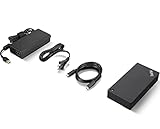
The Lenovo ThinkPad Universal USB-C Dock (40AY0090) is a widely deployed office dock that works with USB-C laptops from Lenovo and other brands. It offers two DisplayPort outputs and an HDMI output, so an ultrawide can connect over DisplayPort, along with Gigabit Ethernet, USB-A and USB-C ports, an audio jack, and laptop charging from its included 90W adapter. IT-friendly features include automatic firmware updates, PXE boot, Wake-on-LAN, and MAC address pass-through. It sits in the mid-range tier. Like other non-Thunderbolt docks, its multi-monitor output depends on the laptop’s USB-C display bandwidth and on DisplayPort MST, which macOS does not support for extended desktops. Skip it if you use a Mac and want two external screens, or need high refresh rates on a 49-inch super-ultrawide.
- Pro: DisplayPort outputs give an ultrawide a clean, driverless connection.
- Pro: Business features such as PXE boot, Wake-on-LAN, and MAC pass-through.
- Con: Multi-monitor output relies on MST, so Macs get one external display.
4. Plugable Thunderbolt 5 Dock (TBT-UDH2) — Best for High-Refresh and Super-Ultrawide Monitors
The Plugable TBT-UDH2 is built for the most demanding ultrawide setups. Its two native HDMI 2.1 outputs deliver up to 8K 60Hz or 4K 144Hz on Thunderbolt 5 laptops, and dual 4K 120Hz on Thunderbolt 4 hosts, which leaves plenty of headroom for a high-refresh 34-inch panel or a 49-inch super-ultrawide. It is driverless and adds 140W laptop charging, six USB-C ports (two front ports with 30W charging), 2.5GbE, and UHS-II card readers. It sits in the premium tier. Compatibility is narrower than most docks: it needs a Thunderbolt 5, Thunderbolt 4, or USB4 host, Intel Thunderbolt 4 laptops must be 12th Gen or newer, Thunderbolt 3, plain USB-C, and Windows on Arm hosts are not supported, and base M1, M2, and M3 MacBooks get a single external display. Skip it if your monitors only have DisplayPort inputs or your laptop lacks Thunderbolt or USB4.
- Pro: HDMI 2.1 outputs up to 4K 144Hz suit high-refresh ultrawides.
- Pro: 140W charging, six USB-C ports, 2.5GbE, and UHS-II readers.
- Con: Requires a Thunderbolt 4, Thunderbolt 5, or USB4 laptop, and has no DisplayPort outputs.
5. Anker 8-in-1 USB-C Hub — Best Compact Dual-Monitor Dock
The Anker Laptop Docking Station is a practical pick for a buyer who already owns an ultrawide monitor and simply needs more connections from one USB-C port. Its 8-in-1 design and 4K HDMI support position it as a compact bridge between a laptop and a fuller desk setup, while its mid-range price keeps it accessible for students, renters, and hybrid workers. It is best for people who value a small, straightforward hub over a large dock that permanently occupies desk space. Skip it if you need a stated 100W charging capability, triple-monitor support, or a dock with the port count of a more elaborate workstation model.
- Pro: 8-in-1 format adds versatile connectivity without a premium price.
- Pro: Listed 4K HDMI support is useful for compatible external-display setups.
- Con: Two monitors run at 4K 30Hz, Anker notes that macOS shows the same image on both, and passthrough charging tops out at 85W.
6. UGREEN 7-in-1 Aluminum Dock — Best Budget Dual-HDMI Option
The UGREEN USB-C Docking Station is the value leader for buyers who need a low-cost way to add display connections and everyday ports to a laptop. This 7-in-1 aluminum dock includes 2x HDMI, making it particularly attractive for a simple home workstation with an ultrawide display and another compatible screen. Its budget price leaves more room in the budget for a monitor arm, cable management, or a better keyboard. Choose it for a basic, price-conscious desk where the laptop already handles charging separately. Skip it if you want a stated charging wattage, need three monitors, or prefer a more expansive port selection.
- Pro: 2x HDMI supports a flexible dual-display-oriented setup.
- Pro: One of the lowest-priced docks in this roundup.
- Con: It has fewer stated ports than the 8-in-1 and 13-in-1 alternatives.
7. Plugable 13-in-1 Triple Monitor Dock — Best for Multi-Display Workstations
The Plugable USB-C Triple Monitor Docking Station is the best fit here for a busy desk built around more than one external screen. Its 13-in-1 design, triple-monitor positioning, and 100W charging capability make it a more substantial solution than a compact USB-C hub. It is intended for buyers who want one central connection point for their laptop, ultrawide monitor, and additional displays or accessories. Choose it for a permanent office setup where convenience and port expansion justify the higher price. Skip it if you use only one display, travel frequently, or want the least expensive way to add HDMI connections.
- Pro: Triple-monitor support targets complex productivity setups.
- Pro: 100W charging can suit higher-power laptop needs.
- Con: It costs substantially more than compact USB-C hubs.
8. USB-C Laptop Docking Station Dual Monitor HDMI Hub — Best Basic Multiport Alternative
This USB-C Laptop Docking Station Dual Monitor HDMI hub is a straightforward middle-budget choice for adding dual-monitor functionality without moving into premium-dock pricing. It is priced close to the Anker hub and above the UGREEN model, giving shoppers another compact multiport option for a laptop-and-ultrawide desk. It makes the most sense for users who want dual-monitor HDMI capability in a portable hub form and do not require the extensive connections of a 13-in-1 dock. Skip it if you need clearly stated 100W charging, triple-monitor support, or a monitor-based docking solution with Ethernet built in.
- Pro: Dual-monitor HDMI capability serves common home-office layouts.
- Pro: It stays within entry-level dock pricing.
- Con: The listed details do not specify a charging wattage or total port count.
9. Dell Pro Thunderbolt 4 Smart Dock SD25TB4 — Best Premium Dock for High-Refresh Ultrawides

The Dell Pro Thunderbolt 4 Smart Dock SD25TB4 is the dock to buy if your ultrawide runs above 60Hz and you want that refresh rate to survive the trip through a dock. Compact USB-C hubs share a limited amount of display bandwidth with their USB ports, which often caps a 3440 x 1440 panel at 60Hz. A Thunderbolt 4 dock has far more headroom, and this one adds two full-size DisplayPort 1.4 outputs, HDMI 2.1, a USB-C DisplayPort output, and two downstream Thunderbolt 4 ports that can also drive displays.
Dell rates it for up to four external displays at WQHD 3440 x 1440 and 60Hz, two 6K displays at 60Hz, or a single 8K display on supported Thunderbolt hosts with Display Stream Compression. For most ultrawide owners the practical win is simpler: plug the monitor into one of the DisplayPort 1.4 outputs and you have the bandwidth for high refresh rates at ultrawide resolution, with a second screen still possible. It also includes 2.5 Gigabit Ethernet, five USB-A and USB-C data ports at 10Gbps, and an attached cable that can be routed left or right.
Power delivery is up to 130W for compatible Dell commercial laptops and up to 96W for other brands, from a 180W adapter. That covers most 14- to 16-inch work and creator laptops. Native video means no DisplayLink driver is needed.
Strengths: Thunderbolt 4 bandwidth for high-refresh and multi-monitor ultrawide setups, two DisplayPort 1.4 outputs plus HDMI 2.1, 2.5GbE networking, and a three-year advanced exchange warranty.
Drawbacks: there is no audio jack, non-Dell laptops are limited to 96W, and it sits in the premium tier. Laptops with plain USB-C (no Thunderbolt or USB4) will fall back to a reduced feature set, so check your port first.
Compared with the Plugable 13-in-1 in the main list, the SD25TB4 costs more but delivers far more display bandwidth. Choose it if you own a Thunderbolt laptop and a 100Hz to 165Hz ultrawide.
10. CalDigit TS4 — Best Thunderbolt Dock for Mac and Creative Desks

The CalDigit TS4 has been one of the most frequently recommended Thunderbolt 4 docks since its release, and it remains a strong choice for MacBook Pro owners and anyone who wants as many ports as possible behind one cable. It offers 18 ports: three Thunderbolt 4 ports at 40Gb/s (one to the host, two downstream), five USB-A and three USB-C ports that all run at 10Gb/s, a full-size DisplayPort 1.4 output, SD and microSD UHS-II card readers, 2.5 Gigabit Ethernet, and separate front and rear audio jacks.
For an ultrawide desk, the DisplayPort 1.4 output is the key: connect the monitor directly to it for full ultrawide resolution at high refresh rates on supported laptops. A second display can run from a downstream Thunderbolt port with a USB-C or Thunderbolt-to-DisplayPort cable. CalDigit lists support for a single 8K display or dual 6K at 60Hz, and the host port delivers up to 98W of charging, enough for most laptops apart from the most power-hungry 16-inch workstations.
Strengths: an unusually complete port selection with fast 10Gb/s USB throughout, card readers for photographers and video editors, 2.5GbE, offline charging for phones even when the laptop is unplugged, and a compact vertical or flat footprint.
Drawbacks: premium pricing, only one native video output (the second display needs an adapter or Thunderbolt monitor), and 2.5GbE works only on Thunderbolt hosts. Base Apple Silicon MacBooks are limited in how many external displays they can drive, which no dock can change.
Against the Dell SD25TB4 above, the TS4 gives up one DisplayPort output and some enterprise management features but adds card readers, audio ports, and more USB connections. It is the better fit for a creative or Mac-based workstation.
11. Anker Prime Docking Station 14-in-1 — Best Charging-Focused Dock

The Anker Prime Docking Station 14-in-1 targets people whose desk is as much a charging station as a workstation. It has a built-in 160W power supply, a small front display that shows live charging output and port status, and enough charging ports to top up a laptop, a phone, and a tablet at the same time. It sits in the mid-range, well above Anker’s compact 8-in-1 hub in the main list.
Anker lists one upstream USB-C connection that delivers up to 100W to the laptop, two HDMI 2.0 outputs at up to 4K 60Hz, two 10Gbps USB-C data ports, one 10Gbps and three slower USB-A data ports, Gigabit Ethernet, an audio combo jack, two additional 100W USB-C charging ports, and a 12W USB-A charging port. Dual 4K at 60Hz is listed for Windows; on macOS, the two HDMI outputs are limited (4K at 30Hz per Anker’s guide, and some laptops can only mirror rather than extend). Both video outputs are HDMI, so there is no DisplayPort connection.
Strengths: excellent charging capacity, a live power readout that helps diagnose slow charging, plenty of fast USB ports, and a vertical design that saves desk space.
Drawbacks: HDMI 2.0 only, so very high refresh rates on some ultrawides may not be available, and Mac users get limited dual-monitor support. It uses standard USB-C rather than Thunderbolt, which caps total bandwidth.
Compared with the USB-C Laptop Docking Station in the main list, the Anker Prime is a big step up in build, power, and port count. Choose it for a Windows laptop running one ultrawide at standard refresh rates plus a second screen, with phones and tablets charging alongside.
12. Dell WD19S 180W — Best Mid-Range Dock with Dual DisplayPort

The Dell WD19S has been a fixture on office desks for years, and it remains one of the more cost-effective ways to get DisplayPort outputs from a USB-C laptop without paying for Thunderbolt. It offers two DisplayPort 1.4 outputs, one HDMI 2.0 output, a USB-C port that can carry DisplayPort, three USB-A ports, a front USB-C data port, and Gigabit Ethernet with PXE boot and Wake-on-LAN.
The 180W adapter version provides 130W of charging to compatible Dell laptops and 90W to non-Dell systems. Display support depends heavily on the laptop. Dell lists up to dual 4K at 60Hz or three QHD displays at 60Hz on systems with DisplayPort 1.4 (HBR3) and DSC, but older laptops may drop to a single 4K at 30Hz or dual 1080p. For an ultrawide, the DisplayPort outputs are the better choice than HDMI, and a 3440 x 1440 panel at 60Hz is well within its range on modern laptops.
Strengths: two DisplayPort outputs at a mid-range tier, strong charging for Dell laptops and solid charging for others, no DisplayLink driver needed, and a proven business design that is widely available.
Drawbacks: multi-monitor support relies on DisplayPort MST, which macOS does not support for extended desktops, so Mac users effectively get one external display. The WD19S also drops the audio ports of the older WD19, and it is a larger box than a compact hub.
Against the Plugable 13-in-1 in the main list, the WD19S offers native DisplayPort outputs and higher charging for Dell systems. It is the sensible pick for Windows laptops, especially Dell Latitude and XPS models.
13. Philips 34B2U3600C — Best Docking Ultrawide with Built-In KVM

If you would rather have the dock inside the monitor, the Philips 34B2U3600C is a business-class docking ultrawide that can replace a separate dock on a single-monitor desk. It is a 34-inch curved VA ultrawide at 3440 x 1440 with a 1500R curve and up to 120Hz over USB-C or DisplayPort (100Hz over HDMI). A single USB-C cable carries video, data, Ethernet, and up to 90W of laptop charging.
The standout feature is a built-in KVM switch. You can connect a work laptop by USB-C and a personal desktop by DisplayPort, then switch keyboard and mouse control between them, or show both side by side with picture-by-picture. The monitor also includes four USB data ports, RJ45 Ethernet that supports MAC address pass-through and Wake-on-LAN, 5W speakers, and a height-adjustable stand. Philips positions it as a TCO Certified Generation 10 business monitor, and its warranty is longer than most consumer screens.
Strengths: a true one-cable ultrawide with Ethernet, 90W charging, and 120Hz over USB-C; a KVM for two-computer desks; and a business-grade warranty.
Drawbacks: VA panels can show some dark smearing in fast motion, 90W may be short of what the largest gaming laptops draw under load, and it sits in the mid-range to premium tier for a 34-inch monitor.
Compared with pairing a separate dock and monitor, the Philips builds in a KVM and picture-by-picture, though its 90W charging is lower than the 100W to 140W of the Kensington and Plugable docks. It is the better pick for hybrid workers who share one desk between a work laptop and a home PC.
Buying Guide
Choose Between a Docking Monitor and a Standalone Dock
A docking monitor is the tidiest choice when you are buying a new display anyway. The Philips 34B2U3600C combines a 34-inch curved WQHD screen, Ethernet, 90W USB-C charging, and a KVM. A standalone dock is smarter if you already own an ultrawide you like or need to connect several displays. The Kensington SD5800T is the most complete standalone option in the main list, with two DisplayPort and two HDMI outputs, 2.5GbE, card readers, and up to 100W charging.
Match Laptop Power Delivery to Your Workday
Power delivery is not interchangeable across docks. The Kensington SD5800T and the Plugable 13-in-1 list up to 100W, the Plugable Thunderbolt 5 dock lists 140W, and the Philips docking monitor lists 90W. Those figures are useful for buyers trying to eliminate a separate laptop power brick from the desk. If a product does not list a charging wattage, as with several compact hubs here, do not assume it will meet the needs of a power-hungry laptop. Check your laptop’s required charging power before treating any hub as a charger replacement.
Confirm Display Compatibility Before Ordering
“Dual monitor” and “triple monitor” describe a dock’s intended display capability, but your laptop still determines what it can output through USB-C. Check whether your computer supports video over USB-C, how many external displays it can drive, and whether its operating system has any limitations. Also consider physical connections: the UGREEN and the Plugable Thunderbolt 5 dock offer only HDMI outputs, while the Kensington and Lenovo docks add DisplayPort. Plan your cable path before buying so the dock, monitor, and laptop connections actually align.
Understand the Three Ways a Dock Sends Video
Every dock in this guide uses one of three methods to get a picture onto your ultrawide, and the method matters more than the port count printed on the box.
- USB-C DisplayPort Alt Mode: the laptop sends a native DisplayPort signal through the USB-C cable. Most compact hubs and business docks such as the Dell WD19S work this way. No driver is needed, but bandwidth is limited, and on many hubs part of it is shared with the USB data ports. Multiple monitors usually depend on DisplayPort MST, which Windows supports for extended desktops and macOS does not.
- Thunderbolt 4, Thunderbolt 5, and USB4: these carry much more bandwidth (40Gb/s for Thunderbolt 4, up to 80Gb/s or more for Thunderbolt 5), so a dock like the Dell SD25TB4 or CalDigit TS4 can run high-refresh ultrawides and multiple screens. You need a laptop with a matching port, usually marked with a lightning-bolt logo.
- DisplayLink: the dock compresses video using a driver on the computer. This lets base Apple Silicon MacBooks drive more screens than they natively support, and it is fine for office work, but it adds some CPU load and is a poor choice for gaming or fast-moving video.
Match the Dock to Your Ultrawide’s Resolution and Refresh Rate
Ultrawides push more pixels than standard monitors, so a dock that handles a 1080p screen comfortably may struggle at 3440 x 1440. Use this as a rough guide:
| Ultrawide type | Typical resolution | What usually works |
|---|---|---|
| 29-inch or entry 34-inch at 60Hz | 2560 x 1080 or 3440 x 1440 | Most USB-C hubs with HDMI 2.0 or DisplayPort |
| 34-inch at 100–120Hz | 3440 x 1440 | DisplayPort 1.4 output, a docking monitor’s own USB-C input, or a Thunderbolt/USB4 dock |
| 34-inch at 144–175Hz | 3440 x 1440 | Thunderbolt 4/5 or USB4 dock with DisplayPort 1.4 or newer, monitor connected over DisplayPort |
| 49-inch super-ultrawide | 5120 x 1440 | Thunderbolt dock or a direct USB-C or DisplayPort connection; check that DSC is supported |
If your dock caps out below the monitor’s refresh rate, the screen still works, just at a lower refresh. Check the monitor’s on-screen menu after setup to confirm what you are actually getting.
Mac Owners: Check Your Display Limit First
Apple Silicon MacBooks have hard limits on external displays that depend on the chip. Base-level chips have historically supported fewer external screens than Pro and Max chips, and macOS does not support MST for extending across multiple monitors from one Alt Mode connection. In practice, that means a “dual monitor” USB-C hub may mirror the same image on both screens when connected to a Mac. For one ultrawide on a Mac, almost any dock in this guide works. For two or more screens, use a Thunderbolt dock with separate outputs on a chip that supports multiple displays, or a DisplayLink dock if your chip does not.
Comparison of the Added Picks
| Product | Price tier | Connection | Laptop charging | Video outputs | Best for |
|---|---|---|---|---|---|
| Dell Pro Thunderbolt 4 Smart Dock SD25TB4 | Premium | Thunderbolt 4 | Up to 130W (Dell), 96W others | 2x DP 1.4, HDMI 2.1, USB-C DP, 2x TB4 | High-refresh and multi-screen Windows desks |
| CalDigit TS4 | Premium | Thunderbolt 4 | Up to 98W | DP 1.4 plus 2x TB4 | Mac and creative workstations |
| Anker Prime 14-in-1 | Mid-range | USB-C 10Gbps | Up to 100W, 160W total | 2x HDMI 2.0 | Charging-heavy Windows desks |
| Dell WD19S 180W | Mid-range | USB-C Alt Mode | 130W (Dell), 90W others | 2x DP 1.4, HDMI 2.0, USB-C DP | Dell and Windows business laptops |
| Philips 34B2U3600C | Mid-range to premium | Monitor with USB-C dock | Up to 90W | Built-in 34-inch ultrawide | Two-computer desks with KVM |
Setup Tips for a Clean One-Cable Desk
- Connect the ultrawide to the best output. Use DisplayPort or the dock’s Thunderbolt or USB-C video port before HDMI. On many docks, DisplayPort carries higher refresh rates at ultrawide resolution.
- Use the cable that came with the dock. Generic USB-C cables may be charge-only or limited to USB 2.0 speeds, which will disable video. If you need a longer cable, buy one rated for Thunderbolt 4 or USB4 at 40Gb/s with 100W or 240W power.
- Update firmware and drivers. Dock firmware updates often fix wake-from-sleep and display detection problems. Update your laptop’s graphics and Thunderbolt drivers as well.
- Set the refresh rate manually. Windows and macOS sometimes default to 60Hz after connecting through a dock. Open display settings and select the monitor’s highest supported refresh rate.
- Plan the cable path. Place the dock where the laptop cable reaches without tension, then route monitor, Ethernet, and power cables behind the desk or along a monitor arm. A short laptop cable with a dock near the edge of the desk is the tidiest arrangement.
- Check charging under load. Run a demanding task while plugged in and confirm the battery still charges. If it drains, the dock’s wattage is too low for your laptop, and you may need the original charger as well.
Ports Beyond Video That Are Worth Having
Display output gets most of the attention, but the other ports decide how much of your desk actually connects through one cable.
- Ethernet: a wired connection is more stable than Wi-Fi for video calls, cloud gaming, and large uploads. Gigabit is enough for most home internet plans; 2.5GbE, found on the Dell SD25TB4 and CalDigit TS4, helps if you move large files to a network drive.
- Fast USB data ports: look for 10Gbps ports if you use external SSDs. Slower 480Mbps ports are fine for keyboards, mice, and webcam receivers, so a mix of both is ideal.
- Front-facing ports: a USB-C or USB-A port on the front makes it easier to plug in a phone or flash drive without reaching behind the dock.
- Audio jack: useful for wired headsets and desktop speakers. Several business docks, including the Dell models here, omit it, so check if you rely on analog audio.
- Card readers: photographers and video creators save time with built-in SD and microSD slots, which the CalDigit TS4 includes.
- Security slot: in shared offices, a lock slot keeps the dock attached to the desk.
Count the devices you plug in today, add one or two for future additions, and choose a dock with at least that many ports of the right type rather than the biggest number on the box.
Our Verdict
For most laptop users connecting an ultrawide, the Kensington SD5800T is the strongest overall choice. It works with Thunderbolt 4, Thunderbolt 3, USB4, and USB-C laptops, offers two DisplayPort and two HDMI outputs, and adds 2.5GbE, card readers, and up to 100W charging, features that directly solve the one-cable workstation problem.
Choose the Plugable UD-6950PDH if you use a MacBook with a base M-series chip and want two extended screens, the Lenovo ThinkPad Universal USB-C Dock for a Windows business laptop, or the Plugable Thunderbolt 5 dock for a 49-inch super-ultrawide or a high-refresh panel. On a budget, the UGREEN is the best low-cost dock, while the Plugable 13-in-1 is the better choice for a serious multi-display setup with 100W charging.
FAQ
What is the best USB-C dock for an ultrawide monitor?
The best overall option in this list is the Kensington SD5800T, which pairs two DisplayPort and two HDMI outputs with Thunderbolt 4 and USB4 bandwidth, 2.5GbE, and up to 100W charging. If you also need a new monitor, the Philips 34B2U3600C builds the dock into a 34-inch curved ultrawide.
Can a USB-C dock run an ultrawide monitor?
Yes, provided that your laptop’s USB-C port supports video output and the dock and monitor use compatible connections. A dock with HDMI can be useful for an HDMI-equipped ultrawide, while docks such as the Kensington SD5800T and Lenovo ThinkPad Universal USB-C Dock add DisplayPort outputs. Always verify your laptop’s external-display support first.
Do I need 100W charging for an ultrawide setup?
Not necessarily. Charging wattage relates to your laptop rather than the monitor’s width. A laptop that needs substantial power may benefit from a dock with stated 100W charging, such as the Kensington SD5800T or Plugable 13-in-1, or the 140W Plugable Thunderbolt 5 dock. Smaller or lower-power laptops may not need that much.
Is a 49-inch ultrawide better than a 34-inch ultrawide for work?
A 49-inch dual-QHD ultrawide offers more room for several large windows, making it useful for dense spreadsheets, dashboards, and multitasking-heavy jobs. A 34-inch model is usually easier to place on a typical desk and costs less. The right choice depends on your available space, budget, and how many applications you need visible at once.
Why is my ultrawide stuck at 60Hz through a dock?
The most common cause is bandwidth. Many USB-C hubs share a limited DisplayPort Alt Mode signal with their USB ports, or output over HDMI versions that cannot carry high refresh rates at 3440 x 1440. Connect the monitor to a DisplayPort output, use a Thunderbolt or USB4 dock, or plug the monitor’s USB-C input straight into the laptop. Then set the refresh rate manually in display settings.
Do I need Thunderbolt for an ultrawide monitor?
Not for a single ultrawide at 60Hz to 100Hz on most laptops. Thunderbolt becomes worthwhile when you want high refresh rates, a 49-inch super-ultrawide, two or more external screens, or fast storage and networking through the same cable.
Can I use a USB-C dock with a gaming laptop?
Yes, but check two things. Many gaming laptops draw more power than a dock can supply, so you may still need the laptop’s own charger for gaming. Also, some gaming laptops route their USB-C port through integrated graphics, so connecting the monitor to the laptop’s own HDMI or DisplayPort output may give better performance in games.
What is the difference between a USB-C hub and a docking station?
The terms overlap, but a hub is usually a small, bus-powered device that adds a few ports and passes through the laptop’s charger. A docking station typically has its own power supply, more ports, Ethernet, and higher charging output, and it is designed to stay on the desk permanently.
Will a docking monitor replace a separate dock?
For a single-monitor desk, often yes. Monitors like the Philips 34B2U3600C provide charging, USB ports, and Ethernet through one cable. A separate dock is still the better choice if you need more ports, higher charging wattage, or multiple external screens.