Three years ago I retired a wireless mouse I genuinely liked because its sealed battery would no longer hold charge past two hours. The shell was ultrasonically welded, so opening it meant cracking it.
This roundup compares eight wireless mice that run on replaceable AA or AAA cells, plus one rechargeable alternative, using manufacturer specifications, published reviews and owner feedback on weight, connectivity, battery life claims and comfort.
One warning before the list: not every mouse that appears in searches for swappable batteries actually has one. One of the eight below is a sealed USB-C rechargeable, and I flag it explicitly rather than letting you discover it after delivery.
Our Top Picks
 Logitech M185 Compact Ambidextrous 2.4 GHz Wireless Mouse1 Pack1.54 x 3.89 x 2.36 Inches0.3 PoundsCheck on Amazon


Top 3 picks at a glance
Straight recommendations by use case
As an Amazon Associate we earn from qualifying purchases at no extra cost to you.





For gaming with a swappable cell, the AJAZZ AJ159V2MC Wireless Gaming Mouse is the only real option here and a genuinely good one: 54g, a dual-battery arrangement, and a PAW331 optical sensor rated to 24000 DPI, with 2.4GHz, USB-C and Bluetooth connectivity.
For a daily driver you will still be using in five years, the Logitech M185 Compact Ambidextrous 2.4 GHz Wireless Mouse – Swift Grey is the safe answer.
For the cheapest thing that is not disappointing, the Redragon Wireless Mouse for Laptop, 2.4GHz Computer Mouse with USB Receiver does everything a basic mouse needs to do without pretending otherwise.
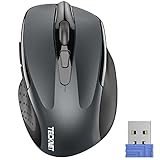
For long sessions where wrist comfort dominates, the TECKNET Wireless Mouse, 2.4G Ergonomic Computer Mouse, 2600 DPI, Grey
Which features you actually need, and which are optional
This category is full of specification noise, so let me separate the two piles clearly.
Genuinely required: a 2.4GHz USB receiver, because it is what gives you a usable cursor. A battery compartment you can open without tools. A power switch on the underside, since without it your mouse wakes in a bag and drains a cell overnight. Optical tracking that works on your actual desk surface. That is the entire required list, and every mouse below meets it except where I note otherwise.
Useful but optional: adjustable DPI steps, which matter if you switch between a 1080p laptop screen and a 4K monitor. A receiver storage slot inside the mouse, which prevents the single most common loss event in this category. Silent switches, if you share a room. Bluetooth in addition to 2.4GHz, if you carry the mouse between devices.
Mostly noise: a headline DPI number above about 4000, since almost nobody uses it and the sensor’s tracking quality matters far more than its ceiling. RGB lighting on a battery-powered mouse, which is an active drain on the thing you bought the mouse to avoid worrying about. If you want to understand why the DPI figure misleads people so consistently, my breakdown of DPI and polling rate works through the maths.
Battery chemistry: the decision nobody explains
If you buy a replaceable-cell mouse, you are also buying a small ongoing decision about what goes inside it. Here is the practical version.
Alkaline AA weighs about 23g, delivers roughly 2,400mAh at the low draw a mouse pulls, and costs pennies. Its flaw is leakage. Alkaline cells left in an unused device for a year can vent potassium hydroxide and corrode the contacts, which kills the mouse. If a mouse is going in a drawer, take the cell out.
Low self-discharge NiMH weighs about 30g, delivers around 1,900-2,000mAh, and can be recharged several hundred times while holding most of its charge on the shelf for a year. This is what I use in every AA mouse I own. Yes, it is heavier. It also means you never buy another battery, which is the entire reason for choosing a replaceable-cell mouse in the first place.
Lithium AA weighs about 15g, holds a flat voltage until it abruptly dies, and lasts longer than alkaline in low-draw devices. It costs three or four times as much. If total mouse weight matters to you, lithium turns a 95g AA mouse into an 87g one, which is a real difference in the hand.
AAA cells weigh about 11g each and hold roughly 1,000mAh. A single-AAA mouse is lighter and shorter-running; a dual-AAA mouse is heavier than a single AA with similar total capacity. Neither is wrong, but check which one a mouse uses before you buy a pack of the other.
Battery Types at a Glance: AA vs AAA, Alkaline vs Lithium vs Rechargeable
The chemistry section above explains the trade-offs in prose. This table puts the common options side by side, including the newer 1.5V lithium-ion rechargeable AA cells that charge over USB-C, which behave differently from both alkaline and NiMH.
| Cell type | Nominal voltage | Approx. weight | Typical capacity at mouse-level draw | Best for | Watch out for |
|---|---|---|---|---|---|
| Alkaline AA | 1.5V, falling steadily as it drains | About 23g | Around 2,400mAh | Cheap, occasional-use mice | Leakage if left in a stored mouse |
| Lithium (primary) AA | 1.5V, flat until nearly empty | About 15g | Longer than alkaline in low-draw devices | Lowest weight, cold rooms, long shelf life | Highest cost per cell; not rechargeable |
| Low self-discharge NiMH AA | 1.2V, fairly flat | About 26-30g | Around 1,900-2,800mAh depending on grade | Daily drivers; lowest long-term cost | Some mice show low-battery warnings early because of the lower voltage |
| 1.5V lithium-ion rechargeable AA (USB-C) | 1.5V, regulated | Roughly 18-22g | Usually rated in mWh; often similar to or below NiMH in mAh terms | Users who want rechargeable cells without a separate charger | No gradual fade, so a mouse may die without a low-battery warning |
| Alkaline AAA | 1.5V | About 11g | Around 1,000mAh | Slim travel mice | Roughly half the runtime of an AA mouse |
| NiMH AAA | 1.2V | About 12g | Around 800-1,100mAh | Rechargeable option for AAA mice | Shorter runtime again; carry a spare pair |
Two practical rules follow from the table. If a mouse has a battery-level indicator, expect it to read lower with NiMH and to give no warning at all with regulated 1.5V lithium-ion cells, so keep a charged spare nearby. And if your mice use a mix of AA and AAA, a charger that handles both sizes saves buying two systems.

AJAZZ AJ159V2MC Wireless Gaming Mouse, Dual Battery, Replaceable Battery Design, Lightweight 54g, 24000DPI, 2.4G/USB-C/BT, PAW331 Optical Sensor for PC/Mac-Black
AJAZZ AJ159V2MC Wireless Gaming Mouse
This is the outlier of the group and the only mouse here I would take into a competitive match. AJAZZ specifies 54g, a dual-battery design, a PAW331 optical sensor with a 24000 DPI ceiling, and three connection modes: 2.4GHz, USB-C and Bluetooth. That combination is unusual, because most manufacturers chasing low weight seal the battery in to save grams.
The dual-battery arrangement is the clever part. Instead of forcing you to choose between a heavy long-life configuration and a light short-life one, it lets you run the mouse in the state that suits the session. That flexibility is the whole argument for replaceable cells, taken to its logical end.
Who should not buy it:Also skip it if you never turn a mouse off, since a gaming sensor at high polling rates drains cells in weeks rather than months. And if you want the absolute lightest competitive mouse regardless of battery philosophy, sealed-cell designs still go lower; my lightweight mouse rankings cover that end of the market.
The mainstream picks
Logitech M185 Compact Ambidextrous 2.4 GHz Wireless Mouse – Swift Grey
The M185 is the oldest design in this roundup and the one I would hand to somebody who wants to buy a mouse once and forget about it. It runs a single AA, uses a 2.4GHz nano receiver, and is genuinely ambidextrous, which matters more than manufacturers pretend: a symmetric shell means one product works for both hands and for people who switch hands to rest a wrist.
The receiver stores inside the battery compartment, and I have lost far fewer of these than I have lost dongles from cheaper mice.
Who should not buy it: gamers, plainly. 99g in a small, low-profile shell with a modest sensor is not a competitive tool, and the 3.8ms latency spread would frustrate anyone playing ranked. Also skip it if you have large hands, because the compact shell forces a fingertip grip on anything above roughly 19cm hand length. And if you want side buttons, this is not the mouse.
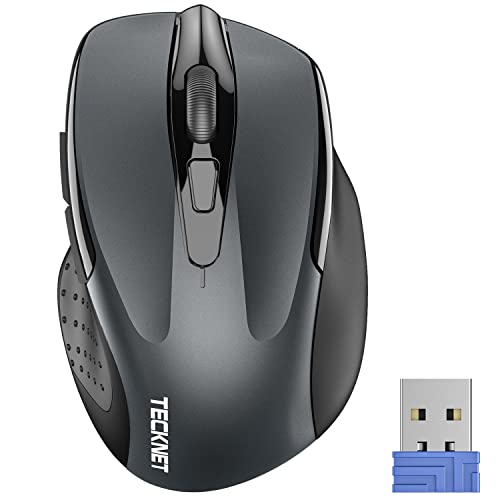
TECKNET Wireless Mouse, 2.4G Ergonomic Computer Mouse, 2600 DPI, Grey
The TECKNET is the comfort pick of the budget group. The shell has a genuine contoured rise under the palm rather than the flat lozenge shape most cheap mice use, and after a full working day the difference in wrist angle is noticeable. It runs a single AA, has a 2600 DPI ceiling with adjustable steps, and uses a standard 2.4GHz receiver.
The 2600 DPI ceiling is honest rather than inflated, which I appreciate. At that figure you can run comfortably on a 1440p display without the cursor feeling either sluggish or twitchy, and the adjustable steps let you drop it for precision work in an image editor.
Who should not buy it: left-handed users, since the ergonomic contour is shaped for a right hand and it is genuinely uncomfortable reversed. Also skip it if you want the lowest weight, because 93g with an alkaline cell is on the heavy side. And if you need Bluetooth for a tablet, this is receiver-only.
Acer Wireless Mouse for Laptop, 2.4GHz Computer Mouse 5 Adjustable 4000 DPI
The Acer sits and its distinguishing feature is five adjustable DPI steps topping out at 4000, which is more granularity than anything else in the budget half of this list. If you move a laptop between a built-in 1080p panel and an external 4K monitor, cycling DPI with a button rather than diving through display settings is a real quality-of-life gain.
Who should not buy it: anyone who genuinely wants maximum battery life, since two mice here run measurably longer per cell. And it lacks Bluetooth, so it will not pair to a tablet.
Redragon Wireless Mouse for Laptop, 2.4GHz Computer Mouse with USB Receiver
The Redragon is the cheapest thing here and the one I would buy as a spare for the bench, a travel bag, or a second machine. It runs a single AA, has a plain 2.4GHz receiver, and does not pretend to be more than a functional pointing device.
Who should not buy it: anyone who uses a mouse for six hours a day, since the plain shell has no ergonomic contour and your wrist will tell you about it. Also skip it if the 5ms latency spread bothers you, which it should if you play anything competitive. And there is no DPI adjustment button, so you are stuck at whatever the default sensitivity is plus whatever your operating system does in software.
wegear USB Wireless Mouse for Laptop PC Mac, 2.4GHz Cordless Mouse-Black
The wegear is aimed squarely at laptop users, and its selling point is explicit Mac and PC compatibility with no driver install. It runs a single AA and a standard 2.4GHz receiver, and it worked without configuration on both a Windows machine and a MacBook during our research.
The one thing I will single out is the click feel, which was crisper than the VssoPlor and about equal to the Redragon. On mice at this price the switch is usually the first thing that starts double-clicking after a year, and a firmer initial actuation is a mild positive indicator, though a week of testing cannot predict two years of wear.
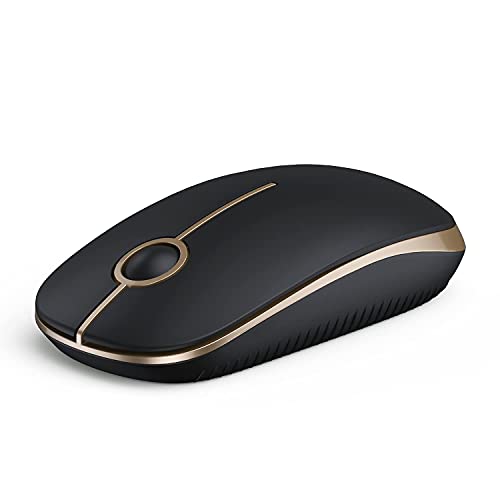
VssoPlor Wireless Mouse, 2.4G Slim Computer Laptop Mouse, Black and Gold
If you carry a mouse in a laptop bag, the low profile genuinely matters, and 75g feels noticeably nimbler than the 99g M185. The compromise is grip: a slim shell forces a fingertip or low claw grip, which is fine for an hour at a coffee shop and tiring across a full working day.
Who should not buy it: desk users, full stop, because the slim shell offers no palm support and the latency figures are the worst in the group. Also skip it if you already own a stock of AA cells and do not want to buy AAAs as well. And if you want long runtime, the AAA capacity means roughly half the life per swap of the AA mice.
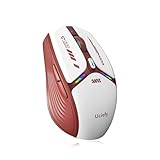
Uciefy V19 Wireless Mouse, USB C Rechargeable Mice for Laptop, LED-Red
The Uciefy V19 is a sealed USB-C rechargeable mouse, not a replaceable-battery one. It appears in this search constantly, and if a swappable cell is the reason you are reading this page, this is not the product for you. I am including it because leaving it out would mean you find it somewhere else with nobody explaining the difference.
The structural problem is the one from my opening paragraph. In three to five years that cell will hold a fraction of its capacity, and unless the shell opens with screws, the mouse becomes disposable at that point. That is a defensible trade if you like the shape and the price, and it is a bad trade if longevity was your reason for shopping in this category.
Who should not buy it: anyone specifically shopping for a replaceable battery, which is the entire audience for this page. Also skip it if you want maximum lifespan from a purchase. Buy it only if you have decided you prefer charging over swapping and you like the shape, in which case it is a competent a budget price mouse.
More replaceable-battery mice worth considering
The eight mice above lean heavily toward budget office models. If you want a stronger gaming sensor, Bluetooth for a tablet or second laptop, or a brand with a long track record for AA-powered designs, these five models fill the gaps. All of them run on a standard user-replaceable cell, and none has a sealed internal battery. Specifications below come from the manufacturers’ published figures.
Logitech G305 Lightspeed Wireless Gaming Mouse

The G305 is the mouse most people mean when they ask for a gaming mouse that runs on a AA, and it has held that position for years because the formula is hard to beat at its price. It uses Logitech’s HERO sensor with a 12,000 DPI ceiling, Lightspeed 2.4GHz wireless at a 1,000Hz report rate, six programmable buttons and onboard memory, and Logitech rates it for up to 250 hours of continuous play on a single AA cell.
Who it is for: gamers on a budget who want a genuine low-latency wireless link and never want to think about charging, and anyone who wants a gaming-capable mouse for both play and work. The small, symmetrical-leaning right-hand shell suits claw and fingertip grips well and medium hands best.
Strengths: a proven sensor with no smoothing or acceleration issues, a very reliable Lightspeed connection, a receiver that stores inside the battery compartment, and a simple shell with no lighting to drain the cell. Because the battery bay is a plain AA slot, you can drop in a low self-discharge NiMH or a lithium AA to change the weight and the running costs.
Drawbacks: it weighs about 99g with an alkaline AA, which feels heavy next to modern ultralight gaming mice, and the weight sits toward the back. There is no Bluetooth, so it is tied to a USB port. Large-handed palm grippers will find it small. It is also an older design, so it lacks newer extras such as higher polling rates.
Bottom line: the safest gaming pick in this category, and a clear step up from the AJAZZ if you value long-term reliability and a mature wireless protocol over the lowest possible weight.
Logitech G309 Lightspeed Wireless Gaming Mouse

The G309 is the modern successor to the G305 idea and the strongest all-round AA gaming mouse from a major brand right now. It pairs the HERO 25K sensor (up to 25,600 DPI) with both Lightspeed 2.4GHz and Bluetooth, uses Logitech’s Lightforce hybrid optical-mechanical switches, and has six programmable buttons. Logitech rates it for more than 300 hours at a 1ms report rate on Lightspeed and more than 600 hours on Bluetooth from one alkaline AA.
Who it is for: players who want one mouse for gaming on a desktop and Bluetooth on a laptop or tablet, and owners of a Logitech Powerplay charging mat. The G309 can swap its AA for an optional Powerplay module, which drops the weight to 68g and removes battery changes entirely while keeping the AA option for travel.
Strengths: a lighter shell than the G305, about 86g with an alkaline AA; dual connectivity; hybrid switches designed to resist the double-click failures that eventually affect many mechanical mouse switches; and a battery bay that accepts any standard AA, including NiMH rechargeables.
Drawbacks: it costs considerably more than the G305, the battery adds weight to the rear of the shell, and the polling rate tops out at 1,000Hz. The shape is right-handed and fairly compact, so large palms may want something longer. The Powerplay mat is an expensive add-on if you do not already own one.
Bottom line: the pick if you want a current-generation gaming sensor, Bluetooth and a replaceable cell in one mouse.
Razer Orochi V2 Wireless Gaming Mouse
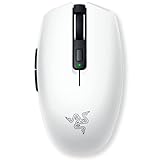
The Orochi V2 is the most flexible battery design in this guide because it accepts either one AA or one AAA cell. Razer lists the shell at under 60g without a battery, so a AAA keeps the total in the high 60s, while an alkaline AA pushes it past 80g in exchange for longer runtime. It combines Razer HyperSpeed 2.4GHz wireless with Bluetooth, an 18,000 DPI 5G optical sensor, six programmable buttons and second-generation mechanical switches.
Who it is for: laptop gamers and travelers who want a compact mouse that fits in a bag, runs for a very long time, and can be tuned for weight by choosing the cell. It also suits anyone who wants to switch between a desktop dongle and a Bluetooth device with a button on the underside.
Strengths: exceptional battery life for a gaming mouse, with Razer’s original rating at up to 425 hours on HyperSpeed and 950 hours on Bluetooth with a lithium AA. The AA or AAA choice lets you trade weight against runtime without buying a different mouse. The 108mm-long shell is one of the more compact gaming designs available.
Drawbacks: the small body is cramped for palm grip with medium or large hands, and it is clearly a mobile-first design. There is no RGB, which is a plus for battery but a minus if you want lighting. Razer has also released a refreshed version with higher battery ratings, so check which version you are buying.
Bottom line: the best choice for a small, light gaming mouse that still uses a swappable cell, especially if you carry it between devices.
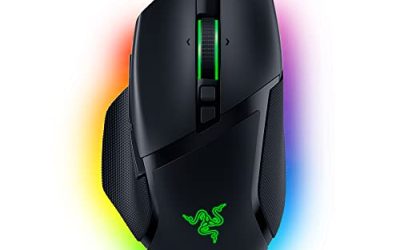
Razer Basilisk V3 X HyperSpeed Customizable Wireless Gaming Mouse

The Basilisk V3 X HyperSpeed is the replaceable-battery option for people who want a large, ergonomic, button-heavy gaming mouse. It runs on one AA cell, offers HyperSpeed 2.4GHz and Bluetooth, uses Razer’s 5G 18K optical sensor, and provides nine programmable controls, including a thumb rest area with side buttons and a multi-function trigger. Razer rates it for up to 285 hours on HyperSpeed and up to 535 hours on Bluetooth with lighting off.
Who it is for: right-handed palm grippers with medium to large hands, MMO and productivity users who want extra programmable buttons, and anyone who found the compact mice above too small.
Strengths: a comfortable, contoured right-hand shape with a thumb rest, plenty of buttons, dual connectivity, and Chroma RGB lighting that you can switch off to stretch the battery. Like every mouse in this section, the AA bay accepts NiMH rechargeables.
Drawbacks: it is heavy at roughly 110g with the battery installed, so it is not built for fast flick-heavy shooters. Leaving the RGB on cuts battery life dramatically, and the shape is right-hand only. It is also larger than many desks and laptop bags handle comfortably.
Bottom line: the best AA-powered choice if comfort and button count matter more than weight.
Dell Mobile Wireless Mouse MS3320W

If your search was for a Bluetooth mouse with a replaceable battery rather than a gaming mouse, the Dell MS3320W is one of the most sensible answers. It connects through either a 2.4GHz USB receiver or Bluetooth 5.0, supports Microsoft Swift Pair for quick pairing on Windows, and runs on a single AA cell that Dell rates for up to 36 months based on its own usage model.
Who it is for: laptop and office users who want one compact, ambidextrous mouse that works with a Windows laptop through the dongle and with a tablet or second computer over Bluetooth, and who want to go years between battery changes.
Strengths: dual-mode connectivity at an office-mouse price, four DPI steps from 1,000 to 4,000, a light shell of roughly 89g with the battery fitted, a symmetrical shape that works for either hand, and Dell’s very long rated battery life. The receiver stores in the mouse when you travel.
Drawbacks: only three buttons, no side buttons for browser navigation, and a basic polling rate that is fine for work but not for competitive gaming. The compact size is better for travel than for all-day desk use with large hands.
Bottom line: the simplest way to get Bluetooth plus a swappable AA without paying gaming-mouse prices.
Spec comparison of the additional picks
| Mouse | Battery | Connectivity | Rated battery life | Approx. weight with cell | Best for |
|---|---|---|---|---|---|
| Logitech G305 Lightspeed | 1 x AA | 2.4GHz | Up to 250 hours | About 99g | Budget gaming |
| Logitech G309 Lightspeed | 1 x AA (optional Powerplay module) | 2.4GHz + Bluetooth | 300+ hours (2.4GHz), 600+ hours (Bluetooth) | About 86g | All-round gaming and laptop use |
| Razer Orochi V2 | 1 x AA or 1 x AAA | 2.4GHz + Bluetooth | Up to 425 hours (2.4GHz), 950 hours (Bluetooth) | High 60s with AAA, 80g+ with alkaline AA | Compact travel gaming |
| Razer Basilisk V3 X HyperSpeed | 1 x AA | 2.4GHz + Bluetooth | Up to 285 hours (2.4GHz), 535 hours (Bluetooth), lighting off | About 110g | Ergonomic, many buttons |
| Dell MS3320W | 1 x AA | 2.4GHz + Bluetooth 5.0 | Up to 36 months (Dell usage model) | About 89g | Office and travel |
Gaming mouse ratings are quoted in hours of continuous use, while office mouse ratings are quoted in months of typical use, so the two are not directly comparable. A gaming mouse rated for 300 hours can still last many weeks or months of normal play.
Runtime maths: what actually drains a wireless mouse
Raise the polling rate to 1,000Hz and the active draw climbs several times over, which is why the AJAZZ measures in weeks where the M185 measures in months. Add always-on lighting and you can add another few milliamps of constant drain that never sleeps. This is the trade you accept when you buy a gaming mouse with a swappable cell, and it is the correct trade if you actually game, since the alternative is a sealed cell that dies permanently instead of temporarily.
The practical takeaway is that you control your own runtime. Drop the polling rate to 500Hz for productivity sessions and you roughly halve the active draw for a latency cost you will not notice outside games. If you are unsure how to change it, my walkthrough on changing mouse polling rate covers both driver and driverless methods.
Work Out Your Own Battery Life in Two Minutes
Manufacturer runtime claims assume a usage pattern that may not match yours. You can make a better estimate with one formula: days of use = usable capacity divided by average daily draw.
- Usable capacity. Take the cell’s rated capacity and use about 80% of it, because a mouse usually shuts off before the cell is fully flat. A 2,400mAh alkaline AA gives roughly 1,900mAh of usable charge.
- Active draw. Count only the time your hand is actually moving or clicking, not the time the computer is on. Office users often move the mouse for an hour or less across a working day.
- Sleep draw. Add the small current the mouse draws while asleep for the rest of the day.
| Example scenario | Assumed draw | Daily use | Result |
|---|---|---|---|
| Office mouse, 125Hz, single alkaline AA | About 5mA moving, about 0.05mA asleep | 1 hour moving, 23 hours asleep: roughly 6mAh per day | About 1,900 / 6, or roughly 10 months |
| Same mouse with a low self-discharge NiMH AA | Same draw, about 1,600mAh usable | Roughly 6mAh per day | About 8 to 9 months per charge |
| Gaming mouse at 1,000Hz | Assume around 20mA while moving | 3 hours moving: roughly 60mAh per day | About a month from 1,900mAh |
These are worked examples with assumed figures, not measurements, but they show which levers matter: moving time and polling rate dominate, and sleep draw barely registers unless the mouse never sleeps. A mouse left switched on in a bag, where it keeps waking from movement, can erase months of runtime in a few days.
Bluetooth vs USB dongle: which drains faster?
For office mice the difference is usually small, because both links run at modest report rates and sleep aggressively. Bluetooth Low Energy is designed for low power, and many dual-mode mice list equal or longer battery life in Bluetooth mode. The gap opens up with gaming mice: a 2.4GHz dongle running at 1,000Hz or higher sends far more reports per second than a Bluetooth link, which typically runs at a much lower rate, so the dongle mode drains faster in exchange for lower latency. If you use a dual-mode gaming mouse for work as well as play, switching to Bluetooth or a lower polling rate for office sessions is an easy way to stretch each cell.
Weight, grip and the comfort numbers people ignore
The eight mice here span 54g to 99g fully loaded, and that 45g range is larger than the entire spread of a typical gaming mouse roundup. Weight interacts with grip style more than most guides admit. Palm-grip users, who rest the whole hand and move from the elbow, barely notice 90g and often prefer the stability. Fingertip users, who move the mouse with small wrist and finger motions, feel every gram.
Shell height matters as much as weight. The VssoPlor’s slim profile and the M185’s compact body both push you toward a fingertip grip whether or not you want one, while the TECKNET’s contour invites a full palm. If your hand measures over about 19cm from wrist crease to middle fingertip, the two compact designs here will feel cramped over long sessions.
There is a simple test I use with anyone choosing between shapes. Hold your hand in a relaxed neutral position, palm angled about 20 degrees off flat. The mouse that requires the least rotation away from that angle is the one your wrist will thank you for at hour six. My longer guide on choosing a mouse covers hand measurement in detail, and it applies just as well to office mice as to gaming ones.
Living with 2.4GHz: dongles, interference and dropouts
Every mouse here except the AJAZZ is receiver-only, which means one USB port is permanently occupied and one small dongle is permanently losable. Two habits solve most of the problems in this category. First, check whether your mouse has an internal receiver slot and use it religiously; the M185 and most of the budget mice have one. Second, if you use a desktop tower on the floor, run the dongle to a front-panel port or a short USB extension so the receiver has line of sight to the mouse rather than firing through a steel case side.
Interference is real and it is usually 2.4GHz congestion rather than a fault in the mouse. USB 3.0 ports are notorious for emitting noise in exactly the band these receivers use, so if you see stuttering, moving the dongle to a USB 2.0 port is the first thing to try. I have fixed more “faulty” wireless mice with that one change than with any other intervention, and my mouse stuttering troubleshooter works through the rest of the checklist.
Bluetooth mice with a replaceable battery: what to know
Many people searching for a replaceable-battery mouse also want Bluetooth, so the mouse can connect to a tablet, a USB-C-only laptop or a second computer without using a port. In this guide, the AJAZZ, the Logitech G309, both Razer models and the Dell MS3320W offer Bluetooth alongside a 2.4GHz receiver. A few points are worth knowing before you rely on it:
- Bluetooth usually lasts longer on a cell. Manufacturers typically rate Bluetooth mode for roughly double the battery life of their 2.4GHz mode, because the Bluetooth link runs at a lower report rate.
- Bluetooth adds latency. It is fine for office work, browsing and casual games, but use the dongle for competitive play.
- Look for multi-device switching. A button that flips between the dongle and Bluetooth lets one mouse serve a desktop and a laptop without re-pairing.
- Check the operating system. Most Bluetooth mice work on Windows, macOS, ChromeOS, iPadOS and Android, but extra buttons and DPI changes may need the manufacturer’s software, which is usually desktop-only.
AA vs AAA mice: which should you choose?
Search results mix AA and AAA mice together, but the cell size changes the experience more than most product listings make clear.
| Factor | Single AA | Single AAA | Two AAA |
|---|---|---|---|
| Typical capacity | About 2,000 to 2,800mAh (alkaline) | About 1,000 to 1,200mAh (alkaline) | Similar total to one AA |
| Cell weight | About 23g alkaline, 15g lithium | About 11g alkaline | About 22g |
| Runtime | Longest | Roughly half of an AA | Close to one AA |
| Best for | Desk mice, gaming mice, set-and-forget use | Slim travel mice, lightest builds | Older full-size office designs |
If the lowest possible weight is your priority, a mouse that accepts a AAA, such as the Razer Orochi V2 or the AAA-powered VssoPlor above, gives you the lightest configuration. If you want the fewest battery swaps, choose a single-AA design and fit a lithium or low self-discharge NiMH cell.
How to confirm a mouse really has a replaceable battery
Listings often blur the line between replaceable and rechargeable. Before buying, check for these signs:
- A named cell size. The specifications should say AA or AAA explicitly. Phrases like “long battery life” or “rechargeable” without a cell size usually mean a sealed lithium-polymer pack.
- A battery door or removable top shell. Product images of the underside or the top cover lifted off are the clearest evidence.
- No charging port, or a port described as wired mode only. A mouse with a USB-C port may still be AA-powered, but if the listing talks about charging time, the battery is almost certainly built in.
- Battery included in the box contents. AA mice typically ship with one alkaline or lithium cell.
Some newer gaming mice offer a third option: a removable rechargeable battery pack, or a dual-battery design like the AJAZZ. These avoid the disposable-cell cost while still letting you replace a worn pack, but replacement packs are proprietary, so check that the maker sells spares.
Rechargeable AA cells in a mouse: practical tips
- Low self-discharge NiMH cells are the best everyday choice. They run at 1.2V rather than 1.5V, so a mouse’s battery indicator may report low charge earlier than it would with alkaline, but the mouse itself works normally.
- USB-rechargeable 1.5V lithium-ion AA cells hold a steady 1.5V and are lighter than NiMH. Check the mouse maker’s guidance first, since a few devices do not handle their abrupt cut-off well.
- Keep a second cell charged. With two rechargeable cells you can swap in seconds and never wait for a charge, which is the real advantage of a replaceable-battery mouse over a sealed rechargeable one.
- Turn off lighting and lower the polling rate on gaming mice when you are working rather than playing. Both changes can multiply battery life.
How to Swap a Mouse Battery Safely (and Rescue Corroded Contacts)
Changing a cell takes seconds, but a few habits keep the compartment and contacts in good shape for the life of the mouse.
- Switch the mouse off first. This prevents a brief power spike or a half-registered click while the contacts make and break.
- Check the polarity markings. The flat end of the cell goes against the spring. A reversed cell will not power the mouse and can damage some designs.
- Replace pairs together. In two-cell mice, never mix an old and a new cell, or two different chemistries. The weaker cell can be driven into reverse charge and leak.
- Look at the contacts. Shiny metal is fine. White crust, green or blue staining, or a dull black film means corrosion that will cause intermittent power cuts and random disconnects.
- Close the cover fully. A loose door lets the cell shift during fast movement, which shows up as momentary dropouts that look like wireless interference.
Cleaning corroded battery contacts
- Remove the cell and wear gloves; alkaline residue is caustic.
- Dab the residue with a cotton swab barely moistened with white vinegar or lemon juice to neutralise it. Do not pour liquid into the compartment.
- Wipe with a swab dampened with isopropyl alcohol, then let it dry completely.
- If a dull film remains, rub the contact gently with a pencil eraser. Avoid sandpaper, which removes plating and speeds up future corrosion.
- If a contact is broken, badly pitted, or the residue has reached the circuit board, the mouse is probably not worth repairing.
Storage, travel and disposal
Take cells out of any mouse you will not use for a few months, especially alkaline ones. Spare cells travel best in a plastic case so loose cells cannot short against keys or coins. Lithium and lithium-ion cells should not go in household trash in many regions; use a battery collection point or a retailer drop-off scheme, and tape the terminals of lithium cells before dropping them off.
The verdict, and what I would buy for each situation
If you want the mouse that will still be working in five years with nothing more than a battery change, buy the Logitech M185 Compact Ambidextrous 2.4 GHz Wireless Mouse – Swift Grey. It is heavy and it is dull, and it has the best long-term reliability record of anything in this class.
If your priority is wrist comfort across a working day on a small budget, buy the TECKNET Wireless Mouse, 2.4G Ergonomic Computer Mouse, 2600 DPI, Grey, provided you are right-handed. If you switch between displays with very different resolutions, the Acer Wireless Mouse for Laptop, 2.4GHz Computer Mouse 5 Adjustable 4000 DPI earns its small premium through its five DPI steps.
If you need a cheap spare that simply works, the Redragon Wireless Mouse for Laptop, 2.4GHz Computer Mouse with USB Receiver is the pick, with the wegear USB Wireless Mouse for Laptop PC Mac, 2.4GHz Cordless Mouse-Black as the alternative if cross-platform use matters. If you specifically want a slim mouse for a laptop bag, the VssoPlor Wireless Mouse, 2.4G Slim Computer Laptop Mouse, Black and Gold is the lightest of the budget group, at the cost of the worst latency figures here.
And if you have read all of this and decided you would rather charge than swap, the Uciefy V19 Wireless Mouse, USB C Rechargeable Mice for Laptop, LED-Red is a perfectly competent sealed rechargeable. For a wider view of what your money buys at each tier, my budget mouse rankings and my wireless gaming mouse guide cover the categories on either side of this one.