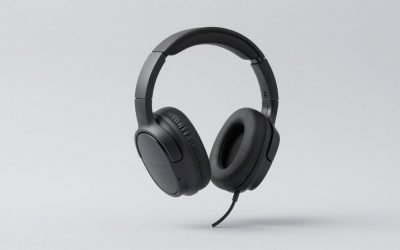
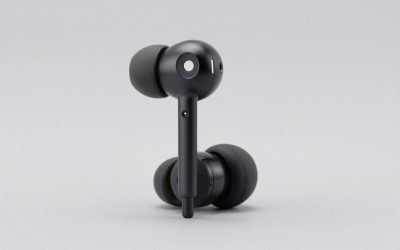
Navigating the ecosystem of smart audio hardware can sometimes feel like chasing a moving target, especially when voice assistants fail to cooperate. Whether you are using your earbuds for hands-free commuting, managing smart home routines, or catching up on media, running into technical hiccups disrupts your entire workflow. By 2026, voice-integrated wearables have become remarkably advanced, yet connection drops, unresponsive wake words, and charging quirks still manage to sneak up on even the most premium models.
This troubleshooting guide is designed to cut through the frustration. We have broken down the most frequent issues plaguing Alexa-enabled headphones and earbuds, offering clear, actionable steps to diagnose the root cause and restore normal functionality. If you have exhausted these troubleshooting steps and your hardware is still failing, we will also help you determine the exact point where it is time to stop repairing and start replacing your gear.
As an Amazon Associate we earn from qualifying purchases at no extra cost to you.

1. Alexa Won’t Respond to the Wake Word
The Cause: The microphone array might be obstructed by debris, the companion app running on your smartphone may have lost background permissions, or the device’s battery saver mode has temporarily disabled always-listening features to preserve power.
The Fix: First, gently clean the outer microphone grilles with a dry, soft-bristled brush to remove any earwax or lint buildup. Next, open your mobile device settings, ensure the companion app has unrestricted background data and microphone access, and toggle the hands-free Alexa setting off and back on within the app. If the issue persists, perform a soft reset by placing the earbuds back in their charging case for ten seconds before reconnecting.
When to Replace: If physical microphone components have suffered water damage or internal hardware failure, voice detection will remain permanently broken, signaling it is time for an upgrade.
2. Bluetooth Dropouts and Pairing Failures
The Cause: Interference from crowded wireless frequencies, outdated firmware, or corrupted device cache memory on your host smartphone, tablet, or PC often causes persistent connection drops.
The Fix: Forget the headphones from your host device’s Bluetooth settings menu entirely. Turn your Bluetooth off for 30 seconds, then turn it back on. Place your earbuds into pairing mode according to the manufacturer instructions—usually by holding the case or earbud touch sensors down—and re-establish the connection fresh. Keeping your companion app updated minimizes protocol mismatches.
When to Replace: If the internal Bluetooth module continually drops connections across multiple independent source devices, the hardware receiver is failing.
3. One Earbud Not Charging in the Case
The Cause: Microscopic debris, pocket lint, or sweat residue accumulating on the charging pins of either the earbud stem or inside the charging case bay creates a barrier that blocks electrical current.
The Fix: Take a cotton swab lightly dampened with isopropyl alcohol and carefully clean the metal contact points inside the charging case and on the earbuds themselves. Ensure the earbuds are seated properly and that the case lid closes completely without obstruction. Plug the case into a certified wall adapter rather than a computer USB port to rule out low-power delivery issues.
When to Replace: If cleaning the contacts does nothing and the charging indicator light refuses to illuminate, the internal battery or charging circuit is likely degraded beyond recovery.
4. Poor Call Quality and Ambient Noise Interference
The Cause: Beamforming microphones struggling against heavy wind, active noise cancellation (ANC) processing glitches, or improper ear tip seals that let external sound bleed into the mic feed.
The Fix: Check the companion app to ensure your ANC or transparency mode settings match your current environment. Switch out the silicone or foam ear tips for a different size to guarantee a tight, acoustic seal in your ear canal, which drastically improves mic performance and passive noise isolation. If you are outdoors in high wind, disable transparency mode to reduce buffeting noise.
When to Replace: If callers consistently report muffled or static-heavy audio despite clean microphones and a proper seal, the internal mic dampening materials have worn out.
5. Battery Draining Excessively Fast
The Cause: Leaving hands-free wake-word detection running constantly, keeping high volume levels elevated, or operating with aging lithium-ion cells that have completed hundreds of charge cycles.
The Fix: Dive into the companion app and adjust your settings so that Alexa activates via a button press rather than an always-listening wake word, which saves a noticeable amount of standby power. Disable features you rarely use, such as multi-point pairing or high-res audio streaming codecs, when you are simply listening to podcasts or casual audio.
When to Replace: When battery life drops below an hour of continuous playback even after a full charge, the chemical lifespan of the internal cells has been exhausted.
6. App Syncing and Firmware Update Freezes
The Cause: Bluetooth bandwidth bottlenecks interrupting data packets mid-transfer, or temporary glitches within the mobile operating system’s cache.
The Fix: Restart both your phone and your headphones. Ensure your phone’s operating system and the companion app are running their latest versions. When attempting a firmware update again, keep your phone unlocked, keep the app open in the foreground, and place the charging case right next to your phone to maintain a rock-solid signal.
When to Replace: If a failed firmware update permanently bricks the device and factory reset combinations fail to revive it, the motherboard logic has malfunctioned.
7. Volume Discrepancies Between Connected Devices
The Cause: Disconnected absolute volume settings between your host operating system and the hardware amplifier inside the earbuds themselves.
The Fix: Toggle absolute volume control in your phone’s developer options or bluetooth settings if available. Reset the headphones to factory defaults to clear out any custom profile calibrations that might be artificially capping output on one side.
When to Replace: If one driver sounds permanently quieter than the other despite clean grilles and software resets, physical acoustic driver damage has occurred.
Related Guides
If you are looking to replace malfunctioning hardware or want to compare new models before buying, check out our comprehensive buyer recommendations for the best Alexa headphones and earbuds featuring detailed evaluations, detailed research notes, and current market insights.
FAQ
Why does my Alexa keep saying it cannot connect to the internet?
This typically happens when your phone loses cellular or Wi-Fi data connectivity while the companion app is running in the background. Check your mobile data settings and ensure the app has permission to use cellular data when you are away from home Wi-Fi networks.
Can I use Alexa headphones with multiple devices at once?
Many modern smart earbuds support multi-point pairing, allowing you to connect to your phone and laptop simultaneously. However, voice assistant routing can sometimes get confused, so you may need to pause media on one device before Alexa responds cleanly on the other.
How often should I clean my charging case?
It is best to inspect and gently clean your charging case contacts once every few weeks to prevent sweat and lint accumulation. Regular maintenance prevents half-charge issues and extends the overall operating lifespan of your audio gear.
Is it safe to leave my earbuds charging overnight?
Most modern wireless earbuds feature smart charging circuits that automatically stop drawing power once the internal battery reaches full capacity. However, regularly leaving them plugged in for extended hours over several years can slowly accelerate long-term battery degradation.