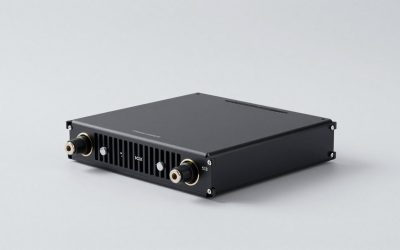
Walk into any home office conversation today and you’ll hear the same debate: a small USB C hub that slips into a laptop bag, or a full Thunderbolt dock that anchors a desk. Both connect your laptop to monitors, keyboards, and storage — but they solve very different problems, and picking the wrong one means either paying for bandwidth you’ll never use or buying twice when your setup outgrows a hub. Here’s an honest breakdown of usb c hub vs thunderbolt dock for laptop buyers, with real prices and scenarios so you can decide once and be done.
Our Top Picks


Top 3 picks at a glance

Quick Verdict
Choose a USB C hub if you use one or two external monitors at most, work from different spots in your home, and want to spend under $60. Choose a Thunderbolt dock if you run a permanent dual- or triple-monitor desk setup, daisy-chain high-speed storage, and need guaranteed full bandwidth on every port — the premium is typically $150 to $350 plus a certified Thunderbolt cable. For most home users, a well-built mid-size hub like an 8-in-1 USB C model with dual 4K HDMI output hits the sweet spot between cost and capability.
As an Amazon Associate we earn from qualifying purchases at no extra cost to you.


Side by Side
| Factor | USB C Hub | Thunderbolt Dock |
|---|---|---|
| Comfort of setup | Plug-and-play in seconds, no software needed | Usually plug-and-play, occasionally needs firmware updates |
| Durability | Good, but cable strain is common on lightweight models | Built for permanent installs; heavier chassis, sturdier cabling |
| Price range | $25 to $60 for most home-friendly models | $150 to $350 plus cable |
| Maintenance | Essentially none | Occasional firmware updates; check cable certification |
| Space needed | Palm-sized, 2 to 5 inches across, 2 to 6 oz | Desk footprint roughly 5 x 3 inches, 1 to 2 lbs, plus power brick |
| Look | Minimal, blends with a laptop bag | Deliberate desk presence; premium finishes on most models |
| Resale value | Low; the market is flooded with options | Higher; certified docks hold value better |
| Power delivery | Typically 60W to 100W passthrough | Usually 90W to 140W, some up to 180W |
| Bandwidth | Shares one USB C data lane across all ports | Dedicated 40Gbps lane with full bandwidth per feature |
| Best for | Mobile workers, secondary desks, guest setups | Fixed home offices, creative work, multi-monitor rigs |
Where Usb C Hub Wins
Price and portability. A 7-in-1 hub — HDMI, USB A ports, SD and microSD readers, and passthrough charging — costs around $25 to $35. You can toss it in a bag and forget it’s there. Anker’s 7-in-1 USB C hub with 4K@60Hz HDMI output, for example, sits at around $25, and the 5-in-1 version with 4K display support is around $24.
Simplicity. There’s nothing to configure. Plug it in and your monitor, mouse, and card reader work. For a household where multiple people borrow the same laptop, that matters.
Dual-monitor capability without dock prices. Modern 8-in-1 hubs with dual 4K HDMI outputs, like Anker’s dual-monitor docking station hub at around $53, deliver two 4K screens over a single USB C connection on laptops that support it. That covers the majority of home office needs at a fraction of dock pricing.
Lower stakes. If a $30 hub fails or gets left behind at a coffee shop, replacing it is annoying but not painful.
Where Thunderbolt Dock for Laptop Wins
Guaranteed bandwidth. Thunderbolt 4 or 5 docks offer a full 40Gbps (or 80Gbps on Thunderbolt 5) pipe. Every connected device — two 4K displays or one 8K display, external SSDs, a webcam, audio gear — runs at full speed simultaneously. USB C hubs share one data lane, which is why transfer speeds drop when several devices are active.
Daisy-chaining. You can chain a monitor to a dock and another device to that monitor over a single Thunderbolt cable, which is genuinely useful for clean cable management behind a desk.
One-cable desk. High-wattage charging (90W to 140W, sometimes more) means one cable connects, powers, and drives everything on your laptop. Dock once, and your laptop becomes a desktop.
Expandability and consistency. Docks typically offer 11 to 16 ports including 2.5Gb Ethernet, multiple USB C and USB A ports, audio out, and sometimes UFS or card readers. Anker’s Nano 13-in-1 dock with a detachable 6-in-1 USB C hub, at around $120, is a hybrid worth noting — the detachable piece gives you hub portability with dock-style port count at home, at a price well below traditional Thunderbolt docks.
Cost Over 5 Years
USB C hub route: a $30 hub plus a replacement or upgrade mid-cycle (say another $30 to $55 when you add a second monitor) lands around $60 to $85 over five years, with no recurring costs. There are no cables to buy beyond what ships in the box.
Thunderbolt dock route: a $200 to $300 dock plus a certified Thunderbolt cable ($30 to $50 if not included) totals roughly $230 to $350 upfront. Over five years you might spend another $40 on a replacement cable if the original wears. But you’re unlikely to outgrow it, so total cost stays near $270 to $400.
The surprising math: if you know you’ll want dual 4K monitors and fast external storage eventually, buying a dock — or a hybrid like the around $120 Anker Nano — can cost less over five years than buying a cheap hub, outgrowing it, and replacing it. If you genuinely use one monitor and stay mobile, the $25 to $55 hub route is unbeatable.
Which One for Your Home
Small Apartment
Space and budget both favor a hub. A palm-sized 5-in-1 or 7-in-1 unit (around 2 to 4 inches wide, under 3 oz) tucks into a drawer when not in use. If your “desk” is the kitchen table, a around $24 hub that travels with the laptop is the right call. Skip the dock’s power brick — you don’t have the outlet real estate.
Family with Kids or Pets
Cables at floor level are the enemy. A fixed dock mounted behind the desk, with one cable running to the laptop’s height-adjustable stand, keeps everything out of reach. Look for docks with rubberized feet and at least 1 lb of weight so they don’t slide when tugged. Alternatively, a heavier 8-in-1 hub at around $53 paired with adhesive cable clips achieves 80 percent of the tidiness for a quarter of the cost.
Rental or Temporary Living
Nothing permanent, nothing wall-mounted, easy to pack. A hub is the obvious answer — it leaves zero marks and packs in seconds. If your work requires dual monitors and you’re in a rental for a year or more, consider the hybrid approach: the Anker Nano dock’s detachable 6-in-1 hub means the portable part moves with you and the base stays behind in a box, not bolted to a desk you don’t own.
Long-Term Home
If you own your place and your desk setup is a fixture, buy for the long haul. A Thunderbolt dock’s one-cable workflow, daisy-chaining, and full-bandwidth ports justify the $200-plus spend over many years. Pair it with a monitor arm and route the single Thunderbolt cable up the arm — the cleanest desk setup available. Budget for the certified cable and verify your laptop supports Thunderbolt before purchasing; a USB C-only laptop can’t unlock a Thunderbolt dock’s full potential.
FAQ
Can I use a Thunderbolt dock with a regular USB C laptop?
Usually yes, but it will run in USB C mode with reduced bandwidth, and features like daisy-chaining may not work. Check your laptop’s specs first — if it only supports USB 3.2 or USB4, a good USB C hub is often the smarter purchase.
Will a USB C hub charge my laptop?
Most do, via power delivery passthrough — typically 60W to 100W. Lighter laptops charge fine; power-hungry gaming or workstation laptops may charge slowly or drain under load. Check the hub’s wattage rating against your laptop’s charger.
Do hubs and docks work with both Mac and Windows?
Yes, nearly all do. MacBooks with Apple silicon support dual external displays natively on Pro/Max chips, but base M-series models have display limits that no hub can bypass. Windows laptops vary by USB C implementation, so verify display support before buying.
Is a Thunderbolt dock worth it in 2026?
For a permanent multi-monitor home office with high-speed storage needs, absolutely — the one-cable convenience and guaranteed bandwidth pay off daily. For a laptop that moves between rooms or travels, a $25 to $55 hub remains the better value.