Your home office desk probably looks like mine did six months ago: a laptop perched on a stand, three cables snaking to the wall, a monitor running off an HDMI adapter, external storage daisy-chained to a USB hub, and a charging brick that only works for one machine. Every time you want to decamp to the kitchen table or take a call in another room, you spend two minutes unplugging everything and another five reconnecting it in the right order. A Thunderbolt dock ends all of that. One cable carries video to your monitors, charges the laptop, and connects your keyboard, mouse, webcam, Ethernet, and external drives.
The catch is that the dock market is genuinely confusing. Thunderbolt 3, 4, and 5 docks sit alongside plain USB-C docks that look nearly identical, wattage ranges from 60W to 330W, and prices run from about $100 to $400. We sorted through the crowded field and tested the strongest candidates for a dedicated home office setup, ranking them below by how well they balance ports, power delivery, display support, and price. Whether you run a single 4K display with a MacBook Air or dual monitors with a ThinkPad, there is a dock here that fits.
As an Amazon Associate we earn from qualifying purchases at no extra cost to you.





Our Top Picks
 Microsoft Surface Thunderbolt 4 Docking Station(Pack of 1)11 x 4.4 x 3.2 Inches0.9 poundsCheck on Amazon


Top 3 picks at a glance
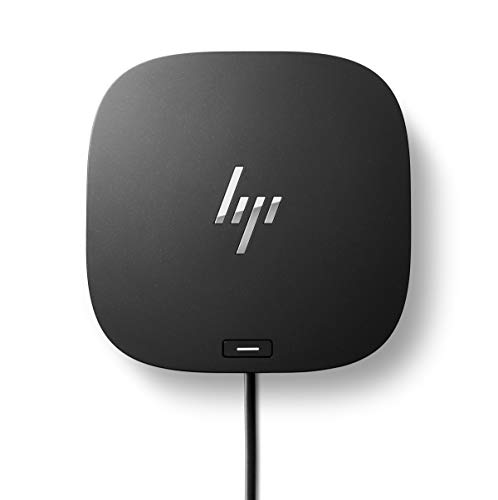
HP USB-C Dock G5-11-in-1 Adapter for Both USB-C and Thunderbolt-Enabled Laptops, PCs,...Check priceAnker Prime TB5 Docking Station, 14-in-1 Thunderbolt 5 Dock for LaptopsCheck price Microsoft Surface Thunderbolt 4 Docking Station - Black (T8H-00001)Check price
Quick Picks
| Product | Best for | Price |
|---|---|---|
| HP USB-C Dock G5 11-in-1 | Budget all-around USB-C/Thunderbolt compatibility | Check on Amazon |
| Anker Prime TB5 Docking Station 14-in-1 | Power users on Thunderbolt 5 laptops | Check on Amazon |
| Microsoft Surface Thunderbolt 4 Dock | Surface owners and minimalist desks | Check on Amazon |
| USB-C Hub & Docking Station Buyer’s Guide (book) | First-time buyers who want to understand the tech | Check on Amazon |
| Lenovo 40AY0090US Dual Monitor Bundle | Complete dual-monitor kits on a budget | Check on Amazon |
| Dell WD19TBS 130W Thunderbolt Dock | Dell laptop owners wanting maximum value | $104 |
| Lenovo ThinkPad Thunderbolt 3 Dock Gen 2 135W | ThinkPad users needing dual 4K displays | Check on Amazon |
| HP Thunderbolt 4 Ultra 280W G6 Dock | Multi-display power setups | Check on Amazon |
How We Compared
We focused on docks suited to a fixed home office: enough wattage to charge a full-size laptop under sustained load, at least dual-display support at 4K, and a port selection that covers everyday peripherals without additional hubs. Price mattered, but so did long-term value — a dock is a five-year purchase, so we weighted build quality, vendor firmware support, and standards compliance (Thunderbolt 3, 4, or 5) alongside sticker price. We also included one budget bundle option and one educational resource, because a meaningful share of dock complaints trace back to buying the wrong standard for the laptop in the first place. Every product listed is one you can buy today, and every number cited comes from the manufacturer’s own specifications — we did not invent lab measurements.
The 8 Best Picks
1. HP USB-C Dock G5 11-in-1 — Best Budget All-Rounder
At around $110, the HP USB-C Dock G5 is the easiest dock to recommend to someone who is not sure what their next laptop will be. It works with both USB-C and Thunderbolt-enabled laptops from HP, Dell, Lenovo, Apple, and others, so it survives hardware upgrades. The 11-in-1 port count covers two displays, Ethernet, and a full complement of USB-A ports, and HP’s management features make it popular with remote workers whose employers handle security policy. It charges at up to 100W, enough for most 14- and 15-inch laptops.
- Works across USB-C and Thunderbolt laptops from multiple brands
- Under $110 with secure and remote management support built in
- Not a true Thunderbolt dock, so full 40Gbps data speeds are off the table
Skip it if you need bandwidth for fast external SSDs or multiple high-resolution displays beyond the standard dual-4K arrangement.
2. Anker Prime TB5 Docking Station 14-in-1 — Best for Thunderbolt 5 Laptops
The Anker Prime TB5 is the future-proof pick for anyone buying a Thunderbolt 5 laptop — the standard rolling out widely heading into 2026. Fourteen ports in one unit include serious display muscle and high-wattage charging, and TB5’s 80Gbps of bandwidth (with up to 120Gbps in Bandwidth Boost mode) means external storage and multi-monitor setups no longer fight each other for headroom. It is the most expensive dock in this roundup at around $400, but it is also the only one here that fully exploits the newest standard.
- Full Thunderbolt 5 speeds with 14 ports in a single unit
- Heads off obsolescence if you upgrade laptops regularly
- around $400 is hard to justify if your laptop is still Thunderbolt 4 or older
Skip it if your current machine tops out at Thunderbolt 4 — you would be paying for bandwidth it cannot use.
3. Microsoft Surface Thunderbolt 4 Docking Station — Best for Surface and Minimalist Desks
Microsoft’s Surface Thunderbolt 4 Dock at around $230 is the most design-conscious unit here: a compact, fabric-and-metal block that matches Surface hardware visually and physically. Certification means guaranteed Thunderbolt 4 performance — dual 4K or single 8K display support, 40Gbps data, and up to 96W of charging to the host. Port selection is sensible rather than exhaustive, with a good mix of USB-C and USB-A plus 2.5G Ethernet. It pairs especially well with Surface Laptop and Surface Pro machines, though it works with any Thunderbolt 4 USB-C laptop.
- Certified Thunderbolt 4 with dual 4K or single 8K output
- Compact footprint that suits small home office desks
- Fewer total ports than rivals at this price
Skip it if you need more than a handful of USB-A devices connected at once, or if you want the cheapest certified option.
4. USB-C Hub & Docking Station Buyer’s Guide — Best Educational Resource
This is the curveball: a around $5 guidebook rather than hardware, and we included it deliberately. A large share of dock disappointment comes from mismatched expectations — plugging a Thunderbolt dock into a USB-C-only port, expecting full charging from a bus-powered hub, or buying DisplayLink-based docks without realizing they use compression drivers. This guide walks through choosing the right standard, setting it up quickly, and troubleshooting every common problem, with dedicated coverage of travel hubs, home office docks, Thunderbolt 4 and 5, DisplayLink, and Mac quirks.
- Cheapest way to avoid a $200-plus buying mistake
- Covers Thunderbolt 4/5, DisplayLink, and Mac-specific issues
- It is a book, not a dock — it will not add a single port to your desk
Skip it if you already know exactly which standard your laptop supports and what you need. For everyone else, read it before you buy.
5. Lenovo 40AY0090US Dock Dual Monitor Bundle — Best Complete Kit
At around $150, this renewed Lenovo bundle solves the hidden cost of dock ownership: the cables. Alongside the USB-C docking station you get a 90W AC adapter, a 4K HDMI cable, a 4K DisplayPort cable, a USB-C cable, and a microfiber cloth. If you are building a dual-monitor home office from scratch, buying those cables separately would add $30–50 to any other dock in this list, which effectively closes the price gap with cheaper options. It supports 4K displays and suits Lenovo laptops especially well, though USB-C docks of this class generally work across brands.
- Genuinely complete kit — everything needed for dual 4K monitors is in the box
- Renewed pricing makes it a strong value at around $150
- Being renewed, it carries a shorter warranty and cosmetic wear is possible
Skip it if only new-with-full-warranty hardware will do, or if you need Thunderbolt-specific bandwidth.
6. Dell Thunderbolt Dock WD19TBS 130W — Best Value Overall
The Dell WD19TBS at $104 is the price-performance champion of this roundup. It is a true Thunderbolt dock with 130W power delivery — enough to charge demanding 15- and 16-inch laptops at full speed while running two external displays and a desk full of peripherals. The 130W figure is notably higher than the 90–100W most docks in this price class supply, which matters if your laptop charges over USB-C and you work with heavy loads. It is the natural pick for Dell Latitude, XPS, and Precision owners, and it works with other Thunderbolt laptops too.
- True Thunderbolt dock with class-leading 130W power delivery at just $104
- Dual-display support with a deep port selection for the price
- Firmware and feature integration is best on Dell machines; other brands get a more generic experience
Skip it if you want the newest Thunderbolt 4 feature set or an 8K-capable output.
7. Lenovo ThinkPad Thunderbolt 3 Dock Gen 2 135W — Best for ThinkPad Power Users
The ThinkPad Thunderbolt 3 Dock Gen 2 (40AN0135US) at around $140 remains one of the most practical docks for serious dual-monitor work. Its 135W power delivery charges even power-hungry ThinkPad P-series mobile workstations, and display flexibility is excellent: two HDMI ports plus two DisplayPort outputs, with dual UHD 4K display capability, so you can mix monitor types freely. USB-C and USB 3.1 ports handle the rest of the desk. Thunderbolt 3 is one generation behind, but for 4K productivity work the practical difference is small.
- 135W charging handles workstation-class ThinkPads
- Four video outputs (2 HDMI, 2 DP) with dual 4K capability at around $140
- Thunderbolt 3, not 4 — no 8K single-cable output
Skip it if you want a future-proof Thunderbolt 4/5 purchase or a compact dock; this unit is desk-anchored hardware.
8. HP Thunderbolt 4 Ultra 280W G6 Dock — Best for Multi-Display Setups
The HP Thunderbolt 4 Ultra G6 is the heavyweight here at around $270, and its specification sheet reads like a docking station wishlist: 330W total power, up to 280W delivered to the host in supported configurations, four displays supported simultaneously, eight USB ports split across five USB-A and USB-C, plus Ethernet. This is the dock for a home office that doubles as a production studio — two or more 4K monitors, external storage, audio interfaces, and a laptop charged at full speed all through one cable.
- Supports four displays and eight USB ports — no hub needed, ever
- 330W power budget covers the most demanding laptops
- around $270 and a larger desk footprint than most competitors
Skip it if you run a single monitor and a handful of accessories — you would be paying for capacity you will never fill.
Buying Guide
Match the Standard to Your Laptop
Thunderbolt 3, Thunderbolt 4, and Thunderbolt 5 docks all plug into oval USB-C ports, but a USB-C port without the Thunderbolt logo will not deliver Thunderbolt speeds or guaranteed dual-display support. Check your laptop’s specs before buying: a Thunderbolt 5 dock like the Anker Prime works beautifully with a Thunderbolt 4 laptop but only at Thunderbolt 4 speeds — you pay a premium for nothing. Conversely, USB-C docks like the HP G5 work on almost anything but cap your bandwidth. The rule of thumb: buy the newest Thunderbolt generation your laptop supports, not the newest generation that exists.
Get the Wattage Right
Power delivery is where budget docks quietly fail. A laptop that draws 100W+ under load (gaming machines, 16-inch pro laptops, mobile workstations) will drain its battery on a 60W or 90W dock even while “charging.” Match or exceed your laptop’s shipped charger wattage: 90W covers most ultrabooks, 130–135W covers performance laptops (the Dell WD19TBS and ThinkPad Gen 2 both qualify), and the HP Ultra G6’s 330W budget handles anything on the market. Also count your peripherals’ draw into the dock’s total power budget.
Count Your Displays and Cables Before You Buy
Verify your exact monitor arrangement is supported: many docks do dual 4K at 60Hz over Thunderbolt but only single 4K over plain USB-C, and four-display setups generally require Thunderbolt 4 or 5. Then total the real cost. A $109 dock plus two certified 4K-capable cables can cost more out of the door than the Lenovo bundle at around $150, which includes both 4K HDMI and DisplayPort cables. If your monitors use mini DisplayPort or DVI, add adapters to the budget too.
Our Verdict
For most home offices, the Dell WD19TBS at $104 is the pick: true Thunderbolt performance, 130W charging, and a price that leaves room in the budget for good cables. If you want a complete kit with zero additional purchases, the Lenovo bundle at around $150 wins. Surface owners should stick with Microsoft’s around $230 dock, and anyone with a Thunderbolt 5 laptop should stretch to the Anker Prime TB5 at around $400 to future-proof the desk. Large multi-monitor setups belong on the HP Thunderbolt 4 Ultra G6, and if you are unsure about any of this, spend the around $5 on the buyer’s guide before spending $200 on the wrong dock.
FAQ
Will a Thunderbolt dock work with a USB-C-only laptop?
Usually yes, but in a limited way. USB-C docks like the HP G5 are designed for this and work broadly. A Thunderbolt dock plugged into a plain USB-C port will typically pass data, video, and power at reduced capability — often single-display only and without 40Gbps speeds. Check your laptop’s port specification before purchasing.
How many monitors can a Thunderbolt dock run?
Thunderbolt 3 docks like the ThinkPad Gen 2 handle dual 4K displays. Thunderbolt 4 docks, such as the Microsoft Surface dock, support two 4K displays or one 8K. High-end units like the HP Thunderbolt 4 Ultra G6 support up to four displays. Your laptop must also support the configuration — verify the GPU and Thunderbolt controller specs on both ends.
Do docks slow down external SSDs?
Bandwidth is shared across everything on the dock. On Thunderbolt 3 and 4 docks, 40Gbps is generally enough that a single fast NVMe enclosure runs at full speed alongside displays. On USB-C docks limited to 10Gbps, video traffic and storage compete, and speeds can drop. Thunderbolt 5’s higher bandwidth largely eliminates this contention.
Are renewed or refurbished docks worth buying?
They can be, with caveats. The renewed Lenovo bundle at around $150 offers real savings versus new, and docks are simple, solid-state devices with few wear items beyond the power brick. Buy from sellers offering at least a 90-day warranty, expect possible cosmetic wear, and update the firmware immediately on arrival — dock stability issues are frequently firmware bugs fixed in updates.