You do not need to spend big to get a great gaming SSD; the budget end has never been stronger, and the holidays are the time to grab one. This guide covers what to look for, which gaming SSDs are worth watching, and — just as important — what to skip, so you spend wisely this holiday season rather than being swept up in the sales.
Every pick below is a real, widely available model, and the same buying principles apply whether you shop on Black Friday, Cyber Monday or through December. Prices move constantly around the holidays, so always check the live listing before buying.
As an Amazon Associate we earn from qualifying purchases at no extra cost to you.


Our Top Picks


Top 3 picks at a glance
What to Look For in a Gaming SSD
Focus on the things that actually affect your experience, not the marketing bullet points:
- NVMe PCIe 4.0 is the sweet spot for a gaming main drive
- Capacity — 1-2TB given how large modern games are
- DirectStorage support benefits newer games
- A heatsink helps high-end drives avoid throttling
Get these right and even a mid-priced gaming SSD will serve you well for years; get them wrong and no amount of discount makes a poorly matched gaming SSD worth buying.
SSD Specs Explained: What Actually Matters for Games
SSD listings are full of numbers and acronyms. Only a few of them change how a drive feels in a gaming PC, and knowing which ones lets you ignore the rest.
Sequential read speed
This is the headline figure, such as 7,250 MB/s. It matters most for loading large files, but games rarely load data in long sequential runs. Beyond roughly 3,500 MB/s, real game load times improve only slightly, because the CPU still has to decompress and process assets. That is why a budget Gen4 drive loads most games within a second or two of a flagship drive.
Random read performance
Measured in IOPS, this reflects how quickly a drive fetches many small files scattered across the disk, which is closer to how games stream textures and world data. Modern Gen4 drives are all strong here, and it is one reason any NVMe drive feels far faster than a hard drive.
TLC versus QLC NAND
TLC flash stores three bits per cell, QLC stores four. QLC is cheaper per terabyte but slower once its fast SLC cache fills and has lower rated endurance. For a drive that mostly loads games, QLC is perfectly usable. If you often install huge games back to back, record gameplay to the drive, or edit video, TLC holds its speed better.
DRAM cache versus HMB
Premium drives include their own DRAM chip to hold the map of where data lives. Most budget and mid-range drives are DRAM-less and use Host Memory Buffer, which borrows a small amount of system RAM over the PCIe link. For gaming, modern HMB drives perform very close to DRAM-equipped ones. The difference shows up mainly in sustained mixed workloads, not in loading games.
Endurance (TBW) and warranty
TBW, terabytes written, is the amount of data the manufacturer warrants the drive to handle. A gamer who writes 50 GB a day would take more than 20 years to reach 440 TBW, so even QLC drives last far longer than most people keep them. Warranty length is a better signal of the maker’s confidence; five years is the norm for good drives.
DirectStorage readiness
Microsoft’s DirectStorage lets supported games stream assets from an NVMe drive with less CPU overhead, and some titles can decompress data on the GPU. Any NVMe SSD works with DirectStorage; faster drives help a little, but the big jump is from a SATA SSD or hard drive to any NVMe drive. Games that support it run on every drive in this guide.
How Much Capacity Do Your Games Really Need?
Capacity is the spec most buyers underestimate. Big AAA releases routinely need 100–150 GB once updates and high-resolution texture packs are installed, and a handful go beyond that. Patches also need temporary free space while they install, so a drive that looks big enough on day one can fill quickly.
| Capacity | Roughly fits | Who it suits | Price tier |
|---|---|---|---|
| 500 GB | Windows plus two or three large games | Boot drive only, alongside a larger games drive | Budget |
| 1 TB | Six to eight large AAA games, or many smaller titles | Players who rotate a few games at a time | Budget |
| 2 TB | Twelve to eighteen large games | Most gamers; the best value per terabyte | Budget to mid-range |
| 4 TB | A full library with room for captures and mods | Large libraries, content creators, Game Pass users | Mid-range to premium |
For most people, 2 TB is the smart buy in 2026. It typically offers the lowest cost per terabyte among mainstream drives, and it avoids the constant juggling that comes with 1 TB once a few modern AAA titles are installed. If your motherboard has a second M.2 slot, a common approach is a fast TLC 1–2 TB drive for Windows and current games, plus a cheaper QLC 2–4 TB drive for the rest of the library.
Also count what else lands on the drive: Windows and its updates, a page file, shader caches that grow with every game, and recorded gameplay clips, which can consume dozens of gigabytes a month if you capture at high bitrates. Plan for that overhead, and keep the 10–20% free-space buffer described below.
Getting the Most for Your Money
The sweet spot for a gaming SSD is usually the well-reviewed mid-tier option rather than the cheapest or the flagship. Paying a little more than rock-bottom avoids the compromises that make bargain gaming SSDs frustrating.
Watch for holiday bundles that add value, and buy the gaming SSD that covers your needs today rather than paying for features you will never use.
Gaming SSD Picks to Watch This Holiday
| Category | Pick | Why |
|---|---|---|
| Best value | Crucial T500 | fast PCIe 4.0 |
| Premium | Samsung 990 Pro | top performance |
| Gaming pick | WD Black SN850X | great for games |
Higher-end options worth watching for a deep holiday discount: Samsung 990 Pro, WD Black SN850X, Crucial T500, Samsung 980 Pro. These sit above the budget tier, so they only make sense when a sale brings them close to the drives below.
Budget Gaming SSDs Worth Buying in 2026
The Samsung 990 EVO Plus, WD_Black SN850X and Samsung 990 Pro picks above are safe, well-rounded choices, though the last two sit above the budget tier. But the budget end of the PCIe 4.0 market is crowded with strong alternatives, and depending on the week one of them is often the better value per terabyte. These five drives are the ones most worth shortlisting for a gaming main drive or a second games library, with the trade-offs that separate them. All are standard M.2 2280 NVMe drives and work in any desktop or laptop with a PCIe 4.0 or newer M.2 slot; on a PCIe 3.0 slot they simply run at Gen3 speeds.
WD_Black SN7100 2TB

The WD_Black SN7100 is the drive to pick if you want close to flagship PCIe 4.0 speed without paying flagship money. The 2TB model is rated for up to 7,250 MB/s sequential reads and 6,900 MB/s writes, which puts it at the practical ceiling of the PCIe 4.0 interface. It uses TLC NAND with a DRAM-less design that borrows a small slice of system memory through Host Memory Buffer (HMB), and the 2TB version carries a 1,200 TBW endurance rating with a five-year limited warranty.
For gamers, the SN7100’s real advantage is consistency. TLC flash holds its write speed better than QLC once the fast cache fills, so installing a 150 GB game or copying a large library does not slow to a crawl halfway through. Its controller is also notably power-efficient, which keeps temperatures in check and makes it a good fit for gaming laptops and handheld PCs that accept 2280 drives.
Strengths: top-tier Gen4 speed, TLC endurance, low heat and a five-year warranty. Drawbacks: it sits at the upper edge of the budget tier, and the bare version has no heatsink, so a PS5 install needs a separate low-profile heatsink that meets Sony’s size limits.
Compared with the 990 EVO Plus pick above, the SN7100 trades blows on speed and endurance. Buy whichever is cheaper per terabyte when you shop; both are excellent main drives.
Crucial P310 2TB

The Crucial P310 2280 is the value pick for gamers who want high headline speed at a budget price. The 2TB model is rated for up to 7,100 MB/s reads and 6,000 MB/s writes on PCIe 4.0, using a Phison E27T DRAM-less controller and Micron 232-layer QLC NAND. Endurance is 440 TBW for the 2TB version with a five-year limited warranty.
Game loading is dominated by reads, and the P310 reads quickly, so for launching games and loading levels it feels much like far more expensive drives. QLC flash is the trade-off. Once its SLC cache is exhausted during a very large sustained write, such as copying a full games library at once, write speeds drop well below TLC drives. For a gaming drive that mostly reads, that rarely matters, and 440 TBW is still many years of normal use for a gamer who installs and uninstalls titles regularly.
Strengths: strong read speed, low power and heat, budget pricing and a five-year warranty. Drawbacks: lower endurance and slower sustained writes than TLC drives, so it is not the best choice for heavy video editing or constant large file transfers.
Choose the P310 over the 990 EVO Plus if the price gap is meaningful and the drive will mainly hold games. Choose the T500 below if you want TLC from the same brand.
Kingston NV3 2TB

The Kingston NV3 is the low-cost entry into PCIe 4.0 and a common sight in holiday sales. The 2TB model is rated for up to 6,000 MB/s reads and 5,000 MB/s writes, with a DRAM-less design and a 640 TBW endurance rating. Kingston does not lock the controller or NAND type for the NV line, and parts can vary between production batches; independent reviews of the 2TB model have found QLC flash paired with a Silicon Motion controller.
That flexibility is how Kingston keeps the price low. For loading games, the NV3 is still dramatically faster than a SATA SSD or hard drive, and DirectStorage-enabled games run fine on it. Where it falls short of the SN7100 or NM790 is sustained writes and consistency under heavy load. Warranty terms have differed between Kingston’s launch materials and its current datasheet, so confirm the warranty length for your region on Kingston’s site before relying on it.
Strengths: one of the cheapest PCIe 4.0 drives from an established brand, low heat, and enough speed for any game. Drawbacks: variable components, slower sustained writes, and lower endurance than TLC options.
It is the best fit as a second games drive or a budget build’s only drive. If it is only slightly cheaper than the P310 or SN7100, step up.
Lexar NM790 2TB

The Lexar NM790 is the endurance and value standout. The 2TB version is rated for up to 7,400 MB/s reads and 6,500 MB/s writes, uses a Maxio MAP1602 DRAM-less controller with YMTC 232-layer TLC NAND, and carries a 1,500 TBW rating with a five-year warranty. That endurance figure is higher than many premium drives.
The NM790 has earned a strong reputation in independent reviews for delivering near-flagship performance at a mid-range price, with low power draw and modest temperatures. For a gaming PC, it is fast enough that load times are indistinguishable from far pricier drives, and its TLC flash keeps large game installs moving quickly. A version with a factory heatsink is also available for PS5 owners.
Strengths: excellent speed for the money, very high endurance for the class and good efficiency. Drawbacks: Lexar is a less familiar name to some buyers than Samsung or WD, and availability and pricing can swing more than mainstream brands.
Against the 990 EVO Plus 2TB, the NM790 offers comparable real-world gaming performance with higher rated endurance; buy on price.
Crucial T500 2TB
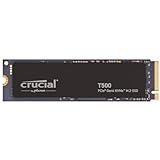
The Crucial T500 is a TLC drive for gamers who want consistent performance plus the backing of a major memory maker. The 2TB model is rated for up to 7,400 MB/s reads and 7,000 MB/s writes, built on a Phison E25 controller with Micron 232-layer TLC NAND and HMB instead of onboard DRAM. It is rated for 1,200 TBW with a five-year warranty, and a heatsink version suits PS5 and desktop boards without M.2 covers.
The T500 sits between the budget and premium tiers. It holds its speed well during large installs and handles mixed workloads such as game installs while streaming or recording without trouble. It is one of the drives named in the picks table above as best value, and it is a sensible upgrade over the P310 if you also edit video or move large files.
Strengths: TLC flash, very high sequential speeds, efficient operation and a five-year warranty. Drawbacks: it typically costs more than QLC budget drives, and the extra write speed mostly benefits workloads beyond gaming.
Budget Gaming SSDs Compared
| Drive (2TB) | Max read / write | NAND | DRAM | Endurance | Price tier | Best for |
|---|---|---|---|---|---|---|
| WD_Black SN7100 | 7,250 / 6,900 MB/s | TLC | HMB | 1,200 TBW | Mid-range | Main drive, laptops, handhelds |
| Crucial P310 | 7,100 / 6,000 MB/s | QLC | HMB | 440 TBW | Budget | Games library on a budget |
| Kingston NV3 | 6,000 / 5,000 MB/s | Varies (QLC in reviews) | HMB | 640 TBW | Budget | Second drive, entry builds |
| Lexar NM790 | 7,400 / 6,500 MB/s | TLC | HMB | 1,500 TBW | Budget to mid-range | Best endurance per dollar |
| Crucial T500 | 7,400 / 7,000 MB/s | TLC | HMB | 1,200 TBW | Mid-range | Gaming plus creative work |
How Much Should You Spend on a Gaming SSD?
The right budget for a gaming SSD depends on how seriously you game. Casual players are well served by a solid mid-range gaming SSD, while competitive players and enthusiasts benefit from stepping up a tier. Spending more than you need on a gaming SSD rarely improves your experience as much as the marketing suggests.
As a rule, avoid both the rock-bottom gaming SSDs that compromise on the essentials and the flagship gaming SSDs where you pay a premium for features you will not use. The best-value gaming SSD that meets your actual needs is almost always the smart holiday buy, and Black Friday is the time to get that sweet-spot model for less.
A Gaming SSD Is Only as Good as the Rest of Your Setup
A great gaming SSD performs best when it fits the rest of your gaming setup. Pairing a high-end gaming SSD with mismatched components wastes money, while a sensible gaming SSD that complements what you already own delivers the best real-world experience.
Before you buy, make sure your new gaming SSD matches your other gear and the games you actually play, so nothing becomes a fresh bottleneck. This is especially worth checking during the holiday rush, when it is tempting to buy on discount rather than on genuine need.
PCIe 3.0, 4.0 or 5.0: Matching the Drive to Your PC
Before buying, confirm what your M.2 slot supports. A drive will always work in an older slot, but it runs at the slot’s speed, so there is no point paying for headroom your PC cannot use.
- PCIe 3.0 slots are common on Intel 10th generation and older boards and on AMD B450 and A520 boards. They top out around 3,500 MB/s. A budget Gen4 drive is still a good buy here because it costs about the same as a Gen3 drive and will run at full speed if you upgrade the platform later.
- PCIe 4.0 slots are standard on AMD B550, X570 and all AM5 boards, and on Intel 11th generation and newer boards. This is where every drive in this guide runs at full speed, and it is the sweet spot for gaming.
- PCIe 5.0 slots appear on many AM5 boards and on Intel Z790 and newer boards. Gen5 drives post sequential reads above 10,000 MB/s, but game load times barely improve over a fast Gen4 drive, and the drives run hotter and cost more. Unless you move huge files for work, a Gen4 drive in a Gen5 slot is the better value.
Check the slot type and size
Most desktop M.2 slots accept 2280 drives, the 80 mm length used by every pick in this guide. Some compact laptops and handheld PCs need 2230 or 2242 drives instead. Also check that the slot supports NVMe rather than only M.2 SATA; a few older or budget boards have slots that accept only SATA-protocol M.2 drives, and an NVMe drive will not be detected there. The motherboard or laptop manual lists both details.
Older PCs without M.2
If your PC has no M.2 slot at all, a PCIe adapter card can host an NVMe drive in a spare x4 or x16 slot, though older systems may not be able to boot from it. A 2.5-inch SATA SSD is the simpler upgrade in that case and still transforms load times compared with a hard drive.
Internal NVMe, External SSD or Hard Drive?
An internal NVMe drive is the right home for games you play regularly, but it is not the only storage worth owning.
- Internal NVMe SSD: the fastest and, per terabyte, now one of the cheapest ways to store games. Use it for your active library and anything that streams data during play, such as open-world games.
- External USB SSD: handy for moving games between PCs, for handhelds with limited internal space, or for backups. Over a 10Gbps USB port, a good external SSD loads games acceptably, but it is slower than an internal drive and costs more per terabyte. Newer titles that require an SSD may warn about or struggle with slow USB connections.
- Hard drive: still the cheapest bulk storage for video archives, screenshots and backups of game installs. Modern games increasingly list an SSD as a requirement, and running them from a hard drive brings long loads and texture pop-in. Keep hard drives for cold storage, not active games.
Signs Your Current Drive Needs Replacing
Not every slow PC needs a new SSD, but these symptoms point to storage as the bottleneck:
- Games or Windows still run from a hard drive, with load screens that last far longer than friends report.
- Your SSD is more than 90% full and you constantly uninstall games to make room for updates.
- The maker’s health utility reports a low remaining life percentage, reallocated sectors or critical warnings.
- Large game updates crawl during the install phase even on a fast internet connection, which often indicates a slow or nearly full drive.
- Frequent stutter in open-world games that improves when the game is moved to a different drive.
If your drive is healthy and simply full, adding a second budget NVMe drive is usually cheaper and easier than replacing the boot drive.
What to Skip
Skip PCIe 5.0 drives for pure gaming (little real benefit, more heat) and tiny 500GB drives that fill up fast.
The golden rule for any gaming SSD this Black Friday: a discount on the wrong product is not a saving. Decide what you actually need first, set a target price, and only buy when a gaming SSD that fits hits it. Ignore inflated ‘was’ prices, gimmicky features and lighting you are paying extra for but will rarely notice.
Which Budget Gaming SSD Should You Buy? Quick Picks by Situation
If you want a shortcut, match your situation to the row below, then buy whichever listed drive is cheapest per terabyte on the day you shop.
| Your situation | Drive type to buy | Models to watch |
|---|---|---|
| Building a new gaming PC on a tight budget | 2 TB PCIe 4.0, QLC acceptable | Crucial P310, Kingston NV3 |
| One drive for Windows, games and recording | 2 TB PCIe 4.0 TLC | Lexar NM790, WD_Black SN7100, Samsung 990 EVO Plus |
| Adding a second drive for a large library | 2–4 TB, QLC is fine | Crucial P310, Kingston NV3, Samsung 990 EVO Plus 4TB |
| Gaming laptop upgrade | Efficient single-sided 2280 drive | WD_Black SN7100, Crucial P310 |
| PS5 storage expansion | PCIe 4.0 with heatsink, within Sony’s size limits | Heatsink versions of the Lexar NM790 or Crucial T500 |
| Gaming plus video editing | TLC with high sustained writes | Crucial T500, WD_Black SN7100 |
| Older PC with a PCIe 3.0 slot | Any budget Gen4 drive | Kingston NV3, Crucial P310 |
One more tip for holiday shopping: drive makers often discount the 2 TB models most aggressively, while 1 TB versions sometimes see smaller cuts. Compare the cost per terabyte across capacities rather than only the headline discount.
Holiday Shopping Checklist
- Decide the exact gaming SSD you want before the sales start
- Note its normal price so you can spot a genuine discount
- Set a target price and only buy when it is hit
- Buy from reputable sellers and check the warranty and return policy
- Ignore inflated ‘was’ prices and features you will not use
Installing and Setting Up Your New Gaming SSD
Fitting an M.2 drive takes about fifteen minutes, but a few details decide whether it runs at full speed and stays cool.
- Pick the right slot. Check the motherboard manual for which M.2 slot connects directly to the CPU; it usually sits closest to the processor and offers the fastest link. On some boards, using certain M.2 slots disables SATA ports or reduces a PCIe slot’s lanes, so read the lane-sharing notes.
- Use the board’s heatsink. Most modern boards include an M.2 cover with a thermal pad. Remove the plastic film from the pad before installing. Budget Gen4 drives rarely throttle in a desktop with decent airflow, but the cover helps during long installs.
- Secure the drive properly. Insert the drive at an angle into the slot, press it flat and fix it with the screw or tool-less latch. Do not overtighten the screw.
- Initialize the drive in Windows. A new drive will not appear in File Explorer until you open Disk Management, initialize it as GPT, and create a new simple volume formatted as NTFS.
- Move or install games. Steam, the EA app, Ubisoft Connect, Battle.net and the Xbox app all let you add a new library folder and move installed games without redownloading.
- Update firmware. Use the maker’s free tool, such as Samsung Magician, WD Dashboard, Crucial Storage Executive, Kingston SSD Manager or Lexar’s utility, to check for firmware updates and drive health.
Cloning your old drive
If the new SSD will replace your boot drive, cloning saves a fresh Windows install. Most SSD makers offer free cloning software or a licensed version of a third-party tool. Clone with both drives installed, then set the new drive first in the BIOS boot order. A clean Windows install is still worth considering if your old installation is several years old and cluttered.
Laptops, handhelds and PS5
Gaming laptops usually take 2280 drives, but check whether the second slot supports PCIe 4.0. Many handheld PCs use the shorter 2230 size, so a 2280 drive will not fit. For PS5, the drive must be PCIe 4.0, and Sony recommends a heatsink or heat-dissipating structure; drives with factory heatsinks must stay within Sony’s height limits for the expansion bay.
Leave some free space
SSDs slow down slightly when nearly full, especially QLC models whose SLC cache shrinks as free space drops. Keeping roughly 10–20% of the drive free maintains write speed and gives the controller room for wear leveling.
Common Mistakes to Avoid When Buying a Gaming SSD
The most common holiday mistake is buying a gaming SSD purely because it is heavily discounted, rather than because it is the right one for you. A 50% saving on a gaming SSD that does not fit your needs is money wasted, not money saved. Another frequent error is chasing headline specs — a bigger number on the box rarely translates into a better experience.
It also pays to avoid impulse-buying the flagship gaming SSD when a mid-range model would serve you just as well, and to steer clear of unknown brands with no warranty or reviews. Take a few minutes to read trusted reviews of any gaming SSD before you commit, even in the middle of a time-limited sale.
The Bottom Line
A gaming SSD is one of the more satisfying gaming purchases to make during the holidays, and Black Friday genuinely offers some of the best gaming SSD prices of the year. Decide what you need, set a fair target price, watch the picks above, and buy the gaming SSD that fits your setup and your games — not just the one with the biggest discount sticker.
Frequently Asked Questions
Is PCIe 5.0 SSD worth it for gaming?
Not really; PCIe 4.0 is the sweet spot with lower heat and cost.
What size SSD for gaming?
1-2TB is ideal given how large modern games have become.
When is the best time to buy a gaming SSD?
Black Friday and the surrounding holiday sales usually offer the best gaming SSD prices of the year, especially on last-generation models. Decide what you want in advance so you can act fast on a genuine deal.
How do I avoid fake Black Friday deals?
Track the gaming SSD’s normal price beforehand, compare against its recent selling price rather than the retailer’s ‘was’ price, and buy from reputable sellers with a clear warranty and return window.
Related Guides
- Gaming Gift Guide 2026
- Best Budget Gaming Upgrades This Holiday
- Black Friday PC Hardware Deals: What to Watch
Is a DRAM-less SSD fine for gaming?
Yes. Modern DRAM-less drives with Host Memory Buffer, such as the WD_Black SN7100, Lexar NM790 and Crucial T500, load games just as quickly as drives with onboard DRAM. The difference appears mainly in long, mixed write workloads that most gamers never run.
Should I choose a QLC drive to save money?
For a games library, QLC is a reasonable way to get more capacity for less. Games are written once and read many times, which suits QLC well. If you frequently install large games, record gameplay, or edit video on the same drive, a TLC drive like the Lexar NM790 or WD_Black SN7100 is the better long-term pick.
Do I need a heatsink on my gaming SSD?
In a desktop, use the motherboard’s M.2 cover if it has one; a separate heatsink is rarely needed for budget Gen4 drives. In a PS5, a heatsink is strongly recommended. In laptops, there is usually no room for one, so efficient drives like the SN7100 or P310 are the better match.
Is a SATA SSD still worth buying for games?
Only if your PC has no free M.2 slot. Budget NVMe drives now cost about the same as SATA SSDs and are many times faster on paper, with better support for DirectStorage. A SATA SSD remains a fine way to add space to an older PC that lacks M.2.
Will a faster SSD improve my frame rate?
No. Frame rate depends on the CPU and GPU. A faster SSD shortens load times and can reduce texture pop-in or stutter in games that stream data heavily, but it will not raise average fps.
How long does a budget gaming SSD last?
Far longer than most people keep a PC. Even the 440 TBW rating on a 2 TB QLC drive works out to decades of typical gaming writes. In practice, most drives are replaced because they become too small, not because they wear out. Check drive health occasionally with the maker’s utility.
Can I put games on one drive and Windows on another?
Yes, and it is a sensible setup. Keeping Windows on its own drive makes a clean reinstall easier, because your game libraries on the second drive can be re-added to Steam and other launchers without redownloading.
Does the Samsung 990 EVO Plus run at PCIe 5.0?
It supports either PCIe 4.0 x4 or PCIe 5.0 x2. In a Gen5 slot it uses only two lanes, so its peak speed is similar to a fast Gen4 drive either way. The design mainly helps laptops and boards where lanes are shared.