Apple gaming has matured into a serious hobby. Between Apple Arcade exclusives, ported console titles, and cloud streaming, the platform demands more than a thumbs-up approach. The real friction for most buyers is connectivity: plenty of accessories advertise iOS compatibility but deliver clunky pairing, input lag that wrecks ranked matches, or bulk that makes a pocket-sized controller useless on a commute. Sorting through that noise is why this roundup exists.
What separates a worthwhile pick from a gimmick in this category comes down to three things. Does it pair reliably over Bluetooth without firmware gymnastics? Does it reduce input latency to a level indistinguishable from a wired connection? And does it survive daily handling without the cheap plastic flex that plagues budget options?
As an Amazon Associate we earn from qualifying purchases at no extra cost to you.




Our Top Picks




Top 3 picks at a glance
Quick Picks
| Product | Best for | Price |
|---|---|---|
| 8Bitdo Ultimate 2 (Black) | Best overall for Apple and PC play | Check on Amazon |
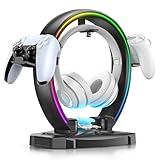
| KDD Headphone & Controller Stand (Wireless Charging) | Desk organizers who also charge earbuds | Check on Amazon |
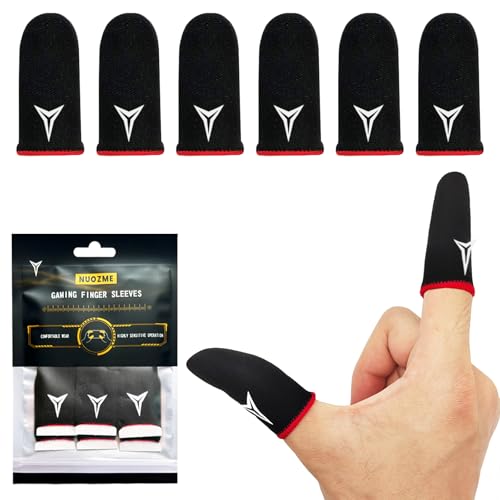
| Red Edge Finger Sleeves (6-Pack) | Touchscreen precision in shooters | Check on Amazon |
| Mocagen MC1 Phone Controller | Travel-friendly Bluetooth gaming | Check on Amazon |
| KDD RGB Headphone & Controller Stand (9 Light Modes) | Tidy desk setups on a tight budget | Check on Amazon |
| Pro Finger Sleeves with Slide Box (6-Pack) | Durable sleeves with storage | Check on Amazon |
| Mikirini PUBG Triggers (13-in-1 Combo) | MOBA and battle-royale shoulder buttons | Check on Amazon |
How We Compared
We evaluated each product on four criteria: iOS and iPadOS pairing reliability across multiple firmware versions, how much each accessory improves input precision over native touch controls, physical durability under repeated handling, and value relative to what the accessory actually improves during gameplay. A budget finger sleeve that eliminates screen drag can score higher on value than a mid-range controller that adds only marginal precision over a phone grip.
The 7 Best Apple Games Gaming Accessories in 2026
KDD RGB Headphone & Controller Stand with 9 Light Modes
This is a desk organization problem solved at a budget price. If you game on Apple devices with a console controller or a headset pair, the clutter between sessions becomes a genuine annoyance. The foldable design means it ships flat and assembles in seconds. Nine RGB modes let you match a setup theme without buying a separate light strip. The cable organizer channel keeps your charge cable from snaking across the keyboard. The con: it is a storage and lighting accessory only, so it does nothing for in-game performance. Skip this if you use very large over-ear headphones, since the cradle may feel tight.
KDD Headphone & Controller Stand with Wireless Charging
Same solid build philosophy as the RGB model, but the wireless charging pad is the upgrade that matters for Apple users who keep AirPods or a wireless headset nearby. Rotating the headset stand lets you swing it aside without unplugging anything, which is small but genuinely useful during work-to-gaming transitions. The two USB ports plus USB-C handle a controller dock or a spare charge cable. The con: the charging pad only supports Qi at a modest wattage, so it tops off rather than fast-charges. Skip this if you do not own any Qi-compatible audio gear.
6 PCS Red Edge Mobile Phone Gaming Finger Sleeves Gloves
Finger sleeves sound trivial until you notice how screen oils and skin moisture degrade your aim after ten minutes. These silver-fiber sleeves eliminate friction so your thumb glides across the glass without smudging or dragging. Six sleeves means you can wash and rotate. The red edge trim keeps them from curling on the fingertip during fast swipes. The con: sizing is one-size, and users with very slim fingers will feel extra fabric bunching at the knuckle. Skip this if you play games with minimal touch input or use a controller exclusively.
Mocagen MC1 Phone Controller for iPhone & Android
The MC1 is a clamp-style controller that grips your phone and adds physical thumbsticks, triggers, and a turbo function. For Apple Arcade ports of console games, this converts touch-only layouts into proper dual-stick input. The Hall effect joysticks resist drift far better than conventional sticks, which is the single most important durability feature in a budget controller. The con: a clamp-style grip can cover part of the phone’s speakers, so headphones are a good idea. Skip this if you use a thick rugged case; check the clamp’s case clearance first.
8Bitdo Ultimate 2 Wireless Controller (Black)
This is the most complete traditional gamepad on the list. TMR sticks, Hall effect triggers, two rear paddles plus extra L4 and R4 bumpers, and official Apple support on iOS 26, iPadOS 26 and macOS 26 or later. The shape sits close to an Xbox controller, with RGB lighting rings around the sticks and a switch that toggles the triggers between linear and tactile modes. A charging dock is included. The con: it overlaps with first-party pads in price, and on Apple devices it connects over Bluetooth or a USB-C cable, since its 2.4GHz adapter is meant for Windows. Skip this if you prefer a PlayStation-style layout.
Professional Mobile Gaming Finger Sleeves with a Slide Box, 6 Pack
Functionally similar to the Red Edge sleeves but with a hard slide-box that doubles as a travel case. The fabric is described as slightly denser, which may give a more controlled glide. The con: the slide box adds pocket bulk that the flat-pack Red Edge avoids. Skip this if you already have a small case or do not travel with sleeves separately.
Mikirini PUBG Mobile Triggers 13 in 1 Combo
These clip-on shoulder triggers turn any phone into a quad-fire layout without a full controller clamp. The 13-in-1 combo bundles four triggers with extra accessories, and the clips fit most phone widths. In competitive titles like PUBG Mobile or Call of Duty Mobile, the extra two fire buttons reduce thumb travel to near zero. The con: the spring tension varies between units, so expect to test each trigger individually and swap pads if one feels mushy out of the box. Skip this if you already use a full clamp-style controller with built-in triggers.
More Apple Gaming Accessories Worth Adding
The seven picks above lean toward desk organizers, finger sleeves and clip-on triggers. A well-rounded Apple gaming setup also needs accessories that change how games actually play: telescopic USB-C controllers that turn an iPhone into a handheld, the console gamepads Apple supports natively, and cooling for long sessions. These six additions fill those gaps.
BACKBONE One Mobile Gaming Controller, USB-C (2nd Gen)

The Backbone One is the controller most iPhone gamers recognize, and the USB-C version fits iPhone 15 and newer models, as well as many Android phones. It is a telescopic design: the phone slides between two grips and plugs directly into the controller’s USB-C connector, so there is no Bluetooth pairing and no battery to charge in the controller itself. The listing positions this second-generation model for the iPhone 15 through current series.
Backbone’s long-standing features include a passthrough USB-C port so you can charge the phone while you play, a 3.5mm headphone jack, a dedicated capture button for screenshots and clips, and the Backbone app, which gathers Apple Arcade, App Store controller games and cloud services such as Xbox Cloud Gaming and PlayStation Remote Play into one console-style launcher. Some app features sit behind an optional subscription, but the controller works as a standard game controller without it.
Who it suits: iPhone owners who want a pocketable handheld for Apple Arcade, ported console games and game streaming. Strengths: direct wired connection, compact folding size and a polished app. Drawbacks: most phone cases must be removed or swapped for a thin case to fit, and the compact grips are smaller than a full console pad. Compared with the Mocagen MC1 above, it trades a Bluetooth clamp for a direct USB-C link and a much more developed software experience; compared with the 8Bitdo Ultimate 2, it is more portable but less comfortable for long couch sessions.
Razer Kishi V3 Gaming Controller for iPhone & Android

Razer’s Kishi V3 is the main rival to the Backbone One and focuses on full-size controls. It connects to the phone over USB-C, supports iPhone 15, 16 and 17 series as well as most Android phones, and uses a USB-C “island” design intended to work with many phone cases. Its full-sized TMR thumbsticks are designed to be high-precision and resistant to stick drift, and it adds two mouse-click style back buttons for extra inputs.
There is passthrough charging, a 3.5mm audio jack and support for the Razer Cortex Mobile app for customization and game discovery. The Kishi V3 also supports game streaming apps such as Xbox Cloud Gaming, GeForce Now and PS Remote Play, and it can double as a wired controller for a PC over USB-C. Razer has bundled promotional Apple Arcade trials with it; check the current offer when buying.
Who it suits: players who find telescopic controllers cramped and want larger sticks, plus anyone who wants to keep a slim case on the phone. Strengths: anti-drift TMR sticks, back buttons and case-friendly connector. Drawbacks: it is larger than the Backbone One when folded and slightly less pocketable; the Razer app is less central to the experience than Backbone’s. Compared with the Mikirini triggers in the main list, it replaces all touch controls rather than adding shoulder buttons.
GameSir G8 Plus MFi iPhone Controller
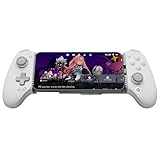
GameSir’s G8 Plus is an Apple MFi-certified telescopic controller for iPhone, and the listing notes compatibility with iPad mini and Android devices too, which gives it a wider fit range than most phone controllers. MFi certification means Apple has approved the accessory for its platforms, which generally translates into dependable recognition by iOS games and system menus.
It uses Hall effect thumbsticks, which rely on magnets rather than physical contact wipers and are therefore far less prone to drift, and adds two back buttons for remapped actions such as jump or reload. The design follows the familiar Xbox-style layout used by most iOS controller games.
Who it suits: players who switch between an iPhone and an iPad mini, or who want MFi peace of mind with drift-resistant sticks at a mid-range tier. Strengths: Hall effect sticks, MFi certification, back buttons and a broader device fit. Drawbacks: a controller sized to accept an iPad mini is bulkier than a phone-only model, and app support is less extensive than Backbone’s. Compared with the Mocagen MC1, it offers MFi certification and back buttons; compared with the Razer Kishi V3, it is the pick if iPad mini compatibility matters.
Xbox Wireless Controller + USB-C Cable (Carbon Black)

Apple supports the current Xbox Wireless Controller natively over Bluetooth on iPhone, iPad, Mac and Apple TV, which makes it one of the safest choices for Apple gaming. It pairs through the Bluetooth settings menu without any extra app, and most Apple Arcade titles and ported console games show Xbox button prompts by default, so the layout matches what the game expects. This listing includes a USB-C cable for wired play on a PC or for charging the battery pack if you use a rechargeable one.
The controller has textured grips, a hybrid D-pad and a share button, and it runs on AA batteries or an optional rechargeable pack, which some players prefer because spare batteries end charge anxiety. It is also the same pad you would use on an Xbox or Windows PC, so one controller covers several devices.
Who it suits: Mac and iPad players, Apple TV users and anyone who wants a full-size controller that works reliably across Apple devices and an Xbox or PC. Strengths: native support, familiar ergonomics and broad game compatibility. Drawbacks: switching between devices requires re-pairing; it lacks the Hall effect sticks and back paddles of the 8Bitdo Ultimate 2; and you need a phone clip if you want to use it with an iPhone in hand. Choose it over the 8Bitdo if you also play on Xbox or want the most widely supported layout.
PlayStation DualSense Wireless Controller (Midnight Black)

The DualSense is the other first-party controller Apple supports natively, and it is the natural choice for PS5 owners who use PS Remote Play on an iPhone, iPad or Mac. It pairs over Bluetooth, charges over USB-C and offers the PlayStation layout, including the touchpad, which iOS games can read as a button. Apple’s Game Controller framework lets developers use the DualSense light bar, haptics and adaptive triggers, so supported games can deliver a richer feel than a standard gamepad, although many games do not use those features.
Who it suits: PlayStation owners, Remote Play users and players who prefer symmetrical sticks. Strengths: native Apple support, a premium build and the option of advanced haptics in supported games. Drawbacks: battery life is shorter than an AA-powered Xbox pad, its sticks use conventional potentiometers rather than Hall effect sensors, and on-screen prompts in some iOS games still show Xbox-style buttons. Compared with the 8Bitdo Ultimate 2 in the main list, it trades drift-resistant sticks and back paddles for PlayStation integration.
Black Shark FunCooler 5 Magnetic Phone Cooler

Long sessions of demanding games make any iPhone warm, and once it heats up the chip reduces performance to protect itself, which shows up as dropped frames and dimmer screens. A clip-on or magnetic cooler blows air across the back of the phone to slow that heat build-up. The Black Shark FunCooler 5 is a compact magnetic model with an RGB light, designed to snap onto the back of a phone.
Who it suits: players of graphically heavy games, people who stream gameplay from their phone, and anyone who games while charging, which adds extra heat. Strengths: magnetic mounting for quick attachment, portability and the ability to keep sessions cooler and steadier. Drawbacks: it needs its own power source, adds weight and bulk, may not fit inside a telescopic controller, and magnetic attachment works best with MagSafe iPhones or cases with a magnetic ring. A cooler supports performance but will not turn an older phone into a high-end one. Check the mounting method against your case before buying.
Buying Guide
Bluetooth Pairing and Firmware Stability
Apple devices update iOS frequently, and a controller that pairs cleanly on one major version may hiccup on the next, such as the move to iOS 26. Prioritize accessories with active firmware support pages or user forums confirming recent compatibility. Hall effect components do not fix pairing problems, but they signal a manufacturer that invests in internals rather than just a shell.
Latency and Input Precision
For competitive mobile shooters, the difference between 20 ms and 60 ms input delay determines whether you land a headshot or miss. Wired telescopic controllers generally deliver lower latency than Bluetooth gamepads. Finger sleeves do not add latency—they remove friction, which is a different problem entirely. Understand which bottleneck your gameplay actually has before spending.
Fit With Your Phone and Case
Most mobile accessories assume a bare device. If you use a rugged case, verify clamp width, trigger mounting clearance, and charging port accessibility before ordering. A product that fits a bare iPhone but blocks a MagSafe case defeats the purpose of daily convenience.
Comparison of the Additional Picks
| Accessory | Type | Connection | Works best with | Key strength | Price tier |
|---|---|---|---|---|---|
| BACKBONE One USB-C (2nd Gen) | Telescopic phone controller | USB-C, direct | iPhone 15 and newer | Pocketable, polished app | Mid-range |
| Razer Kishi V3 | Telescopic phone controller | USB-C, direct | iPhone 15, 16, 17 series | Full-size TMR sticks, case-friendly | Mid-range |
| GameSir G8 Plus | Telescopic MFi controller | USB-C | iPhone and iPad mini | Hall effect sticks, wide fit | Mid-range |
| Xbox Wireless Controller | Full-size gamepad | Bluetooth, USB-C wired on PC | Mac, iPad, Apple TV, iPhone | Native support, most common layout | Mid-range |
| PlayStation DualSense | Full-size gamepad | Bluetooth, USB-C charging | Remote Play, Mac, iPad | Haptics in supported games | Mid-range |
| Black Shark FunCooler 5 | Magnetic phone cooler | Powered attachment | MagSafe iPhones or magnetic cases | Steadier performance in long sessions | Budget |
Choose the Right Controller Type
Apple gaming controllers fall into three groups, and the right one depends on where you play.
- Telescopic controllers (Backbone, Kishi, GameSir G8): The phone sits between two grips and plugs into a USB-C connector. They are the most portable way to get physical controls on an iPhone, have very low latency because the connection is wired, and need no charging. The downside is phone fit: some require removing the case, and they are phone-specific.
- Clamp-style Bluetooth controllers (Mocagen MC1): A clamp grips the phone and the controller pairs over Bluetooth. They are flexible about phone size but add a small amount of wireless latency and need charging.
- Full-size gamepads (Xbox, DualSense, 8Bitdo Ultimate 2): The most comfortable option for long sessions on an iPad, Mac or Apple TV. Pair one with a phone clip if you want to use it with an iPhone.
USB-C Versus Lightning
Apple moved the iPhone from Lightning to USB-C with the iPhone 15. Telescopic controllers connect through the phone’s port, so a Lightning controller will not work with a USB-C iPhone, and vice versa. If you have an older Lightning iPhone but plan to upgrade soon, a Bluetooth controller or full-size gamepad avoids buying twice. Bluetooth gamepads such as the Xbox and DualSense work with both generations.
MFi Certification and Native Support
Apple’s Made for iPhone program certifies accessories that meet its standards. MFi controllers, along with the Xbox and PlayStation controllers Apple supports natively, are recognized by the Game Controller framework that iOS, iPadOS and macOS games use. Non-certified controllers can still work well, but they occasionally rely on emulated modes, need firmware updates after major iOS releases, or show the wrong button prompts in games.
Cloud Gaming and Network Needs
Services like Xbox Cloud Gaming, GeForce Now and PS Remote Play turn an iPhone or iPad into a window onto a powerful console or PC, but the accessory is only half the experience. Use 5GHz or 6GHz WiFi close to your router, avoid crowded public networks and close background downloads. A controller with a wired USB-C connection removes Bluetooth from the input chain, which helps a little when streaming already adds latency.
Audio: Wired Versus Wireless
Bluetooth earbuds, including AirPods, add audio delay that is noticeable in rhythm games and fast shooters. Controllers with a 3.5mm headphone jack, like the Backbone One and Razer Kishi V3, let you use wired headphones on an iPhone that has no headphone port. For casual play, wireless audio is fine, and Apple’s Game Mode can reduce Bluetooth audio latency with AirPods.
Setup Tips for Apple Gaming
- Pair Bluetooth controllers from Settings. Put the controller in pairing mode, then open Settings, Bluetooth on iPhone or iPad, or System Settings, Bluetooth on a Mac, and select it.
- Remap buttons system-wide. On iPhone and iPad, go to Settings, General, Game Controller to customize buttons, either for all games or per app. This is useful for back paddles and for swapping confirm and cancel buttons.
- Let Game Mode work. Recent versions of iOS and macOS switch on Game Mode automatically when a game runs full screen, prioritizing the game and reducing latency for wireless controllers and AirPods.
- Update firmware. Xbox controllers update through the Xbox Accessories app on a PC or console, DualSense through a PS5 or PC, and third-party controllers through their own apps. Updates often fix iOS-specific pairing issues.
- Manage heat. Remove thick cases during long sessions, avoid playing in direct sun, and use a cooler for demanding games, especially while charging.
- Use a stand for desk play. When using a full-size controller with an iPhone or iPad on a desk, a stable stand or clip keeps the screen at eye level and frees both hands.
Build Your Setup by Device
The best accessory mix depends on which Apple device you game on most. These combinations draw from both the main list and the additional picks.
iPhone on the go
A telescopic USB-C controller such as the Backbone One or Razer Kishi V3 is the core purchase, because it turns the phone into a self-contained handheld that fits in a jacket pocket. Add wired earbuds through the controller’s headphone jack for low-latency audio. If you prefer touch controls in battle-royale games, finger sleeves and clip-on triggers from the main list are the low-cost alternative, and they take up almost no space.
iPad on the couch
The iPad’s larger screen is ideal for Apple Arcade, ported console games and cloud streaming. A full-size Bluetooth gamepad, whether the Xbox controller, the DualSense or the 8Bitdo Ultimate 2, is far more comfortable than a phone controller. Use a sturdy stand or folio case that holds the iPad upright, and keep a USB-C charger nearby, since streaming and demanding games drain the battery quickly.
Mac at the desk
Apple Silicon Macs run a growing library of native games, as well as streaming services and iPad games on supported titles. A full-size controller handles action and racing games, while a gaming mouse and keyboard suit strategy and shooter titles that support them. Desk accessories like the KDD headphone and controller stands from the main list keep a shared work and gaming desk organized, and the wireless charging version handles earbuds or a phone between sessions.
Apple TV in the living room
Apple TV supports the same Bluetooth controllers as iPhone and iPad, so an Xbox controller or DualSense turns it into a casual console for Apple Arcade. Each family member can pair a controller, and Apple TV remembers paired devices for quick reconnection. Keep the Apple TV on Ethernet or strong WiFi if you plan to stream games from the cloud.
Common Problems and Quick Fixes
- Controller connects but does nothing in a game: The game may not support controllers. Check the App Store listing, and make sure the controller is not also connected to another nearby device.
- Bluetooth controller keeps disconnecting: Charge or replace its batteries, move away from crowded 2.4GHz sources, and unpair and re-pair it from Bluetooth settings.
- Wrong button prompts on screen: Many iOS games show Xbox-style prompts regardless of controller. The physical positions still match, so the bottom face button is always the confirm action.
- Telescopic controller is not recognized: Remove the phone, clean the USB-C connector, reseat it firmly and check for a firmware update in the controller’s app.
- Phone gets hot and frame rates drop: Remove the case, lower in-game graphics settings, stop charging during play if possible, or add a cooler.
Accessories That Add Little Value
Not every gaming add-on improves the experience on Apple devices. Before buying, consider whether these common extras solve a problem you actually have.
- Generic “gaming” screen protectors: Matte protectors reduce glare and fingerprints but can make swipes feel draggy and slightly soften the image. A standard glass protector with a smooth coating usually feels better for touch gaming.
- Unbranded Bluetooth controllers with no firmware support: They may work on day one but lose compatibility after a major iOS update. Spending a little more on a controller from a maker that publishes updates is the safer choice.
- Lightning accessories for a USB-C iPhone: Older stock remains on sale. Check the connector before buying any telescopic controller or wired adapter.
- Heavy RGB add-ons for a phone: Lighting looks good on a desk stand, but on a handheld setup it mostly adds weight and drains power.
Care and Maintenance
Gaming accessories last longer with a little upkeep. Wipe controller grips and buttons with a slightly damp microfiber cloth, avoiding liquid near ports and sticks. Hand-wash finger sleeves in cool water and let them air-dry so the conductive fibers last longer. Store telescopic controllers folded, so the spring mechanism is not stretched for long periods, and keep USB-C connectors free of pocket lint, which is a common cause of intermittent connections. For full-size controllers, recharge or replace batteries before they fully drain, and keep firmware current through the maker’s app.
Our Verdict
Top pick: the 8Bitdo Ultimate 2 in Black offers the broadest compatibility, the most durable joystick technology, and the best cross-platform flexibility for anyone who games on both Apple and PC. Budget pick: the 6 PCS Red Edge Finger Sleeves solve a real input problem at a budget price with zero pairing complexity. Conditional winner: if your primary use case is a shared desk with a headset and controller that need a home, the KDD stand with wireless charging justifies the small premium over the RGB-only model by consolidating your charge routine into one accessory.
FAQ
Do finger sleeves work with screen protectors?
Yes, sleeves glide over glass and tempered screen protectors without issue. A matte or oleophobic-coated protector may add slight friction even with a sleeve, so pair them with a standard smooth protector for best results.
Will these controllers work with Apple Arcade?
Bluetooth gamepads on this list work with Apple Arcade titles that support controllers. The 8Bitdo Ultimate 2 needs iOS 26 or later for official Apple support.
How long do finger sleeves last before losing conductivity?
Lifespan depends on how often you play and wash them, but the silver fiber gradually thins with daily use. Rotating through a six-pack extends the total set life considerably.
Are these best apple games gaming accessories compatible with iPad too?
Finger sleeves work on iPads the same way as on phones, though clamp-style phone controllers generally will not fit a tablet, and the larger screen means your thumbs travel further. Full gamepads like the 8Bitdo work identically on both form factors.
Do Xbox and PlayStation controllers work on iPhone and Mac?
Yes. Apple supports current Xbox Wireless Controllers and the PlayStation DualSense natively over Bluetooth on iPhone, iPad, Mac and Apple TV. Pair them from the Bluetooth settings menu; no extra app is needed. Feature support, such as haptics or the touchpad, varies by game.
What is the difference between a telescopic controller and a Bluetooth controller?
A telescopic controller plugs straight into the iPhone’s USB-C port, so it has very low input delay and draws power from the phone. A Bluetooth controller connects wirelessly, needs its own battery, and works with more devices, including iPads, Macs and Apple TV.
Will a USB-C phone controller fit my iPhone with a case on?
It depends on the controller and the case. Some designs, such as the Razer Kishi V3, use a connector shape intended to work with many cases, while others require removing the case or using a thin one. Check the maker’s case compatibility notes and the thickness of your case around the port.
Can I use these accessories with an iPad?
Full-size gamepads like the Xbox, DualSense and 8Bitdo Ultimate 2 work on every recent iPad. Phone-sized telescopic controllers generally will not fit a standard iPad, although some, such as the GameSir G8 Plus, list compatibility with the iPad mini. Tablet-sized controllers exist for larger iPads.
Does a phone cooler really help?
A cooler can delay the thermal throttling that reduces frame rates in long sessions of demanding games, particularly when the phone is charging at the same time. It will not raise peak performance above what the phone can normally deliver, and it is unnecessary for lighter games.
Do I need a controller for Apple Arcade?
No. Most Apple Arcade games are designed for touch, but many also support controllers, and some ported console games are much easier to play with one. The App Store and Apple Arcade listings indicate controller support on each game page.
Is a Hall effect or TMR stick worth paying more for?
For many players, yes. Conventional potentiometer sticks wear over time and can develop drift, where the character moves without input. Hall effect and TMR sticks measure position magnetically without rubbing contacts, so they are far more resistant to drift. If you play daily or keep controllers for years, drift-resistant sticks are one of the most useful upgrades.
Can one controller work across my iPhone, iPad and Mac?
A Bluetooth gamepad can pair with all of them, though most connect to one device at a time and need re-pairing or reconnecting when you switch. Some controllers remember several devices. Telescopic phone controllers are tied to the phone they physically fit.