
Single-cable docking, where one USB-C cable carries video, data, and power between your laptop and dock, is only as good as the cable you use. Grab the wrong one and your external monitor drops to a lower resolution, your laptop charges slowly or not at all, or the dock disconnects randomly. USB-C cables look identical but vary wildly in what they support, so here is how to pick one that actually does everything at once.
Our Top Picks




Top 3 picks at a glance

What one cable has to carry
A docking cable juggles three jobs: power delivery to charge the laptop, display output to your monitors, and data for peripherals. A cheap charging-only cable may deliver power but carry no video, leaving your monitor black. You need a full-featured cable rated for all three, and its specs tell you the ceiling for each.
As an Amazon Associate we earn from qualifying purchases at no extra cost to you.




![Cable Matters [USB-IF Certified] 10Gbps Gen 2 USB C Cable, 3.3ft/1m, Black](https://m.media-amazon.com/images/I/41l5Pi6z9NL._SL160_.jpg)
Power delivery rating
Cables are rated to carry 60W (3A), 100W (5A, requires an e-marker chip), or up to 240W (5A at up to 48V under USB PD 3.1, also e-marked). A thin-and-light laptop is happy on 60W, but a laptop that draws 90W+ over USB-C needs a 100W- or 240W-rated cable or it will charge slowly or drain under load.
Power delivery levels explained
USB Power Delivery has grown in steps, and the cable must be rated for the level your laptop and dock use. Standard Power Range covers up to 100W at 20V and 5A. Extended Power Range, introduced with USB PD 3.1, raises the voltage to 28V, 36V, or 48V while keeping current at 5A, which is how cables now reach 140W, 180W, and 240W. A cable labelled 240W supports all of these levels and every lower one, so it is the safe choice for any laptop. A 100W cable is fine for most ultrabooks and mainstream laptops but will cap a laptop that can charge faster.
| Cable rating | Voltage and current | Typical laptops |
|---|---|---|
| 60W | Up to 20V at 3A | Ultrabooks, tablets, small laptops |
| 100W | Up to 20V at 5A (e-marked) | Most 14- to 16-inch laptops |
| 140W-240W | 28V to 48V at 5A (PD 3.1, e-marked) | High-power creator and gaming laptops that charge over USB-C |
Match the spec to your needs
| Spec | 60W cable | 100W / high-end cable |
|---|---|---|
| Power delivery | Up to 60W (3A) | Up to 100W or 240W (5A) |
| Video support | Often limited | Full DP Alt Mode / TB |
| Data speed | USB 2.0 (480 Mbps) common | USB 3.2 / TB (10-40 Gbps) |
| Best for | Ultrabook, single 1080p | Gaming laptop, dual 4K |
| Length sweet spot | Up to ~3 ft | About 0.8m for passive USB4, up to 2m for certified TB4 |
Data, video, and length trade-offs
Thunderbolt and USB4 for heavy setups
If you run dual 4K monitors or fast external SSDs through the dock, a Thunderbolt 4 or USB4 cable rated for 40 Gbps is the safe choice, since it guarantees full video and data bandwidth. A basic USB-C cable might only do USB 2.0 data and limited video even if it charges fine.
Why length matters
High-speed passive cables get unreliable as they get longer. For full 40 Gbps and dual-4K, passive USB4 cables are specified up to about 0.8m (2.6 feet), while certified Thunderbolt 4 cables hold 40 Gbps up to 2m; beyond that you need an active cable to hold the speed. A longer bargain cable is a common cause of dropped displays and disconnects.
More docking cables worth considering
The picks at the top of this guide cover everyday 10Gbps and 20Gbps monitor and docking cables. If you run a Thunderbolt or USB4 dock, dual 4K monitors, fast external SSDs, or a power-hungry gaming laptop, the certified 40Gbps and 80Gbps cables below remove the guesswork. Each is judged on the three jobs a docking cable has to do at once: power, video, and data, plus the length you actually need on a desk.
Cable Matters Intel Certified Thunderbolt 4 Cable (1m)
![Cable Matters [Intel Certified] 40Gbps Thunderbolt 4 Cable, 3.3ft / 1m](https://m.media-amazon.com/images/I/41lpiJCsNCL._SL160_.jpg)
This is the cable most often recommended for Thunderbolt 4 docks, and it is a safe default for single-cable docking. It is Intel certified for Thunderbolt 4, which means it has passed testing to deliver the full 40Gbps, and it is backward compatible with Thunderbolt 3, USB4, and ordinary USB-C ports.
Key specs from the listing: 40Gbps data, support for a single 8K display or two 4K displays through a compatible dock, and 240W USB Power Delivery charging in the current version. Older stock of the same model was rated at 100W, so check the packaging or listing if you need the higher figure. At 1m (3.3 feet), it is long enough to reach from a laptop stand to a dock behind the monitor without leaving a big loop of slack.
Strengths: official certification, full 40Gbps, high power rating, broad compatibility, and a mid-range price for a certified cable.
Drawbacks: 1m is short if your dock sits under the desk, and you only get 240W charging if your laptop and charger both support the newer PD 3.1 standard.
How it compares: compared with the 10Gbps and 20Gbps cables in the top picks, it doubles the bandwidth and guarantees dual-4K docking. It is the cable to buy if you have a Thunderbolt 4 dock and want to stop wondering whether the cable is the weak link.
Cable Matters Intel Certified Active Thunderbolt 4 Cable (2m)
![Cable Matters [Intel Certified] 40Gbps Active Thunderbolt 4 Cable, 6.6ft](https://m.media-amazon.com/images/I/411y0Q68plL._SL160_.jpg)
When a 1m cable will not reach, for example from a laptop on a stand at one end of a wide desk to a dock tucked behind the PC tower, a certified 2m cable keeps full speed over the extra distance. This Cable Matters model uses active electronics to hold the signal at 40Gbps over 6.6 feet.
The listing quotes 40Gbps data, support for one 8K display or two 4K displays, and 100W Power Delivery. It works with Thunderbolt 4, Thunderbolt 3, USB4, and USB-C devices, although older USB-C devices connect at their own slower speeds.
Strengths: certified 40Gbps at 2m, dual-4K capable, and long enough for under-desk or side-of-desk dock placement.
Drawbacks: charging tops out at 100W, which can be too little for gaming laptops that draw more under load; active cables cost more than passive ones; and the price sits in the premium tier for a cable.
How it compares: this is the answer to this guide’s length warning. If your setup needs more than about a metre, buy a certified longer cable like this one rather than a cheap long cable that quietly drops to lower speeds.
Anker Thunderbolt 4 Cable (240W, 0.7m)

Anker’s short Thunderbolt 4 cable is for tidy desks where the dock sits right next to the laptop. At 2.3 feet (0.7m), it avoids excess cable and is the shortest certified option here. The current model, A8859, appears on the official Thunderbolt certified product list.
It carries 40Gbps data, drives one 8K monitor or two 4K screens through a compatible dock, and supports 240W charging. Anker says that is enough to charge a 16-inch MacBook Pro to 50 percent in under half an hour with a suitable charger. An older Anker cable of the same length was rated at only 100W, so look for the 240W label.
Strengths: certified, short and neat, full 40Gbps, 240W charging, and a budget to mid-range price.
Drawbacks: 0.7m only works when the dock sits close to the laptop, and it is not braided, so it is less suited to frequent travel.
How it compares: it offers the same core specs as the Cable Matters 1m cable in a shorter length. Choose by distance: this one if the dock is beside the laptop, the 1m if it is behind the monitor.
OWC Thunderbolt 4 Cable (0.7m)

OWC is a long-established name in Mac and Thunderbolt accessories, and its 0.7m (28-inch) Thunderbolt 4 cable is another short, certified option for desks where the dock and laptop sit close together.
The listing specifies 40Gbps data and up to 240W charging, with support for Thunderbolt 4 and 3, USB4, and USB-C devices. Like the other Thunderbolt 4 cables here, it handles dual 4K displays through a compatible dock or an 8K display where the laptop and monitor support it.
Strengths: short, full speed, 240W charging, and a brand closely tied to the Thunderbolt ecosystem, which is reassuring for Mac users with OWC or CalDigit docks.
Drawbacks: the same short-reach limitation as any 0.7m cable, and availability can vary between colours and versions, so confirm the 240W rating on the listing.
How it compares: it is a direct alternative to the Anker 0.7m cable. Pick whichever is easier to find at a good price; both deliver the same certified performance.
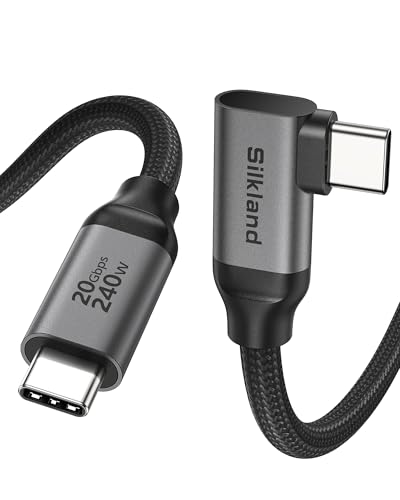
Silkland USB4 40Gbps Cable (4ft)

If you need a little more length than the 1m certified cables, Silkland’s 4-foot USB4 cable is a budget-friendly option rated for 40Gbps, 240W PD 3.1 charging, and 8K or dual 4K video. It is marketed as compatible with Thunderbolt 4 and Thunderbolt 3 docks as well as USB4 and USB-C devices.
The extra length helps when the laptop sits on a stand to one side and the dock is centred behind the monitors. Note the distinction between USB4 and Thunderbolt certification: USB4 cables are certified by the USB-IF rather than Intel, and Silkland itself recommends keeping docking runs short for the most stable connection. Treat 4 feet as its practical limit for full-speed docking.
Strengths: 40Gbps, 240W, longer than the 1m cables, and budget pricing.
Drawbacks: not Intel Thunderbolt certified, and at this length results may depend on the dock and laptop more than with a short certified cable. If you see dropouts, a shorter certified cable is the fix.
How it compares: it costs less than the certified Thunderbolt cables and adds reach. For most USB4 and many Thunderbolt docks it works well; for zero-compromise dual 4K, the certified Cable Matters or Anker cables remain the safer bet.
UGREEN USB4 80Gbps Cable for Thunderbolt 5 (1m)

Thunderbolt 5 docks and laptops are now common in high-end setups, and they need an 80Gbps-class cable to deliver their full bandwidth. This UGREEN braided cable is rated for USB4 Gen4 at 80Gbps with 240W charging and is marketed as compatible with Thunderbolt 5, as well as Thunderbolt 4 and 3, USB4, and USB-C.
The advantage of buying an 80Gbps cable now is future-proofing: it works at full 40Gbps with today’s Thunderbolt 4 dock and is ready for a Thunderbolt 5 dock later. Be aware that UGREEN sells a separate, Intel-certified Thunderbolt 5 cable; this braided model is sold as USB4 Gen4, so if you need guaranteed Thunderbolt 5 features such as bandwidth boost for multiple high-refresh displays, the certified version is the safer choice.
Strengths: 80Gbps headroom, 240W charging, braided build, and a mid-range price for its class.
Drawbacks: overkill for a USB-C hub or a single 1080p monitor, not Intel certified, and you only see the extra speed with a Thunderbolt 5 or USB4 v2 laptop and dock.
How it compares: it is the only 80Gbps cable in this guide. Choose it if you are buying a new laptop or dock in 2026, when Thunderbolt 5 support is increasingly common; otherwise a certified Thunderbolt 4 cable is enough.
Docking cables compared
| Cable | Standard | Data | Charging | Length | Certification | Price tier |
|---|---|---|---|---|---|---|
| Cable Matters TB4 1m | Thunderbolt 4 | 40Gbps | 240W (current version) | 1m | Intel Thunderbolt | Mid-range |
| Cable Matters active TB4 2m | Thunderbolt 4, active | 40Gbps | 100W | 2m | Intel Thunderbolt | Premium |
| Anker TB4 0.7m | Thunderbolt 4 | 40Gbps | 240W | 0.7m | Intel Thunderbolt | Budget to mid-range |
| OWC TB4 0.7m | Thunderbolt 4 | 40Gbps | 240W | 0.7m | Thunderbolt | Budget to mid-range |
| Silkland USB4 4ft | USB4 | 40Gbps | 240W | 1.2m | Not Intel certified | Budget |
| UGREEN USB4 80Gbps | USB4 Gen4, TB5 compatible | 80Gbps | 240W | 1m | Not Intel certified | Mid-range |
USB-C standards at a glance
The same USB-C connector carries very different capabilities. This table shows what each standard can do on a docking setup, assuming the laptop, dock, and cable all support it.
| Standard | Max data | Video on a dock | Typical docking use |
|---|---|---|---|
| USB 2.0 USB-C | 480Mbps | None | Charging only; not suitable for docking |
| USB 3.2 Gen 1 / Gen 2 | 5-10Gbps | DP Alt Mode if supported | Basic hubs, one external monitor |
| USB 3.2 Gen 2×2 / 20Gbps cables | 20Gbps | DP Alt Mode, often one 4K | Monitor cables, simple docks |
| USB4 (40Gbps) | 40Gbps | Tunnelled DisplayPort, often dual 4K | USB4 docks, many Thunderbolt docks |
| Thunderbolt 4 | 40Gbps guaranteed | Two 4K or one 8K | Thunderbolt 4 docks, external SSDs, eGPUs |
| Thunderbolt 5 / USB4 v2 | 80Gbps, up to 120Gbps boost | Multiple high-refresh 4K or higher | Newest high-end docks and laptops |
How to choose the right cable for your dock
Start with your laptop’s port
A cable cannot add features your laptop lacks. Check whether the port is marked with a Thunderbolt lightning bolt, a USB4 or “40Gbps” label, or a DisplayPort icon, and look up the laptop’s spec sheet for its video output and charging limits. A Thunderbolt 4 cable plugged into a basic USB-C port will only run at whatever that port supports.
Match the dock’s interface
A USB-C hub with one HDMI port needs only a good 10 to 20Gbps cable with video support. A Thunderbolt 4 or USB4 dock with dual monitor outputs needs a 40Gbps cable to drive both screens at full resolution and refresh rate. Thunderbolt 5 docks need an 80Gbps cable to reach their full potential. Most docks ship with a suitable short cable, so if you are replacing it, match its specification.
Check the power your laptop needs
Look at your laptop’s charger wattage. Ultrabooks commonly use 45 to 65W, mainstream 14- to 16-inch laptops 90 to 100W, and some performance laptops support 140W or more over USB-C. Many gaming laptops still rely on a separate barrel charger for full power and charge only slowly over USB-C. If yours charges over USB-C above 100W, you need a cable rated for 240W and a dock that delivers that much.
Measure the run you need
Measure from the laptop port to the dock along the route the cable will actually take, then add a little slack. Buy the shortest cable that reaches comfortably. Certified Thunderbolt 4 cables keep 40Gbps up to 2m, but shorter is always more forgiving, and anything longer needs an active cable.
Prefer certified cables for 40Gbps and above
Intel Thunderbolt certification or USB-IF certification means the cable has passed testing for its rated speed and power. At 40Gbps and above, uncertified cables are the most common source of flickering monitors and disconnects, so certification is worth the small extra cost.
Consider durability
Braided jackets and strain relief help cables that are plugged and unplugged daily, such as when you take your laptop to and from the desk. For a cable that stays put behind a monitor, a standard jacket is fine.
FAQ
Why won’t my monitor work through my USB-C docking cable?
The cable probably lacks video support. Many USB-C cables carry power and USB 2.0 data only, with no DisplayPort Alt Mode, so the monitor stays black. Swap to a cable explicitly rated for video (DP Alt Mode) or a Thunderbolt/USB4 cable, and confirm your laptop’s port supports video out.
Do I need a Thunderbolt cable or is USB-C enough?
For a single 1080p or 1440p monitor and light peripherals, a good full-featured USB-C cable is enough. For dual 4K displays or fast SSD transfers, a Thunderbolt 4 or USB4 40 Gbps cable removes the guesswork and guarantees the bandwidth, which is worth the extra cost on a docking setup.
Can I use a Thunderbolt 4 cable with a regular USB-C dock?
Yes. Thunderbolt 4 cables are backward compatible with USB-C, USB 3.x, and USB4 devices and will run at whatever speed the dock and laptop support. A certified Thunderbolt cable is effectively the most capable USB-C cable you can buy, so it is a safe universal choice.
Why does my laptop charge slowly through the dock?
The dock may supply less power than your laptop’s charger, the cable may be rated for 60W rather than 100W or 240W, or the laptop may cap USB-C charging below its barrel charger. Check the dock’s power delivery rating and the cable’s wattage, and remember that many gaming laptops charge at reduced power over USB-C.
Is a Thunderbolt 5 cable worth buying now?
Only if your laptop or dock supports Thunderbolt 5 or USB4 v2, or you plan to upgrade soon. An 80Gbps cable works at full speed with Thunderbolt 4 docks too, so it is a reasonable future-proof purchase, but it offers no benefit on a Thunderbolt 4 setup today.
Can I use a USB-C extension cable to reach my dock?
It is best avoided. USB-C extensions are outside the USB specification, often cut speed or video support, and add another connection that can work loose. Buy a single cable of the right length, active if necessary, instead.
Does cable length affect charging speed?
Not if the cable is properly rated. A 2m cable rated for 100W or 240W delivers that power just like a short one, because e-marked cables are built for the full current. Length mainly affects data and video speed, which is why long cables need active electronics to keep 40Gbps.
Will a docking cable work with my phone or tablet too?
Yes. Thunderbolt 4, USB4, and full-featured USB-C cables are backward compatible, so the same cable can charge a phone, connect a tablet to a monitor, or link an external SSD. It will simply run at the lower speed the device supports.
How can I tell a charge-only cable from a full-featured one?
Look at the connector and packaging for a Thunderbolt bolt icon, a “40Gbps” or “20Gbps” logo, or a USB-IF certification label showing speed and wattage. If there is no marking at all, assume it is a basic USB 2.0 charging cable. Testing it with your monitor is the only way to be sure with an unmarked cable.
How much bandwidth do your monitors need?
Video is usually the most demanding job on a docking cable, and high refresh rates, which gamers care about, push bandwidth up quickly. These are rough guides for uncompressed video; many modern laptops, docks, and monitors also use Display Stream Compression (DSC), which lets a cable carry higher resolutions and refresh rates than the raw numbers suggest.
| Display setup | Approx. bandwidth needed | Cable class that handles it |
|---|---|---|
| One 1080p at 60Hz | About 3-4Gbps | Any USB-C cable with video support |
| One 1440p at 144Hz | About 13-15Gbps | 20Gbps cable or better |
| One 4K at 60Hz | About 13-16Gbps | 20Gbps cable or better |
| One 4K at 144Hz | About 30-35Gbps, less with DSC | 40Gbps Thunderbolt 4 or USB4 |
| Two 4K at 60Hz | About 26-32Gbps | 40Gbps Thunderbolt 4 or USB4 |
| Two 4K at 144Hz or higher | Beyond 40Gbps without DSC | 80Gbps Thunderbolt 5 class |
Remember that the dock shares the cable’s bandwidth between video and data. Copying files to a fast SSD connected to the dock while driving two 4K monitors can strain a 40Gbps link. Thunderbolt prioritizes display traffic, so the monitors usually stay stable while data transfers slow down.
Routing and caring for your docking cable
The docking cable is plugged and unplugged more than any other cable on the desk, so a little care keeps it reliable.
- Leave a gentle loop. Avoid sharp bends near the connectors, which are where cables most often fail. A loose loop also stops the cable from tugging the laptop when you shift it.
- Anchor the dock end. Use a cable clip or a strip of hook-and-loop tape so the dock end stays put and only the laptop end moves.
- Pull by the connector, not the cable. Yanking on the jacket stresses the internal wires and the e-marker chip.
- Keep the port clean. Lint in a laptop’s USB-C port can stop the connector seating fully, causing intermittent charging and display drops. Clean it gently with a non-metallic tool and compressed air.
- Label your good cable. A small tag on the certified docking cable stops it getting mixed up with charge-only USB-C cables, which look identical.
- Keep it away from heat. High-power charging warms cables and connectors slightly. Do not bury a 240W cable under a laptop or a pile of papers.
Hubs, docks, and what the cable has to match
Not every single-cable setup uses a full dock, and the right cable depends on what sits at the other end.
- USB-C hubs and adapters: small hubs with HDMI, USB-A, and a pass-through charging port usually rely on DisplayPort Alt Mode and USB 3.2. A good 10 to 20Gbps cable with video support and a 100W rating is enough, and many hubs have the cable built in.
- USB-C docks: desk docks with their own power supply and several outputs may use DisplayLink or MST to drive multiple monitors. They usually work well with a 20Gbps or 40Gbps cable; check the dock’s documentation.
- Thunderbolt 4 and USB4 docks: these need a 40Gbps cable to deliver dual 4K, fast storage, and full charging together. Use a certified Thunderbolt 4 cable.
- Thunderbolt 5 docks: pair with an 80Gbps cable for the full bandwidth, especially with high-refresh multi-monitor setups.
- USB-C monitors with built-in hubs: a single cable from laptop to monitor can carry video, charging, and the monitor’s USB ports. Check the monitor’s charging wattage and use a cable rated for at least that much.
Setting up single-cable docking step by step
- Power the dock first. Connect the dock’s own power supply before the laptop, so it can negotiate charging as soon as the laptop is attached.
- Connect monitors to the dock. Use the outputs the dock’s manual recommends for dual displays; on some docks only certain port combinations support two screens at full refresh rate.
- Use the host port. Plug the docking cable into the dock’s port marked for the computer, often with a laptop or Thunderbolt icon, then into the laptop’s Thunderbolt, USB4, or video-capable USB-C port.
- Install drivers and firmware. Update the laptop’s graphics and Thunderbolt drivers, and check the dock maker’s site for firmware. DisplayLink docks need their own driver.
- Set the display settings. In Windows display settings or macOS Displays, arrange the monitors, set each one’s resolution and refresh rate, and choose which screen is the main display. Gamers should confirm the high-refresh monitor is actually running at its full rate, since docks sometimes default to 60Hz.
- Check charging. Confirm the laptop reports it is charging and, if possible, at what wattage. If it shows slow charging, revisit the cable and dock power ratings.
- Test sleep and wake. Close the lid or let the laptop sleep, then wake it from the keyboard. Monitors and peripherals should return without unplugging the cable.
Mac and Windows differences to know
Single-cable docking works on both platforms, but a few differences catch people out.
Macs
Apple silicon Macs vary widely in how many external displays they support. Base-model chips have historically supported fewer external screens than Pro and Max chips, and macOS does not support MST display splitting, so a dock that relies on MST shows the same image on both monitors. Thunderbolt docks, which give each display its own stream, avoid this. Check your Mac’s display limit before buying a dual-monitor dock.
Windows laptops
Windows supports MST, so more USB-C docks can drive two monitors. The catch is port variety: some laptops have several USB-C ports but only one with Thunderbolt or video support, and some gaming laptops route USB-C video through the integrated graphics rather than the discrete GPU. For gaming on an external monitor, a laptop whose USB-C or Thunderbolt port is wired to the discrete GPU, or a direct HDMI or DisplayPort connection, gives the best frame rates.
Gaming laptops in general
Many gaming laptops draw more power under load than USB-C can supply and ship with a separate barrel charger. Use the dock for displays and peripherals and keep the laptop’s own charger connected while gaming; the laptop will prefer the stronger power source.
Reading cable specs and avoiding fakes
USB-C labeling is a minefield, so learn the markers that matter. A cable that carries video will mention DisplayPort Alt Mode or Thunderbolt; one that fast-charges a big laptop will state 100W or 5A and contain an e-marker chip; one for fast data will cite a real speed like 10, 20, or 40 Gbps rather than a vague USB-C claim. If a listing omits these numbers, assume the cable does the bare minimum, power and USB 2.0 data, and nothing more.
Bargain cables often overstate their abilities. A rock-bottom no-name cable claiming 100W and 4K video frequently fails one of those jobs under real load, causing dropped displays or a laptop that charges only when idle. Sticking to cables that publish full specs and, ideally, certification saves you the frustrating hours of blaming the dock when the cable is the weak link.
One cable or a spare
Because the docking cable is a single point of failure for your whole setup, it is worth owning a known-good spare. If your monitor suddenly drops or charging stops, swapping the cable is the fastest way to confirm whether the cable, the dock, or the laptop is at fault, and a tested backup gets you working again immediately.
Troubleshooting a single-cable docking setup
When single-cable docking misbehaves, work through these checks in order. Most problems come down to the cable, the port, or a setting rather than a faulty dock.
Monitor stays black
- Confirm the laptop port supports video output; look for a Thunderbolt or DisplayPort icon or check the spec sheet.
- Swap in a cable known to support video, ideally a certified Thunderbolt 4 or USB4 cable.
- Plug the cable into the dock’s host port, not one of its downstream USB-C ports.
- Update the laptop’s graphics drivers and the dock’s firmware.
Only one of two monitors works
- Some laptops support only one external display over USB-C, and Macs with base M-series chips often limit external displays. Check your laptop’s limit.
- Docks that use DisplayPort MST to split one stream into two often show mirrored displays on macOS. A Thunderbolt dock avoids this.
- A cable that only does 10 or 20Gbps may not carry enough bandwidth for two high-resolution screens. Move to a 40Gbps cable.
Random disconnects or flickering
- Try a shorter certified cable. Long uncertified cables are the most common cause.
- Check that the connector seats firmly; a loose port or worn cable end causes intermittent drops.
- Disable USB selective suspend or similar power-saving settings that can put the dock to sleep.
- Route the cable away from sharp bends and strain where it can flex as you move the laptop.
Laptop drains while gaming on the dock
- The laptop may be drawing more than the dock and cable can supply. Use the laptop’s own charger alongside the dock if it has a separate power input.
- Check that the cable is rated at least 100W, or 240W for laptops that charge above 100W over USB-C.
Quick picks by setup
- Thunderbolt 4 dock, dock behind the monitor: Cable Matters Thunderbolt 4 1m.
- Dock right beside the laptop: Anker or OWC 0.7m Thunderbolt 4.
- Dock under the desk or across a wide desk: Cable Matters active Thunderbolt 4 2m.
- USB4 dock on a budget, a bit more reach: Silkland USB4 4ft.
- Thunderbolt 5 laptop or dock: an 80Gbps cable such as the UGREEN USB4 Gen4.
- Simple USB-C hub and one monitor: a 10Gbps or 20Gbps video-capable cable from the top picks.
Bottom line
For single-cable docking, buy a full-featured cable rated for power, video, and data, not a charge-only lead. A 60W cable suits an ultrabook with one monitor; a 100W- or 240W-rated certified Thunderbolt 4 or USB4 cable no longer than your setup needs handles a gaming laptop with dual 4K displays. Matching the cable’s power, video, and speed ratings to your gear is what makes one-cable docking actually work.


