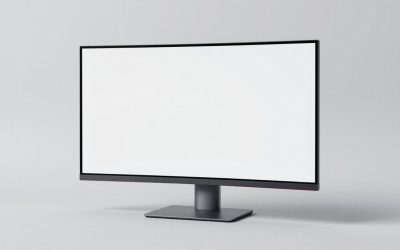
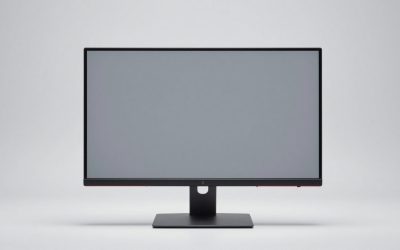
The best budget monitors under $200 are usually 24-inch 1080p displays with a 100–180Hz refresh rate, IPS panels, adaptive sync, and at least one DisplayPort input; the right choice depends on whether you prioritize gaming speed, image quality, or a comfortable work setup.
As an Amazon Associate we earn from qualifying purchases at no extra cost to you.
Our Top Picks
 ViewSonic VX2428A 24 Inch 1080p IPS Gaming Monitor12.7" x 21.3" x 1.7"7.2 x 21.3 x 16.6 inches6.8 poundsCheck on Amazon
 ASUS TUF Gaming VG27AQ3A 27 Inch 1440p 180Hz14.4" x 24.2" x 2.1"24.2 x 8.4 x 17.9 inches10.1 poundsCheck on Amazon


Top 3 picks at a glance

Quick Picks by Type of Buyer
| Best fit | Recommended specification | Typical price tier | Why it makes sense |
|---|---|---|---|
| Competitive gaming | 24 inches, 1080p, IPS, 144–180Hz, 1ms-class response | Budget to lower mid-range | Fast motion and a high frame-rate target without demanding a powerful GPU |
| General gaming | 24–27 inches, 1080p, IPS, 100–165Hz | Budget | Good balance of sharpness, smoothness, and price |
| Work and study | 24–27 inches, IPS, 1080p or 1440p, 75–100Hz | Budget | Better viewing angles and smoother scrolling than basic 60Hz office screens |
| Console gaming | 24–27 inches, 1080p, 120Hz, HDMI 2.0 | Budget to lower mid-range | Matches the 120Hz mode available on current consoles when supported |
| Color-sensitive work | IPS, 100% sRGB claim, factory calibration, height-adjustable stand | Lower mid-range | More useful than spending the budget on an unnecessarily high refresh rate |
Recommended Budget Monitors by Use Case
The quick-picks table above describes the specifications to aim for. These six monitors are current, widely available models that match those profiles, from a fast 24-inch esports screen to a height-adjustable office display with USB-C. All of them typically sell in the budget to lower mid-range tier, though street pricing shifts often, so compare current listings before buying.
ViewSonic VX2428A 24-Inch 1080p 180Hz IPS
The VX2428A is a straightforward example of the 24-inch, 1080p, high-refresh IPS formula that makes the most sense for a modest gaming PC. It uses a 23.8-inch viewable IPS panel at 1920×1080 with a 180Hz maximum refresh rate, AMD FreeSync and a quoted 0.5ms MPRT response time (2.6ms GtG). Brightness is rated at 250 nits with a 1,000:1 static contrast ratio, and the panel is 6-bit plus FRC, which is common in this class.
Inputs are two HDMI 1.4 ports and one DisplayPort, plus a 3.5mm audio output. Use DisplayPort for the full 180Hz; HDMI 1.4 is the older standard and should not be relied on for maximum refresh. The stand only tilts, but the 100x100mm VESA mount makes it easy to add an arm, and ViewSonic backs it with a three-year limited warranty. There are no built-in speakers, and power comes from an external adapter.
Who it suits: first-time high-refresh buyers, esports players with entry-level graphics cards and anyone upgrading from an old 60Hz screen. Strengths: smooth motion, easy-to-drive resolution and a simple, reliable package. Drawbacks: a basic stand, modest brightness and no USB or speakers. If you want a better stand at the same size, the ASUS VG249QML5A below is the step up.
ASUS TUF Gaming VG249QML5A 24-Inch 1080p 240Hz

The VG249QML5A brings 240Hz to the 24-inch class and adds something many budget gaming monitors skip: a fully adjustable stand with height, swivel, pivot and tilt. Its 23.8-inch Fast IPS panel runs at 1920×1080 and up to 240Hz, with a 1ms GtG response time (0.3ms minimum), 300 nits of brightness, 99% sRGB coverage, HDR10 support, AMD FreeSync Premium and NVIDIA G-SYNC compatibility.
ASUS includes ELMB Sync, which allows motion-blur reduction to run while variable refresh is active, a feature normally found on more expensive displays. Connections are a DisplayPort 1.4 input, two HDMI ports and a headphone jack, and there are 2W stereo speakers for basic audio. A DisplayPort cable is included, and ASUS covers it with a three-year warranty.
Who it suits: competitive shooter players with a graphics card that can push well past 144 frames per second in their games, and anyone who also works at the same desk for long hours. Strengths: 240Hz, a proper ergonomic stand and motion-blur reduction options. Drawbacks: 240Hz is only valuable if your PC can approach that frame rate, and 1080p on 24 inches is less sharp for text than 1440p. Compared with the ViewSonic, it costs a little more but solves the stand problem completely.
Dell 27 240Hz Gaming Monitor (SE2726HG)

Dell’s SE2726HG is one of the most aggressive budget launches of the past year: a 27-inch IPS panel with a 240Hz refresh rate at a price that sits firmly in the budget tier. Resolution is 1920×1080, brightness is rated at 300 nits, contrast at 1,000:1 and color coverage at 99% sRGB. Dell quotes a 5ms standard response time and up to 0.5ms in its extreme overdrive mode, and the monitor supports AMD FreeSync Premium.
It offers two HDMI ports that support 1080p at 240Hz along with one DisplayPort 1.4, plus a headphone output, 100x100mm VESA mounting, a 3H anti-glare coating and flicker-free backlighting. The SE2726HG stand only tilts; a sibling model, the SE2726HGS, keeps the same panel and adds height and rotation adjustment.
Who it suits: players who want a larger screen for immersion without the graphics demands of 1440p, and console or PC gamers who sit a little farther back. Strengths: a very high refresh rate, a big IPS panel and HDMI ports that can carry the full refresh rate. Drawbacks: as the resolution section below explains, 1080p at 27 inches is only about 82 pixels per inch, so text looks softer than on a 24-inch 1080p or 27-inch 1440p screen. There is no USB hub or USB-C. Choose it for gaming first, office work second.
ASUS TUF Gaming VG27AQ3A 27-Inch 1440p 180Hz

The VG27AQ3A is a strong 27-inch 1440p choice for buyers who want sharper text and more desktop space without giving up high-refresh gaming. It uses a 2560×1440 Fast IPS panel with a 180Hz maximum refresh rate, 1ms GtG response time, 250 nits of brightness, HDR10 support and a claimed 130% sRGB color gamut. It supports FreeSync Premium, G-SYNC compatibility and ELMB Sync.
Inputs are one DisplayPort 1.4 and two HDMI 2.0 ports, with a headphone jack and 2W stereo speakers. Note the port detail that the bandwidth section below warns about: the full 180Hz works over DisplayPort, while HDMI is limited to 144Hz. The stand tilts and swivels but has no height adjustment, and the 100x100mm VESA mount makes an arm an easy upgrade.
Who it suits: mixed gaming and productivity users with a mid-range graphics card, students who multitask with split windows and anyone moving up from a 24-inch 1080p display. Strengths: about 109 pixels per inch for crisp text, fast IPS motion and a wide color gamut. Drawbacks: the wide gamut can oversaturate standard content unless you choose an sRGB-style picture mode, the stand lacks height adjustment and 1440p requires substantially more GPU power. Compared with the Samsung G51F, it trades contrast for faster IPS response and better viewing angles.
Samsung 27″ Odyssey G5 (G51F) QHD 180Hz

The Odyssey G5 G51F is the pick for buyers who play in dim rooms and value contrast over viewing angles. It is a flat 27-inch VA panel at 2560×1440 with a 180Hz refresh rate, 1ms MPRT response time, 300 nits typical brightness and a 3,000:1 static contrast ratio, roughly three times what typical IPS panels manage. It supports HDR10 and AMD FreeSync, and includes Samsung’s Black Equalizer and Virtual Aim Point gaming aids.
Ports are two HDMI 2.0 inputs and one DisplayPort 1.4; the full 180Hz runs over DisplayPort, and a DisplayPort cable is included. Unusually for this tier, the stand adjusts for height, tilt and pivot, which makes it more comfortable for long sessions and lets you rotate it for documents.
Who it suits: movie watchers and players of darker, atmospheric games who want 1440p detail and deep blacks. Strengths: high contrast, an ergonomic stand and a sharp 1440p image. Drawbacks: as the panel-type section below notes, budget VA panels can show dark-level smearing in fast motion; viewing angles are narrower than IPS; and Samsung does not list this model as flicker-free, while its IPS G50F sibling is. Do not confuse it with the G50F or the older curved G55T when comparing listings.
BenQ GW2490TC 23.8-Inch 144Hz IPS with USB-C
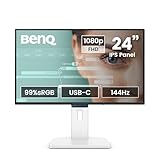
The GW2490TC is the work-and-study pick: a 23.8-inch 1080p IPS monitor with a 144Hz refresh rate, 99% sRGB coverage, FreeSync compatibility and BenQ’s eye-care features, including flicker-free backlighting and low blue light modes. Brightness is rated at 250 nits, with a 5ms GtG response time.
Its standout features are connectivity and ergonomics. A USB-C port with DisplayPort Alt Mode carries video and data and supplies 20W of power, alongside one HDMI 1.4 and one DisplayPort 1.2 input and an audio output. The stand provides 150mm of height adjustment plus tilt, swivel and 90-degree pivot, exactly the features the stand section below recommends for long work sessions. VESA mounting is supported.
Who it suits: laptop users who want a one-cable desk connection for video and peripherals, students, remote workers and anyone who reads documents in portrait mode. Strengths: a fully adjustable stand, USB-C convenience and a refresh rate that makes scrolling feel smooth. Drawbacks: 20W over USB-C is enough for phones and small devices but will not keep most laptops charged under load, so keep the laptop charger connected; 144Hz and 5ms are fine for casual games but not aimed at competitive play. Gamers should choose the ViewSonic or ASUS 24-inch models instead.
Side-by-Side Comparison
| Monitor | Size and resolution | Panel and refresh | Inputs | Stand | Best for | Price tier |
|---|---|---|---|---|---|---|
| ViewSonic VX2428A | 24″ 1080p | IPS, 180Hz | 2x HDMI 1.4, DP | Tilt | Entry high-refresh gaming | Budget |
| ASUS TUF VG249QML5A | 24″ 1080p | Fast IPS, 240Hz | 2x HDMI, DP 1.4 | Height, swivel, pivot, tilt | Competitive gaming plus work | Budget |
| Dell SE2726HG | 27″ 1080p | IPS, 240Hz | 2x HDMI, DP 1.4 | Tilt | Large-screen fast gaming | Budget |
| ASUS TUF VG27AQ3A | 27″ 1440p | Fast IPS, 180Hz (144Hz via HDMI) | 2x HDMI 2.0, DP 1.4 | Tilt, swivel | Gaming and productivity | Budget to mid-range |
| Samsung Odyssey G5 G51F | 27″ 1440p | VA, 180Hz | 2x HDMI 2.0, DP 1.4 | Height, tilt, pivot | Contrast, dark rooms, movies | Budget to mid-range |
| BenQ GW2490TC | 24″ 1080p | IPS, 144Hz | USB-C (20W), HDMI 1.4, DP 1.2 | Height, tilt, swivel, pivot | Laptop desks, work and study | Budget |
What to Look for in the Best Budget Monitors Under $200
Panel type: IPS is the safest all-round choice
IPS panels are the default recommendation for an affordable gaming and work monitor because they offer consistent colors and wide viewing angles. Text and images remain more uniform when you move your head, which is valuable for spreadsheets, browsing, and shared screens.
VA panels usually provide deeper blacks and stronger contrast. They can be attractive for games and movies in a dim room, but inexpensive VA monitors may show dark-level smearing behind moving objects. Check response-time measurements from reliable reviews rather than relying only on a printed “1ms” claim.
TN panels can still offer fast pixel response, but their narrow viewing angles and weaker color reproduction make them difficult to recommend for a mixed gaming-and-work setup. OLED monitors deliver excellent contrast and motion clarity, but they are generally outside this budget.
Refresh rate: buy enough, not the biggest number
A 100Hz or 120Hz display already feels noticeably smoother than a 60Hz monitor during cursor movement and scrolling. For gaming, 144Hz to 180Hz is the practical sweet spot under $200. Moving from 60Hz to 144Hz is a major upgrade; moving from 144Hz to 180Hz is much smaller.
A high refresh rate helps only when your computer can produce enough frames. If a game runs at 70 frames per second, a 180Hz monitor cannot create the missing frames. Adaptive-sync support allows the display refresh rate to follow the GPU’s output, reducing tearing when frame rates fluctuate.
Look for AMD FreeSync or a compatible adaptive-sync mode, and verify that it works over the connection you plan to use. Many monitors support their full refresh rate through DisplayPort while HDMI is limited to a lower rate, although HDMI 2.0 models commonly handle 1080p at 144Hz or higher.
Resolution and screen size
For a 24-inch screen, 1920×1080 is still the most sensible budget gaming resolution. It produces roughly 92 pixels per inch, making game interfaces readable while keeping GPU requirements manageable. A 27-inch 1080p monitor is usable, but its roughly 82 pixels per inch looks less crisp for text.
A 27-inch 2560×1440 monitor gives sharper text and more desktop space. However, affordable 1440p models may have a lower refresh rate, less consistent response performance, or a more basic stand. They also require substantially more graphics performance.
Here is the practical trade-off:
- Choose 24-inch 1080p for competitive games, modest graphics cards, and maximum value.
- Choose 27-inch 1080p if viewing distance matters more than text sharpness.
- Choose 27-inch 1440p if productivity, detail, and desktop space matter more than achieving very high frame rates.
Bandwidth: why the cable and port matter
Uncompressed display bandwidth can be estimated as horizontal pixels × vertical pixels × refresh rate, before adding blanking and encoding overhead. A 1920×1080 monitor at 180Hz requires:
1,920 × 1,080 × 180 = 373,248,000 pixels per second
That is about 0.37 gigapixels per second before overhead, so DisplayPort 1.2 and HDMI 2.0 are generally appropriate for this class of monitor. By comparison, 2560×1440 at 165Hz requires:
2,560 × 1,440 × 165 = 608,256,000 pixels per second
That higher load makes the exact port version more important. Before buying, check whether the monitor’s full resolution and refresh rate work through the input you will actually use. A laptop may also require a USB-C-to-DisplayPort adapter that supports the needed mode.
Head-to-Head: 24-Inch 1080p vs. 27-Inch 1440p
| Category | 24-inch 1080p | 27-inch 1440p |
|---|---|---|
| Pixel density | About 92 PPI | About 109 PPI |
| GPU demand | Lower; easier to reach 144–180 fps | About 78% more pixels than 1080p |
| Best use | Competitive gaming and affordable upgrades | Work, creative applications, and detailed games |
| Desk space | Compact and easy to position | More room for windows and larger interfaces |
| Common weakness | Less workspace and detail | Higher GPU requirement and potentially weaker budget models |
The pixel-count difference is important for graphics settings. At the same quality preset, a game rendering at 1440p has to process 3.69 million pixels per frame instead of 2.07 million at 1080p. If your graphics card already struggles at 1080p, buying a faster 1440p monitor will not solve the problem.
Matching the Monitor to Your Graphics Card
The monitor and graphics card should be chosen together. A fast monitor paired with a weak GPU wastes refresh rate, while a powerful GPU on a 60Hz screen wastes frames. Use this as a rough guide for popular games at sensible settings:
| Graphics performance class | Typical result at 1080p | Typical result at 1440p | Best monitor match |
|---|---|---|---|
| Integrated graphics or entry-level older GPU | Esports titles at moderate frame rates; demanding games at low settings | Not recommended for gaming | 24-inch 1080p at 100-144Hz |
| Entry-level current GPU | Esports well above 144 fps; modern games around 60-100 fps | Lighter games only | 24-inch 1080p at 144-180Hz |
| Mid-range current GPU | Esports at 200+ fps; modern games often above 100 fps | Modern games around 60-120 fps | 24-inch 240Hz or 27-inch 1440p at 165-180Hz |
| Upper mid-range and above | Can exceed most budget refresh rates | High frame rates in most games | 27-inch 1440p at 180Hz or more |
Frame rates vary widely between games and settings, so check benchmarks for the titles you actually play. Upscaling technologies such as DLSS, FSR and XeSS can lift frame rates at 1440p, which makes a 27-inch 1440p monitor more realistic for mid-range cards than it was a few years ago. If you plan to upgrade your graphics card within a year or two, choosing a 1440p monitor now avoids replacing the screen later.
Ports and Features That Actually Matter
- DisplayPort: The preferred PC connection for high refresh rates and adaptive sync.
- HDMI 2.0: Useful for PCs, laptops, and consoles; check the monitor’s stated maximum refresh rate.
- HDMI 1.4: Often sufficient for 1080p at high refresh rates, but less flexible for 1440p.
- USB hub: Convenient, but not essential. A hub does not improve image quality and may increase cost.
- Headphone output: Helpful when speakers or a console are connected to the monitor.
- Built-in speakers: Suitable for alerts and basic video, but rarely a substitute for dedicated speakers or headphones.
Do not assume that a monitor includes every cable required for its maximum mode. If the box contains only an HDMI cable but you plan to use DisplayPort, budget for the correct cable and avoid unneeded active adapters.
Stand Adjustability Is a Productivity Feature
Many inexpensive gaming monitors cut costs with a stand that only tilts. That is acceptable if you already have a monitor arm, but less comfortable for long work sessions. Height adjustment lets you position the top edge near eye level, reducing the tendency to bend your neck. Pivot rotation is useful for documents and coding, while a stable base prevents screen wobble.
If two monitors have similar panels and refresh rates, prefer the one with height adjustment and a 100×100 mm VESA mount. A VESA mount preserves the option of adding an inexpensive arm later. A monitor with a good stand can be better value than one with a slightly faster refresh rate that forces an additional accessory purchase.
Spec-Sheet Traps on Budget Monitors
Inexpensive monitors are often marketed with numbers that sound impressive but mean less than they suggest. Knowing how to read them saves you from paying for features you will not notice.
“1ms” response time
Many budget displays quote 1ms or even 0.5ms, but the figure is often an MPRT number achieved with backlight strobing, or a GtG number measured in the most aggressive overdrive mode. Those modes can introduce overshoot, visible as bright halos behind moving objects. In practice, choose the overdrive setting that looks cleanest, usually the middle option, and judge motion with independent measurements rather than the box.
HDR10 “support”
A monitor that accepts an HDR10 signal is not the same as one that displays HDR well. With 250 to 300 nits of brightness and no local dimming, budget monitors cannot show the highlights and contrast that make HDR worthwhile. Many look better with HDR switched off in Windows. Treat HDR10 on a budget monitor as compatibility, not a feature to pay for.
Color gamut percentages
Claims such as 99% sRGB are helpful for everyday content, but figures well above 100% sRGB indicate a wide-gamut panel that will oversaturate normal web and game colors unless the monitor has a good sRGB clamp mode. If you want natural-looking skin tones and photos, look for a working sRGB picture mode in reviews.
Refresh rate per input
The advertised refresh rate may only be available on DisplayPort, or on HDMI 2.0 but not HDMI 1.4. The ASUS VG27AQ3A, for example, runs 180Hz over DisplayPort but 144Hz over HDMI. Check the per-port limits if you plan to connect a console or a laptop with HDMI only.
“Overclocked” refresh rates
Some monitors list a higher refresh rate reached only through an overclock setting in the on-screen menu. It usually works, but response-time performance may suffer at the overclocked rate, and the gain over the native rate is small.
Using a Budget Monitor With Consoles and Laptops
PlayStation 5 and Xbox Series X|S: Both consoles output 1080p and 1440p at up to 120Hz on supported games, and they connect only over HDMI. A monitor needs HDMI 2.0 to reach 1080p or 1440p at 120Hz. Variable refresh support over HDMI varies between models, so check reviews if smooth frame pacing on console matters to you. Nintendo Switch consoles output at lower resolutions and refresh rates, so almost any HDMI monitor works.
Laptops with USB-C: If your laptop’s USB-C port supports DisplayPort Alt Mode, a monitor with USB-C input, like the BenQ GW2490TC, can take video over one cable. Without a USB-C monitor, a USB-C-to-DisplayPort cable usually reaches higher refresh rates than a cheap USB-C-to-HDMI adapter.
Integrated graphics: Laptops and compact PCs with integrated graphics can comfortably drive a high-refresh monitor on the desktop, which makes scrolling and cursor movement smoother even if games run at lower frame rates.
Building a Budget Dual-Monitor Setup
Two budget monitors often deliver more productivity than one more expensive screen. A popular combination is a high-refresh 24-inch or 27-inch gaming monitor as the main display, with a second inexpensive IPS monitor beside it for chat, guides or documents. A few tips keep the pair comfortable:
- Match sizes and resolutions if possible, so windows do not jump in size as they move between screens.
- Choose IPS for the side monitor, because you will view it at an angle, and IPS panels hold color and contrast better off-axis.
- Use a dual-monitor arm if neither monitor has height adjustment; it aligns the top edges and frees desk space.
- Connect the high-refresh monitor to DisplayPort on the graphics card and the second monitor to HDMI, which keeps the full refresh rate where it matters.
- Set the main monitor as the primary display in Windows so games and the taskbar open where you expect.
Screen Size and Viewing Distance
The right size depends on how far you sit from the screen as much as on resolution. A monitor that is too large for a shallow desk forces you to move your head to see the corners, which is tiring in games and work alike.
| Desk depth / viewing distance | Comfortable size | Recommended resolution |
|---|---|---|
| About 50-60 cm (shallow desk) | 24 inches | 1080p |
| About 60-80 cm (typical desk) | 24-27 inches | 1080p at 24 inches, 1440p at 27 inches |
| About 80-100 cm (deep desk or arm) | 27 inches | 1440p preferred; 1080p acceptable for gaming |
A monitor arm effectively increases your options because it lets you push the screen back toward the wall. If your desk is shallow and you want a 27-inch display, an arm with a clamp is often the cheapest fix.
Eye Comfort on Long Sessions
Budget monitors are increasingly marketed with eye-care features. The ones that matter most are easy to identify:
- Flicker-free backlight: Some displays dim the backlight using rapid pulsing (PWM), which a minority of people notice as eye strain. A DC-dimmed or flicker-free backlight avoids that, so check the specifications or reviews if you are sensitive.
- Low blue light modes: These warm the image to reduce blue light in the evening. Windows Night Light and macOS Night Shift do much the same thing in software.
- Anti-glare coating: A matte surface prevents reflections from windows and lamps. Nearly all budget monitors use one, but heavier coatings can make text look slightly grainy.
- Correct height and distance: Placing the top edge at or slightly below eye level and sitting about an arm’s length away matters more for comfort than any software mode.
When It Makes Sense to Spend More
The budget tier now covers most needs, but a few situations justify moving up a tier. Buy a higher-priced monitor if you need accurate color for paid photo or video work, real HDR with local dimming, a 4K panel for detailed text on a large screen, or OLED-level contrast and motion clarity. Also consider spending more for a 1440p display with a USB-C port that delivers enough power to charge a laptop, since budget USB-C monitors often supply only enough power for small devices. For everyone else, a well-chosen budget monitor plus a good stand or arm is the better use of money.
Recommended Settings After Installation
- Select the maximum refresh rate: In Windows, open Advanced display settings and choose the advertised refresh rate. Operating systems often default to 60Hz.
- Enable adaptive sync: Turn it on in the monitor menu, then enable the corresponding variable-refresh option in your GPU software.
- Set a frame-rate limit: For a 144Hz screen, start with a limit of 141 fps; for 165Hz, use 162 fps; for 180Hz, use 177 fps. Keeping a few frames below the ceiling helps variable refresh remain active.
- Use the native resolution: Keep 1920×1080 or 2560×1440 selected unless a particular game needs a performance-saving resolution.
- Adjust brightness for the room: Start around 20–35% in a typical indoor room, then raise or lower it based on comfort. Excessive brightness can cause eye fatigue.
- Choose a neutral picture mode: Use Standard, sRGB, or a similar mode before changing saturation. “Racing” and “FPS” modes often alter shadows and colors in ways that are not accurate.
What to Check When Your Monitor Arrives
Budget monitors are generally reliable, but panel quality varies more between units than with premium models. Check these points within the return window:
- Dead or stuck pixels: Display full-screen solid colors, such as white, black, red, green and blue, and look closely for dots that do not change.
- Backlight bleed and IPS glow: In a dim room, show a black image at your normal brightness. Some glow in the corners is normal for IPS, but bright patches along the edges that are visible during dark scenes may justify an exchange.
- Uniformity: A plain gray background reveals darker or tinted zones across the screen.
- Refresh rate and adaptive sync: Confirm the selected refresh rate in Windows display settings, then check that the monitor’s on-screen menu shows adaptive sync as active while a game runs.
- Cable and port: If the maximum refresh rate is missing, try a different cable or the DisplayPort input before assuming a fault.
Frequently asked questions
Can a monitor’s advertised refresh rate work through any connection?
No, the full refresh rate may depend on the connection you use. Many monitors support their maximum refresh rate through DisplayPort while HDMI may be limited to a lower rate. HDMI 2.0 commonly handles 1080p at 144Hz or higher, but you should check the monitor’s stated maximum mode and whether your computer or laptop supports it.
Do I need a powerful graphics card for a high-refresh monitor?
Yes, your computer needs to produce enough frames to benefit fully from a high-refresh monitor. A monitor cannot create missing frames; for example, a game running at 70 frames per second cannot take full advantage of 180Hz. A 24-inch 1080p display is easier to drive at high frame rates than a 27-inch 1440p model.
Is a 27-inch 1080p monitor a bad choice for text-heavy work?
No, it is usable, but text generally looks less crisp than on a 24-inch 1080p or 27-inch 1440p display. The 27-inch 1080p format has roughly 82 pixels per inch, while a 24-inch 1080p monitor has roughly 92. Choose it when viewing distance and a larger physical screen matter more than text sharpness.
What should I check if the monitor box does not include the cable I need?
Check which input supports the resolution and refresh rate you plan to use, then obtain the correct cable if necessary. A box may contain only an HDMI cable even when you intend to use DisplayPort. Laptop users may also need a USB-C-to-DisplayPort adapter that supports the required display mode.
Can I use a monitor arm with an inexpensive monitor?
Yes, if the monitor has a VESA mount, such as the 100×100 mm standard mentioned above. A VESA mount preserves the option of adding an inexpensive arm later and can compensate for a stand with limited adjustment. Height adjustment, pivot rotation, and a stable base are also useful when choosing between otherwise similar monitors.
Is 240Hz worth it on a budget monitor?
Only if your PC can reach high frame rates in the games you play. In lighter esports titles, a mid-range graphics card can exceed 200 frames per second at 1080p, and 240Hz then feels noticeably more fluid. For demanding single-player games running well below that, a 144Hz to 180Hz monitor delivers almost the same experience and leaves budget for a better stand or a 1440p panel.
Should I choose a curved monitor at this price?
At 24 and 27 inches, a curve adds little benefit and is mostly a style choice. Many curved budget models use VA panels, which bring higher contrast but potential dark smearing. Curves start to make more sense on 32-inch and ultrawide screens.
Can I use a budget gaming monitor for photo editing?
For hobby editing, a monitor with close to 100% sRGB coverage and a reliable sRGB mode is adequate. Serious color work needs calibration, wider and accurate gamut coverage and better uniformity, which usually means a higher tier or a hardware calibrator.
Do built-in monitor speakers matter?
They are handy for system sounds and occasional videos, but small 2W speakers have little bass and limited volume. Plan on headphones or desktop speakers for games and music, and use the monitor’s headphone output when a console sends audio over HDMI.
How long should a budget monitor last?
LCD monitors commonly remain usable for many years, often outlasting the PC they were bought with. The parts most likely to fail early are external power adapters and cheap stands, both of which are easy to replace or work around with a VESA arm. Keep the original box during the return period, and register the warranty if the maker offers extended coverage.
Is a 1440p monitor worth it if I mostly play at 1080p?
Running a 1440p monitor at 1080p makes the image look soft, because 1080p does not divide evenly into 1440p. Upscaling features in games are a better way to gain frame rate on a 1440p panel. If you know you will stay at 1080p rendering, a native 1080p monitor gives a cleaner image.
Bottom Line
For most affordable gaming PCs, the strongest choice is a 24-inch IPS monitor at 1080p and 144–180Hz with DisplayPort, HDMI, adaptive sync, and a VESA mount. Choose a 27-inch 1440p model instead when sharper text and extra workspace are more important than maximum frame rate. Prioritize the panel, ports, and stand before paying extra for a response-time label or a small refresh-rate increase.
Related guides
- Best Ultrawide Gaming Monitors: Six Screens Sized Against Real Desks: 6 Compared (2026)
- Best Game Room Neon Lights: Ten Signs and Icon Lamps Compared: 10 Compared (2026)
- 10 Best 75% Hot-Swappable Mechanical Keyboards (October 2026)
- Best Mini-LED Monitor: Five Listings From a Renewed KTC to a 5K LG, Compared by Pixels and Ports (2026)