The best KVM switches for gaming and work are usually DisplayPort 1.4 or HDMI 2.1 models with USB 3.x, EDID emulation, and enough independent outputs for every monitor you use; for a single 4K monitor, a reliable 2-PC/1-monitor switch is the sensible starting point, while dual-monitor desks should look for a true 2-PC/2-monitor KVM rather than a basic HDMI selector.
As an Amazon Associate we earn from qualifying purchases at no extra cost to you.



Our Top Picks



Top 3 picks at a glance
What to compare before buying a KVM switch
A KVM switch shares one keyboard, mouse, and monitor setup between two or more computers. The important specifications are not just the number of ports. Video bandwidth, USB speed, monitor-count support, hotkey behavior, and display detection determine whether the switch feels like part of your desk or an obstacle in it.
- Port count: Confirm both the number of computers and the number of monitors. “2-port” often means two computers, not two displays.
- Video standard: DisplayPort 1.4, HDMI 2.1, and older HDMI 2.0 products have very different refresh-rate ceilings.
- USB standard: USB 2.0 is adequate for keyboards, mice, and printers. USB 3.x is preferable for external SSDs, webcams, capture devices, and card readers.
- EDID emulation: This helps the computer retain the monitor’s identity while you switch away from it, reducing window reshuffling and display re-detection.
- Switching method: Front-panel buttons, wired remotes, keyboard hotkeys, and software commands vary in reliability and convenience.
- Power: A powered KVM is more dependable when using long cables, several USB devices, or high-bandwidth peripherals.
Best KVM switch categories for different desks
| Desk setup | Recommended KVM class | Useful minimum specification | Why it fits |
|---|---|---|---|
| One gaming PC and one work laptop, one monitor | 2-PC/1-monitor DisplayPort or HDMI KVM | 4K at 120 Hz, USB 3.x, EDID emulation | Simple switching without sacrificing a high-refresh display |
| Two computers, one 1440p high-refresh monitor | 2-PC/1-monitor gaming KVM | 1440p at 240 Hz or 4K at 120 Hz; correct adaptive-sync support | Good match for competitive gaming and office use |
| Two computers, two monitors | 2-PC/2-monitor dual-head KVM | Two independent video inputs per computer and dual-display EDID | Preserves an extended desktop instead of mirroring one screen |
| Three or four computers | 4-port enterprise or enthusiast KVM | 4K at 60 Hz minimum, USB 3.x, selectable hotkeys | More convenient than stacking multiple inexpensive switches |
| Gaming PC with USB SSD or capture hardware | Powered USB 3 KVM with high-speed hub | 5Gbps USB 3.0 or faster per the product specification | Prevents the KVM from becoming a bottleneck |
| 4K at 144–240 Hz | HDMI 2.1 or DisplayPort 1.4 with DSC KVM | At least 40–48Gbps HDMI 2.1, or DP 1.4 plus verified DSC support | Older 4K60 KVMs cannot carry these modes |
DisplayPort versus HDMI for gaming KVMs
DisplayPort 1.4 is often the easier choice for a desktop gaming PC. It supports high refresh rates at 1440p and 4K, and DisplayPort is common on graphics cards and PC monitors. The limitation is that uncompressed 4K at very high refresh rates may require Display Stream Compression, or DSC. A KVM must explicitly support the relevant DSC path; otherwise it may fall back to a lower refresh rate or fail to produce a picture.
HDMI 2.1 is the safer choice for newer laptops, consoles, OLED televisions, and monitors that reserve their highest refresh rates for HDMI. Look for a switch rated for 40Gbps or 48Gbps rather than one described only as “8K.” Resolution labels can hide an important limitation: an “8K” switch may support 8K only at 30 Hz while offering 4K at 60 Hz.
Worked bandwidth example: 4K high refresh
A 3840 × 2160 image contains 8,294,400 pixels per frame. At 144 Hz, that is about 1.19 billion pixel updates per second before blanking, encoding overhead, and color depth are included. With 10-bit color and RGB-style data, the raw active-image calculation is approximately:
3840 × 2160 × 144 × 30 bits = about 35.8Gbps
That is not the final cable requirement. Blanking and link overhead push the practical requirement higher, which is why uncompressed 4K144 commonly needs DisplayPort 2.x, HDMI 2.1, or compression. A KVM rated only for HDMI 2.0 or DisplayPort 1.2 should not be expected to deliver 4K144 reliably. For a 4K240 monitor, HDMI 2.1 at 48Gbps or a suitable DisplayPort 2.x solution is more appropriate than an older “8K” KVM.
USB standards matter more than many listings suggest
USB 2.0 runs at 480Mbps theoretical signaling speed and is perfectly suitable for a keyboard, mouse, headset dongle, and most printers. It is a poor choice for moving large files to an external SSD or feeding a high-resolution webcam.
USB 3.0, also called USB 3.2 Gen 1 in many specifications, provides 5Gbps theoretical signaling. USB 3.2 Gen 2 raises that to 10Gbps, although the KVM’s internal hub, cable quality, and connected computer may reduce real throughput. If you use a USB SSD that can reach around 900MB/s on a direct 10Gbps connection, a 5Gbps KVM can become the limiting component.
Check whether the advertised USB ports are actually switched between computers. Some products include charging-only ports or a shared hub that behaves differently from the keyboard-and-mouse ports. A powered model is preferable when you connect a webcam, audio interface, external drive, and several low-power peripherals at once.
Models and product families worth considering
Level1Techs DisplayPort KVMs
Level1Techs’ DisplayPort KVM range is aimed at enthusiasts who need demanding PC refresh rates, multi-monitor configurations, and features such as EDID management. These switches are commonly positioned at the premium end of the market, and the tier climbs further as the number of displays and ports increases. They are attractive for a workstation/gaming desk where display behavior matters more than the lowest price.
StarTech dual-monitor DisplayPort KVMs
StarTech offers established dual-monitor DisplayPort KVM families, including models designed for two computers and two displays. They are a practical fit for office users who need extended desktops, not merely a duplicated image. Check the exact model’s maximum resolution and refresh rate carefully: business-oriented versions often prioritize 4K60 compatibility and broad operating-system support over 144Hz gaming.
TESmart and AV Access HDMI KVMs
TESmart and AV Access sell a wide range of HDMI KVMs, from compact 2-PC/1-monitor units to multi-monitor and higher-refresh products. Their catalogs include different generations of HDMI and USB support, so the brand name alone is not enough to identify a suitable model. Confirm whether the particular switch supports HDMI 2.1, the required refresh rate, VRR or adaptive sync, and USB 3.x. Many affordable models are best treated as 4K60 work-and-console switches unless the specification clearly says otherwise.
Simple UGREEN or Cable Matters KVMs
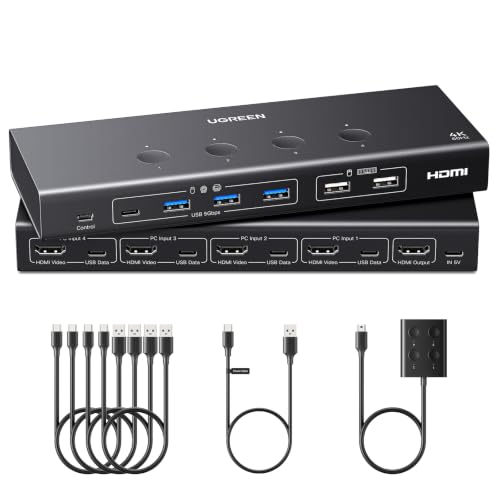
Compact KVMs from brands such as UGREEN and Cable Matters can work well for a basic two-computer desk, particularly at 1080p or 1440p. Their entry-level models may top out at 4K60, use USB 2.0, or lack robust EDID handling, so check the exact specification before pairing one with a 4K high-refresh gaming monitor. Newer UGREEN units, such as the 8K@60Hz three-monitor switch in our top pick, are built for much higher bandwidth than these basic models. Choose the basic models when price and simplicity matter more than maximum gaming bandwidth.
J-Tech Digital 8K DisplayPort 1.4 KVM Switch (2 Computers, 1 Monitor)
![J-Tech Digital 8K DisplayPort 1.4 KVM Switch 2 Computers 1 Monitor, 8K@60Hz / 4K@240Hz Dual PC DP KVM Switcher with 4 USB 3.0 Ports (3 USB-A + 1 USB-C), Includes DP & USB Cables [JTECH-DKM21-8K]](https://m.media-amazon.com/images/I/31+cy-xxyDL._SL160_.jpg)
The J-Tech Digital DKM21-8K is the most direct answer to the single-monitor gaming desk described earlier: one high-refresh DisplayPort monitor shared between a gaming PC and a second computer. The listing rates it for 8K at 60 Hz and 4K at 240 Hz over DisplayPort 1.4, which means it is built around DSC-capable signal paths rather than the older 4K60 chips found in many low-cost switches. If you own a 1440p 240 Hz panel or a 4K 240 Hz OLED that accepts DisplayPort, this is the class of switch that can carry those modes instead of forcing you down to 60 Hz.
USB is another strength. J-Tech lists four USB 3.0 ports, three USB-A and one USB-C, so a webcam, an external SSD, or a USB-C headset dongle can follow the keyboard and mouse between computers. The company also includes DisplayPort and USB cables in the box, which matters more than it sounds: mismatched or low-grade DisplayPort cables are one of the most common reasons a high-refresh KVM falls back to a lower mode.
Who it suits: a gamer with one fast DisplayPort monitor and a work laptop or second desktop that also has DisplayPort or USB-C with DisplayPort Alt Mode.
Strengths:
- 4K 240 Hz and 8K 60 Hz rating on DisplayPort 1.4, well above typical budget KVMs.
- Four switched USB 3.0 ports, including one USB-C.
- Cables included, reducing compatibility guesswork.
Drawbacks:
- Single monitor only; a dual-screen desk needs a different class of switch.
- DisplayPort only, so HDMI-only laptops and consoles need an adapter, which adds another handshake to troubleshoot.
- Like every DSC-dependent KVM, the advertised 4K 240 Hz mode depends on the graphics card and monitor also supporting DSC over DisplayPort.
Compared with the UGREEN triple-monitor switch in our quick picks, the J-Tech is the simpler, mid-range choice for a one-screen setup. It gives up the extra outputs but keeps the high-refresh DisplayPort path that gamers care about most.
TESmart 4K@144Hz DisplayPort + HDMI Dual-Monitor KVM Switch (2 Computers, 2 Monitors)

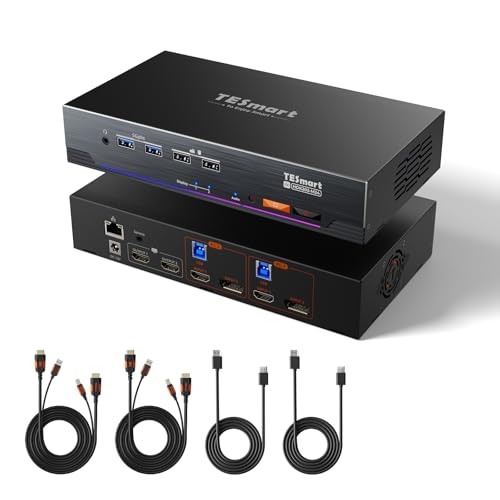
This TESmart model is aimed at the most demanding desk in our categories table: two computers, two monitors, and at least one of those displays running at high refresh. The listing describes HDMI 2.1 and DisplayPort 1.4 inputs, 4K at 144 Hz and 8K at 60 Hz support, EDID emulation, VRR, USB 3.0, and a gigabit network port, with all input cables included. Having one DisplayPort and one HDMI path per computer is useful because many gaming monitors give their best refresh rate on one port type while a secondary monitor only has the other.
EDID emulation is the feature that makes a dual-monitor KVM livable. Without it, each switch can cause Windows or macOS to see both monitors disconnect and reconnect, shuffling windows and resetting scaling. With EDID held by the switch, the computer you switch away from continues to believe both displays are present. The gigabit network pass-through lets you share one wired Ethernet connection between both computers, so the switch can also replace a small desk-side network switch.
Who it suits: a hybrid gaming and work desk where both computers drive two monitors and you want an extended desktop on each machine, not mirrored screens.
Strengths:
- Two independent video paths per computer, mixing HDMI 2.1 and DisplayPort 1.4.
- 4K 144 Hz rating with VRR listed, appropriate for a high-refresh primary monitor.
- EDID emulation and USB 3.0 switching for storage, webcams, and audio interfaces.
- Network sharing reduces the number of cables running to each computer.
Drawbacks:
- Premium tier; it costs several times more than a single-monitor HDMI switch.
- Each computer needs both a DisplayPort and an HDMI output to use both screens independently, which rules out many thin laptops without a dock.
- More connections means more potential cable faults; label cables during setup.
Against the UGREEN HDMI dual-monitor pick already in this guide, which tops out at 4K 60 Hz, the TESmart is the step up for gamers who will not give up high refresh on their main screen. If both of your monitors are 60 Hz office panels, the UGREEN remains the more sensible spend.
CKLau 2-Port Dual-Monitor DisplayPort 1.4 KVM Switch

CKLau’s dual-monitor switch is a more affordable route to an all-DisplayPort, two-screen desk. The listing rates it for 4K at 144 Hz and 8K at 30 Hz over DisplayPort 1.4, with USB 3.0 ports, audio switching, hotkey support, and all input and output cables included. Because both video paths are DisplayPort, it pairs most naturally with two desktop PCs that each have two DisplayPort outputs on the graphics card, which is common on current gaming GPUs.
The 8K 30 Hz figure is a good example of the labeling issue covered earlier in this guide. It is not a practical gaming mode; the useful number is the 4K 144 Hz rating, which covers most 4K gaming monitors released over the last few years and comfortably handles 1440p high-refresh panels. Audio switching is a small but welcome extra if you run powered speakers or a headset from a desk-side jack rather than USB.
Who it suits: two desktop PCs, each with two DisplayPort outputs, sharing a pair of 1440p or 4K monitors with high refresh on at least one of them.
Strengths:
- Dual DisplayPort 1.4 paths with a 4K 144 Hz rating at a mid-range tier.
- USB 3.0 and analog audio switching.
- Hotkey switching plus a full cable set in the box.
Drawbacks:
- DisplayPort only; HDMI-only laptops need adapters, and USB-C laptops need a USB-C to DisplayPort cable that supports Alt Mode.
- Four DisplayPort cables plus USB and audio leads add up to a busy cable bundle behind the desk.
- Check that your monitors accept the refresh rate you want over DisplayPort, not only over HDMI.
Compared with the TESmart dual-monitor model above, the CKLau trades HDMI 2.1 inputs and network sharing for a lower price. For an all-desktop, all-DisplayPort setup, that is often a reasonable trade.
AV Access KVM Docking Station (2 Monitors, 2 Computers, 4K@60Hz)

Many people searching for a gaming-and-work KVM actually have a gaming desktop and a company laptop. A conventional KVM handles that awkwardly: the laptop needs a dock for charging and extra displays, then the dock connects to the KVM. AV Access combines both jobs. This listing describes a dual-monitor KVM docking station for two computers at 4K 60 Hz, and AV Access’s KVM dock family is built around one USB-C input for a laptop, which can carry video, USB data, and laptop charging over a single cable, plus a conventional video and USB input for the desktop.
The practical benefit is a one-cable laptop connection. Plug in the laptop and it charges, drives both monitors, and gets the keyboard, mouse, and USB devices; press the switch and the gaming PC takes over the same screens and peripherals. AV Access lists features such as EDID emulation and gigabit Ethernet on its docking KVMs, which helps keep window layouts stable and gives the laptop a wired network connection. Check the exact version’s charging wattage and USB speed before buying, because AV Access sells several similar-looking docks with different specifications.
Who it suits: a remote or hybrid worker who switches between a USB-C work laptop and a desktop on two monitors, and mainly games at 1080p or 1440p rather than 4K high refresh.
Strengths:
- Replaces a separate laptop dock and KVM with one device.
- Single USB-C cable for laptop video, data, and charging on supported models.
- Dual 4K 60 Hz outputs for an extended desktop.
Drawbacks:
- The 4K 60 Hz rating is a ceiling for 4K gaming; it is not the right choice for a 4K 144 Hz monitor.
- Laptops must support DisplayPort Alt Mode over USB-C, and dual external displays over one cable may need MST support, which some laptops, including many Macs, lack.
- Mid-range to premium tier for a 60 Hz-class switch, though it also replaces a dock.
Compared with the UGREEN 2-monitor HDMI switch in our picks, the AV Access dock costs more but removes the separate dock and charger from a laptop-plus-desktop desk.
Hearvo USB 3.0 HDMI KVM Switch (2 Computers, 1 Monitor, 4K@60Hz)

Not every desk needs high refresh rates or dual monitors. The Hearvo S7232H is a budget two-computer, one-monitor HDMI KVM rated for 4K at 60 Hz with USB 3.0 ports. That puts it squarely in the simple category described earlier: a sensible way to share one office monitor, keyboard, and mouse between a home PC and a work laptop, or between a desktop and a mini PC, without spending mid-range money.
The USB 3.0 rating is the reason it earns a place here over the many USB 2.0 HDMI selectors at a similar tier. It lets a webcam or a portable SSD follow the active computer at reasonable speed, which matters for video calls on the work machine. At 4K 60 Hz, it also comfortably handles 1080p and 1440p office monitors at their standard refresh rates.
Who it suits: a single-monitor work desk, a student setup, or a casual gaming PC paired with a 60 Hz or 75 Hz monitor.
Strengths:
- Budget tier with USB 3.0 rather than USB 2.0.
- HDMI connections suit most laptops, mini PCs, and monitors without adapters.
- Compact and simple to set up.
Drawbacks:
- 4K 60 Hz ceiling; high-refresh gaming monitors will be limited to 60 Hz at 4K.
- Do not assume VRR, HDR passthrough, or full EDID emulation; confirm them in the current listing if you need them.
- Single monitor only.
Compared with the UGREEN 4-computer HDMI switch in our picks, the Hearvo covers fewer computers but costs less, making it the better fit when you only need to share between two machines.
Cable Matters 40Gbps USB-C KVM Switch for 2 Laptops (Thunderbolt Compatible)
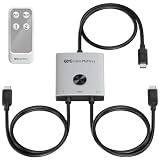
The Cable Matters 40Gbps USB4 KVM switch takes a different approach from every other switch in this guide. Instead of separate video and USB cables per computer, it switches a single USB-C connection between two laptops. Whatever sits on the output side, whether a USB-C monitor or a USB-C or Thunderbolt dock with its own monitors, keyboard, mouse, and storage, follows the selected laptop. Cable Matters rates it for up to 40Gbps data, up to 8K at 60 Hz or 4K at 240 Hz video with compatible equipment using DSC, and up to 140W charging to the selected laptop when connected to a suitable USB-C power source.
The design is clean: two host cables and one output cable are built in, and switching is handled by a button or an included RF remote that does not need line of sight. For a desk built around one Thunderbolt dock, it is the tidiest way to share that dock between a personal gaming laptop and a work laptop.
Who it suits: a two-laptop desk, such as a gaming laptop plus a work MacBook or Windows ultrabook, already using a USB-C monitor or a Thunderbolt or USB4 dock.
Strengths:
- One cable per laptop carries video, data, and charging.
- 40Gbps bandwidth works with Thunderbolt 4 and Thunderbolt 5 equipment up to that limit.
- 4K 240 Hz rating with DSC on compatible displays.
- Mid-range tier for a USB4-class switch.
Drawbacks:
- Laptops only in practice; desktops need a USB-C port with DisplayPort Alt Mode or Thunderbolt video output.
- Only the selected laptop charges; the other runs on battery until you switch back.
- Two or more monitors require a compatible dock, and an 80Gbps dock will run at 40Gbps through the switch.
- The built-in cables are fixed length, and Cable Matters advises against adding USB-C extensions.
Compared with the AV Access docking KVM above, the Cable Matters switch is better for two laptops and existing Thunderbolt docks, while the AV Access suits a laptop paired with a conventional desktop tower.
Comparison table: additional KVM picks at a glance
The table below summarizes the extra models covered above so you can match them to the desk categories earlier in this guide. Price tiers are relative within the KVM market: budget switches are basic two-computer HDMI units, mid-range covers high-refresh single-monitor and entry dual-monitor models, and premium covers multi-input gaming and docking KVMs.
| Model | Computers x monitors | Video inputs | Highest gaming-relevant mode (per listing) | USB | Best for | Price tier |
|---|---|---|---|---|---|---|
| J-Tech Digital DKM21-8K | 2 x 1 | DisplayPort 1.4 | 4K 240 Hz | USB 3.0 (3 USB-A, 1 USB-C) | One fast DisplayPort gaming monitor | Mid-range |
| TESmart DP + HDMI dual-monitor KVM | 2 x 2 | HDMI 2.1 + DisplayPort 1.4 | 4K 144 Hz with VRR | USB 3.0, gigabit network | High-refresh dual-monitor gaming and work desk | Premium |
| CKLau dual-monitor DP KVM | 2 x 2 | Dual DisplayPort 1.4 | 4K 144 Hz | USB 3.0, audio | Two desktops with two DP outputs each | Mid-range |
| AV Access KVM docking station | 2 x 2 | USB-C laptop input + desktop input | 4K 60 Hz | USB 3.0, Ethernet, laptop charging on supported versions | Work laptop plus gaming desktop | Mid-range to premium |
| Hearvo S7232H | 2 x 1 | HDMI | 4K 60 Hz | USB 3.0 | Simple single-monitor office desk | Budget |
| Cable Matters 40Gbps USB4 KVM | 2 laptops x 1 USB-C monitor or dock | USB-C / Thunderbolt | 4K 240 Hz with DSC | 40Gbps, up to 140W charging to selected laptop | Two laptops sharing one Thunderbolt dock | Mid-range |
Read the table from left to right in the same order you should shop. Start with the number of computers and monitors, because that cannot be fixed later. Next confirm the video input types match what your graphics card and laptop actually provide. Only then compare refresh rates and USB features. A switch that wins on paper but needs two adapters per computer is rarely the better buy.
Input lag, VRR, and HDR through a KVM
Gamers usually worry about three things when a KVM sits between the PC and the monitor: added latency, losing G-Sync or FreeSync, and losing HDR. Each one has a different cause, and each can be checked before you commit.
Does the video path add input lag?
A KVM that simply passes the DisplayPort or HDMI signal through does not process frames the way a capture card or scaler does, so it does not add a meaningful frame of delay. Latency problems usually come from somewhere else: a switch that cannot carry the native refresh rate and silently drops to 60 Hz, or a monitor that is running in a slower mode because the KVM presented a different EDID. After installing any KVM, open your graphics driver control panel and confirm the refresh rate, then verify it again in the monitor’s on-screen display.
Keyboard and mouse latency and polling rate
The USB side deserves equal attention. Some KVMs route the keyboard and mouse through an emulation chip so that hotkeys work and switching is instant. Emulation can strip out extra keys, macro functions, and vendor software features, and some emulated ports do not pass high polling rates. If you use a gaming mouse at 1,000 Hz or higher, or a keyboard that relies on its own software, plug them into the KVM’s plain USB hub ports rather than dedicated emulated keyboard and mouse ports, if the switch offers both. Wireless gaming mice with their own receiver often behave best in a USB 3.0 hub port, preferably with a short extension so the receiver stays close to the mouse.
Keeping G-Sync, FreeSync, and VRR
Variable refresh rate needs the monitor’s capabilities to reach the graphics card intact. KVMs that list VRR, FreeSync, or adaptive sync support pass that information through; cheaper switches may not, and the driver then hides the option. If VRR disappears after installing a KVM, confirm that EDID emulation is copying the monitor’s real EDID rather than a generic profile, update the KVM firmware if the manufacturer offers updates, and test with a direct cable to confirm the monitor and GPU support VRR on that port in the first place.
HDR and HDCP
HDR depends on the same EDID information plus enough bandwidth for 10-bit color. A switch that handles 4K 144 Hz in 8-bit color may fall back to a lower refresh rate when HDR is enabled. Streaming apps also need HDCP support through the KVM; most current HDMI 2.1 and DisplayPort 1.4 KVMs list HDCP 2.2 or newer, but a black screen in a streaming app while games work normally is usually an HDCP issue rather than a bandwidth one.
Step-by-step KVM setup for a gaming and work desk
A careful first setup prevents most of the switching problems described above. This order works for both single-monitor and dual-monitor KVMs.
- Map your ports on paper first. For each computer, write down which video outputs it has (DisplayPort, HDMI, USB-C with DisplayPort Alt Mode, Thunderbolt) and which ports your monitors accept at their highest refresh rate. Match these to the KVM’s inputs before connecting anything.
- Update graphics drivers and monitor firmware. Do this with the monitor connected directly, so you have a known-good baseline.
- Record the direct-connection baseline. Note the resolution, refresh rate, HDR state, and VRR state each computer achieves without the KVM. You will compare against this after installation.
- Connect the KVM outputs to the monitors first, then power the KVM with its own adapter, then connect each computer’s video and USB cables. Keep video and USB cables for the same computer labeled as a pair.
- Connect keyboard and mouse to the correct ports. Use dedicated keyboard and mouse ports if you want hotkey switching, or hub ports if you need full gaming-peripheral features.
- Power on one computer at a time. Confirm a picture and the expected refresh rate on the first computer before switching to the second.
- Enable EDID emulation or copy mode if the switch offers a setting, and repeat the baseline check on both computers.
- Test sleep and wake. Put each computer to sleep while the other is selected, then switch back. If a computer does not wake its display, disable deep sleep on the monitor and check the power-saving settings for USB ports in the operating system.
Once everything matches the baseline, route and tie down the cables. KVM desks accumulate many leads, and a cable that is pulled tight or bent sharply at a connector is a common cause of intermittent flicker months later.
Laptop-specific tips
- Confirm that the laptop’s USB-C port supports video output; not every USB-C port does.
- For two independent monitors from one USB-C cable, the laptop must support DisplayPort MST, or the dock must provide its own display handling. Many Macs mirror both screens over an MST hub instead of extending.
- Set the laptop to stay awake with the lid closed when on external power, otherwise switching away and back may put it to sleep.
- Work laptops managed by an IT department sometimes block unknown USB hubs or devices. Check before relying on a KVM for work access.
How to avoid switching and wake-up problems
- Use the same video input type on both computers. Avoid mixing adapters unless necessary. A direct DisplayPort-to-DisplayPort or HDMI-to-HDMI path removes one possible handshake failure.
- Connect the KVM’s power supply. Bus power may be adequate for a keyboard and mouse but unstable with a webcam, drive, or long cable run.
- Set a fixed refresh rate while troubleshooting. Start at 60 Hz, confirm a picture, then try 120 Hz, 144 Hz, or 240 Hz. This identifies whether the failure is a bandwidth problem rather than a switching problem.
- Disable deep sleep or input auto-switching on the monitor. These features can make the monitor search for another source just as the KVM changes computers.
- Enable EDID emulation or EDID copy mode. EDID is the monitor’s capability information. Keeping it present while switching prevents the operating system from treating the display as disconnected.
- Use the included or certified cables first. For HDMI 2.1, use Ultra High Speed HDMI cables. For DisplayPort, use a cable rated for the target mode; a cable that works at 4K60 may fail at 4K144.
- Try the front button or wired remote. If that works but a keyboard hotkey does not, the issue is likely the hotkey combination, keyboard firmware, or a conflict with software rather than the video path.
Choosing the right KVM in one decision
Buy a USB 2.0 4K60 KVM if you only share ordinary office peripherals and do not use a high-refresh monitor. Choose a USB 3.x 4K60 model for an office workstation with storage or a webcam. For 1440p at 165–240 Hz, select a model whose specification explicitly names that refresh rate rather than inferring it from an “8K” label. For 4K144 or 4K240, prioritize HDMI 2.1 or DisplayPort 1.4/2.x with clearly documented DSC and adaptive-sync behavior.
For two monitors, count the video connections from each computer: a dual-display KVM normally needs two video inputs per computer and two outputs to the monitors. If one computer has only one video output, a dual-head KVM cannot create a second independent desktop without a separate display adapter. The most reliable purchase is therefore the one whose port count, video bandwidth, USB speed, and EDID features match your actual desk—not the one with the largest resolution printed on its box.
Frequently asked questions
Will a KVM reduce gaming performance?
A properly functioning KVM does not normally reduce GPU rendering performance. It can restrict the available resolution, refresh rate, HDR mode, or adaptive-sync support if its video link is below the monitor’s requirements.
Can one KVM switch a keyboard, mouse, and two PCs while each PC uses two monitors?
Yes, but it must be a 2-PC/2-monitor KVM with two video paths per computer. A one-monitor KVM combined with a separate monitor switch usually provides a less consistent experience.
Is 8K support useful for a 4K gaming monitor?
Only if the specification also states the desired 4K refresh rate. “8K” alone does not guarantee 4K120, 4K144, VRR, HDR, or DSC compatibility.
Does a KVM switch keep G-Sync or FreeSync working?
It can, if the switch passes the monitor’s adaptive-sync capability through to the graphics card. Look for VRR, FreeSync, or adaptive sync in the specification and enable EDID emulation in copy mode. If the option disappears from the driver, connect the monitor directly to confirm it works without the KVM, then check for KVM firmware updates.
Can I use a gaming console and a PC on the same KVM?
Yes, with an HDMI KVM. Consoles output HDMI only, so a DisplayPort-only switch will not work without an active adapter. Consoles do not use the shared keyboard and mouse in most games, but the KVM still lets you switch the monitor and headset between the console and the PC from one button.
Why does my wireless mouse lag or stutter through a KVM?
Usually because the receiver is plugged into an emulated keyboard and mouse port or sits behind a metal case and a tangle of cables. Move the receiver to a USB hub port on the KVM, use a short USB extension to bring it closer to the mouse, and avoid placing it next to USB 3.0 drives, which can emit 2.4 GHz interference.
Is a software KVM a good alternative?
Software tools that share a keyboard and mouse over the network can replace the USB half of a KVM when each computer already has its own monitor. They cannot switch a single monitor between computers, and they add network dependency and some latency, so they suit office work better than gaming.
Do I need USB 3.0 on a KVM if I only share a keyboard and mouse?
No. Keyboards and mice work fine on USB 2.0. USB 3.0 becomes worthwhile when the KVM also switches a webcam, external drive, card reader, or audio interface, since those devices can be slowed down by a USB 2.0 hub.
Related guides
- Best Ultrawide Gaming Monitors: Six Screens Sized Against Real Desks: 6 Compared (2026)
- Best Game Room Neon Lights: Ten Signs and Icon Lamps Compared: 10 Compared (2026)
- 10 Best 75% Hot-Swappable Mechanical Keyboards (October 2026)
- Best Mini-LED Monitor: Five Listings From a Renewed KTC to a 5K LG, Compared by Pixels and Ports (2026)