
A tower sitting on the floor eats dust and hair, blocks legroom, and takes a beating when you kick it. An under-desk PC mount hangs the case beneath the desktop, off the floor and out of the way, improving airflow and freeing space. But mounts vary a lot in how they hold the case and how much weight they take, so matching one to your build matters. Here is what to look for.
Our Top Picks
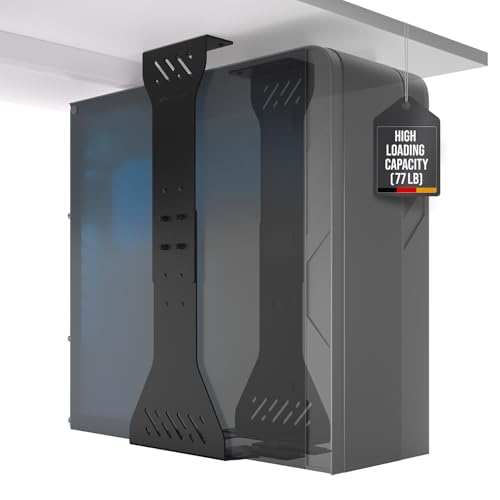


Top 3 picks at a glance


Mount styles
Sling and strap mounts
The simplest option cradles the case in two adjustable straps or a fabric sling that screws to the underside of the desk. They are cheap and fit almost any case width, but they let the PC sway a little and offer no slide-out access.
As an Amazon Associate we earn from qualifying purchases at no extra cost to you.


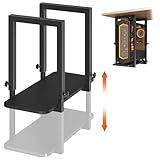
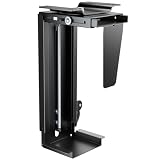


Tray and cradle mounts
A rigid metal tray or adjustable-arm cradle holds the case more securely and sometimes rotates or slides out so you can reach the rear ports. These cost more and need a solid desk underside, but they are the better choice for heavy or frequently-serviced rigs.
More under-desk PC mounts worth considering
The main picks above lean toward fixed frames and desk-leg clamps, plus one strap mount. Three needs deserve more options: sliding mounts that pull the tower out for cable swaps, no-drill mounts for rented or expensive desks, and simple strap mounts that handle odd case shapes. The six mounts below cover those gaps. Capacities and size ranges come from each maker’s published specifications, so compare them against your own case dimensions and weight before ordering.
Mount-It! Deluxe CPU Mount with Sliding Track

If you plug and unplug things at the back of your PC often, such as a capture card, a VR headset, external drives, or a second monitor, a fixed mount quickly becomes annoying because the rear I/O ends up facing the wall in a dark corner under the desk. This Mount-It! model solves that with a sliding track that lets you pull the tower forward and a swivel that rotates the bracket, so the back panel can face you while you work on it.
Mount-It! lists a 33 lb capacity, a case width range of 6 to 9.7 inches, a height range of 13.4 to 21.7 inches, about 9.7 inches of track travel, and a swivel of 180 degrees either way, with a lock to hold the bracket in position. That size range covers most mid-tower and many compact ATX cases. The frame is steel and aluminum and screws to the underside of the desk.
The 33 lb rating is the main limitation. It is plenty for a typical mid-tower gaming build, but a large full tower with a big air cooler, a heavy GPU, and several drives can approach or exceed that, and the 9.7-inch width limit rules out some wide cases. Compared with the VIVO PC01 in our main list, it adds the sliding track; compared with the heavy-duty VIVO PC04B, it trades load capacity for much easier rear-port access.
Best for: mid-tower builds where you swap cables often. Skip it if: your loaded case is heavy or wider than about 9.7 inches.
UPLIFT Desk Under Desk PC Mount (16-inch slide, 360-degree swivel)

UPLIFT’s CPU holder is designed around standing desks, and it has the longest sliding track among the mounts in this guide. UPLIFT lists a track that extends up to 16 inches, a 360-degree swivel at the mount, a 50 lb capacity, and support for towers from 3.75 to 8.25 inches wide and 12 to 20.5 inches tall. The steel frame is powder-coated and the bracket is padded to protect the case finish.
The long track is genuinely useful under a deep desk. A 30-inch-deep desktop can leave a tower mounted at the back almost impossible to reach, but with 16 inches of travel you can pull it most of the way out, rotate it, and work on the rear panel without crawling under the desk. Because it mounts under the desktop rather than to the floor, the PC rises and falls with a standing desk, so cables never get stretched.
The width range is the catch. At a maximum of 8.25 inches, it fits most standard mid-towers and mini-towers but not wider cases, especially the large airflow cases and dual-chamber designs popular in recent gaming builds. Measure your case width with side panels on before choosing it. UPLIFT also sells a version with a track spacer for desks with crossbars, so check which one matches your frame. This mount sits in the premium tier, backed by UPLIFT’s long warranty.
Best for: standing desks and deep desktops where rear access is otherwise hard. Skip it if: your case is wider than about 8.25 inches.
Mount-It! Heavy-Duty Clamp-On CPU Mount for Standing Desks

Drilling into the underside of a desk is not always an option. You might rent, have an expensive solid-wood top, or simply not own a drill. Most no-drill mounts clamp to a desk leg, which only works if your leg matches one of a few fixed sizes. This Mount-It! model clamps to the edge of the desktop instead, so leg shape does not matter.
Mount-It! specifies a desktop clamp range of 0.59 to 2.4 inches, a 66 lb capacity, and adjustable case height from 16.1 to 25.6 inches with width from 7.1 to 11.8 inches. That is one of the widest case ranges in this guide, wide enough for most mid and full towers, and the 66 lb rating matches the heavy-duty screw-in frames. Because the mount is attached to the desktop, the PC moves with a standing desk.
The trade-off is that the clamp needs clear space at the desk edge where it attaches, which can conflict with a desk-clamp power strip, monitor arm, or cable tray on the same side. There is also no sliding track, so rear-port access is no better than with a fixed mount. Compared with the JOY worker leg clamp in our main list, the Mount-It! accepts much larger cases and does not depend on leg dimensions, but it occupies desk-edge space instead.
Best for: renters and anyone with heavy full towers who cannot drill. Skip it if: your desk edge is already crowded with clamps.
FEYRUN Under Desk Slide-Out PC Mount

Sliding mounts are usually more expensive than fixed brackets, but the FEYRUN brings a slide track into the budget tier. It combines a steel bracket with adjustable straps and a roughly 9-inch sliding track, so you can pull the tower forward to reach ports or open the side panel without unscrewing anything.
FEYRUN lists a capacity of about 44 lb and fits cases through strap length rather than a fixed width range: the total perimeter of the case, height plus width times two, must be under about 57 inches. That covers the vast majority of mid towers and many full towers. The listing also notes you need about 3.4 inches of extra width under the desk beyond your case width, and an anti-scratch sponge pad protects the case finish.
Straps do allow a little more sway than a rigid frame, especially when you push on the case while plugging in a cable, and the two separate rails need careful alignment when you install them so the slide runs smoothly. Compared with the Penn Elcom strap mount in the main list, the FEYRUN adds the slide; compared with the Mount-It! and UPLIFT sliding mounts, it is cheaper and less rigid, with no swivel.
Best for: budget builds that want a slide-out feature. Skip it if: you want a rigid frame with swivel.
VIVO Under Desk and Wall PC Mount with Straps (MOUNT-PC02S)

The simplest mount design is also the most flexible. VIVO’s PC02S uses a steel bracket and two long adjustable straps that loop around the case, so it fits almost any shape: tall towers, short cube cases, small form factor builds, and even non-PC hardware such as a NAS or UPS. It can be mounted under the desk or on a wall.
VIVO lists a 44 lb capacity, case widths from 3.15 to 27.58 inches and heights from 1.18 to 25.61 inches, with the limit being a total case perimeter of roughly 60 inches. The minimum desk thickness is 0.59 inches, and the steel bracket has an anti-rust coating. Those numbers matter because they show that a strap mount can carry far more weight than many people assume.
The downsides are those of any strap mount. The case can rock slightly when bumped, there is no slide or swivel, and you need to loosen a strap to remove the PC. Cube cases and odd-shaped builds that do not fit a rigid frame are where it shines. Compared with the fixed VIVO PC01 in our main list, it gives up the swivel but accepts a far wider range of case shapes, and it sits firmly in the budget tier.
Best for: unusual case shapes, small form factor builds, and tight budgets. Skip it if: you want a rigid hold with no sway.
Cabte Clamp-On PC Mount for Standing Desk Legs

Leg-clamp mounts are the most common no-drill option for standing desks, and the Cabte is a solid example with a stronger rating than many in its class. Cabte lists a 50 lb capacity, steel construction, rubber pads to stop slipping, and a case width range of 5.9 to 9.8 inches with adjustable height.
The key spec is leg compatibility. The clamp fits only three rectangular leg sizes: 65 x 45 mm, 75 x 45 mm, and 80 x 50 mm, with a supplied spacer for 50 mm-wide legs. It is designed for inverted-leg standing desks and does not fit round, square, or irregular legs. Measure your leg cross-section with a ruler before buying; this single check decides whether the mount will work at all.
When it does fit, a leg clamp has real advantages: no drilling, no use of desk-edge space, and the PC moves with the desk. The case sits beside the leg rather than under the middle of the desk, which keeps legroom clear. Compared with the JOY worker leg clamp in our main list, the Cabte lists a higher weight rating and a slightly different width range, so the better choice comes down to which one matches your leg size and case.
Best for: standing desks with matching rectangular legs. Skip it if: your desk legs are round, square, or a non-listed size.
Weight and size limits
| Mount type | Weight rating | Case fit | Price tier |
|---|---|---|---|
| Strap / sling | Often around 44 lbs | Most ATX widths | Budget |
| Fixed metal tray | About 30-77 lbs | Adjustable width | Budget to mid-range |
| Sliding / rotating arm | About 33-50 lbs | Mid to full tower | Mid-range to premium |
Comparison of the additional picks
Price tiers are relative within under-desk mounts: budget covers strap and basic bracket mounts, mid-range covers sliding and clamp-on mounts, and premium covers long-track mounts from standing desk brands.
| Mount | Install | Rated load | Case fit | Slide / swivel | Price tier |
|---|---|---|---|---|---|
| Mount-It! Deluxe Sliding | Screws under desk | 33 lb | 6-9.7 in wide, 13.4-21.7 in tall | About 9.7 in slide, swivel | Mid-range |
| UPLIFT Under Desk PC Mount | Screws under desk | 50 lb | 3.75-8.25 in wide, 12-20.5 in tall | 16 in slide, 360-degree swivel | Premium |
| Mount-It! Clamp-On | Clamps desk edge (0.59-2.4 in) | 66 lb | 7.1-11.8 in wide, 16.1-25.6 in tall | No | Mid-range |
| FEYRUN Slide-Out | Screws under desk | 44 lb | Strap, perimeter under about 57 in | About 9 in slide | Budget |
| VIVO MOUNT-PC02S | Screws under desk or wall | 44 lb | Strap, perimeter about 60 in | No | Budget |
| Cabte Clamp-On Leg | Clamps desk leg (3 sizes) | 50 lb | 5.9-9.8 in wide | No | Budget to mid-range |
One detail the table makes clear: strap mounts are not automatically light-duty. Both strap designs here are rated well above the lightest rigid brackets, so the real differences between styles are rigidity, rear-port access, and case-shape flexibility rather than raw weight capacity.
Quick selection checklist
- Weigh the loaded PC. Use a bathroom scale: weigh yourself holding the case, then subtract your own weight. Choose a mount rated comfortably above that figure.
- Measure the case with panels on. Width, height, and depth, including feet and any protruding front panel. Compare against the mount’s width and height ranges, not just its weight rating.
- Decide drill or no-drill. Screw-in mounts are the most secure on solid wood or thick MDF. Desk-edge clamps and leg clamps avoid holes but have their own fit limits.
- Check the desk frame. Crossbars, drawers, keyboard trays, and modesty panels can block the space a mount or sliding track needs. Measure the clear area under the desktop.
- Think about access. If you use front-panel USB or swap rear cables often, a slide or swivel is worth paying for.
Which mount suits which build
Compact mid-tower on a fixed desk
A typical mid-tower gaming PC is comfortably inside the rating of almost every mount here. If you rarely touch the back panel, a fixed bracket like the VIVO PC01 or a strap mount does the job cheaply. If you swap cables or use rear USB ports often, step up to a sliding model like the Mount-It! Deluxe or FEYRUN.
Heavy full tower or workstation
Large cases with big air coolers, custom water loops, multiple drives, and flagship GPUs can be heavy and wide. Look at mounts rated well above your weighed figure with a generous width range, such as the VIVO PC04B, the 77 lb holder in our main list, or the 66 lb Mount-It! clamp-on model. Check width carefully, because many sliding mounts top out around 8 to 10 inches.
Standing desk
Choose a mount that attaches to the desk rather than the floor: a screw-in model under the desktop, a desk-edge clamp, or a leg clamp that matches your leg size. The UPLIFT mount with its long track and the Cabte or JOY worker leg clamps are built with sit-stand frames in mind.
Small form factor or cube case
Short, wide, or oddly shaped cases often do not fit rigid frames designed for tall towers. Strap mounts like the VIVO PC02S handle these shapes best, and the PUTORSEN mid/mini-tower mount in our main list is another option for smaller cases.
Renters and expensive desktops
If holes are not allowed, choose a desk-edge clamp or a leg clamp. If neither fits, a rolling floor stand is a simple, hole-free alternative that still lifts the PC off carpet.
Fit your build before buying
Weigh your PC
A loaded full-tower with a big cooler, several drives, and a heavy GPU can hit 30-45 lbs. Weigh or estimate yours and leave headroom under the mount’s rating; a mount rated below your loaded weight is asking for trouble under a heavy steel case. Match the mount’s width range to your case too, since some rigid frames and sliding mounts max out around a standard ATX tower.
Typical loaded weights by case size
If you cannot weigh your PC right away, these rough ranges help you shortlist mounts. Actual weight varies a lot with materials, cooling, and GPU, so weigh the real system before final purchase.
| Case type | Typical loaded weight | Mount guidance |
|---|---|---|
| Mini-ITX / small form factor | Roughly 10-20 lb | Almost any mount; strap mounts suit unusual shapes |
| Micro-ATX / compact mid-tower | Roughly 15-25 lb | Standard brackets and sliding mounts |
| Standard ATX mid-tower gaming build | Roughly 20-35 lb | Mounts rated 40 lb or more for headroom |
| Full tower with heavy GPU, big cooler, or water loop | Roughly 30-45 lb or more | Heavy-duty mounts rated 60 lb or more |
Do not forget anything attached to the case. A heavy GPU support bracket, hard drives, and a thick glass panel all add weight, and a water-cooled build with a reservoir carries the weight of the coolant too.
Desk underside strength
The mount is only as strong as what it screws into. You need a solid wood or thick MDF underside at least 0.75 inches thick to hold the lag screws; a thin hollow-core or glass desk cannot safely carry a hanging PC, so a floor stand on casters is the better route there.
Screw-in vs clamp-on mounts for standing desks
Standing desks add one requirement to everything above: the PC has to move with the desk, or the cables between the desk and the PC will stretch every time you stand. There are three ways to achieve that.
Screw-in under the desktop
Fixed frames, sliding tracks, and strap brackets that screw into the underside of the desktop are the most secure option and offer the most choice of mount styles. Check that the desktop is solid enough to hold screws, and that the mount does not collide with the desk’s crossbar or lifting columns at the lowest height. Some standing desk brands, including UPLIFT, sell spacers designed to clear their own frame crossbars.
Clamp to the desktop edge
Edge-clamp mounts such as the Mount-It! clamp-on model grip the desktop itself, so they need no holes and fit any leg shape. They need a clear stretch of desk edge and a desktop thickness inside their clamp range, and they work best on a rigid top that will not flex under the weight.
Clamp to a desk leg
Leg clamps such as the JOY worker and Cabte models attach to one leg of the frame. They are tidy, keep legroom open, and need no drilling, but they only fit specific rectangular leg sizes. Check your leg dimensions carefully, and note that a leg clamp sits close to the lifting column, so the cable run to the desktop should include a loop that can extend as the desk rises.
Whichever route you choose, run a test after installation. Raise the desk to its highest setting and lower it to its lowest while watching the PC and cables. Nothing should touch the frame, and no cable should go taut. Many standing desks also have anti-collision sensors that can be triggered by a PC knocking against the frame, which is a sign the mount needs adjusting.
Fixed frame, slide-out, strap, or clamp: the short version
If you are still undecided between styles, this summary covers the core trade-offs. A fixed frame is rigid and affordable, and the heavy-duty versions carry the most weight, but rear-port access is awkward. A slide-out or swivel mount costs more and usually has a narrower case range, but it makes cable swaps, cleaning, and panel removal easy. A strap mount fits the widest variety of case shapes and is often rated higher than people expect, at the cost of some sway. A clamp-on mount avoids drilling entirely, but each type has a fit requirement: desk-edge clamps need a suitable desktop thickness and free edge space, while leg clamps need a matching leg size. Choose the style first based on your desk and how often you touch the PC, then pick a model within that style that clears your weight and size with room to spare.
Airflow and cable benefits
Lifting the case off carpet is a real thermal win, since carpet chokes bottom-mounted PSU and intake fans. Suspended under the desk, the PC breathes freely and your cables run a short, clean path up to the monitors, which also tidies the whole setup.
Keeping a mounted PC clean and cool
Getting the case off the floor already cuts down on dust and pet hair, but a mounted PC still needs regular attention. Check intake filters every month or two and rinse or vacuum them; a raised case usually stays cleaner, so you may find you can stretch the interval. Keep the area under the desk clear of bags, boxes, and blankets that could block intakes. If your desk has a modesty panel at the back, make sure the exhaust is not pointed straight into it, since trapped warm air raises temperatures over a long gaming session. A sliding or swivel mount makes these routine checks much easier, because you can pull the case into open space rather than working in the dark under the desk.
Finally, keep an eye on GPU temperatures for the first week after mounting. If they are higher than before, the case is probably closer to a wall, a desk panel, or a heater than it was on the floor. Rotating the case or moving it a few inches usually solves it.
FAQ
Will an under-desk mount hold a heavy full-tower?
Only if you match the rating. Strap mounts are often rated around 44 lbs, sliding mounts around 33-50 lbs, and heavy-duty fixed frames up to about 77 lbs. Weigh your loaded case, pick a mount with headroom above that number, and screw it into a solid desk underside at least 0.75 inches thick.
Does mounting the PC under the desk improve temperatures?
Usually yes, especially over carpet. Off the floor, bottom intakes and the PSU fan get unrestricted air instead of pulling through carpet fibers and dust, which can lower component temps a few degrees and cut how often you need to clean filters.
Can I use an under-desk mount with a glass-panel case?
Yes, with a little care. Make sure the bracket or straps grip the steel frame of the case rather than pressing on the glass, and use the padding that most mounts include. Choose a mount that lets the glass side face outward so you can still see the build and remove the panel for cleaning. A slide or swivel makes removing a heavy glass panel much safer, because you can bring the case into open space first.
Will mounting the PC sideways or hanging harm the components?
No. Under-desk mounts hold the case in its normal upright orientation, just raised off the floor, so components see the same forces as on a desk or floor. The main things to watch are vibration, which isolation washers help with, and keeping the case steady enough that a bump does not jolt a spinning hard drive. SSD-only builds are unaffected.
How much clearance does a PC need under the desk?
Leave at least a couple of inches around intake and exhaust vents, including the bottom of the case if it has a PSU intake or bottom fans. Under a desk, warm air from the rear exhaust can collect against the desktop, so make sure it has a path to escape rather than being boxed in by a modesty panel. If temperatures climb after mounting, rotating the case so the exhaust faces open space usually fixes it.
Do I lose access to front-panel USB ports?
Often partly. Hanging the case lower and further back puts front ports out of easy reach. A sliding or swivel mount helps, and a short USB extension or desk-mounted USB hub brings ports up to the desktop. Many people route one USB-C or USB-A extension to a cable clip on the desk edge for flash drives and controllers.
Is a mount better than a PC stand on casters?
They solve the same floor-dust and carpet problems in different ways. A mount frees the floor completely and moves with a standing desk, but needs a strong desktop and installation. A rolling floor stand needs no tools, works with any desk including glass, and makes the PC easy to pull out, but it still takes up floor space and does not rise with a standing desk. For glass or hollow-core desks, the stand is the safer choice.
Can I wall-mount a PC with the same hardware?
Some mounts, including the VIVO PC01 and PC02S, are designed for both under-desk and wall installation. On a wall, the screws must go into studs or use anchors rated well above the PC’s weight; drywall alone will not hold a loaded tower. Wall mounting works well beside a desk where there is no room underneath, but cable runs to the desk become longer and more visible.
Will drilling into my standing desk void its warranty?
It depends on the manufacturer. Many standing desk makers allow accessories to be screwed into the desktop, and some sell their own CPU holders, but drilling into the frame or lifting columns is a different matter. Check the desk’s warranty terms before drilling, and when in doubt, use a desk-edge clamp or a mount sold by the desk maker.
Is a PC under the desk safer from spills?
Generally, yes, compared with a PC sitting on the desktop next to drinks. A spill can still run off the front edge and drip down, though, so avoid mounting the case directly below where you usually rest a cup, and keep top-mounted vents away from the desk edge.
Common mounting mistakes to avoid
- Trusting the weight rating without weighing the PC. Guesses are usually low, especially for builds with heavy GPUs or water cooling.
- Ignoring case width. A mount with plenty of weight capacity can still be too narrow for a modern wide airflow case.
- Mounting too close to a desk leg or column. On standing desks this can trigger anti-collision sensors or pinch cables during height changes.
- Taut cables. A cable pulled tight between a hanging PC and the wall or monitors will eventually loosen a port or unplug mid-session.
- Skipping the recheck. Screws and clamps settle. A quick retighten after the first week prevents the slow loosening that leads to drops.
Installation and long-term reliability
Anchor the mount into solid material, not just the thin laminate skin. Use the longest screws that will not poke through the top, and if the underside is hollow-core, add a backing block or a load-spreading plate so the fasteners have something real to bite. A PC that works loose over months and drops is a catastrophic and avoidable failure, so over-build the anchor rather than trusting four short screws.
Leave slack in the cables that run from the suspended case to the wall and monitors. As the case hangs, its ports sit lower and further back than they did on the floor, and a taut cable can strain a port or pull free. A little service loop, plus a sliding or rotating mount if you swap peripherals often, keeps the rear I/O reachable without unmounting the whole machine.
Vibration and clearance
Suspended cases can transmit fan and pump vibration into the desk, turning the desktop into a low hum. Rubber isolation washers at the mount points quiet that down. Keep at least a couple of inches between the case and any nearby desk frame so the fans breathe and you can still slide the panel off for cleaning.
Step-by-step: installing a screw-in mount safely
Most mounts ship with brief instructions. These steps fill in the details that keep a hanging PC secure for years.
- Empty the desk and flip or clear the underside. If you can safely remove the desktop or turn the desk over, installation is far easier. Otherwise, clear everything off the top and work from a stool with good light.
- Dry-fit the case. Before drilling, hold the mount in place with the case in it, or measure carefully, to confirm the case clears desk legs, crossbars, drawers, and the wall. On a standing desk, check clearance at the lowest height.
- Mark and pilot-drill. Mark the screw holes, check that the screws will not exit through the top surface, and drill small pilot holes. Pilot holes reduce splitting in wood and help screws bite properly in MDF.
- Use the right fasteners. Use the supplied screws if they suit your desk thickness, or buy slightly shorter ones if they are too long. On thin or hollow tops, add a plywood backing plate to spread the load.
- Adjust the mount to the case before loading. Set width and height so the case fits snugly with the padding compressed slightly. A loose fit lets the case rock and work the screws loose over time.
- Load the PC with help. A loaded gaming tower is awkward to lift overhead. Have someone hold it while you tighten the clamps or straps.
- Route cables with slack. Leave a service loop on every cable, use the desk’s cable tray or clips, and keep power cables away from moving parts like sliding tracks and desk columns.
- Recheck after a week. Wood and padding settle. Retighten screws and clamps after the first week, then every few months.
Bottom line
Pick a strap mount for odd case shapes on a budget, a heavy-duty fixed frame if your tower is heavy, or a sliding mount if you service it often. Weigh your PC, leave headroom under the mount’s rating, and confirm your desk underside is solid wood or thick MDF. Done right, the mount frees floor space, improves airflow, and ends the kicked-tower problem for good.


