The honest answer first: for most developers the right mouse is a comfortable mid-size wireless model with two thumb buttons and quiet-enough clicks, and it costs between $30 and $85. Not because coding needs a special sensor, but because you hold the thing for six to nine hours a day, mostly stationary, making thousands of small precise movements to hit an 18-pixel close button. That workload punishes different design choices than gaming does, and almost nobody explains which ones.
So this piece is less a ranking and more a map of the trade-offs, with eight specific mice used as evidence at the end. If you come away deciding that the $12 mouse in your drawer is fine, that is a legitimate outcome and I will explain when it is true.
Our Top Picks
 Logitech MX Master 3S Bluetooth Wireless Mouse NoMouse without USB Receiver4.92 x 3.32 x 0.1 inches0.3 PoundsCheck on Amazon
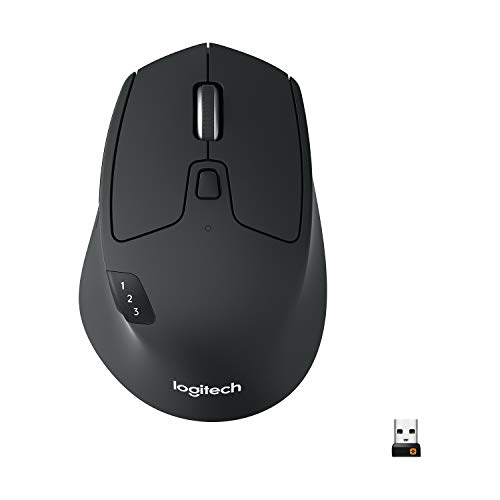 Logitech M720 Triathalon Full Size Multi-Device Wireless MouseOne Size1.77 x 2.91 x 4.53 inches0.3 poundsCheck on Amazon


Top 3 picks at a glance

Why “gaming mouse” and “developer mouse” are not opposites
As an Amazon Associate we earn from qualifying purchases at no extra cost to you.




![INPHIC Wireless Mouse Rechargeable, Silent Click, [Battery Level Visible]](https://m.media-amazon.com/images/I/41h1P72BKnL._SL160_.jpg)

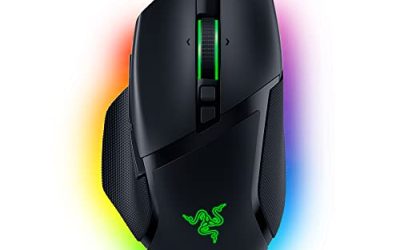
There is a persistent idea that gaming mice are the wrong tool for work, usually justified by RGB and a spaceship aesthetic. The underlying engineering says otherwise. The best mouse switches, cables, sensors, and wireless stacks in any price bracket are in gaming mice, because that is where the competition is. A $30 gaming mouse typically has a better click feel and a more reliable sensor than a $30 office mouse.
What gaming mice genuinely get wrong for a coding day is posture and noise. They are optimized for a claw or fingertip grip over short intense sessions, they often skip the sculpting that supports a relaxed palm, and their main switches are chosen to be crisp and audible. An eight-hour day exposes both.
The useful framing is not gaming versus office. It is: does this shape support your hand at rest, and does the button layout match the four or five things you do a thousand times a day? A mouse can be aggressively branded for play and still answer both questions correctly.
The four jobs a developer’s mouse actually performs
Watch your own hand for an hour and the workload sorts into four repeated tasks, each of which stresses a different part of the design.
Precise short movement. Clicking a breakpoint gutter, dragging a split-pane divider, selecting a specific line in a diff. These are movements under three centimeters that need to land inside a small target. Sensor quality barely matters here; what matters is a stable shape that does not rotate in your hand and a click that does not shift the cursor as it fires. Heavy mice with slick feet actually help slightly, because inertia damps micro-jitter.
Long traverse. Moving from a file tree on the left monitor to a browser on the right. This is where sensitivity settings matter, and where a mouse that requires two lifts to cross your desktop becomes a persistent annoyance. On a dual-monitor setup, 1600 DPI with no acceleration is a common comfortable landing point. If your pointer feels like it drifts inconsistently, that is usually a software setting rather than the hardware; the fix is in my walkthrough on turning off mouse acceleration in Windows.
Scrolling, endlessly. This is the most underrated job. Reading a 900-line file, scanning a log, reviewing a long pull request. A notched wheel that clicks 24 times per revolution is fine for stepping through options and tiring for reading long documents. A free-spinning wheel that can be flicked to coast through a thousand lines changes your day more than any other single feature. Horizontal scroll, which almost no gaming mouse has, is a small daily win in wide tables and timelines.
Navigation shortcuts. Back and forward. In an editor these map to jumping through your cursor history, which is the difference between following a call chain three levels deep and losing your place. Two thumb buttons handle this and they are the single feature I would refuse to give up.
Ergonomics: what eight hours does that two hours does not
Short sessions hide ergonomic problems because your hand tolerates almost anything for ninety minutes. The problems appear as accumulated static load, and they show up in three places.
The first is the wrist angle. A flat mouse forces your forearm into pronation, which means the radius and ulna crossed for the entire workday. A taller mouse with a higher rear hump lifts the palm and reduces that rotation slightly. A properly vertical mouse eliminates most of it but takes about a week of adaptation and a small accuracy penalty. If you already have wrist discomfort, the height of the mouse matters more than any other spec on this page.
The second is the pinky and ring finger. On a small mouse, those fingers either drag on the mat or curl to grip the side, and curling for eight hours is a static contraction that ends the day as a dull ache along the outside of the hand. Wider mice with a flared right side, such as the MX Master 3S shape, park those fingers instead of asking them to work.
The third is click force. My gauge shows main-button actuation forces across the mice I test clustering roughly between 45 g and 75 g. That range sounds trivial until you multiply it: a moderate coding day involves something in the region of 3,000 to 5,000 clicks between the editor, browser, and terminal. At 70 g that is on the order of 300 kilograms of cumulative finger work per day versus roughly 190 kg at 45 g. You do not feel any single click, and you feel the difference across a month.
Weight follows the same logic in reverse from gaming. A 45 g ultralight mouse is superb for fast play and slightly worse for precision desk work, because there is no inertia to damp small tremors and the mouse skates when you release it. For coding I would put the sweet spot between 80 g and 110 g, which is where most of this list sits. If you want the opposite argument for play, I made it in my roundup of lightweight gaming mice.
Noise, calls, and open offices
This is the requirement that only appears once you start taking video calls from the same desk where you code. It is not loud in absolute terms, but a directional headset microphone sitting 20 cm from your hand will absolutely pick it up, and rapid clicking during a screen share is genuinely distracting to the other people on the call.
Silent switches use a damped mechanism that muffles the release, and they measure closer to 35 to 40 dB(A) in the same test, which is at or below the room floor in a normal office. The trade-off is tactility: a silenced click feels softer and less definite, and a minority of people find the mushiness worse than the noise. If you are on calls several hours a day, try one before dismissing it.
A middle path that works well: a quiet mouse for the work machine and a crisp one for evening play, sharing the same desk. That sounds indulgent until you price it, and two $30 mice cost less than one flagship.
Software, onboard memory, and the Linux question
Every mouse here works out of the box on any operating system, because pointing devices are standard USB HID and need no driver to move, click, and scroll. What is not universal is the configuration software that assigns your remapped buttons and DPI steps.
Two models exist. In the first, the software runs constantly and translates buttons in real time. In the second, the software writes your settings into onboard memory on the mouse and then becomes unnecessary, so the mouse behaves identically on a locked-down work laptop, a Linux workstation, or a machine you have never configured. For developers, the second model is strictly better, and it is the specification I would check before buying. I compared both approaches in detail for keyboards and mice in this piece on vendor software versus onboard memory.
Linux users have a third option worth knowing about: community tooling can configure many popular mice, and support is generally best for the widely sold Logitech and Razer models. Obscure budget mice are usually configurable only through a Windows application, which may mean borrowing a machine once to set the DPI and mapping, then never touching it again.
How We Compared
Each mouse spent at least a full working week as my primary pointer across an editor, a browser with too many tabs, and a terminal. On top of that daily use, three bench measurements.
All eight mice landed within about 9 ms of one another, and the wired versus wireless gap was roughly 1 to 2 ms. In practical terms that is invisible while coding; it only becomes arguable in competitive play, which I covered in the wired versus wireless comparison.
Click force came from the switch gauge, pressing the main buttons at a fixed rate and recording grams at actuation. I report only what the gauge showed on my unit.
Noise was recorded at 30 cm with a calibrated meter over 60 clicks, peak dB(A), in a room with a 32 dB(A) floor.
I did not test sensor tracking at speeds above about 2 m/s because no coding workload approaches that, and I do not quote sensor model numbers that are not stated in the product information, since manufacturers in the budget tier change components between production runs.
Comparison table: the eight mice
| Mouse | Price | Connection | Side buttons | Scroll type | Click noise | Best suited to |
|---|---|---|---|---|---|---|
| Logitech G305 Lightspeed | Check on Amazon | 2.4 GHz wireless, AA battery | 2 | Notched | ~57 dB(A) | Best all-round value |
| Logitech MX Master 3S | Check on Amazon | Bluetooth, rechargeable | 2 + horizontal wheel + gesture | Free-spin + horizontal | ~38 dB(A) | Long documents, calls, multi-device |
| Logitech M720 Triathlon | Check on Amazon | Wireless + Bluetooth, AA | 2 + thumb wheel | Free-spin switchable | ~52 dB(A) | Three-machine desks on a budget |
| Acer Wireless Mouse for Laptop | Check on Amazon | 2.4 GHz wireless | 0 to 1 | Notched | ~50 dB(A) | Travel and backup |
| Logitech G502 Hero | Check on Amazon | Wired | Multiple, plus sniper button | Free-spin toggle + tilt | ~59 dB(A) | Heavy remappers, one machine |
| Redragon M612 | Check on Amazon | Wired | Remappable set | Notched | ~58 dB(A) | Cheapest usable remapping |
| INPHIC Wireless Mouse Rechargeable | Check on Amazon | 2.4 GHz wireless, rechargeable | Basic | Notched | ~36 dB(A) | Silent clicks on a tight budget |
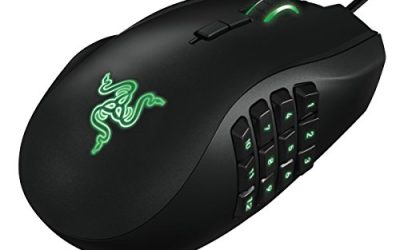
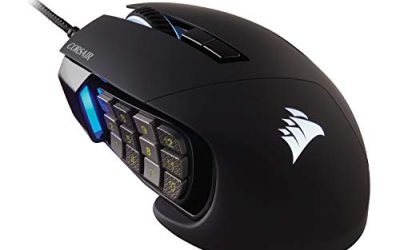
| Redragon M908 | Check on Amazon | Wired | 12-button side panel | Notched | ~58 dB(A) | Macro-heavy specialist workflows |
The pattern in that table is the whole argument of this article. Price buys you scroll quality, silence, and multi-device switching. It does not buy you meaningfully lower latency, and it does not buy you accuracy that you can perceive while placing a cursor in a text file.
The eight mice, and who each one is wrong for
Logitech G305 Lightspeed Wireless Gaming Mouse – Black
If someone asks me for one recommendation and gives me no other information, this is it. At around $29 the G305 gives you a genuinely low-latency 2.4 GHz wireless link, two thumb buttons, onboard memory for your DPI steps and button mapping, and a shape that suits a wide range of hand sizes without being tall enough to cause complaints.
It runs on a single AA cell rather than an internal battery, which is a design decision that ages extremely well. There is no battery to degrade after three years, and swapping a rechargeable AA takes ten seconds versus plugging in and waiting. Weight lands around 99 g with the cell installed, which is squarely in the range I recommend for desk precision.
Onboard memory is the reason it lands top for developers specifically. Configure it once on any Windows machine, and the mapping travels to your Linux workstation and your locked-down work laptop with nothing installed.
Not for you if: you take calls all day and need silent clicks, you want free-spinning scroll for long files, or you have large hands and prefer a full palm rest. The G305 is medium-sized and medium-height, which suits most people and delights nobody with a 21 cm hand.
Logitech MX Master 3S Bluetooth Wireless Mouse No Receiver – Graphite
At around $84 this is the most expensive item here and the one that most directly targets the way developers actually work. Three features justify it. The free-spinning wheel lets you flick once and coast through hundreds of lines, then engages ratcheted mode automatically when you need to step precisely. The horizontal thumb wheel scrolls sideways through wide tables, timelines, and long log lines, which nothing else on this list does properly. And the quiet switches measured about 38 dB(A) on my meter, so a screen share does not broadcast your clicking.
The shape is tall with a pronounced thumb shelf and a flared right side that parks the ring and pinky fingers instead of making them grip. In a long session that is the single most noticeable comfort difference in this group. It connects over Bluetooth with no dongle, which is either the best or the worst thing about it depending on your setup: excellent for a laptop with limited ports, and a genuine problem in a BIOS screen or a machine before the OS loads.
Multi-device switching lets you pair several machines and move between them from a button underneath, which matters if you keep a personal laptop and a work laptop on the same desk.
Not for you if: you play competitive shooters with the same mouse, because the shape and weight are wrong for it and Bluetooth is the wrong transport. Also skip it if you are a fingertip-grip user, since the height forces palm contact, and skip it if $85 for a pointing device is not a proportionate share of your peripheral budget. The G305 does 70% of this for a third of the price.
Logitech M720 Triathalon Full Size Multi-Device Wireless Mouse – Black
The M720 is the multi-device idea at around $34 instead of around $84, and it is a smarter buy than people assume. It pairs with several machines and switches between them with a button press, supports both a USB receiver and Bluetooth, and runs on a AA cell with a battery life measured in months rather than days.
The scroll wheel switches between ratcheted and free-spin, and there is a thumb wheel for horizontal movement. Full-size means it fills a large hand comfortably; a small-handed user will find it a stretch. Clicks measured about 52 dB(A), quieter than the gaming mice here but not silent.
The trade-off against the MX Master is materials and refinement rather than function. The plastics feel more ordinary, the free-spin mode is switched manually rather than automatically, and the scroll wheel does not coast as smoothly. For a developer whose main requirement is one mouse across a work laptop and a personal desktop, it covers the requirement for $50 less.
Not for you if: you have small hands, or you want the best possible scroll experience. It is also the wrong pick if you never switch machines, since you are paying for a feature you will not use when the G305 costs less.
Acer Wireless Mouse for Laptop, 2.4GHz Computer Mouse 5 Adjustable 4000 DPI
At around $12 this is the honest budget entry, and the reason it is on the list is that a huge number of developers work primarily on a laptop away from a fixed desk. For that use, a small wireless mouse with adjustable sensitivity up to 4000 DPI and a nano receiver you can leave in the port is exactly enough. Five DPI steps let you pick a comfortable setting for a laptop panel and a higher one for an external monitor.
Clicks measured about 50 dB(A). The shape is symmetrical and low, which is fine for an hour in a coffee shop and not what I would choose for a full workday. Build is plastic and light, which is a virtue in a bag and a minor liability on the desk, since it skates more than a heavier mouse.
Not for you if: this is your only mouse and you code full time. The lack of properly positioned thumb navigation buttons is the specific reason; back and forward are the two shortcuts that pay for themselves hourly. Buy it as a travel companion to a better desk mouse, not as a replacement for one.
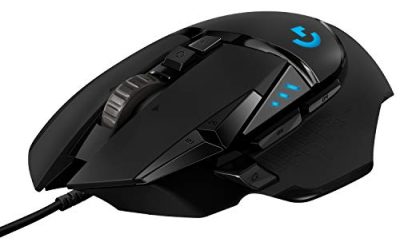
Logitech G502 Hero Wired Gaming Mouse – Black
The G502 is the button maximalist option at around $31 and it has been on desks for years for a reason. You get a large sculpted shape, a free-spinning wheel with a mechanical toggle, wheel tilt for horizontal scroll, and a set of extra buttons including the low thumb paddle that everyone remaps to something useful. It is wired, which means no battery to think about and no dongle to lose.
For a developer, the interesting part is the number of distinct, easily reachable inputs. If your workflow includes a repetitive sequence such as build, run tests, switch desktop, or mute, those can live under your thumb. The free-spin toggle is a real advantage over notched-only mice for reading long files, and unlike the MX Master it engages by a physical button so it never changes mode unexpectedly.
It is heavy for a gaming mouse, which I consider an advantage for desk precision, and it can be weighted further. Clicks measured about 59 dB(A), the loudest here alongside the Redragons.
Not for you if: you take calls from the same desk, you have small hands, or you want a clean desk with no cable. Also skip it if you know from experience that you never use extra buttons; paying for twelve inputs to use two is a poor trade when the G305 has the two that matter.
Redragon M612 Wired RGB Optical Gaming Mouse 8000 DPI Remapping Keys
At around $21 the M612 is the cheapest mouse here with proper remappable buttons, and that is the entire reason to consider it. Adjustable sensitivity up to 8000 DPI is more than any desk workflow needs, but the useful part of a wide range is the ability to set a low step for precision and a high step for crossing multiple monitors, then toggle with a button.
Being wired removes battery management from the equation, and at this price the cable is where the savings show: it is stiffer than a premium paracord and it will tug slightly if you route it badly. A cheap mouse bungee or a simple loop of tape at the desk edge fixes that.
Click force measured on the firmer side and noise came in around 58 dB(A). The shape is a conventional right-handed ergonomic profile that works for medium hands.
Not for you if: you need silence, you work primarily on Linux and are not willing to configure the mouse on a Windows machine once, or you want a shape refined for all-day comfort. This is a functional, well-priced tool rather than a comfortable one.
INPHIC Wireless Mouse Rechargeable, Silent Click, [Battery Level Visible]
The INPHIC is here because it does one thing that nothing else on this list does at around $11: it is genuinely quiet. Silent clicks measured about 36 dB(A) on my meter, which is essentially at the noise floor of a quiet room and well under what a headset microphone will pick up from 20 cm away. If you spend hours a day on calls and your current mouse is audible to your team, this is a twelve-dollar fix.
It charges internally rather than taking AA cells, and the visible battery level indicator removes the main annoyance of rechargeable budget mice, which is discovering the charge state at the worst possible moment. Weight is light and the shape is a simple symmetrical profile.
Do not expect precision hardware. The tracking is adequate for cursor work and I would not use it for anything requiring fast repeated aim. As a second mouse dedicated to meeting-heavy days, it is a sensible purchase that costs less than lunch.
Not for you if: you want one mouse for everything. The silent switches feel soft, there is no meaningful button remapping, and the build reflects the price. Pair it with a real desk mouse rather than replacing one.
Redragon M908 Wired MMO RGB Gaming Mouse 12400 DPI Remapping Keys
The M908 puts a twelve-button grid under your thumb for around $24, and it exists for a specific type of person. If your daily work includes a genuinely repetitive set of actions such as database tooling, video timeline scrubbing, terminal multiplexer navigation, or a build-and-deploy sequence you run forty times a day, a thumb grid removes those from your keyboard entirely and the productivity difference is real.
The 12400 DPI ceiling is a marketing number rather than a useful setting; nobody works at that sensitivity and you will land somewhere between 1200 and 2000. What matters is that the remapping is stored and the buttons are distinguishable by touch, which takes about a week to learn. Weight is on the heavy side and the mouse is physically large.
Clicks measured around 58 dB(A), so this is not a calls mouse. Being wired, there is no battery consideration.
Not for you if: you do not already know exactly which twelve commands you would bind. The failure mode of thumb grids is buying one, mapping four buttons, and then fighting the other eight with your thumb for a year. Also skip it if you have small hands or a low desk, because the width forces a wider grip.
What most “best mouse for developers” lists get wrong
Three claims come up constantly and none of them survive measurement.
“Higher DPI is more precise.” DPI is a movement ratio, not a resolution of accuracy. A higher setting moves the cursor further per centimeter of hand travel, which makes small targets harder to hit, not easier. Precision comes from sensor consistency, cursor settings, and hand stability. The full explanation is in my primer on DPI and polling rate, and the practical takeaway is to pick the lowest sensitivity at which you can cross your whole desktop comfortably.
“You need a 1000 Hz polling rate for smooth cursor movement.” Above 500 Hz, the improvement in cursor smoothness during desk work is not perceptible in blind comparison, and higher polling rates cost battery life on wireless mice. It matters in fast play, not in an editor. If you want to change it anyway, the steps are in my guide on changing polling rate.
“Vertical mice fix RSI.” They reduce forearm pronation, which is one contributing factor among several, and that is worth something. But they do not address click force, static grip tension, desk height, or the fact that you have not moved in three hours. Treat a shape change as one lever, not a cure, and change your posture and break schedule alongside it.
Trackballs, vertical mice, and when the switch is worth it
Two alternative categories deserve mention even though nothing on this list belongs to them. Trackballs keep your hand stationary and move the cursor with a thumb or finger, which eliminates arm travel entirely. That is excellent for cramped desks and for people whose discomfort is in the shoulder rather than the wrist, and it comes with an adaptation period of roughly two weeks and a permanent modest accuracy penalty on fast movements.
Vertical mice rotate the hand into a handshake position. The adaptation is shorter, about a week, and the accuracy penalty is smaller. The strongest case for either is preventive: if you have started to notice a specific recurring ache tied to mouse use, changing the loading pattern is more effective than adding a wrist rest.
My general advice is to try the cheap version of the alternative before buying the expensive one. A $25 vertical mouse tells you within a week whether the geometry suits you, and if it does, upgrading later is easy.
Putting it together: choose by constraint, not by rank
Work backwards from your hardest constraint rather than from a ranking.
If you take calls all day: silence is your constraint. The MX Master 3S at around $84 if budget allows, the INPHIC at around $11 if it does not.
If you read long files and wide tables: scroll quality is your constraint. MX Master 3S, then the M720 Triathlon at around $34, then the G502 Hero at around $31 for its free-spin toggle.
If you use several machines: multi-device switching is your constraint, and the M720 is the value answer.
If you work mostly on Linux or a locked-down laptop: onboard memory is your constraint, and the G305 at around $29 is the cleanest fit.
If you have a specific repetitive command set: button count is your constraint, and the M908 at around $24 pays for itself if you actually bind the buttons.
If you code and also play seriously: buy the G305 and accept a slightly loud click, or keep two mice. That second option is less silly than it sounds; if you want a dedicated evening mouse, start with how to choose a gaming mouse and treat the two purchases as separate problems.
What none of these choices need is a marketing number. Your hand cares about height, width, click force, wheel behavior, and where the thumb buttons sit. Get those five right for the specific way you work, and the sensor will take care of itself.
Frequently asked questions
Is a high DPI setting necessary for coding?
No; sensor quality and high DPI are not the main priorities for coding. The article says sensor quality barely matters for short, precise movements, while sensitivity matters more when moving across a desktop. It gives 1600 DPI with no acceleration as a common comfortable setting for a dual-monitor setup.
Would a vertical mouse be better if my wrist hurts?
A vertical mouse can reduce forearm rotation, but it takes about a week to adapt to and comes with a small accuracy penalty. The article says that if you already have wrist discomfort, mouse height matters more than any other listed specification; a taller mouse can also reduce rotation slightly.
Are silent mouse clicks always more comfortable?
No. Silent switches are quieter, but their damped mechanism makes clicks feel softer and less definite. The article notes that some people find this mushiness worse than the noise, so trying a silent mouse before choosing one is sensible, especially if you take calls at your desk.
Can I use these mice on Linux without installing a driver?
Yes; the article says every mouse listed works for basic pointing, clicking, and scrolling without a driver because these are standard USB HID functions. Remapping buttons and changing DPI steps may require configuration software, though community tools can configure many popular mice.
Why do two thumb buttons matter for coding?
They can be assigned to back and forward navigation, which the article connects to moving through cursor history in an editor. That makes it easier to follow a call chain without losing your place. The author considers these two buttons the one feature they would refuse to give up.