Trackball mice, standard mice, and vertical mice each suit different workflows that demand both precision and comfort. The reason people end up on a trackball is almost never curiosity — it is pain. A wrist that flares up after forty minutes of spreadsheet work, a desk too shallow for a full mouse arc, or a repetitive strain diagnosis that makes any traditional mouse feel like a small act of defiance. Trackball mice solve all of these by locking the body in place and letting the thumb or fingers do the work.
What separates the best trackball mice from the mediocre ones is not exotic. It is the quality of the ball itself (does it spin smoothly or wobble under direction changes), the DPI switching system (does it give you real range or just marketing numbers), the wireless latency (does the cursor feel attached to your hand or one step behind), and whether the shell shape actually supports your grip instead of pretending to. Judged on those points, these eight stand out.
As an Amazon Associate we earn from qualifying purchases at no extra cost to you.


Our Top Picks
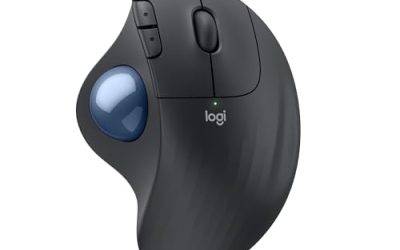
 Logitech Ergo M575S Wireless Bluetooth Trackball MouseOne Size4.13 x 3.94 x 5.28 InchesCheck on Amazon
 Kensington TB550 Wireless Trackball MouseRechargeable5.44 x 3.68 x 1.97 Inches0.3 poundsCheck on Amazon
 Kensington Orbit Trackball Mouse with Scroll Ring1 Count (Pack of 1)5.46 x 4.51 x 1.85 inches0.35 PoundsCheck on Amazon


Top 3 picks at a glance
Quick Picks
| Product | Best for | Price tier |
|---|---|---|
| Logitech Ergo M575S (Graphite Blue) | Most people | Mid-range |
| Nulea M501 | Small hands on a budget | Budget |
| ProtoArc EM01 NL | Rechargeable multi-device switching | Budget |
| Kensington TB550 | Tilted, rechargeable thumb trackball | Mid-range |
| Kensington Orbit | Minimalist desks | Budget |
| Logitech MX Ergo S | Professional precision | Premium |
| TECKNET Wireless | Travel and tight budgets | Budget |
| ELECOM EX-G Left-Handed | Left-handed thumb users | Budget |
How We Compared
Each device was judged on four criteria that matter most in this category. First, ball tracking quality: does the cursor respond instantly and consistently across speed ranges, or does it lose precision during slow edits. Second, ergonomic geometry: whether the shell shape and button placement reduce strain over multi-hour sessions rather than just looking good in product photos. Third, wireless reliability: actual latency and connection stability across Bluetooth and USB dongle modes. Fourth, software support: whether companion apps let you remap buttons, adjust DPI in meaningful increments, and update firmware without feeling abandoned after six months.
The 8 Best Trackball Mice in 2026
Logitech Ergo M575S (Graphite Blue)
If you want the most balanced thumb-operated trackball without overthinking it, this is the pick. The M575S refresh keeps the same sculpted shell that cradles your palm while the thumb rests naturally on the ball. Connection is rock-solid over both Bluetooth and the included Logi Bolt receiver, and the scroll wheel handles vertical navigation cleanly. Battery life stretches into months on a single AA, which removes one recurring headache.
- Pro: Consistent, smooth ball tracking with no noticeable lag in either wireless mode
- Pro: Logi Options+ software provides granular DPI and button remapping
- Con: Single AA battery instead of rechargeable means you eventually buy or charge replacements
Skip this if you prefer finger-operated trackballs or need a rechargeable solution without swapping cells.
Nulea M501
The Nulea is a genuinely surprising budget option that does not feel cheap in hand. Thumb control with four DPI levels covers everything from broad window dragging to fine cursor placement. The shell is slightly smaller than the Logitech M575S, making it a better fit for people with average-to-small hands who find full-size trackballs clumsy. Silent click switches are a real advantage in shared spaces.
- Pro: Four distinct DPI levels give usable sensitivity range at a low price
- Pro: Silent switches eliminate click noise without mushy feedback
- Con: Plastic construction and lighter weight can feel hollow compared to premium options
Skip this if you have large hands or need multi-device switching on a budget.
ProtoArc EM01 NL
The EM01 NL is a budget thumb trackball that covers two things the M575S does not: a built-in rechargeable battery charged over USB-C, and switching between three devices (two Bluetooth channels plus a 2.4GHz receiver). That suits designers and developers juggling a desktop, a laptop and a tablet. It uses a 34mm ball, offers five DPI steps from 200 to 1600, and has an adjustable hinge that tilts the shell from flat up to 20 degrees.
- Pro: Three-device switching via a channel button
- Pro: Rechargeable battery and adjustable tilt at a budget price
- Con: No companion software for button remapping, unlike Logi Options+
Skip this if you want deep button customization or a polished software ecosystem.
Kensington TB550
The TB550, part of Kensington’s Pro Fit Ergo line, is a thumb trackball with a shell tilted at 45 degrees, which keeps the forearm in a more neutral position than a flat mouse. It connects over Bluetooth LE or a 2.4GHz receiver, charges over USB-C, and Kensington rates the battery at up to four months per charge. A 34mm ball, four DPI settings from 400 to 1600, a 4D wheel that scrolls vertically and horizontally, and seven buttons you can remap in KensingtonWorks round it out.
- Pro: Tilted shape plus horizontal scrolling, which the M575S lacks
- Pro: Rechargeable battery and a ball-eject button for easy cleaning
- Con: Right-handed only, and the tall tilted shell takes some adjustment
Skip this if you prefer a flatter palm position or are left-handed.
Kensington Orbit with Scroll Ring
The Kensington Orbit is the only finger-operated trackball in the top eight, and that distinction matters. If your thumb has existing strain issues, a finger design removes that load entirely. The scroll ring surrounding the ball handles vertical navigation with a single index-finger flick, which is surprisingly intuitive after a short adjustment period. It is small, light, and costs less than everything else here.
- Pro: Finger operation spares the thumb entirely, ideal for existing strain conditions
- Pro: Lowest price in the group while maintaining Kensington trackball heritage
- Con: Scroll ring can feel imprecise during slow, controlled scrolling compared to a dedicated wheel
Skip this if you need DPI adjustment, wireless options, or a larger shell that fills your palm.
Logitech MX Ergo S
The MX Ergo S is the premium option, and it justifies its price with features that matter for professional workflows. The rechargeable battery eliminates ongoing battery purchases, USB-C charging is convenient, and the tilt-scroll wheel handles horizontal navigation with the same smoothness as vertical scrolling. A precision-mode button slows the cursor for fine work, an adjustable hinge tilts the shell up to 20 degrees, and the overall build quality feels dense and deliberate. This is for people who will use it daily for hours and want the best possible experience.
- Pro: Rechargeable battery with USB-C charging, rated for up to about four months per charge
- Pro: Precision mode and adjustable tilt help with detail work like photo editing or CAD
- Con: Costs far more than the standard M575S for modest hardware gains
Skip this if your budget is tight — the M575S delivers most of the same daily experience for far less.
TECKNET Wireless Trackball Mouse
The TECKNET is a compact, dual-mode wireless trackball that punches above its price. It offers Bluetooth and 2.4GHz connectivity, a small footprint ideal for cramped laptop desks or travel bags, and a reasonable DPI range for everyday productivity. The shell is less sculpted than the Logitech options, meaning long-session comfort is a step behind, but for intermittent use or travel, that tradeoff is acceptable.
- Pro: Dual wireless modes with fast pairing and stable connection
- Pro: Compact size makes it genuinely travel-friendly among trackballs
- Con: Less refined ergonomic shaping leads to hand fatigue during marathon sessions
Skip this if you plan to use it as your primary daily driver for more than three or four hours.
ELECOM EX-G Left-Handed Wireless
Left-handed thumb trackballs are rare, and the EX-G is one of the few established options. It mirrors the sculpted thumb-ball design for the left hand, with a 34mm ball on artificial ruby support bearings. It connects through a 2.4GHz USB receiver that stores inside the mouse, runs on a single AA battery, and switches between 750 and 1500 DPI. Six buttons, including back and forward, plus a tilting scroll wheel can be remapped in ELECOM Mouse Assistant.
- Pro: A true left-handed thumb trackball, which almost no other brand offers
- Pro: Ruby bearings, tilt wheel and back/forward buttons at a budget price
- Con: 2.4GHz only with no Bluetooth, and just two DPI settings
Skip this if you are right-handed or need Bluetooth for a tablet or a laptop with few USB ports.
More Trackballs Worth Considering
The eight picks above lean heavily on thumb-operated designs. That leaves out several trackballs that solve problems thumb trackballs cannot: large finger-operated balls for people who want to spread motion across several fingers, ambidextrous shells for left-handed users, and enthusiast models with more buttons and better bearings. The five options below fill those gaps.
Kensington Expert Trackball (K64325)

The Kensington Expert Trackball is the design long-time trackball users usually point to when they talk about the category’s classics. It is built around a large 55mm ball in the center of a symmetrical shell, with a scroll ring circling the ball and four large buttons at the corners. You move the ball with your index, middle, and ring fingers rather than your thumb, which spreads the work across several digits instead of loading a single joint.
This version connects by USB cable, so there is no battery to manage and no wireless pairing to troubleshoot. It ships with a detachable wrist rest that brings the heel of your hand up to the height of the ball, which matters because the shell is taller than a normal mouse. The free KensingtonWorks software lets you remap the four buttons and assign actions to button chords (pressing two buttons together), which effectively gives you more commands than the hardware suggests.
Who it suits: people with thumb pain who find the Kensington Orbit too small, left-handed users who need a genuinely ambidextrous trackball, and anyone who works at one desk and prefers a cable to batteries. The large ball is comfortable for slow, deliberate cursor placement in design, CAD, and spreadsheet work, because you can roll it with fine fingertip control and then spin it for long throws across a multi-monitor setup.
Strengths: the big ball gives smoother, more controllable movement than the small ball on the Orbit; the shell works equally well in either hand; and the wired connection removes latency and battery concerns entirely. The scroll ring is also more substantial than the Orbit’s, with a clear rotation feel.
Drawbacks: it is wired only, so it is a poor match for a laptop you carry around; the footprint is large; and the four-button layout has no dedicated back and forward buttons, so you need software chords to match what a typical mouse offers. Compared with the Logitech M575S, it trades sculpted palm support for symmetry and finger control. If you want the same idea without a cable, Kensington also sells the Expert Mouse in a wireless configuration.
Kensington SlimBlade Pro

The SlimBlade Pro takes the large-ball finger trackball and gives it a low, flat profile. Like the Expert Trackball, it uses a 55mm ball, but instead of a scroll ring you scroll by twisting the ball around its vertical axis. Dual sensors read both normal rolling and that twist motion, so pointing and scrolling happen on the same ball without lifting your fingers.
The Pro version adds what the original wired SlimBlade lacked: Bluetooth and 2.4GHz wireless, plus wired use over USB-C, with a built-in rechargeable battery that Kensington rates at up to four months per charge. There are four physical buttons, and KensingtonWorks lets you assign functions to those plus four two-button combinations. The symmetrical shape works for both left- and right-handed users.
Who it suits: users who want a premium finger-operated trackball that can move between a desktop and a laptop, and anyone who prefers a low device that sits close to the desk surface. Twist-to-scroll is an acquired taste, but people who adapt to it often find it faster than a wheel for long documents and code files.
Strengths: three connection modes, a rechargeable battery with long endurance, an ambidextrous layout, and a large ball that rolls with very little effort. The low shell keeps the wrist flatter than taller trackballs, and it looks clean on a minimalist desk.
Drawbacks: twist scrolling takes practice and can trigger by accident when you only meant to move the cursor; there are no dedicated side buttons; and it sits in the premium tier alongside the Logitech MX Ergo S. Compared with the MX Ergo S, the SlimBlade Pro is the better pick for finger operation and left-handed users, while the MX Ergo S remains the stronger choice for thumb users who want an adjustable tilt.
ELECOM Huge Wireless Trackball

The ELECOM Huge is exactly what the name says: a large right-handed finger trackball built around a 52mm ball, with a full palm rest that supports the whole hand. The ball rolls on artificial ruby bearings, a material many enthusiasts consider smoother and more consistent than the plastic supports used in budget trackballs.
This wireless model connects through a 2.4GHz USB receiver and offers three DPI settings (500, 1000, and 1500) through a switch on the shell. It has eight buttons, including back and forward buttons and three function buttons, plus a tilting scroll wheel. The free ELECOM Mouse Assistant software lets you remap most of them, which makes the Huge one of the most button-rich trackballs in this roundup.
Who it suits: right-handed users with medium to large hands who want a finger trackball with lots of programmable controls, such as video editors, designers, and anyone who relies on shortcuts. The padded palm rest makes it comfortable for long sessions, because your hand rests on the device rather than hovering over it.
Strengths: the large ball and ruby bearings give smooth movement; the eight-button layout covers browser navigation and app shortcuts without software chords; and the palm rest provides real support. Its size and weight keep it planted on the desk.
Drawbacks: it is right-handed only; it is big, around 18cm deep, so it takes more desk space than a compact trackball; and this model is limited to the 2.4GHz receiver, with no Bluetooth. ELECOM has since released the Huge Plus with Bluetooth, wired USB-C, and swappable bearings in the premium tier, but the standard wireless Huge remains a mid-range way into large-ball trackballs. Compared with the Kensington Expert, it gives up ambidextrous use for more buttons and better palm support.
ELECOM DEFT PRO

The DEFT PRO sits between the compact finger trackballs and the oversized Huge. It uses a 44mm ball operated by the index and middle fingers, in a shell shaped more like a conventional right-handed mouse. The result feels familiar to people coming from a standard mouse, while still keeping the wrist and arm still.
Its standout feature is connectivity: it works over Bluetooth, a 2.4GHz USB receiver, or a USB cable, chosen with a single switch. When wired, it draws power from the computer, so a dead AA battery never leaves you stuck. It has eight buttons plus a tilting wheel, three DPI settings (500, 1000, and 1500), and ELECOM lists durable OMRON switches for the main buttons. It weighs about 162g without a battery.
Who it suits: right-handed users who want a finger trackball that can switch between a desktop and a laptop, and people who like the idea of the Huge but find it too large. It is also a strong option for anyone who wants a cable fallback for days when the battery runs out.
Strengths: three connection modes, a generous button count, a mid-size ball that balances control and footprint, and a shape that eases the adjustment for first-time trackball users.
Drawbacks: it uses a replaceable AA battery rather than a built-in rechargeable cell; some users find the ball less smooth than the Huge’s out of the box; and there is no left-handed version. Compared with the Logitech M575S, the DEFT PRO moves the work from thumb to fingers and adds a wired mode, at the cost of the M575S’s polished software and very long battery life.
ProtoArc EM03 NL
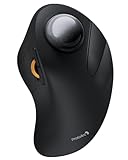
The ProtoArc EM03 NL is a budget-tier finger trackball with features usually found on more expensive models. It uses a removable 44mm ball moved with the index finger, a built-in rechargeable battery charged over USB-C, and switching between up to three devices: two Bluetooth channels plus a 2.4GHz USB receiver.
ProtoArc lists five DPI steps from 200 to 1600, quiet clicks, and roughly two months of use per charge. It works with Windows, macOS, Android, and iPad, which makes it a flexible option for people who move between a work laptop, a home desktop, and a tablet. The NL version drops the RGB lighting found on the original EM03.
Who it suits: anyone who wants to try a finger-operated trackball without paying premium-tier prices, students and remote workers juggling multiple devices, and people who would rather charge a battery than replace AA cells.
Strengths: rechargeable battery, three-device switching, quiet buttons, and a wider DPI range than the Kensington Orbit. The mid-size ball is large enough for controlled movement, and the shell is compact enough to travel.
Drawbacks: it has only four buttons, so there is less room for shortcuts than on the ELECOM models; it is right-handed only; and its software is thinner than Logi Options+ or KensingtonWorks. Compared with the TECKNET pick above, it moves control from the thumb to the index finger and adds a rechargeable battery, making it the budget choice for people who already know thumb trackballs aggravate their hand.
Buying Guide
Thumb vs. Finger Operation
Thumb-operated trackballs place the ball on top of a larger shell, letting your palm rest fully behind it. This provides more stability and suits people who prefer a controlled, anchored grip. Finger-operated designs like the Kensington Orbit are smaller, sit between your thumb and fingers, and shift all motion to index and middle digits. If you have existing thumb pain or carpal tunnel, finger operation is the safer starting point. If you want more palm support during long sessions, thumb operation wins.
Wireless Protocol and Latency
Bluetooth is convenient for laptop users who want to avoid occupying a USB port, but it introduces slightly higher latency than a dedicated 2.4GHz dongle. For productivity work, both are imperceptible. For fast-paced cursor tasks like graphic editing where you expect zero perceptual delay between ball rotation and cursor movement, prefer models with a USB receiver option alongside Bluetooth. Rechargeable batteries eliminate the AA-swapping annoyance but add weight and require a charging routine.
DPI Range and Software Ecosystem
Low-end trackballs sometimes offer fixed sensitivity or just two DPI levels, which limits your ability to match the ball speed to your screen resolution and workflow. Look for at least three or four adjustable levels, and verify the companion software allows per-level customization rather than a single global sensitivity. Logi Options+ is the most mature ecosystem here, offering granular control over button mapping, scroll behavior, and app-specific profiles. Budget brands often have thinner software with fewer update cycles.
Ball Size and Bearings
Trackball balls range from roughly 34mm on compact finger models to 55mm on the Kensington Expert and SlimBlade. Thumb trackballs like the Logitech M575S and MX Ergo S use smaller balls because the thumb has a limited range of motion. Finger trackballs can use larger balls, and bigger is generally easier to control: a large ball has more surface for your fingertips, more momentum for long cursor throws, and finer control for small movements.
The supports the ball rests on matter almost as much as its size. Most trackballs use three small contact points. Budget models often use plastic nubs that can feel scratchy and collect grime quickly, while enthusiast models use ceramic, steel, or ruby bearings that let the ball glide more evenly. If a trackball feels sticky when you start moving it slowly, the bearings are usually the reason, and cleaning them often fixes it.
Scrolling Method
Scrolling varies more on trackballs than on regular mice, and it is one of the biggest factors in daily comfort.
- Scroll wheel: the most familiar option, used on the Logitech, ELECOM, Nulea, and ProtoArc models. Easy to learn and precise for short scrolls.
- Scroll ring: a rotating ring around the ball, used on the Kensington Orbit and Expert. Good for long documents and works in either hand, but it takes a little practice.
- Twist scroll: rotating the ball itself, used on the Kensington SlimBlade Pro. Fast and space-efficient once learned, but it can trigger by accident at first.
- Button-plus-ball scroll: some models let you hold a button and roll the ball to scroll in any direction. This is handy for spreadsheets, timelines, and large images, and it can often be set up in companion software.
Handedness and Hand Size
Thumb trackballs are almost always right-handed, which leaves left-handed users with few options in that style beyond the left-handed ELECOM EX-G. Symmetrical finger trackballs like the Kensington Expert, SlimBlade Pro, and Orbit work in either hand. For hand size, small hands tend to do better with compact shells like the Nulea M501 or ProtoArc EM03 NL, while larger hands benefit from the palm support of the ELECOM Huge or the MX Ergo S. If your fingers hang over the front of the shell or your palm floats behind it, the device is the wrong size.
Buttons and Customization
Count the buttons you actually use on your current mouse. If you rely on back and forward buttons for browsing, choose a model with dedicated side buttons, such as the M575S, MX Ergo S, or ELECOM DEFT PRO. If you use many keyboard shortcuts in creative apps, the eight-button ELECOM models give you more room. Four-button Kensington designs make up for their minimal hardware with button chords in KensingtonWorks, which works well once you memorize your mappings.
Comparison of the Additional Picks
| Model | Control | Ball | Connection | Power | Handedness | Price tier |
|---|---|---|---|---|---|---|
| Kensington Expert Trackball (K64325) | Finger | 55mm | Wired USB | USB powered | Ambidextrous | Mid-range |
| Kensington SlimBlade Pro | Finger | 55mm | Bluetooth, 2.4GHz, wired | Rechargeable | Ambidextrous | Premium |
| ELECOM Huge Wireless | Finger | 52mm | 2.4GHz | AA battery | Right | Mid-range |
| ELECOM DEFT PRO | Finger | 44mm | Bluetooth, 2.4GHz, wired | AA battery or USB | Right | Mid-range |
| ProtoArc EM03 NL | Finger | 44mm | Bluetooth (x2), 2.4GHz | Rechargeable | Right | Budget |
Getting Used to a Trackball
Almost everyone feels clumsy on a trackball for the first few days. That is normal, and it is not a sign you picked the wrong model. A few habits make the switch faster:
- Lower the cursor speed at first. Start with a slower setting so small ball movements do not send the cursor flying, then raise it as your control improves.
- Turn on pointer acceleration. Acceleration lets slow rolls give precise movement while fast flicks cross the screen, which suits how trackballs are used.
- Keep your old mouse nearby for the first week. Use the trackball for browsing and documents, and switch back only for tasks where you feel slow. Increase trackball time each day.
- Relax your grip. Pressing hard on the ball creates friction and fatigue. The ball should be nudged, not pushed.
- Set up the desk. Keep the trackball close to the keyboard at elbow height so your shoulder stays relaxed. Tall finger trackballs work best with a wrist rest.
Most people feel comfortable within one to two weeks of daily use. If your thumb or fingers still ache after that, consider switching styles: thumb users who develop pain often do better on a finger model, and finger users who feel strain sometimes prefer the more anchored thumb grip.
Cleaning and Maintenance
Trackballs need more cleaning than regular mice because skin oils and dust transfer from the ball to the supports. On most models you can pop the ball out by pushing it from a hole underneath or lifting it directly. Wipe the ball with a soft, lint-free cloth, and clear the bearings with a cotton swab or a dry fingertip. Avoid harsh solvents that can damage coatings. Doing this every week or two keeps tracking smooth and prevents the sticky, jumpy feeling that makes people think their trackball is failing.
Trackball vs. Vertical Mouse vs. Standard Mouse
Many people shopping for a trackball are really shopping for relief from wrist or shoulder strain, so it helps to compare the main ergonomic alternatives before committing.
| Type | What moves | Desk space | Learning curve | Best for |
|---|---|---|---|---|
| Thumb trackball | Thumb only | Very small | Moderate | Wrist and shoulder strain, cramped desks |
| Finger trackball | Index and middle fingers | Small | Moderate to steep | Thumb strain, precision work, left-handed users |
| Vertical mouse | Arm and wrist, handshake grip | Medium | Short | Forearm twisting discomfort |
| Standard mouse | Arm and wrist, palm down | Medium to large | None | Fast gaming and general use |
A vertical mouse rotates the hand into a handshake position, which reduces forearm twisting, but you still move the whole device with your arm and wrist. A trackball removes that movement entirely. If your discomfort comes from repetitive arm motion or reaching for the mouse, a trackball tends to help more. If your discomfort comes from keeping your palm flat for hours, a vertical mouse may be enough and is quicker to learn. Some people keep both and alternate during the day, which spreads the load across different muscles. Persistent pain is worth discussing with a doctor or physical therapist, since no input device replaces proper treatment.
Our Verdict
The Logitech Ergo M575S (Graphite Blue) is our top pick for most people — it balances comfort, reliability, software depth, and price without compromise. For the best value entry, the budget-tier Kensington Orbit is the obvious recommendation, especially for thumb-pain sufferers who need finger operation. The MX Ergo S wins specifically when your work demands a rechargeable battery, USB-C charging, precision mode, and an adjustable tilt, which makes it worth the premium for daily professional use.
FAQ
Are trackball mice good for gaming?
Trackball mice work well for strategy games, city builders, and casual titles but struggle in fast-paced FPS games where quick 180-degree turns matter. The precision is excellent for aiming in slow scenarios, but the thumb or finger cannot replicate the full-arm flick of a traditional mouse.
How long do trackball mice last?
With proper cleaning (removing the ball and clearing dust from the sensors every few weeks), a quality trackball like the M575S can last five years or more. Budget models with cheaper ball bearings may develop wobble or inconsistent tracking after two to three years of daily use.
Do I need a mousepad with a trackball?
No. A trackball does not move across a surface, so it works on any desk regardless of material or reflectivity. This is one of the category’s practical advantages over traditional mice, especially on glass, wood, or fabric surfaces.
Is a thumb trackball or finger trackball better for wrist pain?
Neither directly stresses the wrist, which is the core benefit of the category. However, if your pain originates from repetitive thumb motion or a specific tendon near the base of the thumb, a finger-operated model avoids that muscle group entirely. Start with whichever feels more natural during a brief in-store test.
Can left-handed people use a trackball?
Yes, but the choice is narrower. Most thumb trackballs, including the Logitech M575S and MX Ergo S, are shaped for the right hand only. Left-handed users can choose the left-handed ELECOM EX-G or symmetrical finger-operated designs such as the Kensington Expert Trackball, Kensington SlimBlade Pro, or Kensington Orbit, which work equally well in either hand and let you swap button functions in software.
Are trackballs good for programming and spreadsheet work?
They are a strong fit. Coding and spreadsheet work involve lots of small cursor placements between long stretches of typing, and a trackball stays exactly where you left it, so you can return to it without hunting for the mouse. Models with programmable buttons let you map copy, paste, undo, or switching between windows, and a scroll ring or twist scroll moves quickly through long files.
Do trackballs work with Mac, iPad, and Chromebook?
Most current wireless trackballs work as standard pointing devices on Windows, macOS, ChromeOS, and iPadOS without special drivers. Bluetooth models are the easiest choice for iPads and laptops with few USB ports. Companion software for remapping buttons is usually limited to Windows and macOS, so on an iPad or Chromebook you get the default button layout.
Why does my trackball cursor jump or stick?
In nearly all cases the cause is dirt on the ball or on the support bearings. Remove the ball, wipe it with a lint-free cloth, and clean the supports and the sensor window with a cotton swab. If the problem remains on a wireless model, try a fresh battery or charge, and move the receiver closer to the trackball, for example with a short USB extension cable.
Is a large ball better than a small one?
For finger-operated trackballs, a larger ball such as the 52mm to 55mm balls on the ELECOM Huge and Kensington Expert is generally easier to control precisely and better for long cursor movements across multiple monitors. Thumb trackballs use smaller balls because the thumb has less range. Neither is better overall; the right size depends on whether you operate the ball with your thumb or your fingers.