If you spend eight or more hours a day navigating codebases, selecting text, and jumping between IDE panels, your wrists are taking a beating that standard mice are not designed to mitigate. The horizontal palm-down grip forces your forearm into constant pronation, compressing the median nerve over time. Ergonomic vertical mice address this by rotating your hand toward a handshake position, and the best ergonomic mice for programming specifically reduce that torsional load while giving you enough precision and programmable inputs to handle complex coding workflows without extra keyboard shortcuts.
What separates a genuinely useful vertical mouse from a gimmicky one comes down to three things: how accurately the angle keeps your wrist neutral during long sessions, whether the sensor and DPI options handle precise text selection and cursor placement in code, and if the build quality survives months of daily use without the scroll wheel developing that maddening ghost-click behavior. Many budget options look promising on paper but use hollow plastics that crack or switches rated for far fewer cycles than you would log over a year of full-time development. Weighed against those criteria, these eight stand out.
As an Amazon Associate we earn from qualifying purchases at no extra cost to you.


Our Top Picks
 Anker 2.4G Wireless Ergonomic Mouse4.72"L x 2.94"W3.98 x 3.23 x 3.15 inches0.28 poundsCheck on Amazon


Top 3 picks at a glance
Quick Picks
| Product | Best for | Price tier |
|---|---|---|
| ProtoArc EM11 NL | Wireless comfort on a budget | Budget |
| TRELC Wired Gaming Mouse | Programmers who need many buttons | Budget |
| Anker 2.4G Wireless | Reliable wireless at a low price | Budget |
| Lekvey Ergonomic Mouse | Rechargeable simplicity | Budget |
| Uineer Vertical Mouse | Multi-device Bluetooth switching | Budget |
| Logitech Lift | Premium build and silent clicks | Mid-range |
| KUNSI Wired Mouse | Absolute minimum budget | Budget |
| UGREEN Wireless Mouse | Quiet office environment | Budget |
How We Compared
Each mouse was judged on wrist-neutral geometry (how close the angle gets to the ideal 57-degree handshake position without sacrificing forward precision), switch durability and scroll wheel quality under repetitive clicking, connectivity stability during long coding sessions (wireless dropout and latency matter more than gamers realize when you are tabbing between terminals), and whether the button layout supports IDE workflow shortcuts without forcing awkward thumb stretches. Price was a tiebreaker only when performance tiers overlapped, which is why budget mice appear here alongside a premium one.
The 8 Best Ergonomic Mice For Programming in 2026
ProtoArc EM11 NL Wireless Ergonomic Vertical Mouse
This is the wireless option most developers should try first before spending more. The 57-degree angle is genuinely hand-friendly, and at a budget price the rechargeable battery eliminates the recurring cost of disposables. The two pros here are the silent click switches, which prevent the percussive fatigue you get from louder mice during marathon coding sessions, and the smooth sensor tracking that handles text selection in dense code without jitter. The main con is the limited DPI ceiling; if you work across ultra-wide multi-monitor setups, the cursor speed options may feel restrictive. Skip this one if you need more than a handful of programmable buttons for complex IDE macros.
TRELC Wired Gaming Mouse with 5 D Rocker
The TRELC earns its spot because 11 programmable buttons with on-board memory let you map entire IDE actions directly to the mouse, which is something a programmer with heavy keyboard-shortcut workflows genuinely needs. The 10000 DPI range gives you headroom for high-resolution multi-monitor setups, and the wired connection means zero latency concerns when precision matters during code review. The rocker-style thumb buttons are a unique advantage for navigating back and forward through file history. The con is the cable management reality; a wired mouse on a crowded desk adds clutter. Skip it if your workspace is minimal or if you already have wireless peripherals and want consistency across devices.
Anker 2.4G Wireless Ergonomic Mouse
Anker’s offering is the safe, no-surprises choice. The 2.4G USB receiver provides a rock-solid connection that Bluetooth cannot match for reliability, and the right-hand vertical design keeps the wrist neutral without the extreme angle that makes some vertical mice feel like you are pointing a remote. Pros include the solid build quality Anker is known for in peripherals and the simple plug-and-play setup that works instantly across Windows and macOS. The con is limited customization; it has back and forward thumb buttons, but no companion software to remap them, so you will still reach for keyboard shortcuts often. Skip it if your coding workflow depends on custom macro inputs.
Lekvey Ergonomic Mouse Rechargeable Vertical Wireless
The Lekvey competes directly with the ProtoArc EM11 at a slightly lower price point, and it wins on grip comfort. The rubberized side panels reduce the micro-adjustments your hand makes to compensate for slipping, which compounds into fatigue over long sessions. Pros are the quiet switch design and the USB-C charging that shares a cable with most modern laptops. The con is a slightly heavier profile that some users report causes arm drift over several hours, particularly if you have a small desk surface requiring frequent mouse lifting. Skip it if you prefer a lighter mouse with a more minimal footprint.
Uineer Vertical Ergonomic Mouse Bluetooth
Three-device Bluetooth switching makes this the budget pick for developers who work across a desktop, a laptop, and a tablet in a single day. The budget price is aggressive for that feature set. Pros include the fast device pairing between channels and the compact vertical angle that suits smaller hands better than the Logitech Lift. The con is that Bluetooth can add slightly more latency than a 2.4G receiver, which some users notice during precision cursor placement. Skip it if you work on a single machine or if your tasks involve fine cursor control like UI debugging or drawing in code-adjacent tools.
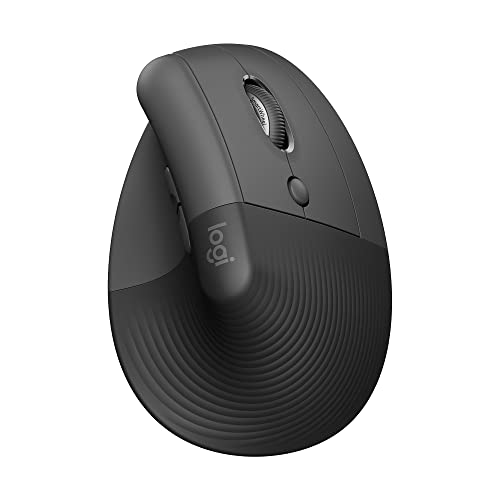
Logitech Lift Vertical Ergonomic Wireless Mouse
The Lift is the premium answer to wrist pain for developers with small-to-medium hands. Logitech’s build quality and silent-switch engineering are the best among the top eight, and the 57-degree angle comes from Logitech’s ergonomics research. Pros include the Logi Options+ software for remapping buttons without workarounds, and the battery life measured in months rather than weeks. The con is the price; it costs more than double the best budget alternatives, and larger-handed users may find the shape cramped. Skip it if you have large hands, where the MX Vertical fits better, or if you will not use the software customization enough to justify the premium.
KUNSI Wired Ergonomic Mouse
The KUNSI is the cheapest vertical mouse worth recommending, and for developers who just want to test whether a vertical angle actually helps before committing real money, it answers the question cheaply. Pros include the adjustable DPI (800/1200/1600) that handles most single-monitor workflows adequately, and six buttons that cover basic navigation. The con is build quality; the plastic housing has noticeable flex, and the scroll wheel lacks the tactile precision you need for line-by-line code review. Skip it if you plan to use this as your primary daily mouse for more than a few months.
UGREEN Ergonomic Wireless Mouse
UGREEN bundles Bluetooth and 2.4G connectivity with quiet-click switches at a budget price, making it the value option for office developers who share a space. The dual-connection design means you can pair with a desktop via the receiver and switch to Bluetooth for a laptop without re-pairing. Pros are the whisper-quiet clicks and the compact size that suits smaller hands. The con is the basic feature set; no programmable buttons and no DPI adjustment mean it serves simple pointer movement well but does not adapt to coding workflows that benefit from custom inputs. Skip it if you need more than the standard click-and-scroll interaction model.
More Ergonomic Mice Worth Considering
Most of the picks above are budget vertical mice, and the Logitech Lift is the only premium option. Developers who code full-time often benefit from spending more on a mouse with better software, a more precise scroll wheel, or adjustable geometry. The six options below cover those needs, from adjustable-angle verticals to a horizontal ergonomic mouse that many programmers prefer for its scrolling and app-specific shortcuts.
Logitech MX Vertical

The MX Vertical is the larger sibling of the Logitech Lift and the better fit for developers with medium to large hands. It uses the same 57-degree handshake angle, which Logitech says reduces muscle activity compared with a standard mouse, but the body is bigger and more substantial, at roughly 120mm long and about 135g.
The sensor tops out at 4000 DPI, and a cursor-speed button on top switches between two preset speeds, so you can drop to a slow setting for placing a caret between characters and jump back up to cross multiple monitors. It connects through a Logitech Unifying receiver, Bluetooth, or a USB-C cable, and Easy-Switch pairs it with up to three computers. Logitech Flow lets you move the cursor between two computers and even copy text across them, which is handy when you code on a desktop and keep docs or chat on a laptop. A full charge lasts up to four months, and one minute of charging gives about three hours of use.
Who it suits: programmers with larger hands who find the Lift cramped, and anyone who works across two or three machines and wants Logi Options+ remapping on all of them.
Strengths: a proven vertical angle, rechargeable battery with USB-C, three-device switching with Flow, and a mature software ecosystem for per-app button profiles.
Drawbacks: clicks are louder than the Lift’s quiet switches, it has only two side buttons plus the speed button, and it is too large for small hands. It uses the older Unifying receiver rather than Logi Bolt. It sits in the mid-range to premium tier.
Logitech MX Master 3S

The MX Master 3S is not a vertical mouse, but it is one of the most popular mice among software developers, and it deserves a place in any programming roundup. Its sculpted right-handed shape tilts the hand slightly and supports the thumb on a wide rest, offering a moderate ergonomic improvement over a flat mouse without the adjustment period of a full vertical design.
What makes it a programmer’s tool is the scrolling. The MagSpeed electromagnetic wheel switches automatically between precise line-by-line clicks and a free-spinning mode that Logitech says can scroll 1,000 lines per second, which makes jumping through long source files or logs very fast. A side thumb wheel handles horizontal scrolling across wide code, spreadsheets, and timelines. The 8000 DPI sensor tracks even on glass, and the clicks are about 90 percent quieter than the previous MX Master 3. It has seven customizable buttons, including a gesture button, and Logi Options+ supports per-app profiles, so the same buttons can trigger different shortcuts in your IDE, browser, and terminal. It connects via Logi Bolt or Bluetooth to up to three devices.
Who it suits: developers without diagnosed wrist pain who want the best scrolling and shortcut customization, and those who tried vertical mice and found them awkward for precision work.
Strengths: class-leading scroll wheel, horizontal thumb wheel, per-app profiles, quiet clicks, and multi-device support.
Drawbacks: it keeps the palm mostly flat, so it reduces forearm rotation far less than a true vertical mouse. If you already have pronation-related pain, choose a vertical model. It is also heavy compared with budget mice. It sits in the premium tier.
Contour Unimouse (Wireless)

The Contour Unimouse solves the biggest problem with vertical mice: a fixed angle that may not suit your wrist. Its body tilts on a hinge anywhere from 35 to 70 degrees, so you can start at a moderate angle and increase it gradually, or set it exactly where your wrist feels neutral. The thumb rest is adjustable too, rotating and sliding to match your thumb length.
The wireless version connects over a 2.4GHz receiver and charges an internal battery rated for up to three months per charge. It has six programmable buttons plus a dedicated DPI button, with cursor speeds selectable between 800 and 2800 DPI using a PixArt sensor. Contour sells both right- and left-handed versions, which is rare among premium verticals.
Who it suits: developers with existing wrist discomfort who want to fine-tune the angle, left-handed programmers, and teams buying for several people with different hand sizes.
Strengths: adjustable tilt, an adjustable thumb rest, programmable buttons, a rechargeable battery, and left-handed availability.
Drawbacks: it costs considerably more than fixed-angle verticals, the software is less polished than Logi Options+, and getting the adjustment right takes some experimentation. It sits in the premium tier.
Evoluent VerticalMouse 4 (Wireless)

Evoluent is widely credited with popularizing the vertical mouse, and the VerticalMouse 4 is its long-running flagship. It holds the hand in a near-upright position, steeper than most budget verticals, with a lip along the bottom edge that stops your little finger from dragging on the desk.
It has six buttons: left, right, and middle click, plus forward and back thumb buttons and a lower thumb button that can be remapped with Evoluent Mouse Manager. Pointer speed is adjustable from 800 to 2600 DPI through side buttons, with indicator lights under the thumb rest showing the current setting. This wireless model uses a small 2.4GHz receiver and runs on a single AA battery. Evoluent recommends the regular size for hands at least 7 inches (178mm) long, and also sells small and large versions.
Who it suits: programmers with significant wrist pain who want a steep, well-established vertical design, and anyone who values multiple size options.
Strengths: steep handshake angle, a finger-support lip, a useful button layout, and size choices that budget brands rarely offer.
Drawbacks: AA power rather than a rechargeable battery, no Bluetooth on this model, and a design that has changed little over the years. It sits in the premium tier.
Razer Pro Click V2 Vertical Edition

The Pro Click V2 Vertical brings gaming-grade hardware to a productivity vertical mouse. Its angle is steep at about 71.7 degrees, and it uses Razer’s Focus Pro optical sensor with up to 30,000 DPI and five configurable sensitivity stages, which is far more precision than coding requires but gives very smooth, consistent tracking.
It has six physical buttons and eight programmable controls in Razer Synapse, with switches rated for 60 million clicks. It connects to five hosts: a 2.4GHz receiver, three Bluetooth devices, and USB-C wired. Razer rates the battery at up to six months with lighting off, and five minutes of charging gives about three days of use. It weighs 150g and is right-handed only.
Who it suits: developers who also game and want one vertical mouse for both, and anyone juggling many devices who needs more than three connection slots.
Strengths: very steep angle, excellent sensor, five-host connectivity, durable switches, and long rated battery life.
Drawbacks: clicky switches are louder than silent-click alternatives in shared offices, there is no horizontal scroll or free-spinning wheel, and it is heavy and expensive. It sits in the premium tier.
Kensington Pro Fit Ergo Vertical Wireless

The Pro Fit Ergo Vertical is a well-built budget-tier option from an established office brand. Its slope is moderate at about 46.7 degrees, which is gentler than the 57-degree Logitech designs and can be easier to adapt to for first-time vertical mouse users. An extended lip supports the little finger.
It connects through a 2.4GHz nano receiver that stores inside the mouse, with no Bluetooth. Four DPI settings (800, 1000, 1200, and 1600) are selected with a dedicated button, and the six buttons, including forward and back, can be remapped in the free KensingtonWorks software. A single AA battery is rated to last up to a year, and Kensington backs it with a three-year limited warranty. It weighs about 93.5g.
Who it suits: developers who want a reliable entry-level vertical mouse with remappable buttons and a real warranty, and those who found steeper angles uncomfortable.
Strengths: customizable buttons, a long-lasting battery, a stable receiver connection, light weight, and a three-year warranty.
Drawbacks: no Bluetooth or multi-device switching, a moderate angle that gives less forearm rotation than steeper designs, and a basic scroll wheel. Compared with the Anker and UGREEN picks above, it adds software customization and a longer warranty.
Buying Guide
Vertical Angle and Wrist Neutral Position
The defining feature of ergonomic mice for programming is the angle your hand rests at. A true vertical design rotates your forearm approximately 57 degrees from the horizontal position, aligning the radius and ulna bones and reducing median nerve compression. Angles of roughly 45 degrees and up provide meaningful benefit; designs closer to 20-30 degrees offer only a mild change from a flat mouse. If you have existing wrist discomfort or a diagnosed condition like early-stage carpal tunnel, prioritize a steeper angle even if it takes longer to adapt.
Sensor Precision and DPI for Code Navigation
Coding demands steady, fine cursor control because you select individual words, place carets between characters, and navigate dense text. A sensor that jitters at low DPI or accelerates inconsistently will make editing tedious. Look for mice with a DPI range that includes 800-1200 for fine control, and verify through reviews that the sensor tracks without smoothing or spin-down at those speeds. Wired mice typically offer more consistent tracking at lower prices, while even budget wireless options generally use sensors good enough for development work.
Connectivity Reliability for Long Sessions
Developers use mice for longer continuous periods than almost any other computer user, and connectivity dropout during a session is a productivity killer. A 2.4G USB receiver provides the most stable link with the lowest latency, making it ideal for single-machine workflows. Bluetooth suits multi-device setups but introduces slightly higher latency and occasional reconnection delays. Wired connections eliminate wireless concerns entirely and remain the most dependable option if your desk setup tolerates a cable.
Hand Size and Fit
A vertical mouse that is the wrong size undoes most of its benefit, because you end up gripping it tightly or reaching awkwardly. Measure your hand from the wrist crease to the tip of the middle finger:
| Hand length | Typical fit | Examples |
|---|---|---|
| Under about 17cm | Small | Logitech Lift, compact budget verticals |
| About 17cm to 19cm | Medium | Lift or MX Vertical, Kensington Pro Fit Ergo, Evoluent regular size |
| Over about 19cm | Large | MX Vertical, Evoluent large, Razer Pro Click V2 Vertical |
When holding the mouse, your fingers should rest naturally on the buttons without curling, your little finger should not drag on the desk, and the base of your palm should rest on the desk or the mouse rather than hover.
Scroll Wheel Quality for Code
Programmers scroll constantly through source files, diffs, logs, and documentation, so the wheel matters as much as the angle. Look for a wheel with distinct, consistent steps for line-by-line reading, and consider a free-spinning or electromagnetic wheel, such as the MagSpeed wheel on the MX Master 3S, for jumping through long files. Horizontal scrolling, via a thumb wheel or tilting wheel, helps with wide code, minified files, and spreadsheet-style data. Cheap wheels are also the first part to fail, often with skipping or reverse scrolling, so wheel build quality is a good indicator of overall durability.
Mapping Buttons for Programming
Programmable buttons pay off when you assign them to actions you repeat dozens of times an hour. Useful mappings for developers include:
- Back and forward: navigate back and forward through cursor history or go-to-definition jumps in your IDE, not just in the browser.
- Copy and paste: reduces reaching for the keyboard when moving snippets between files.
- Switch window or tab: jump between editor, terminal, and browser.
- Toggle terminal or run task: trigger your build, test, or debug shortcut.
- Middle click: close tabs and open links in new tabs without a modifier key.
Per-app profiles, offered by Logi Options+, Razer Synapse, and some other utilities, let the same button do different things depending on which application is active. Note that some company-managed computers block third-party mouse software, so check before relying on it; mice that store settings in on-board memory work around this.
Desk Setup to Get the Most from an Ergonomic Mouse
- Keep the mouse close. Place it right next to the keyboard so your upper arm hangs by your side. A compact or tenkeyless keyboard reduces the reach.
- Set elbow height. Your desk or keyboard tray should be at or slightly below elbow height, with the forearm roughly level.
- Move from the elbow and shoulder. Vertical mice work best when you move them with the arm rather than flicking with the wrist.
- Use keyboard navigation too. No mouse removes all strain. Learning IDE shortcuts for navigation, multi-cursor edits, and search reduces total mouse time.
- Take breaks. Short pauses every 30 to 60 minutes to stretch the hands and change posture matter as much as any device.
Comparison of the Additional Picks
| Mouse | Angle | Max DPI | Connection | Power | Price tier |
|---|---|---|---|---|---|
| Logitech MX Vertical | 57 degrees | 4000 | Unifying, Bluetooth, USB-C, 3 devices | Rechargeable | Mid-range to premium |
| Logitech MX Master 3S | Sculpted horizontal | 8000 | Logi Bolt, Bluetooth, 3 devices | Rechargeable | Premium |
| Contour Unimouse Wireless | Adjustable 35 to 70 degrees | 2800 | 2.4GHz | Rechargeable | Premium |
| Evoluent VerticalMouse 4 | Near upright | 2600 | 2.4GHz | AA battery | Premium |
| Razer Pro Click V2 Vertical | About 71.7 degrees | 30,000 | 2.4GHz, 3 Bluetooth, USB-C | Rechargeable | Premium |
| Kensington Pro Fit Ergo Vertical | About 46.7 degrees | 1600 | 2.4GHz | AA battery | Budget |
Vertical Mouse vs. Trackball vs. Horizontal Ergonomic Mouse
Vertical mice reduce forearm rotation but still require arm movement. Trackballs, such as the Logitech Ergo M575S or MX Ergo S, keep the arm still and move only the thumb or fingers, which helps if shoulder or arm movement is the problem or your desk is cramped. Sculpted horizontal mice like the MX Master 3S offer the smallest change from a regular mouse and the best scrolling, but the least reduction in forearm rotation. Many developers keep two different devices and alternate during the day to vary the load on their muscles.
Match the Mouse to Your Symptoms
Different kinds of discomfort point to different designs. This is general guidance rather than medical advice, and persistent symptoms deserve a professional assessment.
| Where it hurts | Likely contributor | Design to consider |
|---|---|---|
| Top of the forearm, inner wrist | Forearm pronation from a flat grip | Vertical mouse at 57 degrees or steeper |
| Wrist, when moving the mouse side to side | Wrist deviation and flicking | Vertical mouse moved from the elbow, or a trackball |
| Shoulder or upper arm | Reaching for the mouse, large arm movements | Trackball, or a compact keyboard to bring the mouse closer |
| Base of the thumb | Repetitive thumb motion | Avoid thumb trackballs; try a vertical mouse with a relaxed thumb rest |
| Fingers, after long clicking sessions | Click force and repetitive clicks | Light, quiet switches and programmable buttons that replace repeated clicks |
Switch Durability and Click Noise
Developers click and scroll far more than most office workers, so switch quality matters. Premium mice often list a click rating, such as 10 million clicks for the Logitech MX Vertical or 60 million for the Razer Pro Click V2 Vertical. Budget mice rarely publish ratings, and double-clicking caused by worn switches is one of the most common failures. Quiet switches, as on the Logitech Lift, MX Master 3S, and several budget picks above, reduce noise on calls and in open offices, while clicky switches give sharper feedback that some people prefer for precise selections.
When to Replace Your Mouse
Replace an ergonomic mouse when the scroll wheel skips or scrolls in the wrong direction, a button registers double clicks, the coating becomes sticky or worn, or the battery no longer lasts a reasonable time between charges. Cleaning the sensor window and wheel with compressed air can fix minor tracking and scrolling issues first. If a mouse that used to feel comfortable starts causing discomfort, check your desk height and chair setup before assuming the mouse is at fault.
Our Verdict
The ProtoArc EM11 NL is the top pick overall because it delivers a genuine 57-degree vertical experience, silent clicks, and rechargeable convenience at a budget price, making it the smartest starting point for developers testing whether vertical mice suit their workflow. If you code daily and want a premium mouse you will not replace, the Logitech Lift justifies its higher price with build quality, silent switches, and Logi Options+ software, especially for small to medium hands. The Uineer becomes the winner if your specific condition is multi-device coding across desktop and laptop in the same session, since three-channel Bluetooth switching is rare at its budget price.
FAQ
Do vertical ergonomic mice actually help prevent carpal tunnel?
They reduce one contributing factor by eliminating forearm pronation, which decreases pressure on the median nerve. They are not a guaranteed prevention, since carpal tunnel can also result from keyboard posture and wrist extension during typing, but removing the rotational stress from the hand makes them a meaningful improvement over horizontal mice for long-session work.
How long does it take to adjust to a vertical mouse for coding?
Most developers report initial awkwardness lasting one to three days, with muscle memory adapting during low-stakes tasks first. By the end of the first week, precision cursor work like selecting single words and placing carets typically feels natural. Starting with general browsing before jumping into heavy coding sessions can smooth the transition.
Is wired or wireless better for programming?
Wired offers zero latency and no battery anxiety, making it ideal for single-desk setups where cable management is not a problem. Wireless is better if you move between machines, have limited desk space, or prefer a cleaner setup. The latency difference on modern 2.4G receivers is negligible for coding, so this is a preference decision rather than a performance one.
Do I need programmable buttons for coding?
Not strictly, since IDEs have keyboard shortcuts for most actions. Programmable buttons become valuable when you navigate between panels frequently or use repetitive multi-step commands, as they reduce the hand movement between keyboard and mouse. If your current workflow already feels smooth without them, you likely do not need to pay extra for that feature.
Are vertical mice good for left-handed programmers?
Left-handed options are limited but available. Logitech sells a left-handed version of the Lift, and Contour offers the Unimouse in both right- and left-handed versions, including wireless models. Most budget vertical mice are right-handed only, so check the listing carefully before buying.
What DPI is best for programming?
There is no single best number. Around 800 to 1600 DPI works well for one 1080p or 1440p monitor, while 4K and multi-monitor setups often benefit from higher settings or pointer acceleration. More important than maximum DPI is being able to switch quickly between a slow setting for precise text selection and a faster one for moving across screens, which a DPI or speed button on the mouse makes easy.
Can a vertical mouse hurt at first?
Some temporary soreness in the forearm or shoulder is common in the first days, because different muscles take over the work. Keep your grip relaxed, move from the elbow, and alternate with your old mouse during the first week. If you experience sharp pain, numbness, or tingling that persists, stop using the device and talk to a doctor or physical therapist.
Is the Logitech MX Master 3S better than a vertical mouse for coding?
It depends on your priority. The MX Master 3S has a better scroll wheel, a horizontal thumb wheel, and deeper per-app customization, which many programmers love. A vertical mouse like the Logitech Lift or MX Vertical does more to reduce forearm rotation. If you have no wrist discomfort, the MX Master 3S is an excellent productivity mouse; if you already feel strain, a vertical design is the better choice.
Do I need a wrist rest with a vertical mouse?
Usually not. Most vertical mice are designed so the side of your palm rests on the desk or on the mouse base, keeping the wrist neutral without extra padding. A wrist rest can push the wrist into extension if it is too high. If you prefer one, choose a low, soft rest and use it to support the palm rather than the wrist joint.