Dell laptops use the standard Windows screenshot tools, so the answer is not Dell-specific: press PrtScn for a clipboard copy, Win+PrtScn for a saved file, or Win+Shift+S to select an area. What does vary between Dell models is the keyboard. On some, Print Screen is its own key; on others it shares a key and requires Fn. You do not need SupportAssist or any other Dell program. Below is each option in turn, a note on external keyboards, and a short list of fixes for when the capture seems to vanish.
Locate the Print Screen key on your Dell
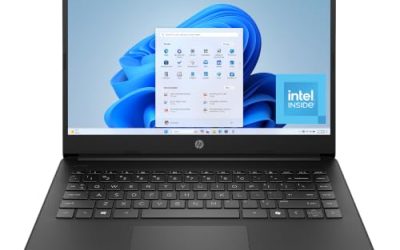
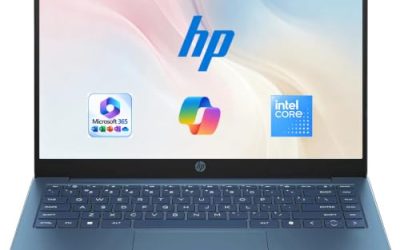
Look at the top right of the keyboard first. Many Dell laptops print PrtScn, PrtSc or Prt Sc on a key in or near the function row, or beside the arrow keys. If the label is in a second color or boxed, the key is probably a shared one that needs Fn held down to activate the print function. Slimmer laptops and some gaming models arrange these keys differently, and the exact layout changes by generation, so the manual for your specific model is the final word.
It is also worth checking how the top-row keys behave by default. Some Dell laptops treat F1 to F12 as media and brightness keys until you hold Fn, while others do the reverse. This affects shared keys, since the print function could be the default or the Fn alternate. A quick experiment shows which you have: press the key alone, paste into Paint, then try again with Fn.
Full-screen capture with PrtScn
- Set up the screen as you want it to appear.
- Press PrtScn, or Fn+PrtScn if your keyboard needs it.
- Open Paint, Word, an email or a chat app.
- Press Ctrl+V and save the file, or send it as is.
Nothing seems to happen when you press the key, which is normal, because the image is placed on the clipboard silently. Think of it like copying text: you only see the result once you paste. If you capture a second time before pasting, the earlier image is replaced.
Saving automatically with the Windows key
Hold the Windows key and press PrtScn. On Dell models with a shared key, you may need Win+Fn+PrtScn. The display briefly dims, and a PNG is written into Pictures, inside a folder named Screenshots. Open File Explorer to see it. This route is handy when you are taking a batch of images, for instance while setting up a new laptop and recording each settings screen for later reference.
Files are named in sequence, so the highest number is usually the newest. If you cannot find the folder, search File Explorer for Screenshots, or sort Pictures by date modified. When Pictures is synced by a cloud service, the screenshot may take a moment to appear on other devices.
Selecting an area with Win+Shift+S and Snipping Tool
This is the method most Dell owners end up using. Press Win+Shift+S, and the screen dims with a small toolbar at the top. Choose rectangle, freeform, window or full screen, then drag. The capture goes to the clipboard, and a notification offers to open it in Snipping Tool, where you can mark it up and save.
Because it does not depend on the Print Screen key, it also works around keyboard quirks. Dell laptops with an unusual layout, a stuck Fn lock or a damaged key can all still use this shortcut. You can also open Snipping Tool from the Start menu and click New. Older Windows 10 installs may show it as Snip & Sketch, but the process is the same.
Which method fits which job
| Situation | Suggested method | Result |
|---|---|---|
| Quick paste into a message | PrtScn or Win+Shift+S | Clipboard image |
| Many images saved without effort | Win+PrtScn | Numbered PNG files |
| One app window only | Alt+PrtScn | Clipboard image of that window |
| Cropped section with markup | Win+Shift+S, then Snipping Tool | Editable capture |
| Dead or hard-to-reach key | Win+Shift+S | Works without Print Screen |
Using an external keyboard with your Dell
If you dock the laptop or plug in a USB keyboard, the full-size layout usually has a dedicated Print Screen key at the top right. That means no Fn key is needed, and the shortcuts above behave the standard way. Compact keyboards, mechanical boards and wireless keyboards vary, though. Some hide Print Screen behind a function layer, so check the keyboard’s documentation.
A common surprise is that a laptop’s built-in Fn shortcuts do not carry over to the external keyboard. If your Dell needed Fn+PrtScn on the built-in keys, the external board’s own key will probably work without Fn. Gamers who use a mechanical keyboard with remappable keys should also check that no profile software has reassigned Print Screen to a macro.
Troubleshooting a screenshot that does not appear
- You pasted and got old content: The clipboard only holds one item. Capture again and paste immediately.
- No files in Screenshots: Only Win+PrtScn saves automatically. Other shortcuts need a paste or a save.
- Key does nothing at all: Try the Fn variant, then Win+Shift+S. If the latter works, the key or its mapping is the issue.
- Black capture in a game: Switch to borderless or windowed mode. Exclusive fullscreen sometimes blocks the standard shortcut.
- Another program grabs the key: Some cloud and capture utilities claim Print Screen. Review their hotkey settings.
- Several keys misbehave: Try an external keyboard. If that works normally, the built-in keyboard may need attention from Dell support or a qualified technician.
Avoid installing unknown “screenshot fixer” downloads. Windows features cover the job, and bundled extras bring needless risk.
Worked example: a support ticket with three attachments
Assume a Dell laptop on Windows 11, with a standard layout and no special software. You need to send an error message to a support team. First, press Win+Shift+S and select only the error dialog, leaving out your desktop, which might show private files. Open the notification, click Save, and name it error-dialog. Repeat for the settings page that triggered it, and a third time for the version number. Attach the three files. Smaller, targeted images are easier for the recipient to read than three full-screen shots, and they carry less accidental personal information.
Sizing and sharing your captures
High-resolution Dell displays create large PNG files, sometimes several megabytes. For email or forums, crop to the relevant area, or save as JPG in Paint’s save dialog if a smaller file matters more than perfect sharpness. For text-heavy images, stay with PNG, since JPG tends to blur small lettering. Before sending, glance at the image for browser tabs, account names or notifications that you would rather not share.
If you capture mostly in games on a gaming-oriented Dell, a guide on laptop GPUs compared gives context on the hardware doing the heavy lifting in those games.
Related guides
- What Is The Best Budget Most Responsive Gaming Mouse Wired
- Low Latency Gaming Headphones Usb-C 2.4 Ghz Wireless
- Low Latency Gaming Headphones Usb-C Dongle 2.4 Ghz
Frequently asked questions
What key do I press to screenshot on a Dell laptop?
Press the Print Screen key, often labeled PrtScn or PrtSc, to copy the full screen to the clipboard. On some Dell models that function is shared with another key and needs Fn held as well. For a saved file, add the Windows key. For a chosen region, use Win+Shift+S, which works on any Windows laptop.
Do I need Dell SupportAssist or another Dell app to take screenshots?
No. Screenshots are built into Windows, so the shortcuts and Snipping Tool work without any Dell software. SupportAssist and similar utilities handle drivers, updates and diagnostics, not image capture. If a Dell utility seems to be interfering with a key, you can check its settings, but removing it is not required for capturing your screen.
Where is my screenshot after pressing Win+PrtScn on a Dell?
Open File Explorer, go to Pictures, then the Screenshots folder. The image is a PNG with a numbered name. If Pictures is redirected to a cloud-synced location, the folder moves with it. Plain PrtScn does not save a file, because it only places the image on the clipboard until you paste it.
How do I take a screenshot with an external keyboard on a Dell laptop?
A full-size external keyboard normally has a dedicated Print Screen key near the top right, so no Fn key is needed. Use PrtScn, Alt+PrtScn or Win+PrtScn exactly as you would on Windows generally. If the key does nothing, try Win+Shift+S instead, since that shortcut does not depend on the Print Screen key at all.
Why does my Dell screenshot only copy and not save?
That is expected for PrtScn and Alt+PrtScn, which only copy to the clipboard. Paste into Paint, Word or a message and save from there. If you want automatic saving, use Win+PrtScn, which writes a file to Pictures\Screenshots, or open the Snipping Tool notification after Win+Shift+S and choose Save.