Workspace ergonomics for a gaming PC is the arrangement of monitor, keyboard, mouse, chair and desk so your posture stays close to neutral during long sessions. A setup that works keeps your head, neck, shoulders, wrists and back in comfortable positions without constant adjustment. The goal is simple: you should be able to play for hours without shifting in the chair to find relief. That is achievable with a few measured changes, not an expensive desk.
This guide gives target ranges for each part of the desk, explains why they matter, and shows how to record a setup you can repeat. Sofia Lindqvist, our Peripherals Reviewer with seven years of experience, checks peripherals for comfort and for measurable performance. Her testbench includes a high-speed camera rig for latency measurement and a switch-force gauge, and the ergonomic ranges here are general guidance rather than readings from that rig. The ranges below are general ergonomic guidance and starting points, and any noise figures are approximate targets rather than readings from our bench. Most setups need only two or three changes to become comfortable.
What ergonomics means for a gaming desk
Ergonomics is about matching the workstation to the body. Gaming adds pressures that office work does not have. You lean forward to react, you hold a mouse with fine precision for long periods, and you often sit still while your eyes track fast motion. Each of those habits can push the neck, wrists and lower back out of a neutral position if the desk is badly arranged.
A neutral posture means your joints sit near the middle of their comfortable range. Your head balances over the shoulders, your back is supported by the chair, your elbows bend at roughly a right angle, and your wrists stay straight rather than bent up, down or sideways. Neutral is not a single fixed pose. It is a range you can return to after a break, and a good setup makes that return easy.
The easiest way to check neutral is to sit down as you normally would, close your eyes for a moment, and then open them. Note where your monitor sits relative to your eyes, where your hands fall on the desk, and whether your back touches the chair. If you have to lean, reach or tilt to see the screen or reach the mouse, the setup is pushing you out of position.
Gaming ergonomics also covers the screen and the sound. A monitor placed too far away forces you to lean in, and a loud PC raises stress and can cause you to hunch closer to hear audio cues. A workspace is comfortable only when the display, the controls and the noise level all support the body rather than competing with it.
Finally, ergonomics is not a one-time purchase. Chairs wear, desks drift and your preferred playing style changes. Plan to review the setup every few months, adjust the heights if you notice new tension, and keep the desk tidy enough that the controls stay where you expect them.
Start with the chair and work outward. Once the seat fits, the desk, keyboard and monitor can be set relative to the body rather than to each other. Many setups fail because the monitor is placed first and everything else is forced to fit around it. Setting the chair first keeps the rest of the layout honest.
Monitor height, distance and angle
The monitor sets your head position for the whole session, so it is the first thing to adjust. The top edge of the screen should sit at or slightly below eye level when you sit upright. A screen that sits too low makes you tilt your head forward, which loads the neck over time. A screen that is too high causes you to lift your chin and strain the back of the neck.
Viewing distance matters just as much. For most desks, the screen should be about 50 to 70 cm (20 to 28 inches) from your eyes. Closer than that, you need to move your head to see the corners, and the image can feel overwhelming. Farther away, text and fine detail become harder to read, and you may lean in to compensate. Pick a distance where the full screen fits your natural field of view without turning your head.
Tilt the monitor back slightly, usually a few degrees, so the screen faces your eyes when you sit. Keep the display square to you rather than angled to the side. If you use two monitors, place the main display directly in front of you and angle the second one only slightly toward your body. Wide angles on a second screen force you to twist the torso, which is an easy habit to build without noticing.
A monitor arm solves most height and distance problems at once. It lets you raise, lower and push the screen without moving the desk, and it frees up surface area for the keyboard and mouse. Choose one that supports the weight of your display with a margin, and check the arm’s range of motion before you buy. A stand that cannot reach the correct height is not worth the money. If you are also choosing the desk, our best desk for gaming setup guide is a good next step.
Finally, measure the setup once and write the numbers down. Record the height of the top edge above the desk, the distance from your eyes and the tilt angle. These measurements give you a repeatable reference, so you can restore the layout after moving the desk or after a long break in the chair.
The table below gathers the main targets in one place. Treat each range as a starting point, then adjust in small steps until the position feels natural for your body and your playing style.
| Setting | Target range | Why it matters |
|---|---|---|
| Top edge of the screen | At or slightly below eye level | Keeps the neck close to neutral |
| Screen distance | 50 to 70 cm (20 to 28 in) | Balances detail with head movement |
| Monitor tilt | A few degrees back | Keeps the screen square to your eyes |
| Desk height | 68 to 76 cm (27 to 30 in) | Sets the forearm angle on the keyboard |
| Elbow angle | About 90 to 110 degrees | Reduces shoulder load during play |
| Seat height | Feet flat, thighs roughly level with the floor | Supports the legs and pelvis |
| Mouse position | Level with the keyboard, directly beside it | Limits reach and wrist angle |
| Screen brightness | Matched to the room’s ambient light | Limits eye fatigue over long sessions |
Keyboard, mouse and wrist position
The keyboard and mouse should sit at the same height, close enough that your elbows stay near your sides. When your hands rest on the keys, your forearms should be roughly parallel to the floor, and your elbows should bend at around 90 to 110 degrees. If your shoulders rise to reach the keyboard, the desk is too high or the chair is too low. If your wrists bend up sharply, the keyboard is too high or the wrist rest is missing.
Keep the mouse close to the keyboard. Reaching far to the side for long periods strains the shoulder and forces the wrist into an awkward angle. A compact desk layout often works best, with the keyboard centered and the mouse placed directly to its right. Keep the mouse hand loose, and avoid gripping the mouse tightly, since tension in the hand travels up the forearm.
A large mouse pad gives the hand room to move in wide arcs without lifting the arm. Use a pad that extends well beyond the mouse path, and choose a surface that matches your sensitivity so you do not need to use an extreme arm sweep. Our notes on the best gaming mousepad cover sizes and surfaces that suit different playing styles.
Wrist position is a common source of strain. Try to keep the wrist close to neutral, with the hand and forearm in a straight line. A wrist rest can help during pauses, but it should support the palm and heel of the hand rather than hold the wrist bent. Do not rest your full weight on the wrist during fast play, because it limits movement and can cause fatigue.
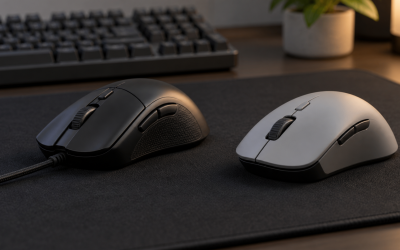
If you use a mouse that is too large or too small for your hand, the grip changes and so does the strain. Some players prefer an ergonomic design for comfort over long sessions. Our guide to ergonomic gaming mice for computer use compares shape options. Choose the shape that keeps your hand relaxed, not the one with the most buttons. Test a new mouse for at least a week before judging its fit, because grip habits take time to adjust.
Chair, seat height and lumbar support
The chair is the foundation of the setup. Adjust the seat height so your feet rest flat on the floor and your thighs are roughly parallel to it. For many adults that means a seat height of about 40 to 50 cm (16 to 20 inches) from the floor to the seat surface, but leg length and shoe thickness change the result. If your feet dangle, use a footrest. If your knees sit well above your hips, lower the seat.
Lumbar support keeps the natural curve of the lower back in place. Set the backrest so the lumbar pad sits in the small of your back, not at the belt line or the upper back. A chair without adjustable lumbar support can still work if its backrest angle is right and a small cushion can fill the gap. Check that you can sit back without the lower back rounding forward.
Armrests should support the forearms at a height that keeps the shoulders relaxed. If the armrests are too high, your shoulders rise and tension builds. If they are too low, you may lean to one side or lift the forearms off the support. Remove armrests that get in the way of the desk or the mouse arm, because an armrest that cannot be used is no benefit.
Chair depth and recline also matter. A seat that is too deep pushes the back of the knees against the edge, which reduces blood flow in the legs. A reclining backrest can reduce spinal load during pauses, but it should not force you away from the screen during active play. Choose a recline range that lets you lean back between matches and sit upright when you need precision.
For a deeper look at seat options, our guide to the best gaming chair compares support, adjustment range and build quality. The most important point is that the chair must fit your body and your desk. Check the return policy before you commit, since comfort is hard to judge in a showroom. A premium chair with the wrong height is less comfortable than a basic chair that fits you well.
Lighting and glare control
Lighting shapes how hard your eyes work. A bright window behind the screen causes glare and forces you to squint, while a dark room with a bright monitor creates a contrast problem that tires the eyes faster. Place the desk so that the screen is at a right angle to windows where possible, and use blinds or curtains to control direct sunlight during play sessions.
Ambient light should be soft and even. A single overhead light can cause reflections on a glossy screen, so consider indirect lighting or a lamp placed off to one side. Keep the room bright enough that the screen does not stand out as the only light source. A small bias light behind the monitor, which lights the wall and reduces the contrast between the screen and its surroundings, is a common approach for gaming desks.
Screen brightness should match the room. Set the monitor so the white areas look bright without glare, and keep the black levels readable. A monitor set to maximum brightness in a dim room causes eye fatigue even when the picture looks impressive. Adjust the brightness at the start of each session and note the value that feels comfortable.
Matte screens reduce reflections in bright rooms, while glossy screens can look more vivid in a controlled setting. Choose the finish that fits your room rather than the one that looks best in a store. Keep the screen clean, and avoid placing it where a bright lamp or a window reflects directly into your eyes.
Eye comfort also depends on how often you look away from the screen. A short rest every twenty minutes lets the eyes focus on distant objects, which relaxes the focusing muscles. Keep that habit in mind when you plan the layout, and place the desk so you can see a distant wall or window without moving your head.
Check the lighting at the times you actually play. Afternoon sun, evening lamps and late-night screen use all produce different glare patterns. Take a quick look at the screen at each of those times, and adjust the blinds or the lamp position so reflections stay away from your eyes for the whole session.
Noise, fan behavior and PC placement
The PC is a constant source of sound, and that sound affects comfort and focus. Fans, pumps and hard drives all contribute, and the total level depends on the components and the fan curve. General guidance for a comfortable gaming desk is to keep the system quiet enough that game audio and voice chat stay clear at a normal listening level. As a rough estimate, quiet builds sit in the mid-30 dBA range at idle and the low-to-mid 40s under heavy gaming load. These are approximate targets, not readings from our bench.
Fan behavior matters as much as the average level. Fans that ramp up and down frequently draw attention, while a steady, lower tone is easier to ignore. Use a fan curve that keeps the speed stable during normal play, and let the fans rise only when temperatures require it. A larger fan at a lower speed usually moves more air quietly than a small fan working hard.
Placement changes the sound you hear. A PC on a hard desk surface can transmit vibration, while a PC on a rubber or felt pad isolates it. Keep the case away from your head and ears, and avoid placing it directly under the desk where the sound reflects back. Leave clearance at the front and back for airflow, because a case that breathes poorly ends up running its fans harder and louder.
Dust filters and fan mounts also affect noise. A clogged filter forces fans to spin faster to move the same air, and a loose fan can rattle against its frame. Clean the filters every few weeks, check that every fan is secured, and listen for new sounds that suggest a problem. Small maintenance tasks often remove more noise than a new fan does.
If the environment is still loud, consider sound absorption around the desk. A rug, a fabric panel or a bookshelf can reduce reverberation, which makes the room sound quieter even when the PC has not changed. Keep the noise budget in mind when you choose components, and remember that quiet operation is a feature of the whole setup.
Building a repeatable session routine
An ergonomic setup works best when you use it the same way each session. Start by sitting down and checking the four key positions: monitor top edge, screen distance, elbow angle and feet on the floor. Make small changes until each position feels natural, then start your game. A short checklist at the start of the session takes less than a minute and prevents many avoidable strains.
Keep the desk arranged so that frequently used items stay within reach. The mouse, keyboard, headset, water bottle and any microphone should sit in fixed places. When you reach for them without thinking, you avoid awkward twists and stretches. Use cable management to keep wires out of your path, because a cable that catches on your arm or snags the mouse can break your rhythm and encourage sudden movements.
Write down your measurements. Record the monitor height, screen distance, desk height, chair height and mouse position. Take a photo of the setup from the side and from the front. These records make it easy to restore the layout after you move the desk, change the chair or switch to a different room, and they help you spot changes that crept in over time.
Make the setup adjustable without making it complicated. A height-adjustable desk, a monitor arm and a chair with clear adjustment levers let you change the layout in small steps. Test each adjustment for a few minutes before deciding. Avoid making large changes all at once, because you cannot tell which change helped or hurt.
Review the setup every few months. Your body changes with activity, your games change in pace and your room changes with the seasons. A quick check of the four key positions, the lighting and the noise level keeps the workspace aligned with how you actually play. Small improvements over time usually beat one large overhaul.
Use the same warm-up before every long session. Five minutes of gentle neck, shoulder and wrist movement before you start raises comfort and reduces stiffness in the first hour. Keep the routine short, and attach it to the start-up sequence you already follow for the PC, so it happens without a reminder.
Troubleshooting: what to do if you still feel strain
If you feel strain after a session, start by checking the four key positions. A monitor that sits too low is the most common cause of neck tension, and a keyboard that is too high causes wrist and forearm discomfort. Make one change at a time, and play for a short test session before deciding whether it helped. Keep a note of which adjustment reduced the symptom so you know what worked.
If the discomfort is in the lower back, check the chair. Confirm the lumbar support sits in the small of your back, that the seat depth leaves a gap behind the knees, and that you are not sitting on the edge of the cushion. A simple lumbar roll or a cushion can fix many cases, but a chair that cannot be adjusted to fit your body may need replacing.
If the discomfort is in the hand or wrist, look at mouse size, grip and pad position. A mouse that is too large or too small changes how the hand clamps, and a pad that is too small forces an awkward reach. Try a different grip style for a few days, and reduce sensitivity if you find yourself making large arm movements to aim.
If eye strain is the issue, check brightness, glare and viewing distance. Reduce screen brightness to a level that matches the room, move the monitor away from bright windows, and take a short rest every twenty minutes. Dry eyes can also make screens feel harder to use, so blink deliberately and consider an eye-care routine if the problem continues.
If pain persists despite these changes, or if it spreads, causes numbness or wakes you at night, stop the session and consult a qualified healthcare professional. Ergonomic adjustments help with posture-related tension, but they do not replace medical assessment. Keep the workspace adjustments as part of a broader routine that includes movement, rest and sleep.
Frequently asked questions
What does ergonomics mean for a gaming PC workspace?
Workspace ergonomics is the arrangement of monitor, keyboard, mouse, chair and desk so your posture stays close to neutral during long sessions. A good setup keeps your head, neck, shoulders, wrists and back in comfortable positions without constant adjustment. For gamers, that also means keeping the screen readable, the desk quiet and the controls within easy reach during fast play.
How high should the top of my monitor sit?
Aim for the top edge of the screen at or slightly below eye level when you sit upright, with the monitor about 50 to 70 cm (20 to 28 inches) away. For a single monitor, center it on your body, not on the edge of the desk. If you use two screens, place the main one in front of you and angle the second one only slightly toward you.
What desk height works best for a gaming setup?
Most adults do well with a desk between about 68 and 76 cm (27 to 30 inches) high, with the chair set so the elbows sit near a right angle when the hands rest on the keyboard. Taller users may need a higher desk or a deeper keyboard tray. A height-adjustable desk is the simplest way to match the setup to different chairs, shoes and seated postures.
Does PC fan noise really affect comfort?
Yes. Constant fan noise raises fatigue during long sessions, and fans that spin up and down often are more distracting than a steady hum. A quieter build usually comes from larger fans running at lower speeds, a sensible fan curve and a case with proper sound dampening. Keep the PC away from your ears and off a hard surface that transmits vibration.
How often should I take breaks during a long gaming session?
A practical pattern is a short break every 45 to 60 minutes, with a longer one after two hours. Stand, change position, and look at something 6 meters (20 feet) away for about 20 seconds every 20 minutes to rest your eyes. These are general ergonomic guidelines rather than medical advice, and persistent pain should be checked by a qualified professional.