The best vertical mice for comfortable all-day use are the Logitech Lift for small and medium hands, the Logitech MX Vertical for larger hands and high-resolution work, the Evoluent VerticalMouse D for maximum palm support, and the Kensington Pro Fit Ergo Vertical Wireless Mouse for a more affordable general-purpose option.
A vertical mouse can reduce the forearm rotation required by a conventional mouse, but “vertical” does not automatically mean comfortable. The right choice depends on hand size, grip angle, sensor behavior, button reach, wireless endurance, and how much desk space you can spare. The comparison below focuses on those practical differences rather than treating specifications as the whole decision.
As an Amazon Associate we earn from qualifying purchases at no extra cost to you.



Our Top Picks
 Logitech MX Vertical Wireless Mouse Ergonomic Design1 Pack4.7 x 3.11 x 3.09 Inches0.5 PoundsCheck on Amazon
 Kensington Pro Fit Ergo Vertical Wireless Mouse- Black2.8"x3"x4.4"8 x 6 x 4.5 Inches0.4 poundsCheck on Amazon
 Anker 2.4G Wireless Ergonomic Mouse4.72"L x 2.94"W3.98 x 3.23 x 3.15 inches0.28 poundsCheck on Amazon
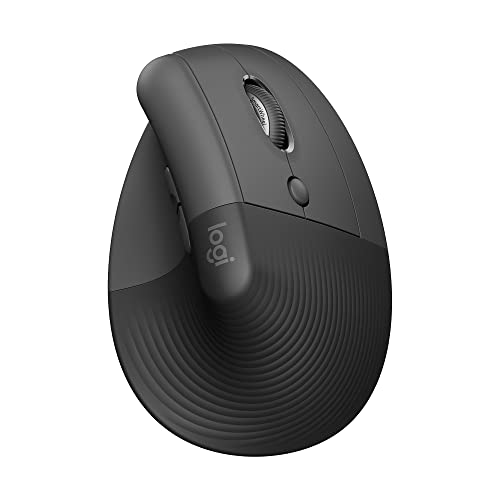
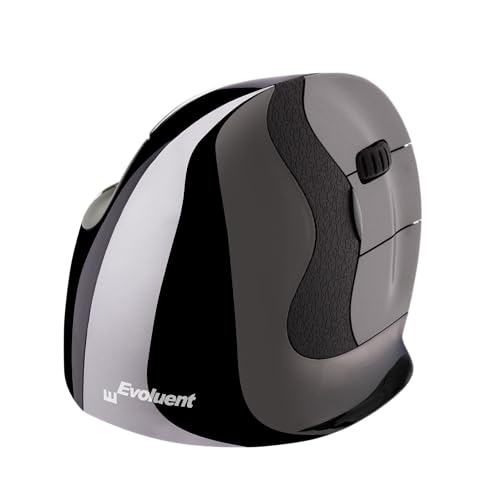

Top 3 picks at a glance
Quick comparison of the best vertical mice
| Mouse | Best for | Approx. hand fit | Grip angle | Sensor resolution | Wireless power | Price tier |
|---|---|---|---|---|---|---|
| Logitech Lift | Small to medium hands and compact desks | About 16–19 cm long | 57 degrees | Up to 4,000 DPI | One AA battery, rated up to 24 months | Mid-range |
| Logitech MX Vertical | Large hands and productivity shortcuts | About 19–21 cm long | 57 degrees | 400–4,000 DPI | Rechargeable, rated up to four months per charge | Mid-range to premium |
| Evoluent VerticalMouse D | Maximum ergonomic adjustment | Multiple size options | Near-vertical design | Varies by version | Wired or wireless, depending on model | Premium |
| Kensington Pro Fit Ergo Vertical Wireless Mouse | Value-conscious office use | Medium to large hands | About 46 degrees | Up to 1,600 DPI | One AA battery, rated up to a year | Budget |
Hand-length figures are practical starting points, not strict compatibility limits. Measure from the crease at your wrist to the tip of your middle finger, then compare that measurement with the manufacturer’s size guidance where available. Finger length and preferred grip matter just as much as palm length.
Logitech Lift: the easiest recommendation for smaller hands
The Logitech Lift is the safest starting point for anyone who finds full-sized ergonomic mice too long or too tall. Its 57-degree angle places the thumb on one side and the fingers on the other without forcing the hand into a completely upright position. That makes the transition from a conventional mouse relatively easy.
Its compact body is particularly useful for small and medium hands. The thumb-rest shape supports the base of the thumb while keeping the back and forward buttons within reach. On a conventional mouse, small-handed users often have to slide the whole hand forward to reach side buttons; the Lift reduces that stretch.
The sensor is more than adequate for office work, browsing, spreadsheets, and light creative applications. At up to 4,000 DPI, it can move a pointer across a large monitor with less physical travel. The main limitation is not tracking quality but control: users who prefer extremely low sensitivity for precision work may find the Lift’s compact body less stable than a larger model.
The single AA battery is a strong advantage for people who dislike charging accessories. Logitech rates it for up to 24 months, although actual life depends on battery chemistry, sleep settings, and usage. Bluetooth and the included wireless receiver make it flexible for laptops and desktops, while multi-device support is useful if you alternate between a work computer and a personal machine.
Choose the Lift if:
- Your hand is below roughly 19 cm long.
- You want a vertical mouse that does not consume much desk width.
- You prefer replaceable batteries over charging.
- You need Bluetooth and multi-device switching.
Logitech MX Vertical: the best large-hand productivity option
The Logitech MX Vertical is better suited to medium-large and large hands. Its 57-degree orientation is similar to the Lift’s, but the body is longer and provides more palm contact. That extra support makes it easier to keep the wrist relaxed instead of balancing the hand on the fingertips.
A dedicated cursor-speed button allows quick switching between normal and precision movement. This is useful when moving between a wide spreadsheet and detailed image editing: a faster setting reduces arm travel, while a slower setting makes small selections easier. The mouse also includes a thumb-rest and several programmable buttons through Logitech Options+.
The MX Vertical’s 4,000 DPI ceiling is not a gaming specification, but it is enough for most productivity setups. A useful starting point is 1,200–1,600 DPI at the operating-system default pointer speed. If you use two 27-inch displays, try 1,600–2,400 DPI, then adjust in small increments rather than immediately choosing the maximum.
Its rechargeable battery is rated for up to four months, and a short charge can provide extended use. The trade-off is a larger footprint and a higher price than the Lift. People with short fingers may also find the side buttons too far forward, especially when using a relaxed fingertip grip.
Choose the MX Vertical if:
- Your hand is around 19 cm or longer.
- You work with multiple monitors, documents, or large spreadsheets.
- You want programmable buttons and quick cursor-speed switching.
- You prefer rechargeable hardware and do not mind a larger body.
Evoluent VerticalMouse D: the adjustment specialist
The Evoluent VerticalMouse D is aimed at users who need more precise ergonomic fitting than a one-size-fits-most design provides. Different sizes and configurations make it possible to match the shell to your palm and finger length more closely. Some versions also provide adjustable pointer controls and a more pronounced vertical posture than mainstream Logitech models.
That near-vertical position can reduce forearm rotation further, but it also takes longer to learn. Your thumb, index finger, and middle finger approach the buttons from different angles than they do on a standard mouse. The benefit is a stable palm-first grip; the cost is that rapid clicking and casual fingertip repositioning may initially feel awkward.
Button placement is the main reason to choose Evoluent rather than simply buying the largest vertical mouse available. The thumb buttons are designed to be reachable without squeezing the shell, and the finger buttons are separated to reduce accidental presses. Check the exact layout before buying because wired and wireless versions, handedness, and size can differ.
This is the strongest choice for someone with recurring discomfort who already knows that a more upright posture helps. It is less compelling for a first-time vertical-mouse buyer who wants an inexpensive experiment.
Kensington Pro Fit Ergo Vertical: affordable comfort with fewer extras
The Kensington Pro Fit Ergo Vertical Wireless Mouse provides a lower-cost route into the vertical design. Its angle is less extreme than the most upright models, so it feels familiar sooner. That makes it suitable for office work, browsing, and general desktop use when the goal is to reduce wrist twisting without radically changing technique.
The sensor resolution is modest, with settings up to 1,600 DPI. That is sufficient for a single monitor or a normal laptop display, but users with high-resolution multi-monitor setups may need larger arm movements. Its single AA battery avoids charging interruptions, and Kensington rates it for up to a year of use, with a low-battery indicator to warn you before it runs out.
The broad shell favors medium and larger hands. Small-handed users should check whether the index and middle fingers can rest naturally on the main buttons without reaching forward. If they cannot, the reduced forearm rotation may be outweighed by finger and shoulder tension.
Razer Pro Click V2 Vertical Edition: the steepest angle and the strongest sensor

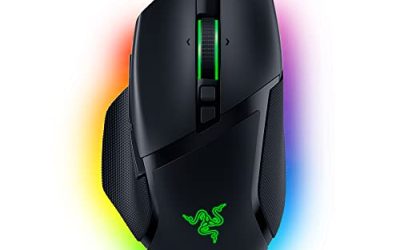
The Razer Pro Click V2 Vertical Edition is the pick for people who want a vertical mouse that does not give up anything when the work day turns into a gaming session. It is Razer’s first true vertical mouse, and it takes a more upright stance than any other model in this guide: Razer specifies a 71.7-degree angle, compared with the 57 degrees of the Logitech Lift and MX Vertical. That puts it closer to the Evoluent’s near-vertical posture than to the Logitech designs, while keeping a modern wireless feature set.
The sensor is the headline difference. Razer uses its Focus Pro optical sensor, rated up to 30,000 DPI with 550 inches per second tracking and 40G acceleration, and it is rated to track on glass. In practice nobody needs 30,000 DPI for spreadsheets, but the sensor’s consistency matters for fast, precise flicks in games and for anyone who runs very high-resolution or multi-monitor setups. The mechanical switches are rated for 60 million clicks, and the shell carries a deep thumb cutout plus an extended base that keeps the outer edge of the hand off the desk.
Connectivity is generous: Razer HyperSpeed 2.4 GHz wireless, Bluetooth for up to three devices, and a USB-C wired mode. Battery life is rated at up to six months with the underglow lighting switched off, and a five-minute top-up is rated for roughly three days of use. There are six buttons in total, which keeps the layout simpler than the MX Vertical’s software-driven shortcuts.
Strengths: the most upright angle among the mainstream picks, a gaming-grade sensor, three connection modes, and long rated battery life.
Drawbacks: at around 150 grams it is noticeably heavier than the Lift, the steep angle takes longer to adapt to, and it sits in the premium tier. The shell is sized for medium to large right hands, so small-handed users are still better served by the Lift.
Compared with the MX Vertical, the Razer trades programmable productivity shortcuts and a slightly gentler posture for better tracking and a steeper wrist angle. Choose it if you game on the same mouse you work with, or if 57 degrees still leaves your forearm feeling rotated.
Anker 2.4G Wireless Vertical Ergonomic Mouse: the low-risk way to try the format

The Anker vertical mouse has been the default “first vertical mouse” for years, and it still earns that place. If you are not sure whether a handshake grip suits you, this is the budget-tier way to find out before committing to a Logitech, Razer or Evoluent model. It uses the same basic idea as the premium options: the hand rests on its side, the thumb sits in a scooped rest, and the forearm stays closer to a neutral position than it does on a flat mouse.
The specification sheet is deliberately simple. There are three sensitivity steps of 800, 1,200 and 1,600 DPI, five buttons including back and forward thumb buttons, and a 2.4 GHz connection through a USB receiver that stores in the base. It runs on two AAA batteries and cuts power after eight minutes idle; a click on either main button wakes it. The body measures about 120 mm long and weighs around 3.4 ounces without batteries, which puts it in the medium-hand range.
Strengths: very low entry cost, light weight, replaceable batteries, and a shape that is close enough to the premium designs to teach you whether vertical grip works for you.
Drawbacks: there is no Bluetooth, so it ties up a USB-A port and is less convenient for tablets or USB-C-only laptops. On macOS the thumb buttons are not recognized without third-party tools. The 1,600 DPI ceiling is fine for one display but feels slow across two large monitors, and the plastics and scroll wheel feel clearly cheaper than the Logitech picks. It is right-handed only.
Against the Kensington Pro Fit Ergo Vertical, the Anker runs on two AAA cells rather than a single AA and adds no software; the Kensington adds an extended pinky lip and KensingtonWorks button customization, and it suits medium to large palms. Against the Lift, the Anker gives up multi-device switching, Bluetooth and build quality, but it costs a fraction as much. Treat it as a trial mouse or a spare for a second desk rather than a long-term daily driver for heavy users.
Logitech Lift Left: the obvious answer for left-handed users

Most vertical mice are right-handed only, which leaves left-handed users with ambidextrous flat mice that do nothing for forearm rotation. The left-handed version of the Logitech Lift solves that by mirroring the right-handed model rather than offering a compromise shape. If you mouse with your left hand, either by preference or to give an overworked right arm a break, this is the most refined option in the category.
The key specifications match the standard Lift covered above: a 57-degree angle, a compact shell aimed at small to medium hands, quiet main clicks, a SmartWheel, and four customizable buttons through Logitech Options+. It connects via Bluetooth or a Logi Bolt receiver, pairs with up to three devices, and runs on a single AA battery that Logitech rates for up to 24 months. The thumb rest and back and forward buttons sit on the right side of the shell, where a left thumb naturally lands.
Strengths: a true mirrored design rather than an ambidextrous compromise, the same easy 57-degree transition as the right-handed Lift, long battery life, and multi-device switching.
Drawbacks: it inherits the standard Lift’s size limitation, so left-handers with hands longer than about 19 cm may find it cramped. It usually costs a little more than the right-handed version and is offered in fewer colors. Logitech does not make a left-handed MX Vertical, so there is no larger mirrored option from the same brand.
Users who switch hands during the day can run a right-handed Lift and the left-handed Lift on the same computer, which spreads the load between both arms. Some people also find that learning to mouse with the non-dominant hand is easier on a vertical shape because there are no old habits to unlearn. Larger left hands should look at the left-handed versions offered by Evoluent instead.
Kensington Pro Fit Ergo MY630 EQ: a rechargeable full-size option for large hands

The MY630 EQ is Kensington’s newer rechargeable vertical mouse, and it fills a gap between the AA-powered Pro Fit Ergo Vertical and the much pricier MX Vertical. It is a full-size, right-handed design aimed at larger hands, and it sits in the mid-range tier while adding features the older Kensington lacks.
The most useful upgrades are power and connectivity. A built-in 500 mAh battery charges over an included braided USB-C cable, with Kensington rating battery life at up to one month on the 2.4 GHz receiver and up to four months on Bluetooth LE. It can stay connected to up to three devices across Bluetooth 5.4 and its USB-A receiver, and the connection is protected with 128-bit AES encryption, which matters in some corporate environments. Sensitivity steps are 1,000, 1,600 and 2,400 DPI, so it reaches further than the original Pro Fit’s 1,600 DPI ceiling.
There are seven buttons, five of them programmable through KensingtonWorks on Windows and macOS, and the clicks are silent, which suits shared offices and late-night work. The body weighs about 3.8 ounces and measures roughly 5.3 inches long, so it gives large palms plenty of contact. Kensington backs it with a three-year limited warranty.
Strengths: rechargeable USB-C power, three-device switching, silent clicks, programmable buttons and a long warranty in the mid-range tier.
Drawbacks: the shell is clearly too large for small hands, the 2.4 GHz battery figure is short compared with the AA-powered Lift, and the 2,400 DPI ceiling is still modest for multi-monitor work. KensingtonWorks also lacks the per-app profiles and cross-computer features of Logitech’s software.
If the MX Vertical fits your hand but not your budget, the MY630 EQ is the closest rechargeable alternative in this guide.
TECKNET Ergonomic Vertical Mouse: budget multi-device switching

TECKNET’s vertical mouse is one of the most common budget alternatives to the Lift, and its main appeal is that it brings features usually reserved for pricier mice into the budget tier. The listing pairs Bluetooth with a 2.4 GHz USB receiver for connections to up to three devices, which is unusual at this level, and it offers multiple sensitivity steps up to 4,800 DPI.
That higher ceiling matters for people with a laptop and an external monitor, because the pointer can cross both screens without lifting and repositioning the mouse. As with every high-DPI mouse, the useful setting for most office work is still in the 1,200 to 1,600 range; the higher steps help mainly on large or multi-display setups. The shell follows the familiar handshake layout with a thumb rest, back and forward buttons, and a DPI button behind the scroll wheel.
Strengths: three-device switching and Bluetooth at a budget price, a high DPI ceiling for multi-monitor setups, and a familiar vertical shape that eases the transition from a flat mouse.
Drawbacks: TECKNET sells several near-identical vertical models, some rechargeable and some battery-powered, and some sized for small hands while others suit medium to large hands. Check the power source and hand-size guidance on the listing before buying. The scroll wheel, coating and switches do not match Logitech’s build quality, and there is no companion software for remapping buttons.
Compared with the Anker, the TECKNET adds Bluetooth, multi-device switching and a much higher DPI ceiling, which makes it the better budget choice for anyone working across a laptop and a desktop. Compared with the Lift, it gives up the refined shape, long AA battery life and Logitech’s software. For a second desk, a travel bag, or a first trial of the format, it is a sensible pick.
Decision matrix: match the mouse to your situation
| Your situation | Best match | Why | Potential drawback |
|---|---|---|---|
| Small hands, narrow desk, laptop use | Logitech Lift | Shorter body, compact footprint, Bluetooth | Less palm support for large hands |
| Large hands, two monitors, office shortcuts | Logitech MX Vertical | Longer palm support, programmable controls, 4,000 DPI | Can feel oversized for short fingers |
| Severe preference for an upright grip | Evoluent VerticalMouse D | More size and posture choices | Higher cost and longer learning curve |
| Single monitor and limited budget | Kensington Pro Fit Ergo Vertical | Lower market price and simple wireless operation | Lower sensor ceiling and fewer software features |
| Frequent travel between workspaces | Logitech Lift | Small footprint and replaceable AA battery | Not ideal for very large hands |
How much desk space does a vertical mouse need?
A vertical mouse can reduce wrist movement but still require more lateral clearance because the shell is taller and your forearm approaches it at an angle. Leave at least 25 cm of clear width beside the keyboard for comfortable use. If your mouse area is only 18–20 cm wide, choose a compact model such as the Lift or consider a shorter keyboard.
Use this simple movement estimate when comparing sensitivity. Suppose your pointer travels 60 cm across a wide desktop workspace and your mouse sensitivity requires 12 cm of physical movement for that pointer distance. Raising sensitivity by 50 percent reduces the required movement to approximately 8 cm:
12 cm ÷ 1.5 = 8 cm
That saves about 4 cm per full traverse, but higher sensitivity can make small selections harder. Start around 1,200–1,600 DPI, keep the operating-system acceleration setting consistent, and change only one setting at a time.
Grip, tracking, and button checks before buying
- Check palm contact: your palm should rest on the shell without your wrist hanging off the edge.
- Check finger reach: the index and middle fingers should land near the center of the main buttons, not on their front edges.
- Check the thumb: you should reach side buttons by moving the thumb, not by squeezing the entire mouse.
- Check tracking: test the mouse on your actual desk surface. Very glossy, transparent, or heavily patterned surfaces can produce inconsistent tracking.
- Check wireless placement: if the receiver is hidden behind a metal desktop or several feet from the mouse, use a short USB extension to bring it closer.
- Check charging habits: a rechargeable model suits a permanent workstation; a replaceable-battery model is more convenient for shared desks and travel.
How to choose a vertical mouse: the criteria that matter most
The products above differ in more ways than size. Use the following criteria in order; the first three decide whether a mouse can be comfortable for you at all, and the rest decide whether it suits your workflow.
1. Angle: 57 degrees versus near-vertical
Vertical mice cluster around two postures. Moderate designs such as the Logitech Lift, MX Vertical and most budget shells sit near 57 degrees, which reduces forearm rotation while still feeling familiar. Steeper designs, including the Razer Pro Click V2 Vertical at 71.7 degrees and the Evoluent range, push the hand closer to a true handshake. Steeper is not automatically better: it reduces rotation further but takes longer to adapt to, and some users find it harder to click quickly. If you have never used a vertical mouse, start moderate.
2. Hand size and handedness
Measure from the wrist crease to the tip of the middle finger. Under roughly 17 cm points toward compact shells such as the Lift; 17 to 19 cm suits most mid-sized designs; above 19 cm points toward the MX Vertical, the Kensington MY630 EQ or a large Evoluent. Left-handed users have far fewer choices, so the left-handed Lift and Evoluent’s left-hand models deserve a look before settling for an ambidextrous flat mouse.
3. Weight and glide
Vertical mice are taller and usually heavier than flat mice, and you cannot press down on them to steer. A heavier body such as the Razer feels planted but asks more of the shoulder during long sweeps. Lighter shells such as the Anker are easier to move but can tip if you grip them tightly. Smooth feet and a good mouse pad matter more on a vertical design than on a conventional one.
4. Power source
AA and AAA designs last months or years and never strand you mid-meeting, but add weight. Rechargeable designs are lighter and often support USB-C, but battery figures vary widely: Logitech rates the MX Vertical at up to four months, Razer rates its vertical model at up to six months with lighting off, and Kensington rates the MY630 EQ at roughly one month on its USB receiver.
5. Connectivity and multi-device switching
If you alternate between a work laptop and a home desktop, a mouse that remembers three devices removes the need for two mice. The Lift, MX Vertical, Razer, Kensington MY630 EQ and TECKNET all offer multi-device switching; the Anker does not support Bluetooth at all.
6. Sensor and DPI range
For a single 1080p or 1440p screen, 1,600 DPI is plenty. For two 27-inch or 4K displays, a ceiling of 2,400 to 4,000 DPI reduces arm travel. Only gamers benefit meaningfully from a high-end sensor such as Razer’s Focus Pro, and even then the advantage is consistency rather than the maximum number.
7. Software and button layout
Programmable buttons turn a vertical mouse into a productivity tool: copy and paste, app switching, or a precision toggle on the thumb. Logitech Options+ is the most mature software here, KensingtonWorks covers the basics, and budget models usually have no software at all.
Comparison of the additional vertical mouse picks
| Mouse | Price tier | Angle / posture | Best hand size | Max DPI | Power | Connections |
|---|---|---|---|---|---|---|
| Razer Pro Click V2 Vertical Edition | Premium | 71.7 degrees | Medium to large, right hand | 30,000 | Rechargeable, USB-C | 2.4 GHz, Bluetooth (3 devices), wired |
| Anker 2.4G Wireless Vertical | Budget | Moderate handshake | Medium, right hand | 1,600 | 2 x AAA | 2.4 GHz receiver only |
| Logitech Lift Left | Mid-range | 57 degrees | Small to medium, left hand | 4,000 | 1 x AA | Bluetooth, Logi Bolt (3 devices) |
| Kensington Pro Fit Ergo MY630 EQ | Mid-range | Full-size vertical | Large, right hand | 2,400 | Rechargeable, USB-C | 2.4 GHz, Bluetooth 5.4 (3 devices) |
| TECKNET Ergonomic Vertical | Budget | Moderate handshake | Varies by version | 4,800 | Varies by version | 2.4 GHz, Bluetooth (3 devices) |
Price tiers describe where each mouse usually sits relative to the others; actual prices move with sales and colorways.
Setting up and adapting to a vertical mouse
Most complaints about vertical mice come from setup rather than from the mouse itself. A few adjustments make the first week far easier.
- Lower the mouse, not the hand. Because a vertical mouse is taller, the forearm should rest on the desk or an armrest with the elbow near 90 degrees. If the shoulder lifts to reach the mouse, lower the desk, raise the chair, or use a keyboard tray that holds the mouse too.
- Keep it close to the keyboard. A compact or tenkeyless keyboard brings the mouse closer to the body’s midline, which reduces shoulder abduction. This matters more than the mouse model for many users.
- Move from the elbow, not the wrist. On a vertical mouse, side-to-side wrist flicks are awkward by design. Let the forearm glide and keep the wrist neutral.
- Drop sensitivity at first, then raise it gradually. New users often grip harder to control a tall shell. Start around 1,200 DPI, and increase only after the grip relaxes.
- Use a light grip. The pinky should rest on the base or wing rather than dragging on the desk. If your knuckles whiten during precise work, slow the pointer or use a precision-speed button.
- Allow one to two weeks. Clicking accuracy and fine control usually return within a few days for 57-degree designs and can take longer for near-vertical shapes. Keep your old mouse nearby for detailed tasks during the transition, then retire it.
- Map the thumb buttons. Assigning back, forward, copy or app switching to the thumb buttons reduces keyboard reaches, which compounds the ergonomic benefit of the mouse itself.
If discomfort continues after a fair adaptation period, the shape is probably wrong for your hand. Try a different angle or size rather than pushing through, and speak to a clinician about persistent symptoms.
Which of these is the best vertical mouse?
For most people with smaller or average-sized hands, the Logitech Lift is the easiest recommendation because its angle, size, battery life, and wireless options are balanced. Choose the Logitech MX Vertical if you have larger hands or need more palm support and productivity controls. Choose the Evoluent VerticalMouse D when detailed sizing and an upright posture matter more than price. The Kensington Pro Fit Ergo Vertical is the sensible budget choice for a single-monitor office setup.
Whichever model you choose, allow several days for adaptation. Keep the mouse close to the keyboard, support your forearm on the desk, and avoid gripping the shell tightly. A vertical mouse works best when it changes your posture without making you reach farther or press harder.
Frequently asked questions
Can a vertical mouse eliminate wrist discomfort?
No, a vertical mouse cannot guarantee that it will eliminate discomfort. It can reduce the forearm rotation required by a conventional mouse, but comfort also depends on hand size, grip angle, button reach, sensor behavior, wireless endurance, and available desk space. A mouse that is too large or forces the fingers to stretch may create finger or shoulder tension instead.
How should I measure my hand before choosing one?
Measure from the crease at your wrist to the tip of your middle finger, then compare the result with the manufacturer’s size guidance when available. Hand-length figures are only practical starting points, not strict compatibility limits. Finger length and preferred grip matter too, so consider whether your fingers can reach the buttons without stretching.
Which vertical mouse is easiest to transition to from a conventional mouse?
The Logitech Lift is likely the easiest transition because its 57-degree angle does not place the hand completely upright. Its thumb-rest shape and compact body support a familiar grip while reducing the reach to the side buttons. The Kensington Pro Fit Ergo Vertical may also feel familiar because its angle is less extreme than more upright designs.
Are replaceable batteries better than rechargeable power for these mice?
Neither power approach is universally better. The Logitech Lift uses one AA battery and is rated for up to 24 months, while the Kensington uses one AA battery rated for up to a year and avoids charging interruptions. The Logitech MX Vertical is rechargeable and rated for up to four months per charge. Your preference depends on whether you value charging convenience or replaceable power.
Is a higher DPI setting always better for office work?
No, a higher DPI setting is not always better for office work. Up to 4,000 DPI can reduce physical travel across a large monitor, but extremely low sensitivity may feel more stable for precision work. A useful starting point for the MX Vertical is 1,200–1,600 DPI, with adjustments made gradually for larger or multi-monitor setups.
Are vertical mice good for gaming?
Most vertical mice are built for office work, with modest sensors and slow polling, so they feel sluggish in fast games. The Razer Pro Click V2 Vertical Edition is the main exception in this guide thanks to its 30,000 DPI Focus Pro sensor and low-latency 2.4 GHz connection. Even so, competitive players who rely on fast wrist flicks usually keep a conventional gaming mouse, because a vertical posture shifts aiming to the elbow and shoulder.
Is there a good vertical mouse for left-handed users?
Yes. The left-handed Logitech Lift is a fully mirrored version of the right-handed model with the same 57-degree angle and battery life, and it suits small to medium hands. Evoluent also produces left-hand versions of several of its models for users who want a larger or more upright shell. Most budget vertical mice are right-handed only, so check handedness before buying.
Do vertical mice work with Mac computers?
Most do for basic pointing and clicking, but extra buttons depend on software support. The Logitech models work fully with Options+ on macOS, and the Kensington MY630 EQ supports KensingtonWorks on macOS. Simple budget designs such as the Anker work as standard mice, but their back and forward thumb buttons are not recognized by macOS without third-party utilities.
Should I choose a vertical mouse or a trackball?
They solve different problems. A vertical mouse reduces forearm rotation while keeping familiar arm movement. A thumb or finger trackball removes arm movement almost entirely, which helps on very small desks and for people with shoulder discomfort, but it shifts work to the thumb or fingers. Users with thumb pain often prefer a vertical mouse; users with limited desk space or shoulder strain often prefer a trackball.
How long does it take to get used to a vertical mouse?
Most people adjust to a 57-degree design such as the Lift or MX Vertical within a few days and feel fully natural within one to two weeks. Steeper shapes such as the Razer Pro Click V2 Vertical or Evoluent models can take longer because clicking and fine positioning use different finger angles. Using the new mouse full-time, rather than switching back and forth, speeds up the transition.