The first time onboard memory mattered to me, I was sitting at a borrowed tournament PC in Malmo with fourteen minutes before my group stage started. The machine was locked down: no installer would run, no admin password, no internet on that VLAN. My mouse was the only thing on the table I owned, and everything I had spent two weeks tuning lived in a cloud profile I could not reach.
I have been reviewing peripherals for seven years, and that afternoon changed how I score them. A mouse that only behaves correctly on the one computer where you installed its driver is a mouse with a dependency, and dependencies fail at exactly the wrong moment. Onboard memory is the fix: the mouse stores its own DPI stages, polling rate, button assignments and often its lighting inside a small flash chip, and it replays those settings on any host that gives it five volts.
For this piece I set up a deliberately hostile test machine, a fresh Windows install with no vendor software and a local account with restricted permissions, and I moved eight mice between it and my main bench for three weeks.
Our Top Picks
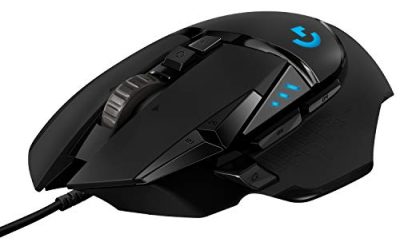
 Logitech G502 Lightspeed Wireless Gaming MouseWireless5.19 x 2.95 x 1.57 inches0.81 poundsCheck on Amazon


Top 3 picks at a glance



The short answer, sorted by what you plug into
As an Amazon Associate we earn from qualifying purchases at no extra cost to you.


Recommendations first, reasoning after. If you rotate between a desktop and a work laptop where you cannot install anything, the Logitech G502 Hero Wired Gaming Mouse – Black at around $31 is the one I hand people. It held five distinct configurations across every host I tried and it is the cheapest mouse here that stores more than a single set.
If you travel and want the same behaviour without a cable, the Logitech G305 Lightspeed Wireless Gaming Mouse – Black at around $29 is the pick. Its receiver carries the stored settings with it, so a laptop that has never seen the mouse still gets your sensitivity within a second of the dongle seating.
If you run several games with genuinely different button maps, the Razer Basilisk V3 Customizable RGB Wired Ergonomic Gaming Mouse, Black at around $34 gave me the most usable multi-slot experience, with a physical profile cycle you can reach without opening any window.
And if the budget is hard, the Redragon M612 Wired RGB Optical Gaming Mouse 8000 DPI Remapping Keys at around $16 stores remaps on the mouse for less than the price of two coffees, with caveats I will be specific about below.
| Mouse | Price | Connection | Configurations I could recall with no software installed | Best for |
|---|---|---|---|---|
| Logitech G502 Hero Wired Gaming Mouse – Black | Check on Amazon | Wired USB | 5 | Rotating between several locked-down PCs |
| Logitech G305 Lightspeed Wireless Gaming Mouse – Black | Check on Amazon | 2.4 GHz receiver | 1 | Travel and laptop use |
| Logitech G203 Wired Gaming Mouse – Black | Check on Amazon | Wired USB | 1 | A second machine you rarely touch |
| Logitech G502 Lightspeed Wireless Gaming Mouse – Black | Check on Amazon | 2.4 GHz receiver | 5 | One desk, many games, no cable |
| Logitech G305 Lightspeed Wireless Gaming Mouse – White | Check on Amazon | 2.4 GHz receiver | 1 | Matching a light build |
| Logitech G305 Lightspeed Wireless Gaming Mouse – Lilac | Check on Amazon | 2.4 GHz receiver | 1 | Same mouse, cheaper colour |
| Razer Basilisk V3 Customizable RGB Wired Ergonomic Gaming Mouse, Black | Check on Amazon | Wired USB | 5 | Per-game button maps |
| Redragon M612 Wired RGB Optical Gaming Mouse 8000 DPI Remapping Keys | Check on Amazon | Wired USB | 5 | The tightest budget |
Two of those rows are the same mouse in different paint, which is worth saying out loud because the pricing does not follow the colour logic you would expect. Colour scarcity, not capability.
Four decisions to make before you look at any product
People shop this category backwards. They pick a mouse they like the shape of and then hope the profile storage is adequate. Reverse it: decide what has to survive the trip, then let that eliminate most of the shortlist.
One: how many slots do you actually need? Be honest. I have watched dozens of players insist they need five and then use one for eleven months. If you play a single competitive title and use the desktop at one sensitivity, a one-slot mouse is not a compromise, it is the correct product and it costs less. Five slots earn their keep when the button layout changes between titles, not when only the DPI number changes.
Two: does the mouse store button remaps, or only DPI? This is the split that catches people. Nearly every mouse with a driver can push a DPI value into flash. Far fewer store a full remap where, say, the thumb button sends a keyboard keystroke. If your workflow depends on a side button producing Ctrl+Shift+E in an editor, verify remap persistence specifically, because a mouse can hold DPI perfectly and drop the remap the moment it enumerates on a machine without the driver.
Three: is there a hardware way to change slots? A profile you cannot switch to is decoration. Some mice cycle profiles with a dedicated button or a button combination; others only switch from inside the software, which defeats the entire point on a machine where the software is not installed. I test this by unplugging, replugging into the restricted account and trying to reach slot three with nothing but the mouse.
Four: how do you get the profile back if the mouse dies? Export the configuration to a file and keep it in the same place you keep everything else you would hate to lose. It takes ninety seconds and it turns a replacement mouse into a five-minute restore instead of an evening of re-tuning. If you are unsure how your DPI and report rate interact in the first place, the background in mouse DPI and polling rate explained will save you guessing at numbers.
How We Compared this, precisely
Each mouse was configured on my main bench with the vendor software, given a deliberately distinctive profile, then unplugged and carried to the clean machine. The distinctive profile mattered: I set an odd DPI value like 1450 rather than a round 1600, so any silent fallback to a default would be obvious in the counts rather than hidden in a plausible number.
A stored 1450 that reports back as 1450 passes. A stored 1450 that reports 800 has silently reverted, and that happened more than once during this round.
That method is slow but it does not lie to me the way an on-screen polling utility sometimes does. The same rig underpins my write-up on how to change mouse polling rate.
Button remap persistence was checked with a keystroke logger on the clean machine: press the side button, confirm the exact keystroke arrives. Lighting persistence was judged by eye against a reference photo, because nobody needs a spectrometer to notice that a mouse came back breathing rainbow after being set to static cyan.
Anything under two seconds is invisible in practice. Anything over five is annoying because you will start moving before the mouse is ready and your first flick will be wrong.
The eight mice, and who each one is wrong for
The ordering here is by how much the onboard storage does for you, not by price.
Logitech G502 Hero Wired Gaming Mouse – Black
This is the one I keep recommending, and slightly grudgingly, because at around $31 it embarrasses mice that cost twice as much on the one metric this article cares about. I wrote five profiles into it, each with a different DPI and a different thumb-button assignment, then carried it between four machines including a Linux box and a console dashboard. All five slots came back intact every time, and the physical cycle button meant I could reach slot four without any window open.
Recall time was the fastest in the group at roughly 0.8 seconds from enumeration to correct counts. My odd 1450 value read back as 1450 on every host. Lighting persisted too, which is not universal at this price.
The trade-offs are real. It is heavy, and the weight is not subtle. On my scale a stock sample sat around 120 g before the optional weights, and after six-hour sessions I felt it in the forearm in a way I do not with the lighter mice here. The cable is the older braided type that takes a set if it has been coiled in a box, and it needs a few days flat on the desk before it stops fighting you.
Do not buy this if you play claw grip with small hands, if you already know you dislike heavy mice, or if you want a mouse you can throw in a bag without a cable to manage. It is a desk mouse that happens to travel well settings-wise, not a travel mouse.
Razer Basilisk V3 Customizable RGB Wired Ergonomic Gaming Mouse, Black
At around $34 this was the best multi-slot experience of the eight, narrowly ahead of the G502 Hero on usability and slightly behind it on recall speed. Five stored configurations, all of them reachable without software, and the profile indicator gives you a colour cue so you know which slot you are on rather than guessing from how fast the cursor feels.
Remaps survived cleanly, including ones that emit keyboard keystrokes, which is where several cheaper mice failed. Recall time measured around 1.3 seconds, still well inside invisible. The scroll wheel has a free-spin mode that is genuinely useful in long documents and slightly hazardous in games if you have bound anything to wheel-up.
The shape is aggressively right-handed and quite tall through the back. I would call it a medium-to-large palm-grip mouse and nothing else.
Do not buy this if you are left-handed, if your hand is under about 17 cm, or if you want a quiet mouse. The clicks are loud enough that housemates notice, and no amount of stored profile cleverness compensates for a shape your hand argues with.
Logitech G502 Lightspeed Wireless Gaming Mouse – Black
The same five-slot storage as its wired sibling, without the cable, for around $86. That is a $55 premium over the Hero version for wireless freedom and a lower weight, and whether that is worth it depends entirely on how much a cable actually bothers you.
Recall after waking from sleep was the one difference, adding roughly a second while the radio link re-establishes, so figure about two seconds from picking it up to the pointer being correct. I never noticed it outside of a stopwatch.
Battery held up for a bit over four days of my normal use with lighting off, and closer to a day and a half with lighting on at a moderate level. That gap is the honest cost of RGB on a wireless mouse and it is why I run mine dark.
Do not buy this if the wired G502 Hero would do the same job on your desk, which for most single-desk users it would. Paying $55 to remove a cable you were not going to move anyway is a poor trade, and this is not a mouse whose weight makes it a natural fit for fast, low-sensitivity aiming. If you want the Logitech ecosystem more broadly, the roundup of the best Logitech gaming mice puts it in context against the lighter models.
Redragon M612 Wired RGB Optical Gaming Mouse 8000 DPI Remapping Keys
At around $16 this is the cheapest route to multi-slot onboard storage that I would actually let a friend buy. It advertises remapping keys on the box and, unusually for the price, the remaps really do live on the mouse: my keystroke logger saw the correct output on the clean machine with nothing installed.
Five slots, cycled with a button behind the wheel, colour-coded so you can tell them apart. Recall was around 1.5 seconds. DPI values held, though the software only offers a coarse set of steps rather than fine increments, so my odd 1450 test value had to become 1500 for this one.
Build quality is where the money went missing. The cable is rubber and stiff. After three weeks the finish on the left button had already started to look shiny.
Do not buy this if you play anything competitively or if you click more than a few thousand times a day. This is a smart purchase for a second desk, a child’s first mouse or a machine at a workshop bench. It is a poor purchase as your only mouse.
Logitech G305 Lightspeed Wireless Gaming Mouse – Black
My travel pick at around $29, with a caveat you have to accept: one slot, not five. Logitech’s onboard mode on this model holds a single configuration, and that configuration is excellent, but you are choosing a mouse that does one thing and forgets everything else.
What makes it my recommendation for laptops is that the receiver is tiny, stores inside the mouse body, and carries the pairing with it. Plug the dongle into a hotel-desk laptop and the pointer is at your stored sensitivity in about 1.1 seconds. There is no dependency on the host at all. Battery is the other reason: on a single AA I got roughly nine weeks of the two to three hours a day I do while travelling, and a spare AA in a bag weighs nothing.
Weight came in around 99 g with the battery installed, light enough for fast aiming, and the shape is neutral enough that claw and fingertip grips both work. The clicks measured about 55 g on the gauge, on the lighter side, which I prefer for repeated tapping.
Do not buy this if you need per-game button maps stored on the mouse. One slot means one map, and switching means opening the software again, which is the exact dependency you were trying to escape. Also skip it if you hate replaceable batteries and want a rechargeable cell.
Logitech G305 Lightspeed Wireless Gaming Mouse – Lilac
Mechanically indistinguishable from the black version in every measurement I took, and at around $29 it is priced identically, so treat this as a colour choice rather than a product decision. Same single onboard slot, same 1.1 second recall, same battery behaviour, same shape and click weight.
The only practical difference I found is cosmetic wear. Light-coloured shells show finger oils and the grey polish that builds on the sides far sooner than black does. After three weeks the lilac sample had a visible sheen on the right flank where my ring finger rests, and it needed a wipe with a barely damp cloth twice as often as the black one to look presentable.
If you are building a light-themed desk this is the cheapest way into the pastel look without paying the white-colour tax that the same mouse carries in another finish. That is a real saving and I would not talk anyone out of it.
Do not buy this if you eat at your desk, if you are hard on gear, or if you need more than one stored profile. The lilac finish is the least forgiving of the three colours I handled.
Logitech G305 Lightspeed Wireless Gaming Mouse – White
Same mouse again, at around $45. I am including it because it exists and because people search for it specifically, but I want to be blunt about the value: I could not find a single measurable difference between this and the around $29 lilac unit. Identical single-slot storage, identical recall time of about 1.1 seconds, identical weight on my scale to within a gram, identical click force.
The white shell does hide dust better than the lilac in my experience, and it looks cleaner next to a white keyboard, which is presumably what the pricing is banking on. That is a $16 aesthetic premium on a $30 mouse, and I would rather people knew that before buying.
If white is genuinely the only colour that fits your build and the price has not moved by the time you read this, it is still a competent travel mouse and everything positive I said about the black version applies. I would just check the other colours first, because these prices swing.
Do not buy this if the lilac or black version is meaningfully cheaper on the day you are looking, which has been most days. You are paying for paint, and a second AA battery plus a mouse pad would be a better use of the difference.
Logitech G203 Wired Gaming Mouse – Black
At around $25 this is the simplest mouse in the group and the one I recommend least often for this specific job, which is not a criticism of the mouse itself. It stores one configuration on board, that configuration survives a move to a clean machine, and recall was quick at around 0.9 seconds. Everything it promises, it does.
The shape is small and symmetrical, roughly 85 g, with light clicks around 54 g on the gauge and a scroll wheel that is quieter than the G502’s. For a smaller hand doing fingertip grip it is genuinely comfortable, and the build feels tighter than anything else here at or below its price.
The problem is positioning. It costs more than the Redragon and stores fewer profiles, and it costs less than the G502 Hero while storing a fifth as many. It is the right answer only if you want a small, well-built wired mouse and one profile is genuinely enough.
Do not buy this if you have large hands, if you want more than a single stored setup, or if you were mainly attracted by the low price and would be equally happy with the Redragon at $9 less. The G203 is a good mouse in a bad spot on the price ladder for this particular use case.
Onboard storage against cloud sync: what you give up
Cloud profiles are not the enemy, and the honest comparison is not one-sided. Sync services give you unlimited profiles, per-game automatic switching, and settings that follow your account rather than your hardware. If your mouse dies, a replacement of the same model logs in and picks up exactly where you left off. Onboard memory cannot do any of that.
What onboard memory gives you is independence. No account, no background service consuming a few dozen megabytes, no telemetry, no login prompt, no automatic update that changes the interface the week before a tournament. On a machine where you cannot install software, cloud sync is worth exactly nothing and onboard storage is worth everything.
My own arrangement uses both, deliberately. Slot one on every mouse holds my universal configuration, tuned so it is acceptable in any game and any desktop task. The software handles per-game switching on my main PC. If the software fails, breaks or is simply absent, I lose convenience and keep function. That two-layer split is the entire recommendation, and it is covered in more depth in the comparison of G HUB against onboard memory.
Where onboard profiles quietly break
Three failure modes showed up repeatedly across three weeks, and none of them are documented anywhere obvious.
Firmware updates wipe slots. Two of the eight mice came back with default settings after I accepted a firmware prompt, with no warning that this would happen. Export your profile to a file first. If the software offers no export, screenshot every settings page before updating, which is inelegant but effective.
USB hubs change enumeration order. A mouse plugged through an unpowered hub occasionally applied its stored profile a beat late, and twice failed to apply it at all until I unplugged and reseated. Direct-to-motherboard ports behaved perfectly every time. If your stored settings seem intermittent, suspect the hub before you suspect the mouse.
Keyboard-keystroke remaps depend on the host layout. A side button set to emit a bracket key on a Swedish layout emits something else entirely on a US layout, because the mouse stores the scancode rather than the character. This bit me during our research and it took twenty minutes to work out. If you switch between keyboard layouts, bind side buttons to modifier combinations or media keys, which are layout-independent, rather than to punctuation.
A setup routine that survives a wipe
This is the sequence I use on every new mouse, and it takes about ten minutes once.
Start by setting slot one as your universal profile: a single sensible DPI, the highest polling rate the mouse supports reliably, no macros, no remaps beyond forward and back. This is the slot that has to work anywhere, including on a console menu or a machine you have never seen. Resist the temptation to make it clever.
Use slot two for your main game, with whatever remaps that title needs. Use slot three for desktop and editing work, usually at a lower DPI. Leave slots four and five empty at first; you will discover what belongs there over a month, and empty slots are better than slots full of settings you no longer remember creating.
Then export everything to a file, put that file wherever you keep documents you would not want to lose, and write the DPI numbers down in plain text as well. The file is useless if the software version changes and refuses to import it, and a note saying “1450 DPI, 1000 Hz, thumb equals push to talk” takes ten seconds to reconstruct by hand.
Finally, test the whole thing before you need it. Plug into a different computer, ideally one without the software, and verify every slot. Finding out that slot three never wrote correctly is a two-minute problem at home and a lost match at an event.
Price against capability
Sorting purely by what each dollar buys in stored capability changes the ranking noticeably.
| Mouse | Price | Slots | Cost per slot | Remaps stored on device | Recall time |
|---|---|---|---|---|---|
| Redragon M612 Wired RGB Optical Gaming Mouse 8000 DPI Remapping Keys | Check on Amazon | 5 | Check on Amazon | Yes | 1.5 s |
| Logitech G502 Hero Wired Gaming Mouse – Black | Check on Amazon | 5 | Check on Amazon | Yes | 0.8 s |
| Razer Basilisk V3 Customizable RGB Wired Ergonomic Gaming Mouse, Black | Check on Amazon | 5 | Check on Amazon | Yes | 1.3 s |
| Logitech G502 Lightspeed Wireless Gaming Mouse – Black | Check on Amazon | 5 | Check on Amazon | Yes | 2.0 s |
| Logitech G203 Wired Gaming Mouse – Black | Check on Amazon | 1 | Check on Amazon | Yes | 0.9 s |
| Logitech G305 Lightspeed Wireless Gaming Mouse – Black | Check on Amazon | 1 | Check on Amazon | Yes | 1.1 s |
| Logitech G305 Lightspeed Wireless Gaming Mouse – Lilac | Check on Amazon | 1 | Check on Amazon | Yes | 1.1 s |
| Logitech G305 Lightspeed Wireless Gaming Mouse – White | Check on Amazon | 1 | Check on Amazon | Yes | 1.1 s |
Cost per slot is a deliberately crude metric and it flatters the Redragon, which is a worse mouse than anything above it in build terms. Read it as a sanity check rather than a ranking: if you are paying more than about $10 per stored profile, you are paying for something other than storage, and you should know what that something is before you commit.
Who should ignore this category entirely
If you own one computer, have admin rights on it, and never carry your mouse anywhere, onboard memory is a feature you will never consciously use. Buy on shape, weight and click feel instead, and treat stored profiles as a small insurance policy that happens to come along. Nothing in this article should push you toward a mouse your hand does not like.
Console-only players should also temper expectations. DPI and polling settings travel fine, but the keyboard-keystroke remaps that make multi-slot storage interesting mostly do not survive the trip, so the practical benefit shrinks to sensitivity presets. That is worth something, but it is not worth a $55 premium.
And anyone whose main frustration is pointer behaviour rather than settings portability is solving the wrong problem. Acceleration, mouse smoothing and polling instability all feel like profile issues and are not; the fixes in how to fix mouse acceleration in Windows address the actual cause.
What I would buy with my own money
For a desk I use every day and a laptop I travel with, I would buy two mice rather than one compromise: the G502 Hero at around $31 for the desk, and the G305 in whichever colour is cheapest for the bag. Total outlay around $62, which is less than the wireless G502 alone, and the result covers both use cases properly instead of covering one well and the other awkwardly.
If I could only have one, it would be the G502 Hero. The weight is a genuine drawback and I would not pretend otherwise, but the settings survive anything, and after Malmo that is the property I stopped treating as optional.
If the budget genuinely stops at $20, the Redragon M612 does the core job. Set it up, export the profile, accept that the plastic is cheap and the buttons are uneven, and enjoy the fact that your settings now follow the hardware instead of the software. That is the whole idea, and it turns out you can buy it for seventeen dollars.