A laptop stand might seem like a minor accessory, but for gamers who rely on a portable rig for LAN events, tournaments, or simply prefer a lighter footprint than a full desktop tower, a good stand makes a real difference in comfort, cooling, and cable management. The right elevation helps keep your wrists in a neutral position during long sessions, improves airflow around your GPU and CPU vents, and frees up desk space for a proper mouse pad and keyboard. Not all stands are created equal, though. Some wobble when you’re hitting a key combo at full speed, others block your side vents entirely. This guide walks through what to consider and highlights several well-known options suited to different gaming setups.
As an Amazon Associate we earn from qualifying purchases at no extra cost to you.


Our Top Picks


Top 3 picks at a glance
What to Look for in a Laptop Stand for Gaming
Before you pull the trigger, evaluate these criteria against your actual usage patterns:
- Stability under load: Gaming laptops can weigh four to six pounds, and aggressive keyboard input transfers force downward. A stand that flexes or slides during a ranked match is useless regardless of how sleek it looks.
- Vent clearance: Many gaming laptops exhaust from the bottom and sides. A stand with a solid, uninterrupted surface can restrict airflow. Look for designs with open centers, slotted bases, or elevated contact points.
- Height and angle adjustability: If you type directly on the laptop, a slight negative tilt is comfortable. If you use an external keyboard, higher elevation toward eye level matters more. Decide which mode you use most.
- Portability: Competitive players who travel to events need something that folds flat and survives being tossed in a backpack. Desktop gamers who never move their rig can afford a bulkier aluminum riser.
- Cable management: A few well-placed cutouts or a raised base channel can keep your power brick and peripheral cables from tangling under your mouse hand.
- Build quality and materials: Aluminum alloy handles heat better than plastic and resists creep over time. Plastic stands can warp in a warm room or under sustained GPU load radiating downward.
Match the Stand to Your Specific Laptop
The criteria above apply to every stand, but gaming laptops vary more than ordinary notebooks. Before choosing, write down four facts about your machine.
- Screen size and footprint: a 16-inch or 17-inch gaming laptop is wider and deeper than the 15.6-inch limit many stands are built for. An overhanging laptop is less stable and may rest on the stand’s edges rather than its pads.
- Weight: gaming laptops commonly weigh more than thin-and-light models, and the power brick adds cable tension at the rear. Choose a stand rated well above the laptop’s weight so joints are not working at their limit.
- Intake layout: look at the underside. If large grilles cover the rear half, avoid stands with a crossbar or flat platform under that area. Open X-frames, two-bar designs and raised contact points work best.
- Port positions: many gaming laptops place HDMI, Ethernet and power at the rear. A stand with a rear crossbar or tall back lip can make these ports awkward to reach or bend cables sharply.
Also think about how you play. Players who type on the built-in keyboard need a low, stable angle with no bounce. Players who use an external keyboard and mouse can prioritise height. Players who switch between home and LAN events need a stand that packs flat without losing all its rigidity. Deciding which of these describes you most of the time narrows the choice quickly.
Nexstand Portable Folding Stand
The Nexstand line has been a staple among mobile gamers and students for years. Its scissor-style frame collapses into a slim bar that slides easily into a backpack pocket. The multiple height positions give you enough range to match different desk heights or seating postures.
The trade-off is that the lightweight fiberglass-reinforced nylon construction introduces some flex at the highest extension, particularly with heavier laptops. You will feel a subtle give if you press hard on the palm rest. For lighter machines or moderate use, it holds steady enough. It also has an open center design that keeps bottom vents unobstructed, which helps thermals on demanding titles.
- Excellent portability, folds completely flat
- Multiple adjustable height positions
- Open center maintains bottom airflow
- Some flex at maximum height with heavy rigs
- Plastic components may show wear over years of travel
Roost Aluminum Stand
The Roost V3 is a premium, ultra-light folding stand that lifts your laptop screen toward eye level without requiring you to hunch. Its frame is made from glass-reinforced nylon rather than aluminum, which keeps it very light, and its grips hold the laptop’s front edge securely so the machine does not slide. For gamers who use an external keyboard and mouse, the Roost is one of the best options because it raises the display to a comfortable viewing height while keeping the laptop’s bottom surface largely exposed for cooling.
Where it falls short for some users: it is built for screen elevation rather than typing, so it does not suit players who use the built-in keyboard, and very large or heavy gaming laptops should be checked against its supported sizes. It does fold into a compact stick, which makes it one of the better travel options for external-keyboard players. The premium price also means it is overkill if you only game casually and mainly want a small angle boost for your wrists.
- Folds into a compact, very light travel stick
- Raises screen to near eye-level with external keyboard use
- Strong grip pads prevent sliding
- Not meant for typing on the built-in keyboard
- Higher price tier
MOFT Z Laptop Stand
MOFT built its reputation on adhesive stands that stick to your laptop lid, but the MOFT Z is a standalone folding stand that does not attach to the laptop. It folds flat when not in use and unfolds into several preset positions, including a raised standing-height mode. Because it folds flat, it takes up little room in a bag or on a crowded desk.
The preset positions are a limitation if you need fine-grained height control. Its light folding build is not as rigid as an aluminum riser under a heavy gaming laptop. It works well for a home gaming desk where you want flexibility without committing to a bulky aluminum riser.
- Several quick-change preset positions
- Folds flat for storage
- Reasonable footprint for desk setups
- Limited fine height adjustment
- Less rigid than aluminum risers with heavy laptops
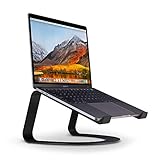
Twelve South Curve for MacBook
The Twelve South Curve is designed primarily around Apple laptops but accommodates most laptops up to about sixteen inches. Its curved aluminum cradle holds the device at a fixed elevated angle, lifting the screen significantly while keeping the base slim. For gamers who use a MacBook Pro or a thin-and-light Windows machine alongside an external keyboard, the Curve delivers excellent thermal clearance because only small padded contact points touch the laptop’s bottom.
The fixed angle means you cannot raise or lower it, and if your monitor sits below the Curve’s screen height you might find yourself looking down at your main display. It is also sized for laptops up to about sixteen inches, so owners of 17-inch gaming rigs need to verify compatibility or look elsewhere.
- Curved design maximizes bottom vent clearance
- Premium aluminum build with rubber grips
- Excellent for use with external keyboards
- Fixed single angle only
- Size limit around sixteen inches
Amazon Basics Portable Adjustable Stand
For a budget-friendly option, the Amazon Basics portable stand offers adjustable height, folds flat, and fits laptops up to 15.6 inches. It is straightforward, does not wobble excessively at mid-range heights, and keeps your laptop’s vents clear thanks to an open center. For gamers who want a dedicated desk stand without spending much, it is a practical starting point.
At the highest settings, the notched joints can develop small amounts of play over time, especially if you frequently adjust the angle. The finish is utilitarian rather than premium. Still, it is a sensible value choice for laptops up to 15.6 inches; larger 16- and 17-inch gaming rigs need a bigger stand.
- Adjustable height that folds flat
- Fits laptops up to 15.6 inches
- Open center for airflow
- Notch wear possible at highest angles
- Basic industrial look
More Laptop Stands Worth Considering
The stands above cover the classic portable, fixed-riser and travel designs. The following picks fill the gaps: heavier adjustable stands for 17-inch gaming laptops, a rotating stand for shared screens, a budget fixed riser, a fan-assisted cooling pad, and a monitor-arm combo for players who want the laptop beside a main display.
Lamicall Adjustable Laptop Stand (10-17.3″)

Lamicall’s adjustable aluminum stand is one of the more popular folding risers for large laptops, and its listed 10-to-17.3-inch compatibility matters for gamers: many stands top out at 15.6 inches, which rules out the big 17-inch machines that dominate desktop-replacement gaming. The design uses a weighted aluminum base with a hinged arm, so you can set both height and tilt rather than choosing from a handful of fixed notches.
For a gaming setup, the appeal is stability combined with adjustability. A heavier base resists the tipping and sliding that lighter folding stands can show when a heavy laptop sits at maximum height, and the open, two-bar support leaves most of the laptop’s underside exposed for airflow. It also folds down when you need to pack it, although it is bulkier than ultra-slim travel stands.
Strengths: wide laptop-size compatibility, continuous height and angle adjustment, an aluminum construction that copes with warm laptop bases, and rubber pads that protect the chassis.
Drawbacks: the stiff hinge typically needs two hands to adjust, which is a minor annoyance if you change positions often. Check the load rating of the specific version, because Lamicall sells several similar-looking models; very heavy 17-inch gaming laptops should stay well within it. It is also heavier to carry than a Nexstand-style folder.
How it compares: it offers finer tilt control than the Roost and far more adjustment than the fixed Twelve South Curve, and more rigid at height than a lightweight folding stand. If you game at a desk with an external keyboard and own a large laptop, it is one of the more balanced choices in the mid-range price tier.
BESIGN LS03 Aluminum Laptop Stand

The BESIGN LS03 is a simple, fixed-height aluminum riser that has become one of the best-selling budget laptop stands. It lifts the laptop by up to about 5.7 inches, supports laptops from 10 to 15.6 inches, and breaks down into three pieces for storage. There are no hinges, knobs or friction joints, which is precisely why it stays steady.
For gamers using an external keyboard and mouse, that fixed lift is often all you need: the screen rises closer to eye level, the open aluminum frame lets air reach the bottom intakes, and rubber contact points keep the laptop from sliding when you lean in during a tense match. The manufacturer lists a load capacity of around 8.8 pounds, comfortably above most 15.6-inch gaming laptops.
Strengths: very stable for its price, open frame for airflow, easy assembly, and a minimalist look that suits most desks.
Drawbacks: height and angle are fixed, so it will not suit every chair, desk and eyesight combination. Although it disassembles, it is not a slim travel stand. It is also sized for laptops up to 15.6 inches, so 16-inch and 17-inch gaming rigs need a larger stand such as the Lamicall.
How it compares: it delivers an eye-level lift from a fixed, hinge-free frame, and costs far less than the Twelve South Curve. If you want a budget desk riser and never travel with it, this is one of the easiest recommendations in the budget tier.
OMOTON LA10 360° Rotating Laptop Stand

The OMOTON LA10 adds two features most stands in this guide lack: a full 360-degree rotating base and a wide height range. The manufacturer lists a screen-height range from roughly 1.8 to 10.4 inches, tool-free height and tilt adjustment, and an aluminum alloy build that folds into a compact shape with a storage pouch.
Rotation is more useful for gamers than it first sounds. You can swing the screen toward a friend for co-op planning, rotate it to face a capture camera or second monitor, or turn the laptop sideways to reach rear ports without lifting it. The X-shaped base keeps the centre of gravity low and leaves most of the laptop’s underside open for airflow.
Strengths: 360-degree swivel with click positions, a tall maximum height that works for standing desks and eye-level viewing, an open frame for cooling, and foldable storage.
Drawbacks: friction joints can need re-tightening or re-adjustment over time, and any tall, rotating design has more potential for wobble than a fixed riser when you type hard directly on the laptop keyboard. OMOTON’s own specifications list 10-to-16-inch laptops, so owners of 17-inch machines should check the current listing before buying. A published load limit is not easy to find, so be conservative with very heavy gaming laptops.
How it compares: it is far more adjustable than the MOFT Z or Twelve South Curve as described above, and more feature-rich than the BESIGN LS03. Choose it when flexibility matters more than absolute rigidity; choose a fixed riser if you mostly type directly on the laptop.
Rain Design mStand
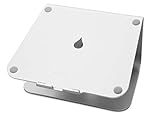
The Rain Design mStand is a long-running premium design: a single, solid piece of sandblasted, anodised aluminum that lifts the laptop roughly six inches and tilts it toward you. There is nothing to adjust or fold, and that is the point. It is one of the most rigid stands you can put on a desk, with a rear opening that helps route charging and peripheral cables neatly.
For gaming, the mStand works best in an external-keyboard setup where the laptop serves as a raised screen and the GPU does its work beneath. The aluminum body can also absorb some heat from the laptop base, and the open front area and cable hole help with airflow and tidiness.
Strengths: exceptional rigidity, premium finish, stable footprint, and integrated cable management.
Drawbacks: the flat platform contacts more of the laptop underside than open-frame designs, which can partly obstruct bottom intakes on some gaming laptops. Check where your machine draws air before buying. Height is fixed, and the solid aluminum body is heavy and not portable. It is better suited to thin laptops than to the thickest 17-inch gaming rigs.
How it compares: it occupies the same premium, desk-only role as the Twelve South Curve described earlier. Compared with the Curve, it covers more of the laptop base but offers a steadier platform and better cable management; for heavy gaming laptops with large bottom intakes, an open frame like the BESIGN LS03 or Lamicall is usually the better thermal choice.
Kootek Laptop Cooling Pad with 5 Fans

The Kootek cooling pad is a different kind of stand: rather than relying only on passive airflow, it pushes air into the laptop’s bottom intakes with five fans (one large centre fan and four smaller fans). It suits 12-to-17-inch laptops, offers six height settings, has a metal mesh surface, and draws power from a USB cable while adding two USB 2.0 pass-through ports.
For gaming laptops that pull air from the bottom, active cooling can help keep sustained temperatures in check during long sessions, particularly in warm rooms. Two switches let you run one fan, four fans or all five, which helps balance cooling against noise. Front stoppers stop the laptop sliding down the incline, and rubber feet keep the pad planted.
Strengths: active airflow, wide laptop-size support, several height positions, extra USB ports, and good value in the budget tier.
Drawbacks: its maximum lift is far lower than a true riser, so it improves typing angle and airflow rather than bringing the screen to eye level. Fans add noise, LED lighting is not to everyone’s taste, and the USB-A cable needs an adapter on laptops with only USB-C. The benefit depends on whether your laptop’s intake vents line up with the fans; laptops that intake mainly from the sides or keyboard deck gain less.
How it compares: it is the only option in this guide that actively moves air. Pair it with an external monitor, or choose a riser such as the Lamicall when posture is your main goal.
VIVO Monitor and Laptop Desk Mount Combo

The VIVO combo mount is for gamers who already use (or plan to buy) an external monitor and want the laptop to sit beside it instead of on the desk surface. It combines a fully adjustable arm for a 13-to-32-inch monitor with a laptop tray, mounted on a desk pole that can be clamped to the desk edge or fixed through a grommet hole.
The result is a clean dual-screen layout: the monitor in front for the game, the laptop screen to one side for Discord, a stream dashboard or a guide. Both screens float above the desk, freeing space for a large mouse pad and full-size keyboard, and the tray leaves the laptop’s underside more exposed than a flat desk.
Strengths: frees desk space, places both screens at a comfortable height, and supports a wide range of monitor sizes.
Drawbacks: installation is more involved than a stand, and the desk must suit a clamp or grommet mount. Check the tray dimensions and weight limit against your laptop, because large gaming laptops may exceed what the tray is designed to hold. It is not portable, and tray-mounted laptops are less convenient for typing directly on the built-in keyboard.
How it compares: no stand in this guide frees as much desk space. It is the right choice for a permanent battlestation; for flexibility or travel, a folding stand is more practical.
Laptop Stand Comparison at a Glance
| Stand | Type | Height adjustment | Laptop size | Portability | Price tier |
|---|---|---|---|---|---|
| Lamicall Adjustable Laptop Stand | Folding aluminum riser | Continuous height and tilt | 10-17.3 inch | Folds, but heavier | Budget to mid-range |
| BESIGN LS03 | Fixed aluminum riser | Fixed (up to about 5.7 inches) | 10-15.6 inch | Disassembles | Budget |
| OMOTON LA10 | Rotating folding riser | Wide range plus 360° swivel | Up to 16 inch (check listing) | Folds with pouch | Budget to mid-range |
| Rain Design mStand | Solid aluminum riser | Fixed | Thin laptops; check fit | Desk only | Mid-range |
| Kootek 5-Fan Cooling Pad | Active cooling pad | Six low angle settings | 12-17 inch | Bulky | Budget |
| VIVO Monitor and Laptop Combo | Desk-mounted arm and tray | Fully articulating | Check tray size | Permanent | Mid-range |
Laptop Stand, Riser or Cooling Pad: Which Type Do You Need?
Gaming laptop owners often buy the wrong category of accessory because the names overlap. The right choice depends on whether your main problem is posture, temperature or desk space.
- Eye-level riser: lifts the screen five to ten inches so the top of the display sits close to eye level. Best for posture, but you need an external keyboard and mouse, because typing on a raised laptop strains your shoulders and wrists.
- Low-angle stand: tilts the laptop slightly so the keyboard is easier to use and air can reach the underside. Best if you play on the built-in keyboard.
- Active cooling pad: adds fans beneath the laptop. Useful when the laptop intakes air from the bottom and runs hot in long sessions; it does little for posture.
- Monitor-arm tray: moves the laptop off the desk entirely. Best for dual-screen battlestations and small desks.
Many desk gamers end up combining two: a riser for the laptop screen plus an external keyboard and mouse, or a cooling pad under the laptop with an external monitor as the main display.
How to Set Up a Gaming Laptop on a Stand
- Find the intakes first. Turn the laptop over and look for intake grilles. Most gaming laptops draw cool air from the bottom and exhaust it from the rear or sides. Position the stand’s contact points and crossbars away from intake areas, and keep exhaust vents clear of walls, monitors and cables.
- Set screen height. With an external keyboard, aim for the top of the laptop screen at or slightly below eye level and about an arm’s length away. If the laptop sits beside a larger monitor, match their top edges so you are not constantly tilting your head.
- Use external input for raised setups. Once the screen is high, a separate keyboard and mouse keep your elbows near 90 degrees and wrists neutral. A large desk mat helps both comfort and mouse tracking.
- Route cables before you game. Run the power brick cable and peripheral cables behind or under the stand, away from the mouse area. A short USB hub or dock attached to the stand reduces how often you reach around a hot laptop.
- Check stability under input. Press firmly on the palm rest and tap the keyboard hard. If the laptop rocks, lower the stand one step or tighten the joints. A wobbling screen during fast movement becomes distracting quickly.
- Monitor temperatures. Use your laptop’s control software or a monitoring tool to compare CPU and GPU temperatures in the same game before and after changing the setup. This shows whether the stand helps or obstructs airflow on your specific machine.
- Clean the intakes regularly. Raised laptops still collect dust. A periodic clean of intake grilles with compressed air keeps any thermal gain from the stand from being undone by clogged filters.
Clamshell Mode: Using a Gaming Laptop Like a Desktop
Some players close the laptop lid and run everything through an external monitor, keyboard and mouse. This frees desk space, but it changes the cooling picture. On many gaming laptops, part of the airflow passes through the keyboard deck, and some designs throttle or run hotter with the lid closed. Check your manufacturer’s guidance first. If you use clamshell mode, keep the laptop elevated on an open-frame riser or cooling pad rather than lying flat, make sure the external display connects through the port wired to the dedicated GPU where that applies, and adjust power settings so closing the lid does not put the laptop to sleep.
Ergonomics for Long Gaming Sessions
A laptop stand is only one part of a comfortable setup. Its value comes from how it changes the position of your head, shoulders and wrists relative to the screen and input devices.
- Neck: looking down at a laptop on a flat desk tilts the head forward for hours. Raising the screen so your gaze falls naturally on its upper third reduces that load.
- Shoulders and elbows: keep elbows close to your sides and bent at roughly 90 degrees. If you have to reach up to a raised laptop keyboard, the stand is too high for typing; use an external keyboard instead.
- Wrists: aim for flat, neutral wrists. A low keyboard tilt, a palm rest, or a lower desk height all help. Avoid resting wrists on a hot laptop palm rest during demanding games.
- Distance: keep the laptop screen about an arm’s length away. With a small 15-inch display, many players sit slightly closer than they would to a monitor, which is fine as long as the screen is raised.
- Breaks: even a perfect setup benefits from regular short breaks between matches to stand, stretch and refocus your eyes.
Choosing a Stand for LAN Events and Travel
Tournament tables and shared desks are unpredictable: different heights, little space, and constant bumps. A travel stand for gaming should fold quickly, survive being packed with other gear, and hold steady on an unfamiliar surface.
- Prefer folding designs with rubberised feet that grip smooth tables.
- Choose a stand you can set up in seconds without tools; tournament check-in leaves little time.
- Keep the laptop at a modest height when using the built-in keyboard on unfamiliar furniture, because maximum extension is where folding stands flex the most.
- Pack a short extension lead and cable ties. Power outlets at events are often far from your seat, and a tidy cable path prevents someone tripping over the brick.
- Carry the stand in a separate sleeve or pocket so aluminum edges do not scratch the laptop lid.
At home, the trade-off reverses: a heavier fixed or desk-mounted solution such as an aluminum riser or monitor-arm tray will almost always feel more stable than any folding stand.
Common Laptop Stand Mistakes to Avoid
- Raising the laptop without adding external input. A screen at eye level with the built-in keyboard still in use forces your arms up and your wrists into extension. If you raise the screen significantly, budget for a keyboard and mouse at the same time.
- Covering bottom intakes with a solid platform. A flat riser can look tidy but starve a gaming laptop’s fans. Check intake positions against the stand’s frame before buying, and compare temperatures in the same game after setup.
- Ignoring the size limit. A 17-inch laptop balanced on a stand designed for 15.6-inch machines rests on its edges, overhangs the pads and is more likely to tip when bumped.
- Running a tall folding stand at full extension with a heavy laptop. Most flex and wobble appears at maximum height. Use the lowest setting that gives a comfortable screen position.
- Forgetting cable strain. Rear-mounted power and display ports can be bent sharply by a stand’s back edge or by the laptop’s new height. Leave slack in each cable and route them so they do not pull the laptop backward.
- Treating a stand as a cure for overheating. Better airflow helps, but dust-clogged intakes, aggressive performance modes and a hot room still raise temperatures. Combine a good stand with regular cleaning and sensible fan settings.
- Buying for the wrong use. A slim travel stand will feel flimsy as a permanent desk solution, and a solid aluminum riser is a burden in a backpack. If you need both, owning one of each is often cheaper than one compromise stand you dislike.
Frequently Asked Questions
Do laptop stands actually help with gaming thermals?
Yes, but only if the stand keeps your bottom vents clear. A solid flat riser that covers the intake area can make temperatures worse. Open-center designs or elevated contact points allow cooler air to reach your fans, which can lower sustained GPU and CPU temperatures by several degrees during long sessions. Pair a good stand with a decent fan curve in your control software for the best results.
Should I use a laptop stand if I play with an external keyboard?
Absolutely. If your laptop is only there for the screen and internal GPU, raising it to eye level with the help of a stand like the Roost or Twelve South Curve prevents neck strain during marathon gaming sessions. You will also free up desk real estate for a larger mouse pad.
Is a portable stand better for competitive gamers?
For players who attend LAN tournaments or travel between houses, portability matters more than premium rigidity. A Nexstand or similar folding option survives being shoved into a bag and sets up in seconds at a tournament table. If you play exclusively at home, a fixed aluminum riser will outperform any folding stand in stability and cooling.
What height should a laptop stand be for gaming?
With an external keyboard, raise the laptop until the top of the screen is at or slightly below eye level, usually five to ten inches above the desk depending on your chair and laptop size. If you type on the built-in keyboard, a low angle of a few degrees is more comfortable than a tall lift.
Can a laptop stand hold a heavy 17-inch gaming laptop?
Some can, but check two specifications: the supported screen size and the load rating. Many stands are designed for laptops up to 15.6 inches. Choose a stand rated comfortably above your laptop’s weight, with a wide base, and avoid using tall folding stands at full extension with very heavy machines.
Is a cooling pad better than a laptop stand?
They solve different problems. A cooling pad actively pushes air into bottom intakes and can help a hot-running laptop, but it barely raises the screen. A stand mainly improves posture and passive airflow. If temperatures are your concern and the laptop intakes from the bottom, try a cooling pad; if neck strain is the problem, choose a riser and an external keyboard.
Are aluminum stands better than plastic ones?
Usually, for desk use. Aluminum is more rigid, resists warping near a warm laptop base, and can draw a little heat away from contact points. Plastic and composite stands are lighter and often better for travel, which is why many portable folding stands use them.
Final Thoughts
The best laptop stand for your gaming setup depends on whether you prioritize travel-friendly design, thermal performance, or screen elevation for use with external peripherals. If you want one solution that covers most bases at a desk, a quality aluminum stand with an open center and adjustable height gives you the best return. If you travel regularly, accept the small flex of a portable folding stand as the cost of convenience. Whichever direction you choose, pay attention to whether your specific laptop’s vents remain uncovered, and your framerates and wrist health will both thank you.