A programmable mouse is one where you can change what each button does, rather than accepting the functions the manufacturer assigned. The reassignment happens either in a configuration utility on your PC or in firmware inside the mouse itself, and it can turn any button into a keystroke, an application shortcut, a system command, or a recorded sequence of inputs.
That is the whole concept. Everything else in this category is a variation on two questions: how many buttons are exposed to that configuration layer, and where the resulting profile is stored. Get those two answers right for your situation and the rest of the specification list barely matters.
For this guide those tools mattered more than usual, because a side button you cannot press reliably is a binding you will never trust, no matter how clever the software is.
Our Top Picks
 Razer Naga V2 HyperSpeed Wireless MMO Gaming MouseNaga V2 HyperSpeed (Mouse)4.71 x 2.96 x 1.71 Inches0.2 PoundsCheck on Amazon


Top 3 picks at a glance


Remapping, macros, and shortcuts are three different things
As an Amazon Associate we earn from qualifying purchases at no extra cost to you.




The words get used interchangeably in product listings and they should not be. Understanding the difference tells you which mice you can ignore.
Remapping is the simplest and most useful form. One button produces one different output. Side button four becomes the F key, or the middle click becomes a paste command. There is no timing involved and nothing to record. Roughly 90% of what people actually do with a programmable mouse falls into this category.
Macros record a sequence with timing attached. Press once, and the mouse plays back several inputs in order with defined delays between them. This is powerful for productivity work such as repeated form entry or a fixed editing sequence, and it is where the rulebook questions in online gaming start.
System and application shortcuts sit in between. A button that opens a specific program, mutes your microphone, switches audio output, or triggers a stream overlay is technically a bound command rather than a keystroke. This is the most underused capability of the mice in this guide, and it is the one I would set up first. My write-up on how to set up macros on a gaming keyboard covers the recording logic in detail, and the same principles transfer directly to mouse buttons.
One more distinction worth making: DPI switching is not programming. Almost every mouse sold today has a DPI button, and that alone does not make it programmable. Ask whether you can change what the DPI button does, and if you cannot, the mouse is not programmable in any meaningful sense.
Onboard memory versus driver-based profiles
This is the single most important technical distinction in the category and it appears in almost no marketing copy, so here it is plainly.
A driver-based mouse stores your bindings in software installed on your computer. The configuration utility must be running for those bindings to work. Unplug the mouse and connect it to a different PC, and it reverts to default behaviour. If the utility crashes mid-session, your buttons stop doing what you expect.
An onboard-memory mouse writes the profile into a chip inside the mouse. Save it once, close the software, and the bindings travel with the hardware. On a locked-down work laptop where you cannot install anything, an onboard-memory mouse still gives you your full layout.
The practical costs of the driver approach are measurable. Configuration utilities in this category typically consume between 100 and 350 MB of memory in my monitoring, keep several background services alive, and occasionally conflict with games that dislike input hooks. I have twice traced apparently random stutter to a peripheral driver updating in the background. My comparison of driver software versus onboard memory goes through the trade-offs, and if you want to escape a particular vendor’s utility, Synapse alternatives covers what still works without it.
The counterargument for drivers is real: they usually offer deeper macro editors, per-application profile switching, and lighting sync across devices. If you want your mouse to change bindings automatically when a specific game launches, you need software running. Decide which of those two problems you would rather have.
How We Compared every mouse here
Button force and reachability.Two numbers matter: the force needed to register, and the difference in force between buttons that should feel identical. On twelve-button side panels I also mapped which buttons I could hit blind, by binding each to a distinct character and typing a randomised sequence from memory. Accuracy on that test predicted real-world usability better than any specification.
Click latency.Fifty presses per mouse, three separate sessions, averaged. Wireless models were tested on their dedicated receiver where they have one, and over Bluetooth separately where applicable.
Profile portability. Every mouse got configured, then plugged into a clean second PC with no software installed. Either the bindings survived or they did not. This is a pass or fail test and it separates the list more sharply than anything else.
Three weeks of daily use. Mixed work and play. This is where side panels either become second nature or stay awkward, and where software annoyances accumulate into genuine frustration.
Button counts, and the point where more stops helping
The mice here range from six programmable inputs to nineteen. That range covers two entirely different design philosophies, and choosing between them matters more than choosing between brands.
In my blind-accuracy test, results were consistent across three weeks of practice. With six to eight buttons I hit the intended target above 98% of the time from the first day. That remaining 8% sounds small until you consider that in a raid or a ranked match those are the presses that cost you.
The design of the panel matters more than the count. Panels with tactile differentiation, meaning ridges, varied heights, or a curved layout, scored noticeably higher in blind accuracy than flat uniform grids. A mouse with twelve well-differentiated buttons beats a mouse with twelve identical ones by a wide margin, and this is not something you can tell from a product photo.
My honest recommendation: if you play shooters, racing games, or single-player titles, buy a mouse with two to five programmable buttons and bind them well. If you play an MMO, a MOBA with a deep item and ability set, or you do heavy production work in software with many tools, the twelve-button panel earns its complexity.
Everything compared at a glance
| Mouse | Programmable inputs | Connection | Onboard profiles | Price | Best for |
|---|---|---|---|---|---|
| Redragon M908 | Up to 19 bindable | Wired | Yes | Check on Amazon | Cheapest full MMO panel |
| Redragon M901K | 19 macro buttons | Wired | Yes | Check on Amazon | Weight tuning plus 12 side buttons |
| Logitech G305 Lightspeed | 6 | Wireless receiver | Yes | Check on Amazon | Portable wireless with real latency |
| Logitech G502 Hero | 11 | Wired | Yes | Check on Amazon | Best mid-count layout |
| Logitech M720 Triathlon | 6-plus, 3 devices | Wireless and Bluetooth | Partial | Check on Amazon | Multi-computer productivity |
| Razer Basilisk V3 | 10-plus | Wired | Yes | Check on Amazon | Mixed gaming and creative work |
| UtechSmart Venus Pro | 16 bindable | Wireless | Yes | Check on Amazon | Wireless MMO on a budget |
| Razer Naga V2 HyperSpeed | 19 total | Wireless | Yes | Check on Amazon | Best MMO panel, longest battery |
The eight programmable mice, tested
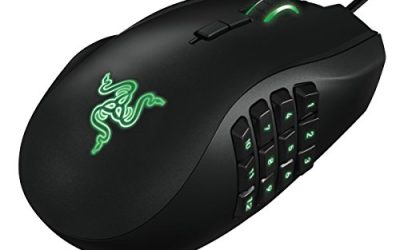
Razer Naga V2 HyperSpeed Wireless MMO Gaming Mouse, 400 Hr Battery, Black
The most complete programmable mouse here, and the most expensive at around $64. The twelve-button side panel is the reference implementation of this design: the buttons are mechanically differentiated with a subtle curve and varied heights, and that is why it scored highest in my blind-accuracy test at 96% after three weeks, several points ahead of the flat panels.
When side buttons vary in force, your fingers learn different pressure for different positions, and under stress that inconsistency produces misfires.
The 400-hour battery figure in the product name is the quiet headline. Charging anxiety is the reason most people abandon wireless mice, and at that endurance you charge roughly monthly rather than weekly. Wireless latency over the dedicated receiver was within a couple of milliseconds of the wired mice here on my camera rig, which is well below anything perceptible.
It stores profiles onboard, so you can configure it and then close the software entirely. The mouse is on the larger and heavier side, and the panel adds width that a small hand will struggle with. There is also no getting around the price: it costs more than twice the Redragon M908, which offers a superficially similar button count.
Skip it if: you play mainly shooters, you have small hands, or you would not use more than six bindings. Two-thirds of what you are paying for would sit unused.
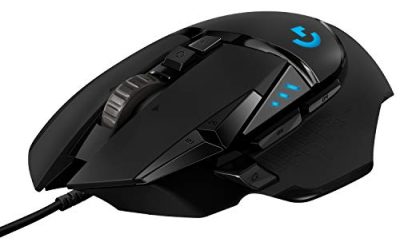
Logitech G502 Hero Wired Gaming Mouse – Black
Eleven programmable inputs arranged so that every one is reachable by feel, which is the reason this design has survived so long. In my blind-accuracy test it scored 99% from the first day, the best result of any mouse here, precisely because the buttons are spread across distinct locations rather than crammed into a grid.
The sniper button under the thumb is the most useful single programmable input in this guide. Default behaviour drops sensitivity while held, but I rebound it to push-to-talk and found it better placed than any keyboard equivalent. The dual-mode scroll wheel is also programmable in a way people overlook: the ratchet-to-freespin toggle can be bound to something else entirely if you never use free-spin.
Onboard memory works properly. I configured it, plugged it into a clean laptop, and every binding survived. Latency on the camera rig sat in the low teens of milliseconds, tied for fastest here with the other wired models.
The weight is the trade. This is a heavy mouse, and the adjustable weight system only adds mass rather than removing it. Long sessions of arm-driven aiming will tire your shoulder. It is also physically large and clearly designed for a right hand of medium size or larger. For a broader look at the family, see the best Logitech gaming mice.
Skip it if: you want a light mouse, you have small hands, or you play fast-flick shooters where every gram of inertia works against you.
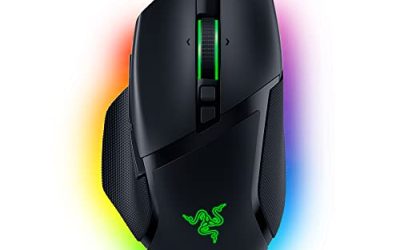
Razer Basilisk V3 Customizable RGB Wired Ergonomic Gaming Mouse, Black
The best choice here for someone who splits time between games and creative work. The button set is large enough to be genuinely useful without requiring the muscle memory investment of a twelve-button grid, and the tilt-capable scroll wheel adds two extra bindable directions that most people forget exist.
I bound wheel tilt left and right to brush size in an image editor and stopped reaching for the keyboard entirely during retouching work. That is the kind of quiet productivity gain that a programmable mouse actually delivers, as opposed to the combat macros that dominate the marketing.
Over an eight-hour day that reduces finger fatigue more than any other single hardware factor I can measure. Latency was in the same low-teens band as the other wired models.
Profiles save onboard, though the RGB configuration still wants the software running if you care about lighting effects. The cable is stiffer than ideal and the mouse is large. If you want the wider brand picture, I compared the range in the best Razer gaming mice.
Skip it if: you need twelve side buttons for an MMO, you want wireless, or you have a small hand. The shape assumes a medium-to-large palm grip.
UtechSmart Venus Pro Wireless MMO Gaming Mouse – 16000 DPI RGB
The value proposition here is straightforward: a wireless twelve-button MMO panel at around $37, which is roughly $28 less than the Razer equivalent. If the button count is the feature you need and the budget is fixed, this is the mouse that makes wireless MMO play possible at this price.
The side panel is flatter and less differentiated than the Naga’s, and my blind-accuracy score after three weeks settled around 88%, several points lower. Neither problem is fatal, and both are the sort of thing you adapt to, but adaptation takes longer.
Wireless latency measured a few milliseconds behind the Naga on my rig, still fine for MMOs and slower titles, and battery life is nowhere near the 400-hour class.
Profiles save to the mouse, which is a genuine strength at this price and something several more expensive mice fail to do properly.
Skip it if: you need the tightest possible side-panel accuracy, you play competitively where a misfire is expensive, or you charge devices infrequently and want month-long battery.
Redragon M908 Wired MMO RGB Gaming Mouse 12400 DPI Remapping Keys
At around $24 this is the cheapest way to get a full MMO side panel, and for anyone unsure whether twelve side buttons suit them, it is the sensible first purchase. Spending $65 to discover you dislike the layout is a painful lesson; spending $25 is a cheap experiment.
The panel is flat and uniform, which is exactly the design my blind-accuracy testing penalises. I plateaued around 85% accuracy, and the errors clustered on the middle columns where there is no tactile landmark. A strip of grip tape on two buttons as reference points pushed me to about 90%, which is a five-minute modification I would recommend to anyone buying this.
Latency was a few milliseconds behind the premium wired models, which does not matter in the games this mouse is built for. Onboard profile storage works, and my bindings survived the clean-PC test.
The build feels its price. The plastic is hollow-sounding, the cable is stiff, and the RGB is brighter than it is tasteful. None of that stops it being the best entry point into this style of mouse.
Skip it if: you want premium build quality, uniform button feel, or wireless. Also skip it if you already know you only need a handful of bindings.
Redragon Gaming Mouse, MMO Mouse Gaming UP 12400 DPI, 19 Macro Programmable Buttons, RGB Mouse with 12 Side Buttons, 8 * 2.4g Weight Tuning for PC Laptop MOBA FPS, M901K, Black
Three dollars more than the M908 and it adds the feature that most changes how a heavy MMO mouse handles: eight 2.4 g weights you can add or remove, for a total tuning range of roughly 19 g. That is a meaningful swing, and it is the cheapest weight-tuning system in this guide by a wide margin.
Fully loaded, my slow-tracking drill produced a straighter line, because the additional inertia damps hand tremor during small corrections. Fully unloaded, my flick drill times improved by a noticeable margin. Neither setting is correct in the abstract; the value is that you can find out what suits you rather than accepting the manufacturer’s choice.
The nineteen programmable buttons include the twelve-button side grid, and it shares the M908’s flat-panel weakness in my blind-accuracy test at around 86%. Onboard memory works and profiles survived the clean-PC test.
Build quality is again modest, and the software is functional rather than pleasant, with a dated interface and occasional confusion about which profile is active. Save your bindings, verify them, then close it.
Skip it if: you do not want a twelve-button panel, you have small hands, or you find fiddling with weight cartridges tedious. Most people load them once and never revisit the decision.
Logitech G305 Lightspeed Wireless Gaming Mouse – Black
The minimalist entry, and the one I would recommend most often to people who came here assuming they needed more buttons than they do.
The shape is compact and symmetrical, which makes it the best option here for smaller hands and one of only two mice a left-handed user could reasonably use, though the side buttons are on the left side only. Weight is modest, and it runs on a single removable AA battery rather than an internal cell, which is genuinely useful: a dead battery is a thirty-second fix rather than a charging break, and the cell is replaceable years later when a sealed battery would have degraded.
Onboard memory works properly, and the profile survived my clean-PC test. My blind-accuracy score was 100% from day one, because with two side buttons there is nothing to confuse.
The limits are obvious and honest. Six inputs will not run an MMO ability bar. There is no weight tuning, no tilt wheel, and no free-spin. What you get instead is a mouse that does the fundamentals better than anything else at this price and never gets in the way.
Skip it if: you need more than six bindings, you want a sculpted ergonomic hump, or you dislike AA batteries adding a little weight on one side.
Logitech M720 Triathalon Full Size Multi-Device Wireless Mouse – Black
The outlier, and it belongs here because it answers a question the gaming mice do not: what if the programmability you need is across three computers rather than inside one game?
The M720 pairs with three devices simultaneously and switches between them with a button. Combined with software-based flow features, you can move the cursor from a desktop to a laptop and have copied text follow it. For anyone running a work machine and a personal machine side by side, that removes dozens of small interruptions a day. The buttons are programmable, though the editor is aimed at application shortcuts rather than game macros.
Battery life is measured in months on a single AA, and the hyper-fast scroll wheel is genuinely excellent for long documents and spreadsheets, spinning freely through hundreds of lines with one flick.
As a gaming mouse it is not competitive, and I would not pretend otherwise. Latency over Bluetooth measured well behind everything else here on the camera rig, and even on its receiver it is tuned for battery efficiency rather than response. Profile portability is partial, since the device-switching works everywhere but the richer bindings depend on the software being installed on each machine.
Skip it if: gaming is the reason you are reading this. Buy the G305 at around $29 instead and keep this in mind for the work half of your desk.
How to actually bind your buttons, in order
Most people bind everything on day one, get overwhelmed, and revert to defaults within a week. A staged approach works far better, and this is the process I follow on every new mouse.
Start with three bindings only. Push-to-talk, one frequently used in-game action, and one system function such as microphone mute. Live with those for a week until you press them without thinking.
Then add bindings for things you currently do badly. The test is simple: which keyboard reach makes you take your hand off the movement keys or breaks your posture? Those are the candidates. Binding something you already do comfortably adds no value.
Group by category on multi-button panels. Put all defensive abilities in one column and all offensive ones in another, so that under pressure you are recalling a direction rather than a coordinate. My accuracy in testing improved by roughly six percentage points after I regrouped my bindings this way, without any additional practice time.
Leave at least two buttons unbound. You will discover a need you did not anticipate, and having spare inputs means you do not have to reorganise everything to accommodate it.
Finally, save to onboard memory and verify on a second machine if you have one. A profile you assume is saved and is not becomes obvious at the worst possible moment.
The problems that make people give up on programmable mice
Three complaints account for nearly every frustrated review I read in this category, and all three have fixes.
Bindings stop working after a Windows update. Almost always a driver service that failed to restart. Reinstalling the utility fixes it, and moving to onboard profiles prevents it recurring. This is the single strongest argument for onboard memory.
The cursor feels inconsistent between applications. This is usually pointer acceleration interacting with a per-application profile, not a hardware fault. Turning off enhanced pointer precision resolves it in most cases, and I walked through the exact settings in how to fix mouse acceleration in Windows.
A macro fires the wrong sequence or plays back too fast. Recorded macros capture your own hesitations, and many editors then compress the delays. Edit the timing manually rather than re-recording, and add a short delay between steps that depend on an animation or a menu opening. If the vendor’s editor is too limited, a general remapping tool can be a better home for complex sequences, and I listed the ones worth using in free remapping software.
Who does not need a programmable mouse
Plenty of people, and it is worth saying so before you spend the money.
If you play mostly single-player games with simple control schemes, two side buttons on any decent mouse cover it. If you use a laptop as your only machine and value portability above everything, extra buttons add bulk you will carry every day. If you have never once thought that a keyboard reach was awkward, the problem this category solves is not a problem you have.
There is also a real learning cost. A twelve-button panel took me three weeks to reach acceptable accuracy, and during the first week my performance was worse than with a simple mouse. If you are unwilling to spend that period slightly worse than you are now, buy fewer buttons and bind them well.
Price bands and what each one buys
Between $24 and $28, the Redragon M908 at around $24 and M901K at around $27 give you the full twelve-button experience with compromised build quality and flat panels. They are the right way to test whether the layout suits you.
Around $30, the G305 at around $29 is the best fundamentals-first purchase here: wireless, light, six well-placed bindings, and no software dependency once configured.
Between $31 and $35, the G502 Hero at around $31 and the Basilisk V3 at around $34 are the two best-designed mid-count layouts in this guide, and either will serve for years. The M720 at around $34 buys cross-computer convenience instead of gaming performance.
Above $37, the Venus Pro at around $37 is the affordable wireless MMO option with panel compromises, and the Naga V2 HyperSpeed at around $64 is the one to buy if the side panel is the entire reason you are shopping and you want it done properly.
My verdict
For most people, a programmable mouse means five to eleven well-placed buttons and a profile stored on the hardware, not a twelve-button grid.
If you genuinely need a twelve-button panel, the Razer Naga V2 HyperSpeed at around $64 is worth its premium because the panel is differentiated enough to hit reliably, and the battery endurance removes the usual wireless annoyance. If that price is out of reach, start with the Redragon M908 at around $24, add tactile markers to two buttons, and find out whether the layout suits you before spending more.
And if you came here assuming more buttons is better, consider the Logitech G305 at around $29 instead. Six bindings that you hit correctly every time beat nineteen that you hit correctly nine times out of ten, and after seven years of testing this hardware, that is the conclusion I keep returning to.
Frequently asked questions
Does having a DPI button mean a mouse is programmable?
No, a DPI button alone does not make a mouse programmable. Programmability means you can change what a button does, such as assigning a keystroke, application shortcut, system command, or recorded sequence. The useful question is whether the DPI button itself can be reassigned. If it cannot, the mouse is not programmable in a meaningful sense.
Can programmable mouse settings work on another computer?
They can work on another computer if the mouse has onboard memory and the profile was saved to the device. Driver-based mice store bindings in software on the computer, so they revert to default behaviour elsewhere unless the configuration utility is installed and running. Onboard profiles are especially useful with locked-down work laptops where software installation is unavailable.
How many programmable buttons does a typical non-MMO user need?
Most non-MMO users should consider two to five programmable buttons and bind them to useful commands. The article recommends that range for shooters, racing games, and single-player titles. Six to eight buttons can also be practical, while a twelve-button panel adds complexity intended mainly for MMOs, deep MOBAs, or production software with many tools.
Are twelve side buttons difficult to use without looking?
Twelve side buttons can be difficult to use without looking, particularly when the buttons are arranged in a flat, uniform grid. Tactile differentiation such as ridges, varied heights, or a curved layout helps users identify buttons by feel. With practice, a twelve-button panel can become more manageable, but it remains less immediately accurate than a smaller layout.
What can a programmable mouse button do besides imitate a keyboard key?
A programmable mouse button can open a specific program, mute a microphone, switch audio output, trigger a stream overlay, or play back a recorded sequence of inputs. These functions are different from simple remapping: shortcuts trigger commands, while macros reproduce multiple inputs with defined timing. The article describes application and system shortcuts as an underused capability.