Most people buy a desk mat based on aesthetics or simply grab the first “large gaming mouse pad” they see online. This is a critical mistake. When your primary task is typing—whether you are writing code, drafting long reports, or editing manuscripts—the wrong desk mat size can throw off your entire ergonomic alignment.
Common mistakes include buying a mat that is too narrow, forcing your mouse to collide with the edge of the fabric, or choosing an ultra-thick pad that creates an uneven surface for your mechanical keyboard, causing it to wobble during rapid keystrokes. Another classic error is failing to measure the clearance between your monitor stand and your keyboard tray. If your desk mat overlaps with your monitor base, your workspace will feel cluttered, unstable, and visually chaotic. To avoid wrist strain and desk clutter, you need to understand how your typing setup interacts with the physical dimensions of your workspace.
As an Amazon Associate we earn from qualifying purchases at no extra cost to you.


Our Top Picks


Top 3 picks at a glance
Decide These 3 Things First
Before browsing materials or patterns, you must establish a baseline for your workspace by deciding on these three fundamental elements:
- Your Keyboard Form Factor: Identify the exact layout of your keyboard. A standard 100% full-sized keyboard with an integrated number pad requires significantly more horizontal real estate (usually 17.5 inches wide) than a compact 60% mechanical keyboard (about 11.5 inches wide) or a Tenkeyless (TKL) 80% board (roughly 14 inches wide).
- Your Mouse Sensitivity and Movement Style: Track how much space you use to navigate. If you use a low-DPI (dots per inch) mouse setting, you require sweeping arm movements and a much wider tracking area. If you use a high-DPI setting, you navigate using micro-adjustments of your wrist, requiring less physical space.
- Your Usable Desk Depth: Measure the actual depth of your desk surface, subtracting the space occupied by monitor stands, desktop arms, or cable management wells. A standard desk is 24 to 30 inches deep, but monitor mounts often steal 6 to 10 inches of that space, leaving a limited window for your mat.
1. Sizing and Dimensions for Typing Alignment
When learning how to choose the right desk mat size for typing, you must match the mat’s dimensions to your physical keyboard and mouse layout. Desk mats generally fall into four distinct sizing categories, each serving a specific style of typing setup:
Small/Compact (24″ x 12″ to 27.6″ x 11.8″): This size is tailored for 60% or 65% compact keyboards. These mats provide just enough room for a small keyboard and a standard mouse. If you try to use a full-sized 100% keyboard on a 27.6-inch wide mat, you will be left with less than 6 inches of horizontal mouse space. This forces your mouse hand into an awkward, cramped angle that can cause shoulder strain over an eight-hour workday.
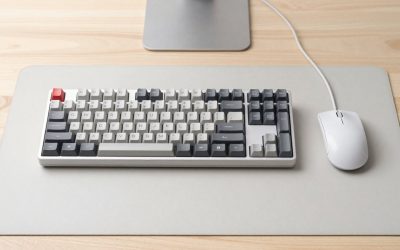
Medium/Standard (31.5″ x 11.8″ to 31.5″ x 15.7″): This is the sweet spot for Tenkeyless (80% TKL) keyboards. It allows for comfortable elbow spacing and leaves roughly 10 to 12 inches of mouse tracking space. The 15.7-inch depth is particularly useful because it provides a soft resting area for your forearms, preventing the edge of your desk from digging into your skin.
Large/XXL (35.4″ x 15.7″ to 36″ x 18″): The gold standard for full-sized (100%) keyboards or setups that utilize a separate numeric keypad or macro pad. It easily accommodates a 17.5-inch keyboard, a dedicated wrist rest, and leaves over 14 inches of horizontal space for unrestricted mouse movement.
Desktop/Giant (47″ x 24″ to 59″ x 27″): These massive pads cover almost the entire desk surface. You should only choose this size if you want to protect your entire desktop finish and have a deep workspace (at least 30 inches of desk depth) to avoid having the mat bunch up against your monitor mount.
2. Material Selection: Felt, Leather, Rubber, or PVC
The material of your desk mat dictates both the acoustic feedback of your keystrokes and the glide of your mouse. As we look toward workspace trends in 2026, the shift from pure gaming aesthetics to ergonomic typing setups highlights how crucial material selection is for daily comfort.
Textured Polyester/Cloth: Typically backed by open-cell rubber, this is the most popular choice for general typing. It provides a soft, cushioned surface for your palms and offers balanced mouse glide. It is also excellent for dampening the high-pitched “clack” of mechanical switches.
Merino Wool Felt: Highly aesthetic and modern, wool felt offers incredible acoustic dampening, turning high-pitched key clicks into a deep, satisfying “thock.” However, cheap synthetic felt can feel scratchy or irritating on bare wrists during long typing sessions, and it provides higher friction for mouse movement.
PU or Genuine Leather: Leather mats offer a premium, executive look and are highly resistant to spills. While they provide a firm, stable surface for writing with pen and paper, they offer zero acoustic dampening for typing and can feel sticky or warm against your wrists in hot weather.
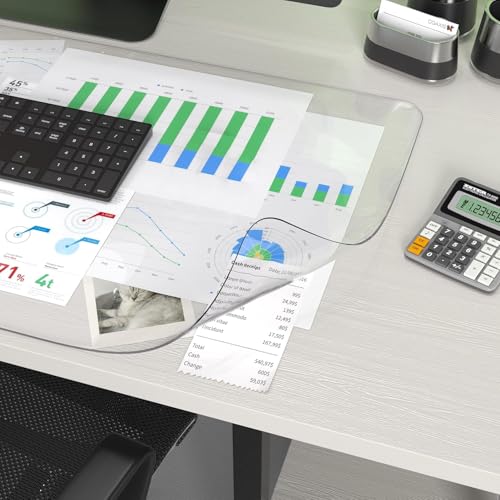
PVC/Clear Vinyl: Primarily used for ultimate desk protection. A clear PVC mat is highly durable and heat-resistant, but it offers no cushioning. Because PVC does not absorb impact, your hands and wrists will tire much faster during long typing marathons compared to using a rubber-backed cloth or felt mat.
3. Construction Quality and Edge Stitching
A quality typing mat must remain perfectly flat under the weight of your hands. The construction of the edges and the backing material determine how long the mat will last before it begins to degrade.
You should always prioritize mats with stitched edges (often called merrowed borders). Without a stitched border, the fabric layer of a cloth mat will inevitably peel away from the rubber backing within 6 to 12 months of daily wrist friction. The stitching should be dense, low-profile, and level with the mat’s surface so it does not rub against your wrists.
The backing material is equally critical. It must feature a high-grip rubberized pattern (often polyurethane or textured natural rubber). A mat that slides even half an inch while you are typing at 80 words per minute will cause micro-adjustments in your shoulders, leading to neck strain. Look for a backing weight of at least 400 grams per square meter (GSM) to ensure the mat stays anchored to your desk.
4. Comfort, Ergonomics, and Acoustic Dampening
Typing comfort is directly tied to the thickness of the desk mat. Thickness generally ranges from 2mm to 5mm, and each thickness profile changes the typing experience:
2mm Thickness: Very firm and lightweight. It offers little to no wrist relief and minimal sound dampening. If your desk has slight wooden imperfections or textured grain, you will feel those bumps directly through a 2mm mat.
3mm to 4mm Thickness: The industry standard for typing comfort. This thickness provides a balanced cushion that absorbs keyboard vibrations without making your keyboard feel like it is sitting on a mattress. It reduces the impact force on your fingertips when bottoming out keys.
5mm+ Thickness: Ultra-thick mats (often sold as orthotic or heavy gaming mats). These are exceptional for eliminating joint fatigue and offer maximum acoustic dampening. However, they can cause heavy mechanical keyboards to sink slightly, which can alter your key actuation angle over time.
5. Price Tiers and What You Actually Get
Understanding what you get at different price points will help you avoid overpaying for basic branding or underpaying for a product that falls apart quickly.
Budget ($8 – $15): Typically made of basic polyester with printed patterns (such as keyboard shortcuts or Excel guides). They are usually thin (2mm) and may have unstitched edges. While highly functional for basic setups, they tend to have a strong chemical smell out of the box and slide easily on slick desk surfaces.
Mid-Range ($16 – $35): This is where you find the best value. These mats feature robust stitched edges, 3mm to 4mm thickness, water-resistant coatings, and high-density rubber backing. Some bundles in this range even include matching memory foam wrist rests to relieve carpal tunnel strain.
Premium ($40 – $100+): Made from high-end materials like genuine top-grain leather, hand-woven merino wool, or double-sided sustainable cork. These focus on luxury aesthetics, exceptional acoustic dampening, and custom dimensions. They offer superior durability and elegant edge finishes.
6. Unboxing, Flattening, and Setup Logistics
Almost all desk mats are shipped rolled tightly in cardboard tubes. Cheap PVC and thick rubber mats can take days, or even weeks, to lie completely flat, which can cause your keyboard to wobble in the meantime.
To speed up the flattening process, unroll the mat and place heavy books on the outer 2 inches of each side for 24 hours. For stubborn PVC or leather mats, a light treatment with a hair dryer on a low-heat setting (kept at least 8 inches away from the surface) will soften the material and allow it to settle. Never fold a desk mat to flatten it, as this will create permanent creases in the rubber or foam core.
Spec Checklist
Use this quick-reference table to compare desk mat specifications across budget, mid-range, and premium tiers to see which fits your typing needs.
| Spec | Budget ($8 – $15) | Mid-Range ($16 – $35) | Premium ($40 – $100+) |
|---|---|---|---|
| Common Dimensions | 27.6″ x 11.8″ | 31.5″ x 15.7″ to 35.4″ x 15.7″ | 36″ x 18″ to 47″ x 24″ |
| Thickness | 2mm | 3mm to 4mm | 4mm to 5mm+ (or dense felt/leather) |
| Edge Finish | Raw cut or loose stitching | Dense, low-profile stitched border | Seamless heat-sealed or hand-stitched borders |
| Acoustic Dampening | Minimal (high pitch) | Moderate (balanced sound) | Excellent (deep “thock” acoustic profile) |
| Backing Grip | Basic textured plastic/rubber | High-density textured natural rubber | Heavyweight non-slip polyurethane or natural cork |
Red Flags to Avoid
When shopping for a desk mat, keep an eye out for these warning signs that indicate poor quality or bad ergonomic design:
- Strong, Linger Chemical Odors: Cheap neoprene or industrial glues can emit volatile organic compounds (VOCs) that can cause headaches and linger in small rooms for weeks.
- Raw, Unstitched Edges on Cloth: If a fabric mat lacks stitched borders, the top woven layer will inevitably fray where your wrists rub against it.
- Under 2.5mm Thickness on Hard Desks: A paper-thin mat will not absorb the vibration of your keystrokes, leading to joint fatigue.
- Felt Mats Without Rubber Grips: Pure felt or wool mats without a non-slip backing will slide constantly on polished wood or glass desks.
Frequently Asked Questions
What is the ideal thickness for a typing desk mat?
The ideal thickness for typing is 3mm to 4mm. This range offers the perfect balance of wrist cushioning, desk surface evening, and acoustic dampening. It is thick enough to absorb keyboard vibrations while remaining firm enough to prevent your keyboard from shifting or sinking.
Should my keyboard and mouse both sit on the desk mat?
Yes, absolutely. Having both devices on the same level surface is crucial for proper ergonomics. If only your keyboard or only your mouse is on the mat, it creates a height disparity of 3mm to 5mm, which can throw off your wrist alignment and cause muscle strain over long typing sessions.
How do I stop my desk mat from sliding while typing fast?
To prevent sliding, ensure the mat has a textured natural rubber or polyurethane backing with a high grip rating. Additionally, clean your desk surface thoroughly before laying the mat down; dust and wood polish residue are the most common causes of a mat losing its grip.
Do wool felt desk mats scratch or irritate your wrists during long typing sessions?
Cheap, synthetic felt (often made from recycled polyester) can feel scratchy and abrasive. However, premium, genuine merino wool felt is much softer and generally comfortable. If you have highly sensitive skin, a high-quality textured cloth mat is still the safest choice to avoid irritation.
Related guides
- Best Ultrawide Gaming Monitors: Six Screens Sized Against Real Desks: 6 Compared (2026)
- Best Game Room Neon Lights: Ten Signs and Icon Lamps Compared: 10 Compared (2026)
- 10 Best 75% Hot-Swappable Mechanical Keyboards (October 2026)
- Best Mini-LED Monitor: Five Listings From a Renewed KTC to a 5K LG, Compared by Pixels and Ports (2026)