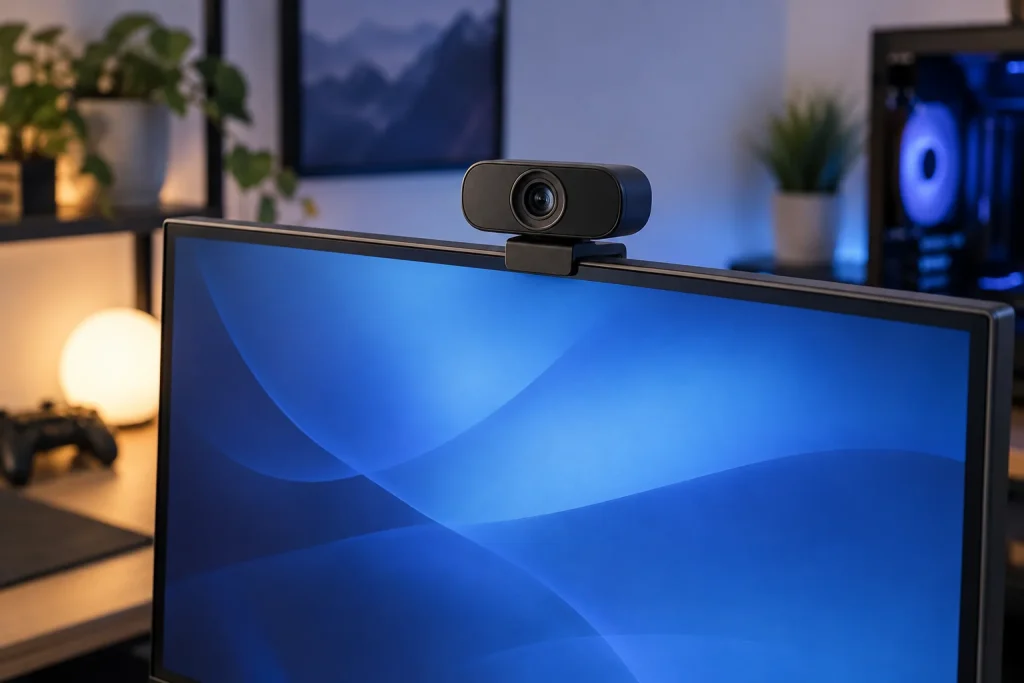
The holidays are the perfect time to upgrade your gaming setup, and a new streaming webcam is one of the most satisfying improvements you can make. This guide covers what to look for, which streaming webcams are worth watching, and — just as important — what to skip, so you spend wisely this holiday season rather than being swept up in the sales.
Every pick below is a real, widely available model, and the same buying principles apply whether you shop on Black Friday, Cyber Monday or through December. Prices move constantly around the holidays, so always check the live listing before buying.
As an Amazon Associate we earn from qualifying purchases at no extra cost to you.




Our Top Picks
 Logitech C920x HD Pro PC Webcam Full 1080p/30fps1 Pack2.8 x 1.7 x 3.7 Inches0.4 PoundsCheck on Amazon
 Logitech C920S HD Pro Webcam Full 1080p/30fps Video1.1" x 3.7" x 0.9"1 x 3.7 x 1.2 Inches0.36 PoundsCheck on Amazon
 Logitech Brio Ultra 4K HD Webcam for Streaming(Pack of 1)1.02 x 4.02 x 1.02 inches0.1 poundsCheck on Amazon

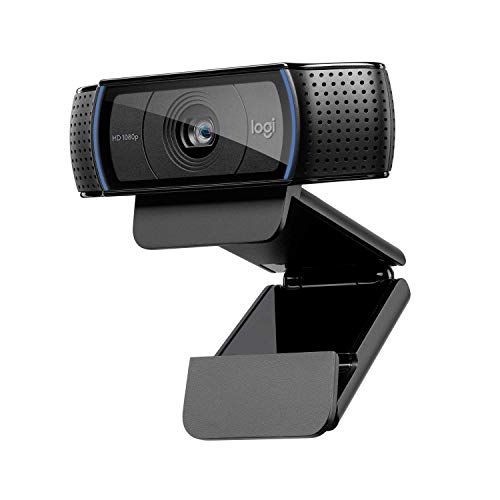

Top 3 picks at a glance
What to Look For in a Streaming Webcam
Focus on the things that actually affect your experience, not the marketing bullet points:
- 1080p is plenty for streaming (30 fps suits a small facecam, 60 fps looks smoother); 4K is optional
- Low-light performance matters more than raw resolution
- Autofocus and field-of-view for framing your setup
- Good lighting improves any webcam more than a pricier model
Get these right and even a mid-priced streaming webcam will serve you well for years; get them wrong and no amount of discount makes a poorly matched streaming webcam worth buying.
Where a New Streaming Webcam Makes the Biggest Difference
Upgrading your streaming webcam pays off most when your current one is genuinely holding you back. If it is old, worn or underspecced for how you play now, a holiday-season replacement is money well spent.
Prioritise the streaming webcam that improves your everyday experience most, and pair it with the rest of your setup so nothing becomes a new bottleneck.
Streaming Webcam Picks to Watch This Holiday
| Category | Pick | Why |
|---|---|---|
| Top pick and best value | Logitech C920 | reliable 1080p |
| Upgrade pick for 60 fps | Elgato Facecam MK.2 | great in low light |
| 4K | Logitech Brio 4K | high detail |
Beyond the table picks, the Razer Kiyo Pro is also worth watching for a deal, alongside these models: Logitech Brio 4K, Logitech C920, Elgato Facecam MK.2, Razer Kiyo Pro. Any of these streaming webcams is a safe buy at the right price from a reputable seller.
More Streaming Webcams Worth a Closer Look
The four Logitech picks above cover the safe, familiar end of the market. Streamers who want a cleaner image in a dim room, a camera that physically follows them, or 4K at a full 60 frames per second will find stronger options from Elgato, Insta360, OBSBOT, Razer and EMEET. Each camera below is a current model with specs checked against the manufacturer’s data sheet, and each fills a gap the original list leaves open.
Elgato Facecam MK.2

The Facecam MK.2 is built most directly for Twitch and YouTube streamers who broadcast at 1080p, which is still the resolution most platforms deliver to viewers. It records 1080p at 60 frames per second with HDR, and it sends that video uncompressed over a USB-C 3.2 Gen 1 connection, so no MJPEG compression smears fine detail before your encoder sees the frame. It also offers 720p and 540p at up to 120 fps for anyone who wants extra-smooth motion.
Inside is a 1/2.5-inch Sony STARVIS sensor behind a fixed-focus f/2.4 lens with a 24 mm full-frame-equivalent focal length and up to an 84-degree diagonal field of view. Elgato’s Camera Hub software gives manual control of exposure, ISO, shutter speed and white balance, and the camera stores those settings in onboard memory, so your look carries over between PCs and streaming apps. The MK.2 also adds a built-in privacy shutter and a lower-profile body compared with the original Facecam.
In practice, the MK.2 rewards a little setup time. Because it does not hunt for focus or exposure once you lock settings, your face stays consistent when a bright menu or a flashbang fills the monitor in front of you, a common problem with automatic budget webcams. It mounts with a monitor clip and also has a standard tripod thread, so it can sit on a small arm just above your display for a more natural eye line.
Strengths: clean, uncompressed 1080p60, HDR at full frame rate, settings saved on the camera, and digital pan, tilt and 4x zoom for framing.
Drawbacks: there is no autofocus and no microphone. The fixed focus is tuned for roughly 30 to 120 cm, which suits a seated streamer but not someone who leans in to show a product. You also need a genuine USB 3 port for the uncompressed signal.
Compared with the Logitech C920x and C920S, which top out at 1080p30, the MK.2 is the clearer upgrade for gameplay streams where smooth facecam motion matters. It sits in the low-to-mid price tier, usually between the C920 family and the Brio 4K.
Elgato Facecam 4K

The Facecam 4K is for streamers who want the most detailed image a USB webcam can deliver without moving to a mirrorless camera and capture card. It shoots up to 4K at 60 fps, with HDR available at up to 4K30, using a larger 1/1.8-inch Sony STARVIS 2 sensor. That bigger sensor is the main reason to choose it: more light-gathering area means less noise when your room is lit by a monitor and a single lamp.
The lens is fixed focus with a 90-degree diagonal field of view and accepts standard 49 mm screw-on filters, so you can add a polarizer or diffusion filter for a softer, more cinematic look. Camera Hub exposes manual exposure, shutter speed and ISO, which is why Elgato describes it as having DSLR-like control. Uncompressed formats need a USB 3.0 port; otherwise the camera falls back to MJPEG.
The filter thread is more useful than it first sounds. A circular polarizer can cut glare from glasses and glossy surfaces behind you, while a mild diffusion filter softens skin texture and highlights in a way software beauty filters struggle to match without artifacts. Combined with the large sensor, this makes the Facecam 4K the closest a USB webcam gets to the look of a dedicated camera, without the capture card, dummy battery and heat management that a mirrorless setup demands during multi-hour streams.
Strengths: large sensor, true 4K60, a filter thread, and a wide frame that suits desk setups with lighting or decor in the background.
Drawbacks: fixed focus that is sharpest at 30 to 120 cm when shooting 4K, no built-in microphone, and an upper-mid price tier. If you only ever stream at 1080p, much of the extra resolution goes unused, although it does give you room to crop and reframe.
Against the Logitech Brio 4K in the original picks, the Facecam 4K brings a bigger sensor and 60 fps at 4K rather than 30, which makes it the stronger choice for recorded YouTube content that viewers may watch at full resolution.
Insta360 Link 2C

The Link 2C suits streamers who want 4K and good autofocus without paying for a motorized gimbal. It is essentially the Link 2 without the moving head: a 1/2-inch sensor, 4K at up to 30 fps, 1080p at up to 60 fps, and HDR across its resolutions. The f/1.8 lens is brighter than most webcams in this guide, and phase-detection autofocus works from about 10 cm, so holding a controller, a figure or a new peripheral up to the lens keeps it sharp.
Software features include auto framing, a desk-view mode and a whiteboard mode, plus AI noise-cancelling microphones that are a step up from typical webcam mics. There is a physical privacy switch and a standard 1/4-inch thread for mounting on a light stand or arm instead of the monitor.
The microphones deserve a mention because most webcam mics are an afterthought. Insta360 uses AI noise reduction to suppress keyboard and fan noise, and while a dedicated microphone is still better for streaming, the Link 2C is a reasonable fallback for Discord calls, meetings or quick clips. Gesture control lets you zoom or toggle framing with a hand signal, which is handy when you are holding a product and cannot reach the mouse. The camera also supports portrait output for vertical short-form clips, although H.264 is not available in every portrait mode.
Strengths: bright lens, fast autofocus, useful built-in mics, and a compact body for the price tier.
Drawbacks: the 79.5-degree field of view is fixed and slightly narrower than the Elgato models, and the camera connects over USB 2.0, so video arrives compressed as MJPEG or H.264. HDR and 60 fps need to be switched on in Insta360’s Link Controller software.
It is a sensible mid-tier alternative to the Brio 4K for creators who show products on stream and need focus that keeps up.
OBSBOT Tiny 2 Lite

The Tiny 2 Lite is the pick for streamers who move: full-body reactions, fitness or dance streams, standing desks, or anyone who shifts between a gaming chair and a second station. It sits on a two-axis gimbal that physically pans and tilts, and OBSBOT’s AI tracking keeps your face or upper body in frame. Gesture controls let you toggle tracking or zoom without touching the PC.
It records 4K at 30 fps and 1080p at 60 fps from a 1/2-inch sensor with phase-detection autofocus, HDR and up to 4x digital zoom. The dual omnidirectional microphones offer three levels of noise reduction, and the camera connects over USB-C.
Tracking modes go beyond simply following a face. You can switch between head-and-shoulders, upper-body and full-body framing, and OBSBOT’s software offers manual pan and tilt with saved presets, so even a seated streamer can jump between a facecam angle and a view of a controller or desk setup during the same broadcast. A remote controller is available separately for streamers who prefer physical buttons over gestures. Like every gimbal camera, it should be mounted firmly so desk vibration does not cause small shakes in the image.
Because the gimbal can point the lens down or away, the camera also doubles as a physical privacy measure when it is idle, a small but welcome touch for a camera that lives on your desk all day.
Strengths: real mechanical pan and tilt, dependable subject tracking, autofocus, and 1080p60 for smooth motion.
Drawbacks: the sensor is smaller than the 1/1.5-inch chip in the full Tiny 2, so dim rooms produce more noise than the Facecam 4K. A moving camera head also draws attention on a desk, and tracking is unnecessary if you stay seated.
None of the Logitech picks above track movement, so the Tiny 2 Lite fills a genuinely different role. It sits in the middle price tier.
Razer Kiyo V2

The Kiyo V2, released in late 2025, is aimed at gamers who want 4K at a mid-tier price and an image that holds up under typical RGB-lit desk conditions. It records 4K at 30 fps, 1440p at 30 fps and 1080p at up to 60 fps from an 8.3 MP Sony STARVIS sensor, with HDR support and a wide 93-degree field of view that captures more of your setup than most rivals.
It has dual omnidirectional microphones, autofocus with a manual override, a built-in privacy shutter and a 1/4-inch thread. Razer bundles a Camo Studio license for adjustments beyond what Synapse offers. 4K requires a USB 3.0 connection, and Razer includes a suitable USB-C cable.
The wide 93-degree lens is a double-edged feature for gamers. It is ideal for setup-tour content, dual-monitor desks and streams where lighting and decor are part of a channel’s identity, and it lets you crop a tighter facecam in OBS while keeping a wide shot for intermission scenes. The downside is more visible distortion near the frame edges at close distances, so mount it slightly further away than a narrower webcam. HDR helps when a bright monitor lights your face against a dark room, a very common streaming scenario.
At about 255 g it is heavier than most webcams, so make sure your monitor clip or arm holds it securely without drooping over a long session.
Strengths: wide framing, 4K and 1080p60 in one camera, a privacy shutter, and good software support.
Drawbacks: several published reviews mention autofocus that can hunt, and 1440p is limited to 30 fps (the cheaper Kiyo V2 X runs 1440p at 60 fps but uses a much smaller sensor). The 93-degree view may also show more of a messy room than you want.
Against the Logitech Brio 4K, the Kiyo V2 trades some polish for a wider view and a newer sensor at a comparable or lower tier.
EMEET S600

The S600 is the budget pick for streamers who want more than the Brio 101 without stepping into the middle tier. It records 4K at 30 fps or 1080p at 60 fps from a 1/2.55-inch Sony sensor and uses phase-detection autofocus, which is unusual at this price and much quicker than the contrast-detect focus on most cheap webcams.
Its field of view is adjustable from 40 to 73 degrees at 1080p through the EMEETLINK software (fixed at 73 degrees in 4K), so you can crop tightly to your face for a small facecam overlay. It includes two noise-reduction microphones, auto light correction, a privacy cover and a USB-C connection.
The adjustable field of view is what makes the S600 more than a cheap 4K label. Small facecam boxes in a gameplay layout look best with a tight head-and-shoulders crop, and many budget webcams force you to crop digitally in OBS, losing detail. The S600 handles that framing in the camera instead. Its autofocus is also quick enough for showing a new headset or controller on stream without the image pulsing. For a first serious stream setup, pairing the S600 with an inexpensive key light will produce a cleaner facecam than buying a pricier camera and leaving the room dark.
Strengths: 1080p60 and fast autofocus at an entry-level tier, plus a tight-framing option that suits small facecam boxes.
Drawbacks: the smaller sensor and narrow aperture mean low-light results fall behind the Elgato and Razer models, and there is no auto framing to fall back on. Plan on adding a key light.
Compared with the Logitech C920x, the S600 offers double the frame rate at 1080p plus a 4K mode at a similar price tier, making it the strongest value upgrade in this guide for streamers on a tight budget.
Comparison of the Additional Webcams
| Webcam | Max video | Sensor | Field of view | Focus | Built-in mic | Price tier |
|---|---|---|---|---|---|---|
| Elgato Facecam MK.2 | 1080p60 uncompressed, HDR | 1/2.5″ Sony STARVIS | Up to 84° | Fixed | No | Mid-range |
| Elgato Facecam 4K | 4K60 (HDR up to 4K30) | 1/1.8″ Sony STARVIS 2 | 90° | Fixed | No | Premium |
| Insta360 Link 2C | 4K30 / 1080p60, HDR | 1/2″ | 79.5° | PDAF autofocus | Yes, AI noise cancelling | Mid-range |
| OBSBOT Tiny 2 Lite | 4K30 / 1080p60, HDR | 1/2″ | About 79° | PDAF autofocus, gimbal tracking | Yes, dual | Mid-range |
| Razer Kiyo V2 | 4K30 / 1440p30 / 1080p60, HDR | 8.3 MP Sony STARVIS | 93° | Autofocus | Yes, dual | Mid-range |
| EMEET S600 | 4K30 / 1080p60 | 1/2.55″ Sony | 40-73° adjustable | PDAF autofocus | Yes, dual | Budget |
Read the table by role rather than by headline resolution. The two Elgato cameras are the image-quality picks for seated streamers who control their lighting. The Link 2C and Kiyo V2 are all-rounders with usable built-in microphones. The Tiny 2 Lite is the only one that physically follows you, and the S600 is the value choice.
Webcam Specs That Matter Most for Streaming
Sensor size beats megapixels
A 1080p stream needs only about 2 megapixels, and 4K needs about 8, so almost every modern webcam has enough pixels. What differs is how much light each pixel can collect. A bigger sensor, such as the 1/1.8-inch chip in the Facecam 4K, produces a cleaner picture in the dim, monitor-lit rooms most gamers stream from. Treat the sensor size line on a spec sheet as more important than the megapixel figure printed on the box.
Frame rate: 30 vs 60 fps
Most facecams appear in a small corner overlay, so 30 fps is acceptable for talking-head content. For reaction-heavy streams, fast hand movement or a full-screen chatting scene, 60 fps looks noticeably smoother and better matches 60 fps gameplay. Check that the 60 fps mode is available at the resolution you will actually use; many cameras reach 60 fps only at 1080p or 720p.
Compressed vs uncompressed output
Webcams on USB 2.0 send compressed MJPEG or H.264 video, which your PC decodes before re-encoding for the stream. Cameras on USB 3, such as the Facecam MK.2, can send uncompressed frames and avoid a layer of compression artifacts. If you choose one, plug it into a USB 3 port on the motherboard rather than a hub.
Autofocus or fixed focus
Fixed-focus webcams never hunt or pulse, which many streamers prefer, but anything closer than the focus range will blur. Phase-detection autofocus (PDAF), found on the Link 2C, Tiny 2 Lite and S600, locks quickly and suits creators who hold products up to the camera.
Field of view
A 78 to 84 degree view frames a seated streamer with some background. Wider views around 90 degrees show more of your room and lighting, while software crop or digital zoom lets you tighten the shot. If your background is cluttered, a narrower view is easier to manage than constant cropping.
Software and saved settings
Manual control of exposure, white balance and shutter speed stops your face from brightening and darkening as game scenes change. Cameras that store settings on the device keep that look consistent across OBS, Discord and other apps.
Which Webcam Fits Which Kind of Streamer
| Your streaming style | What matters most | Good fit |
|---|---|---|
| Seated gameplay with a small facecam overlay | Smooth 1080p, stable exposure | Elgato Facecam MK.2, Logitech C920x |
| Full-screen chatting, podcasts, reaction content | Detail, low noise, good framing | Elgato Facecam 4K, Logitech Brio 4K |
| Unboxings, peripheral showcases, product talk | Fast close-range autofocus | Insta360 Link 2C, EMEET S600 |
| Standing, moving, fitness or dance streams | Physical tracking | OBSBOT Tiny 2 Lite |
| Wide desk-setup shots with RGB lighting in frame | Wide field of view, HDR | Razer Kiyo V2 |
| First stream on a tight budget | Reliable 1080p with minimal setup | Logitech Brio 101, EMEET S600 |
What Resolution Your Viewers Actually See
Before paying for 4K, check what your platform delivers. Twitch’s standard ingest is built around 1080p at up to 60 fps, and many viewers watch at 720p or 1080p on phones and laptops. YouTube accepts 4K live streams, but only viewers with the bandwidth and screen to use it will see the extra detail. Your facecam also usually occupies a fraction of the frame, so a 4K camera is often being scaled down to a box a few hundred pixels wide.
That does not make 4K pointless. A 4K source gives you room to crop in tightly without losing sharpness, which is useful for vertical clips on short-form platforms where your face fills the screen. It also helps recorded content edited later. But for a pure live gameplay stream, a clean 1080p60 image with good lighting will look better to most viewers than a noisy 4K image in a dark room.
Bandwidth is the other limit. Running a high-resolution webcam alongside a game capture adds encoding load to your GPU or CPU. If your stream drops frames after adding a new camera, lower the webcam source to 1080p in OBS first; it rarely makes a visible difference in a corner overlay.
Sensible Upgrade Paths From the Webcam You Already Own
Most people shopping for a holiday webcam upgrade already have something on the monitor. The right step depends on what is holding that camera back:
- From a laptop camera or a basic 720p webcam: almost any 1080p camera is a big jump. The Logitech Brio 101 or EMEET S600 gives clean 1080p without stretching the budget, and the S600 adds 60 fps and fast autofocus.
- From a Logitech C920 or C922 that looks soft or choppy: the limiting factors are usually 30 fps and a small sensor. The Elgato Facecam MK.2 is the most direct upgrade for 1080p streams, adding 60 fps, HDR and uncompressed output.
- From a 1080p camera that struggles in the dark: look at sensor size first. The Facecam 4K’s 1/1.8-inch sensor and the Kiyo V2’s STARVIS sensor handle dim, monitor-lit rooms better than older small-sensor webcams, although a key light remains the cheapest fix.
- From a fixed camera when you move a lot: no static webcam solves this. The OBSBOT Tiny 2 Lite’s gimbal tracking is the upgrade that actually changes how your stream looks.
- From a 4K webcam with poor focus: phase-detection autofocus, as on the Insta360 Link 2C, keeps close-up products sharp where older contrast-detect cameras hunt.
If your current camera already delivers clean 1080p60 and the image only falls apart in poor light, skip the camera upgrade entirely this season and buy a light instead. You will see a bigger improvement for less money.
How Much Should You Spend on a Streaming Webcam?
The right budget for a streaming webcam depends on how seriously you game. Casual players are well served by a solid mid-range streaming webcam, while competitive players and enthusiasts benefit from stepping up a tier. Spending more than you need on a streaming webcam rarely improves your experience as much as the marketing suggests.
As a rule, avoid both the rock-bottom streaming webcams that compromise on the essentials and the flagship streaming webcams where you pay a premium for features you will not use. The best-value streaming webcam that meets your actual needs is almost always the smart holiday buy, and Black Friday is the time to get that sweet-spot model for less.
A Streaming Webcam Is Only as Good as the Rest of Your Setup
A great streaming webcam performs best when it fits the rest of your gaming setup. Pairing a high-end streaming webcam with mismatched components wastes money, while a sensible streaming webcam that complements what you already own delivers the best real-world experience.
Before you buy, make sure your new streaming webcam matches your other gear and the games you actually play, so nothing becomes a fresh bottleneck. This is especially worth checking during the holiday rush, when it is tempting to buy on discount rather than on genuine need.
Setup Tips to Get the Most From a New Streaming Webcam
- Light your face before adjusting the camera. Place a soft key light slightly above eye level and off to one side, then let a weaker fill or the monitor glow cover the other side. Once the lighting is set, turn off auto exposure so the image stays stable when bright game scenes flash on your face.
- Lock white balance. RGB keyboards, LED strips and a bright monitor confuse automatic white balance. Set a fixed value that matches your key light, often somewhere around 4,000 to 5,600 K for daylight-balanced panels.
- Set shutter speed for your frame rate. At 60 fps, a shutter around 1/120 second keeps motion natural. If overhead lights flicker on camera, match the shutter to your mains frequency instead: 1/60 or 1/120 in 60 Hz regions, 1/50 or 1/100 in 50 Hz regions.
- Mount the camera at eye level. A small arm or light stand with a 1/4-inch thread gives a more flattering angle than a clip on a tall monitor, and it keeps the image steady when you type hard.
- Use the right USB port. 4K and uncompressed cameras need USB 3. Use a rear motherboard port and avoid sharing a hub with a wireless dongle or capture device.
- Match the camera to your encoder. In OBS, set the webcam source to the exact resolution and frame rate you want rather than the device default, and pick MJPEG or NV12 depending on what the camera supports. Feeding a 4K facecam into a 1080p stream adds load for no visible gain unless you crop.
- Treat the webcam mic as a backup. Built-in microphones are fine for meetings, but a dedicated USB or XLR microphone will sound far better on stream.
- Update firmware. Elgato, Insta360, OBSBOT and Razer release firmware updates that improve exposure, focus and tracking. Check once after setup and again after major software updates.
Webcam or Mirrorless Camera: When to Move Beyond a Webcam
Many large streamers use a mirrorless camera with a clean HDMI output and a capture card instead of a webcam. The advantage is a much larger sensor and interchangeable lenses, which produce a blurred background and far cleaner low-light footage than any USB webcam. The trade-offs are cost, desk space, heat during long streams, a separate power solution, and more setup steps every time you go live.
For most gamers, a high-end webcam such as the Elgato Facecam 4K closes much of the gap at a lower total cost and with plug-and-play convenience. Consider a mirrorless setup only when your stream is a full-time project, your facecam is a large part of the screen, and you already have good lighting and audio in place. If any of those three are missing, spending on lighting or a microphone first will improve your stream more.
Lighting and Background Upgrades That Pair Well With a New Webcam
Even the best webcam looks flat with one overhead ceiling light. A few inexpensive changes help every camera in this guide:
- One soft key light: a panel or small softbox to the side of your monitor removes harsh shadows and lets the camera use a lower gain, which means less grain.
- Background separation: a dim LED strip or small lamp behind you adds depth so you do not blend into a dark wall.
- Control the window: a bright window behind you forces the camera to expose for the sky and leaves your face dark. Turn the desk, close the blind, or face the window instead.
- Tidy the frame: a wide-angle webcam shows more of your room. Decide what should be in shot and use digital zoom or cropping to remove the rest.
- Match color temperatures: mixing warm room bulbs with a daylight key light creates uneven skin tones. Keep the lights you can see on camera close to the same color temperature.
These steps usually cost less than the step from a mid-tier to a premium webcam, and they make the improvement from any new camera far easier to see.
What to Skip
Skip paying extra for 4K if you only stream at 1080p and never crop, and skip ultra-cheap cams with poor low-light performance.
The golden rule for any streaming webcam this Black Friday: a discount on the wrong product is not a saving. Decide what you actually need first, set a target price, and only buy when a streaming webcam that fits hits it. Ignore inflated ‘was’ prices, gimmicky features and lighting you are paying extra for but will rarely notice.
Holiday Shopping Checklist
- Decide the exact streaming webcam you want before the sales start
- Note its normal price so you can spot a genuine discount
- Set a target price and only buy when it is hit
- Buy from reputable sellers and check the warranty and return policy
- Ignore inflated ‘was’ prices and features you will not use
Common Mistakes to Avoid When Buying a Streaming Webcam
The most common holiday mistake is buying a streaming webcam purely because it is heavily discounted, rather than because it is the right one for you. A 50% saving on a streaming webcam that does not fit your needs is money wasted, not money saved. Another frequent error is chasing headline specs — a bigger number on the box rarely translates into a better experience.
It also pays to avoid impulse-buying the flagship streaming webcam when a mid-range model would serve you just as well, and to steer clear of unknown brands with no warranty or reviews. Take a few minutes to read trusted reviews of any streaming webcam before you commit, even in the middle of a time-limited sale.
The Bottom Line
A streaming webcam is one of the more satisfying gaming purchases to make during the holidays, and Black Friday genuinely offers some of the best streaming webcam prices of the year. Decide what you need, set a fair target price, watch the picks above, and buy the streaming webcam that fits your setup and your games — not just the one with the biggest discount sticker.
Frequently Asked Questions
Is a 4K webcam worth it for streaming?
Usually no; 1080p60 with good lighting looks great and uses less bandwidth.
What improves webcam quality most?
Lighting; a simple key light beats upgrading to a pricier webcam.
When is the best time to buy a streaming webcam?
Black Friday and the surrounding holiday sales usually offer the best streaming webcam prices of the year, especially on last-generation models. Decide what you want in advance so you can act fast on a genuine deal.
How do I avoid fake Black Friday deals?
Track the streaming webcam’s normal price beforehand, compare against its recent selling price rather than the retailer’s ‘was’ price, and buy from reputable sellers with a clear warranty and return window.
Related Guides
- Gaming Gift Guide 2026
- Best Budget Gaming Upgrades This Holiday
- Black Friday PC Hardware Deals: What to Watch
Do I need a webcam with a built-in microphone for streaming?
No. Built-in webcam mics are fine for calls but sit too far from your mouth for good stream audio. Several strong streaming webcams, including the Elgato Facecam MK.2 and Facecam 4K, have no microphone at all, on the assumption that you already use a dedicated mic.
Is 1080p60 or 4K30 better for a facecam?
For live streaming, 1080p60 is usually the better choice because most platforms deliver 1080p or lower, and smooth motion is more noticeable than extra detail in a small overlay. 4K30 is useful when you record content for later editing or want to crop the frame heavily.
What is the difference between an AI-tracking webcam and a regular one?
Tracking webcams such as the OBSBOT Tiny 2 Lite have a motorized gimbal that physically turns to follow you, while auto-framing cameras like the Insta360 Link 2C digitally crop to keep you centered. Regular webcams stay fixed. Tracking only helps if you move around during streams.
Why does my webcam look grainy even though it is 4K?
Grain comes from too little light reaching the sensor, not from low resolution. Add a key light, lower the gain or ISO, and avoid pointing the camera toward a bright window. A camera with a larger sensor also helps in dim rooms.
Can I use a webcam for a console stream?
Console webcam support is limited, so most console streamers route gameplay through a capture card into a PC and add the webcam in OBS there. Check your console’s official compatibility list before relying on direct support.
Does a webcam need a USB 3 port?
Only some do. Cameras that send uncompressed video or 4K, such as the Elgato Facecam MK.2, Facecam 4K and Razer Kiyo V2 in 4K mode, need USB 3. Compressed webcams on USB 2.0, like the Insta360 Link 2C, work on any port. Check the spec sheet and use a rear motherboard port when in doubt.
Should I turn on HDR on my streaming webcam?
Turn it on when your scene has strong contrast, such as a bright monitor on your face and a dark room behind you, or a window in frame. In evenly lit rooms HDR adds little, and on some cameras it limits the available frame rate, so compare both settings in OBS before going live.