Configuring a wireless charging headset stand requires balancing power delivery, thermal control, and peripheral bandwidth. Modern gaming stands do far more than hold your gear; many combine a Qi charging pad for your phone or earbuds, USB passthrough ports for cable charging, and RGB lighting. Setting them up incorrectly leads to common issues such as the pad or passthrough port going dead when the PC shuts down, excess heat slowing wireless charging, and devices disconnecting when Windows suspends the USB port.
To get the best performance from your setup, prioritize sustained 5V/9V power delivery over maximum wattage, configure continuous motherboard standby power in your UEFI/BIOS, and disable aggressive operating system power-saving policies on the port that feeds the stand. Clean power routing and sensible lighting settings keep the charging pad cool and your peripherals stable.
As an Amazon Associate we earn from qualifying purchases at no extra cost to you.


Our Top Picks



Top 3 picks at a glance
What the Wireless Pad on a Headset Stand Actually Charges
Before changing a single BIOS or Windows setting, it helps to be clear about what the charging pad on a typical headset stand is built for. On nearly every stand in this category, including the KDD, Hiwe and Tascaquin models featured on this page, the Qi pad sits in the base and is designed for flat Qi-compatible devices: smartphones, wireless earbud cases and some smartwatches. Most wireless gaming headsets do not contain a Qi receiver coil in the ear cup or headband, so hanging a headset on the arm does not charge it by induction.
So how does the headset get charged? In practice, through a cable. Many stands include one or more USB-A or USB-C passthrough ports, and the usual approach is a short USB-C cable running from one of those ports up to the headset while it hangs on the arm. That makes the power-delivery settings in this guide doubly important: the same USB connection feeds the Qi pad, the RGB lighting and the passthrough port your headset cable uses.
A small number of headsets ship with their own dock or base station that charges through pogo pins or a hot-swap battery bay. Those docks have their own power logic and usually ignore the stand-level settings described here, so check your headset’s manual before assuming a generic stand will help.
Keep three practical rules in mind while you work through the settings below:
- The Qi pad charges your phone or earbuds. Use it for those devices and treat the arm as a hanger.
- The passthrough port charges your headset. A short, good-quality cable avoids voltage drop and loose connections.
- Everything shares one power budget. If the stand is powered from a single PC USB port, the pad, the lights and the passthrough port all compete for the same few watts, which is why RGB and selective-suspend settings matter so much.
Where later sections mention an integrated DAC or a 3.5mm jack, those steps apply only to the stands and headset docks that actually include one; budget RGB stands typically have no audio hardware at all.
Quick Recommended Settings
| Setting | Recommended Value | Why |
|---|---|---|
| BIOS ErP / Energy-Related Products | Disabled | Allows USB ports to deliver continuous 5V standby power when the PC is in S4 (Hibernate) or S5 (Soft Off) states. |
| BIOS USB Power in S5 State | Enabled | Keeps power flowing to the stand so the pad and passthrough port keep charging overnight while the system is powered down. |
| Windows USB Selective Suspend | Disabled | Prevents Windows from suspending the stand’s internal USB hub controller during idle periods or low-power states. |
| USB Hub Power Management (Device Manager) | Unchecked (“Allow computer to turn off…”) | Stops intermittent disconnects and sudden charging drops during background operations. |
| Inductive Charging Profile / Wattage | Standard 5W (5V / 1A) or 7.5W Qi Profile | Most stands negotiate wattage automatically; staying at 5W–7.5W keeps the pad and phone cooler, and the headset charges over its cable anyway. |
| USB Audio Sample Rate (stands or docks with a DAC only) | 24-bit, 48000 Hz (Studio Quality) | Matches native Windows audio engine mixing, eliminating resampler overhead and popping artifacts across USB passthrough. |
| RGB Standby & Brightness | Static or Disabled / 50% Max Brightness | Reduces thermal buildup at the base plate and frees up 200mA–500mA of USB bus power for the wireless charging coil. |
Setting-by-Setting
UEFI/BIOS ErP Ready and S5 Power Delivery
Exact Value: Set ErP Ready to Disabled, and set USB Power in S4/S5 State to Enabled (on ASUS: Advanced > APM Configuration > ErP Ready: Disabled; on MSI: Settings > Advanced > Power Management Setup > ErP Ready: Disabled; on Gigabyte: Settings > Platform Power > ErP: Disabled).
Trade-off: Disabling ErP increases passive system wall draw by roughly 0.5W to 1.5W when the PC is turned off, but it ensures your headset stand’s wireless base receives continuous power to charge your gear without keeping the entire rig running.
Windows USB Selective Suspend
Exact Value: Set USB selective suspend setting to Disabled (Path: Control Panel > Hardware and Sound > Power Options > Edit Plan Settings > Change advanced power settings > USB settings > USB selective suspend setting).
Trade-off: The host system will not power down idle USB transceivers. This causes a negligible increase in idle power consumption (less than 1W) on desktop PCs, but prevents the stand’s internal controller from dropping connection to connected wireless dongles or stopping inductive power delivery mid-cycle.
Device Manager USB Hub Power States
Exact Value: Uncheck Allow the computer to turn off this device to save power for the stand’s specific controller node (Path: Device Manager > Universal Serial Bus controllers > Generic USB Hub / USB Root Hub > Properties > Power Management).
Trade-off: Prevents Windows from putting the stand’s internal hardware to sleep when it detects no mouse or keyboard inputs, ensuring uninterrupted charging and zero audio dropouts when listening to long audio streams or resting between matches.
Qi Wireless Charging Power Profile
Exact Value: Let the pad negotiate automatically. Budget stands have no wattage setting, so the practical control is the power adapter: a basic 5V adapter keeps the pad at the standard 5W profile, while a Quick Charge or USB PD adapter unlocks the 7.5W/10W/15W modes on stands that support them.
Trade-off: 5W charging takes noticeably longer to fill a phone, but it produces less heat in the pad and the phone. Higher-wattage wireless charging warms both, and a hot pad often throttles itself back to a slower rate anyway.
Integrated DAC Sample Rate and Bit Depth
Exact Value: 24-bit, 48000 Hz (Studio Quality) (Path: Control Panel > Sound > Playback > [your USB headset, dongle or dock] > Properties > Advanced > Default Format).
Trade-off: Bypasses high sample rates like 96kHz or 192kHz that waste USB audio bandwidth without audible improvement in games. It matches the default Windows mix format, which avoids extra resampling and reduces the chance of pops and crackle.
RGB Lighting Draw and Thermal Throttling
Exact Value: Brightness set to 50% or lower, with continuous dynamic effects disabled during active charging.
Trade-off: Sacrifices maximum visual brightness and aggressive RGB animations for a cooler operating temperature on the stand’s base plate, lowering overall electrical noise and thermal buildup around the Qi transmitter coils.
More Wireless Charging Headset Stands Worth Considering
The three stands at the top of this page cover controller storage, a clean aluminium look and a compact RGB design. If none of them fits your desk, the four options below handle the same job with different trade-offs in power, materials and port selection. All of them work with the settings in this guide; the notes explain which settings matter most for each.
KAFRI RGB Headphone Stand with Wireless Charger
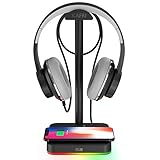
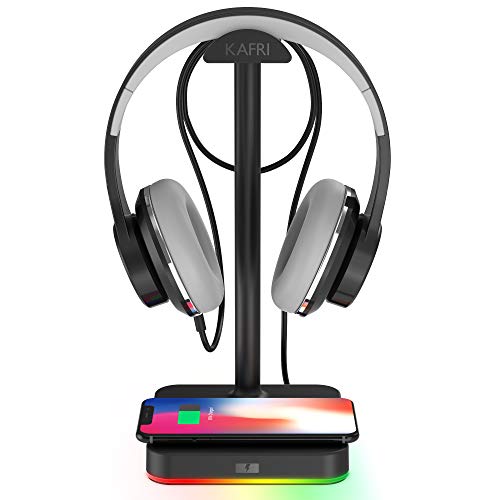
The KAFRI stand is one of the most widely recommended budget options in this category. It pairs a simple vertical headset hanger with a Qi charging pad in the base, listed with 10W and 7.5W fast-charge modes depending on the phone, plus RGB lighting with several modes controlled by a touch switch. The footprint is small, so it fits on crowded desks next to a keyboard and mouse pad.
This is a stand for players who want a phone charger and a headset hanger in one spot and do not need a USB hub. Because the 10W mode depends on a sufficiently strong power source, it benefits most from the power-delivery steps covered above. Running it from a dedicated wall adapter, or at least a rear motherboard USB port with selective suspend disabled, gives the pad enough headroom to reach its faster mode.
Strengths:
- Budget tier for a stand that combines Qi charging and RGB.
- Compact base that leaves room for other desk accessories.
- Touch-controlled lighting, so no software is required.
Drawbacks:
- Mostly plastic construction, so it feels lighter than aluminium or wood stands.
- No passthrough ports for charging a headset by cable.
- Phone placement needs to be fairly precise for reliable charging.
Settings that matter most: keep the RGB on a static colour or switch it off while a phone charges, since the lights and pad share the same input. If you power it from the PC and want overnight charging, the ErP and USB-in-S5 BIOS settings above are essential; with a wall adapter, they no longer matter for this stand.
Compared with the Tascaquin stand above, the KAFRI is similar in concept but simpler. If you want ports for a headset cable, the KDD or the COZOO below are better choices.
COZOO Headphone Stand with Fast Wireless Charging Pad and 2 USB Ports

The COZOO stand adds what the KAFRI leaves out: two USB charging ports alongside the fast wireless charging pad. That makes it a more complete charging hub for a gaming desk. You can drop a phone on the pad, run a short cable from one USB port up to your headset on the hanger, and use the second port for a controller or wireless earbuds.
It suits players whose headset charges over USB and who want everything powered from one place. With three outputs in use at once, the power budget matters. This is exactly the kind of stand where a dedicated wall adapter is worth using instead of a single PC USB port, because a 500mA or 900mA host port cannot feed a fast Qi pad and two charging ports at full speed simultaneously.
Strengths:
- Two USB charging ports in addition to the Qi pad.
- Gaming-oriented design that works with most over-ear headsets.
- Budget tier.
Drawbacks:
- Charging speed drops when several devices draw power at once.
- The ports are listed for charging, so do not count on them carrying a wireless dongle’s data to the PC.
- Plastic housing rather than metal.
Settings that matter most: if you power it from the PC, disable USB selective suspend and the Device Manager power-saving option for the port it uses, so the headset cable does not stop charging mid-session. Prioritise the headset on the USB port and charge the phone on the pad only when the headset is full if speeds feel slow.
Against the KDD stand at the top of this page, the COZOO gives up controller storage and the rotating base but keeps a similar mix of wireless and wired charging in a slimmer shape.
Suguder 4-in-1 Headphone Stand with 15W Wireless Charger
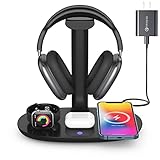
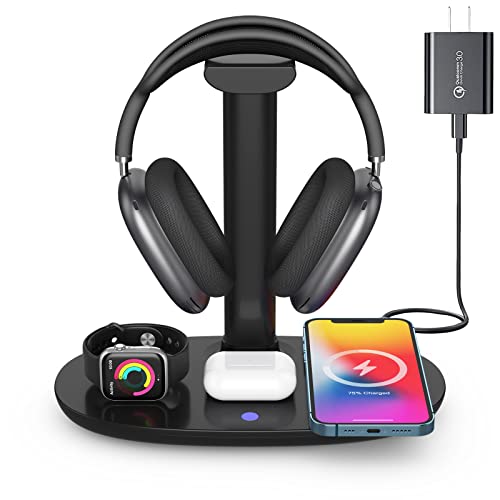
The Suguder takes a different approach. Instead of RGB and gamer styling, it is a multi-device charging station with a headphone hanger on top. The listing describes a 4-in-1 unit: a headset holder, a wireless pad rated up to 15W for phones, and dedicated spots for wireless earbuds and a smartwatch. It is aimed at people who carry an iPhone, AirPods and an Apple Watch, though the Qi pad also works with other Qi phones.
This is the pick for a combined work-and-play desk where you want every small device charged overnight without a tangle of cables. Note that the top 15W rate is typically reached only by compatible Android phones, while iPhones on a standard Qi pad usually charge more slowly. That is normal behaviour, not a fault.
Strengths:
- Charges up to three small devices and holds a headset.
- No RGB, so less heat around the charging coil and a calmer look.
- Mid-range tier with a lot of function for the money.
Drawbacks:
- Charging slows when several devices share the station.
- Needs a capable wall adapter to reach its rated speeds.
- No USB ports for headset cables or dongles.
Settings that matter most: this stand is best run from a wall adapter rather than the PC, because a single PC USB port cannot supply three devices at once. Once it is on its own adapter, none of the BIOS or Windows settings affect it, and you can leave the PC power plan untouched.
Compared with the Hiwe stand above, the Suguder trades the minimalist look for more charging spots. If you only need one phone charged, the Hiwe is tidier; if you charge three devices nightly, the Suguder saves space.
HOTUFELG Headphone Stand with Solid Wood Base and Wireless Charging Pad

For desks that lean toward a warm, natural look, the HOTUFELG stand puts the wireless charging pad inside a solid wood base, with a metal upright and hanger for the headset. It skips RGB entirely, which also means there are no LEDs warming the base beneath your phone, one of the heat sources this guide recommends dimming on other stands.
It fits players and streamers who want a headset stand that blends into a wood or minimalist setup rather than glowing on camera. It is a single-purpose design: one headset on top, one Qi device on the pad. There are no passthrough USB ports, so you will need a separate cable or hub to charge a headset that charges by wire.
Strengths:
- Solid wood base with a more premium feel than plastic stands.
- No lighting, so less heat near the charging coil.
- Mid-range tier.
Drawbacks:
- No extra charging or data ports.
- Only one wireless charging spot.
- Wood grain and tone vary slightly between units.
Settings that matter most: with no lighting and no ports, the only variables are power source and phone alignment. Use the adapter type the listing recommends, center the phone on the pad, and remove thick or magnetic cases. If powered from the PC, the ErP setting decides whether it charges while the PC is off.
If you like the clean style of the Hiwe stand but prefer wood to aluminium, the HOTUFELG is the closest alternative on this page.
By Hardware Tier
Low-Tier (Standard 5W USB 2.0 / Single-Cable Stands)
Low-tier stands rely on a single 5V USB 2.0 or USB 3.0 connection from the motherboard to power both the Qi charging pad and basic lighting. Available power is limited to 500mA (USB 2.0) or 900mA (USB 3.0).
- Port Connection: Plug directly into the rear I/O panel (motherboard direct) rather than front-panel case ports to minimize voltage drops across internal cable extensions.
- RGB Settings: Set RGB brightness to 25% or completely off to allocate the maximum available amperage to the wireless charging coil.
- Peripheral Hub: Do not plug secondary high-draw devices (such as external hard drives or RGB mousepads) into the stand’s passthrough ports; restrict passthrough usage strictly to low-power 2.4GHz wireless dongles.
Mid-Tier (10W–15W Fast Charge / USB 3.2 Gen 1 with Audio DAC)
Mid-tier stands feature dedicated power distribution, extra USB charging ports, and 10W–15W Qi output. They often feature an auxiliary USB-C power input or rely on high-amperage USB 3.2 ports.
- Port Connection: Connect the stand to a rear USB 3.2 Gen 1 (5Gbps, Blue/Red) port capable of supplying 1.5A to 3.0A via standard USB Battery Charging (BC 1.2) specifications.
- Audio Configuration: If your headset or dock exposes a USB audio device, set its Windows Default Format to 24-bit, 48000 Hz and avoid stacking Windows spatial sound on top of the headset’s own processing.
- Qi Power Limits: Stands rarely offer a wattage setting, so pair the stand with the adapter its listing recommends rather than the most powerful brick you own; that balances charging speed and base temperature.
High-Tier (15W Qi / Dedicated Power Supply / High-Res DAC / Dual-Zone Hub)
High-tier stands include external barrel-jack or high-wattage USB-C Power Delivery (PD) wall adapters, dual inductive coils or pogo-pin docking, and, on a few docks, built-in USB audio.
- Power Delivery Routing: Always use the included dedicated external DC power supply rather than relying solely on host USB bus power. This isolates inductive charging electrical noise from your PC’s audio and data pipelines.
- Windows Configuration: Keep USB Selective Suspend disabled to allow independent firmware handling of dual-zone charging (e.g., base Qi pad for mice/phones, top magnetic hanger for the headset).
- DAC Tuning: If your dock includes a USB DAC, 24-bit, 96000 Hz is fine for lossless music, but 48000 Hz remains the better default for games.
How to Choose a Stand That Works With These Settings
Settings can only do so much. If the stand itself is underpowered or poorly designed, no BIOS tweak will make its pad charge quickly. These are the hardware details worth checking before you buy, ranked by how much they affect day-to-day use.
1. Power input
The single biggest factor. Stands that draw power only from one PC USB-A port are limited to what that port supplies, often well under 5W of real output once the RGB is lit. Stands with a USB-C input that accepts a separate wall adapter can run their pad at its rated speed regardless of what the PC is doing, and they keep charging when the PC is fully off without any BIOS change.
2. Qi output rating and what it applies to
A “15W” label usually describes the best case for specific Android phones. iPhones on a standard Qi pad typically charge at a lower rate, and earbud cases draw far less. Treat the headline number as a ceiling, not a promise.
3. Passthrough ports
If your headset charges by USB-C, you want at least one charging port on the stand so the headset can top up while it hangs. Check whether the ports are charge-only or carry data; only data-capable ports can act as a hub for a wireless dongle.
4. Lighting control
Stands with a physical button or touch switch for RGB let you dim or disable the lights without software. That matters, because dimmer lighting frees up power and reduces heat near the coil, as covered in the settings above.
5. Base weight and footprint
A heavy over-ear headset on a light plastic stand can tip it when you grab the headset quickly. Wider or weighted bases are more stable, while compact bases suit small desks.
6. Materials and headband contact
Aluminium and wood feel sturdier than plastic. Look for a rounded or padded hanger so a soft headband does not develop a dent from resting on a sharp edge for months.
7. Qi, Qi2 and Qi2.2 labels
Wireless charging labels have multiplied, and it helps to know what they mean in 2026. Classic Qi pads use the Baseline Power Profile (5W) or the Extended Power Profile (up to 15W), and alignment is up to you. Qi2 adds a magnetic ring, based on Apple’s MagSafe design, that snaps compatible phones into the right spot and supports up to 15W. Qi2.2, sometimes marketed as Qi2 25W, raises that ceiling to 25W for phones that support it. Most budget headset stands, including the ones on this page, use classic Qi pads without magnets, so they charge reliably but need careful placement. If you own a recent Qi2 phone and want snap-on alignment, look specifically for a stand that advertises Qi2 certification rather than “magnetic” alone.
Quick Comparison of the Additional Stands
| Stand | Price tier | Qi pad | Extra ports | RGB | Best for |
|---|---|---|---|---|---|
| KAFRI RGB Headphone Stand | Budget | Yes, 10W / 7.5W modes | None | Yes | Small desks, simple phone charging |
| COZOO Stand with 2 USB Ports | Budget | Yes, fast charge | 2 USB charging ports | No | Charging a headset by cable plus a phone |
| Suguder 4-in-1 Stand | Mid-range | Yes, up to 15W | Earbud and watch spots | No | Multi-device overnight charging |
| HOTUFELG Wood Base Stand | Mid-range | Yes | None | No | Wood and minimalist setups |
As a rule of thumb, choose by what you charge most. If it is a phone, any of these pads will do, so pick by looks and footprint. If it is the headset itself, prioritise a stand with passthrough ports, such as the COZOO or the KDD featured earlier.
Physical Setup Tips That Make the Settings Work
Most charging complaints about headset stands come down to placement, cables and power sources rather than software. Run through these steps once when you set the stand up, and again if charging becomes unreliable.
Pick the right power source
- Wall adapter first. If the stand has a USB-C input and the box suggests a specific adapter (often a Quick Charge or USB Power Delivery brick), use one. It delivers more power than a PC port and works when the PC is off.
- Rear motherboard port second. If you must power the stand from the PC, use a rear port rather than a front-panel port or an unpowered hub.
- Avoid chaining. Do not plug the stand into a monitor’s USB hub or a keyboard passthrough port; those are rarely designed to supply charging current.
Align the phone on the coil
Qi coils have a small sweet spot. Center the phone over the logo or marking on the pad, and remove thick cases, metal plates, card wallets or magnetic rings that sit between the phone and the pad. If your phone starts and stops charging repeatedly, misalignment or a thick case is the usual cause.
Route the headset cable cleanly
If you charge the headset through a passthrough port, use a short cable (around 30 to 50 cm) and run it up the back of the upright. Long or thin cables add resistance and slow charging. A small cable clip on the back of the stand keeps the connector reachable without the cable dangling across your desk.
Give the stand space to cool
Keep the base out of direct sunlight and away from a monitor’s exhaust vents or a laptop’s fan outlet. A pad that starts warm will hit its thermal limit sooner and drop to a slower charging rate.
Check it after setup
- Place your phone on the pad and confirm the phone shows a wireless charging indicator.
- Connect the headset cable and confirm the headset’s charging LED lights up.
- Shut the PC down fully and check both again. If they stop, revisit the ErP and USB power settings above or switch to a wall adapter.
- After 30 minutes, feel the base. Warm is normal; too hot to rest a hand on means you should dim the RGB or reduce the load.
Common Mistakes
1. Headset Fails to Charge While the PC is Powered Off
What causes it: The motherboard’s UEFI/BIOS has ErP (Energy-related Products) enabled, which cuts power to all USB 5V standby rails when the computer enters an S4 or S5 power state to meet strict sub-0.5W standby power mandates.
How to check: Turn off your PC, place your phone on the wireless charging pad and connect the headset cable to the passthrough port, then check whether the phone and the headset show an active charging indicator.
What to do: Reboot your PC and press Del or F2 to enter BIOS. Navigate to the Power Management or APM section. Change ErP Ready to Disabled. Locate USB Power Delivery in Soft Off State (S5) and set it to Enabled. Press F10 to save and exit.
How to undo: Re-enter BIOS, navigate back to Power Management, set ErP Ready back to Enabled (S4+S5), and save changes.
2. Stand Overheating and Throttling the Charge
What causes it: High-wattage fast-charging profiles generate excess inductive heat. When combined with maximum RGB brightness from LEDs in the base, the thermal buildup makes the pad slow down or pause charging.
How to check: Feel the back of the phone or the charging base after 45 minutes of charging. If the surface is uncomfortably hot to the touch or if the stand’s LED blinks an amber/red thermal warning, it is overheating.
What to do: Use the stand’s lighting button or touch switch to dim the RGB or switch it to a static dark colour. If heat persists, power the stand from a lower-output adapter so the pad stays at its standard profile, and center the phone squarely over the pad’s marking.
How to undo: Restore your preferred lighting mode and go back to the fast-charge adapter.
3. Audio Popping, Hissing, or Crackling Through the Stand’s 3.5mm Port
What causes it: Electrical interference caused by coil switching inside the Qi charger bleeding into unshielded analog DAC circuitry, or an audio buffer underrun caused by Windows USB bus power throttling.
How to check: Connect headphones to the stand’s 3.5mm jack. Play continuous audio while placing a wireless-charging-enabled device on the pad. If a rhythmic hum or buzzing sound starts when charging begins, inductive interference is leaking into the audio signal path.
What to do: Open Windows Device Manager, expand Universal Serial Bus controllers, right-click the root hub powering your stand, select Properties > Power Management, and uncheck Allow the computer to turn off this device to save power. Then open Sound Control Panel > Properties > Advanced, and adjust the sample rate to 24-bit, 48000 Hz. If interference persists, move the stand’s USB connection from a shared hub or front panel directly to an isolated USB 3.2 port on the motherboard’s rear I/O.
How to undo: Re-check the power management box in Device Manager and return the sound format to default 16-bit, 44100 Hz.
4. Intermittent Stand Disconnects During Heavy Gaming Sessions
What causes it: Windows USB Selective Suspend cuts active polling to the stand’s onboard hub when it prioritizes high-bandwidth USB devices (such as 8000Hz mice or high-polling keyboards).
How to check: Open Event Viewer (press Win + X, select Event Viewer), navigate to Windows Logs > System, and look for “Kernel-PnP” or “USB-USBHUB3” warning events indicating device reset commands.
What to do: Open Control Panel, navigate to Power Options > Change plan settings > Change advanced power settings. Expand USB settings, expand USB selective suspend setting, and set it to Disabled. Click Apply and OK.
How to undo: Navigate back to the advanced power settings menu and change the USB selective suspend setting to Enabled.
FAQ
Does leaving a headset on the wireless charging stand all the time degrade its battery?
Generally no. The headset charges through its cable, and modern wireless gaming headsets use battery management systems (BMS) that drop charging current to a trickle once the cell is full. However, ensure the stand’s RGB base does not generate ambient heat, as sustained temperatures above 35°C (95°F) will accelerate battery wear over time.
Why does my stand’s wireless charging pad get warm during use?
Inductive charging works by creating an electromagnetic field between a copper transmitter coil in the stand and a receiver coil in the phone or earbud case. Wireless charging is less efficient than a cable, and the lost energy becomes heat. Running the pad at its standard 5W profile keeps that heat modest.
Should I plug the wireless charging headset stand into the front I/O or the rear motherboard I/O?
Always connect the stand to the rear motherboard I/O. Front-panel case ports rely on long internal unshielded header cables that suffer from minor voltage drops and signal degradation. Connecting to the rear I/O delivers a more stable 5V supply to the charging pad and passthrough ports.
Can I charge my wireless gaming mouse or smartphone on the headset stand’s base?
Yes, as long as the peripheral utilizes standard Qi inductive protocols. If your stand is equipped with a standard Qi charging flatbed, it can charge Qi-compatible mice, wireless earbuds, or smartphones. Ensure the stand is configured in Windows power settings to never suspend USB hub power so your secondary devices continue charging when you step away from your desk.
Will a wireless charging headset stand charge my wireless headset?
Usually not by itself. The Qi pad in the base is meant for phones, earbud cases and other flat Qi devices. Most gaming headsets have no Qi receiver, so they charge through a USB cable, which you can plug into a passthrough port on the stand if it has one.
Why does my phone charge slower on the stand than on its own charger?
Wireless charging is less efficient than a cable, and many stands receive limited power from a PC USB port. A wall adapter that matches the stand’s input requirements, a thinner phone case and careful alignment over the coil all help close the gap.
Can I use the stand’s USB ports as a hub for my wireless dongle?
Only if the ports carry data. Many budget stands provide charge-only ports, which will power a device but will not connect it to the PC. Check the product description for the words “data” or “hub” before relying on it for a dongle.
Does the RGB lighting slow down charging?
It can on stands powered from a single PC USB port, because the lights and the charging pad share the same limited supply. Dimming or turning off the lighting leaves more power for the pad and reduces heat in the base.
Is it safe to leave a phone on the pad overnight?
Yes, for Qi-certified phones and pads. The phone manages its own charging and slows down near full. Keeping the stand in a cool spot and removing metal objects from the pad are the main precautions.