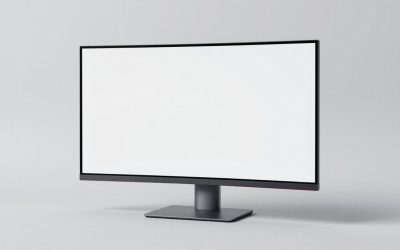
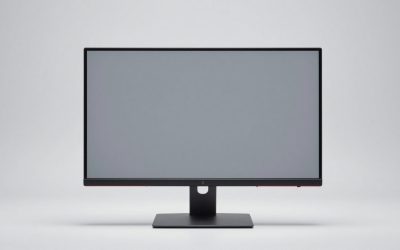
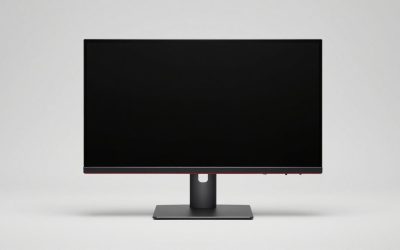
Two flat monitors placed side by side in a straight line look tidy but quietly strain your neck and eyes, because the outer edges of each screen sit farther from you than the center. The fix is angling, or toeing in, your monitors so both screens wrap gently around your seated position. Getting the angle right keeps the whole workspace at a consistent viewing distance and stops the constant micro-turns of your head.
As an Amazon Associate we earn from qualifying purchases at no extra cost to you.
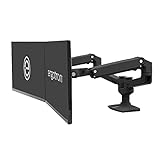


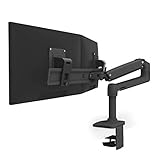
Our Top Picks


Top 3 picks at a glance
Quick answer: the best dual monitor angle
- You use one screen most: put it straight in front of you and angle the second screen inward by about 25 to 35 degrees, right beside it.
- You use both screens equally: center the seam between them on your nose and angle each screen inward by about 20 degrees, forming a shallow V.
- Always: keep both top edges level, at or slightly below eye level, at about arm’s length, with the inner bezels as close together as possible.
The sections below explain the geometry behind these numbers, how to set up stacked, portrait and ultrawide layouts, and which monitor arms make fine adjustment easy.
Why a slight inward angle matters
When you place two 27-inch monitors flat, the far edges can be 15 to 25 cm farther from your eyes than the near edges. Your eyes must refocus and your neck must swivel to read across that span. Angling each screen inward so they form a shallow arc keeps every part of both displays roughly equidistant, which is more comfortable and reduces the fatigue of long sessions.
| Use case | Primary screen | Second screen angle |
|---|---|---|
| One main + reference | Dead center in front of you | Angled about 25-35 deg toward you |
| Equal split (both used) | Seam centered on your nose | Each screen toed in ~20 deg |
| Gaming (one focus) | Center, straight ahead | Second at about 30-45 deg as a glance panel |
The geometry: finding your exact angle
The roughly 20 to 35 degree guideline works for most people, but it helps to understand where those numbers come from. The goal is simple: each screen should face your eyes as squarely as possible, so the text at its near and far edges sits at a similar distance and is not viewed at a skewed angle.
Equal-use setups
When you center the seam on your nose, the middle of each screen sits half a screen width to your left or right. A 27-inch 16:9 monitor is about 60 cm (23.5 inches) wide, so each screen’s center sits roughly 30 cm off to the side. At a typical viewing distance of 70 cm, turning each monitor inward by about 23 degrees points its center straight at your eyes. With 24-inch monitors at the same distance, the number drops to about 20 degrees; with 32-inch monitors viewed from 80 cm, it rises to about 24 degrees. That is why most guides land on “roughly 20 degrees each” for symmetrical setups.
Main-plus-secondary setups
When one screen sits straight ahead, the secondary screen’s center is a full screen width away from your midline. With two 27-inch monitors at 70 cm, pointing the secondary squarely at you would take about 40 degrees of toe-in. In practice, most people settle on 25 to 35 degrees, because the secondary is glanced at rather than read continuously. If the far edge of the secondary looks noticeably skewed or harder to read than the near edge, increase the angle a little at a time.
Quick reference table
| Monitor size (16:9) | Typical viewing distance | Equal split, each screen | Main + secondary, secondary only |
|---|---|---|---|
| 22 to 24 inch | 55 to 70 cm (22 to 28 in) | About 18 to 22 degrees | About 25 to 35 degrees |
| 27 inch | 65 to 80 cm (26 to 31 in) | About 20 to 25 degrees | About 25 to 40 degrees |
| 32 inch | 75 to 90 cm (30 to 35 in) | About 22 to 25 degrees | About 30 to 40 degrees |
| Mixed 27 main + 24 secondary | 65 to 80 cm | Not applicable | About 25 to 35 degrees |
These are starting points, not rules. Sit in your normal working posture, look at the far edge of each screen, and adjust until both edges feel equally easy to read without turning your head more than necessary.
A simple way to check the angle without a protractor
Sit in your normal position and hold a ruler or a phone pointing straight out from your nose toward the center of one screen. If the screen faces you squarely, the ruler meets the screen surface at a right angle. Another quick check is the reflection test: with the screen off, you should see your face roughly centered in the dark panel. If your reflection sits near one edge, the screen is turned away from you.
Positioning based on how you work
If one monitor is your main display and the second is for chat, reference or stats, put the main screen squarely in front of you and angle the secondary inward at about 25 to 35 degrees. If you use both screens equally, center the seam between them on your body and toe each one in by roughly 20 degrees so they mirror each other. Avoid making the second monitor a hard 90-degree wall; a gentle wrap is easier on the neck than a sharp corner.
Height and depth still count
Angle is only part of ergonomics. Match the top of both screens to eye level and keep them at the same height so you are not tilting your head between them. Monitor arms make this dramatically easier than desk stands, because you can push the outer screen back slightly and pivot it precisely, keeping both panels at an equal distance and height. Mismatched heights or a second screen sitting lower is a common cause of neck ache.
More dual monitor arms that make precise angling easy
The Ergotron arms listed above are long-standing favorites, but they are not the only way to get independent height, depth and angle control for each screen. These four alternatives cover a lower tier and different monitor sizes. Any of them makes the toe-in and height matching described in this guide far easier than fixed stands.
HUANUO FlowLift Dual Monitor Stand

The HUANUO FlowLift is one of the most popular gas-spring dual arms in the budget-to-mid-range tier, and it suits anyone who wants the same kind of fluid, one-hand adjustment that makes Ergotron arms pleasant to use. Each arm holds a 13 to 32 inch monitor weighing roughly 4.4 to 19.8 lb, with 75×75 or 100x100mm VESA mounting, and installs with either a C-clamp or a grommet base.
Listed adjustment ranges are generous: about 85 degrees of upward tilt and 50 degrees of downward tilt, 90 degrees of swivel at the head, 360-degree rotation for portrait use, and up to about 15.75 inches of height adjustment. Because the gas spring counterbalances the screen, you can push the outer edge of a monitor back and toe it in without loosening bolts, then fine-tune height so both top edges align.
Strengths: smooth gas-spring movement, wide monitor-size range, portrait rotation for a coding or document screen, and both mounting options in the box.
Drawbacks: the spring tension needs to be set correctly for your monitor’s weight, or the screen will drift up or down. Monitors near the lower weight limit can be hard to balance, and HUANUO’s newer Pro version uses a mechanical spring instead, so check which model a listing describes.
Compared with the Ergotron LX Dual, the FlowLift offers similar flexibility at a lower tier, with a bit less refinement in the joints. For most home dual-monitor desks, it is a sensible value choice.
VIVO Dual Monitor Desk Mount STAND-V002

VIVO’s STAND-V002 is a long-running budget pick: a steel and aluminum pole mount with two articulating arms. It does not have gas springs; instead, each arm is positioned and then locked, and both arms slide up and down a 17-inch center pole. VIVO rates it for two monitors from 13 to 30 inches, up to 22 lb each, with 75×75 or 100x100mm VESA, and it mounts by C-clamp or grommet on desks up to about 3.25 inches thick.
VIVO lists about 90 degrees of tilt in either direction, 180 degrees of swivel and 360-degree rotation, with around 16 inches of height travel on the pole and a maximum arm extension of about 16 inches. A useful detail for this guide: each VESA plate can shift up or down by about half an inch, which helps line up two monitors whose mounting holes sit at different heights. Quick-release VESA plates and cable clips along the arms and pole are included.
Strengths: a budget tier that still delivers independent angle and depth control, high weight capacity, and fine height alignment for mismatched monitors.
Drawbacks: adjustments are less fluid than with gas-spring arms, since you loosen and tighten joints rather than simply pushing the screen. It is better for “set it and forget it” users than for people who reposition screens several times a day, and it does not suit desks with beveled edges.
If your angles and heights will stay put once set, the VIVO gives you most of the ergonomic benefit for far less than premium arms.
MSI MAG MT101DG Gas Spring Dual Monitor Arm
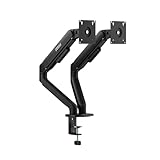
MSI’s MAG MT101DG is a gaming-branded gas-spring dual arm aimed squarely at larger screens. It supports monitors from 17 to 32 inches, flat or curved, at up to 22 lb per screen, with 75×75 or 100x100mm VESA and a quick-release plate.
Listed ranges include tilt from about minus 45 to plus 80 degrees, 180 degrees of swivel, 360-degree pivot for portrait mode, up to about 16.6 inches of height and up to about 18.7 inches of arm extension. The clamp fits desks about 10 to 75 mm thick, a grommet base is also included, and cables route along the arms. MSI backs it with a three-year warranty.
Strengths: the 22 lb rating and curved-screen support make it a good fit for heavier 27 and 32 inch gaming monitors, and the long reach lets you pull screens forward or push the outer edges back to set your toe-in precisely.
Drawbacks: 17 inches is the minimum screen size, so it will not suit small secondary panels, and like any gas-spring arm it needs tension tuning for each monitor. At about 10 lb, the arm itself is substantial, so a sturdy desk is advisable.
Compared with the Ergotron HX Dual, which targets up to 32-inch screens, the MSI is a mid-range alternative for heavy gaming monitors.
VIVO Freestanding Dual Monitor Stand with Glass Base (STAND-V002FG)

Not every desk can take a clamp. Glass tops, desks with a thick front lip, rented furniture and desks with drawers right at the back edge all rule out clamp and grommet arms. VIVO’s STAND-V002FG solves that with a tempered glass base that simply sits on the desk, carrying a 17-inch pole and two articulating arms.
VIVO rates the current version for two flat or curved monitors from 13 to 32 inches, up to 22 lb each, with 75×75 or 100x100mm VESA. The arms tilt about 90 degrees each way, swivel and rotate a full 360 degrees, and slide up and down the pole for height matching, so you can set the toe-in, tilt and height recommended in this guide. The arm span is listed at about 33 inches, with removable VESA plates and built-in cable management. Older listings rated it only for screens up to 27 inches, so check the listing details.
Strengths: no drilling or clamping, quick to move or reposition on the desk, and enough articulation for proper dual-monitor angles. The glass base also looks tidier than a bulky metal foot.
Drawbacks: a freestanding base takes up desk surface, and VIVO’s manual warns against pulling the monitors far forward or backward, since a weighted base cannot resist as much leverage as a clamp. Keep the screens close to the pole and do not overextend heavy 32-inch monitors.
It pairs naturally with the “freestanding dual base” row in the table below and is the simplest way to get adjustable angles on a desk that cannot take a clamp.
Dual monitor arm comparison
| Arm | Screen size | Load per arm | Mechanism | Portrait | Price tier | Best for |
|---|---|---|---|---|---|---|
| HUANUO FlowLift Dual | 13 to 32 in | 4.4 to 19.8 lb | Gas spring | Yes | Budget to mid-range | Value fluid adjustment |
| VIVO STAND-V002 | 13 to 30 in | Up to 22 lb | Pole with locking joints | Yes | Budget | Set-and-forget setups |
| MSI MAG MT101DG | 17 to 32 in | Up to 22 lb | Gas spring | Yes | Mid-range | Heavy or curved gaming monitors |
| VIVO STAND-V002FG | 13 to 32 in | Up to 22 lb | Freestanding glass base, pole | Yes | Budget to mid-range | Glass desks, no clamp edge |
| Ergotron LX/HX family (above) | Up to 27 or 32 in by model | Varies by model | Counterbalanced arm | Yes | Premium | Long-term daily repositioning |
Curved and mixed setups
Curved monitors already do some of the wrapping for you, so they need less toe-in. If you mix a curved main with a flat second, angle the flat one a bit more to match the curve’s effective distance. For a portrait-oriented second monitor (popular for coding and documents), keep its center at the same height as the main screen’s center and angle it in so its inner edge is comfortable to scan.
Step-by-step: setting your dual monitor angle
- Set your chair first. Adjust seat height so your feet rest flat and your forearms sit roughly level with the desk. Every other measurement depends on where your eyes end up.
- Decide your split. Be honest about how you work. If one screen gets most of your attention, use a main-plus-secondary layout; if you constantly switch between both, use an equal split.
- Center the right thing. In a main-plus-secondary layout, center the main screen on your keyboard and body. In an equal split, center the seam between the two screens.
- Set the distance. Start at roughly arm’s length, about 50 to 75 cm (20 to 30 inches) for 24 to 27 inch screens and a little more for 32 inch screens. Both screens should be about the same distance from your eyes.
- Set the height. Place the top edge of each screen at or slightly below eye level. Make both top edges level with each other, even if the monitors are different models.
- Toe in. Angle the screens using the table above as a starting point, then use the reflection or ruler check to confirm each screen faces you.
- Tilt slightly back. A backward tilt of about 10 to 20 degrees matches the natural downward gaze and reduces glare from ceiling lights.
- Close the gap. Bring the inner bezels as close together as your stand or arms allow, so your eyes travel the shortest distance between screens.
- Match the software. Arrange the displays in your operating system so the cursor crosses between screens at the same height as the physical screens.
- Live with it for a few days. Small tweaks after a few days of real use are normal. Change one thing at a time so you know what helped.
Stacked, portrait and ultrawide variations
Stacked vertically
Stacking saves desk width, which helps on narrow desks. The lower screen should be your main display, because looking up repeatedly strains the neck faster than looking down. Keep the lower screen as low as practical, tilt the upper screen downward toward your eyes, and use it for content you glance at occasionally, such as chat, a stream or a system monitor. Dual arms with a tall pole or a stacked-specific mount make this layout much easier.
One landscape plus one portrait
This is a favorite for programmers, writers and traders. Keep the landscape main screen centered, place the portrait screen beside it, and align the portrait screen’s center roughly with the main screen’s center rather than its top edge, otherwise the top of the portrait screen ends up far above eye level. Angle it inward so its inner edge sits comfortably in your peripheral view.
Ultrawide plus a second screen
An ultrawide already spans most of your field of view, so a second screen usually works best as a portrait panel to one side or a smaller screen above. Angle the side screen inward more steeply than you would with a 16:9 pair, because its center sits farther from your midline.
Mixed sizes
When pairing a 27-inch main with a 24-inch secondary, match the top edges or centers rather than the bottom edges, and bring the smaller screen slightly closer so its text appears a similar size. If the two have different resolutions or pixel densities, adjust scaling so text looks about the same size on both.
Match the displays in software
- Arrange the screens. In Windows display settings or the macOS Displays panel, drag the screen icons so their relative position and height match your desk. A mismatch makes the cursor jump unexpectedly between screens.
- Set the main display. Mark the screen in front of you as the main display so taskbars, menus and new windows open there.
- Equalize scaling. If one monitor has a higher pixel density, raise its scaling so text appears the same size on both.
- Match brightness and color temperature. Differences in brightness or white tone between two screens are surprisingly tiring. Match them using the monitor menus, and switch on night or warm modes on both at the same time.
- Use window snapping. Built-in snapping or a window manager keeps your main task on the main screen and reference material on the secondary, which reinforces good head position.
Dual monitor angles for gaming
Gaming adds a few twists. The game should run on the screen directly in front of you, centered on your body and keyboard, because that is where your eyes spend nearly all their time. The second screen becomes a glance panel for chat, guides, streams or a hardware monitor, and it can sit at a steeper angle of around 30 to 45 degrees since you only look over occasionally. Keep the main screen’s top edge at eye level or slightly below, and push it back far enough to see the whole image without moving your eyes to the corners, especially on 27 and 32 inch high-refresh panels. If you stream, a secondary screen angled toward you also keeps your face closer to a webcam mounted on the main monitor.
Common dual monitor angle mistakes
- Treating both screens as equal when they are not. Splitting the seam down the middle when one screen gets most of your attention forces a permanent head turn.
- A hard 90-degree corner. A second screen set perpendicular to the first requires a full head rotation to read and is uncomfortable for anything beyond occasional glances.
- Mismatched heights. Two different monitors on their stock stands rarely have matching top edges. Use arms, risers or VESA plate adjustments to level them.
- Screens too far apart. Wide gaps between bezels increase eye and head travel. Push the inner edges together.
- Screens too close. Pulling both screens very close makes the angle problem worse because the outer edges swing far out of your view.
- Ignoring glare. Facing a window or having one screen catch a lamp’s reflection makes you lean and twist. Place screens perpendicular to windows when possible.
- Forgetting the keyboard. If the keyboard sits off-center from the main screen, your shoulders twist all day. Center the keyboard and mouse on the screen you use most.
Stands, arms and freestanding bases compared
| Mounting option | Angle control | Height matching | Desk requirements | Best for |
|---|---|---|---|---|
| Stock monitor stands | Basic swivel, some tilt | Only if both have height adjustment | Uses desk depth | Identical monitors, simple setups |
| Freestanding dual base | Good | Good | No clamp needed, but heavy base uses space | Glass desks, rented spaces |
| Clamp or grommet pole mount | Good, set with locking joints | Good | Solid desk edge or grommet hole | Budget set-and-forget setups |
| Gas-spring or counterbalanced arms | Excellent, one-hand adjustment | Excellent | Solid desk edge, adequate thickness | Frequent repositioning, mixed monitors |
Special cases: laptops, standing desks and glasses
Laptop plus one external monitor
A laptop beside an external monitor is the most common dual-screen setup, and the hardest to get right because the laptop screen sits low. If the external monitor is your main screen, center it and treat the laptop as the secondary: raise it on a laptop stand so its top edge comes as close as possible to the monitor’s, angle it inward, and use an external keyboard and mouse. If the laptop is your main screen, raise it to eye level, center it, and angle the external monitor inward beside it. Placing the laptop directly below a monitor, stacked, also works well when the monitor is raised on an arm.
Standing desks
Your eye height changes far more between sitting and standing than your desk height does, so the screens can end up too low when standing. Monitor arms help, since you can raise both screens slightly when you stand. Keep the toe-in angle the same in both positions, but expect to tilt the screens back a little more when standing. Check that your cables have enough slack for the full desk travel, especially on dual arms where cables run along each arm.
Bifocals and progressive lenses
If you read through the lower part of your lenses, a screen at standard eye-level height forces you to tilt your head back. Lower both screens so their top edges sit a few centimeters below eye level and tilt them back more than usual. Keep both screens at the same height so you do not hunt for the right part of the lens when moving between them. Some people with progressives find that bringing screens slightly closer and lowering them makes a big difference.
Lighting and eye comfort with two screens
- Place screens perpendicular to windows. A window behind the screens causes squinting; a window behind you causes reflections. Side lighting is best.
- Use soft ambient light. Working in a dark room with two bright screens strains the eyes. A desk lamp aimed away from the screens or a monitor light bar reduces the contrast between the screens and the room.
- Match the screens. Similar brightness and color temperature on both monitors prevents your eyes from constantly readjusting when you look between them.
- Take regular breaks. The 20-20-20 habit, looking at something about 20 feet away for 20 seconds every 20 minutes, gives your focusing muscles a rest. Two screens tend to keep you at the desk longer, so breaks matter more.
- Remember to blink. Concentrated screen work reduces blink rate, which leads to dry eyes. Brief breaks and a comfortable room humidity help.
Signs your monitor angle or height needs adjusting
| Symptom | Likely cause | Fix |
|---|---|---|
| Neck ache on one side | Main screen off-center, or secondary used more than expected | Re-center the most-used screen or switch to an equal split |
| Stiff neck at the end of the day | Screens too high or too low | Set top edges at or just below eye level |
| Eyes tire when switching screens | Screens at different distances, brightness or text size | Equalize distance, brightness and scaling |
| Squinting at far edges | Not enough toe-in, or screens too close | Increase the inward angle and push screens slightly back |
| Shoulder tension | Keyboard off-center from main screen | Center keyboard and mouse on the main screen |
| Leaning forward to read | Screens too far away or text too small | Move screens closer or increase scaling |
How to measure your eye height for monitor placement
Getting the height right is just as important as the angle, and it only takes a tape measure. Sit in your chair with good posture, feet flat, and look straight ahead. Have someone measure, or use a mirror, from the floor to the level of your eyes; this is your seated eye height. Next, measure from the floor to the top surface of the desk. The difference between the two tells you how high above the desk your eyes sit, usually somewhere around 40 to 50 cm for adults at a standard-height desk.
Set the top edge of both monitors at that height or a few centimeters below it. On a monitor arm, adjust each screen until its top bezel lines up with the measurement; on stock stands, use the height adjustment or a sturdy riser. If you switch between sitting and standing, take both measurements and note the arm positions for each so you can return to them quickly.
Accessories that help dual monitor ergonomics
- Monitor arms: the biggest upgrade for angling, height matching and closing bezel gaps, as covered above.
- VESA adapters: some monitors lack standard VESA holes; adapter brackets let them mount on arms. Check compatibility with your monitor’s stand design before buying.
- Monitor risers: a simple shelf riser raises a non-adjustable monitor to match a taller one and adds storage underneath.
- Monitor light bars: these sit on top of a screen and light the desk without reflecting off the panel, which helps in dim rooms.
- A centered keyboard tray or larger desk mat: both encourage you to keep the keyboard aligned with your main screen instead of drifting off-center.
- Cable management: clips along the arms and a tray under the desk keep cables from restricting arm movement, so you can adjust the angle freely.
FAQ
Should dual monitors be angled or flat?
Angled. An inward toe-in of about 20 degrees per screen for an equal split, or 25 to 35 degrees for a secondary screen, keeps both screens at a consistent distance from your eyes and reduces neck rotation. Perfectly flat side-by-side monitors push the outer edges farther away and force more head movement over a long session.
Where should the gap between two monitors go?
If you use one screen mostly, put that screen directly in front of you and the gap off to the side. If you use both equally, center the gap on your body so neither screen forces a permanent head turn. Your dominant task should always be the one you face straight on.
What is the best angle for two 27-inch monitors?
For equal use, angle each 27-inch screen inward by roughly 20 to 25 degrees with the seam centered on your body. For a main-plus-secondary layout, keep the main screen straight ahead and angle the secondary around 25 to 35 degrees, increasing it if the far edge looks skewed.
How far should dual monitors be from my eyes?
Start at about arm’s length, roughly 50 to 75 cm (20 to 30 inches) for 24 to 27 inch monitors, and a little farther for 32-inch screens. Both monitors should be about the same distance from your eyes, which is exactly what angling them inward achieves.
Which side should the second monitor go on?
There is no single right answer. Many people place it on the side of their mouse hand so dragging windows feels natural, while others prefer the side of their dominant eye. Try both for a few days and keep the one that feels easier on your neck.
Should both monitors be the same height if they are different sizes?
Yes, align the top edges or the centers rather than the bottoms. Matching tops keeps your gaze level when you move between screens. With a portrait secondary monitor, align centers so the top of the portrait screen does not tower above eye level.
Do I need monitor arms to angle dual monitors correctly?
Not strictly. Many stock stands swivel enough for a moderate toe-in. Arms make it much easier to match heights, push the outer edges back, close the gap between bezels and fine-tune each screen independently, especially with two different monitor models.
Is a stacked dual monitor setup bad for your neck?
It can be if the upper screen is used constantly, because looking up strains the neck. Keep the lower screen as your main display, set it fairly low, tilt the upper screen down toward you, and reserve it for occasional glances.
How much space should be between two monitors?
As little as possible. Push the inner bezels together so they touch or nearly touch. Every centimeter of gap adds eye and head travel, and a large gap tempts you to angle the screens more sharply to compensate. Dual arms and stands with a short center span make this easier than two separate stock stands.
Should I tilt my monitors back?
A slight backward tilt of about 10 to 20 degrees suits most people, because the natural line of sight angles a little downward. Tilt also helps deflect reflections from ceiling lights. If you wear progressive lenses, a little extra tilt combined with a lower screen height usually feels better.
How long does it take to get used to a new monitor angle?
Usually a few days. A new layout can feel strange at first even when it is ergonomically better, simply because your body is used to the old one. Give a change several working days before judging it, and adjust one variable at a time, such as angle, height or distance, so you can tell what actually helps.
Bottom line
Wrap your dual monitors into a shallow arc: main screen in front, secondary toed in about 25 to 35 degrees, both at equal height with tops near eye level. Use arms to fine-tune depth and pivot, place the gap according to which screen you use most, and your neck and eyes will thank you across every long session.
Related guides
- Best Cheap Tablets for Kids: Eight Listings Sorted by Age, Controls and Storage: 8 Compared (2026)
- Best Ultrawide Gaming Monitors: Six Screens Sized Against Real Desks: 6 Compared (2026)
- Best Game Room Neon Lights: Ten Signs and Icon Lamps Compared: 10 Compared (2026)
- 10 Best 75% Hot-Swappable Mechanical Keyboards (October 2026)