Upgrading a computer setup usually starts with the peripherals you touch every day: the controller or mouse in your hand, the surface under it, the headset on your ears and the shortcuts that speed up your work. In 2026, the market is crowded with look-alike accessories, so separating a genuinely useful tool from a cheap throwaway takes more than reading a spec sheet.
What separates a good purchase from a bad one in this category is not always obvious. A gaming mouse, a macro pad and a wireless headset can all promise better performance, yet the real differences show up in comfort, compatibility and how often you actually reach for them. This guide compares established picks on the specs that matter and explains where each one fits best.
As an Amazon Associate we earn from qualifying purchases at no extra cost to you.



Our Top Picks
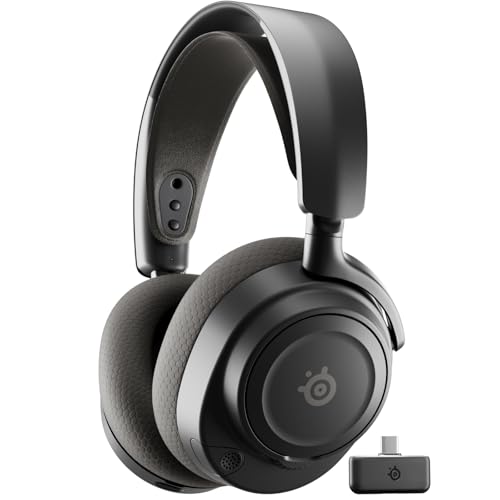 SteelSeries Arctis Nova 7 Wireless Gen 2 GamingInformation Not Available3.41 x 6.6 x 7.58 inches0.72 poundsCheck on Amazon

Top 3 picks at a glance
Quick Picks
| Product | Best for | Price tier |
|---|---|---|
| Xbox Wireless Controller | PC and console gaming with native Windows support | Mid-range |
| Logitech G502 HERO | Customizable gaming and productivity mouse | Mid-range |
| Elgato Stream Deck MK.2 | Streamers and shortcut-heavy workflows | Premium |
| Razer Gigantus V2 XXL | Full-desk keyboard and mouse coverage | Budget |
| SteelSeries Arctis Nova 7 Wireless Gen 2 | Wireless multi-platform audio | Premium |
How We Compared
We evaluated each item on four criteria: whether the product performs its stated function without requiring a workaround, how broadly it is compatible with existing systems or standards, whether its price matches its real-world durability and output quality, and how clearly a buyer can confirm it suits their specific task before purchasing. Anything that failed on compatibility or demanded a workaround beyond its listed specs was flagged accordingly.
Our 5 Top Computer Accessories and Peripherals
Xbox Wireless Controller
Microsoft’s own controller is the safest choice for PC gaming because Windows supports it natively, with no extra drivers to install, and most PC games show Xbox button prompts by default. The current Series X|S design adds textured grips on the triggers and back, a hybrid D-pad that handles both precise taps and diagonal inputs, and a dedicated Share button for screenshots and clips. It connects over Bluetooth to PCs, phones and tablets, over Xbox Wireless to Xbox Series X|S and Xbox One consoles, or by USB-C cable for wired play, and it includes a 3.5mm jack for a headset.
- Native Windows support and broad device compatibility
- Hybrid D-pad and textured grips
- Runs on AA batteries unless you add a rechargeable pack
When to skip: skip it if you want back paddles or adjustable trigger stops; those features need an Elite-style controller.
Logitech G502 HERO Wired Gaming Mouse
The G502 HERO has been one of the most popular gaming mice for years because it suits both games and productivity. Logitech’s HERO 25K sensor tracks from 100 up to 25,600 DPI, and the mouse offers 11 programmable buttons, including a sniper button under the thumb and DPI shift buttons beside the left click. Five removable 3.6-gram weights let you tune its heft and balance, and the metal scroll wheel switches between notched scrolling and free spinning for long documents. Profiles save to onboard memory, so your settings follow the mouse to another PC.
- Precise HERO 25K sensor
- 11 programmable buttons and adjustable weights
- Heavy, right-handed shape does not suit every grip
When to skip: skip it if you prefer a lightweight wireless mouse for fast competitive shooters.
Elgato Stream Deck MK.2
The Stream Deck MK.2 puts 15 customizable LCD keys on your desk, each showing its own icon so you can see what it does at a glance. Through Elgato’s free software, a single press can switch OBS scenes, mute a microphone in Discord, launch apps, control music playback or run a multi-action sequence that strings several commands together. Folders and profiles extend the 15 keys into many more actions, and profiles can switch automatically when a specific app is in focus. The MK.2 adds a detachable USB-C cable, an adjustable stand and swappable faceplates, and it works on Windows and macOS.
- 15 LCD keys with custom icons
- Deep integration with streaming and productivity apps
- Needs the Elgato software running in the background
When to skip: skip it if you only need a couple of shortcuts; a mouse with programmable side buttons may be enough.
Razer Gigantus V2 Cloth Gaming Mouse Pad (XXL)
A large desk pad is one of the simplest upgrades for a gaming setup, and the Gigantus V2 XXL covers enough space for a full-size keyboard and a wide mouse swipe. The XXL size measures roughly 940 by 410 millimeters, and its thick foam layer smooths over small desk imperfections while adding some wrist comfort. The micro-textured cloth surface balances speed and control and works with optical and laser sensors, while the textured rubber base keeps the pad from sliding during quick flicks. It pairs well with a low-sensitivity setup on a mouse like the G502 HERO.
- Huge surface for keyboard and mouse
- Thick foam cushioning and non-slip base
- Cloth absorbs spills and needs occasional cleaning
When to skip: skip it if your desk is shallow or you prefer a hard, faster-gliding mouse surface.
SteelSeries Arctis Nova 7 Wireless Gen 2
The Arctis Nova 7 Wireless Gen 2 is a comfortable multi-platform headset that can connect over its 2.4GHz USB-C dongle and Bluetooth at the same time, so you can hear game audio and a phone call together. SteelSeries rates the battery at up to 54 hours on 2.4GHz and about 42 hours on Bluetooth, and a 15-minute charge adds around six hours of use. It uses 40mm neodymium drivers, a retractable ClearCast Gen 2 microphone and an adjustable elastic headband for long sessions. The dongle works with PC, PlayStation, Switch, Mac and mobile devices, and a USB-A adapter is included.
- Simultaneous 2.4GHz and Bluetooth audio
- Long battery life with fast charging
- No active noise cancellation; Xbox needs the separate Xbox version
When to skip: skip it if you want active noise cancellation or premium leather ear cushions.
Core Computer Peripherals Worth Adding to Your Desk
Most people searching for computer accessories want the everyday peripherals that make a PC or laptop more comfortable and capable: a better keyboard, a webcam for calls, a hub for extra ports, desk lighting, a microphone and a mouse that does not strain the wrist. The six picks below cover those categories with established, widely available products, and each one solves a specific problem on a gaming or work desk.
Logitech G413 SE Full-Size Mechanical Gaming Keyboard

The G413 SE is a sensible first mechanical keyboard for anyone moving up from a membrane board. It is a full-size, 104-key wired keyboard with tactile mechanical switches, so each keystroke has a small bump at the actuation point that confirms the press without the loud click of blue-style switches. That feedback works well for both fast gaming inputs and long typing sessions.
Build quality is the main reason it stands out in the mid-range. The top case is brushed aluminum alloy rather than plastic, which keeps the board rigid and resistant to flex, and the keycaps are PBT, a plastic that resists the shiny wear marks that ABS keycaps develop after months of use. Lighting is per-key white backlighting rather than RGB, which keeps the look restrained for an office or a minimalist setup. Function-key shortcuts control volume, playback, mute, lighting and a Windows-key lock, and the keyboard uses 6-key rollover with anti-ghosting for gaming.
Who it is for: PC gamers and typists who want durable mechanical switches and a full number pad without paying for wireless or RGB extras.
Strengths: aluminum top case, durable PBT keycaps, tactile switches that suit gaming and typing, and a clean white backlight.
Drawbacks: the switches are not hot-swappable, there is no dedicated volume wheel or wrist rest, and the cable is fixed. Players who want RGB lighting or a compact layout should look at a tenkeyless or 65 percent board instead.
How it fits: it pairs naturally with a gaming mouse and a large cloth mouse pad, giving a complete input setup at a mid-range cost.
Logitech Brio 101 Full HD 1080p Webcam

Built-in laptop cameras remain mediocre, and most desktop monitors have no camera at all, so a simple 1080p webcam is one of the most practical upgrades on this list. The Brio 101 records 1080p at 30 frames per second through a 2-megapixel sensor with a fixed-focus glass lens and a 58.9-degree diagonal field of view, which frames one person at a desk without showing the whole room.
Logitech’s RightLight 2 auto light balance brightens the image in dim rooms, which helps in the typical gaming setup lit by a monitor and a lamp. A built-in mono microphone covers short-range calls, and an integrated privacy shutter slides over the lens when the camera is not in use. It connects by an attached USB-A cable and works with Teams, Zoom, Google Meet and the GameChat feature on Nintendo Switch 2, with optional adjustments in the Logi Options+ app.
Who it is for: remote workers, students and casual streamers who need a clear, plug-and-play camera without paying for 4K or autofocus.
Strengths: clean 1080p image, effective low-light correction, physical privacy shutter, and no driver installation needed.
Drawbacks: 30fps only, no autofocus or HDR, no tripod thread, and a basic microphone that is no substitute for a dedicated mic.
How it fits: it sits at the budget end of the category and works well alongside a USB microphone such as the FIFINE AM8 below for better call and stream audio.
Anker 7-in-1 USB-C Hub with Dual HDMI

Thin laptops often ship with two or three USB-C ports and nothing else, which makes a hub essential for connecting a monitor, keyboard, mouse and webcam at the same time. This Anker hub (model A8374) turns one USB-C port into seven connections: two HDMI outputs, a 100W USB-C power delivery input, a 10Gbps USB-A port for fast drives, and three standard USB-A ports for peripherals such as a keyboard, mouse and webcam.
The dual HDMI outputs let a Windows laptop extend its desktop across two external monitors at 1080p and 60Hz, or mirror the same image to both. Pass-through charging delivers up to 85W to the laptop when a suitable USB-C charger is connected, so the laptop stays powered while docked. Anker notes it works with USB-C, USB4 and Thunderbolt host ports.
Who it is for: laptop users who want a desk setup with two monitors and wired peripherals through a single cable.
Strengths: two HDMI outputs at a budget price, a fast 10Gbps data port, and laptop charging pass-through.
Drawbacks: macOS does not support extended dual displays over this kind of hub, so Mac users get mirrored screens only. Dual-monitor output tops out at 1080p, there is no Ethernet or card reader, and the charger is sold separately.
How it fits: a simple adapter only fixes a single port mismatch, while a hub turns a laptop into a full desktop workstation.
Quntis Monitor Light Bar with Remote

A monitor light bar is one of the cheapest ways to make a desk more comfortable for evening sessions. The Quntis bar clips onto the top of a monitor and uses a 45-degree asymmetric optical design to aim light down onto the keyboard and desk rather than onto the screen or into the user’s eyes, so it lights the workspace without screen glare.
Brightness and color temperature are both stepless: color runs from a warm 3000K to a cool 6500K, and brightness can be set across a wide range, with an auto-dimming mode as well. The wireless remote sits on the desk for quick changes and includes a two-hour timer. The body is aluminum, and the LEDs are rated flicker-free with no blue-light hazard classification.
Who it is for: gamers and remote workers who use their PC at night and want even desk lighting without a lamp taking up space.
Strengths: glare-free asymmetric beam, warm-to-cool color control, a convenient wireless remote, and zero desk footprint.
Drawbacks: the clamp suits most flat monitors, but very thin bezels or heavily curved ultrawides may need a model designed for curved screens. It needs a USB port for power, so plan for one on the monitor, PC or hub.
How it fits: combined with the Brio 101’s low-light correction, it noticeably improves how you look on camera in a dark room, at a mid-range cost.
FIFINE AmpliGame AM8 USB/XLR Dynamic Microphone

Headset microphones and webcam mics pick up keyboard clatter and room echo. The FIFINE AM8 is a dynamic cardioid microphone, which means it captures sound mainly from the front and rejects much of the noise around it, a useful trait in untreated bedrooms and gaming rooms. It connects over USB-C for plug-and-play use with a PC or PS5, and also offers an XLR output so it can move to an audio interface later.
In USB mode, the mic adds a 3.5mm headphone jack for zero-latency monitoring, a gain knob, a headphone volume control and a tap-to-mute button with an LED indicator. RGB accent lighting has several modes and colors. The frequency response is listed at 50Hz to 16kHz with 16-bit, 48kHz sampling, and the mic has standard 3/8-inch and 5/8-inch threads for boom arms. A desk stand, windscreen and USB cable are included; an XLR cable is not.
Who it is for: streamers, Discord regulars and remote workers who want clearer voice than a headset mic provides.
Strengths: dynamic capsule that tolerates noisy rooms, USB and XLR flexibility, and a hardware mute.
Drawbacks: the onboard gain, monitoring and mute controls only work over USB. A dynamic mic must sit close to the mouth for best results, so a boom arm is a worthwhile add-on.
How it fits: it is the audio half of a budget streaming setup with the Brio 101, and a mid-range-priced upgrade that outlasts most headset mics.
UGREEN Ergonomic Vertical Wireless Mouse

Long hours at a desk can cause wrist and forearm discomfort with a flat mouse. The UGREEN vertical mouse tilts the hand to a 57-degree angle, closer to a handshake position, which keeps the forearm in a more neutral posture. A thumb rest supports the hand, and the clicks and scroll wheel are designed to be near-silent for shared rooms and late-night work.
It connects through a 2.4GHz USB receiver or Bluetooth and can pair with up to three devices, switching between a desktop, laptop and tablet. Sensitivity steps through 1000, 1600, 2000 and 4000 DPI. Depending on the version, it runs on a single AA battery or a newer Bluetooth 5.4 revision, so check the listing details before buying.
Who it is for: office workers and casual gamers who spend long sessions on productivity tasks and want a more comfortable grip at a budget price.
Strengths: ergonomic vertical angle, multi-device pairing, quiet buttons and a low entry cost.
Drawbacks: right-handed only, a learning curve of a few days, and not suited to fast competitive gaming, where a conventional gaming mouse is more precise.
How it fits: many users keep a vertical mouse for work and switch to a gaming mouse for play; both can stay connected through the Anker hub’s USB ports.
Buying Guide
Match the Port or Protocol to Your Actual Devices
Before buying any adapter or interface product, inventory the physical ports on both ends of the connection you plan to make. A 10Gbps adapter means nothing if the source port is USB 2.0, and a 240W charging spec is irrelevant if your charger maxes out at 65W. Check your devices’ native specifications first, then buy hardware rated at or above that ceiling, not at the theoretical maximum listed on the product page.
Confirm Compatibility Before Assuming a Universal Standard
Terms like “universal” and “works with all” require verification against your specific equipment. A wireless headset may need a separate version for Xbox, a USB-C hub may mirror rather than extend displays on a Mac, and macro software may not support every operating system. Check the maker’s compatibility list for your exact model before purchasing, not just the product family.
Prioritize the Upgrades That Fix Daily Friction
The best peripheral purchase is the one that removes a problem you hit every day. A practical order for most desks looks like this:
- Input devices first. You touch the keyboard and mouse for every minute at the computer, so a comfortable, reliable pair delivers the most value per tier spent.
- Ports and connectivity. If you unplug and replug devices daily, a hub or dock that connects everything with one cable saves time and wear on laptop ports.
- Lighting and ergonomics. A monitor light bar, monitor at eye height and a vertical or ergonomic mouse reduce eye and wrist strain during long sessions.
- Communication gear. A webcam and microphone matter most for remote work, streaming and voice chat; casual users can rely on a headset mic.
Wired, 2.4GHz or Bluetooth?
Connection type affects latency, battery upkeep and how many devices a peripheral can serve:
- Wired USB: no batteries, no pairing and the lowest latency. Best for gaming keyboards, microphones and webcams that stay on one desk.
- 2.4GHz receiver: near-wired responsiveness with a tiny USB dongle. Best for wireless gaming mice and headsets, but it uses a USB port.
- Bluetooth: no dongle and easy switching between laptop, tablet and phone. Latency is higher, which matters little for office work but can be felt in fast games.
Comparison Table: Core Peripheral Picks
| Product | Category | Best for | Connection | Key feature | Price tier |
|---|---|---|---|---|---|
| Logitech G413 SE | Mechanical keyboard | Gaming and typing | Wired USB | Aluminum top, PBT keycaps, tactile switches | Mid-range |
| Logitech Brio 101 | Webcam | Calls and casual streaming | Wired USB-A | 1080p30, RightLight 2, privacy shutter | Budget |
| Anker 7-in-1 USB-C Hub | Hub / dock | Laptop desk setups | USB-C host | Dual HDMI, 85W pass-through | Budget |
| Quntis Monitor Light Bar | Desk lighting | Night sessions | USB power, wireless remote | Asymmetric glare-free beam, 3000K to 6500K | Mid-range |
| FIFINE AmpliGame AM8 | Microphone | Streaming and voice chat | USB-C and XLR | Dynamic cardioid capsule, tap-to-mute | Mid-range |
| UGREEN Vertical Mouse | Ergonomic mouse | Long work sessions | 2.4GHz and Bluetooth | 57-degree grip, 3-device pairing | Budget |
Setup Tips for a Better Peripheral Desk
- Set monitor height first. The top of the screen should sit at or slightly below eye level. Place the light bar after the monitor is positioned so the beam lands on the keyboard.
- Keep the keyboard and mouse at elbow height. Your forearms should be roughly parallel to the desk. A keyboard tray or a lower desk often helps more than a wrist rest.
- Mount the webcam at eye level. Clipping it to the top center of the monitor gives a natural angle; avoid placing a laptop camera low and looking up.
- Bring the microphone close. Dynamic mics like the AM8 work best a few centimeters from the mouth, angled slightly off-axis to reduce breath noise. A boom arm frees desk space.
- Plug high-bandwidth devices into fast ports. Use 10Gbps or USB 3 ports for external drives and capture devices, and leave slower USB 2.0 ports for keyboards, mice and light bars.
- Manage cables in one run. Route all cables to a single hub or dock behind the monitor, then bundle them with Velcro straps to the desk leg. This makes swapping peripherals painless.
- Update firmware and apps. Webcam, mouse and hub firmware updates can fix compatibility issues; check the maker’s utility occasionally rather than waiting for problems.
Peripheral Combinations by Use Case
Peripherals work best as a set. Rather than buying items one at a time, match the combination to how you actually use the computer.
The Gaming Desk
A gaming setup centers on input speed and comfort over long sessions. Pair a mechanical keyboard such as the Logitech G413 SE with a wired or 2.4GHz gaming mouse and a large cloth mouse pad that gives the mouse room for low-sensitivity aiming. Add a monitor light bar for late-night sessions so you are not gaming in a dark room facing a bright screen. A headset covers voice chat, and a dedicated microphone becomes worthwhile once you start streaming or recording.
The Laptop Workstation
Laptop users gain the most from connectivity. A USB-C hub like the Anker 7-in-1 lets a single cable carry power, two monitors, a keyboard, a mouse and a webcam, so the laptop goes from portable to full desktop in seconds. Add an ergonomic mouse such as the UGREEN vertical model for long workdays and a laptop stand to raise the built-in screen to eye height if you only use one external display.
The Streaming and Remote Work Corner
For calls and streaming, the camera, microphone and light matter more than raw computing power. The Brio 101 webcam, FIFINE AM8 microphone and Quntis light bar together cover image, voice and lighting at a combined cost that stays in the mid-range. Position the light so it illuminates your face from slightly above, mount the camera at eye level and keep the microphone close. A macro pad or stream controller then becomes a useful extra for scene switching and muting.
The Budget Starter Setup
On a tight budget, focus on one comfortable input device, a webcam if you take calls, and a hub only if your laptop lacks ports. A budget vertical mouse, a basic 1080p webcam and a simple USB-C hub cover most needs, and you can add a mechanical keyboard and microphone later without replacing anything.
Common Peripheral Buying Mistakes
- Buying for theoretical specs. A 4K webcam is wasted on a slow connection, and 40Gbps adapters do nothing on a USB 2.0 port. Buy to the real capability of your system.
- Ignoring the operating system. Some features, such as dual extended displays through a hub or vendor configuration apps, work differently on macOS, Windows and Linux. Check support for your OS before buying.
- Overlooking port budgets. Every wired peripheral and wireless receiver uses a port. Count them before buying, and plan a hub if you run out.
- Skipping ergonomics. Many people upgrade the keyboard and mouse but leave the monitor too low and the chair too high. Small posture fixes often deliver more comfort than any accessory.
- Mixing too many software utilities. Each brand’s app runs in the background. Where possible, choose peripherals that work without software or consolidate on fewer ecosystems.
Our Verdict
Top pick: the Xbox Wireless Controller is the easiest all-round upgrade, with native Windows support, Bluetooth and wired USB-C connections, and a comfortable layout that works across PC, console and mobile. For mouse-driven games and work, the Logitech G502 HERO adds a precise sensor and 11 programmable buttons, and the Razer Gigantus V2 XXL gives it room to move. Streamers get the most from the Elgato Stream Deck MK.2, while the SteelSeries Arctis Nova 7 Wireless Gen 2 suits long sessions with wireless audio from a PC and phone at once.
FAQ
Can I use USB-C to Type-A adapters for external GPU enclosures?
Adapters rated for 40Gbps can pass data, but eGPU performance depends on the host controller’s Thunderbolt or USB4 support, not just the adapter’s bandwidth rating. Check your laptop’s firmware and controller specifications before assuming any adapter will deliver expected GPU throughput.
Which computer accessory should I buy first?
Start with the peripheral you use most and that currently causes the most frustration. For most people that is the keyboard or mouse. Laptop users who constantly reconnect cables benefit more from a USB-C hub, and anyone on frequent video calls should prioritize a webcam and microphone.
Is a mechanical keyboard worth it for office work?
For many people, yes. Mechanical switches offer consistent feedback and typically outlast membrane keyboards, and durable PBT keycaps keep their texture for years. Tactile switches, like those on the Logitech G413 SE, suit typing well without the noise of clicky switches. If you work in a shared space, consider quieter linear or tactile options.
Do I need a separate microphone if my webcam has one?
Not for casual calls. Built-in webcam mics are fine for short meetings, but they sit far from your mouth and pick up room echo and keyboard noise. A dedicated USB microphone, especially a dynamic model, produces clearer voice for streaming, podcasts and long voice-chat sessions.
Will a USB-C hub run two monitors on a MacBook?
Usually not in extended mode. Standard MacBook Air and base MacBook Pro models do not support Multi-Stream Transport over a single USB-C hub, so two HDMI monitors connected through a hub like the Anker 7-in-1 will mirror the same image. Mac users who need two independent displays generally need a DisplayLink dock or a Mac with native multi-display support.
Are vertical mice good for gaming?
They are comfortable for productivity but less precise for fast-paced games. Vertical mice reduce forearm twisting, which helps during long work sessions, but most competitive players prefer a conventional gaming mouse with a high-precision sensor. Many people keep one of each.
Does a monitor light bar reduce eye strain?
It can help. Working in a dark room with a bright screen forces the eyes to adjust constantly between screen and surroundings. A light bar adds even, glare-free light to the desk area, reducing that contrast. Choosing a warmer color temperature in the evening also makes the light feel more comfortable.